V16 Training · Warehouse in Depth · Lesson 4 of 6
Product bundles and kits
This lesson shows how to sell several items as one kit: make a non-stock kit item, build the product bundle, add the kit to a sales document, and see how stock is counted on the parts.
Written guide
The idea
A customer wants plank, underlay and trim. A product bundle lets your team sell them as one line, with one price, while the stock stays on the three real items. The screens use example data from a demo company that sells flooring.
Step by step
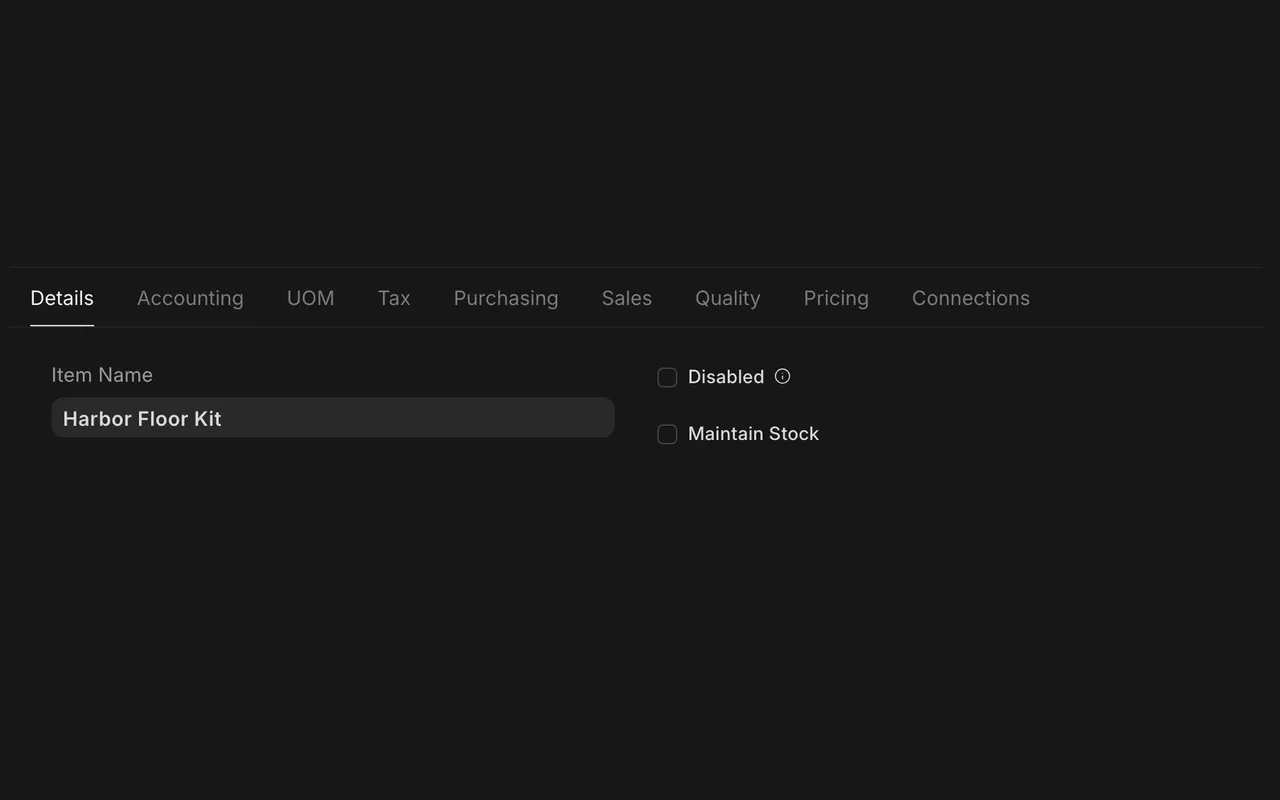
Step 1. Create the kit item
- Open the item (here the Harbor Floor Kit). Maintain Stock is not ticked, so the kit holds no stock itself.
Step 2. Build the bundle
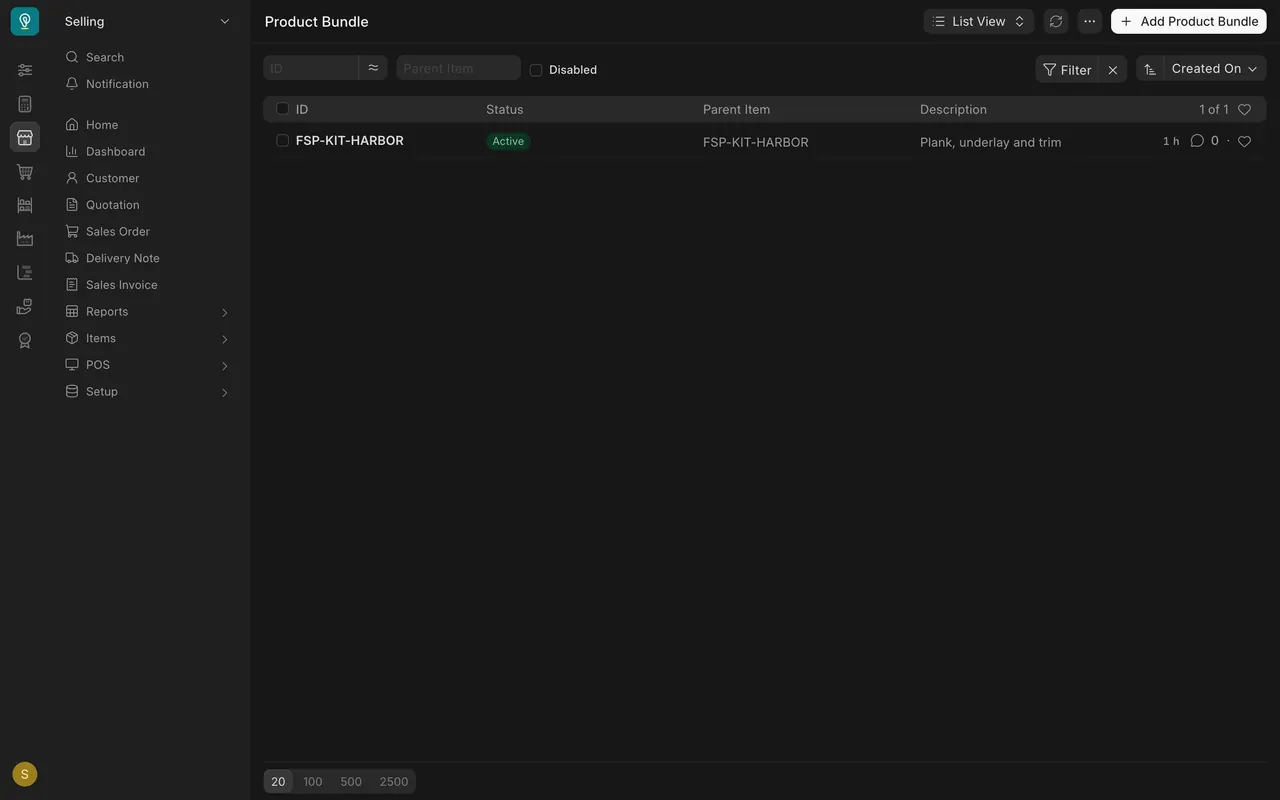
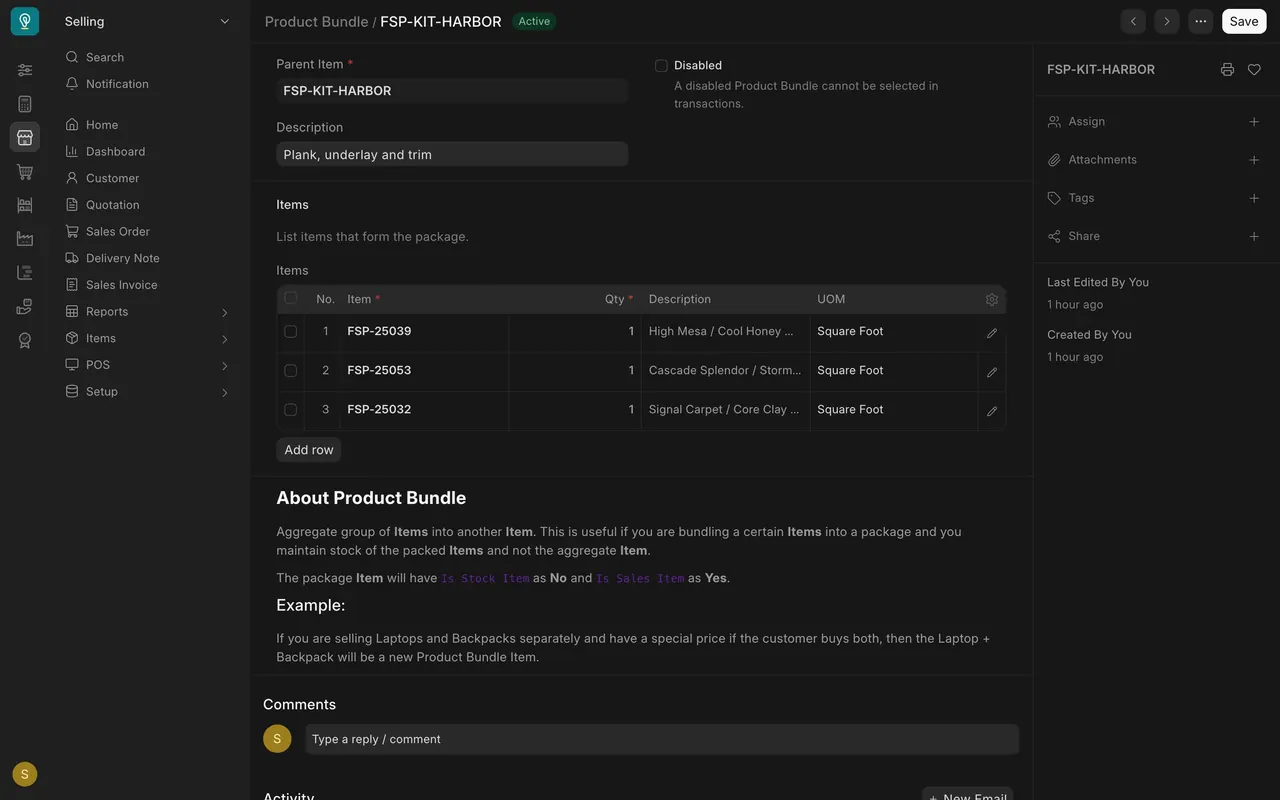
- Open the Product Bundle list and open the bundle.
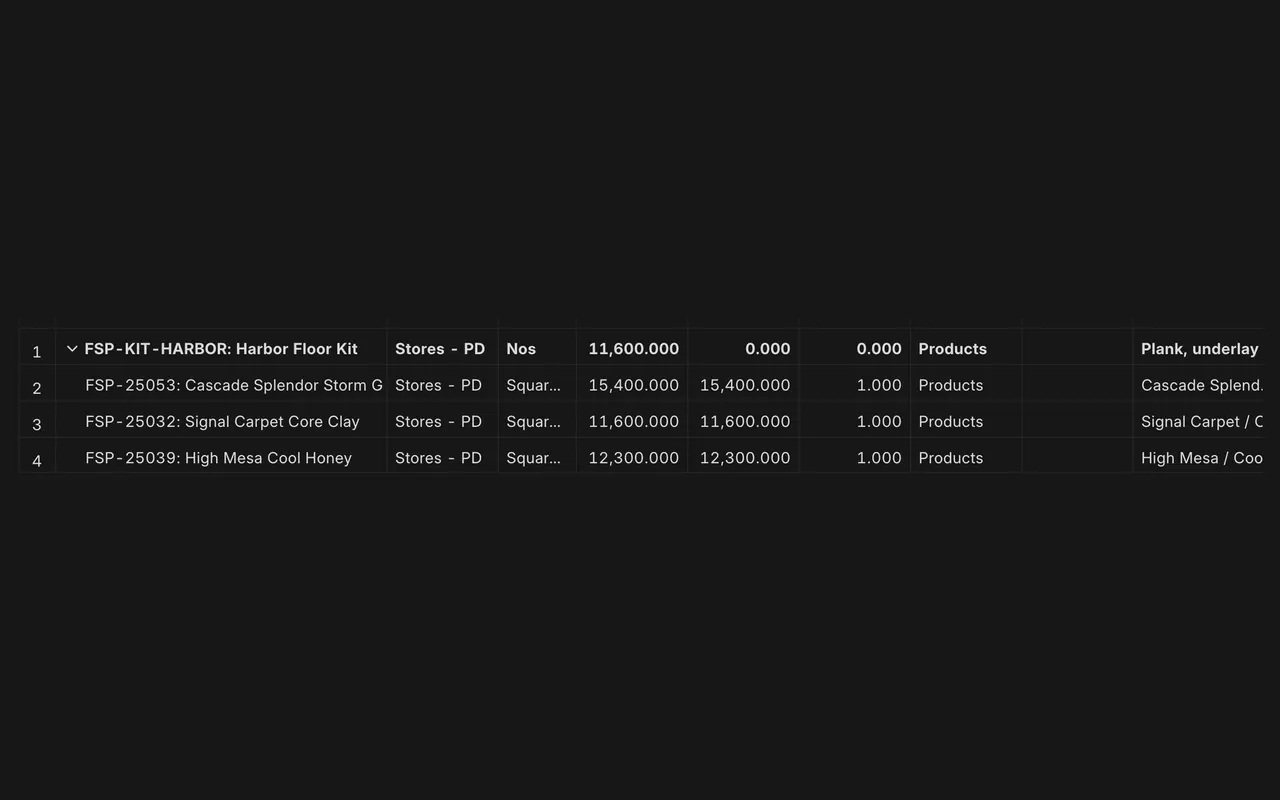
- Parent Item is the kit. The Items table lists the parts and the quantity of each in one kit. The form's note says the package item is not a stock item and is a sales item.
Step 3. Sell the kit
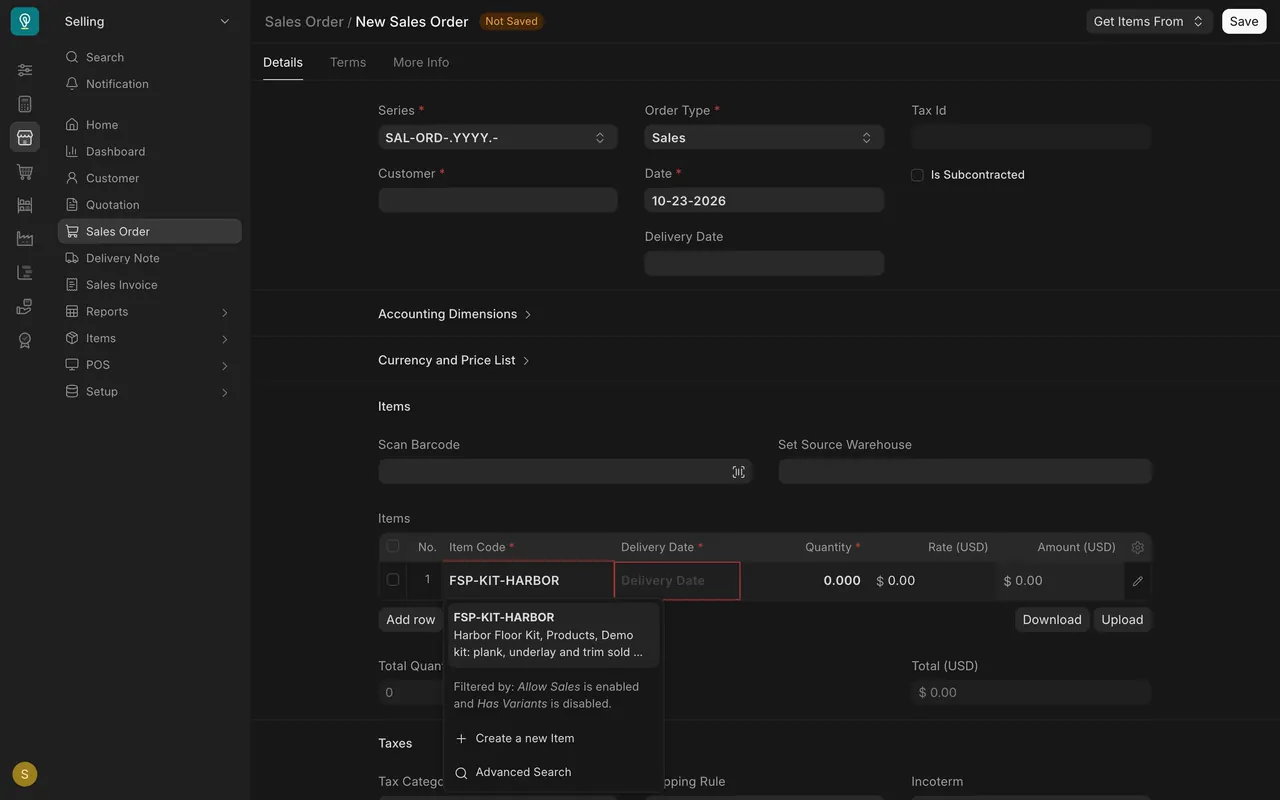
- On a new Sales Order or Quotation, type the kit in Item Code. It is offered because it is allowed for sales.
- After you save, a Packed Items table lists the parts, scaled to the quantity sold. (This is taught from the product; the training film never saves, so it is shown as a diagram.)
Step 4. Watch the stock
- Stock comes off the parts, not the kit.
- The Product Bundle Balance report shows the kit with zero actual quantity and its bundle quantity, which is the smallest part.
What you may see on your own site
- Your kits, parts and quantities are your own.
- The kit item must not hold stock.
Common mistakes
- Ticking Maintain Stock on the kit item. Count the parts, never the kit.
- Forgetting a part in the bundle. The missing part is never taken from stock.
- Expecting packed items before you save. They appear after the document is saved.
Check yourself
3 quick questions.
1. Should the kit item itself hold stock?
2. Where does stock come off when a kit is delivered?
3. How many whole kits can you ship if the parts hold 15,400, 11,600 and 12,300 and each kit needs one of each?