V16 Training · Warehouse in Depth · Lesson 3 of 6
Delivery trips
This lesson shows how a delivery trip groups delivery notes onto one driver and one vehicle: the driver record, the vehicle record, building stops from delivery notes, and checking the stops and departure time.
Written guide
The idea
A delivery trip is the plan for one run. It names a driver and a vehicle, a departure time, and a list of stops, each tied to a delivery note.
The screens use example data from a demo company that sells flooring.
Step by step
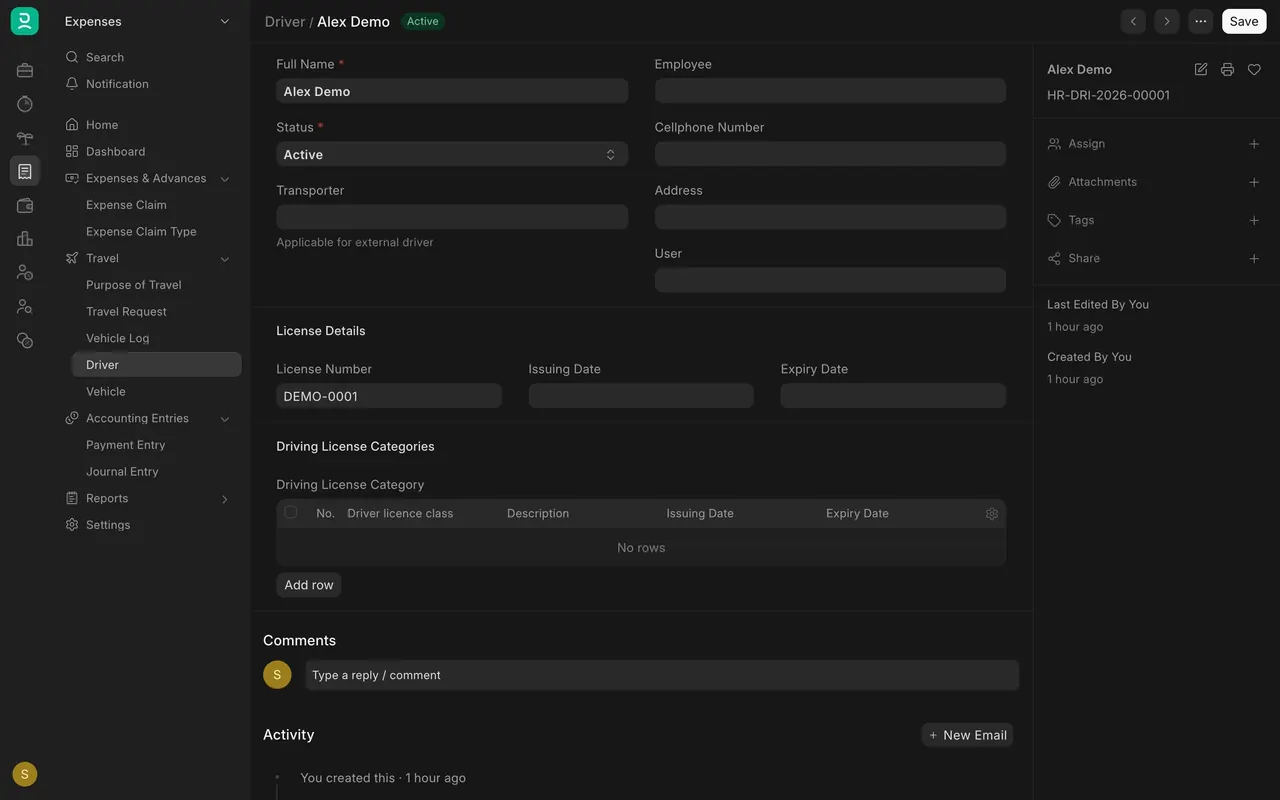
Step 1. Add a driver
- Open a Driver record. It holds Full Name, Status and License Number. Here: Alex Demo, Active.
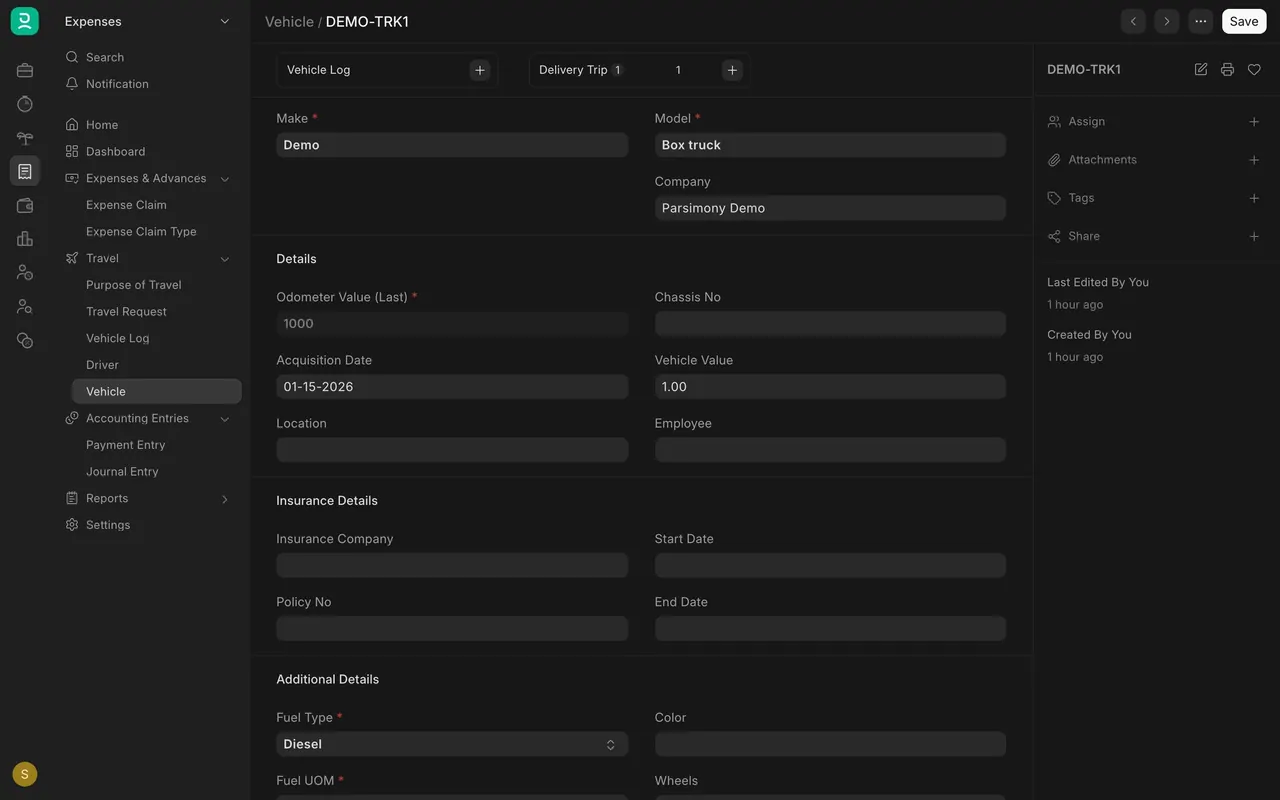
Step 2. Add a vehicle
- Open a Vehicle record. Make and Model are required. Here: Demo and Box truck. The Delivery Trip box shows how many trips use it.
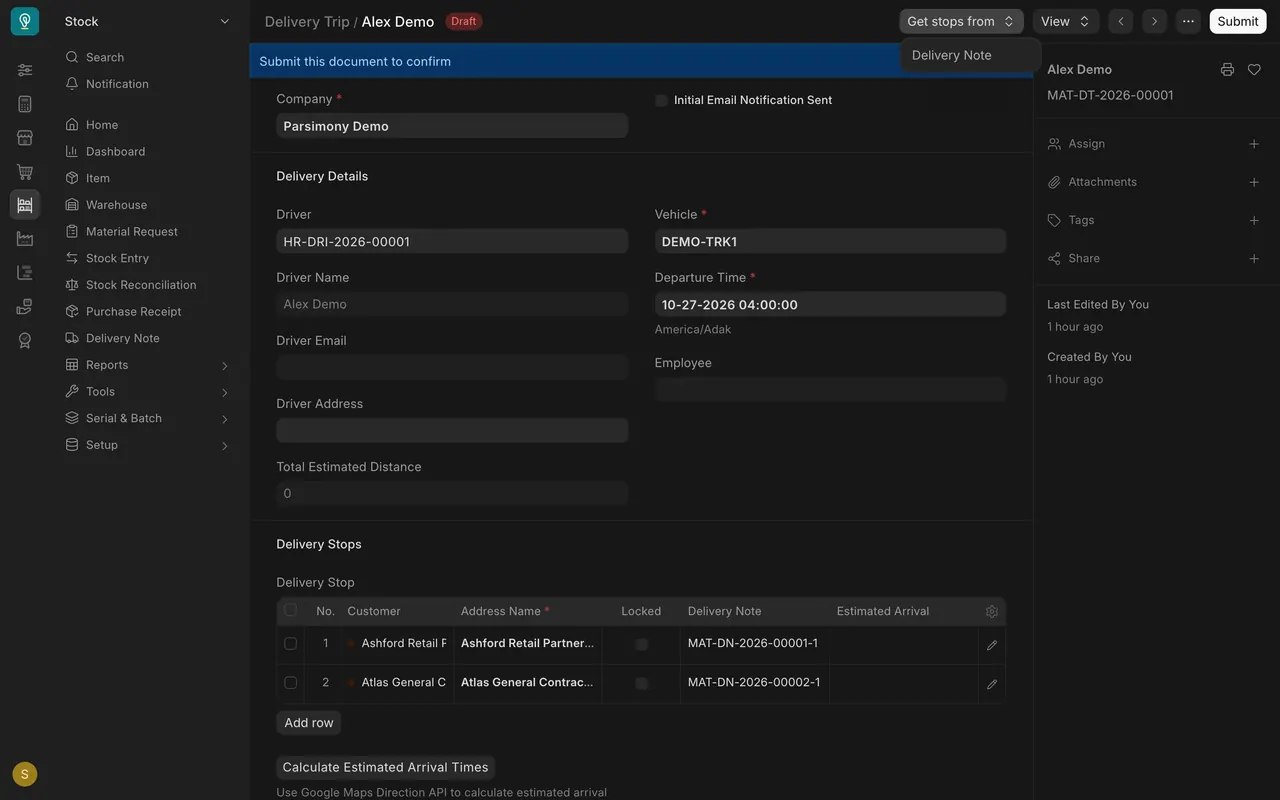
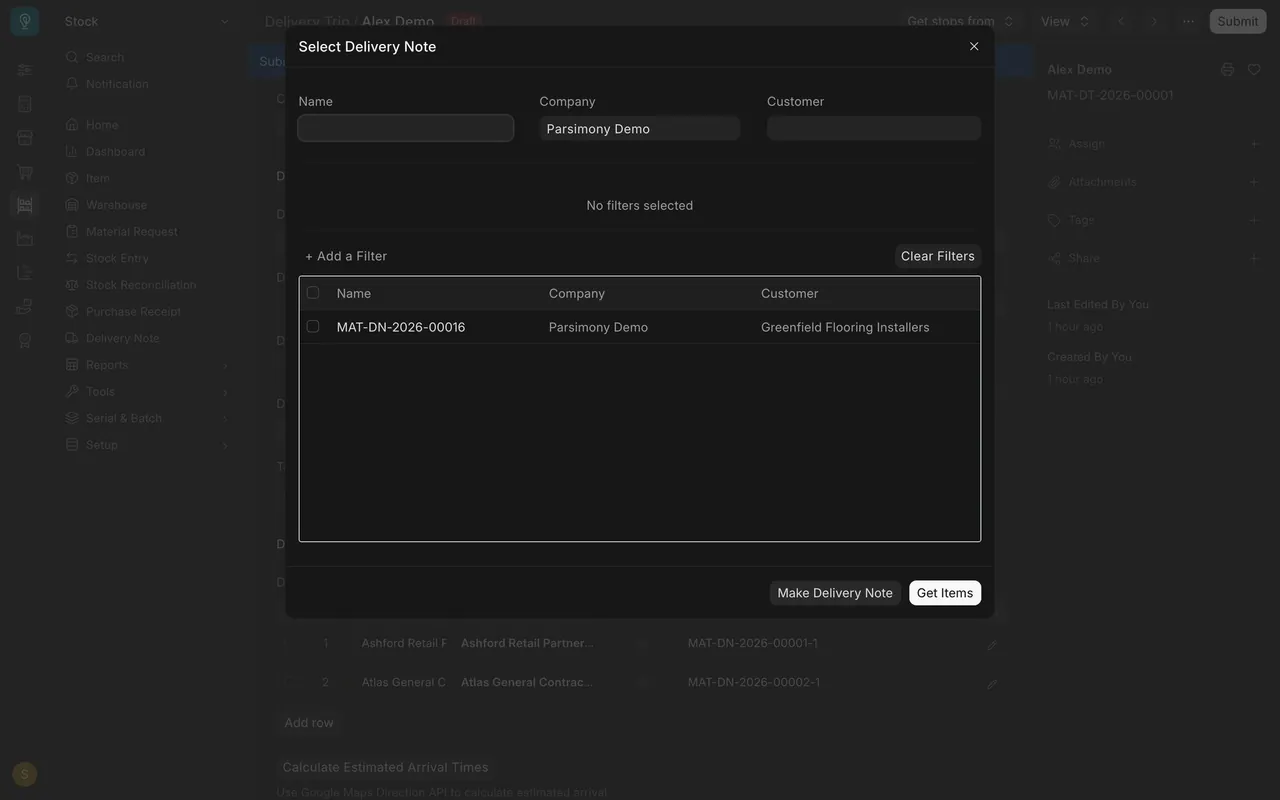
Step 3. Build the trip from delivery notes
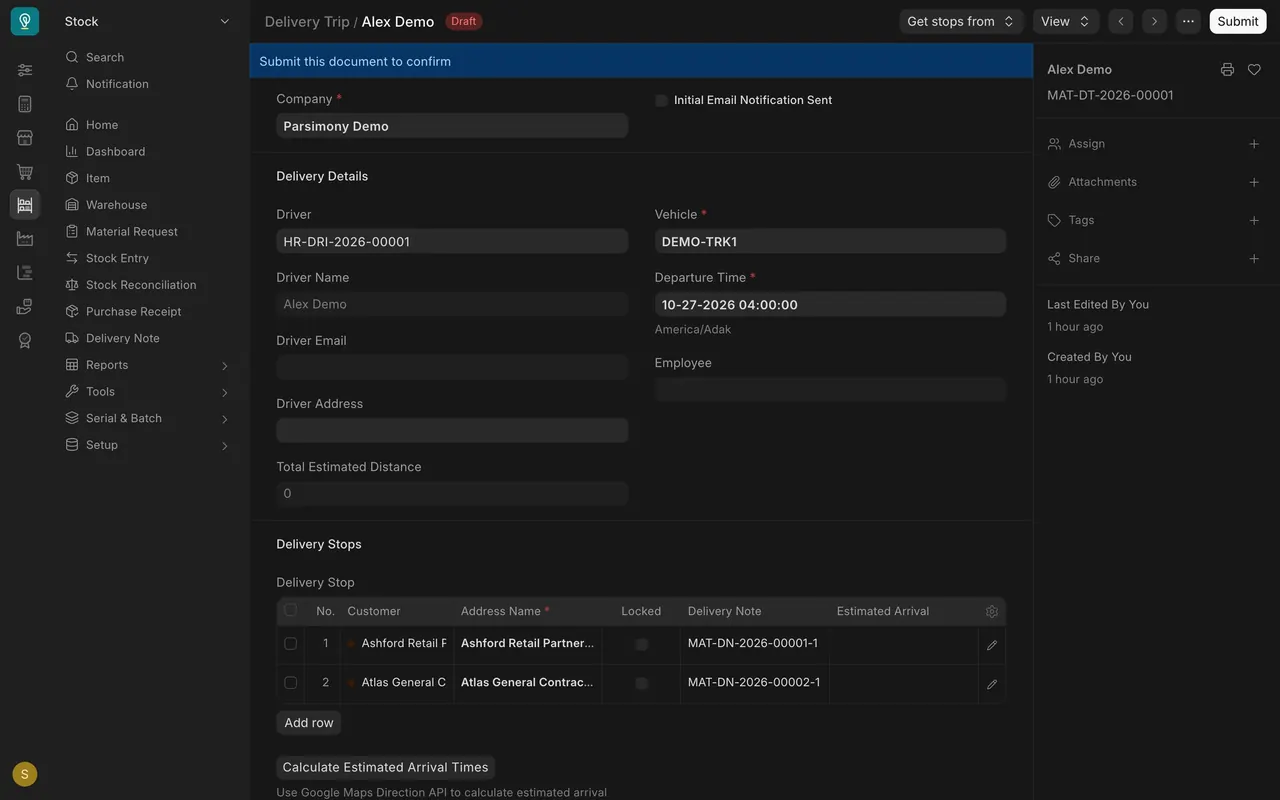
- On a delivery trip, open Get stops from and choose Delivery Note.
- In the dialog, tick the notes that travel together and choose Get Items.
Step 4. Check the stops
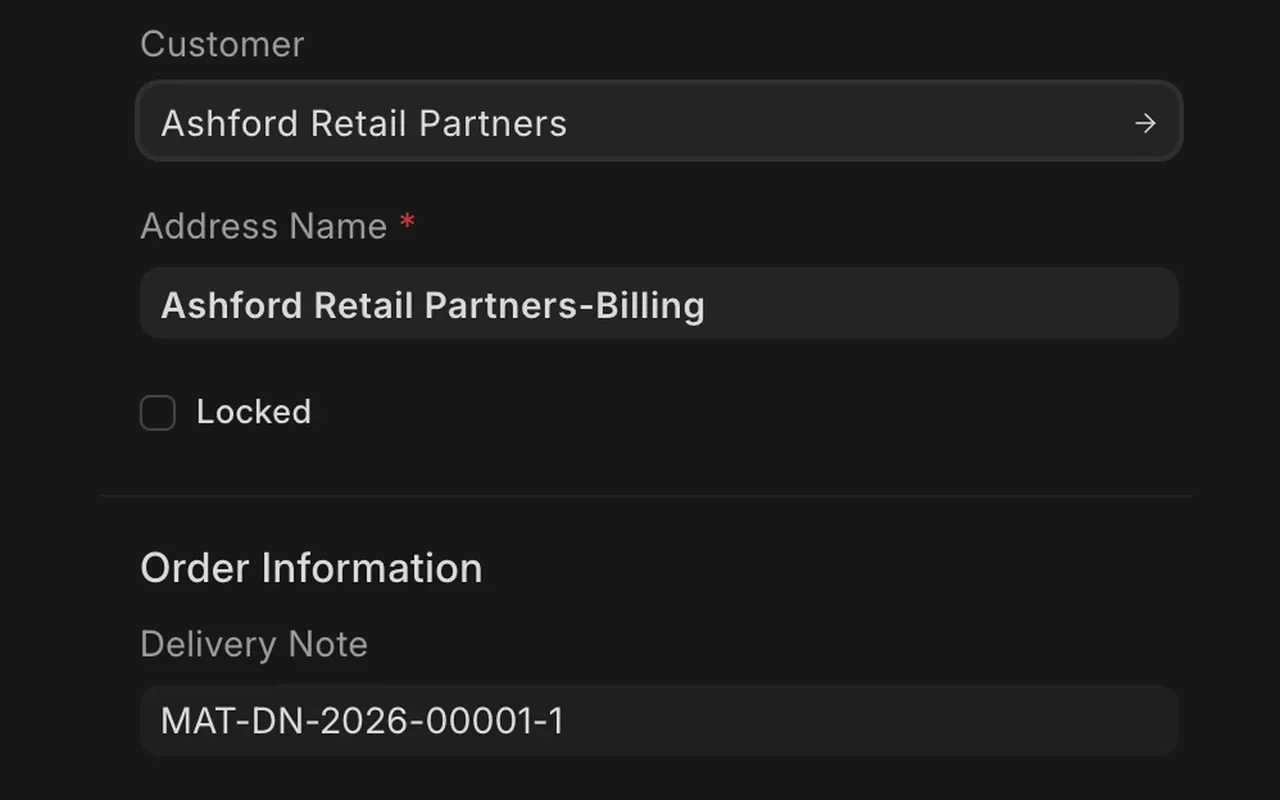
- Each row of Delivery Stops is one stop: customer, address name and delivery note. Open a row for detail.
- Check the Departure Time. A draft trip is a plan until it is submitted.
What you may see on your own site
- Your drivers, vehicles and notes are your own.
- The arrival-time button asks an outside map service; it is not needed to plan a trip.
Common mistakes
- A stop without an address name. The column is required.
- Treating a draft as confirmed. Only a submitted trip is confirmed.
Check yourself
3 quick questions.
1. Which menu adds stops from delivery notes?
2. What does each row of the Delivery Stops table show?
3. What does the Draft label on a trip mean?