V16 Training · Support and Service · Lesson 6 of 6
Support reports and the workspace
This lesson shows how to read the Support workspace, filter the Issue list, group issues in a report, and open the Support reports.
Written guide
The idea
You can answer "how is support doing?" without opening every issue: the workspace has number cards, the list has filters, and reports count and group issues.
The screens use example data from a demo company that sells flooring.
Step by step
Step 1. Read the Support workspace
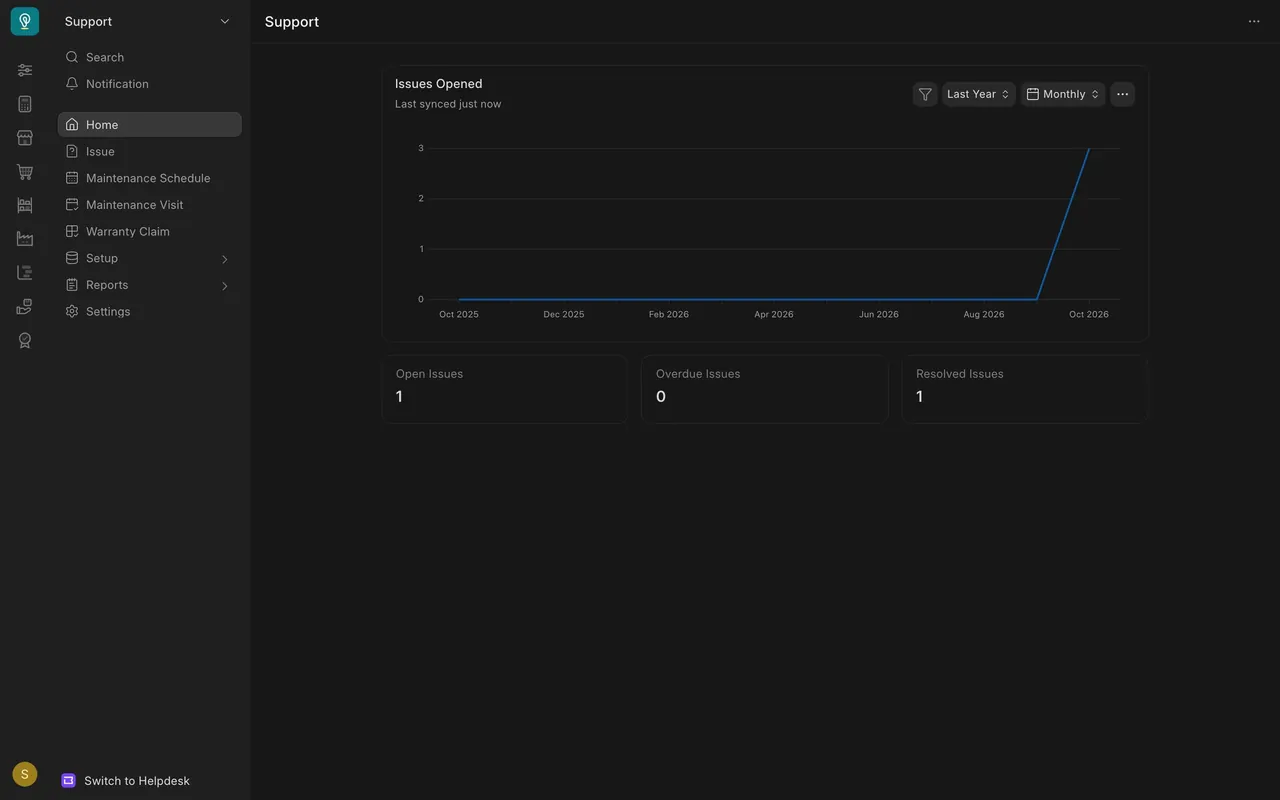
- Open Support. The Issues Opened chart is by month. Under it: Open Issues, Overdue Issues, Resolved Issues.
Step 2. Filter the Issue list
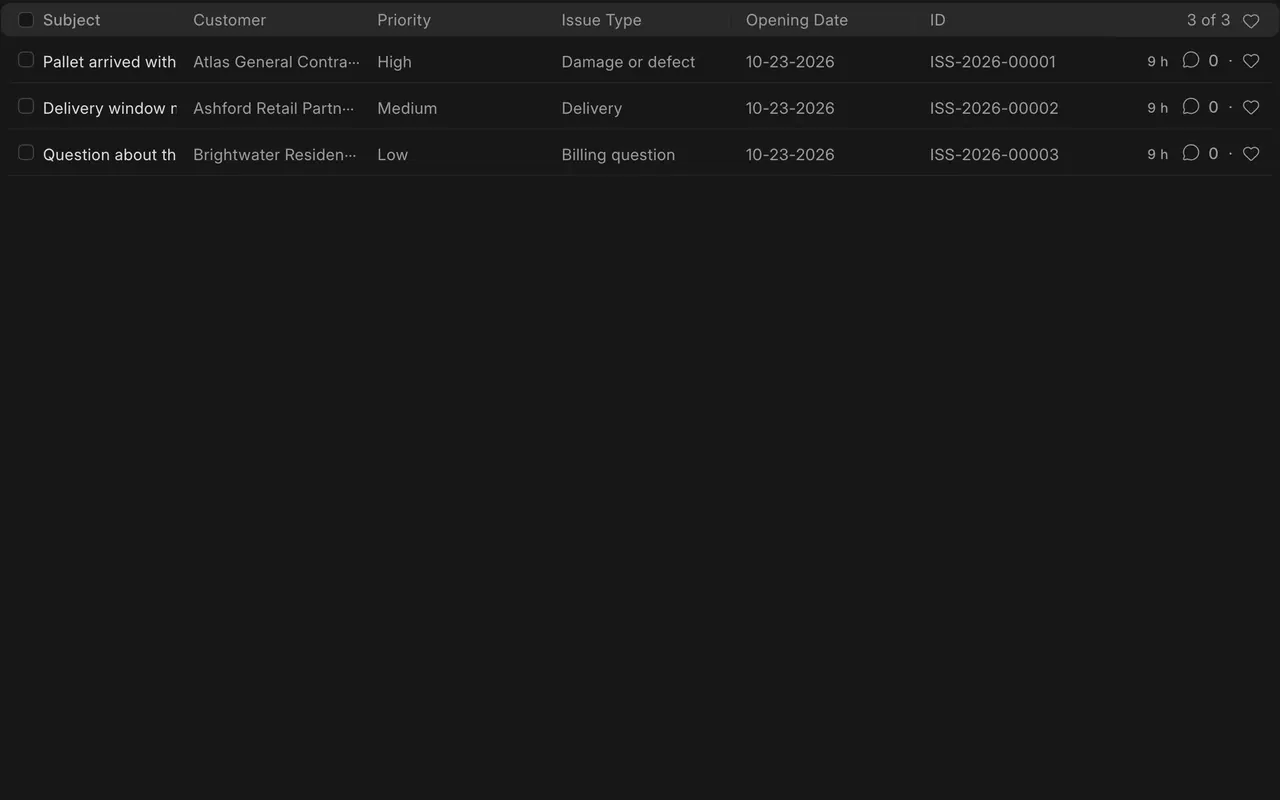
- Choose Issue. Use the Status box to narrow the list.
Step 3. Group the issues in a report
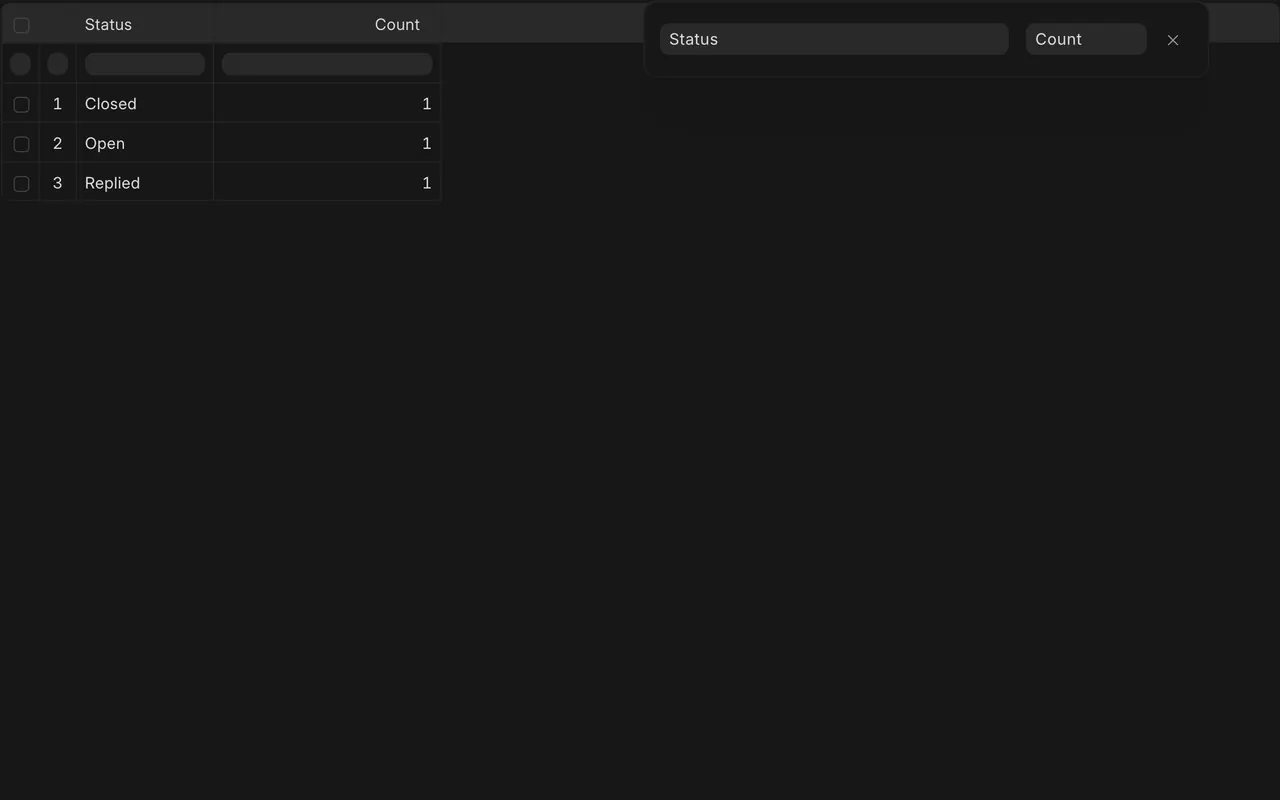
- Switch to Report View, press Add Group, choose Status or Priority.
Step 4. Open the Support reports
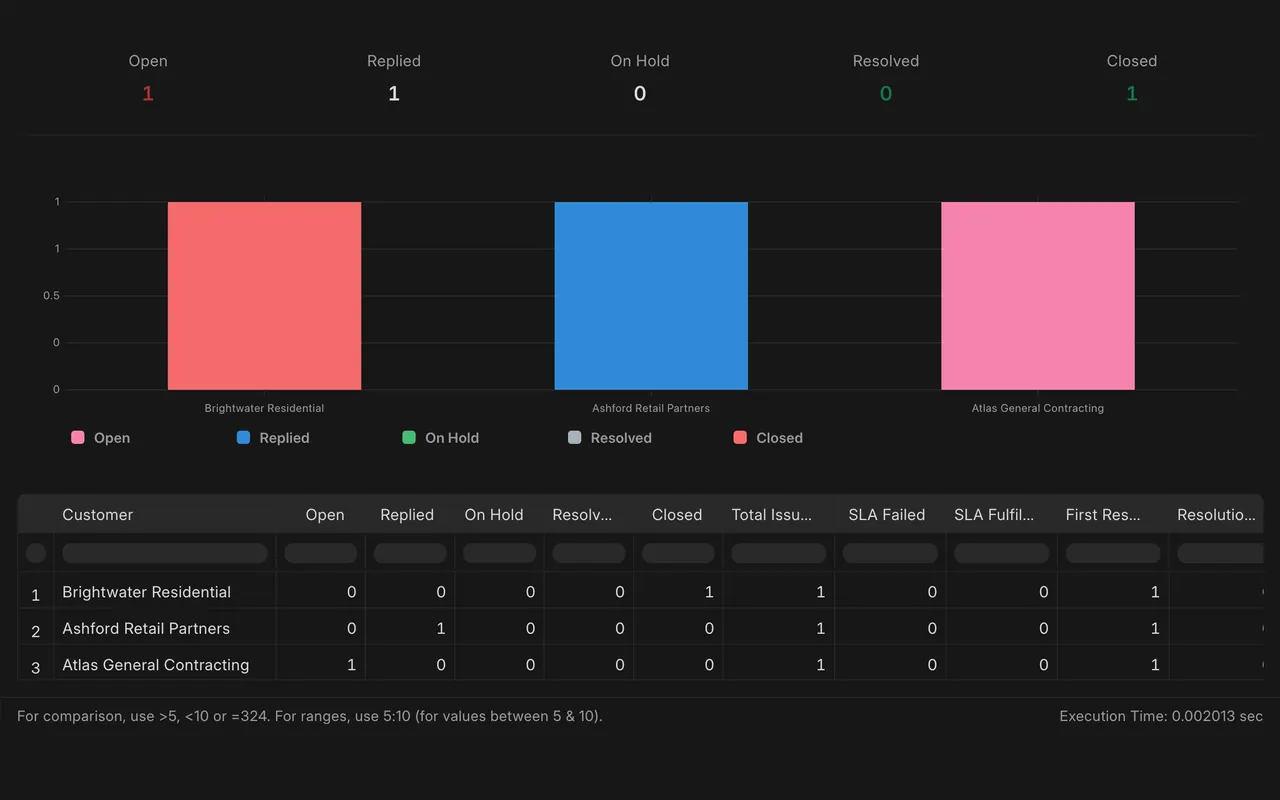
- Open Reports in the workspace sidebar. Other reports: Issue Summary, Issue Analytics, Support Hour Distribution.
What you may see on your own site
- Your numbers and reports will differ. An empty report says Nothing to show; that is not an error.
Common mistakes
- Reading a stale list. Check the Status box before trusting the count.
- Expecting every report in the sidebar. Search for others by name.
Check yourself
3 quick questions.
1. Which card counts issues that missed an agreement deadline?
2. How do you see issues counted by status?
3. A report says Nothing to show. What does that mean?