V16 Training · Support and Service · Lesson 5 of 6
Maintenance schedules and visits
This lesson shows how to plan follow-up visits after an installation with a maintenance schedule, and where a completed visit is recorded on the Maintenance Visit form.
Written guide
The idea
A maintenance schedule lists the visits you promised a customer: the item, a start and end date, how often, and how many visits. The screens use example data from a demo company that sells flooring.
Step by step
Step 1. Fill in the schedule
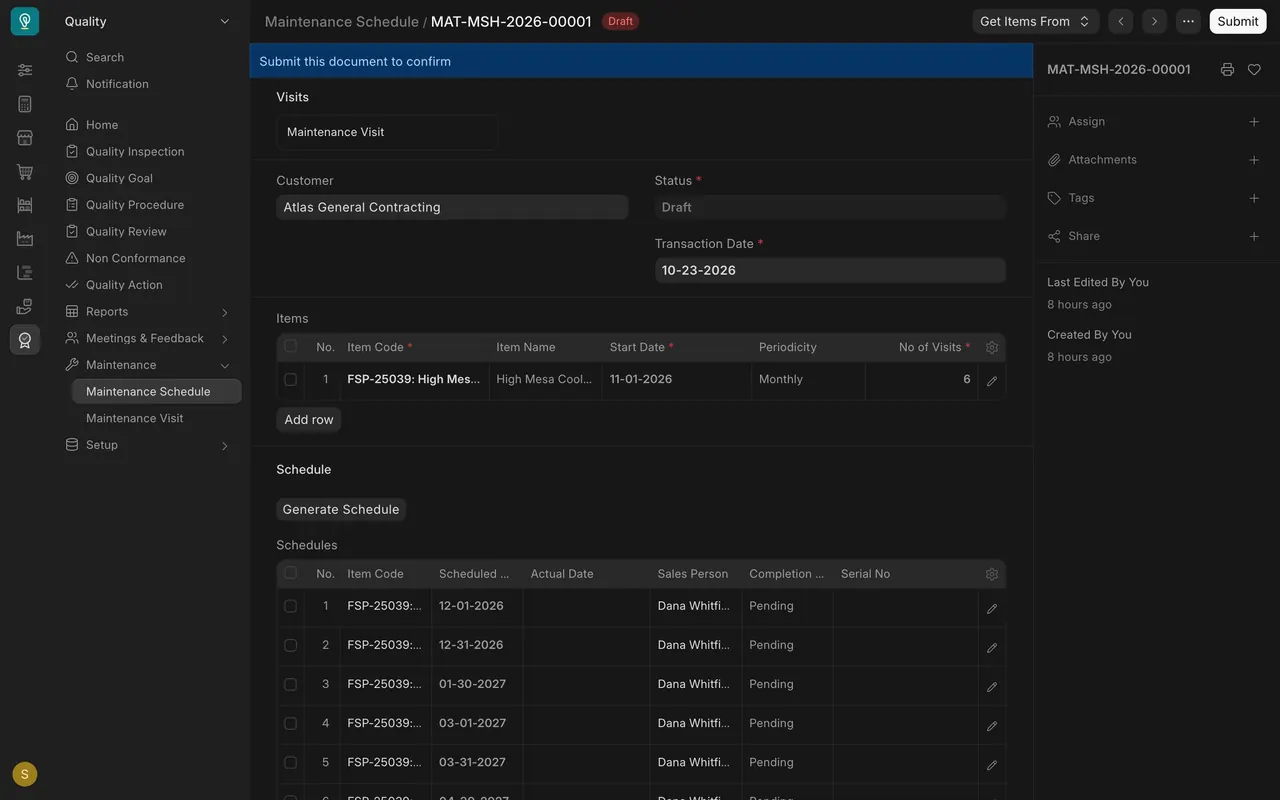
- Open Maintenance Schedule and choose the draft for Atlas General Contracting.
- In the Items table, the item is High Mesa Cool Honey, Start Date 11-01-2026, Periodicity Monthly, No of Visits 6.
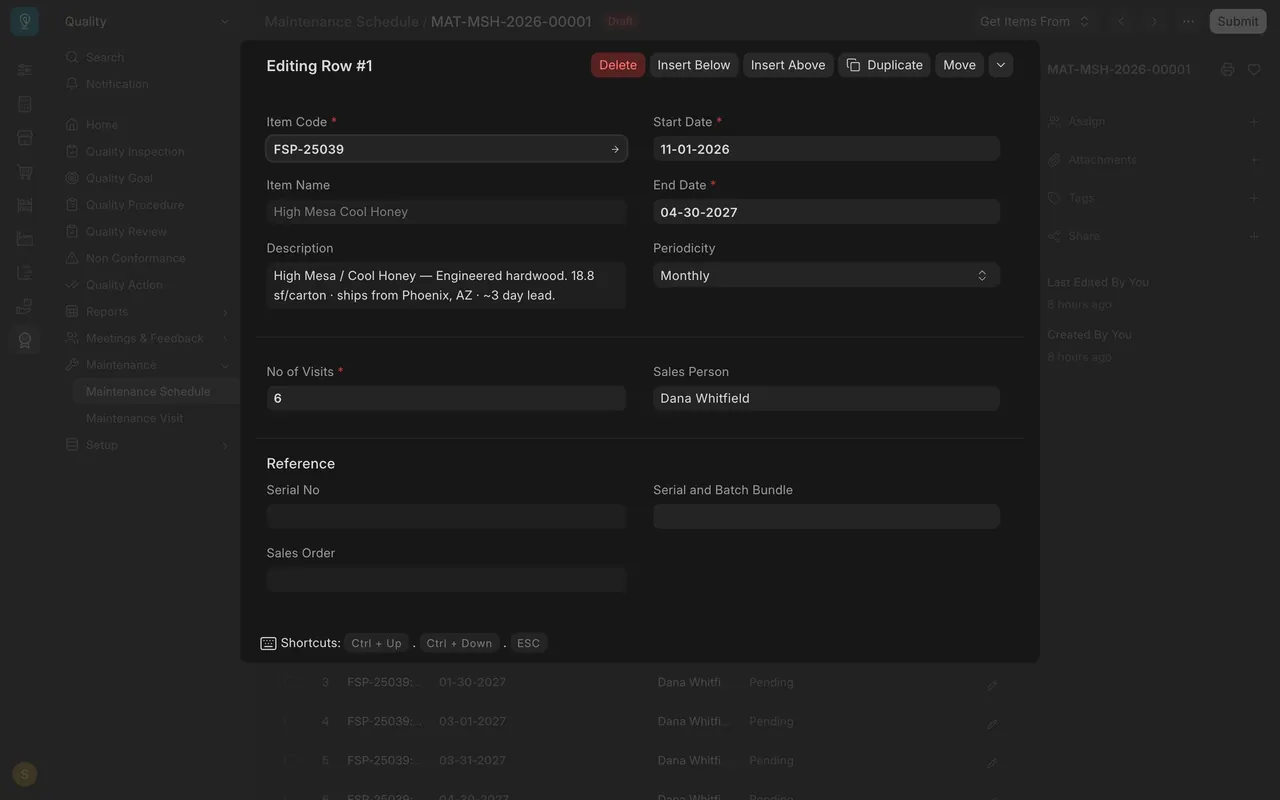
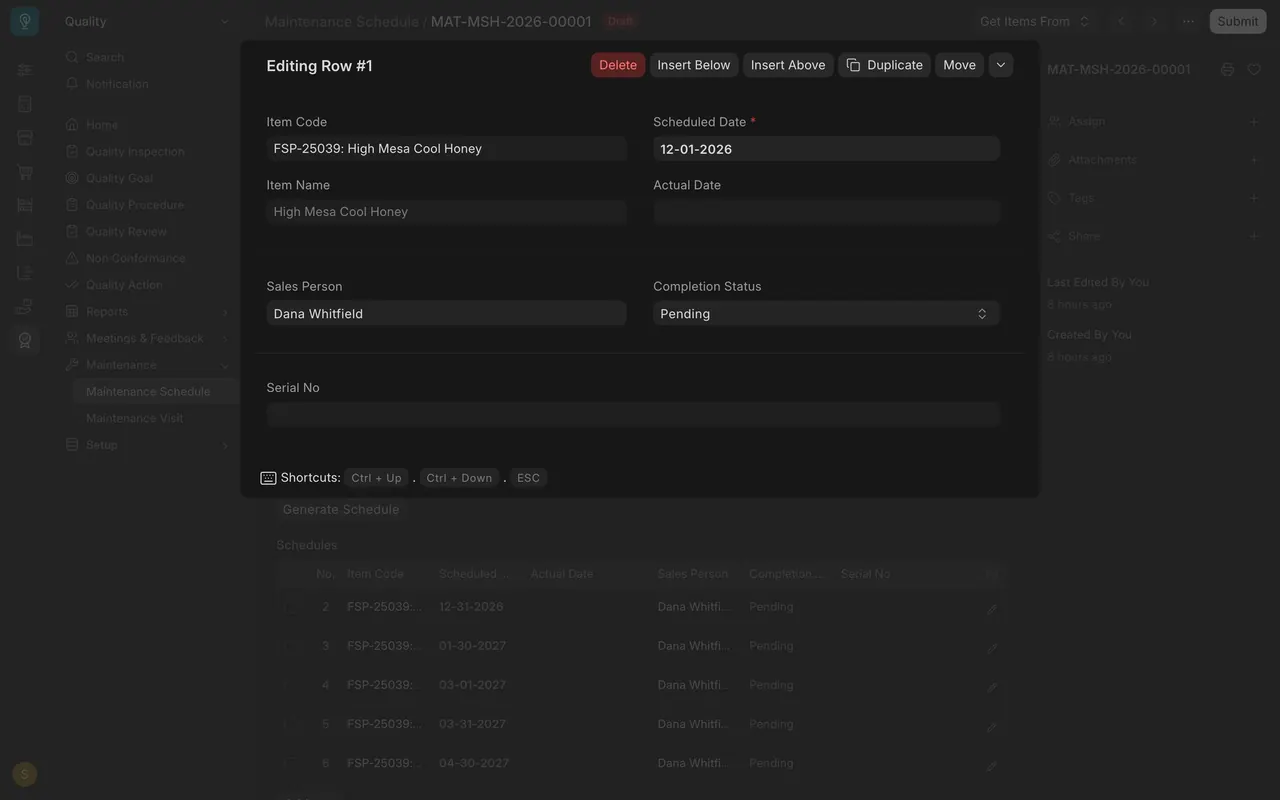
- Open the row for End Date (04-30-2027) and Sales Person (Dana Whitfield).
Step 2. Generate the schedule
Generate Schedule spreads the visits between the start and end dates. It needs the schedule saved first, so it is only pointed at here. The Schedules table then holds one row per visit, all Pending.
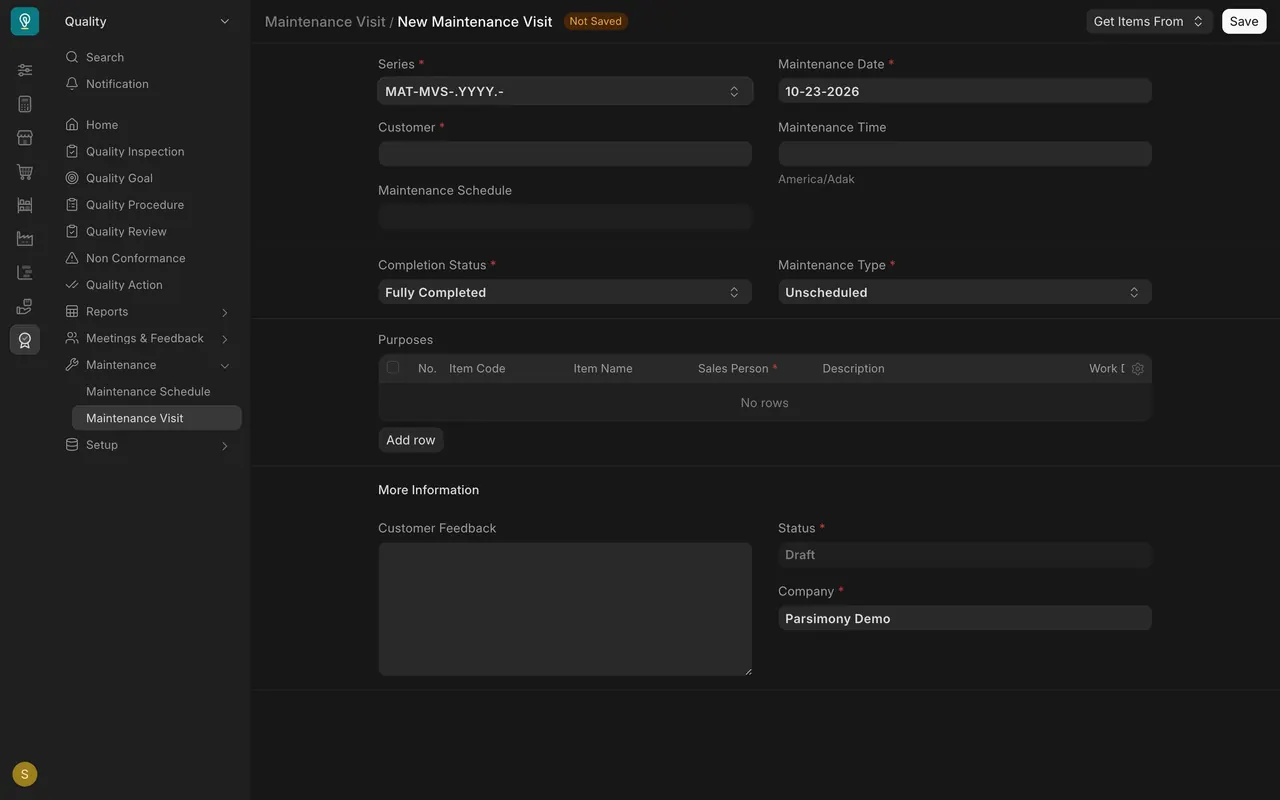
Step 3. Open the Maintenance Visit form
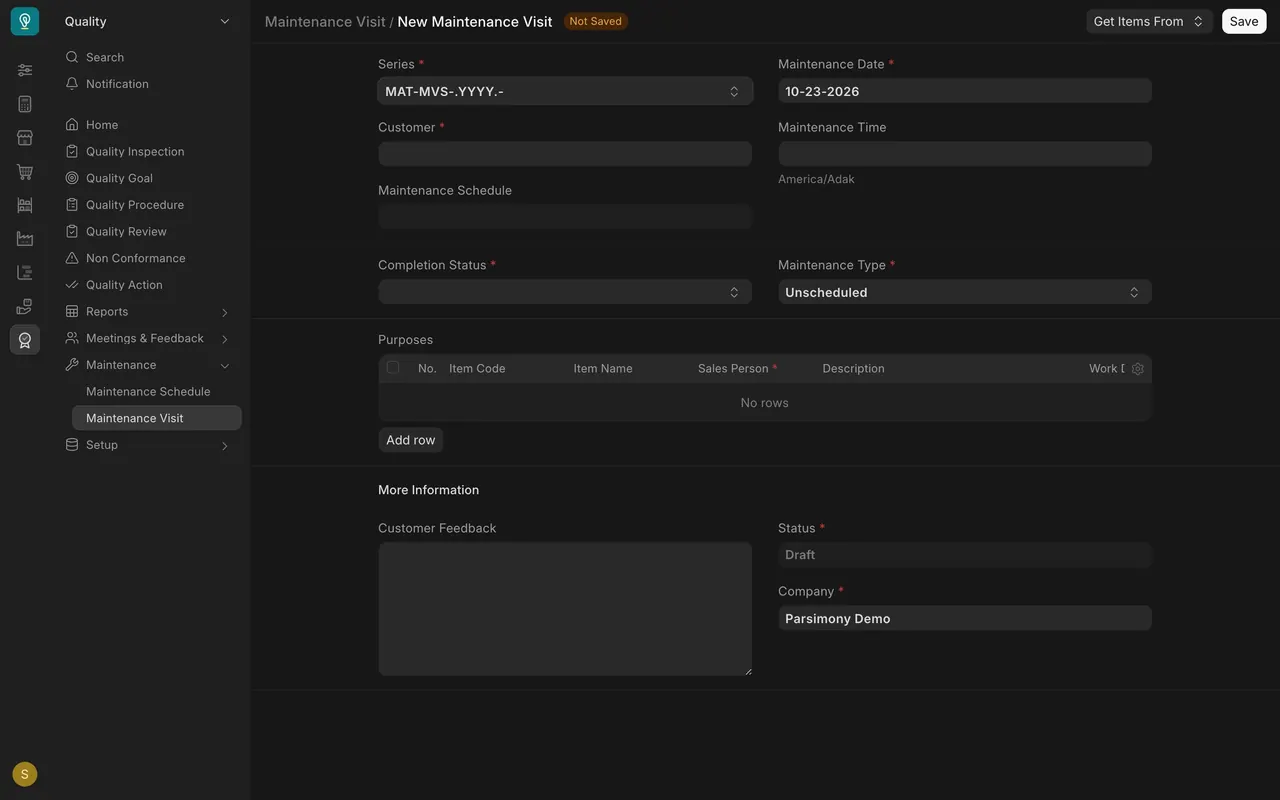
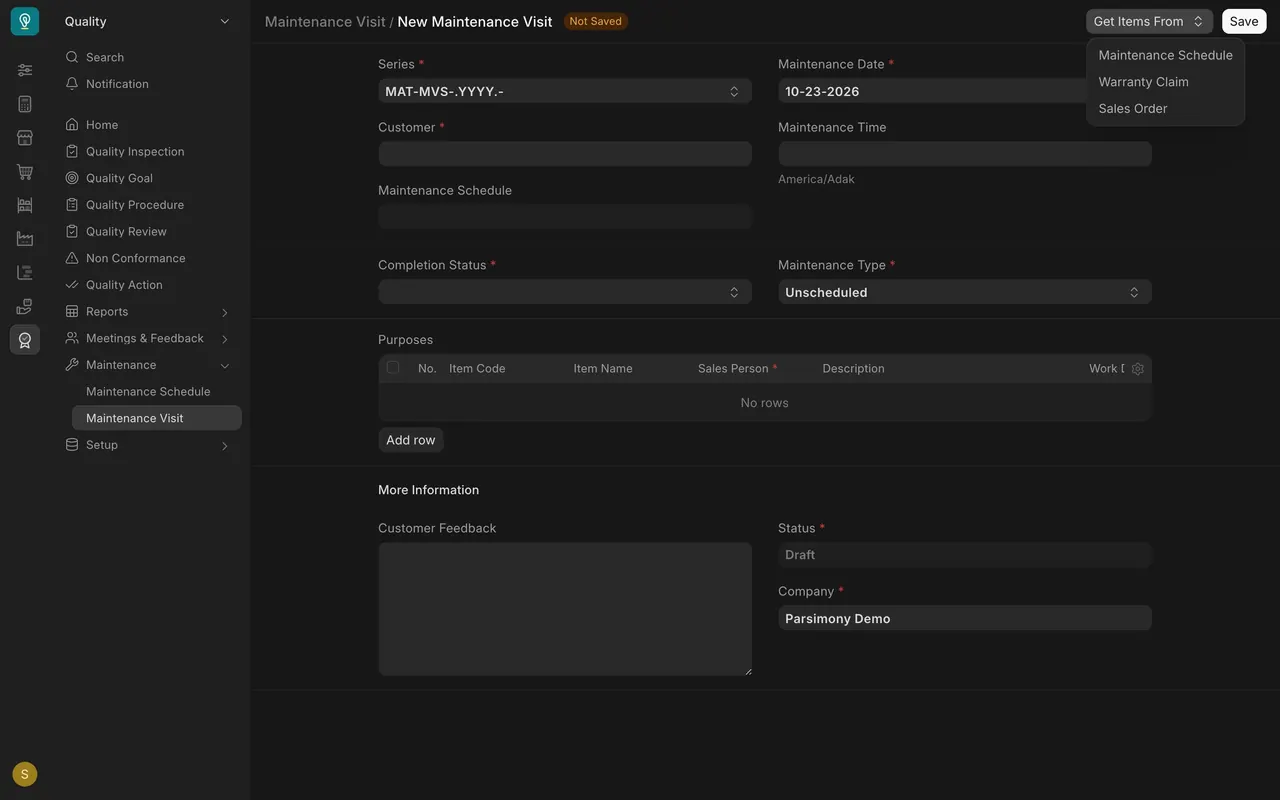
A new visit asks for Maintenance Date, Customer, Maintenance Type and a Purposes table. Get Items From offers Maintenance Schedule, Warranty Claim and Sales Order.
Step 4. Record a completed visit
Choose a Completion Status (here Fully Completed). A schedule row has an Actual Date and a Completion Status, empty and Pending until a visit is done.
What you may see on your own site
- Your items, customers and sales people are your own.
- A schedule stays a draft until someone submits it.
Common mistakes
- Leaving a starred box empty (start date, end date, number of visits).
- Generating dates before the schedule is saved.
- Retyping a visit instead of starting it with Get Items From.
Check yourself
3 quick questions.
1. What does Periodicity set?
2. Where is a visit's actual date and completion status kept on the schedule?
3. What does the Draft label mean on a schedule?