V16 Training · Support and Service · Lesson 3 of 6
Service level agreements
This lesson shows what a service level agreement promises and how it is set up: its targets by priority, its status rules, its working hours and holidays, and the one switch in Support Settings that turns tracking on.
Written guide
The idea
A service level agreement is a written promise about support: how soon someone answers an issue, and how soon it is solved. The clock counts only working hours, pauses while you wait for the customer, and stops when the issue is resolved or closed.
The screens use example data from a demo company.
Step by step
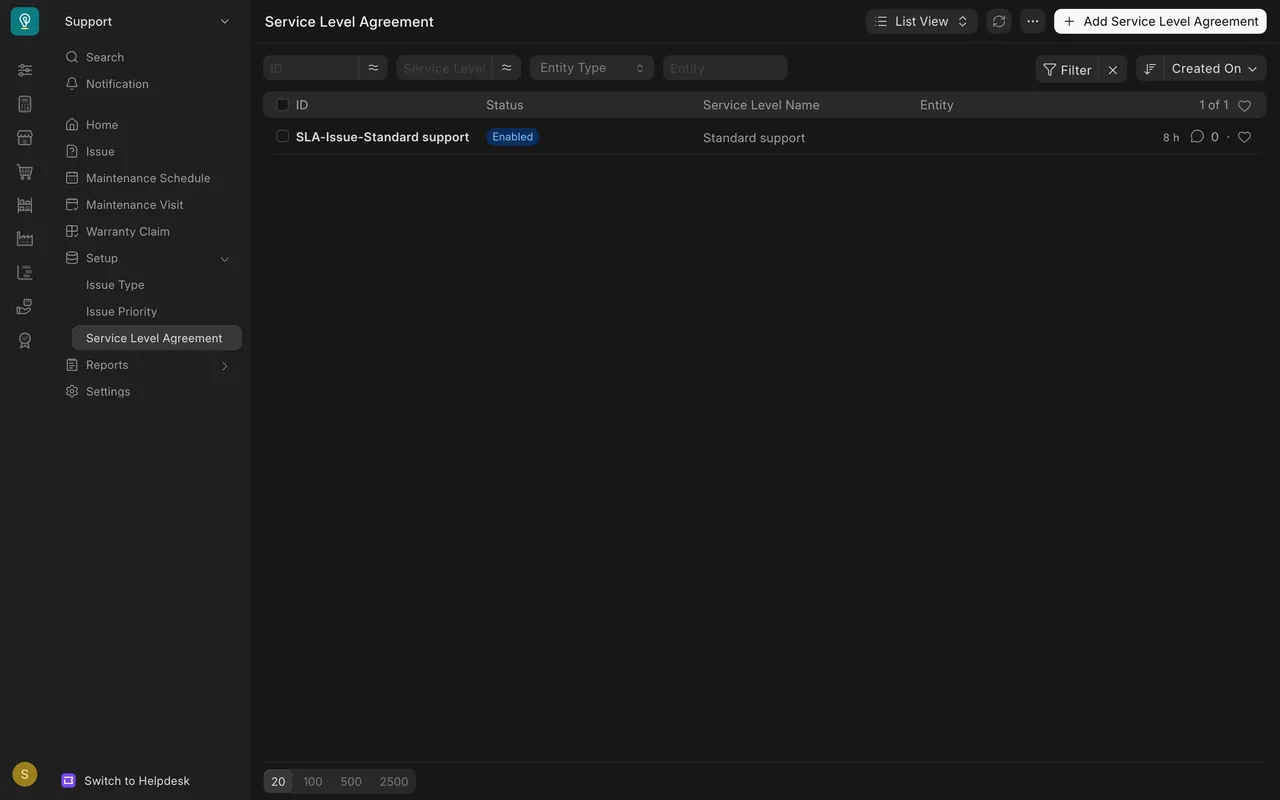
Step 1. Open the agreement
- Open the Service Level Agreement list and open the agreement (here Standard support).
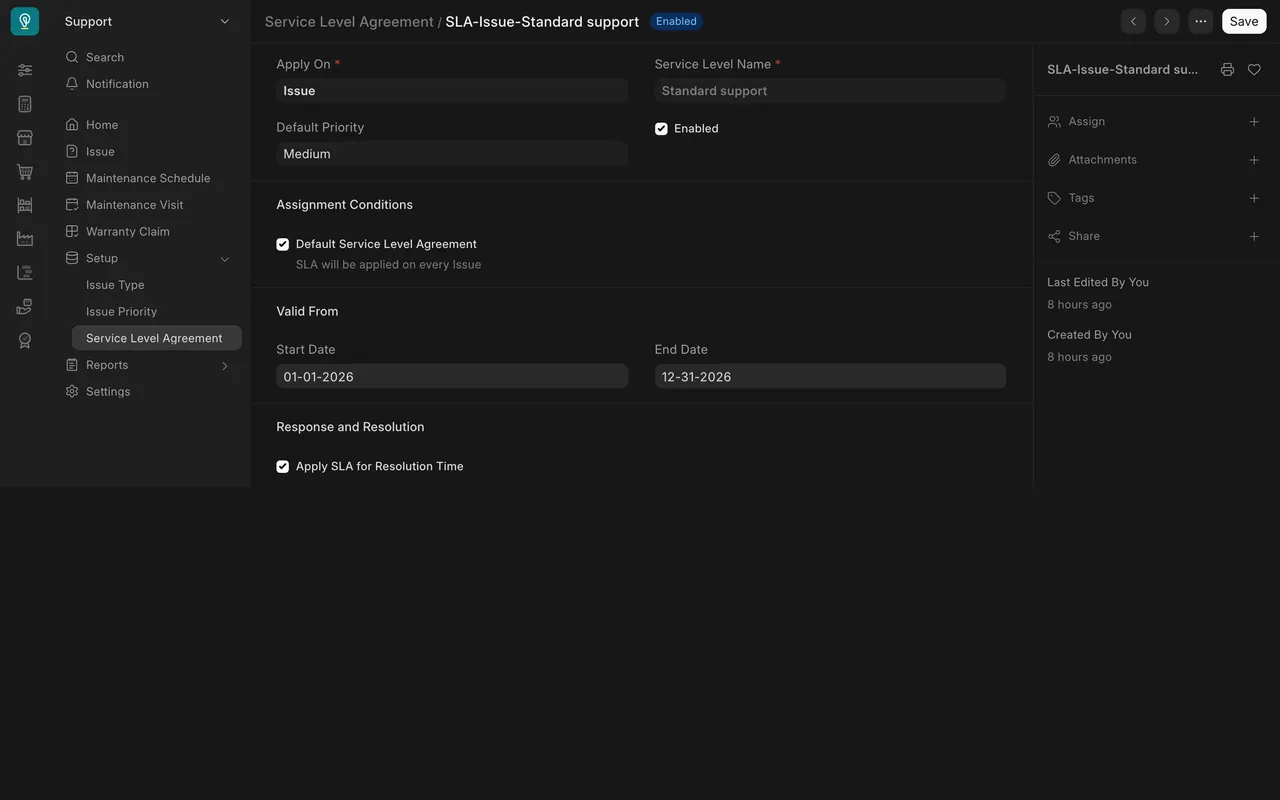
- It applies to Issue. Default Service Level Agreement makes it the one used when no other agreement applies. Apply SLA for Resolution Time extends the promise to the fix.
Step 2. Read the priorities
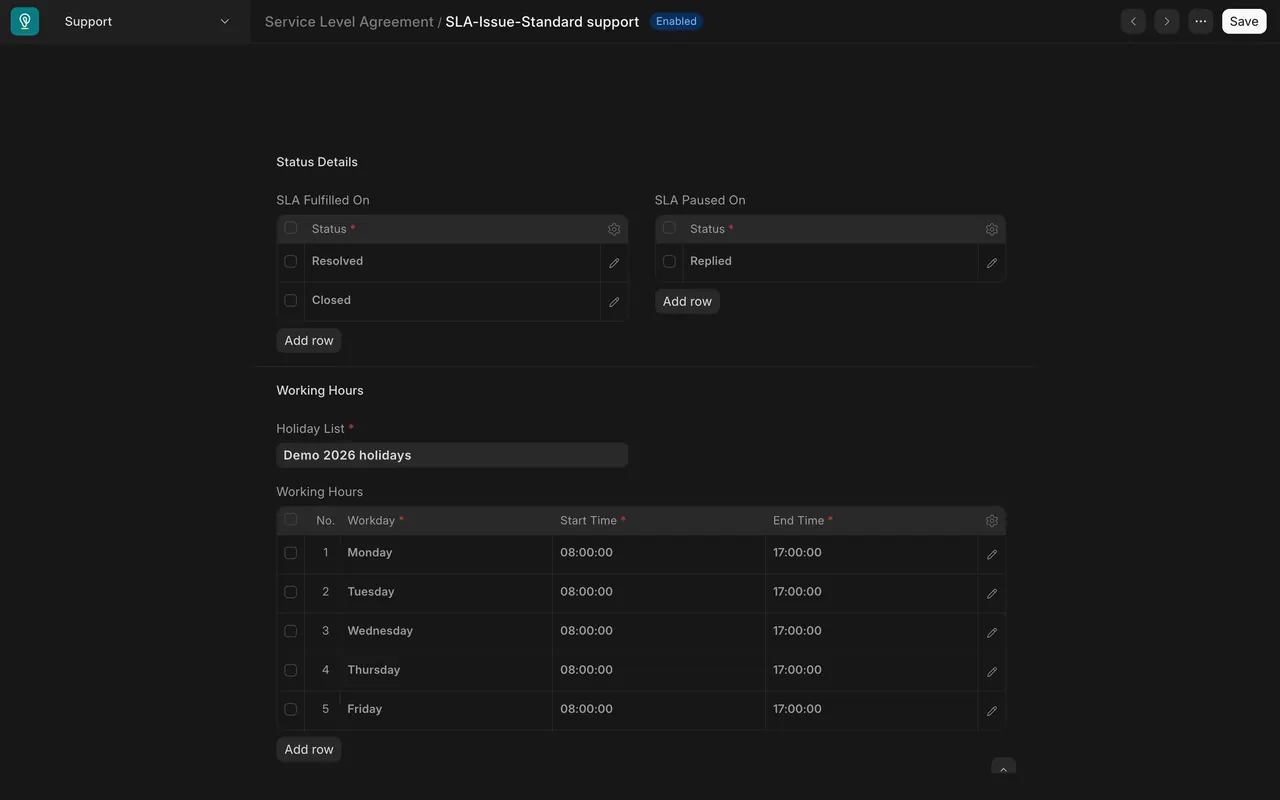
- The Priorities table has one row per priority (High, Medium, Low), each with a First Response Time and a Resolution Time.
- SLA Fulfilled On lists the statuses that meet the promise (Resolved, Closed). SLA Paused On lists the status that stops the clock (Replied).
Step 3. Set the working hours
- The Working Hours table sets the days and times the clock runs (here Monday to Friday, 8 to 5).
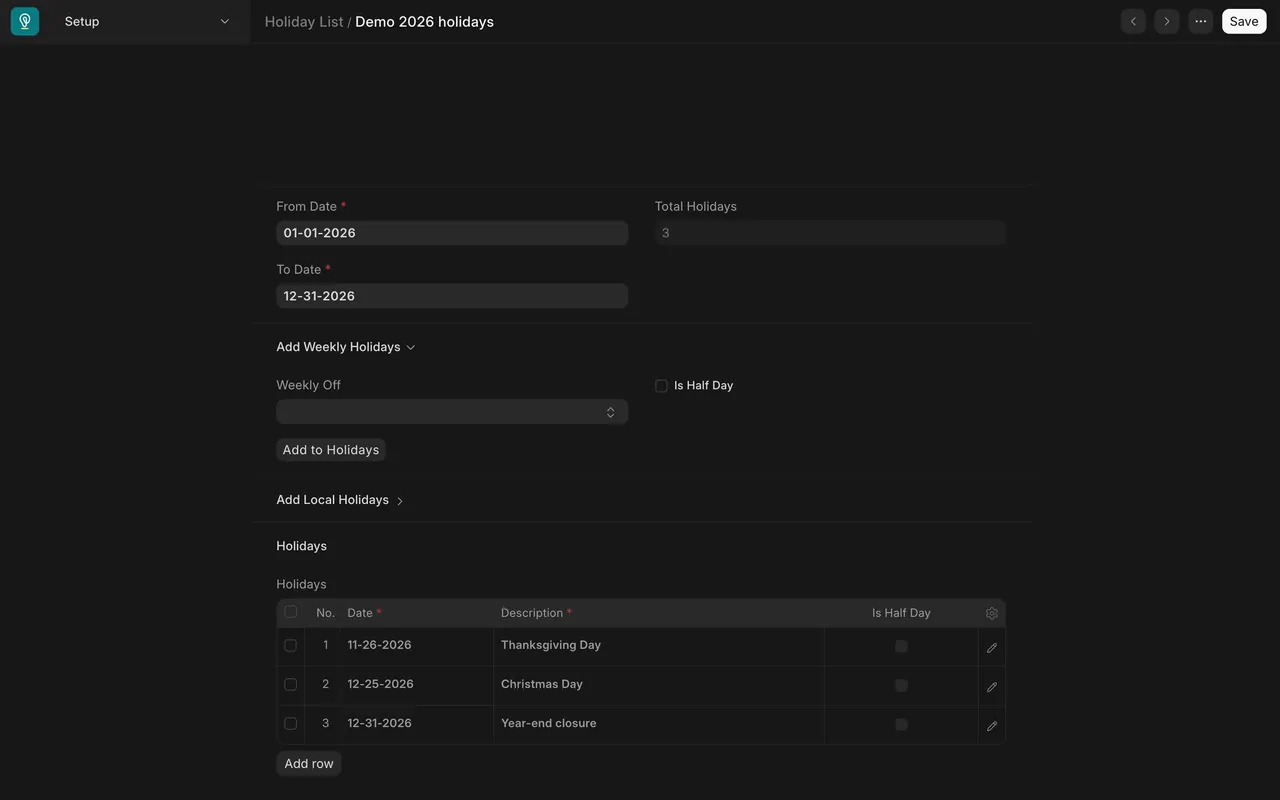
- The Holiday List removes days from the clock (here three).
Step 4. Switch tracking on
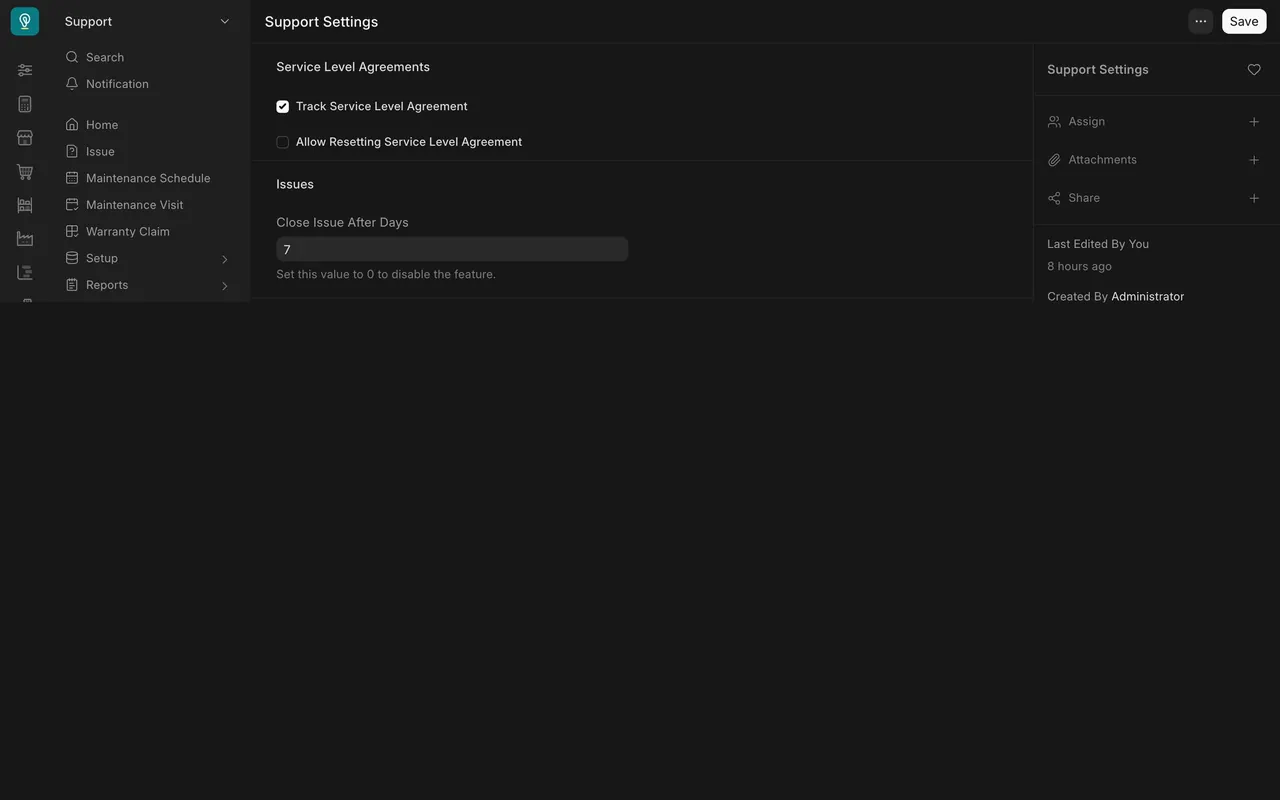
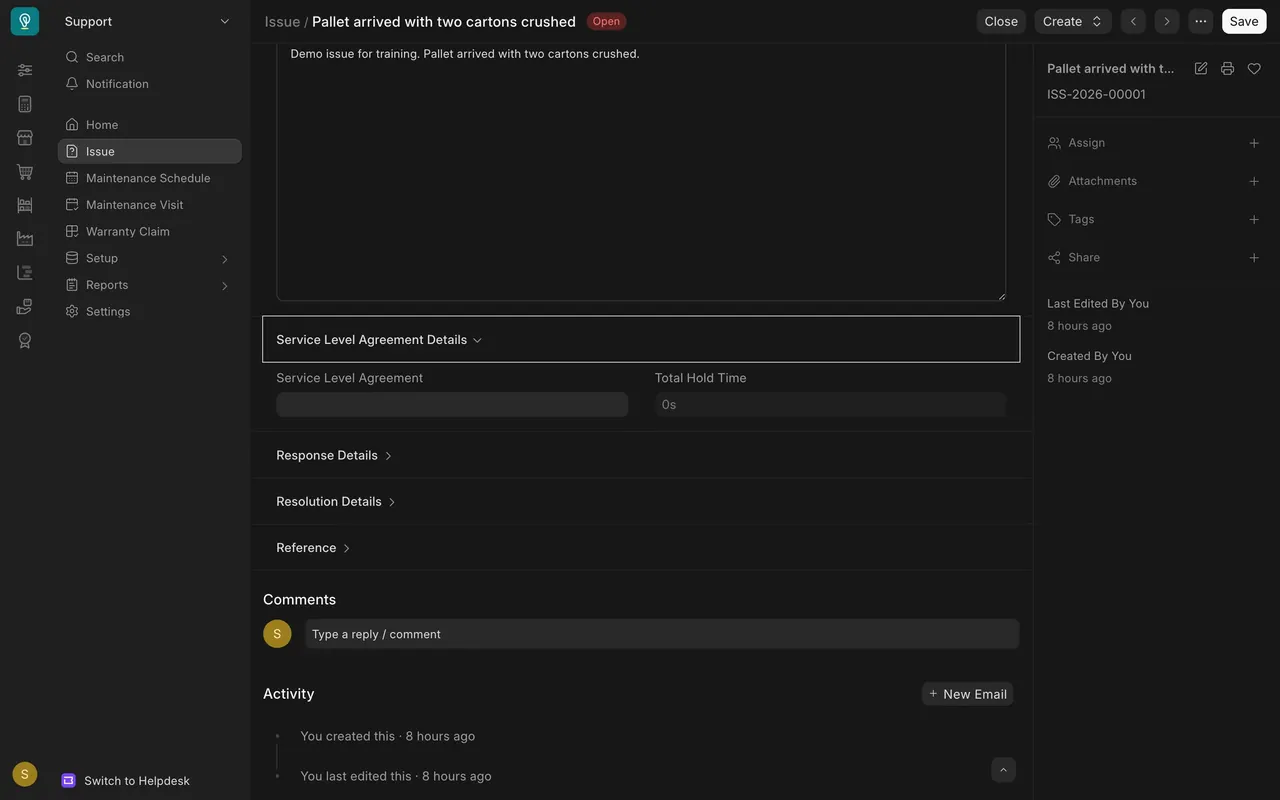
Open Support Settings and tick Track Service Level Agreement. An issue then shows its agreement under Service Level Agreement Details.
What you may see on your own site
- Your agreements, targets and holidays are your own.
- Issues created before an agreement existed show no agreement.
Common mistakes
- Targets that ignore working hours. The clock only runs in the hours you set.
- Forgetting the holiday list. Holidays count as clock time if not listed.
- Leaving tracking off in Support Settings.
Check yourself
3 quick questions.
1. Which status pauses the clock in this example?
2. Why does an older demo issue show no agreement?
3. Where is tracking turned on for every agreement?