V16 Training · Stock and Warehouse · Lesson 2 of 6
Receive a delivery
This lesson gives you a clean way to receive a supplier delivery against its purchase order, with damaged goods kept out of sellable stock.
Written guide
The idea
A Purchase Receipt is your count of what actually arrived. It is not a copy of the packing list or the purchase order. Whatever you put in Accepted Quantity becomes stock that Sales can promise, and it is the quantity Accounts bills against. In this example the demo company's suppliers ship from overseas mills, so containers arrive with short cartons, crushed corners and the occasional wrong color. Count first, then type.
Stock only changes when you Submit. A saved draft changes nothing.
Step by step
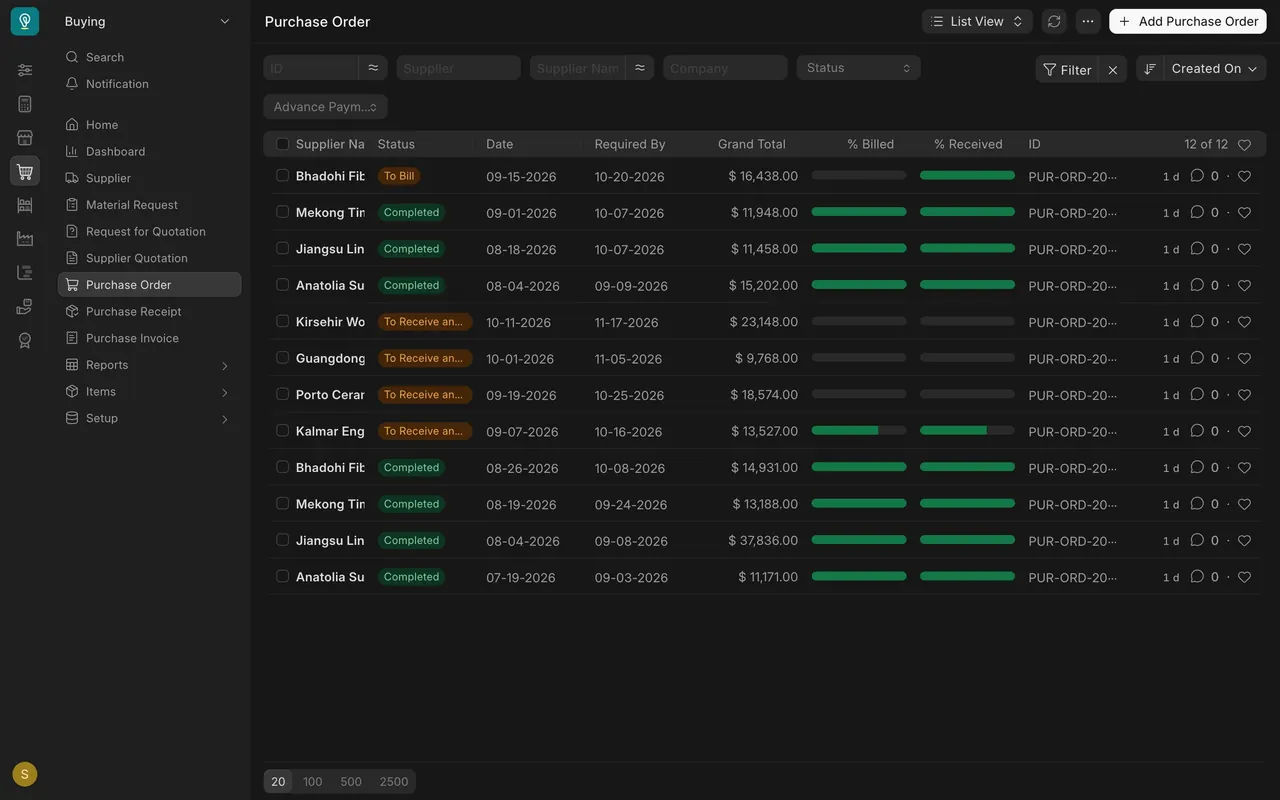
- Find the purchase order. Search for Purchase Order (Cmd K or Ctrl K) and find the order the shipment belongs to. An order still waiting for goods shows the status To Receive and Bill (or To Receive if it is already billed), and its % Received bar is not yet full. In the usual setup, warehouse staff can read purchase orders but not change them.
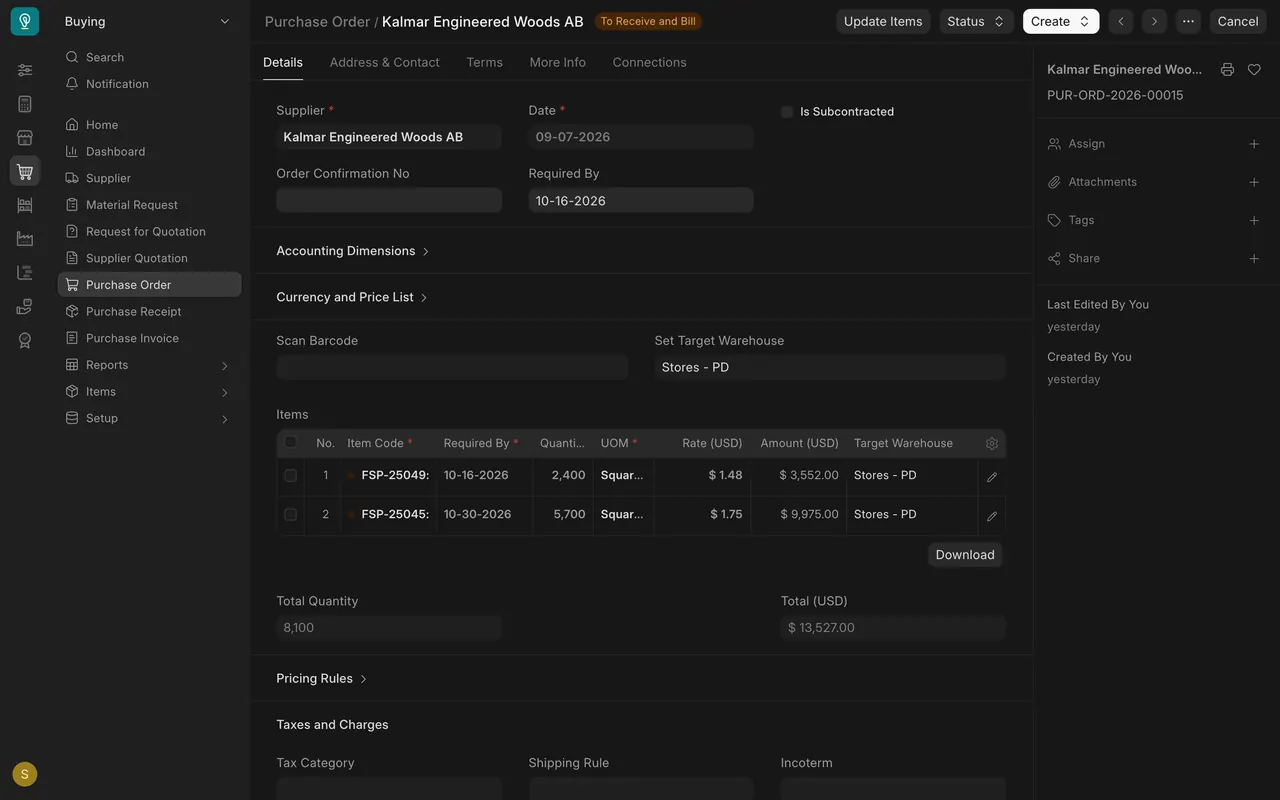
- Check it against the packing list. Open the order. Check the Supplier and each row of the Items table: item code, Required By, quantity, UOM (the unit of measure) and Target Warehouse. In this example the order from Kalmar Engineered Woods AB is for 2,400 and 5,700 square feet, 8,100 in total, into the Stores warehouse.
- Make the receipt from the order. Use the Create button at the top of the purchase order to make the purchase receipt. It opens with the supplier and items from the order. (A new receipt also has a Get Items From button for pulling items from an order.) Parsimony numbers the receipt for you.
- Leave the date and time alone. Date and Posting Time fill in as now and are greyed out. Tick Edit Posting Date and Time only if your manager asks you to back-date.
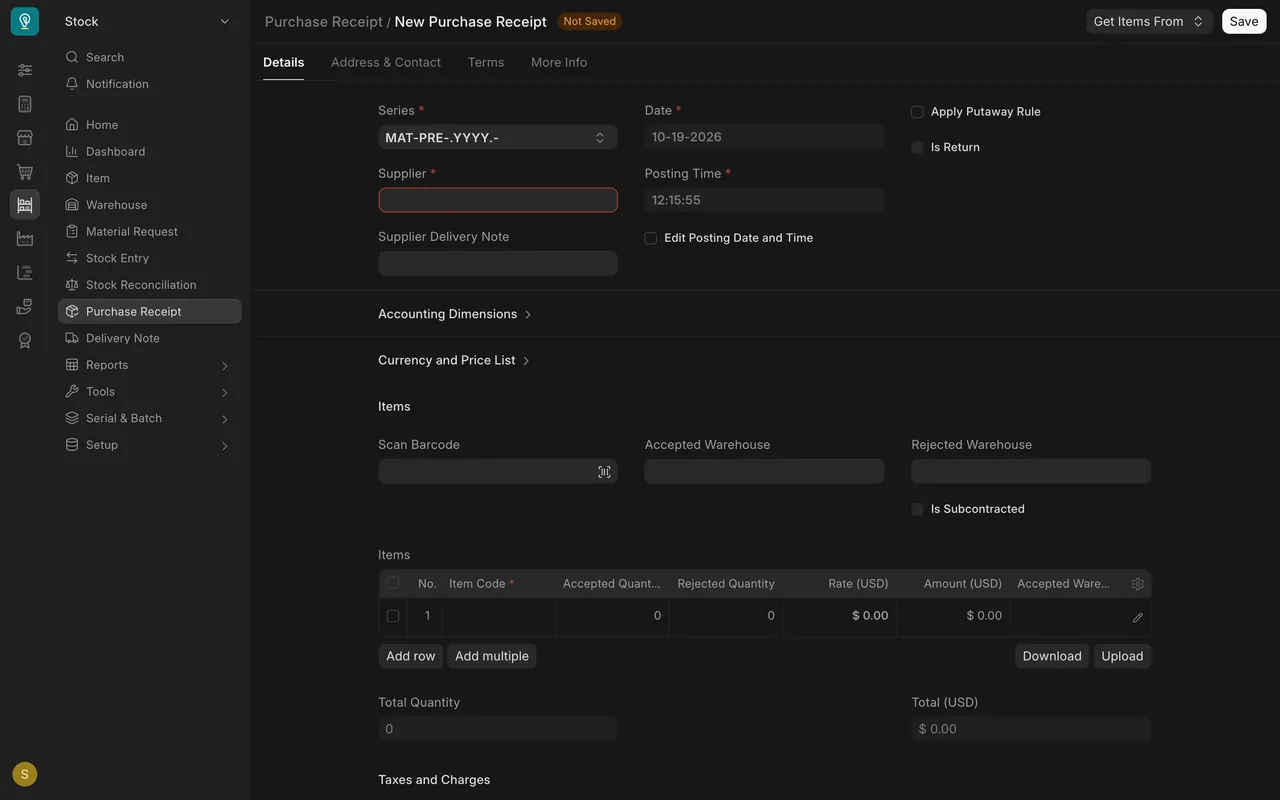
- Scanning. If barcodes are set up on your site, receipts show a Scan Barcode field above the items table. Each scan adds to the quantity already in the matching row. A receipt made from an order already holds the ordered quantities, so type your count instead. Ask your Stock Manager how barcodes are set up before you scan.
- Enter what you counted. In each row, set Accepted Quantity to the square feet you counted. Do not accept the pre-filled number without checking.
- Record damage. Enter the damaged or wrong amount in Rejected Quantity and set the Rejected Warehouse your Stock Manager names, so bad goods never sit in sellable stock.
- Check the warehouse. The Accepted Warehouse (above the table and on each row) is where good stock lands. In this example it is Stores.
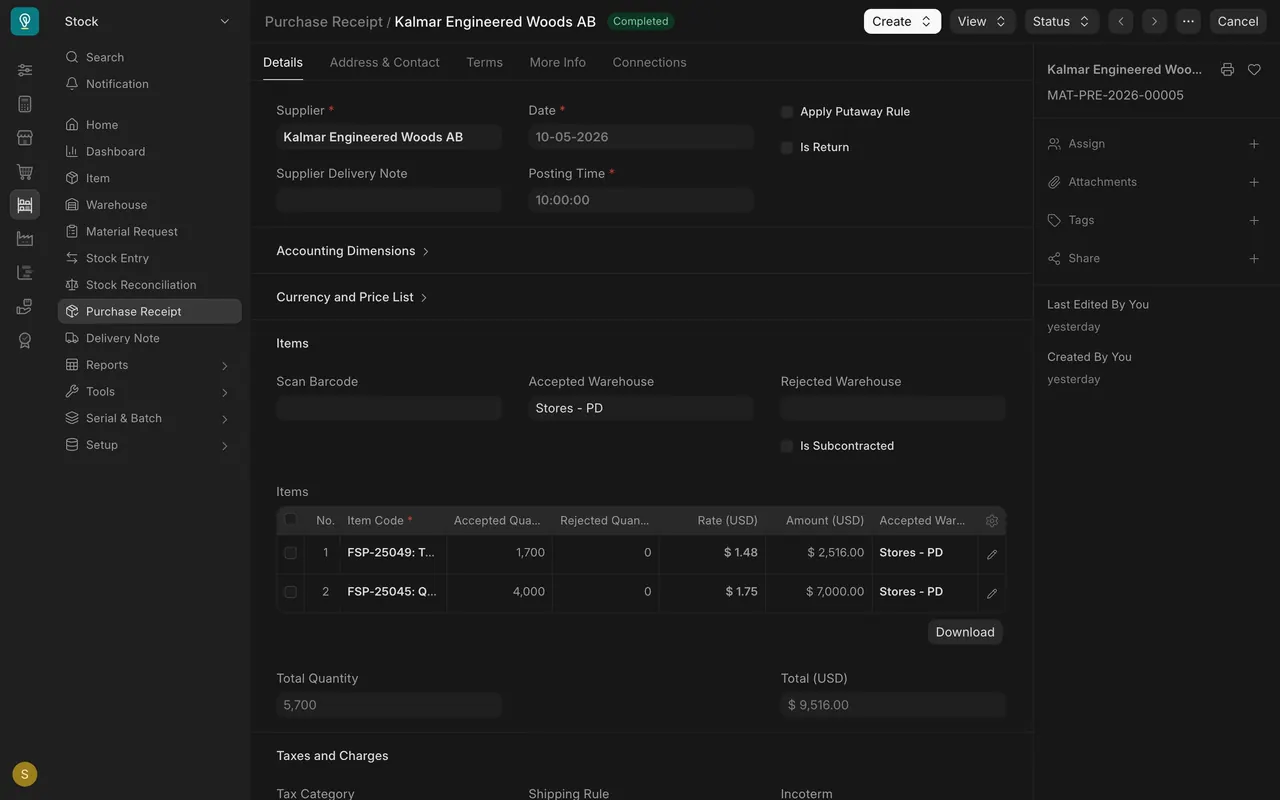
- Short and over shipments. Receiving less than ordered is fine: the order keeps the rest open. In the example, the receipt took 5,700 of the 8,100 square feet ordered, and the order still reads To Receive and Bill. Tell Purchasing what is short or damaged, so they can take it up with the supplier. Many sites do not allow receiving more than was ordered (the over-receipt allowance is zero), so if you have more than was ordered, stop and ask Purchasing to fix the order.
- Save, re-read, submit. Save, read the quantities once more, then Submit.
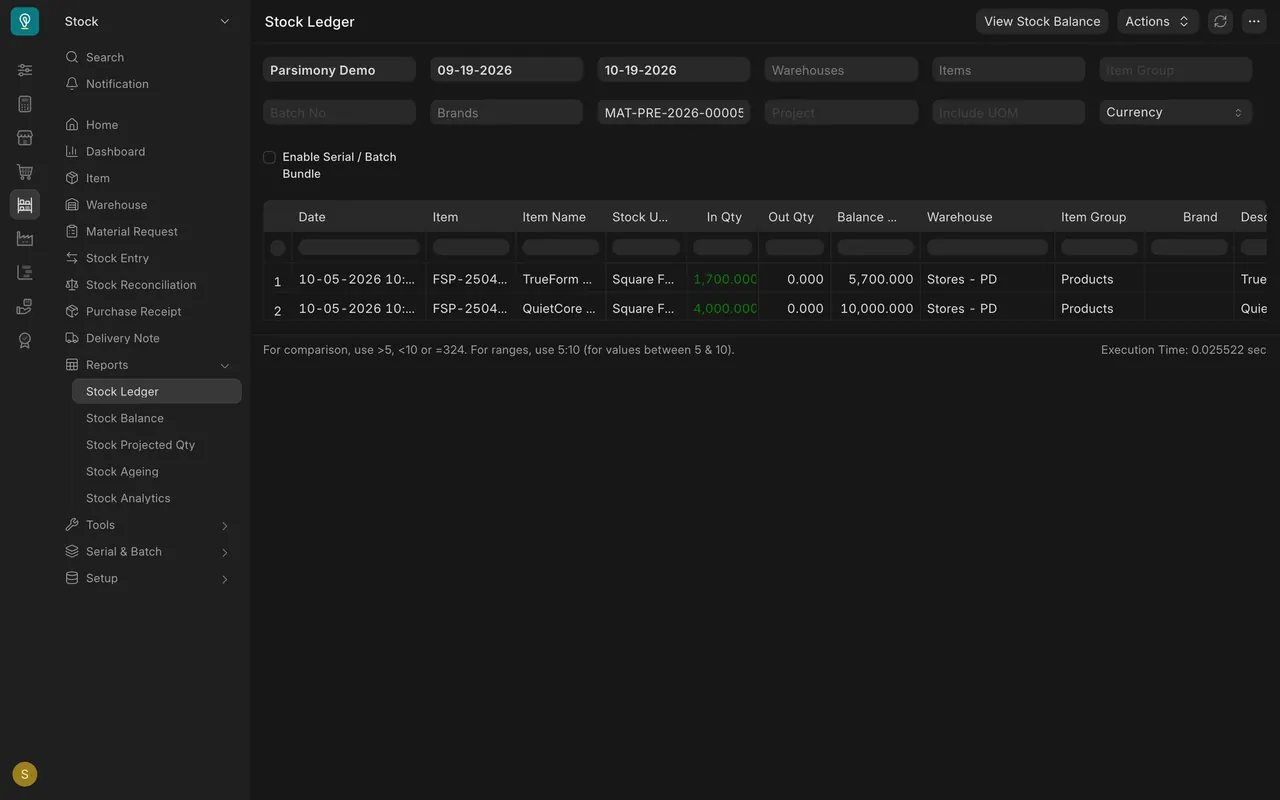
- Confirm in the Stock Ledger. Open Reports, then Stock Ledger, and put your receipt number in the Voucher # filter (the voucher number). Each row shows the In Qty (the quantity in) and the Warehouse it went into.
Settings that change what you see
These depend on how your company set up Parsimony. The demo company's values are shown as an example; ask your administrator or Stock Manager about yours.
- Over-receipt allowance: in the demo it is zero in the stock settings and on the items, so a receipt cannot take more than the order. Your site may allow a small percentage.
- Rejected warehouse: the demo has no warehouse set aside for rejected goods yet. Its warehouses are Stores, Finished Goods, Work In Progress and Goods In Transit. Ask your Stock Manager which warehouse to use for rejects.
- Permissions: by default, Stock Users, Stock Managers and Purchase Users can create, submit and cancel purchase receipts, and Accounts can read them. Your administrator can change this.
- Suppliers in the demo are overseas mills such as Kalmar Engineered Woods AB and Porto Ceramica Lda. They are invented demo data.
Common mistakes
- Submitting before counting. You accept the pre-filled quantity without opening the cartons. Fix: count first. If a wrong receipt is already submitted, tell your manager before anything else is built on it.
- Damaged goods in sellable stock. Rejected Quantity left at zero turns cracked tile into sellable stock. Fix: enter the rejected amount and the rejected warehouse your manager names.
- Wrong unit. You type cartons where the row expects square feet. Fix: check the unit of measure on the row.
- Back-dating by habit. Ticking Edit Posting Date and Time when nobody asked. Fix: leave the date and time as now.
- Leaving it in draft. The goods are on the shelf but the system does not know. Fix: submit the same day.
- Keeping a shortage or damage to yourself. Do not assume Parsimony emails anyone; whether it does depends on how your site is set up. Fix: tell Purchasing the same day, with the receipt number.
Check yourself
3 quick questions.
1. You receive 1,000 square feet and 100 square feet are cracked. What goes on the receipt row?
2. When does stock actually increase?
3. The order was for 8,100 square feet and only 5,700 arrived. What happens to the rest?