V16 Training · Stock and Warehouse · Lesson 3 of 6
Move stock between warehouses
This lesson gives you the one correct way to move flooring between warehouses, including stock that is on the road.
Written guide
The idea
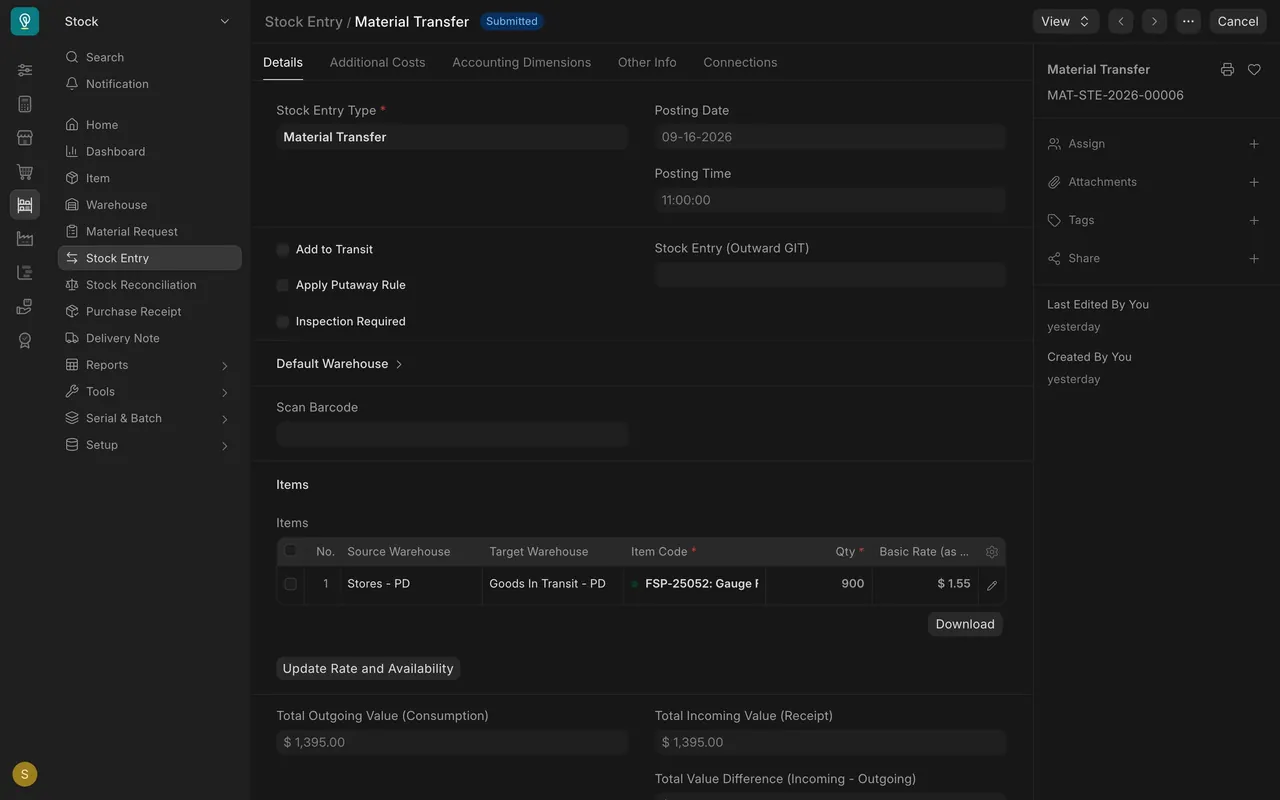
If flooring moves, a document moves it. A Stock Entry with the type Material Transfer takes stock out of one warehouse and puts it into another in one step, and leaves a record of what moved, where from, where to and when. Nobody should ever "fix" a location by changing a number.
Step by step
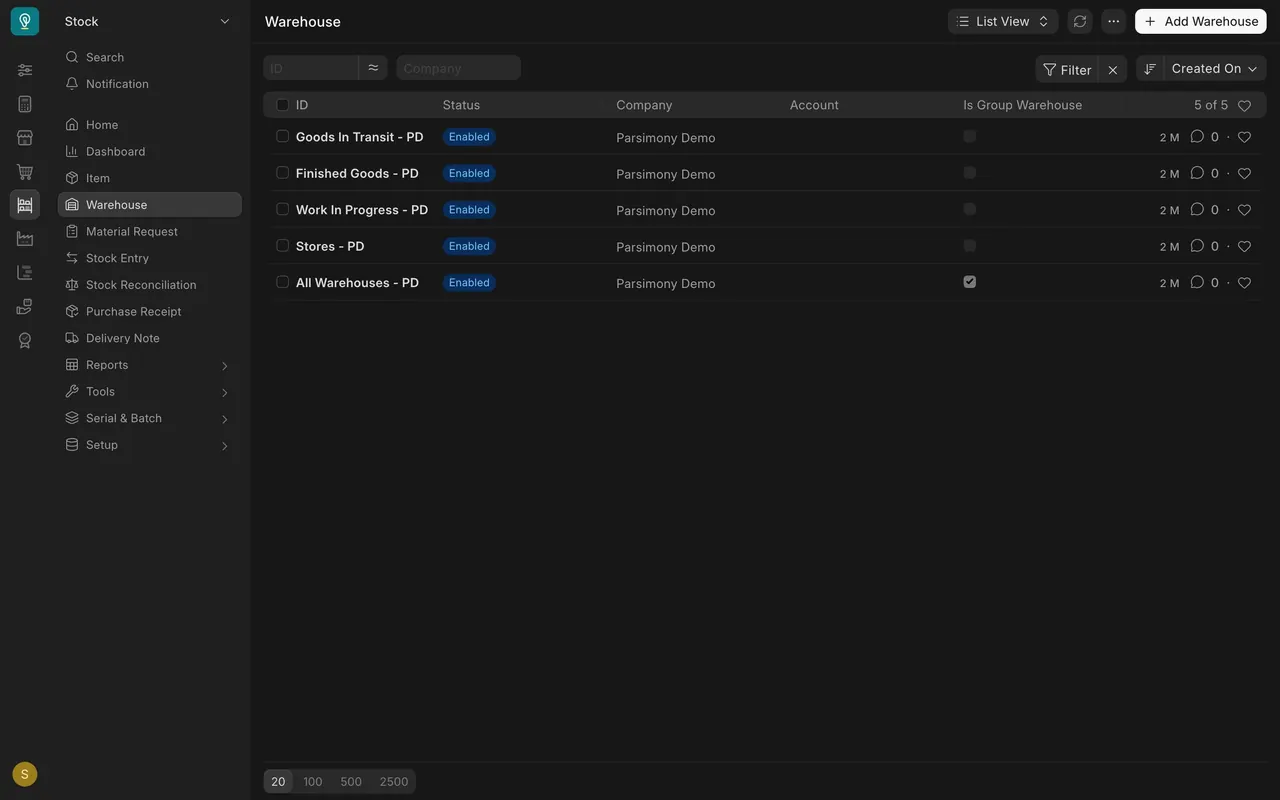
- Know the warehouses. Open Warehouse in the Stock sidebar. In this example the company has four working warehouses, Stores, Finished Goods, Work In Progress and Goods In Transit, under the group All Warehouses (the one with Is Group Warehouse ticked). On your own Parsimony site each warehouse name ends with a short company code, and your warehouses may differ. It opens as a tree; switch to the list view to see this table.
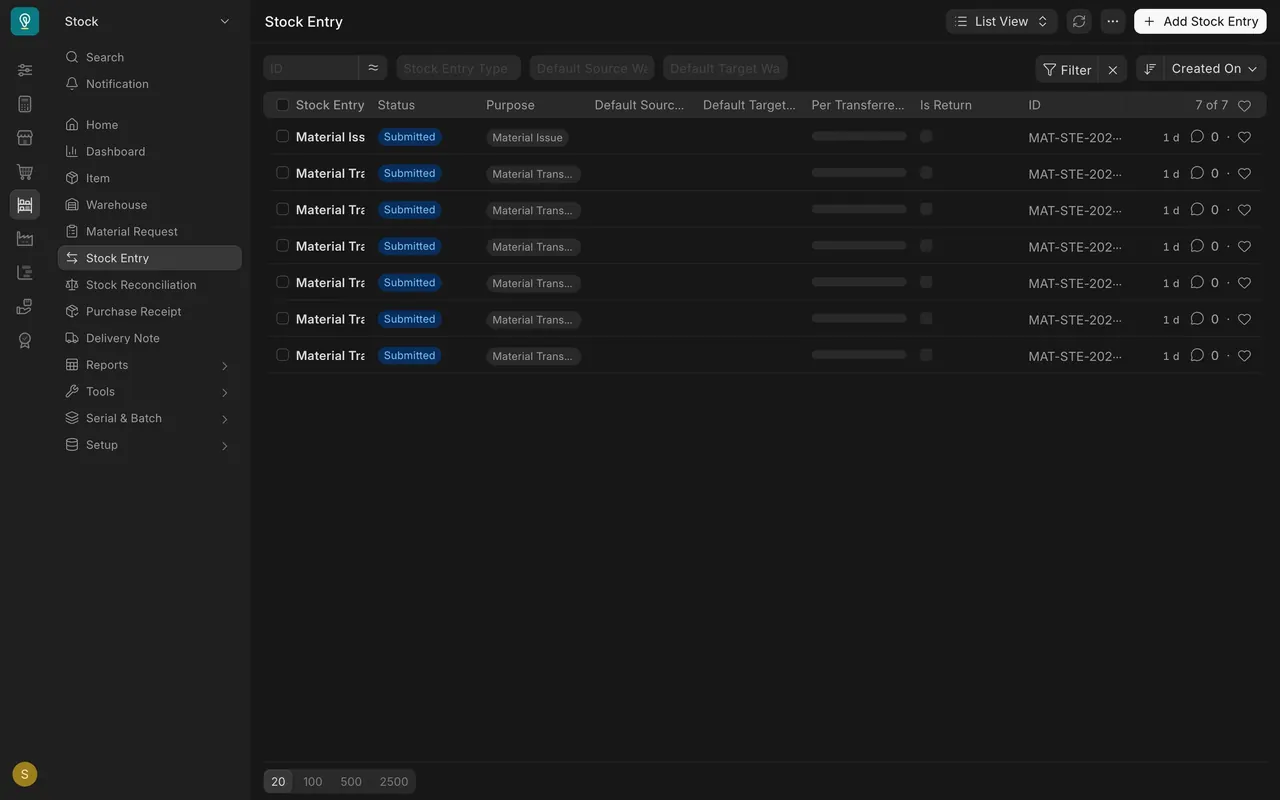
- Start a new stock entry. Open Stock Entry in the Stock sidebar and click Add Stock Entry. Its number is created automatically.
- Set the type. Set Stock Entry Type to Material Transfer. Leave Posting Date and Posting Time as they are unless your manager tells you otherwise (they are greyed out until you tick Edit Posting Date and Time).
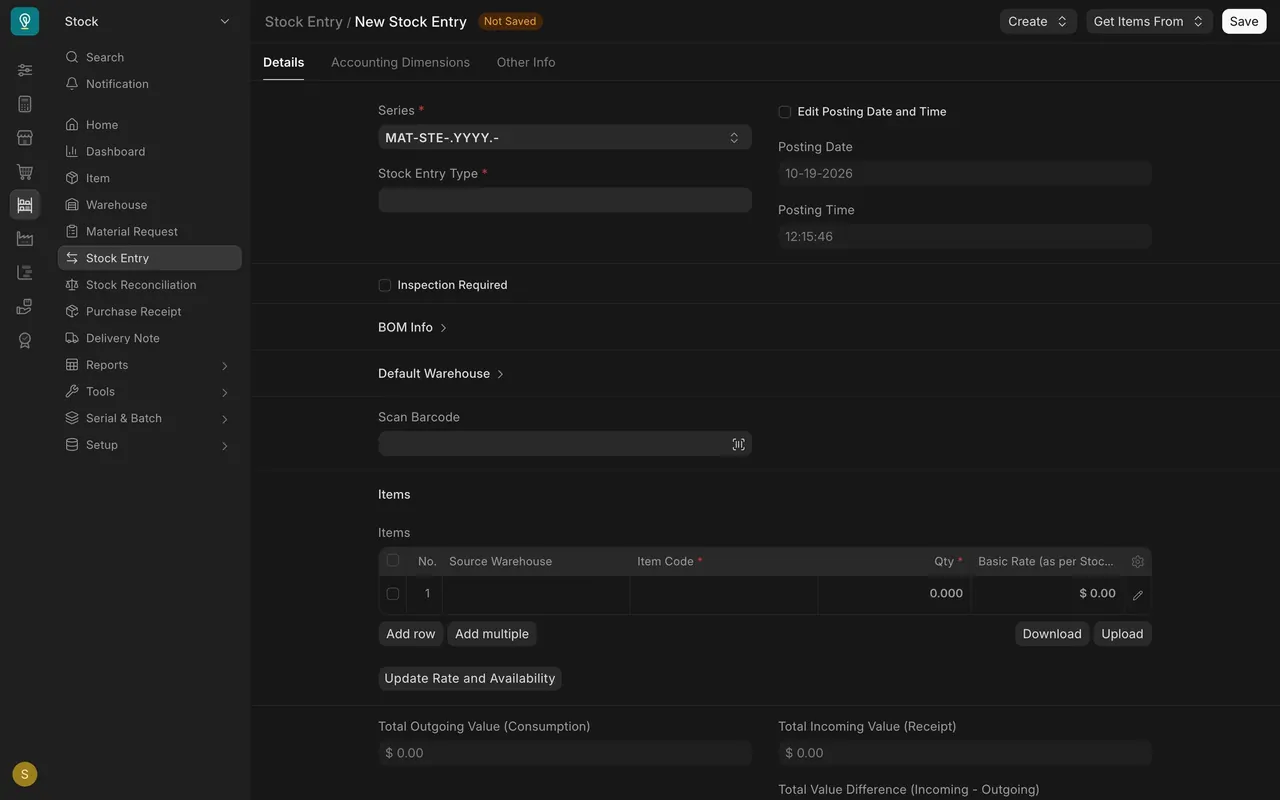
- Set defaults if you like. The collapsed Default Warehouse section holds a default source and target warehouse for the entry (the Stock Entry list calls them Default Source Warehouse and Default Target Warehouse). In this example they are left blank and the warehouses are set on each row.
- Add the items. Type the item code in the row, or use Scan Barcode, and enter the Qty (the quantity) in square feet.
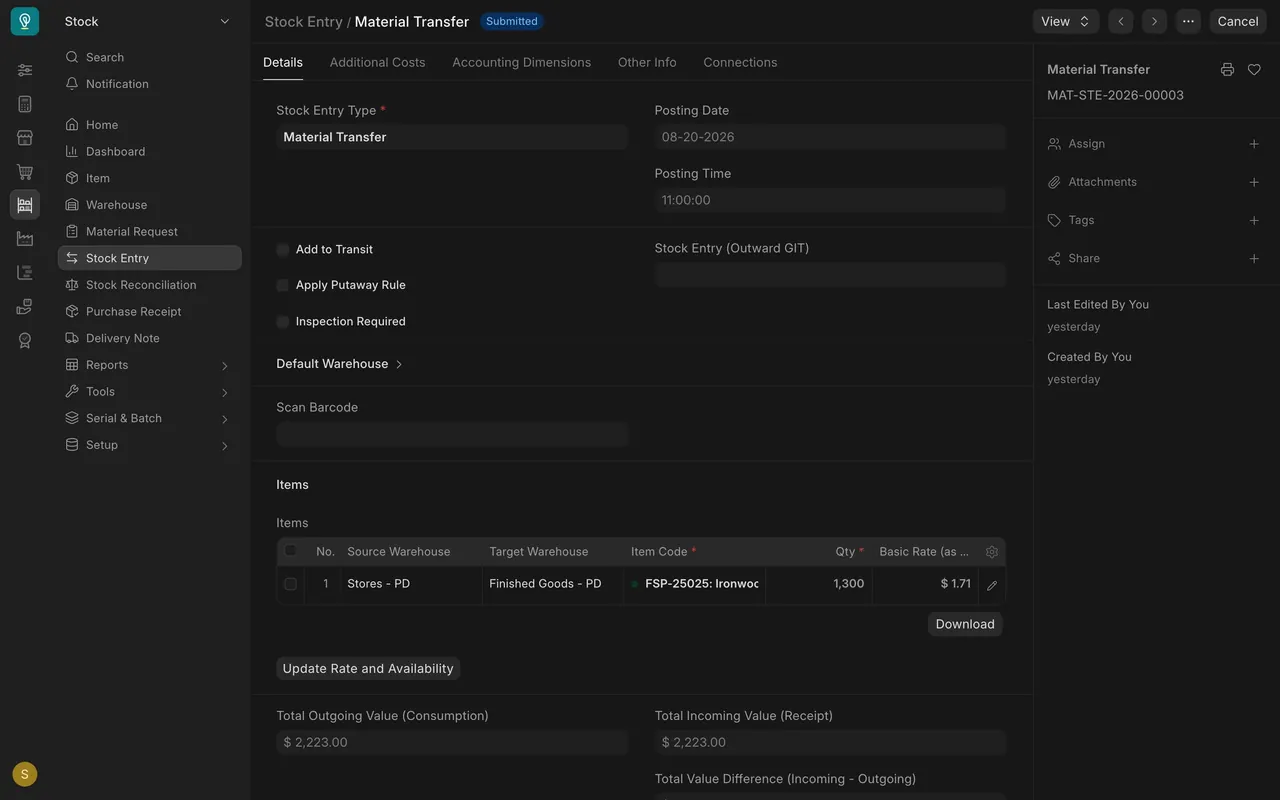
- Check every row. Each row has a Source Warehouse and a Target Warehouse. Read both on every row before you save.
- Save and check availability. Save, then open each row and read the actual quantity at the source and target. The Update Rate and Availability button refreshes it. If the source has less than you are moving, stop and find out why (a later lesson covers the negative-stock error).
- Submit. The stock leaves the source and lands in the target in one document.
Stock on the road: Goods In Transit
When stock leaves one place and arrives later, make two transfers:
- When the truck leaves: Material Transfer from Stores to Goods In Transit. Submit it.
- When the goods arrive and are counted: Material Transfer from Goods In Transit to the final warehouse. Submit it.
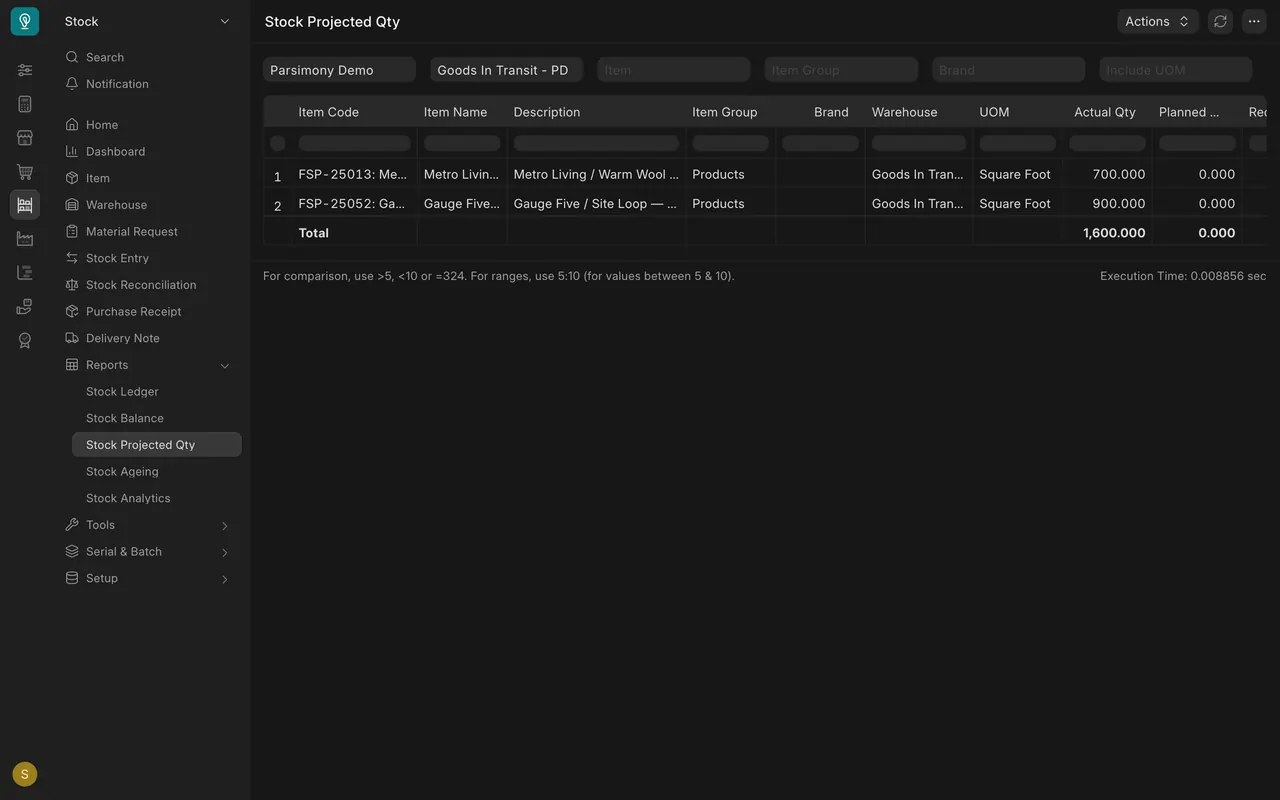
Anything still in Goods In Transit is on the road. To see what is sitting there, open Stock Projected Qty (the projected quantity report) and set the Warehouse filter to Goods In Transit. In this example it holds 900 square feet of one flooring item (moved on 09-16-2026) and 700 of another (moved on 08-11-2026), and neither has a second transfer yet. That is exactly the pattern to question.
How this example is set up
- Warehouses: Stores, Finished Goods, Work In Progress and Goods In Transit, under All Warehouses. Your company's list will differ.
- Negative stock is not allowed in this example. A transfer that would take the source below zero will not submit.
- Valuation: first in, first out. Your company may use another method. The transfer carries the cost of the stock with it.
- Permissions: in this example, Stock Users and Stock Managers can create, submit and cancel stock entries. Your administrator sets who can do this on your site.
- Scan Barcode is shown on stock entries, so you can add items with a scanner.
- Add to Transit: the stock entry form also shows an Add to Transit box and a Stock Entry (Outward GIT) field (GIT means goods in transit). The example transfers into Goods In Transit leave Add to Transit unticked and use the two plain transfers above. Ask your Stock Manager before using it.
Common mistakes
- Swapped warehouses. Source and target reversed, so the stock goes the wrong way. Fix: check both on every row before submitting. If it is already submitted, tell your manager and make a transfer back.
- A row that ignores your intent. A row keeps a warehouse you did not mean, for example from a default. Fix: read every row, not just the header.
- The forgotten second leg. Goods arrived but are still in Goods In Transit. Fix: make the second transfer as soon as the goods are counted.
- Moving before counting. You transfer what the paperwork says rather than what is on the pallet. Fix: count, then transfer.
- Wrong unit. Boxes typed where square feet are expected. Fix: check the unit on each row.
- Using a transfer for a customer delivery. Flooring going to a customer's job site leaves on a delivery note (a later lesson). Goods In Transit is only for moves between your own warehouses.
Check yourself
3 quick questions.
1. Which warehouse holds stock that has left one site but not yet arrived?
2. Which Stock Entry Type moves stock from one warehouse to another?
3. The pallet is in Finished Goods but the system shows it in Stores. What is the right fix?