V16 Training · Stock and Warehouse · Lesson 1 of 6
Find an item and its stock
This lesson gives you three reliable ways to answer "how much do we have, and where is it?" for any item you stock. The screens use a demo company that sells flooring, so the examples are flooring items.
Written guide
The idea
Every stock question has two parts: the item and the warehouse. Parsimony can answer both, but it gives you more than one number, and they mean different things. The quantity physically on the shelf is not the same as the quantity you can still promise. Know which number you are reading, and say which one you mean.
By the end of this course you will be able to:
- find any item and see how much stock your company has, and where;
- receive a supplier delivery against its purchase order, including damaged goods;
- move stock between your warehouses, including stock on the road;
- pick and ship a customer order;
- handle customer and supplier returns, and work through the negative-stock error;
- count stock, ask for more stock before it runs out, and read the key stock reports.
Step by step
- Open the item list. In the Stock sidebar, click Item. The list shows every item with its Item Name, Status, Item Group, UOM and ID (the item code). There are 353 items.
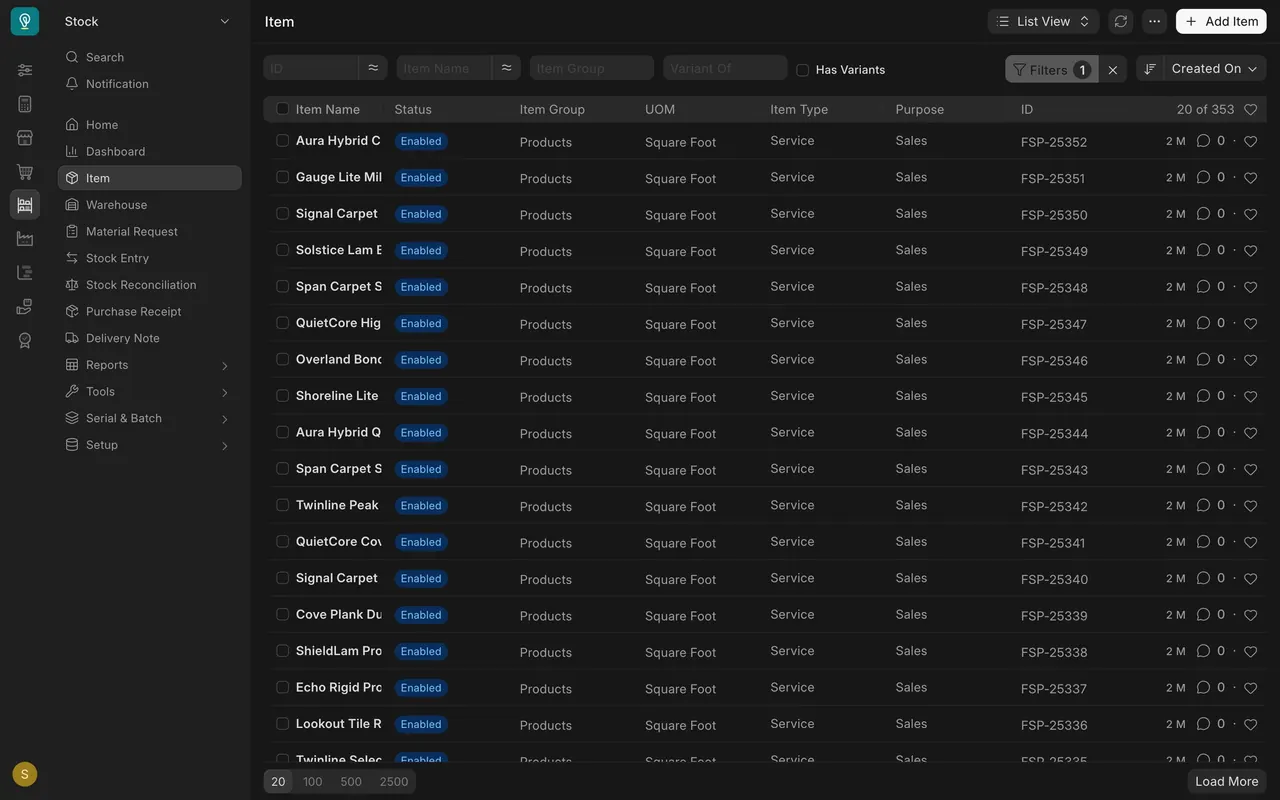
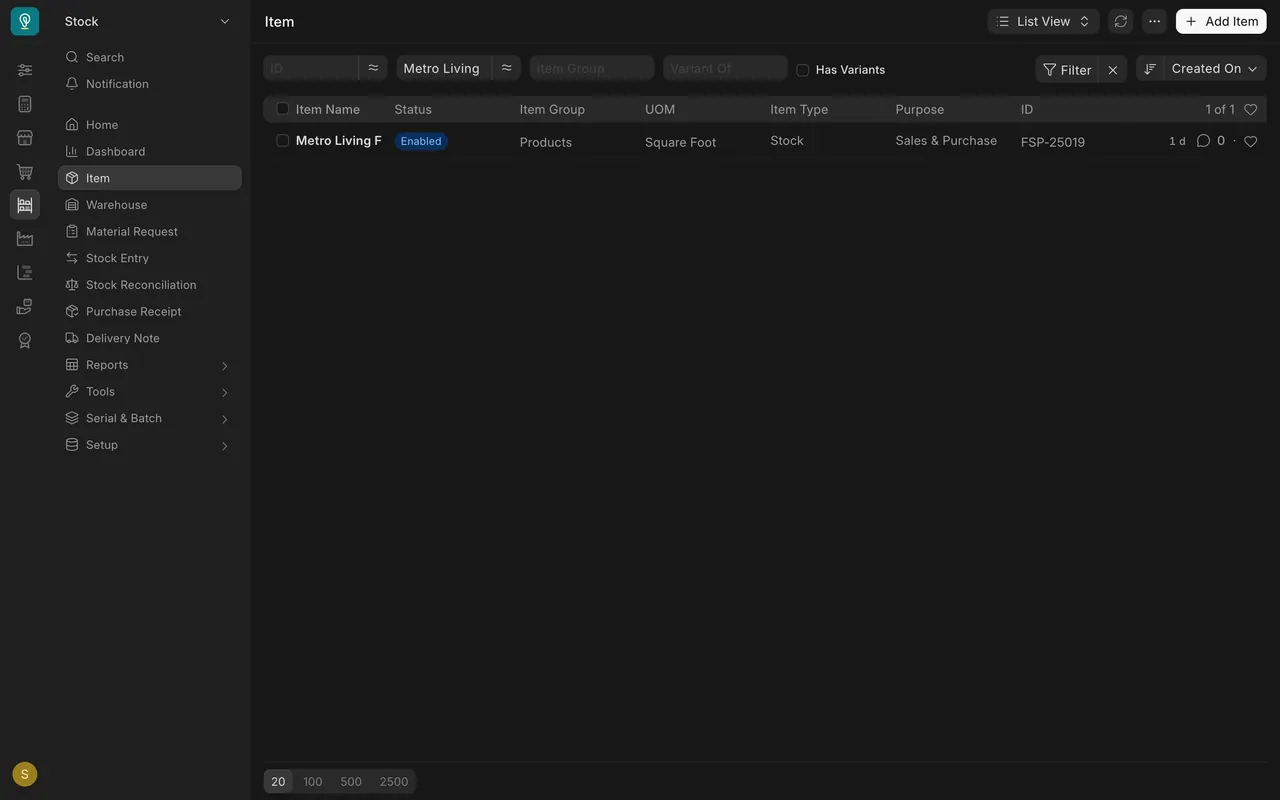
- Find your item. Type part of the name in the Item Name box at the top of the list (for example "Metro Living"), or the code in the ID box (for example FSP-25019). In this example the codes start with FSP-25, and the UOM column (the unit of measure) shows Square Foot.
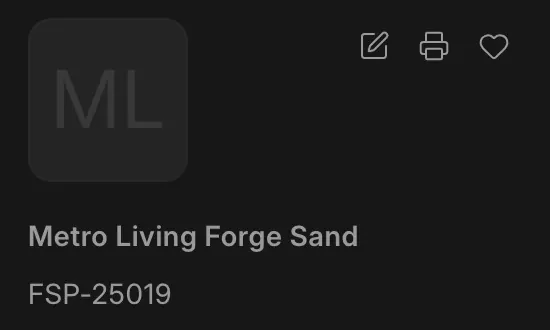
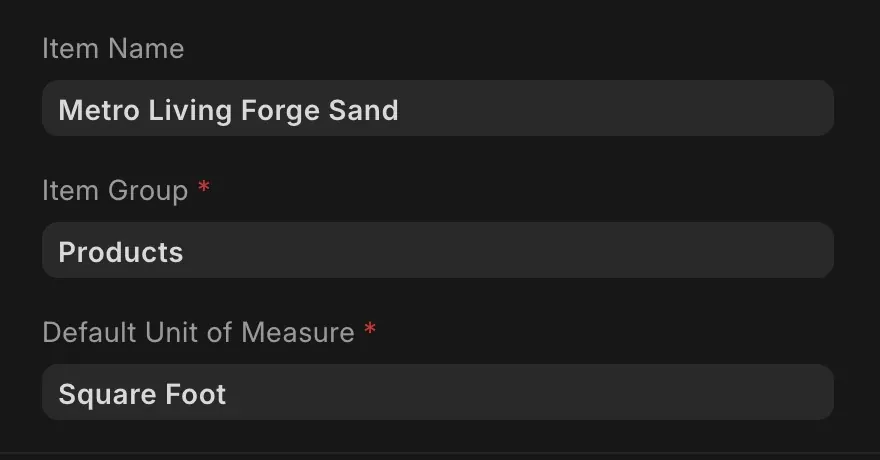
- Read the item. Open it. The code (FSP-25019) sits under the item name in the panel on the right. On the Details tab, check the Item Name, the Item Group (Products) and the Default Unit of Measure (Square Foot). You can read items, but only an Item Manager can create or change them.
- Open Stock Projected Qty. In the Stock sidebar, open Reports, then Stock Projected Qty. Put your item code in the Item filter at the top. You get one row for each warehouse that holds the item, with its Warehouse, UOM and Actual Qty. In this example, Metro Living Forge Sand has one row: the Stores warehouse (Stores - PD), Square Foot, 12,100.
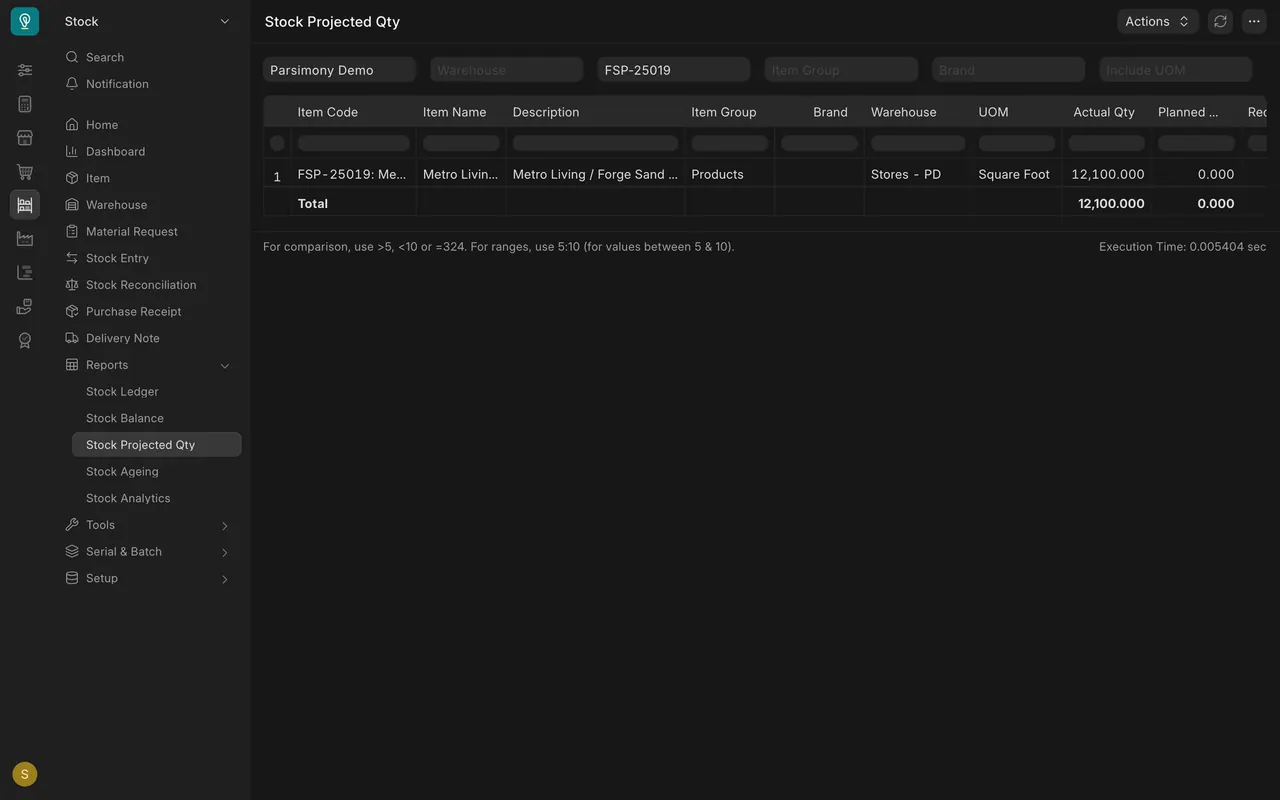
- Scroll right along the row. The same row carries more columns further right:
- Actual Qty: on the shelf in that warehouse now.
- Ordered Qty: on purchase orders, not yet received.
- Reserved Qty: promised to customers on sales orders, not yet delivered.
- Requested Qty: on material requests not yet ordered. Projected counts it too, so a request alone can lift the number.
- Projected Qty: what is left once everything ordered arrives and everything reserved ships.
For Metro Living Forge Sand in the Stores warehouse, at the time of writing: Actual 12,100, Ordered 3,700, Reserved 2,500, Projected 13,300 (12,100 + 3,700 - 2,500). Projected counts stock that has not arrived yet. For what you can ship today, take Actual minus Reserved: 12,100 - 2,500 = 9,600.
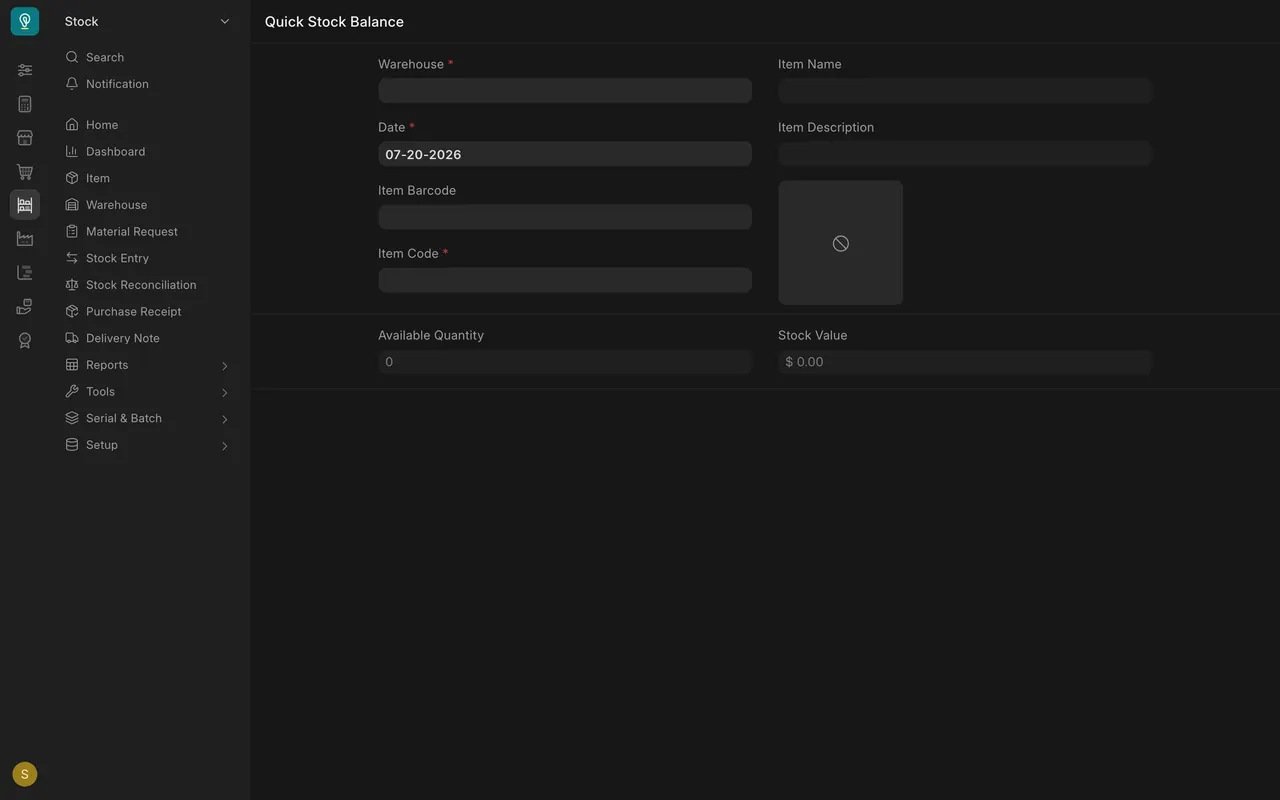
- Use Quick Stock Balance for one fast number. Press Command K (Mac) or Control K (Windows) and search for "Quick Stock Balance". Pick the Warehouse and the Item Code (or scan into Item Barcode), then read Available Quantity and Stock Value. Check the Date field first and set it to today (or the day you need): it decides which day the quantity is for. When this example screen was captured it showed 07-20-2026.
Your setup and the example
- Unit of measure: in this example every item is stocked in Square Foot. Check which unit your own items use, and always read and enter quantities in that unit, not in boxes or pallets.
- Warehouses: the example has Stores, Finished Goods, Work In Progress and Goods In Transit, all under one group, All Warehouses. Parsimony adds a short company code to each name (here "- PD", for the demo company). Your warehouse names will differ.
- Stock Balance runs in the background. Set the filters and press Generate New Report. For a quick lookup, use Stock Projected Qty or Quick Stock Balance (lesson 6 covers the reports).
- Read only: Stock Users and Stock Managers can read items but not edit them. Some screenshots were taken with a manager account, so you may see buttons (such as Save) your role does not have. Your roles are set by your company.
Common mistakes
- Quoting the wrong number. You read Actual Qty to a salesperson who needs Projected Qty, or the other way round. Say which quantity you mean.
- Forgetting the warehouse. A total across all warehouses can include stock in a Goods In Transit warehouse, which is still on a truck. Read the row for the warehouse you will pick from.
- Mixing units. A customer asks for 40 boxes. In this example the system holds square feet. Convert before you answer; ask your manager if you are unsure of the conversion.
- Trusting the wrong date. Quick Stock Balance answers for the day in its Date field. If that is not today, the number is not today's. Fix: set the Date before you read.
- Trying to fix an item. If an item's name, group or unit looks wrong, do not work around it. Tell an Item Manager.
Check yourself
3 quick questions.
1. A salesperson wants to know how much Metro Living Forge Sand they can still promise to a new customer. Which quantity do they need?
2. Which column in Stock Projected Qty shows stock promised on sales orders but not yet delivered?
3. Quick Stock Balance shows a Date that is not today. What do you do?