V16 Training · Stock and Warehouse · Lesson 4 of 6
Pick and ship an order
This lesson gives you the pick-and-ship routine that takes a customer order off the shelf and out of the system on the same day.
Written guide
The idea
A customer order moves through three documents. Sales creates and submits the Sales Order. You make the Pick List that tells you what to pull and from where, then the Delivery Note that takes the stock out of the warehouse. Until the delivery note is submitted, the system believes the flooring is still on your shelf.
Step by step
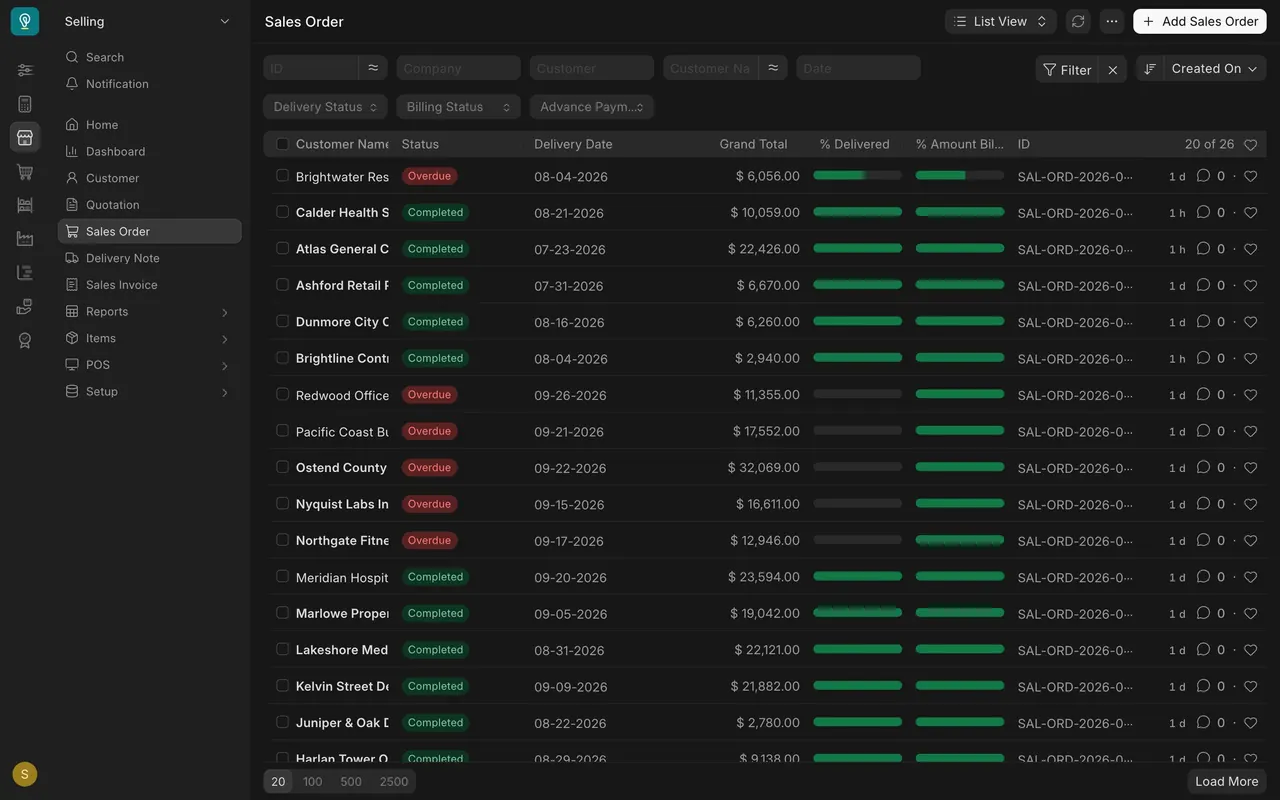
- Open the sales order. Find the submitted Sales Order (search for Sales Order with Cmd K or Ctrl K). Check the Customer and the Delivery Date on each row of the Items table. A red Overdue status means the delivery date has passed and the goods have not gone. Depending on your role, you may be able to read sales orders but not change them.
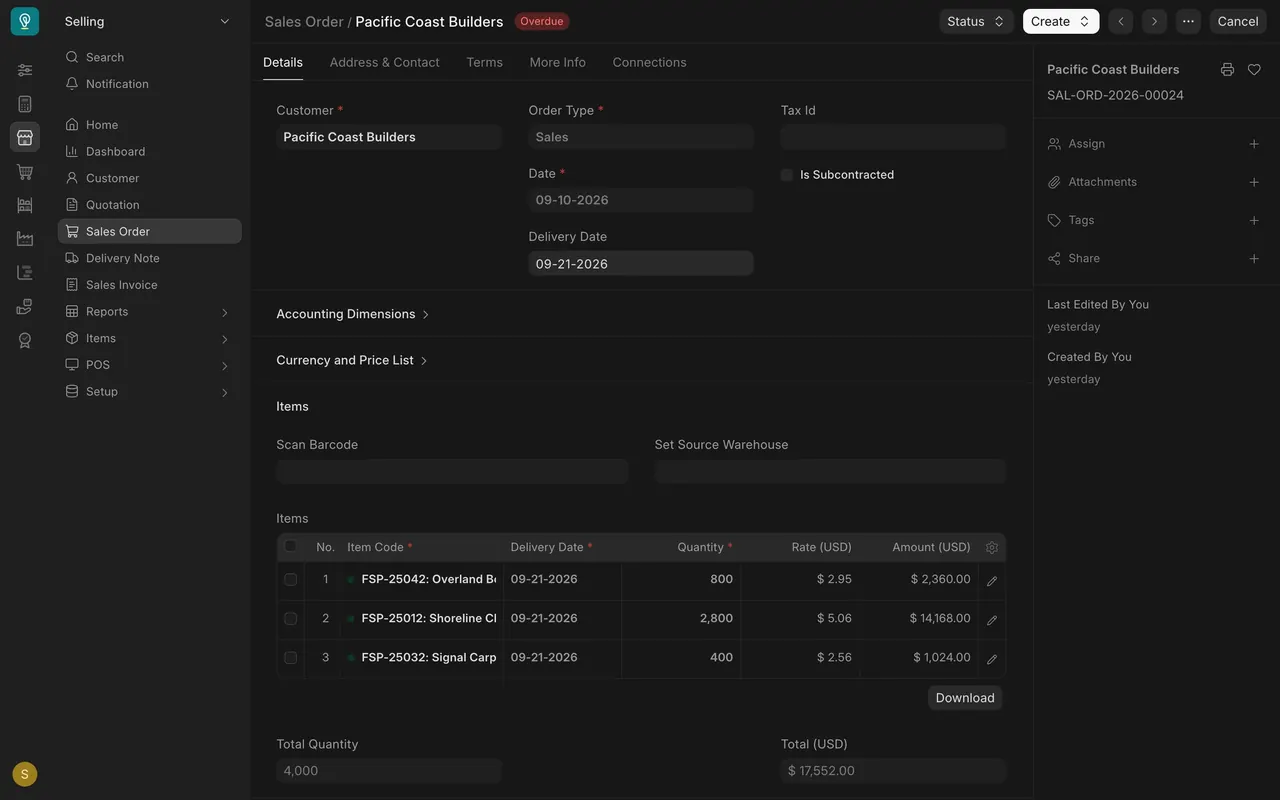
- Make the pick list. On the sales order, use the Create button to make a pick list. Pick lists live under Tools in the Stock sidebar. Each one gets its own number automatically.
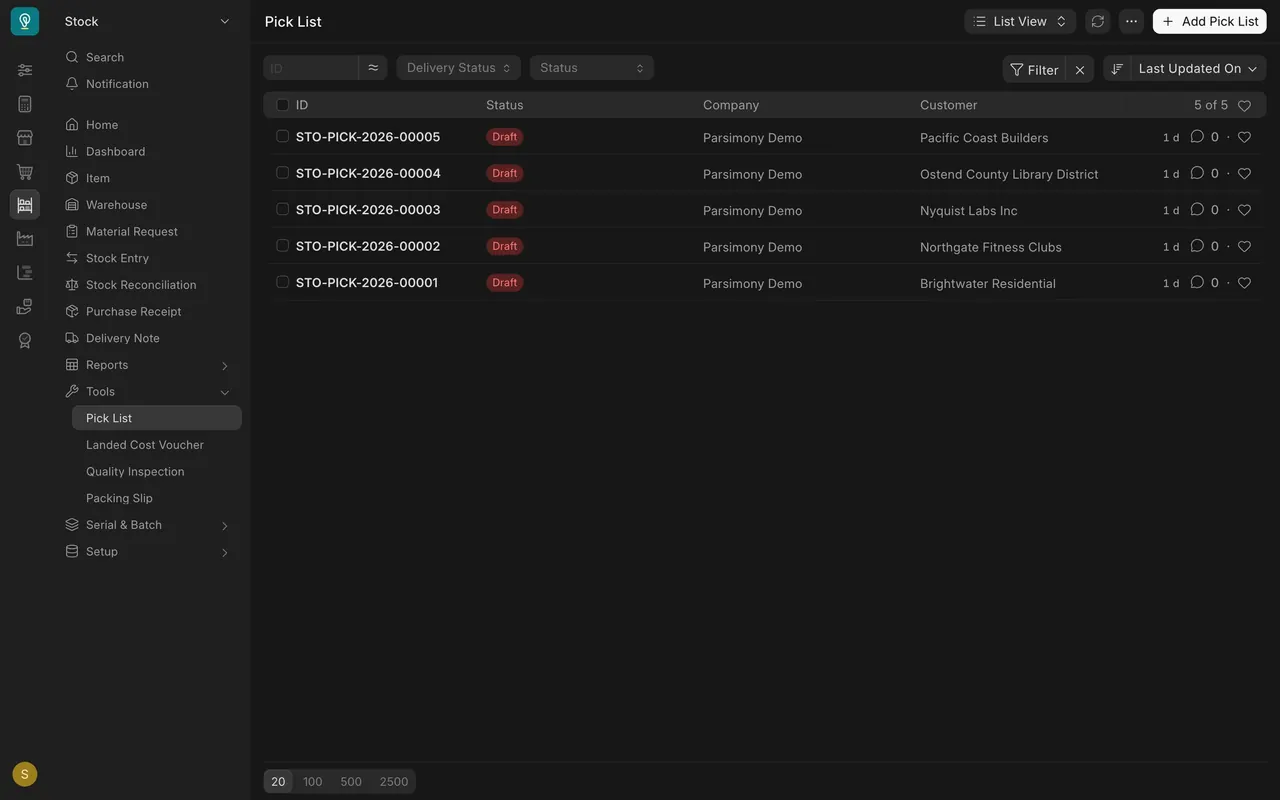
- Check the purpose and warehouse. Purpose should read Delivery (the other choices are Material Transfer and Material Transfer for Manufacture). Set Warehouse if the stock should come from one place: as the form says, items under that warehouse will be suggested.
- Get the locations. Press Get Item Locations. The Item Locations table fills with the Item, Warehouse and Qty to pick for each line.
- Read it against the order. In this example the order wants 800, 2,800 and 400 square feet, and the pick list asks for 800, 200 and 400. the warehouse in this example holds only 200 square feet of Shoreline Clay Pine, so that line is short before anyone walks the floor.
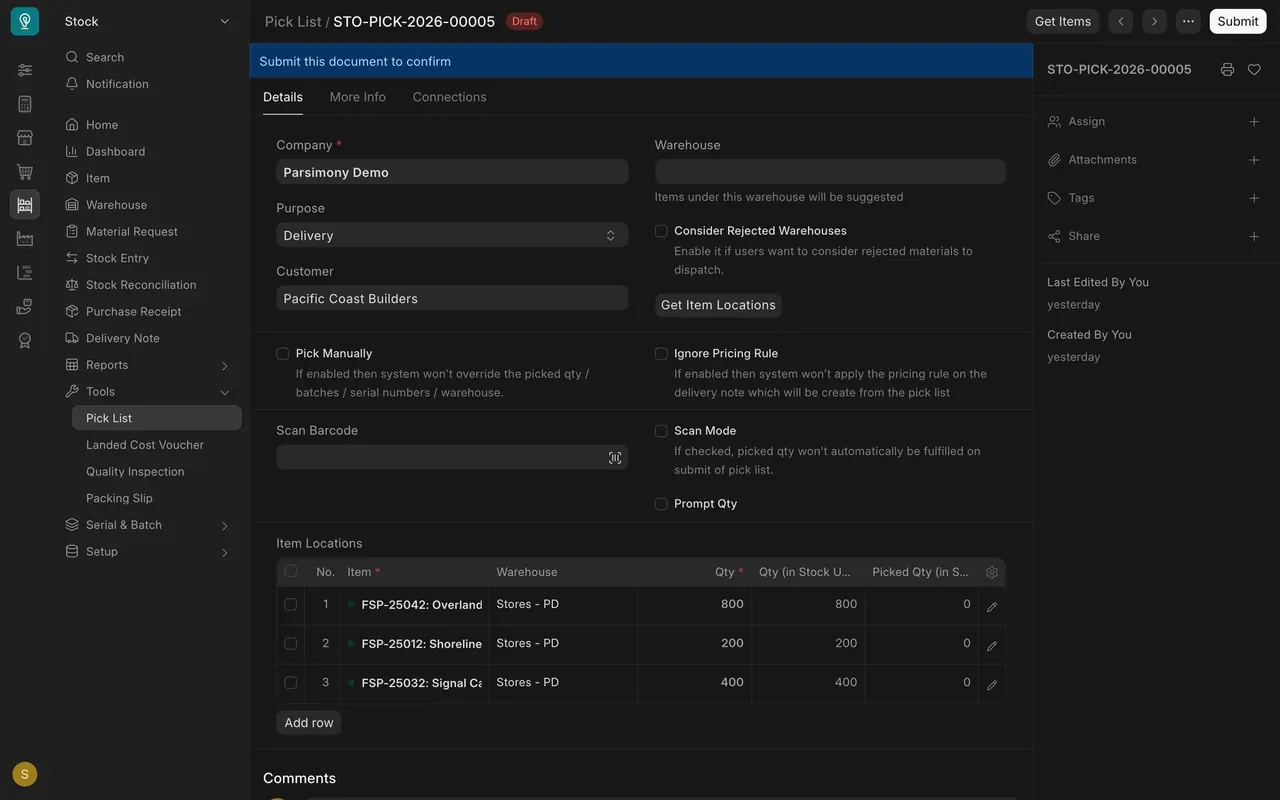
- Pick, then make the list true. Walk the warehouse with the list. When you submit, the Picked Qty (in Stock UOM) column fills in from the list (unless Scan Mode is ticked), so make every row match what is really on the pallet before you submit, and tell Sales about any shortfall. If you change rows by hand, tick Pick Manually first: as the form says, the system then won't override the picked qty or warehouse.
- Make the delivery note. On the sales order, use Create to make the delivery note. Delivery notes are linked to their sales orders and get their own numbers automatically. The delivery note fills in the order's remaining quantities, not what you picked. Set each row's Quantity to what went on the truck; the rest stays open on the order.
- Check it. Confirm the Customer, the Date, the Posting Time, and the Quantity, UOM (the unit of measure) and Warehouse on each row of the Delivery Note Item table. Delivery notes also carry a Tax Id field, the customer's tax identification number. In this example it is blank on every customer; if a customer needs it on the paperwork, ask Sales.
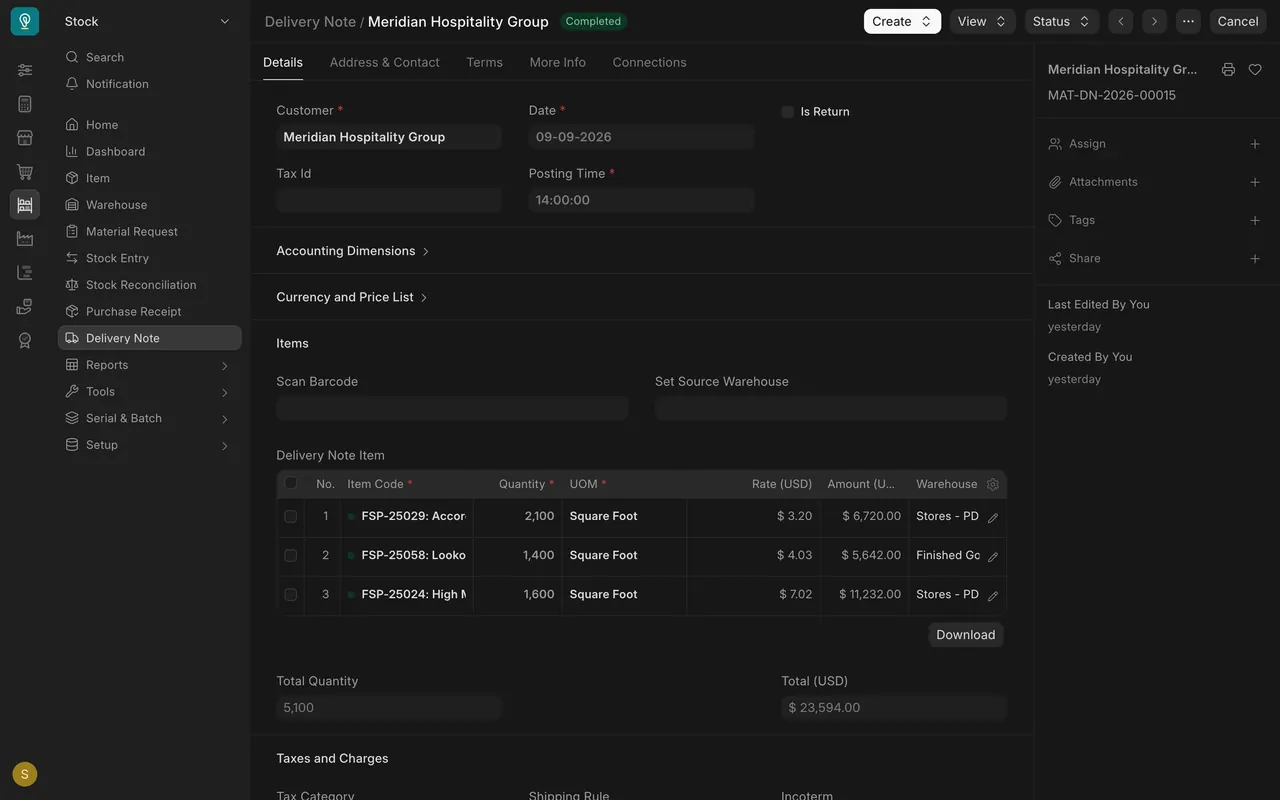
- Save and submit. Stock leaves the warehouse and the sales order shows the goods as delivered (its % Delivered bar fills).
- Print it for the driver with the printer icon in the panel on the right. The submitted delivery note is the record that the goods left. An order can already be invoiced before it ships (in this example, five overdue orders are fully billed and not yet delivered), so never treat an invoice as proof of delivery.
Settings that depend on your company's setup
- Negative stock may not be allowed. If your site is set up this way, a delivery note that would take a warehouse below zero will not submit.
- Over-picking allowance: in this example it is zero in the stock settings. Your administrator can tell you what yours is.
- Permissions: what you can do depends on your role. In this example, Stock Users can read sales orders and create, submit and cancel pick lists and delivery notes, and Sales Users can also create delivery notes. Ask your administrator about yours.
- Email. If your site is set up to send email, the customer can be told from the system; if not, tell the customer or the sales representative yourself when an order ships.
Common mistakes
- Shipping without a submitted delivery note. The customer has the flooring but the system still shows it in stock, and the next pick list can send someone after it. Fix: submit the delivery note the same day the truck leaves.
- Submitting a pick list that is not true. Rows left at the full amount when a roll was missing. Fix: make each row match what you picked, then submit, and tell Sales.
- Ignoring a short line. The pick list already shows less than the order. Fix: raise it with Sales before the truck is booked.
- Wrong warehouse. A row points at a warehouse the stock is not in. Fix: check the Warehouse on each row before you walk the floor.
- Editing the sales order. You cannot. If the order is wrong, Sales fixes it.
- Shipping the order quantity instead of the picked quantity. The delivery note starts from the sales order. Fix: set each row's Quantity to what you loaded before you submit.
Check yourself
3 quick questions.
1. For a customer delivery, a pick list is made from which document?
2. Which step actually takes the stock out of the warehouse?
3. The order wants 2,800 square feet but the pick list only finds 200. What do you do?