V16 Training · Quality and Inspections · Lesson 2 of 6
Make an item require inspection
This lesson shows how to make an item require a quality inspection: two checkboxes and a template on the item, and the stock setting that decides what happens when an inspection is missing or rejected.
Written guide
The idea
A quality inspection can be required for an item before goods come in from a supplier, before goods go out to a customer, or both. You set that once, on the item. The item also names the template that holds the checks. Then one Stock Settings choice decides whether Parsimony stops a receipt when its inspection is missing or rejected.
The screens use example data from a demo company that sells flooring. Your items and settings are your own.
Step by step
Step 1. Open the item
- In Stock, open Item and pick the item you want.
- In this example, the demo company has an item for engineered oak flooring, with "inspected" in its name.
Step 2. Open the Quality tab
- Click Quality. It sits after Manufacturing in the row of tabs.
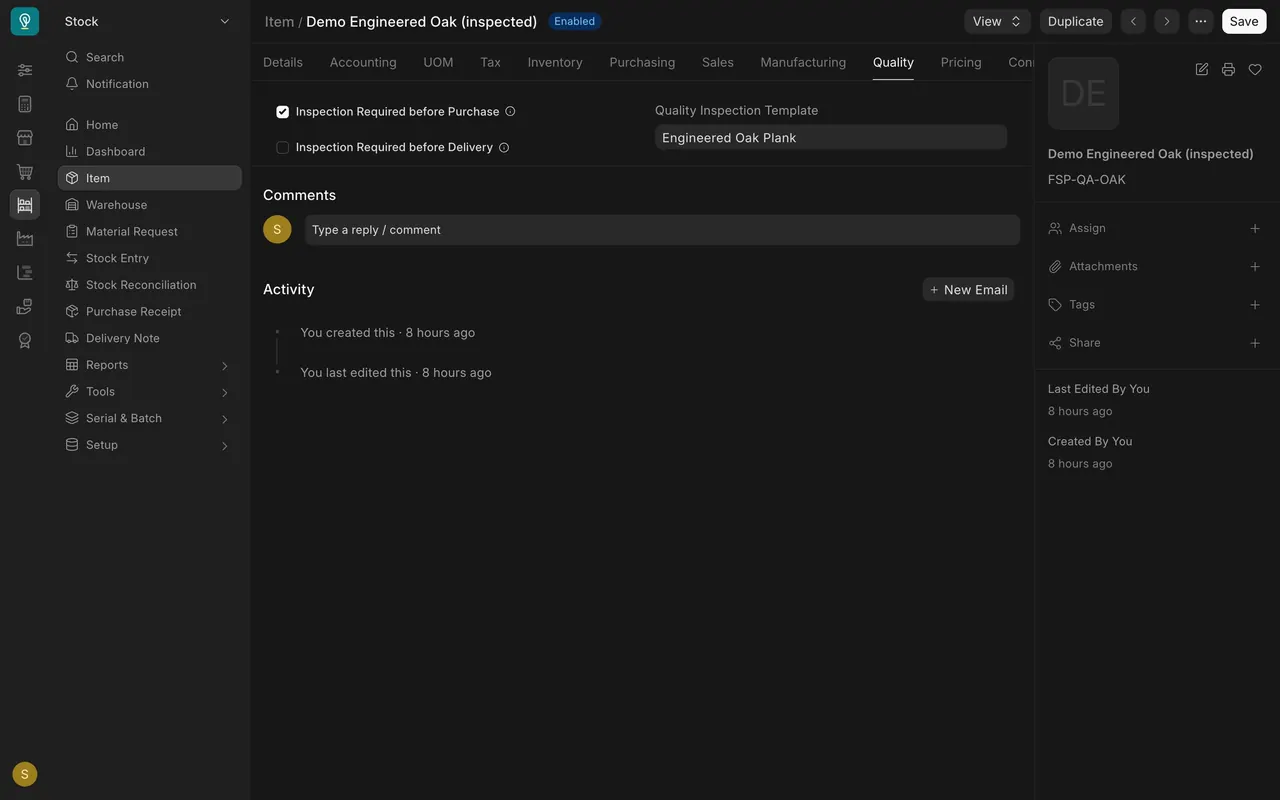
- Two checkboxes show: Inspection Required before Purchase and Inspection Required before Delivery. For the oak, only the first is ticked, so it is inspected when it comes in from a supplier and not on the way out.
Step 3. Choose the template
- The Quality Inspection Template box lists the checks to run. For the oak it is Engineered Oak Plank. You build templates in lesson 1 of this course.
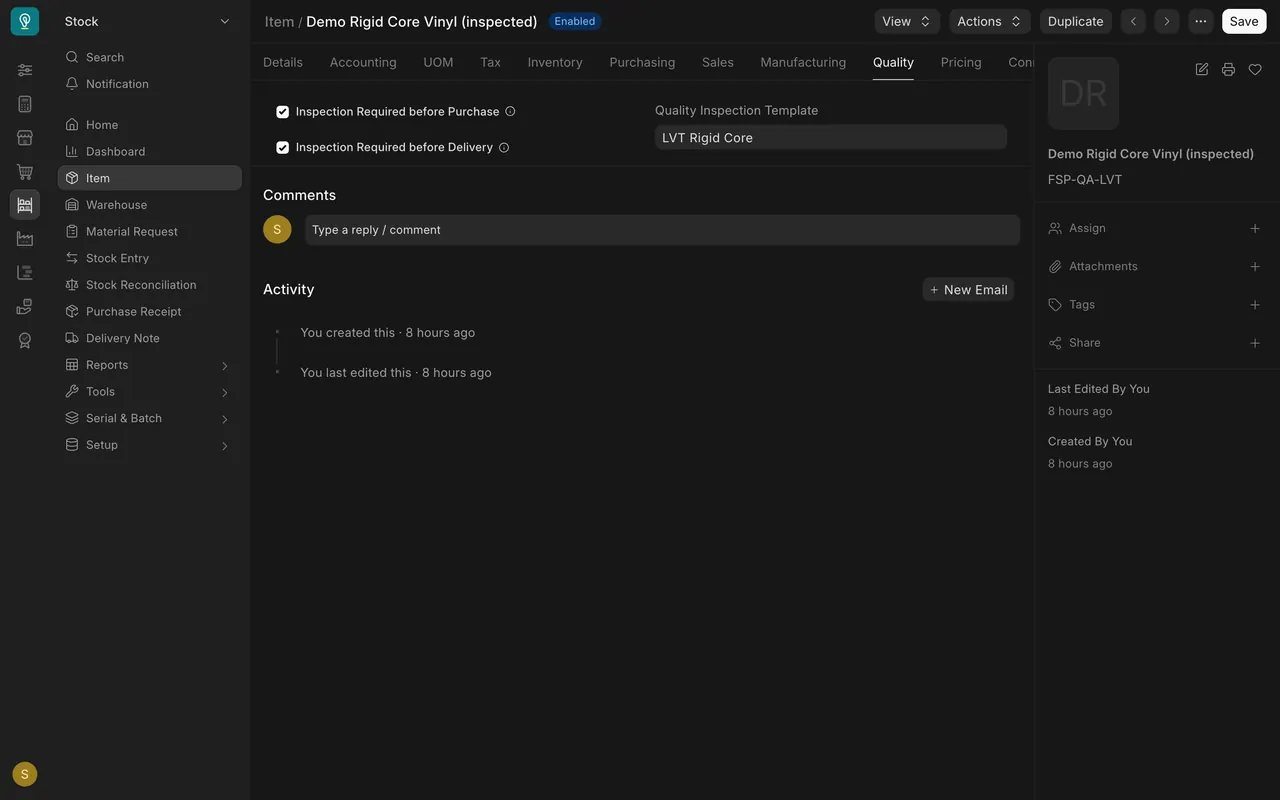
- For comparison, the rigid core vinyl has both boxes ticked, so it is inspected on the way in and again before delivery.
Step 4. Decide what happens when an inspection is missing
- Open Stock Settings and click its Quality tab.
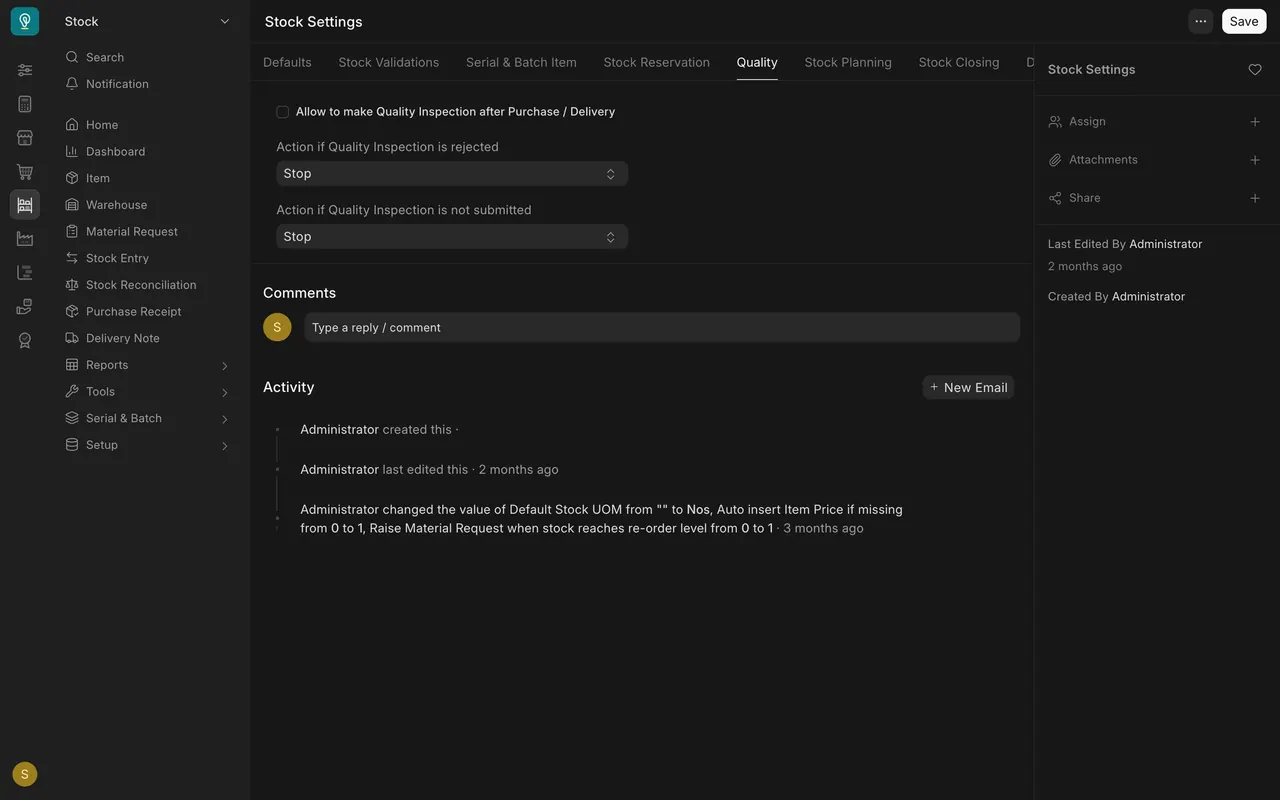
- Action if Quality Inspection is not submitted reads Stop, so a receipt cannot go through until its inspection is submitted.
- Action if Quality Inspection is rejected also reads Stop, so a failed inspection blocks the receipt.
What you may see on your own site
- Your items, templates and stock settings are your own. Your site may use a different action than Stop, so check yours.
Common mistakes
- Ticking the box but leaving the template empty. The inspection then has no checks to run.
- Ticking every item. Flag the items where one bad batch would cost you the most.
- Forgetting the stock setting. The checkboxes say an inspection is needed; the Stock Settings actions decide whether a receipt stops without one.
Check yourself
3 quick questions.
1. Where do you make one item require an inspection when goods arrive from a supplier?
2. An item has Inspection Required before Purchase and Inspection Required before Delivery both ticked. When is it inspected?
3. In this example, "Action if Quality Inspection is not submitted" reads Stop. What does that do?