V16 Training · Make It Yours · Lesson 3 of 5
Workflows and approvals
This lesson shows what a workflow is and how to read one: the document type it governs, its states, its transitions, the self approval box and the email switch.
Written guide
The idea
A workflow is the path a document must follow. Each stop on the path is a state, each move between stops is a transition, and each transition names the role allowed to make it.
The screens use example data from a demo company.
Step by step
Step 1. Open the workflow
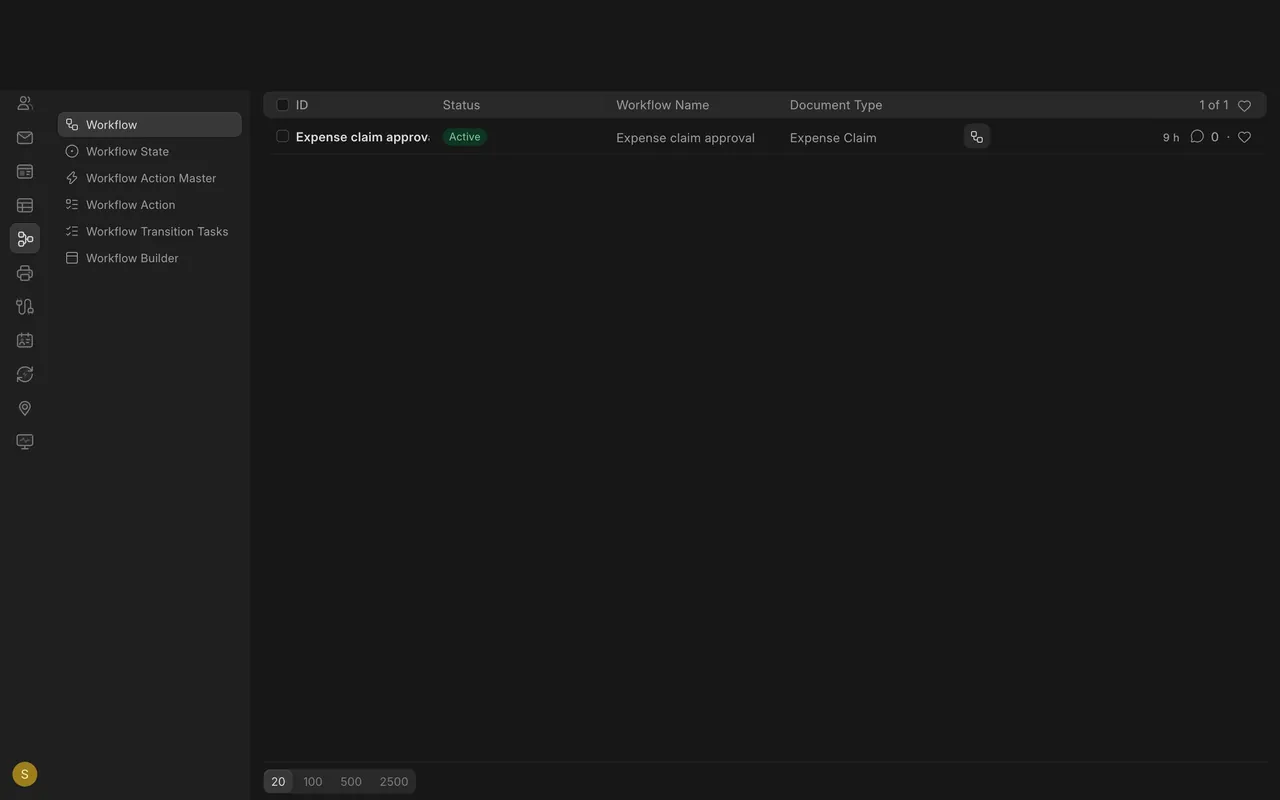
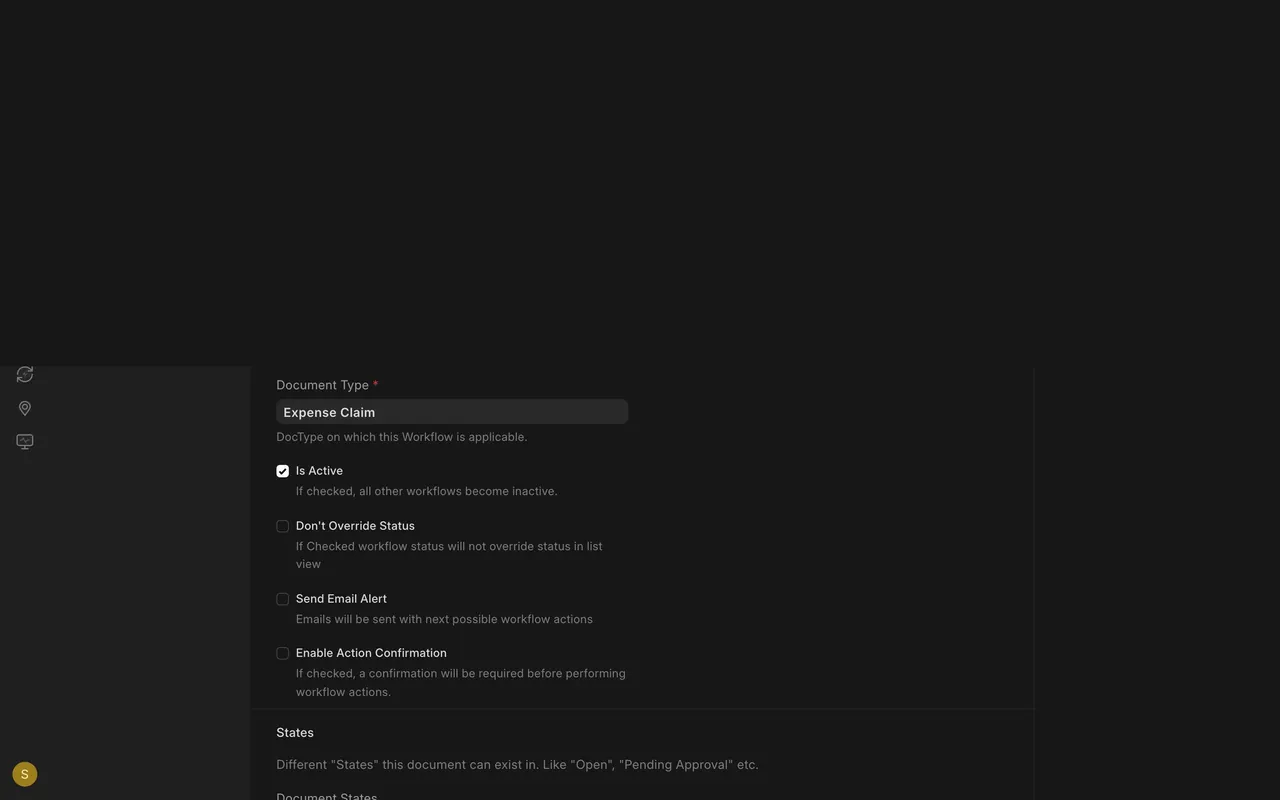
Open the Workflow list and open Expense claim approval. Its Document Type is Expense Claim and Is Active is ticked.
Step 2. Read the states
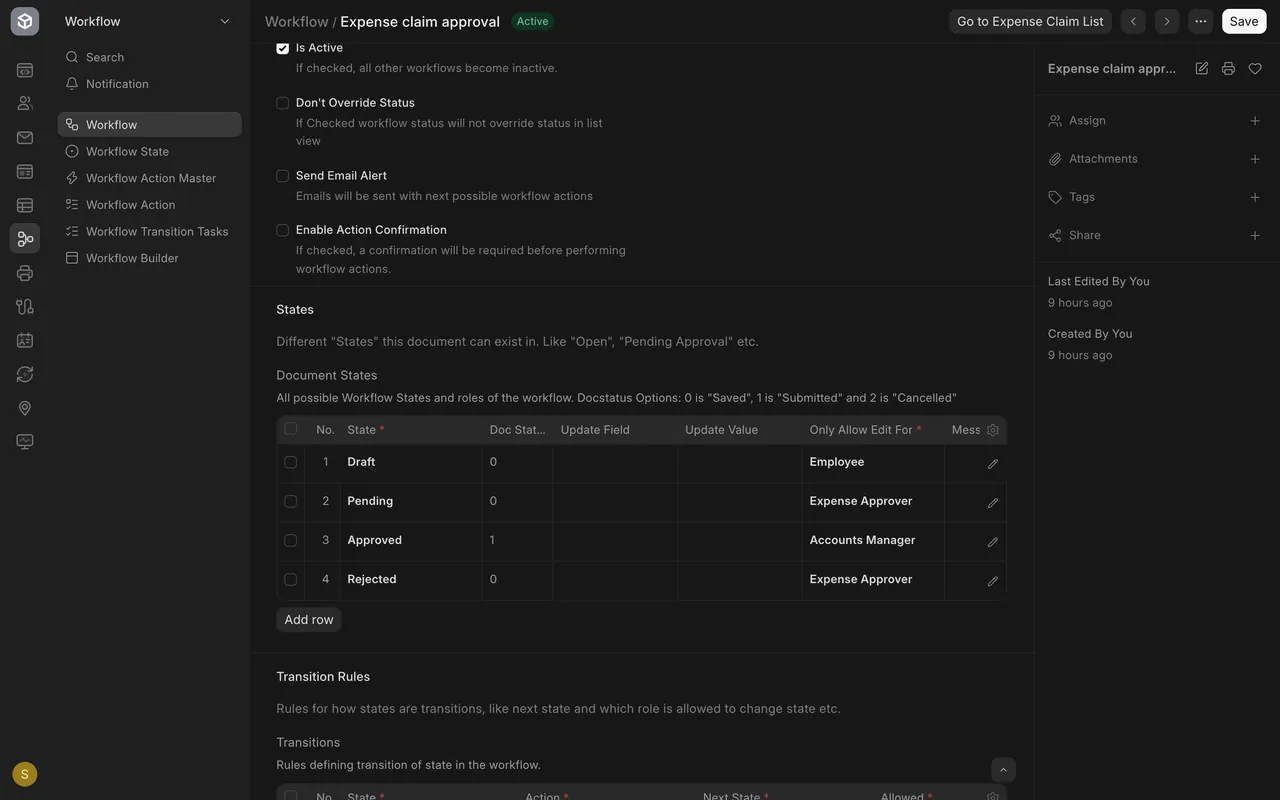
The Document States table lists Draft, Pending, Approved and Rejected, with the role that may edit a claim in each.
Step 3. Read the transitions
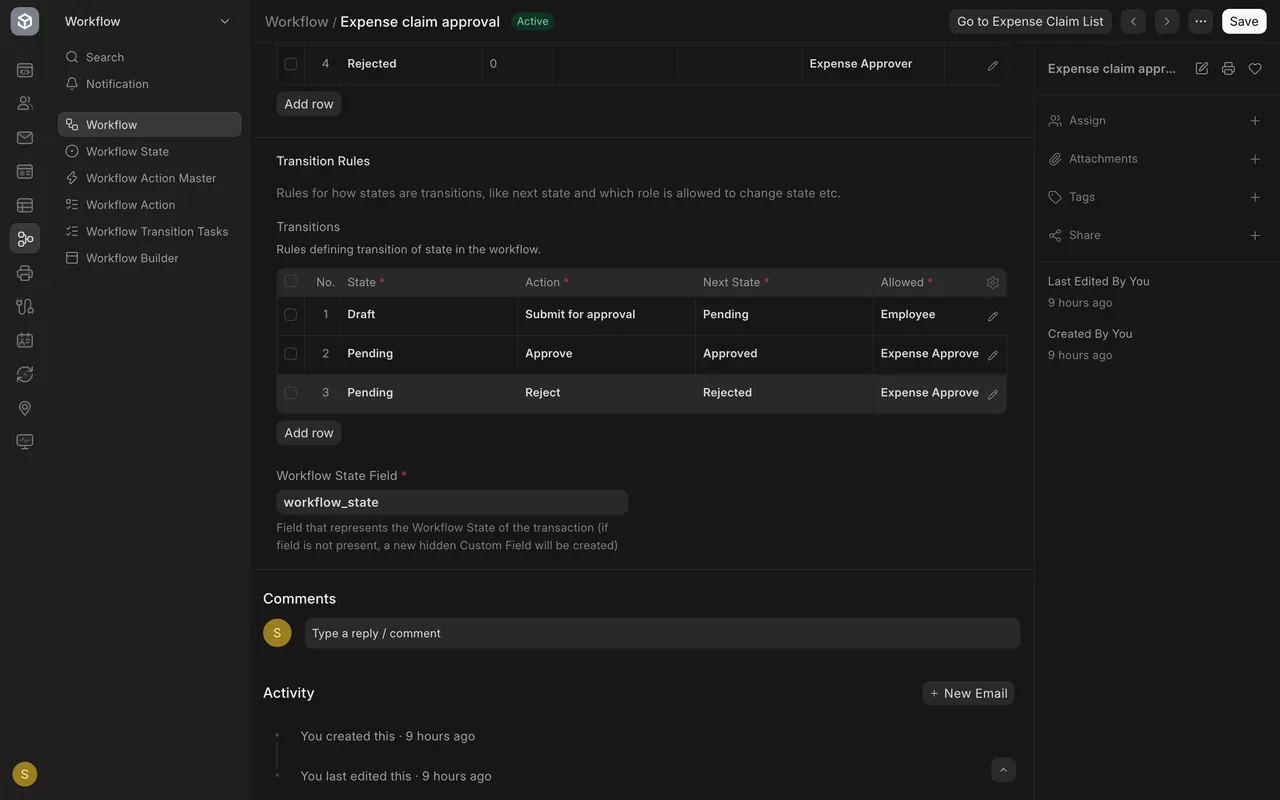
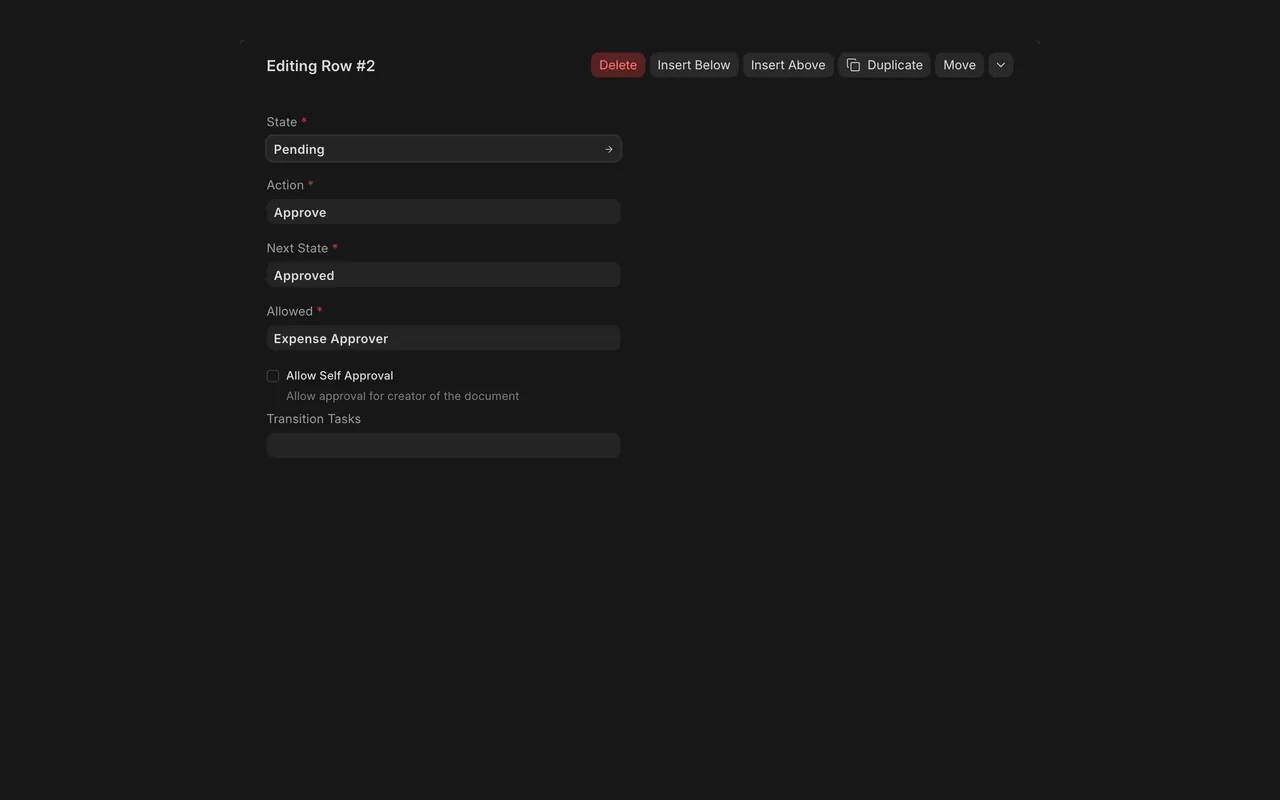
Each Transitions row has a state, an action, a next state and an allowed role. Open a row to see Allow Self Approval.
Step 4. Check the email switch
Send Email Alert is off here. If your site is set up to send email, ticking it tells people when a document waits for them.
What you may see on your own site
- Your own states, roles and transitions.
- A document shows its workflow state once the workflow is in use.
Common mistakes
- Naming a role nobody holds. The transition can never happen.
- Ticking Allow Self Approval for money. The maker can approve their own claim.
- Forgetting Is Active. The path is not in force.
Check yourself
3 quick questions.
1. Who may move a claim from Pending to Approved in this example?
2. What does an empty Allow Self Approval box mean?
3. Which box decides whether the workflow tells people by email?