V16 Training · Make It Yours · Lesson 2 of 5
Property setters and layout
This lesson shows what a property setter is, how to read the list, and how the same changes are made in Customize Form. For System Managers. Screens use example data from a demo company. Nothing is saved.
Written guide
The idea
A property setter changes one setting of a field or form that already exists: hide it, make it required, rename its label, set its default or its order. For a brand new field, see Lesson 1 (custom fields).
Step by step
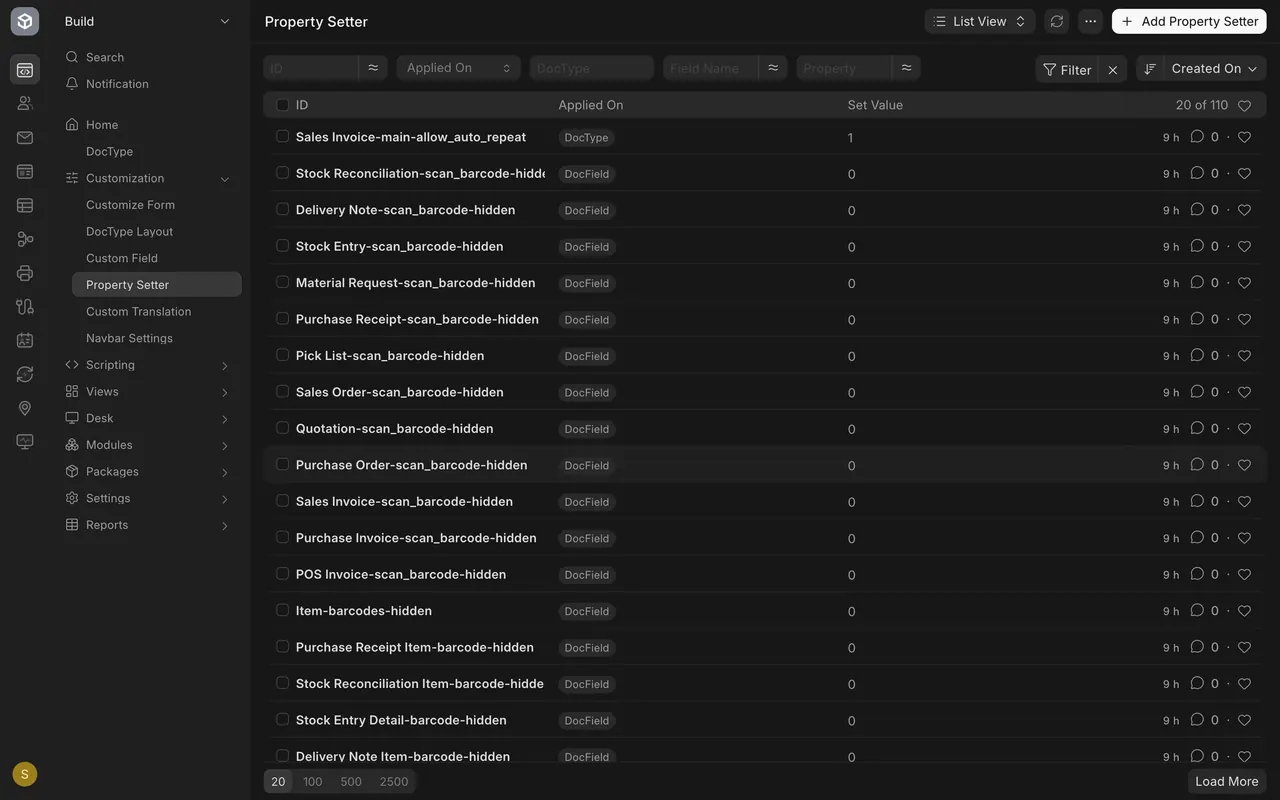
Step 1. Open the Property Setter list
- In the Build area, under Customization, choose Property Setter. Each name joins the form, the field and the property.
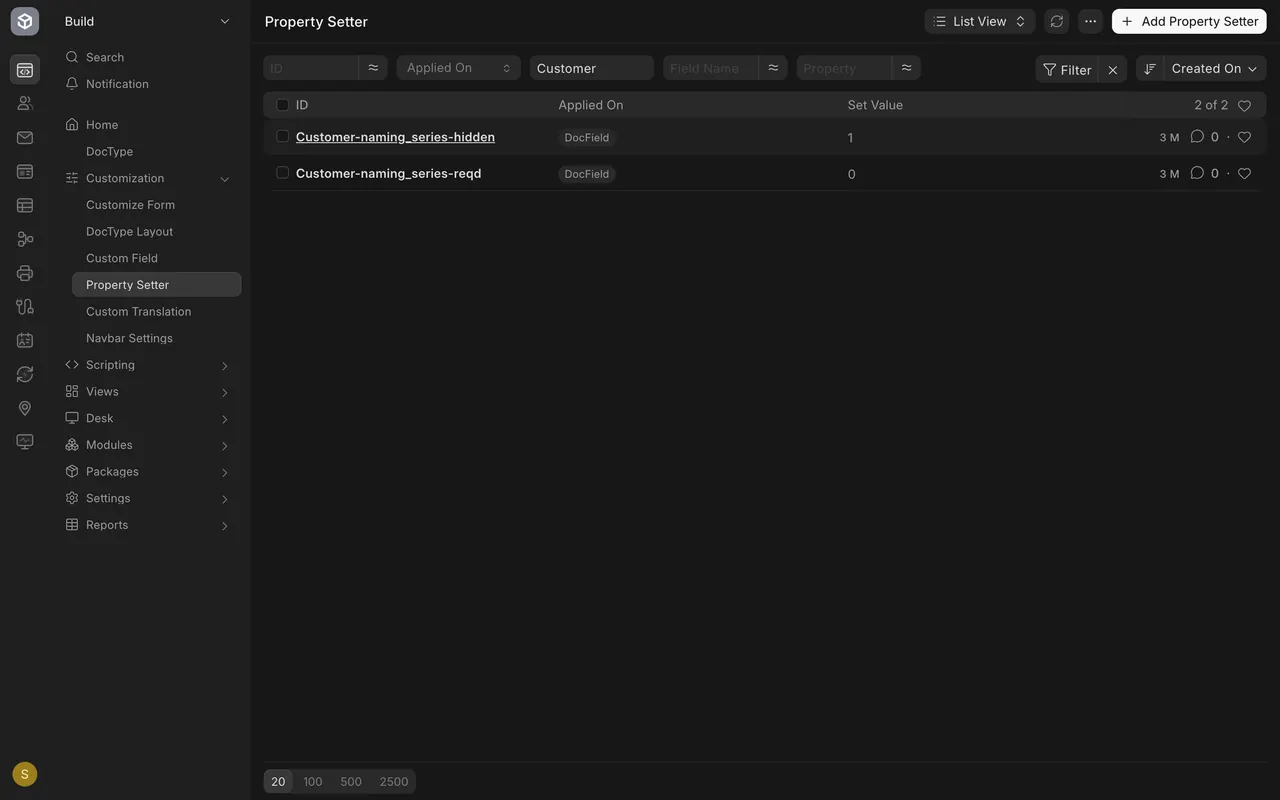
- Type a form name in the DocType box to narrow the list.
Step 2. Read one setter
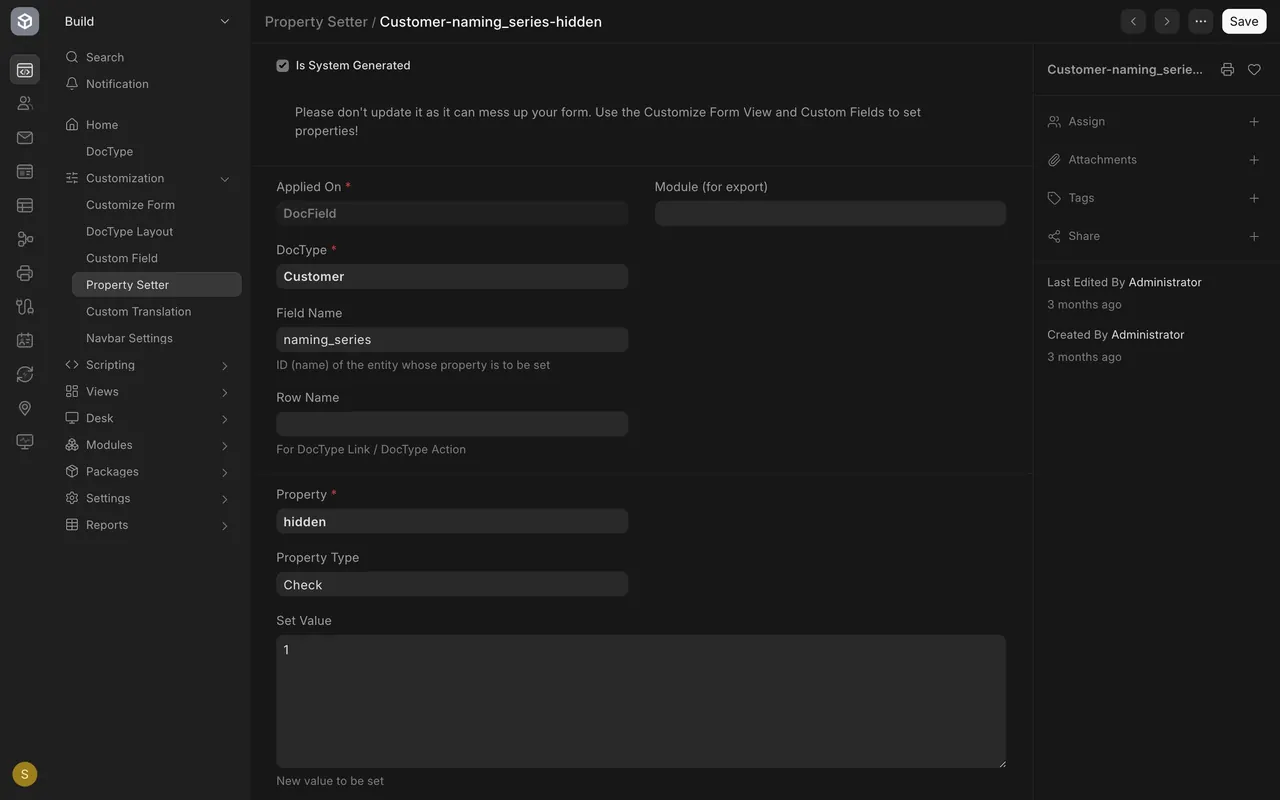
- Open Customer-naming_series-hidden: DocType Customer, field naming_series, property hidden, value 1 (hide). A value of 0 means show.
- The warning says not to edit it by hand; use Customize Form.
Step 3. Make the same change in Customize Form
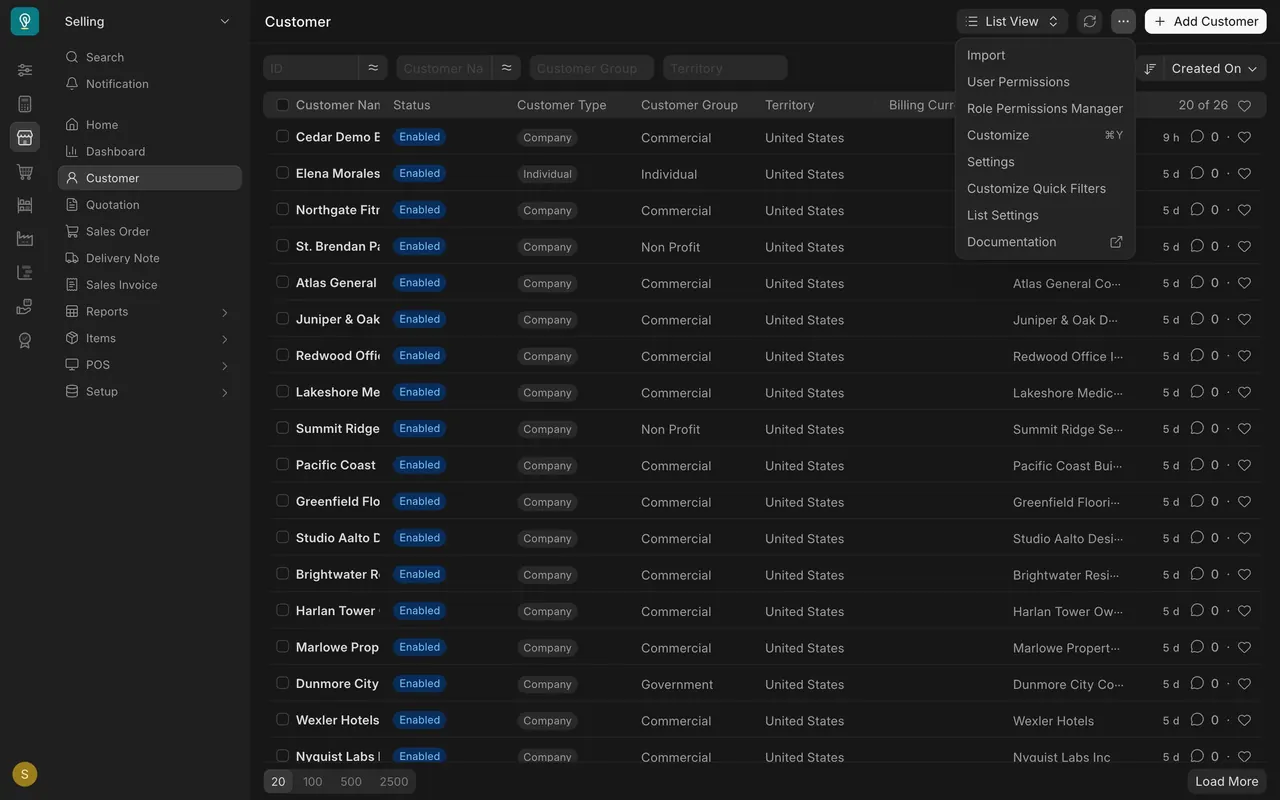
- On any list open the menu and choose Customize. In Enter Form Type choose the form.
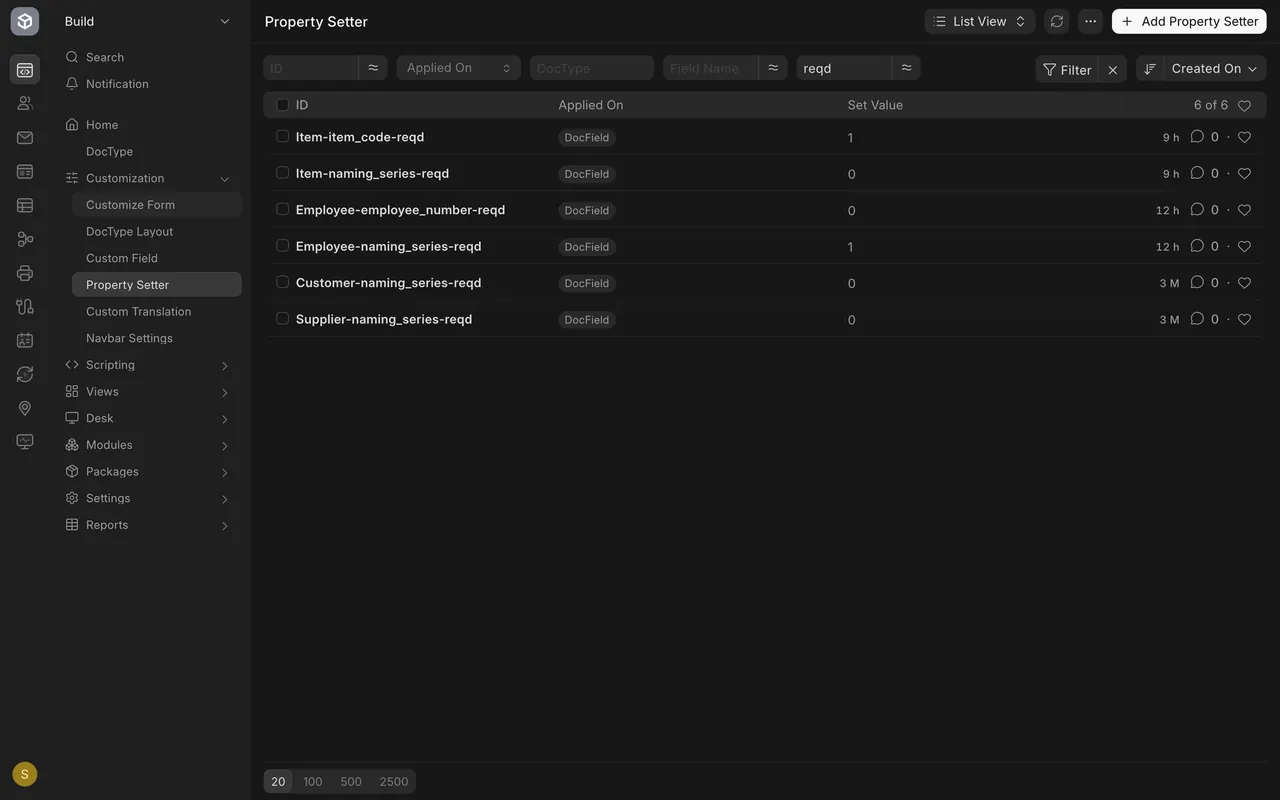
- Open a field row and tick Mandatory, Hidden or Read Only; change Label; drag a row to change order. Saving writes the property setter.

Step 4. Know the cautions
- A property setter changes the form for everyone.
- An upgrade can reset a standard form: recheck afterward.
- Write down the form, the field and why.
What you may see on your own site
- Your own setters and counts. Many are system generated; leave those alone.
Common mistakes
- Editing a system-generated setter by hand. Use Customize Form.
- Forgetting to document a change. Nobody remembers later.
Check yourself
3 quick questions.
1. What does a value of 1 on a hidden setter mean?
2. Who sees a property setter's change?
3. Where should you make routine field changes?