V16 Training · Make It Yours · Lesson 5 of 5
Web forms and the customer portal
This lesson shows what a web form is, how to read one in the Web Form list, what its public page looks like, and how the customer portal menu is set up.
Written guide
The idea
A web form is a page that customers or visitors fill in. When they send it, Parsimony creates a record. Screens use example data from a demo company.
Step by step
Step 1. Open the Web Form list
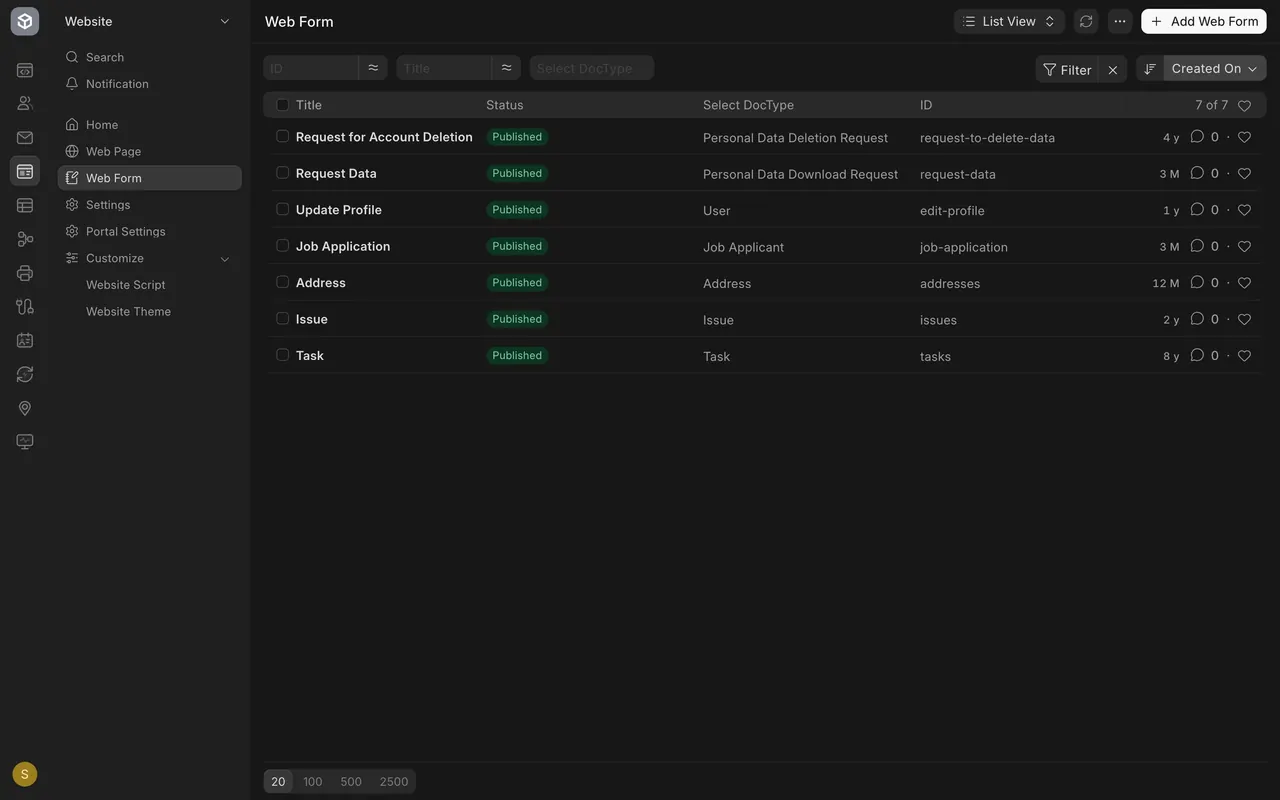
- In the Website area, choose Web Form. Each row shows the title, status and document type.
Step 2. Open one form
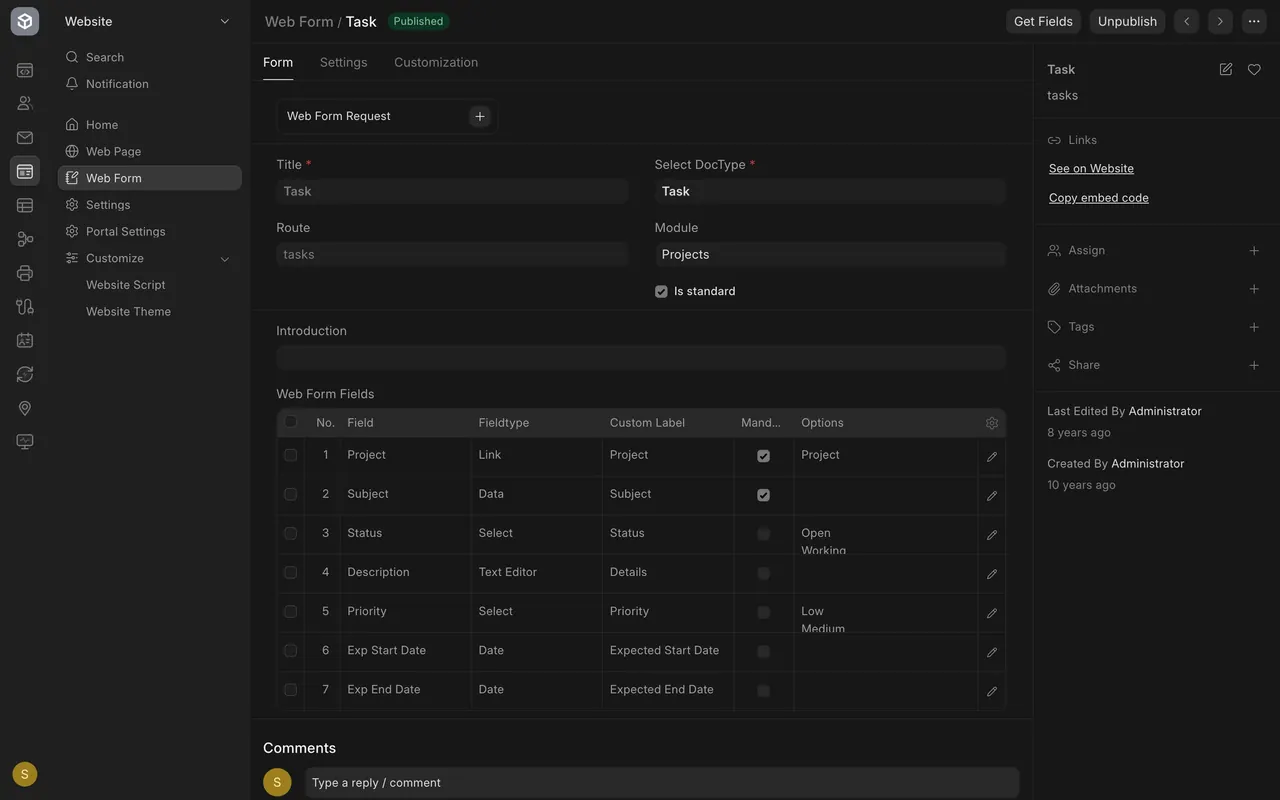
- Open a form such as Task. Check Select DocType, Module and the Mandatory column of the fields table.
- Is standard means the form is a read-only copy. Duplicate it, then change your own copy.
Step 3. See the public page
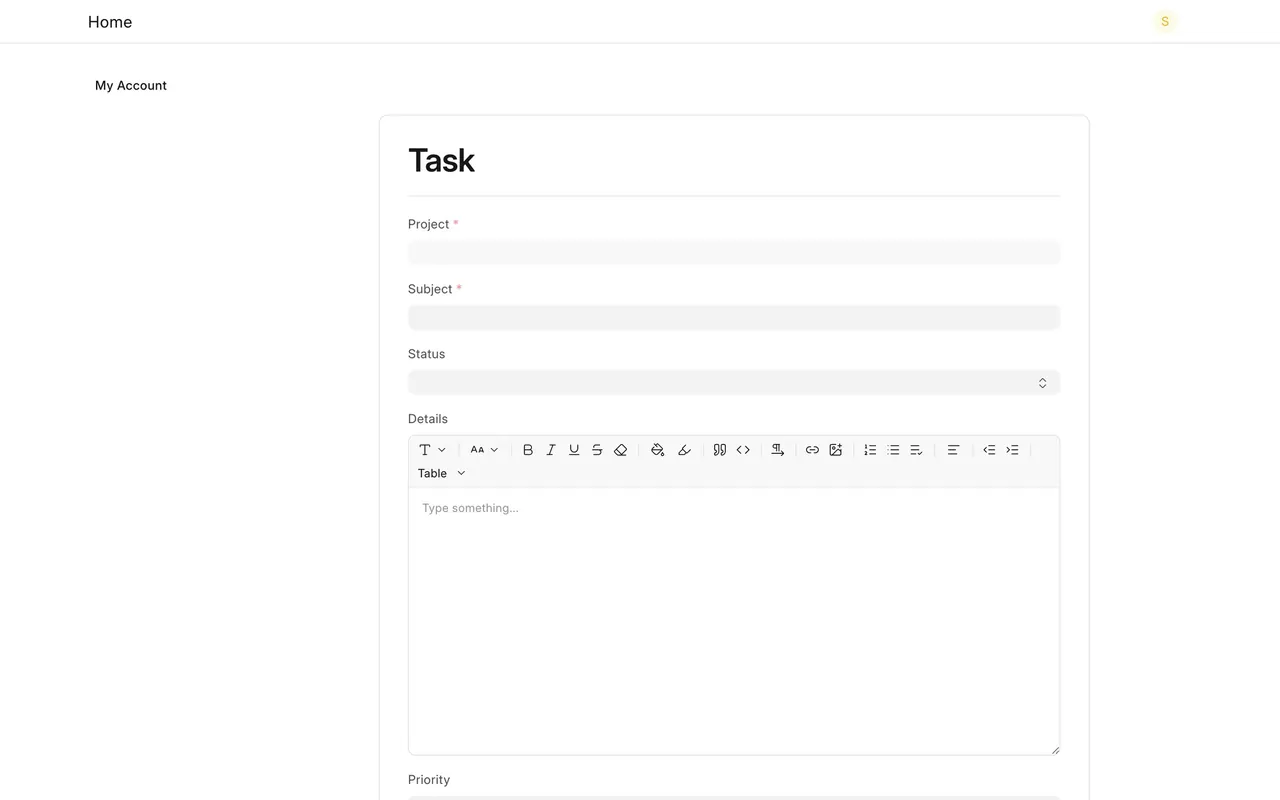
- Every published form has a page at its route. Required fields carry a red star. Nothing is sent until a visitor submits.
Step 4. See the customer portal
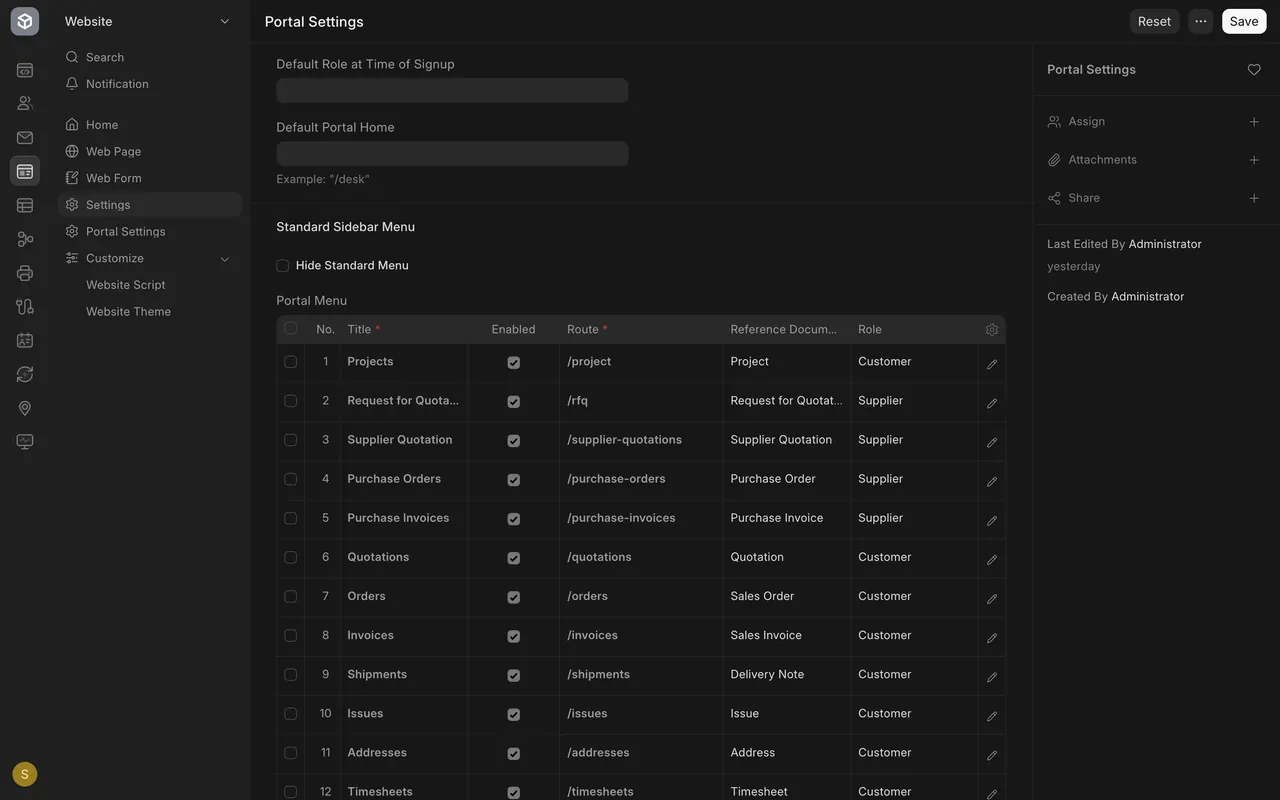
- Open Portal Settings and read the Portal Menu: each row has a title, route and role.
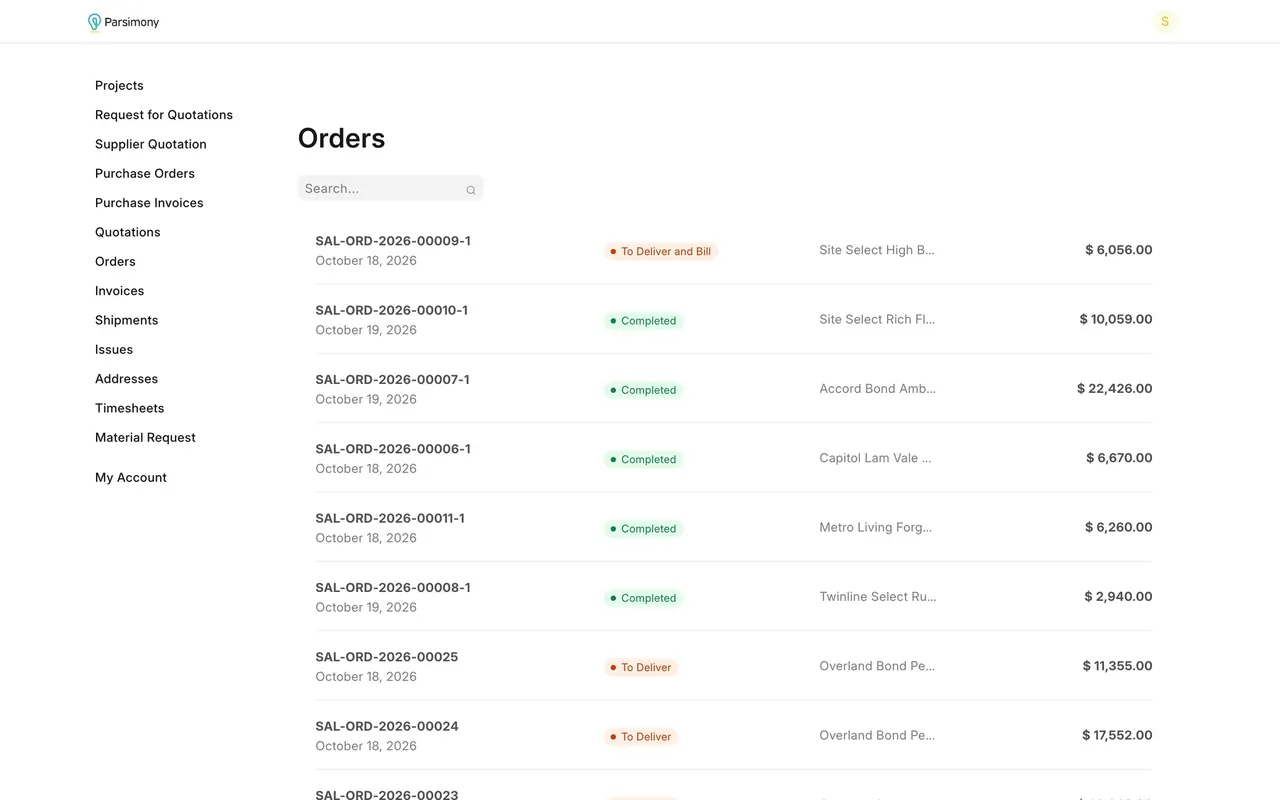
What you may see on your own site
- Your forms and portal menu are your own. Related: the Issue form (Support, lesson 1) and custom fields (this course, lesson 1).
Common mistakes
- Editing a standard form. It is read-only; duplicate it first.
- Forgetting the role. A portal entry shows only to the role in its row.
Check yourself
3 quick questions.
1. What does a web form do?
2. What should you do before changing a standard web form?
3. Where do you see which role gets each portal page?