V16 Training · Make It Yours · Lesson 1 of 5
Custom fields
This lesson shows what a custom field is, where to find your company's custom fields, how to pick the form to change, and what to check before you add one.
Written guide
The idea
A custom field is a field your company adds to an existing form without any code. It sits on the form like the fields that came with it. Only a System Manager can add one. If you are not a System Manager, ask yours. The screens use example data from a demo company that sells flooring.
Step by step
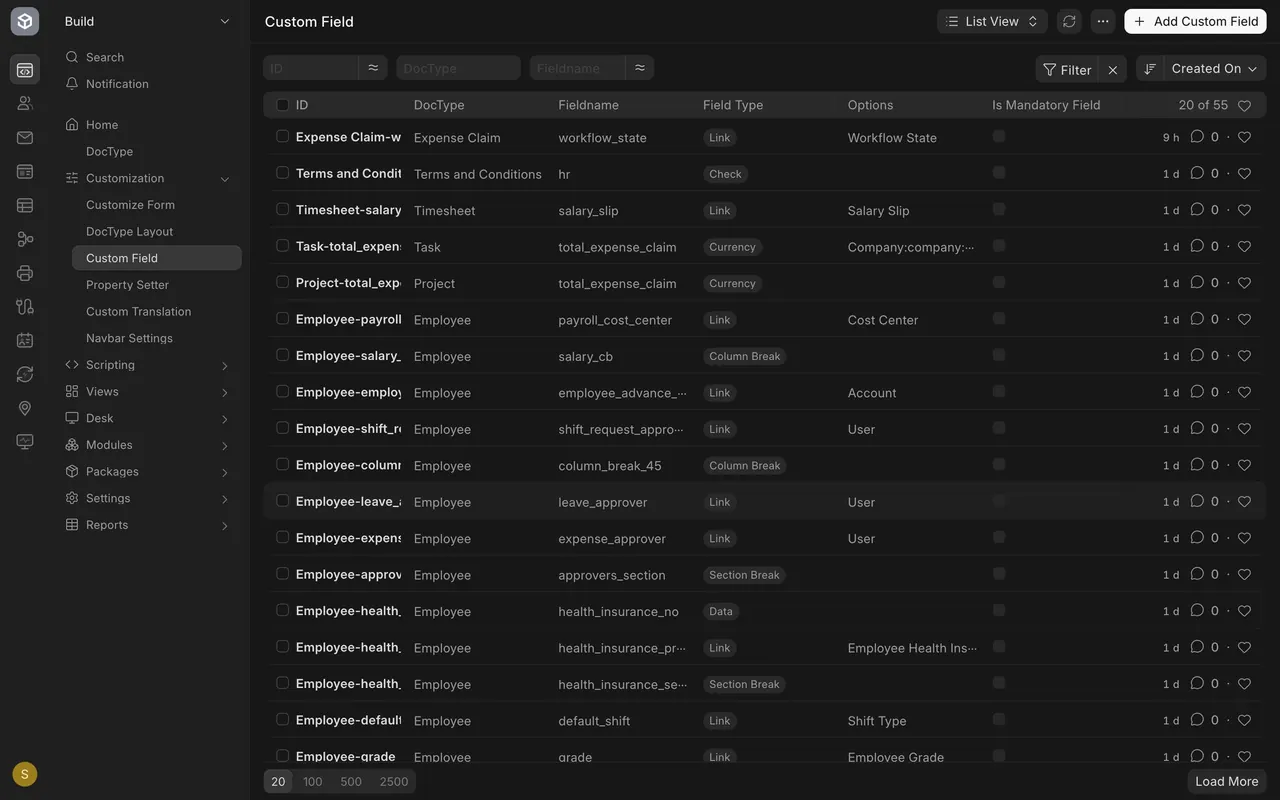
Step 1. Find the custom fields
- Open the Custom Field list. Each row shows the form (DocType), the fieldname and the field type.
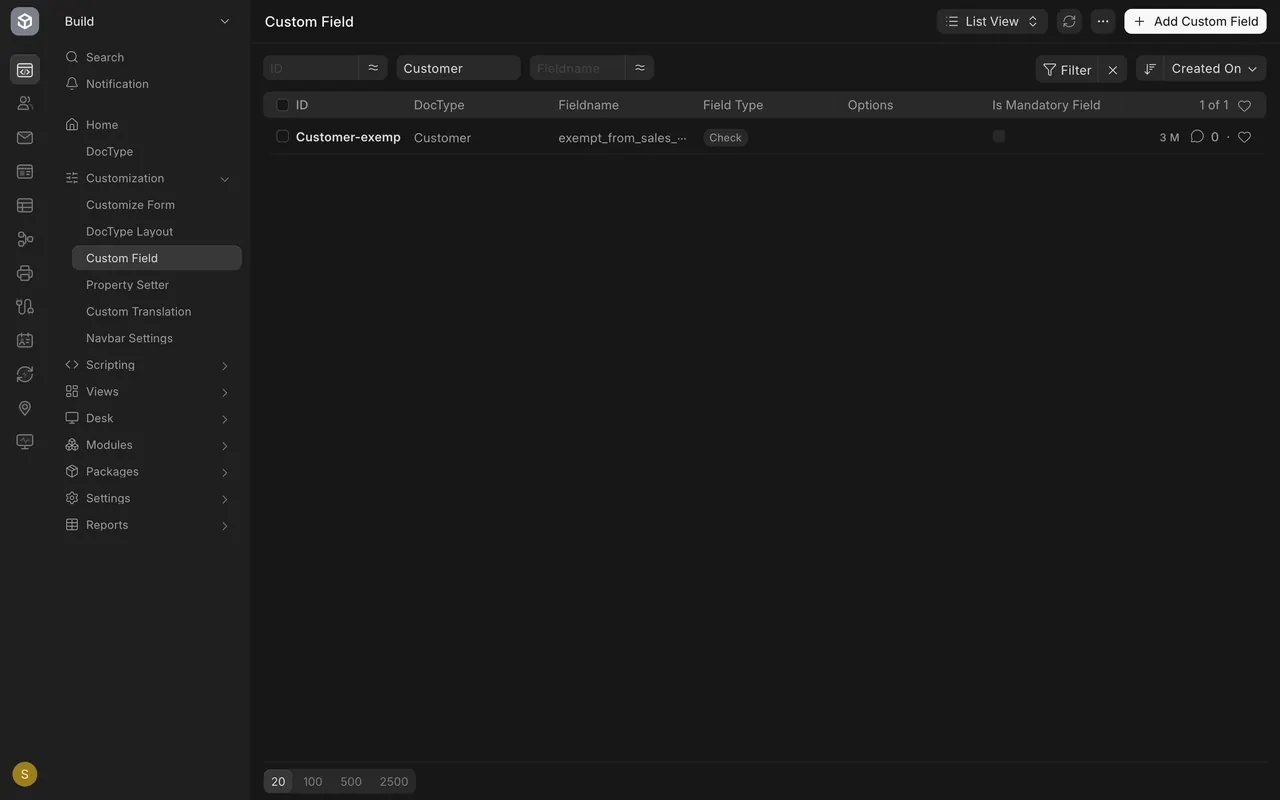
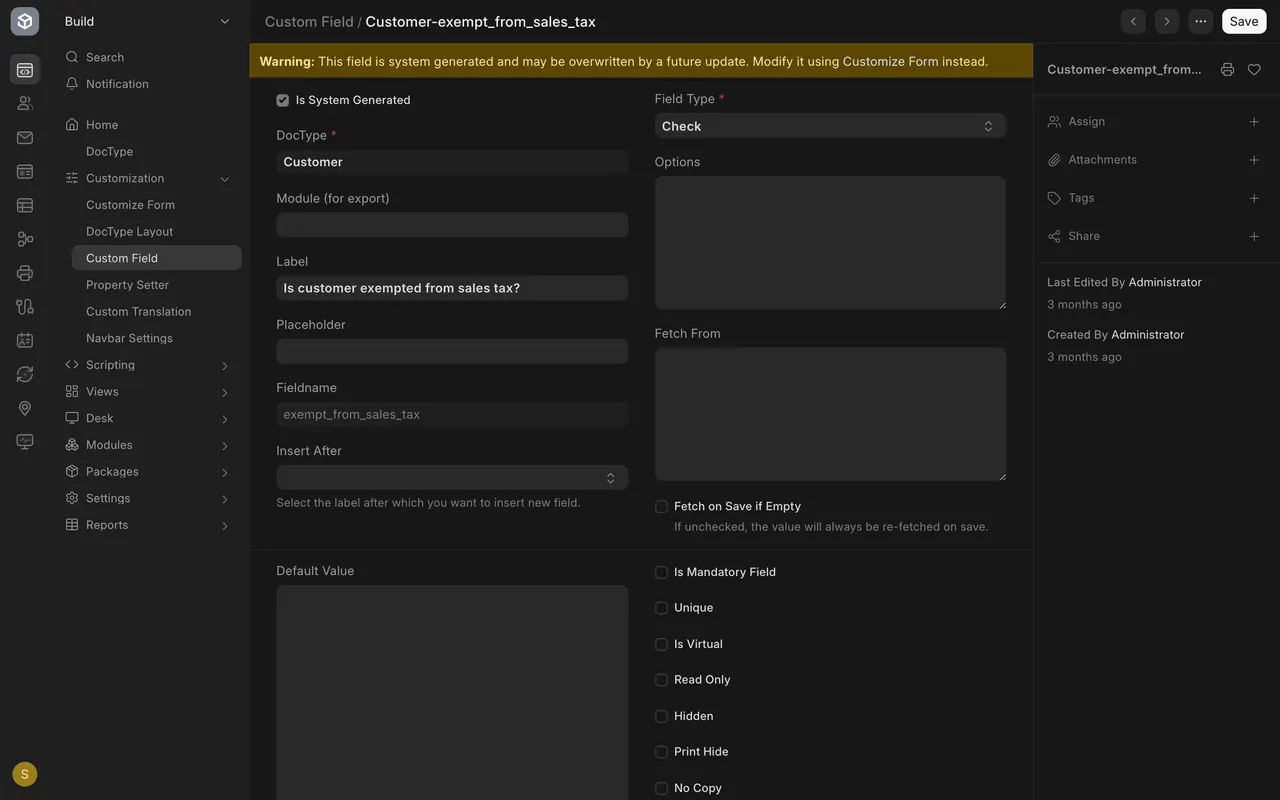
- Filter the list to one form, then open a row to see its Label and Field Type.
Step 2. Pick the form
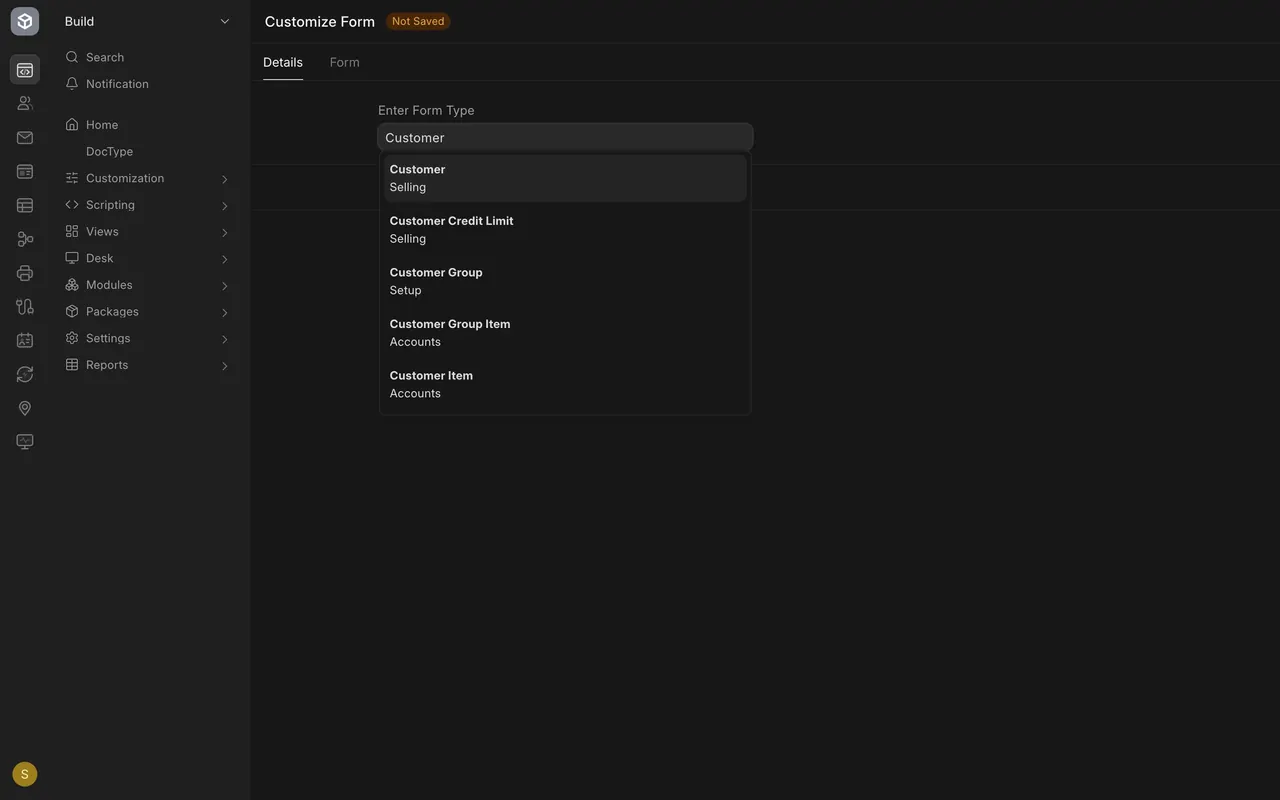
Open Customize Form. In Enter Form Type, type the form's name, for example Customer, and choose it from the list.
Step 3. Describe the new field
- In the Custom Field list, press Add Custom Field.
- Choose the form in DocType, type a Label, pick the Field Type, and use Insert After to place it.
- Tick Is Mandatory Field only if every record must have a value.
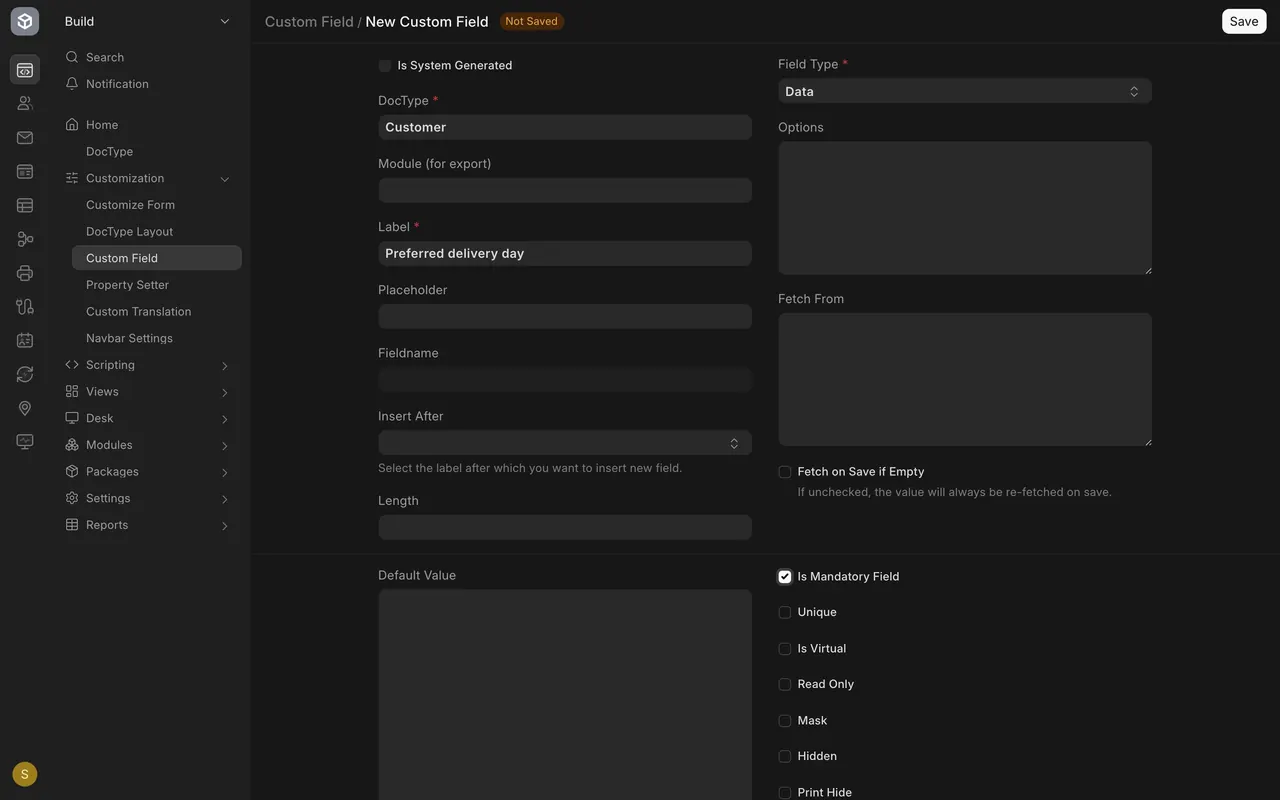
Step 4. Check the cautions
- A custom field is saved on your site and shows for everyone.
- Try it on a copy of your site first.
- Deleting it later loses everything people typed into it.
Common mistakes
- Making a box mandatory that some customers cannot fill. Leave it optional.
- Adding a field on the live site without testing. Try a copy first.
- Deleting a field that people have filled in. Its data is lost.
Check yourself
3 quick questions.
1. What is a custom field?
2. Where do you choose which form to change?
3. What do you do before adding a field to your live site?