V16 Training · Work Faster · Lesson 4 of 4
Search tricks
This lesson shows how to jump to a list, start a new document and find a name with the awesome bar, how global search and list search differ, and where saved layouts live.
Written guide
The idea
The awesome bar is the Search box at the top of the left sidebar. It opens a small window where you type part of a name and press Enter. The screens use example data from a demo company that sells flooring. Your own Parsimony site shows your own names.
Step by step
Step 1: open the awesome bar
- Choose Search in the left sidebar.
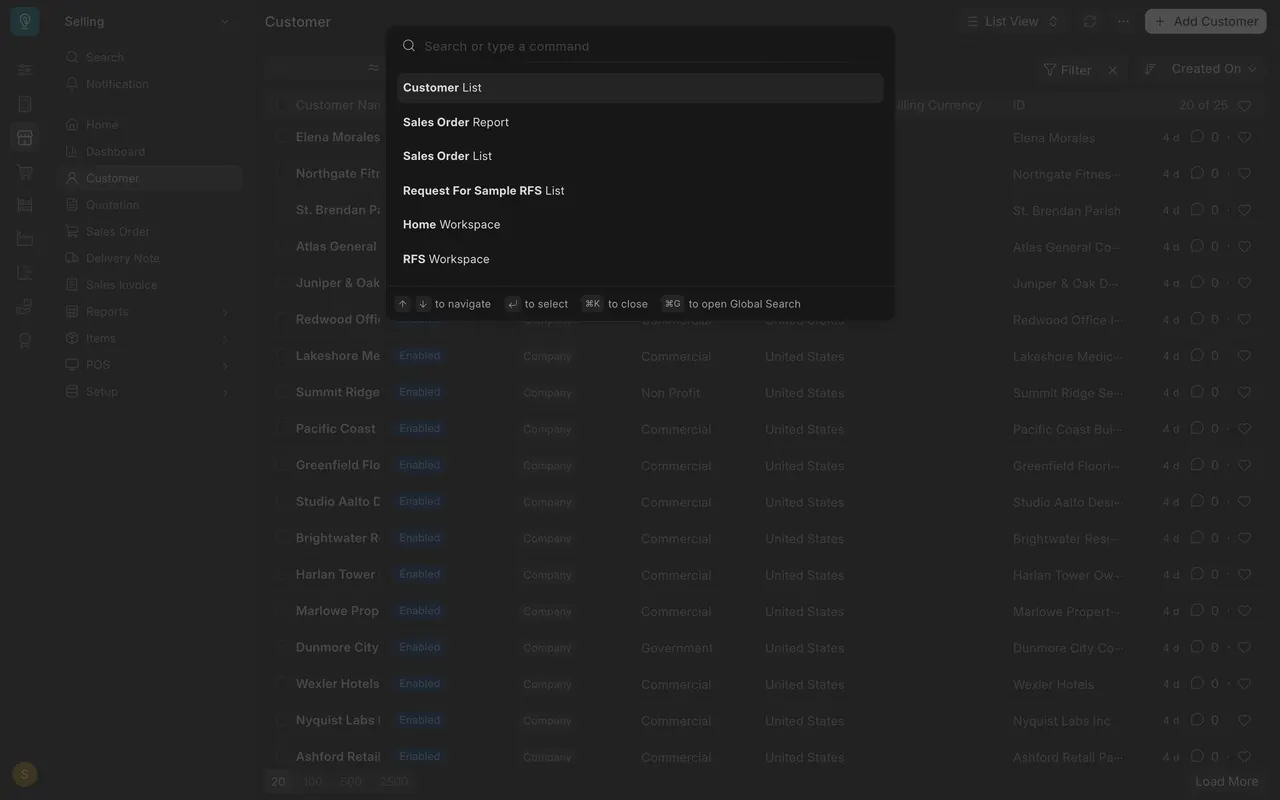
- Before you type, the window lists places to jump to. The first is the page you are on, followed by pages you opened lately. Choose one to go there.
Step 2: open a list
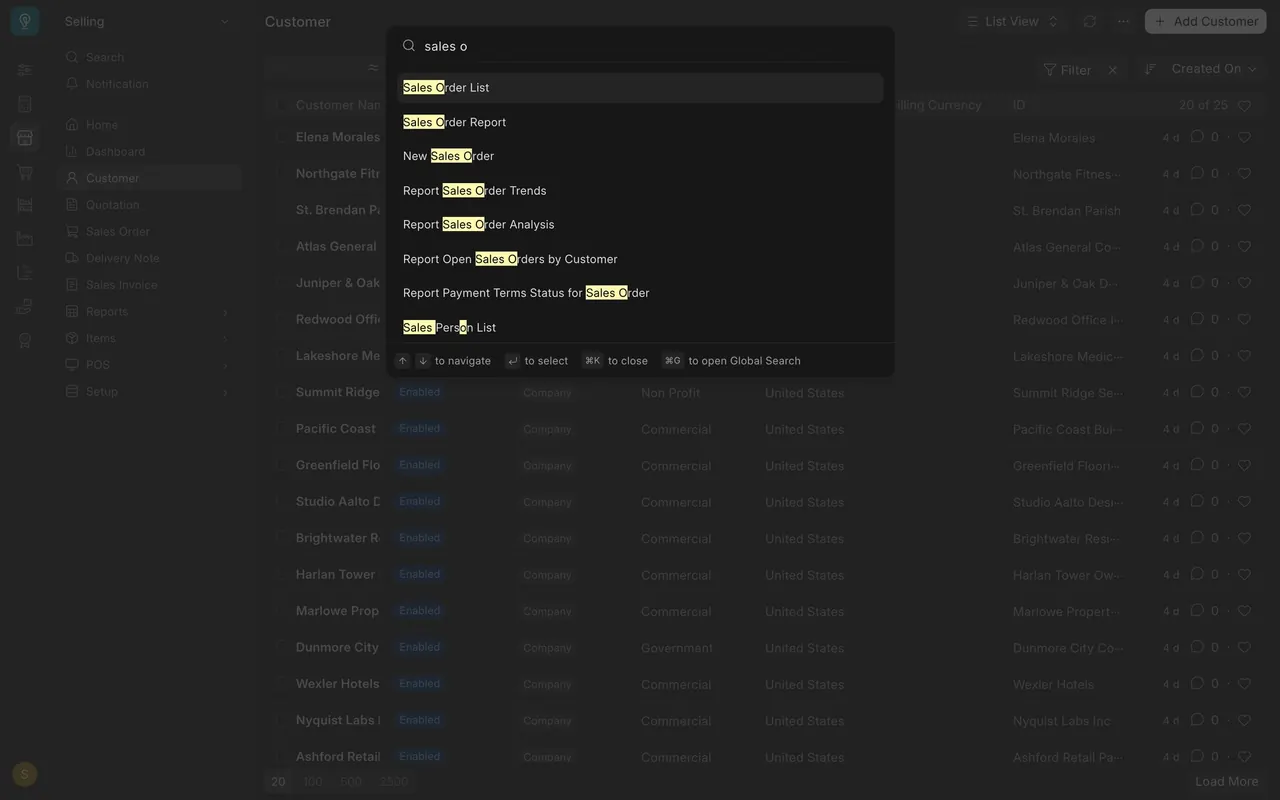
- Type sales o. The first match is Sales Order List.
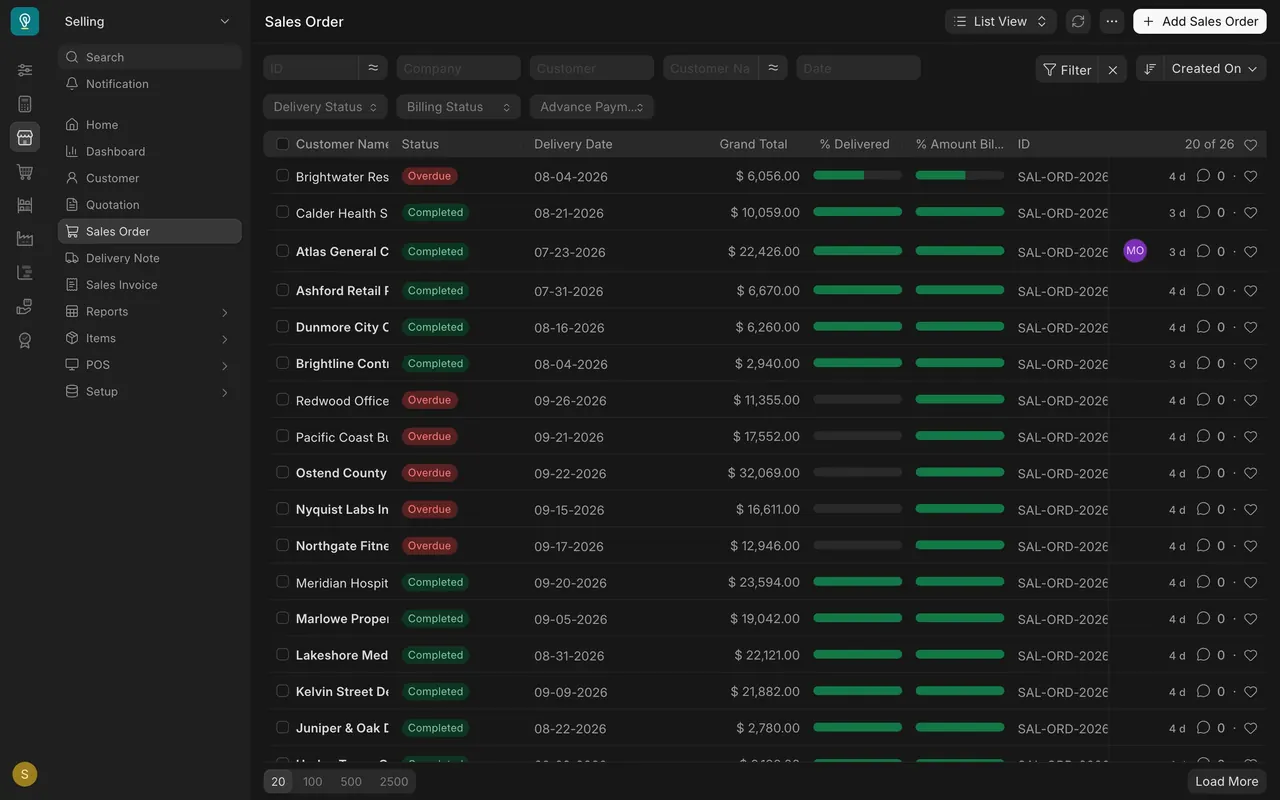
- Press Enter. The Sales Order list opens.
Step 3: start a new document
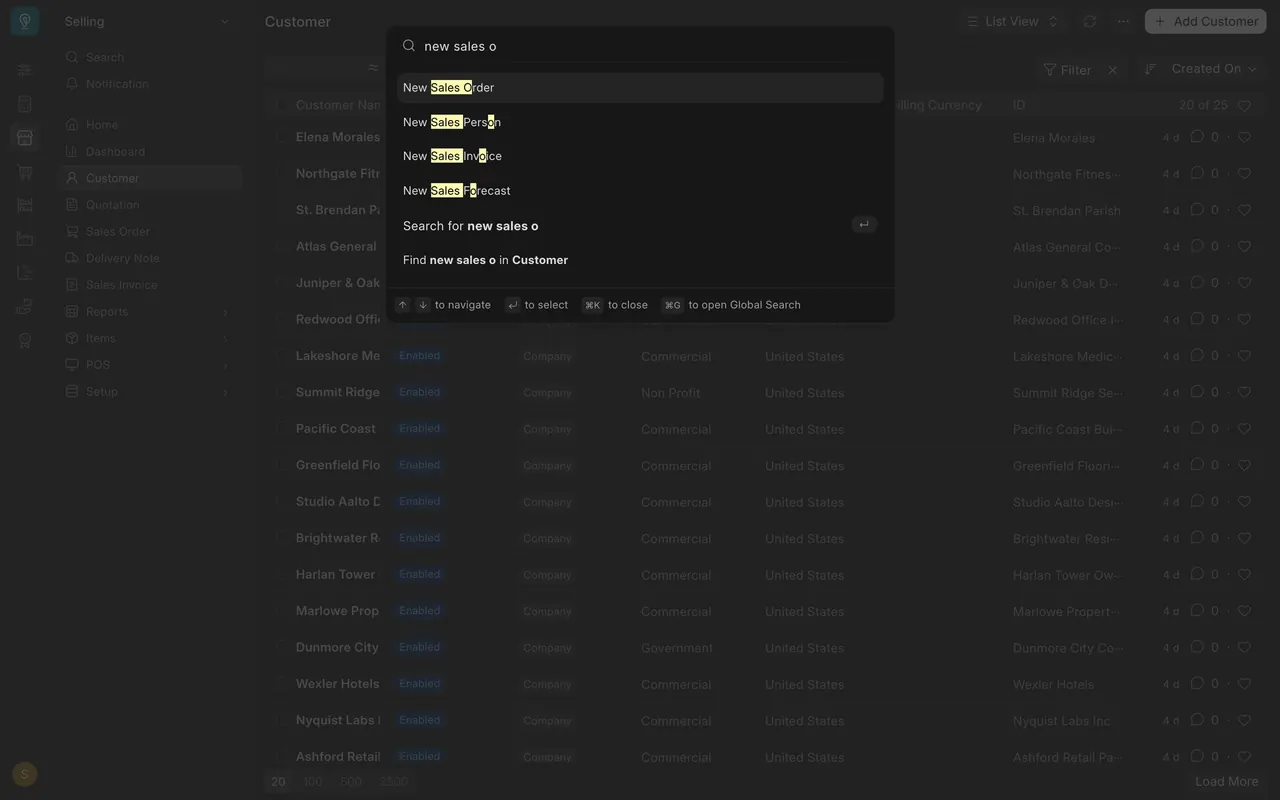
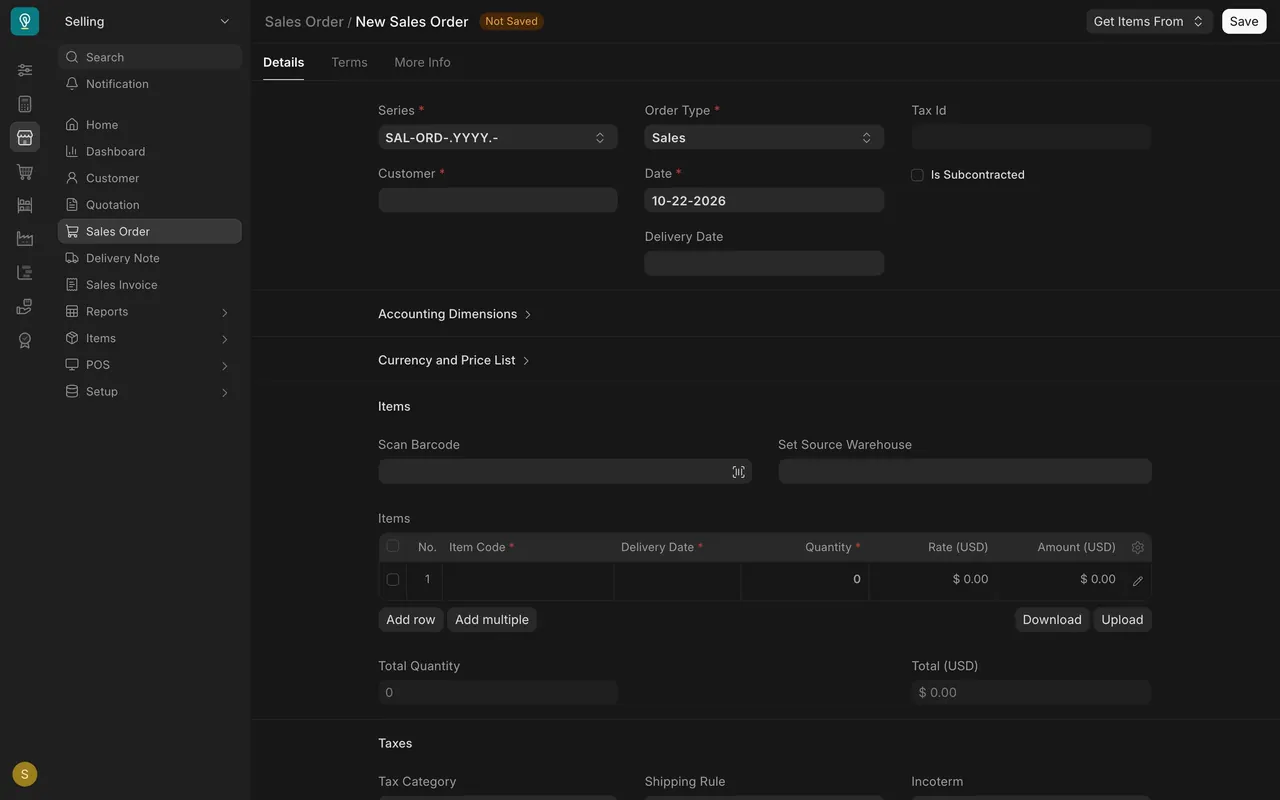
- Type new sales o. The first match is New Sales Order.
- Press Enter. A blank form opens and shows Not Saved. Nothing is saved until you choose Save.
Step 4: search for a name
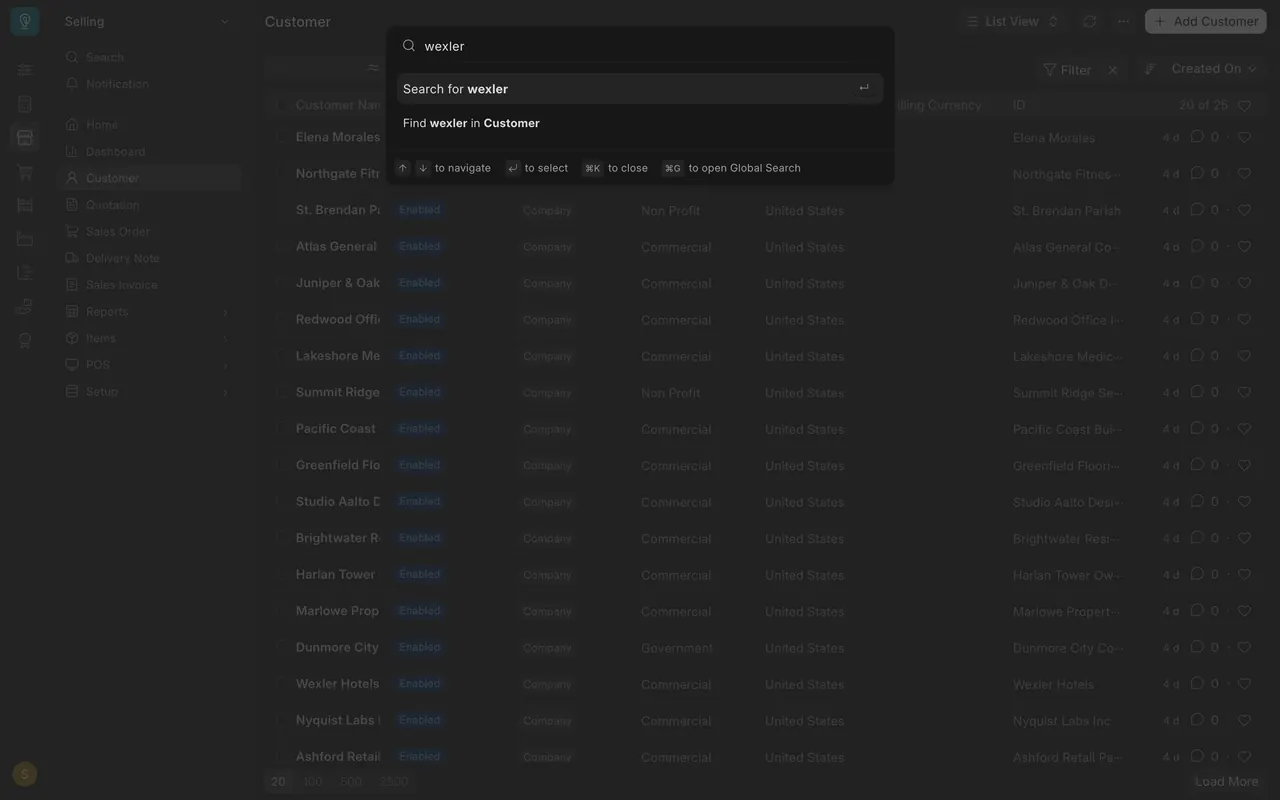
- Type a name, for example wexler. Two choices appear: Search for wexler and Find wexler in Customer.
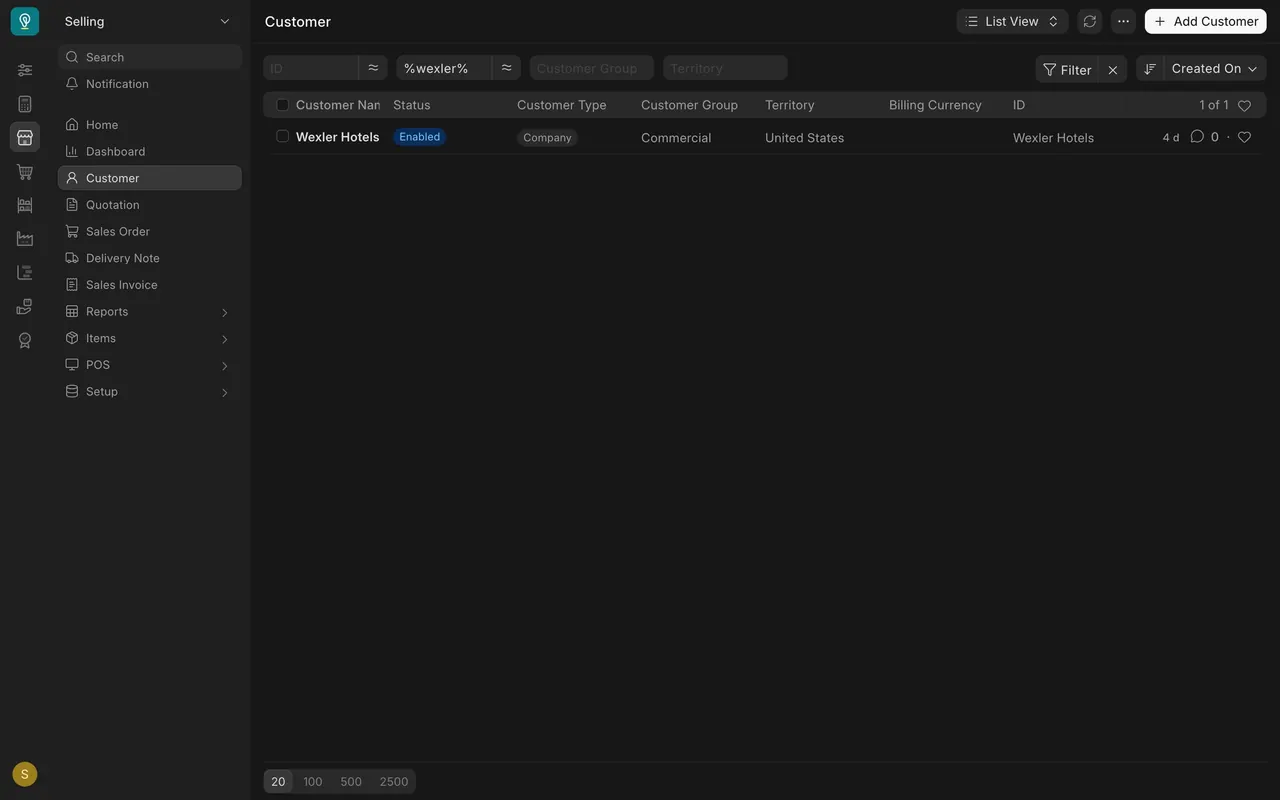
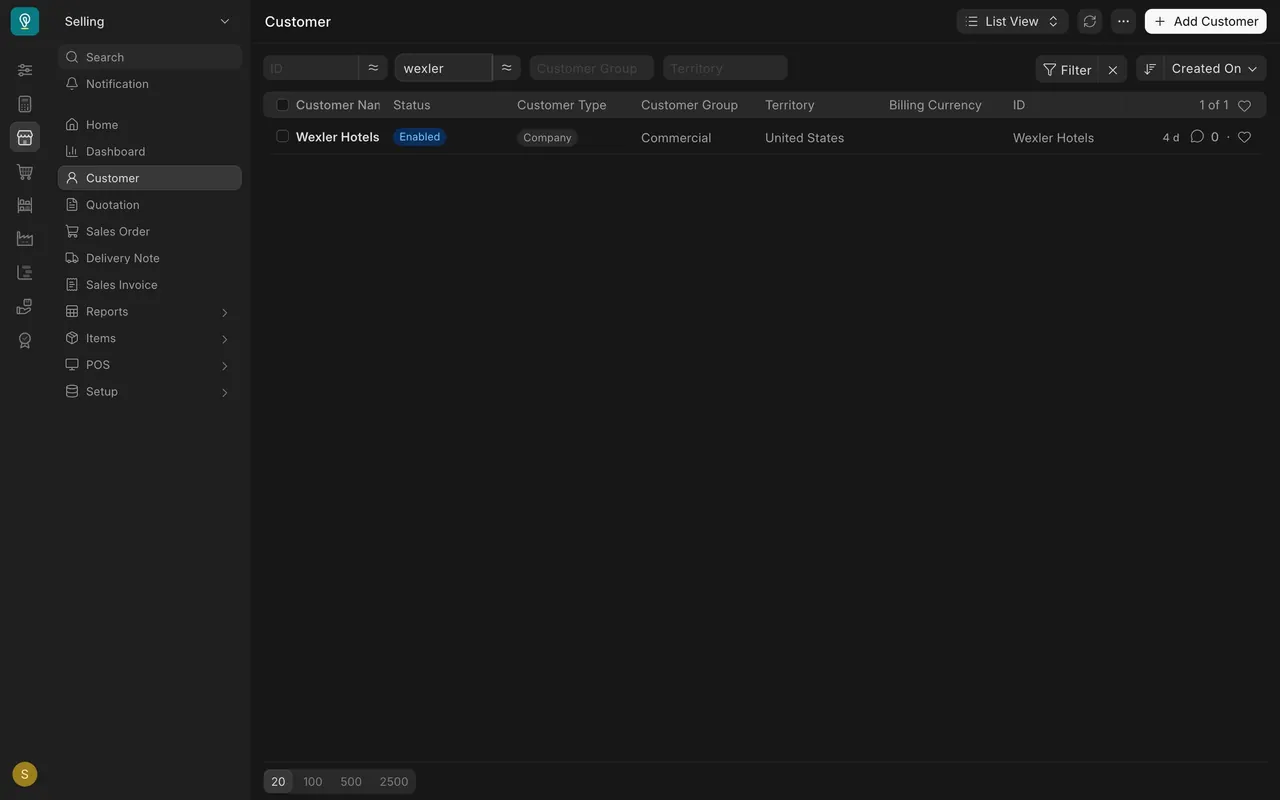
- Choose Find wexler in Customer. The Customer list opens with the name already typed into the Customer Name filter, and one row is left.
Step 5: global search
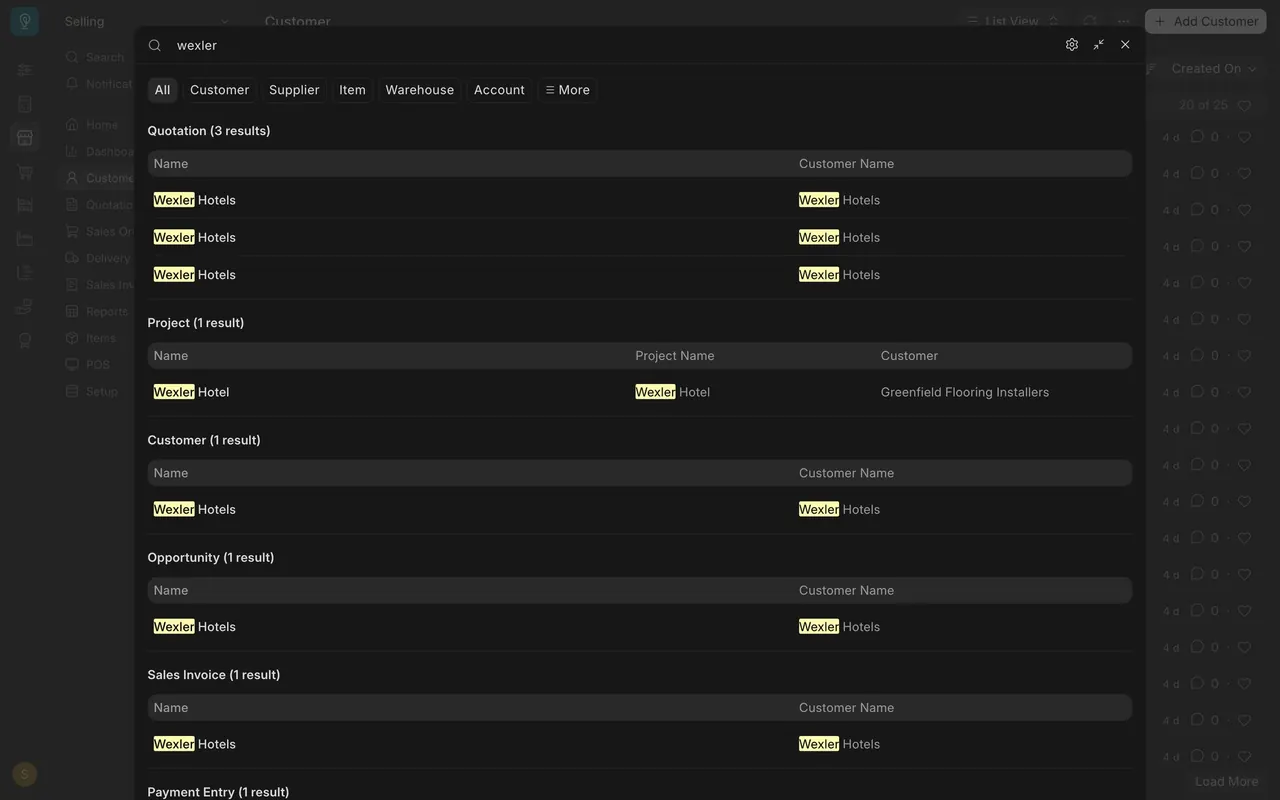
Choose Search for wexler instead. Global search opens and looks in many kinds of document at once. The results are grouped, and the tabs along the top narrow them to one kind. The footer of the awesome bar shows the shortcut that opens global search directly.
Search inside one list
The small boxes above the columns of a list search that list only. Type a name into Customer Name and the list shows that customer. Filters are taught in Getting Started, lesson three.
Saved layouts
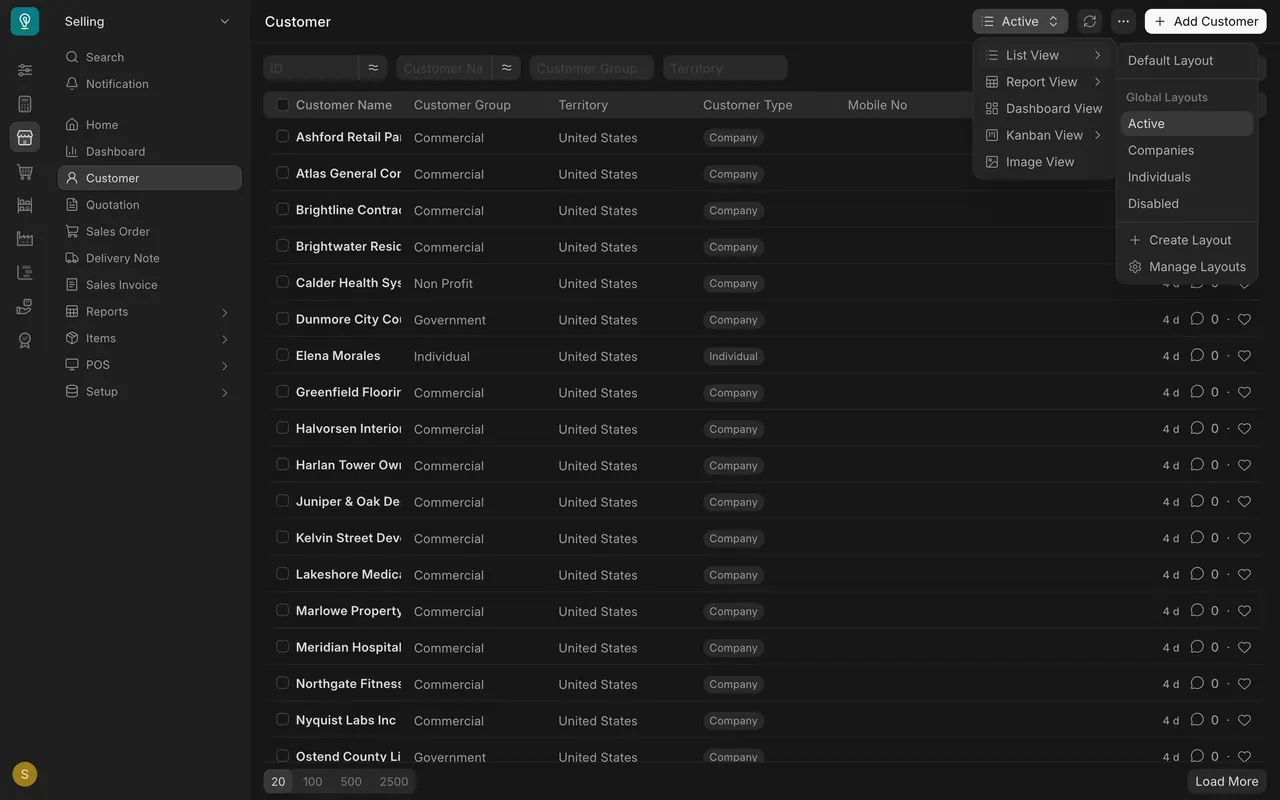
Open the view menu at the top of a list and choose List View. Here the saved layouts are Active, Companies, Individuals and Disabled. Create Layout saves a new one.
What you may see on your own site
- Your recent pages, and your saved layouts, are your own.
- Search results depend on the names in your company.
Common mistakes
- Typing the whole name. A few letters are enough.
- Choosing Search when you meant Find in the list. Search looks everywhere; Find looks in the list you are on.
- Forgetting the filter. A name left in a filter box can make a list look short. Clear it with the small X.
Check yourself
3 quick questions.
1. You want a blank sales order. What do you type in the awesome bar?
2. What does "Find wexler in Customer" do?
3. Where do you switch between saved layouts such as Active and Companies?