V16 Training · Warehouse in Depth · Lesson 1 of 6
Batch numbers for lots
This lesson shows how to keep a flooring dye lot together with batch numbers: turn batches on for an item, receive stock with a batch, see stock by batch, and pick and deliver by batch.
Written guide
The idea
Planks made in different lots can differ in shade. A batch number ties each quantity of stock to its lot, so the lot stays together from receipt to delivery.
The screens use example data from a demo company that sells flooring.
Step by step
Step 1. Turn on batch tracking
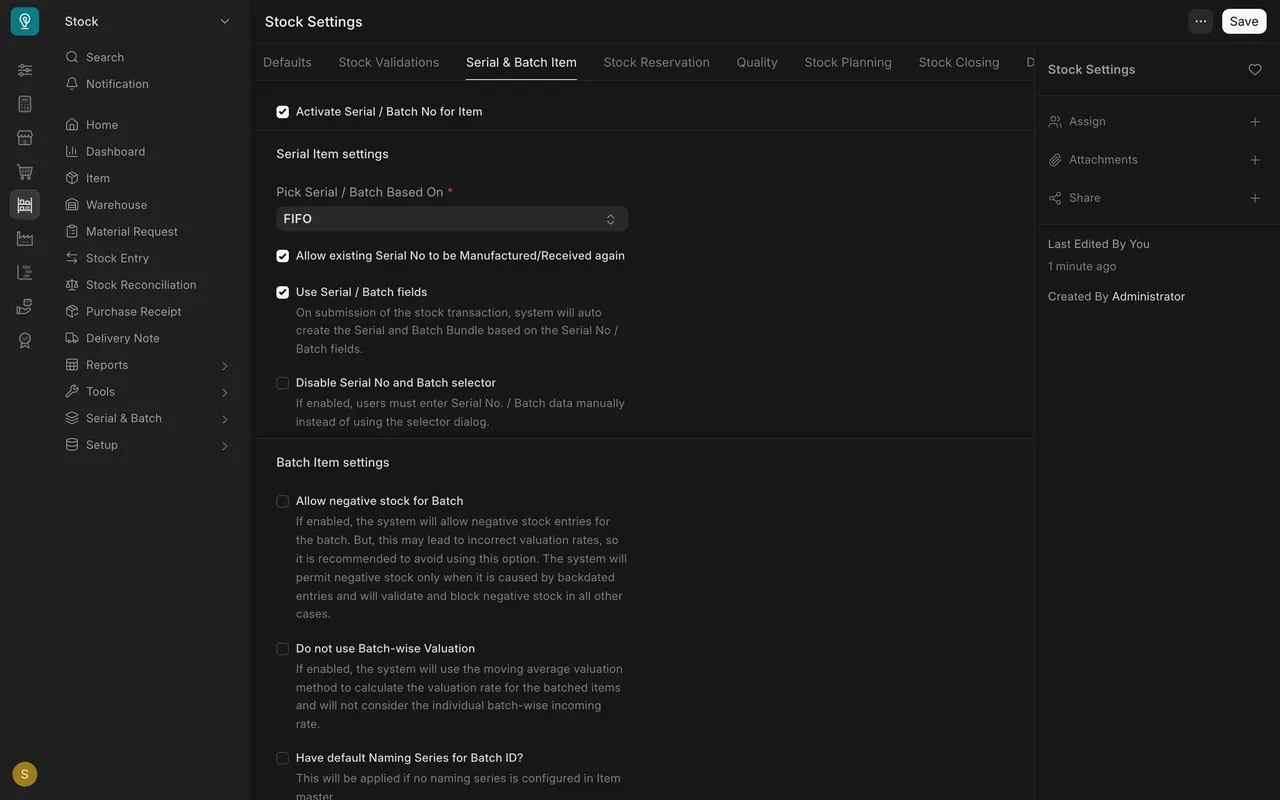
- In Stock Settings, open the Serial & Batch Item tab and tick Activate Serial / Batch No for Item. Your administrator sets this once.
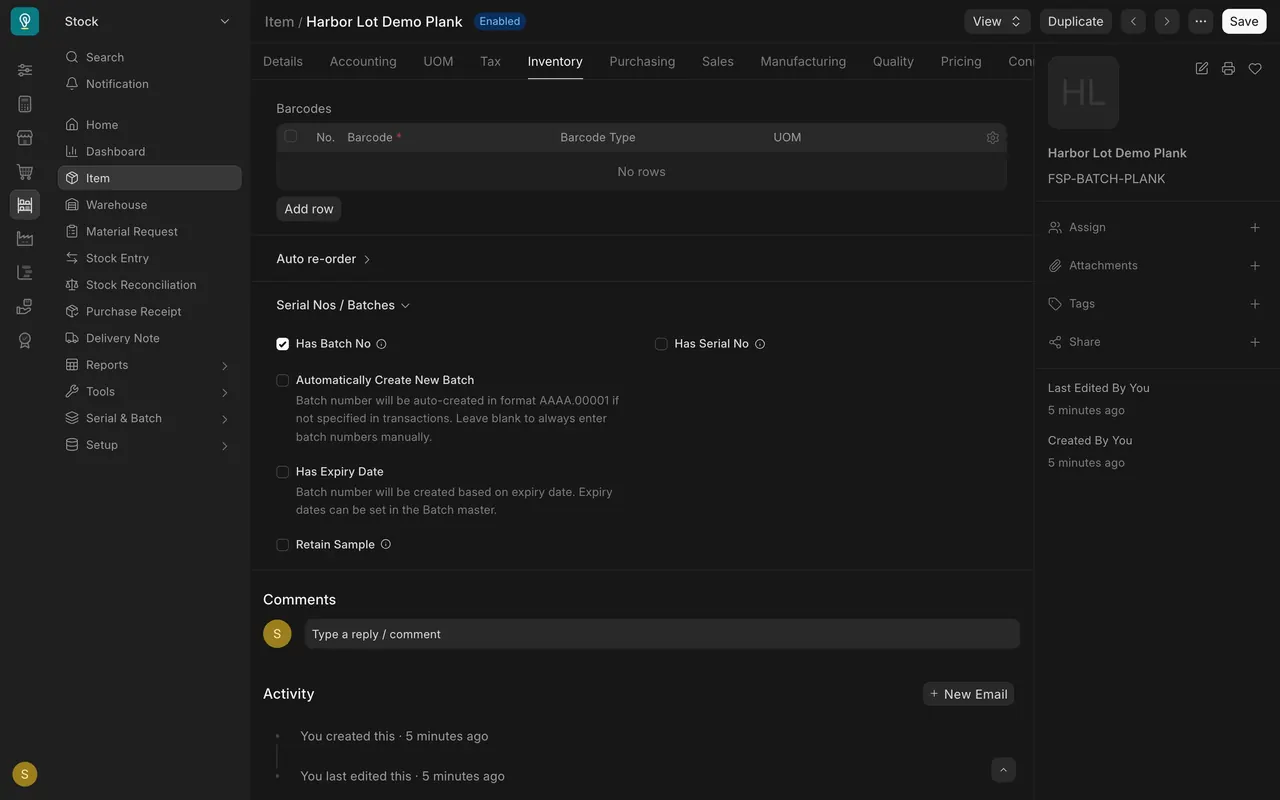
- On the item, open the Inventory tab and, under Serial Nos / Batches, tick Has Batch No.
Step 2. Receive stock with a batch number
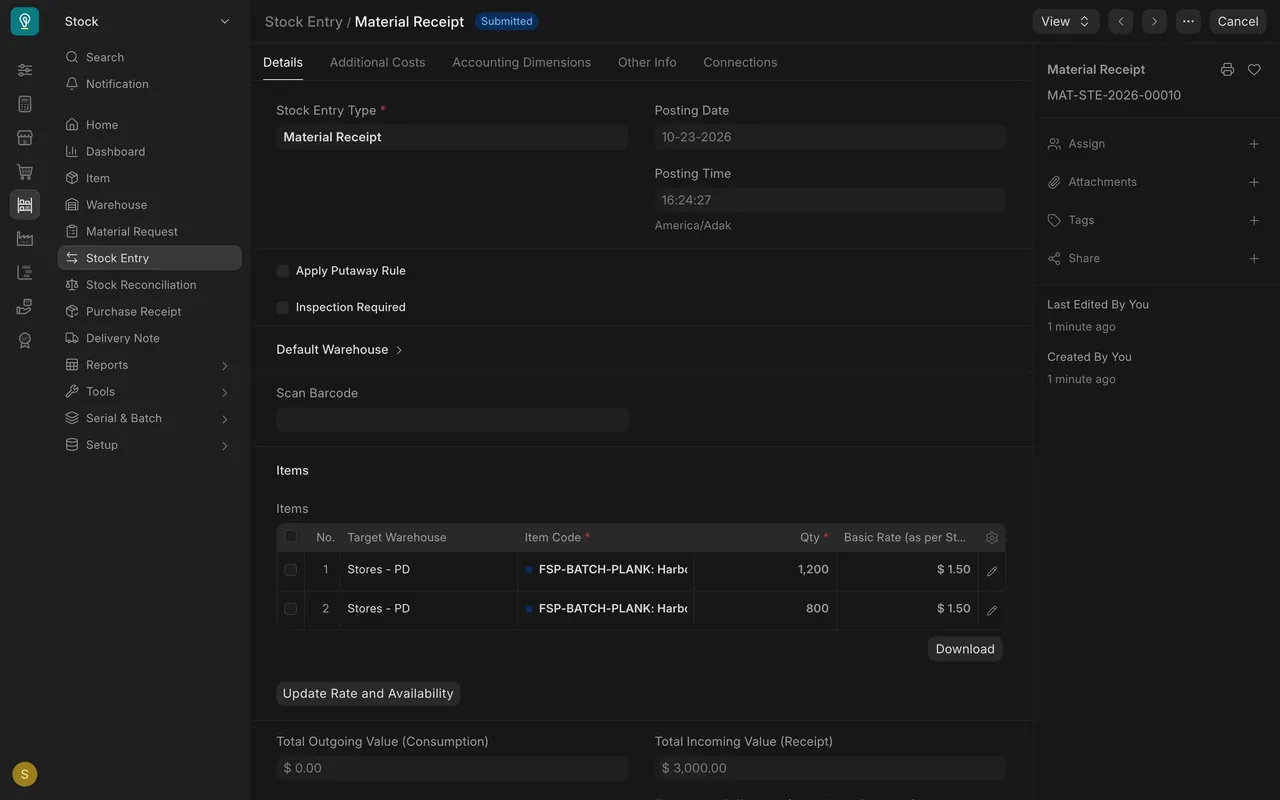
- A material receipt lists the item once per lot: here 1,200 and 800 square feet.
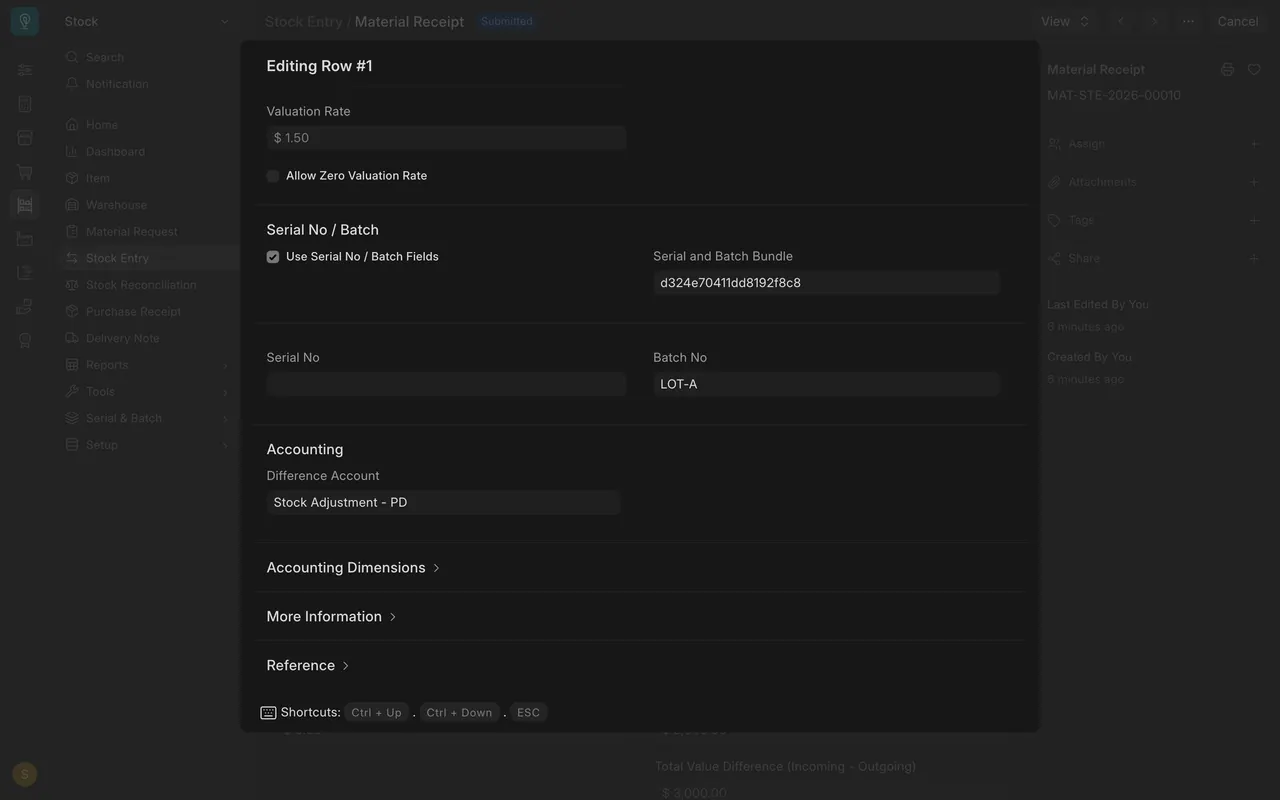
- Open a line. Under Serial No / Batch, the Batch No box holds the lot, here LOT-A.
Step 3. See stock by batch
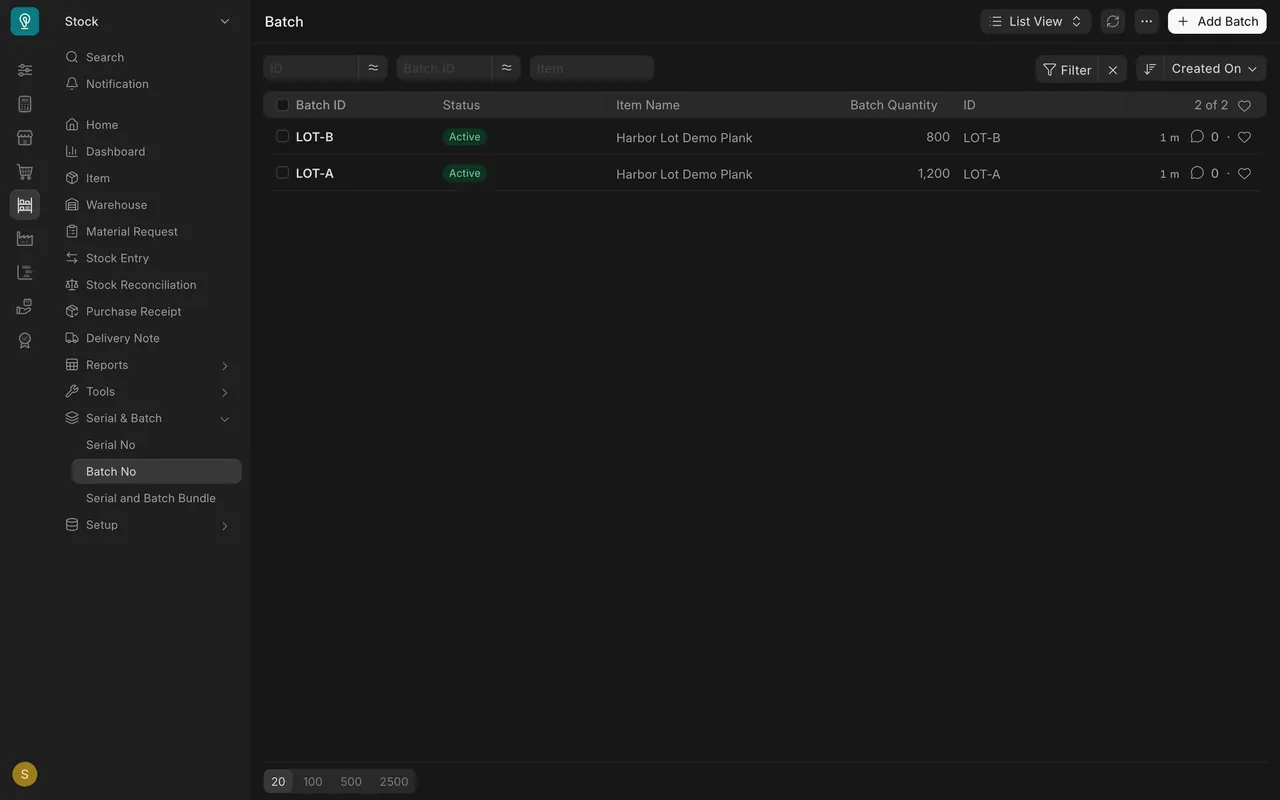
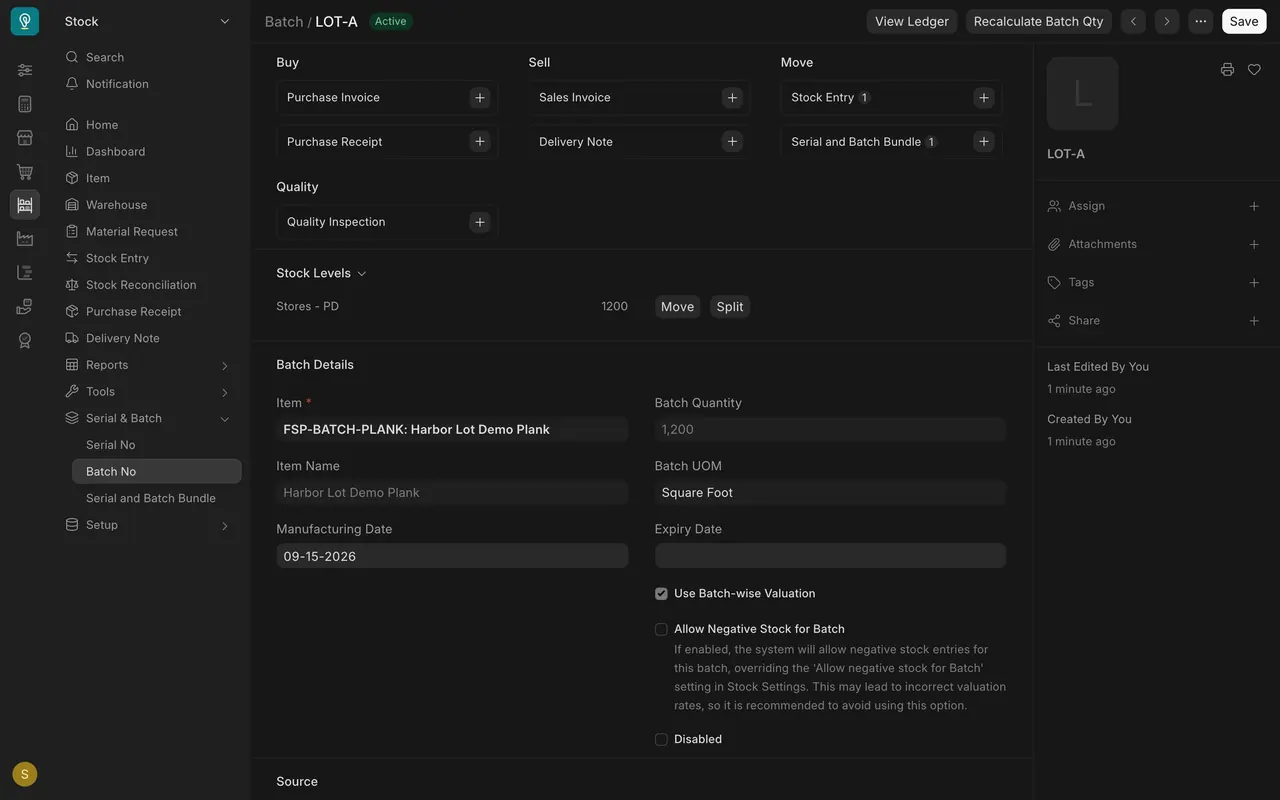
- The Batch list shows each lot with its quantity. Open LOT-A to see its manufacturing date and quantity.
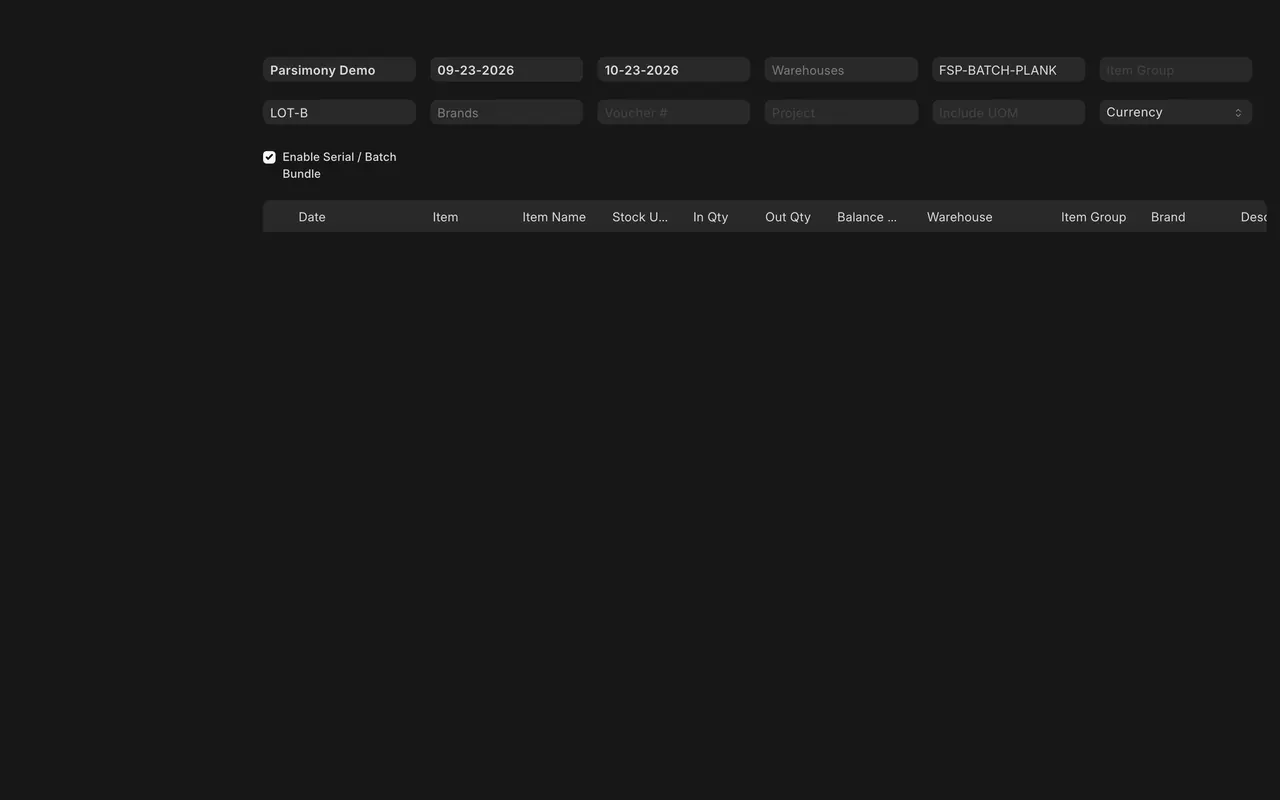
- The Stock Ledger report can be filtered by Batch No.
Step 4. Pick and deliver by batch
- Pick Serial / Batch Based On in Stock Settings decides the order lots are offered (here first in, first out).
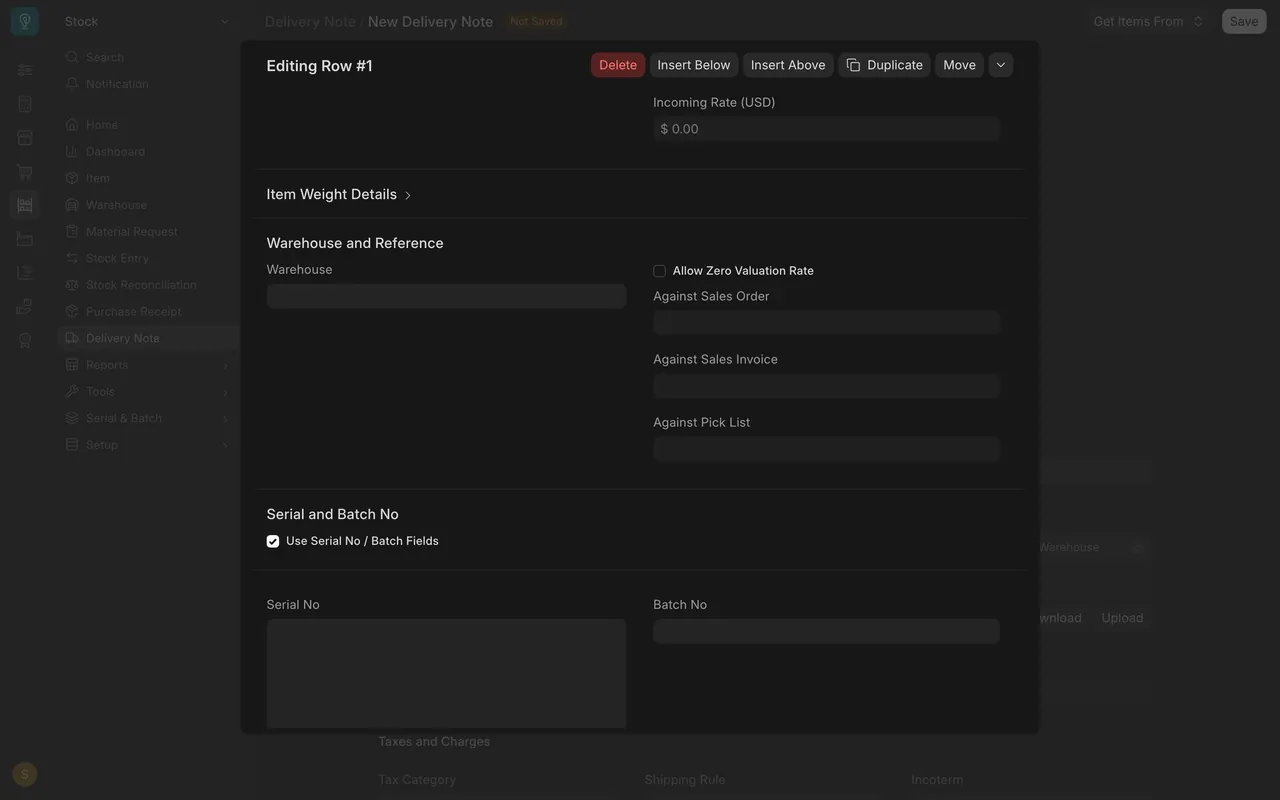
- On a delivery note line, the Batch No box in Serial and Batch No holds the lot.
What you may see on your own site
- Your items, lots and settings are your own.
- Set up batch numbers before the first receipt of an item.
Common mistakes
- Receiving stock before ticking Has Batch No. That stock has no batch.
- Mixing two lots under one batch number.
- Expecting batches without the site-wide setting. Ask your administrator.
Check yourself
3 quick questions.
1. Where do you tick that an item is tracked by batch?
2. Where do you see the manufacturing date and quantity of one lot?
3. When should batch numbers be set up for an item?