V16 Training · Support and Service · Lesson 1 of 6
Log an issue
This lesson shows how to log a customer complaint as an issue: the Issue form, the status filters in the list, the web form a customer can use, and the Support workspace.
Written guide
The idea
An issue is one customer problem with a subject, a customer, a priority, a type and a status. Logging it gives it an owner and a history. Screens use example data from a demo company.
Step by step
Step 1. Open the Issue form
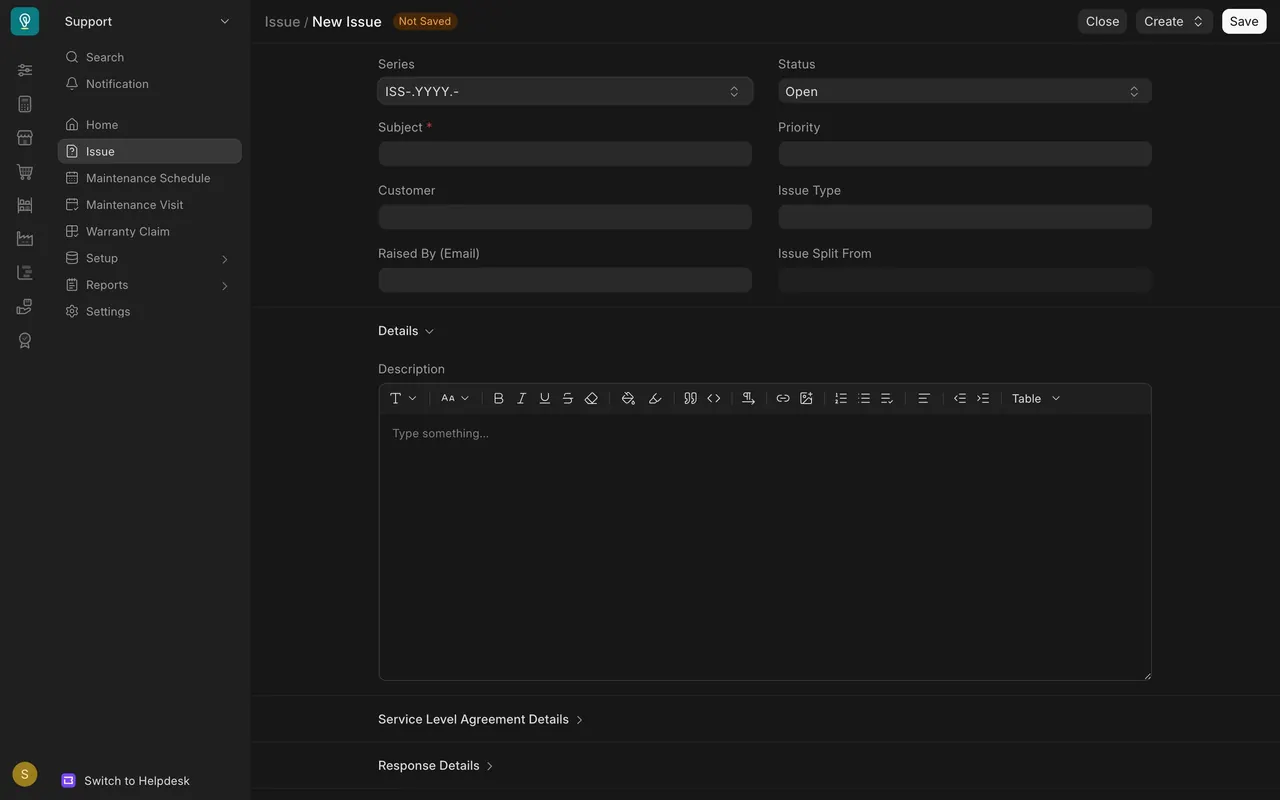
- In the Support area choose Issue, then Add Issue. The status starts as Open.
Step 2. Fill in the form
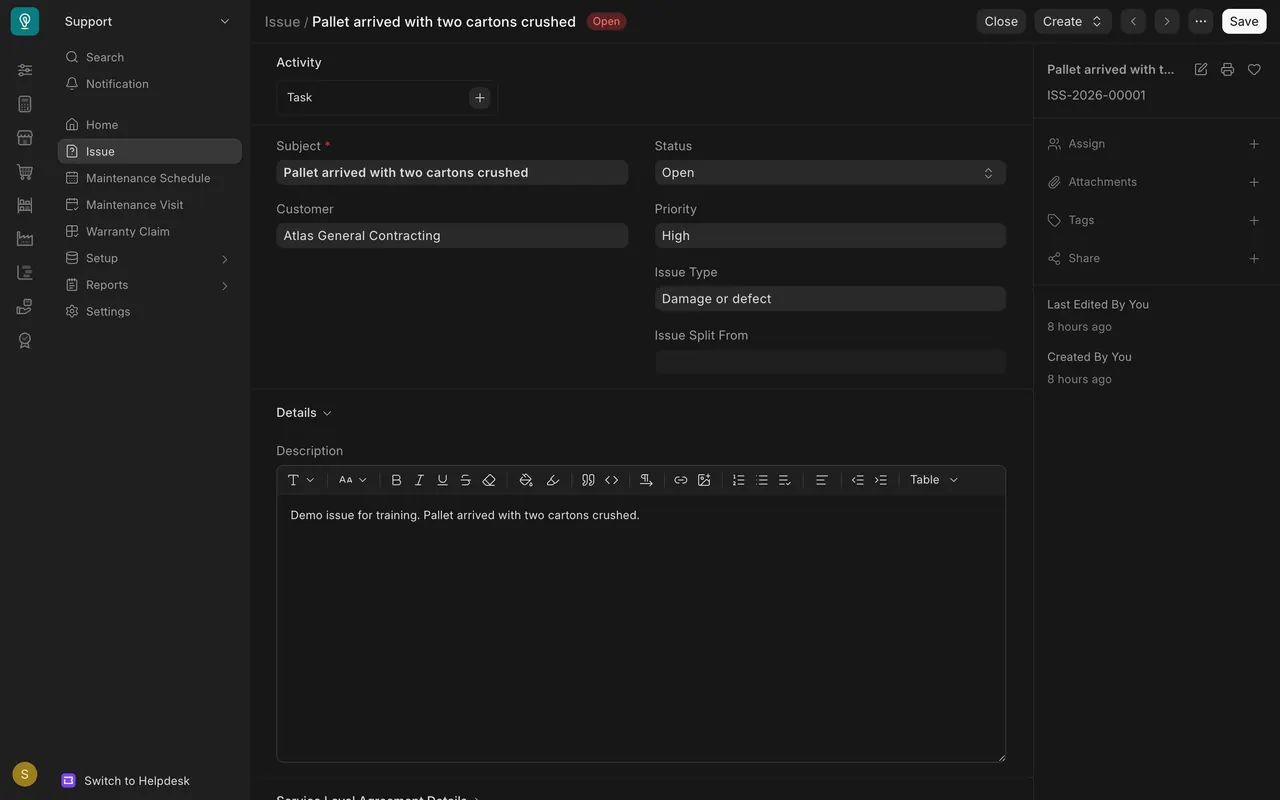
- Enter a Subject (required) and choose the Customer.
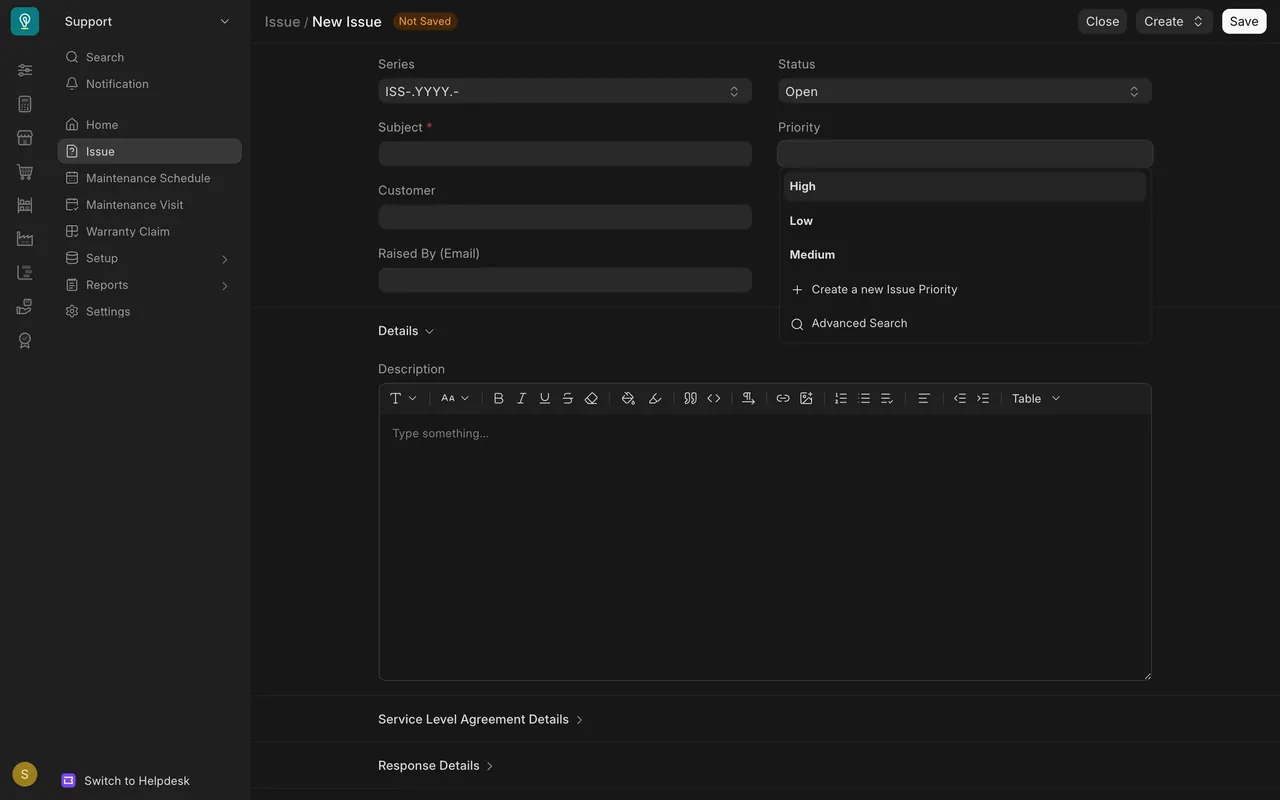
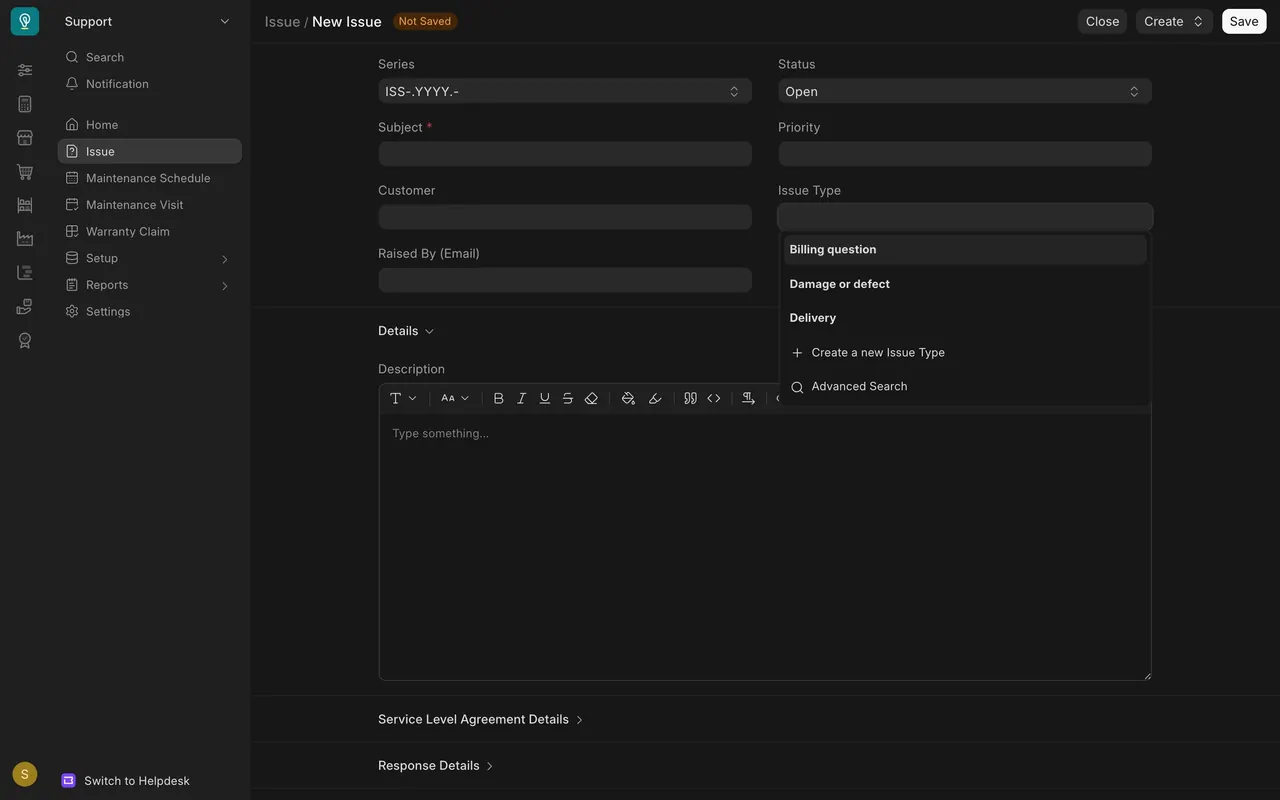
- Choose a Priority and an Issue Type. Add the Raised By email and a description.
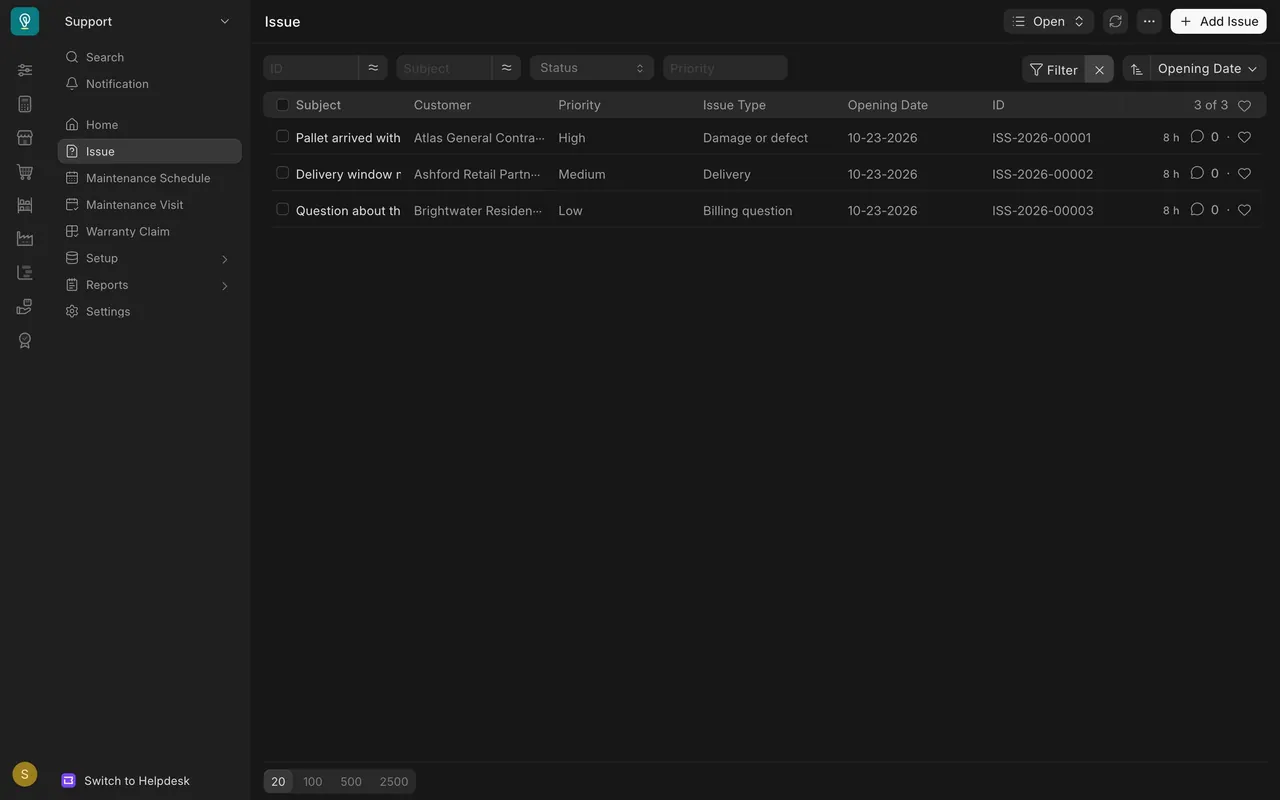
Step 3. Find it in the list
- Open the Issue list and use the Status box to show Open, Replied or Closed issues.
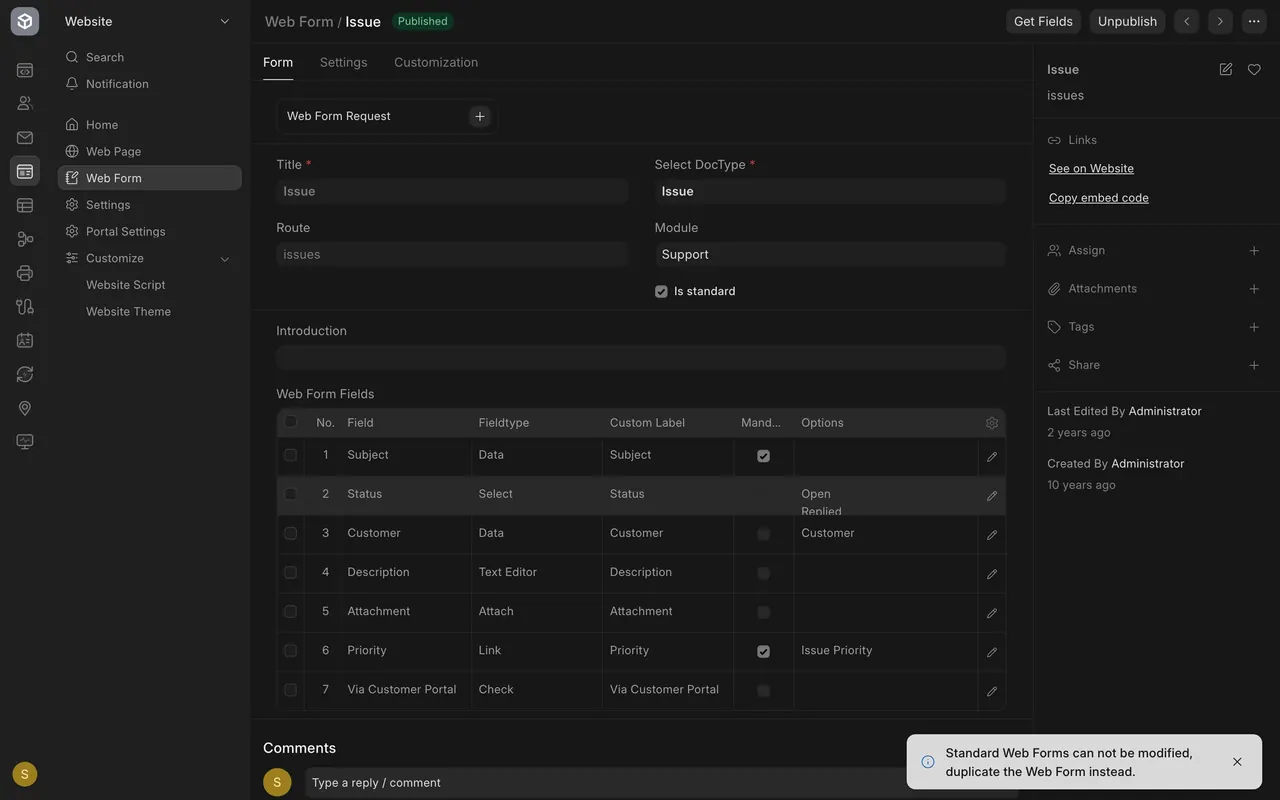
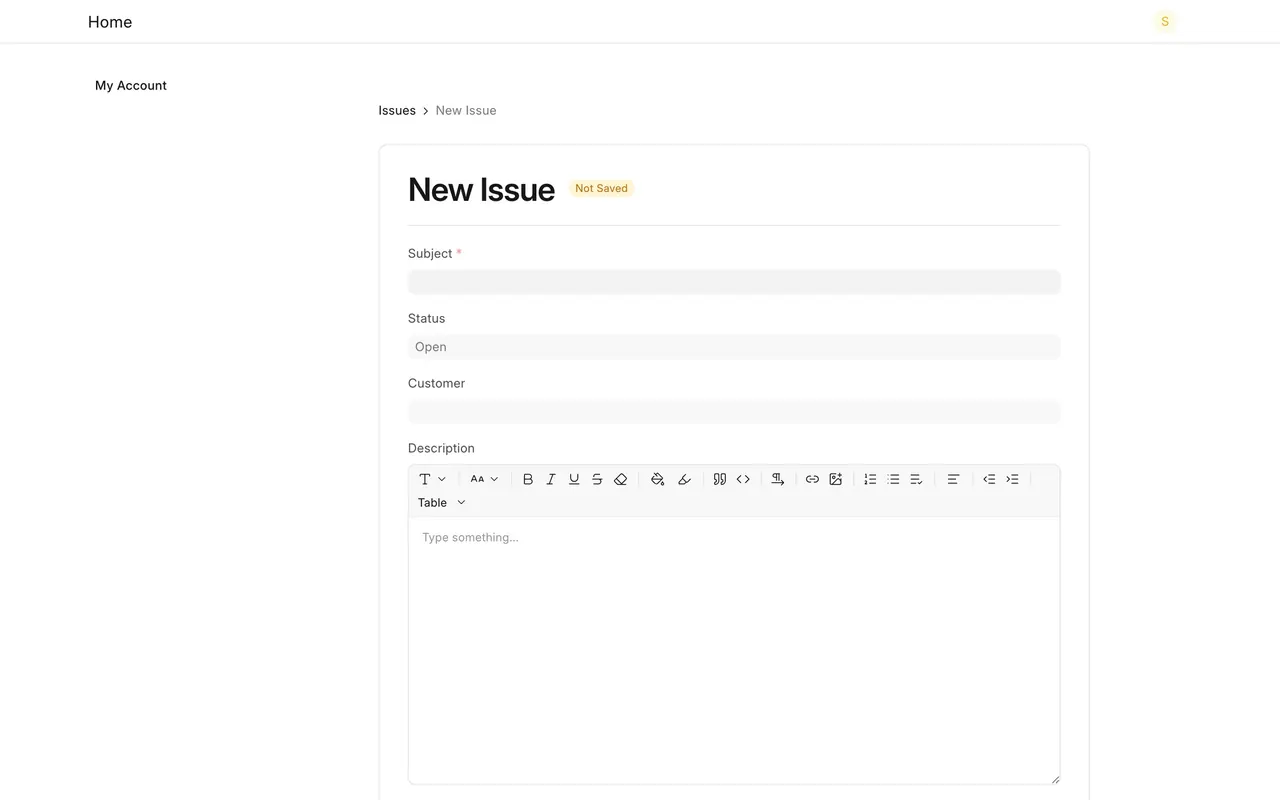
Step 4. See the customer's version
- A web form named issues lets a customer log an issue. Subject and priority are required in its setup.
The Support workspace shows a chart and counts of open, overdue and resolved issues.
What you may see on your own site
- Your issues, types and priorities are your own. Whether your site publishes the web form is your choice.
Common mistakes
- No clear subject. It is the only required field and the name everyone sees.
- Forgetting the customer. Without it the issue cannot be tied to an account.
Check yourself
3 quick questions.
1. Which field is required on the Issue form?
2. How do you see only the issues that have a reply?
3. What does the issues web form let a customer do?