V16 Training · Stock and Warehouse · Lesson 6 of 6
Counts, reorders and stock reports
This lesson gives you the month-end routine: count what is there, ask for more before it runs out, and read the reports that show you what happened.
Written guide
The idea
Three tools, three jobs. A Stock Reconciliation corrects the past: it sets the system quantity to what you counted. A Material Request protects the future: it tells Purchasing what you need before the shelf is empty. The stock reports tell you which of the two you need.
Step by step
Count stock (the Stock Manager posts it)
Only a Stock Manager can create or submit a Stock Reconciliation . Stock Users do the physical count.
Stock Users: count one warehouse at a time. Write the item code, warehouse and counted square feet on the count sheet. Do not move stock while you count. Check the Delivery Note and Purchase Receipt lists for drafts: an unsubmitted delivery makes the system read high. Hand the sheet to the Stock Manager.
Stock Managers:
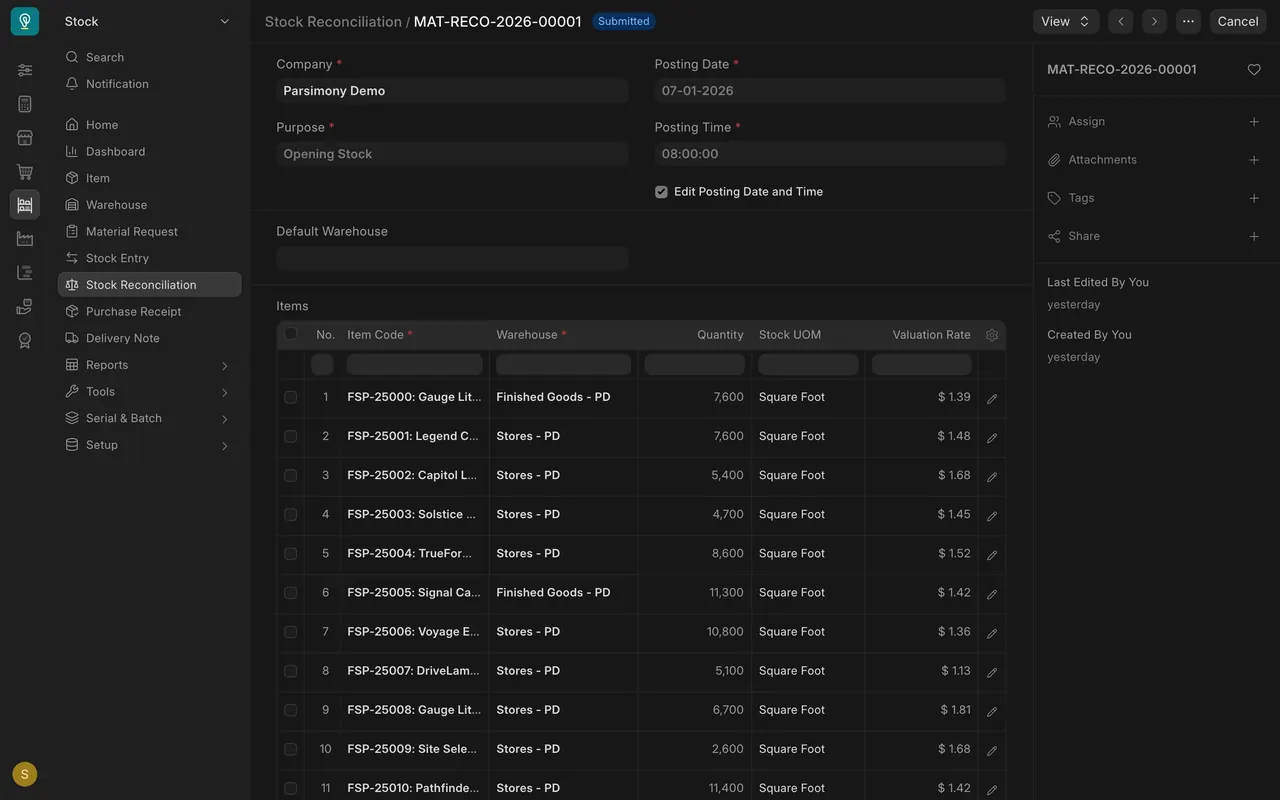
- Open Stock Reconciliation in the Stock sidebar and click Add Stock Reconciliation. In the example data, the only one is the opening balance of 07-01-2026.
- Set Purpose. The choices are Opening Stock, Stock Reconciliation and Adjustment Entry. Use Stock Reconciliation for a count; Opening Stock is only for loading starting balances.
- Use Fetch Items from Warehouse to load a whole warehouse, or add rows by hand. Each row takes an Item Code, a Warehouse and the counted Quantity. Leave Scan Mode unticked: as the form says, it disables auto-fetching of existing quantity.
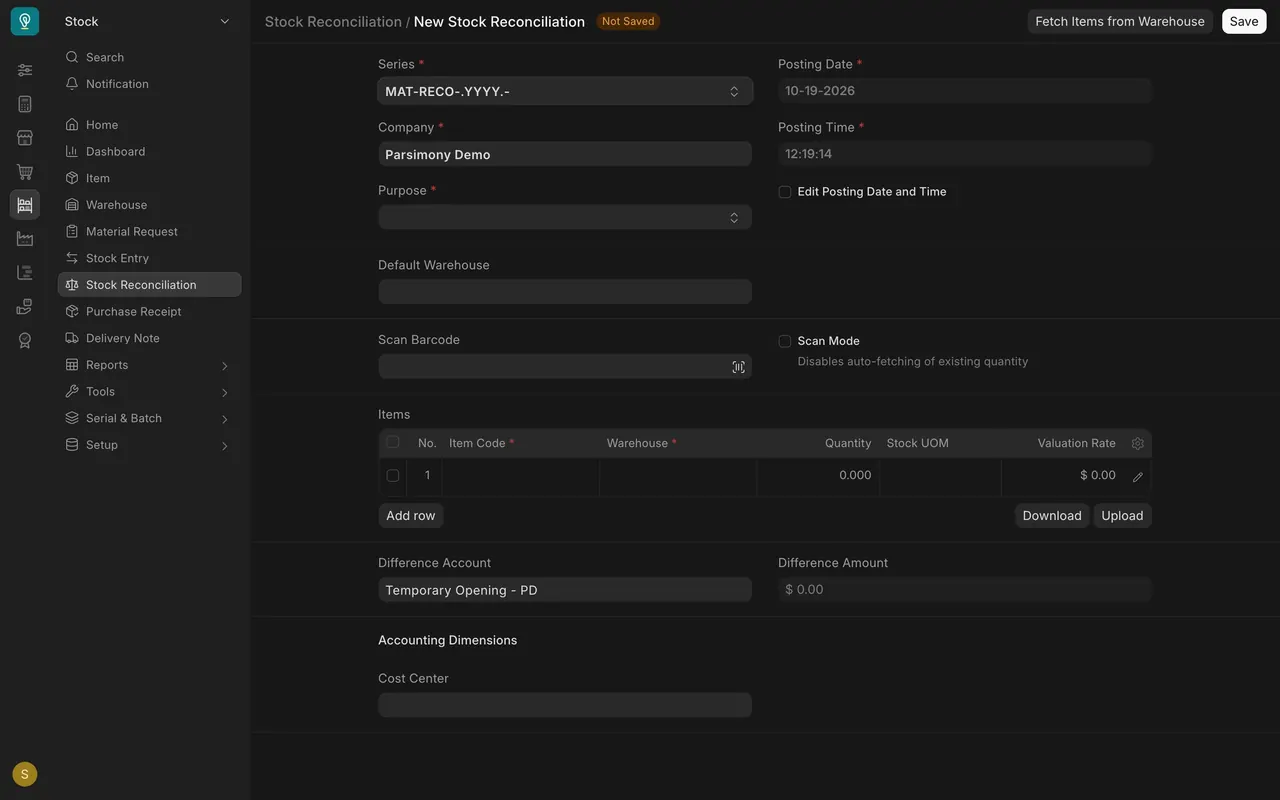
- Compare the count with what the system holds. Large differences need a second count before you submit. The Difference Amount field shows the value of the change.
- Submit. The system now holds your counted quantities.
- Open Stock Ledger for one item to confirm.
Ask for more (Material Request)
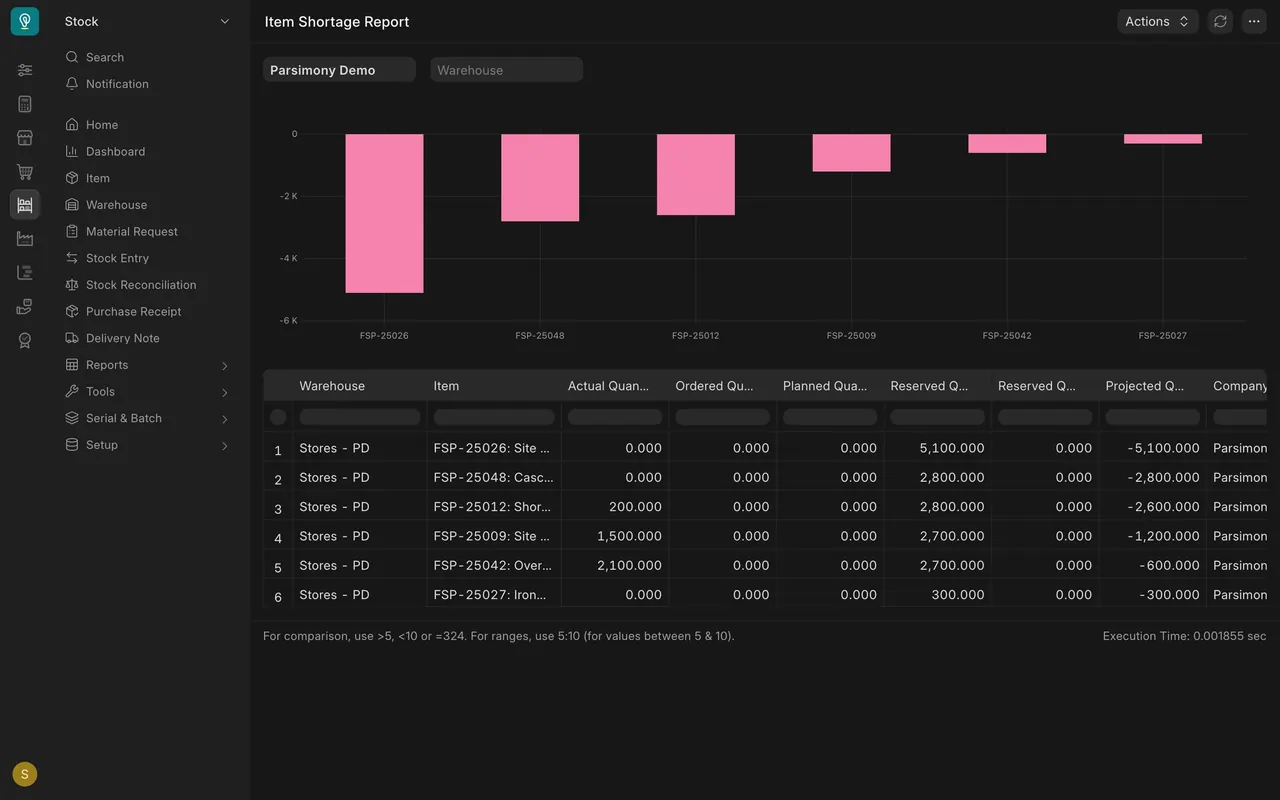
- Search for Item Shortage Report (Command K on a Mac, Control K on Windows). It lists items where orders are ahead of the shelf, with Actual Quantity, Ordered Quantity, Reserved Quantity and Projected Quantity. In this example it shows six items, all in one warehouse, Stores - PD.
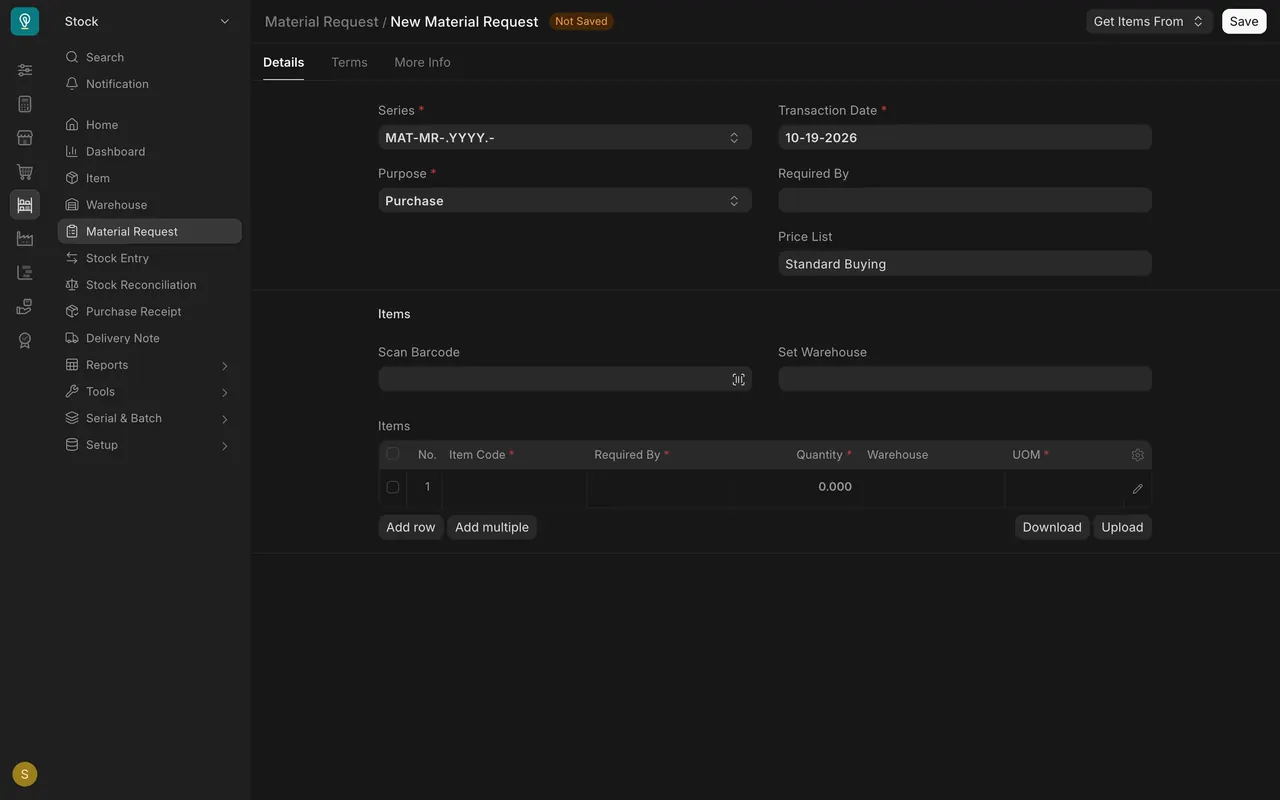
- Open Material Request in the Stock sidebar and add a new one.
- Set Purpose to Purchase when Purchasing needs to buy more. If the stock already sits in another of your warehouses, you do not need a request: move it yourself with a Material Transfer stock entry (lesson 3). The Material Transfer purpose is for a move someone else will make.
- Check the Transaction Date. Add each item with its Quantity in square feet: at least the shortfall the report shows (for example, Shoreline Clay Pine: Projected Quantity -2,600, so at least 2,600; Purchasing settles the amount). Set Required By to the customer's Delivery Date from the sales order; if it has passed, ask Sales. Set Warehouse fills the target warehouse.
- Save and Submit. Then tell Purchasing yourself if your site is not set up to send email.
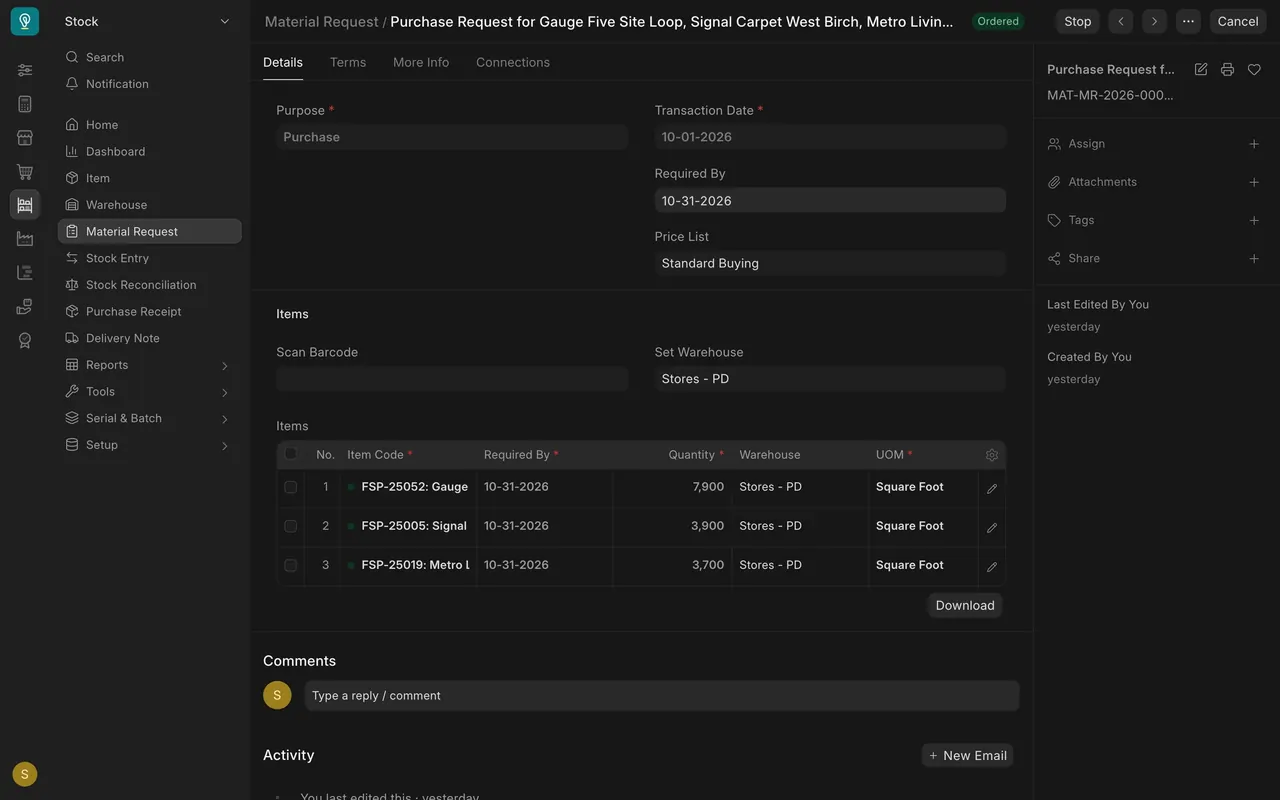
In this example, the request has gone on to a purchase order, so its status is Ordered. Its 3,700 square feet of Metro Living Forge Sand is the Ordered Qty you saw in lesson 1.
Read the reports
The first four sit under Reports in the Stock sidebar; search for the others by name.
| Report | What it shows |
|---|---|
| Stock Ledger | Every movement for an item, with a running Balance Qty. Answers "where did it go?" |
| Stock Balance | Quantity and value by item and warehouse. Can run as a background report: set the filters, then press Generate New Report. |
| Stock Projected Qty | Actual, ordered, reserved and projected quantity per warehouse. |
| Stock Ageing | How long stock has been sitting, in age bands. |
| Item Shortage Report | Items where demand is ahead of what you hold. |
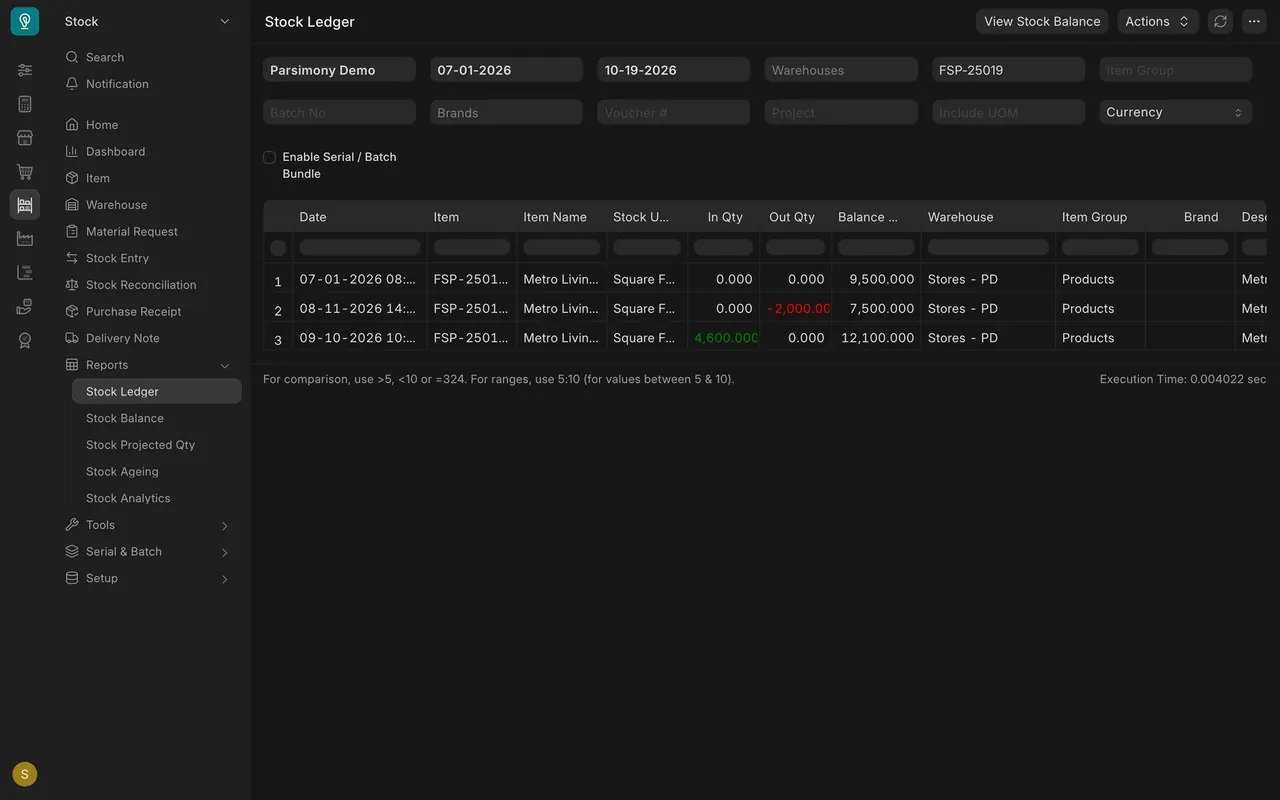
Always set the filters (company, dates, item, warehouse) before you read a number.
Setup notes
- Stock Reconciliation is for the Stock Manager role. Stock Users cannot open it in the standard setup.
- Material Requests: in the standard setup, Stock Users, Stock Managers and Purchase Users can create and submit them.
- Email. If your site is not set up to send email, even the Material Request Receipt Notification sends nothing. Then tell Purchasing in person or by chat.
Common mistakes
- Counting while stock moves. Picks and receipts during a count spoil the numbers. Fix: pause movements in that warehouse.
- Submitting a big difference without a recount. Fix: count again before a large adjustment.
- Using a reconciliation to hide a missed document. If a receipt or delivery was never submitted, submit it. A count is for real differences.
- Raising a request and assuming Purchasing knows. Fix: tell them; if email is not set up, nothing is sent.
- Waiting for Stock Balance. It can run in the background. Fix: generate it early, or use Stock Ledger or Stock Projected Qty for a quick answer.
Course complete
That completes Stock and Warehouse. The next course is Parsimony ERP: Accounting, where Accounts turns what you received and shipped into the books.
Check yourself
3 quick questions.
1. You count 3,600 square feet of rubber tile and the system says 4,000. You are a Stock User. What do you do?
2. Which report shows how long stock has been sitting on the shelf?
3. Your Stores warehouse has run out of an item, but your Finished Goods warehouse holds plenty. What do you do?