V16 Training · Sourcing and Samples · Lesson 4 of 6
Ship samples both ways
This lesson shows you how to record both sample shipments on a Request For Sample, and which entries change the status for you.
Written guide
The idea
Samples travel two ways. Sometimes you send the supplier a reference sample to match. Then the supplier sends a factory sample back to you. Each direction has its own tab on the Request For Sample (the status names below start with RFS, short for Request For Sample), and each has its own tracking number field.
Those tracking fields are not notes. Entering a tracking number changes the status and stamps a date. The list then shows where every sample is, but only if each number goes on the right tab, at the right time.
Step by step
1. The sample you send to the supplier
Open the Source Sample Specifications tab.
- Tick the box that asks whether you are sending a sample to be matched (in this example, Are we sending a sample to be matched?). The shipping fields only appear once this is ticked.
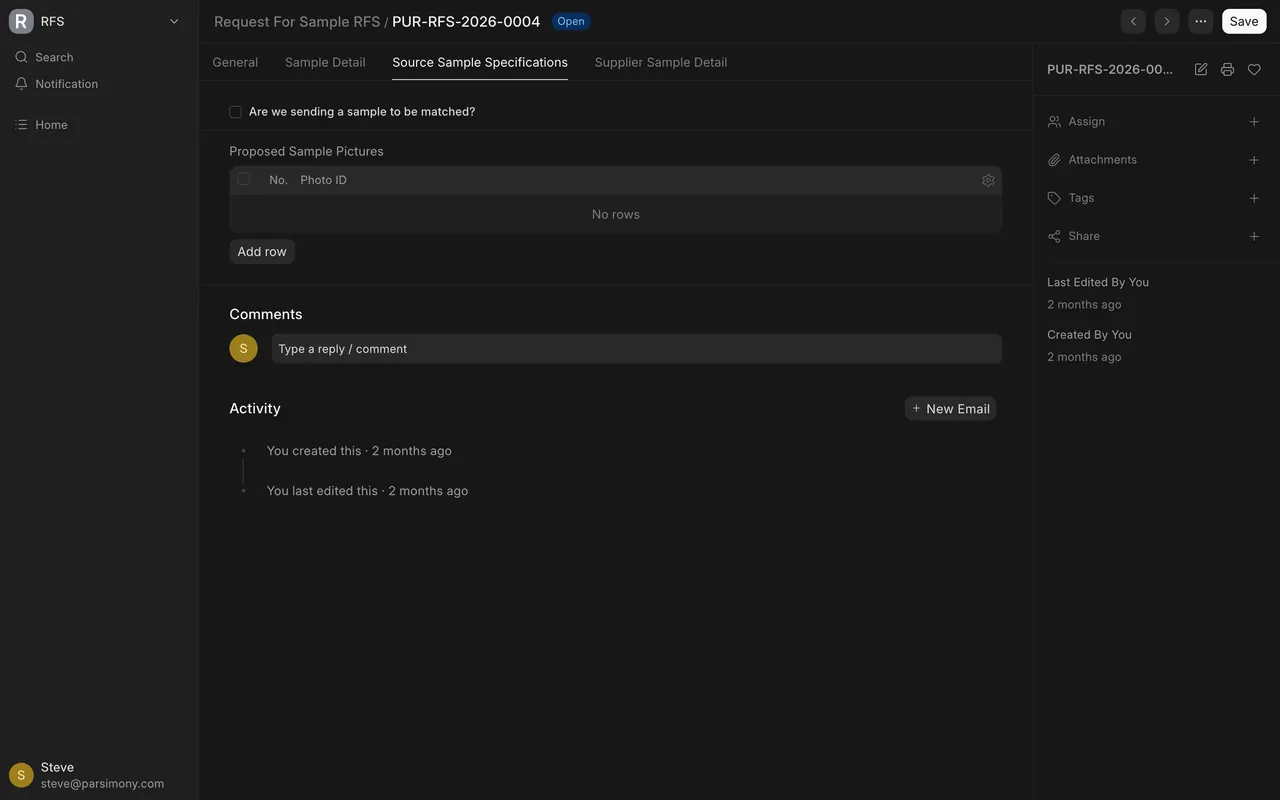
- Pick the Supplier Address. Proposed Sample Sent To fills in with that address. The list only offers this supplier's addresses. If the address you need is missing, ask a System Manager to add it.
- Enter Proposed Sample Attention, the person at the supplier.
- Pick the Sample Shipment Carrier Name: DHL, FedEx or UPS. Sample Shipment Carrier Account fills in from the carrier and is read-only. The carrier list is kept by a System Manager; if the carrier you need is missing, ask one to add it.
- Add photos of your sample under Proposed Sample Pictures. Each new row gets a Photo ID such as "Photo 1"; attaching an image renames it after the file.
- When the parcel has shipped, enter the Sample Shipment Carrier Tracking Number.
- A message appears, for example "Status is changed from Open to RFS To Vendor", and RFS To Vendor Date is stamped.
- Save.
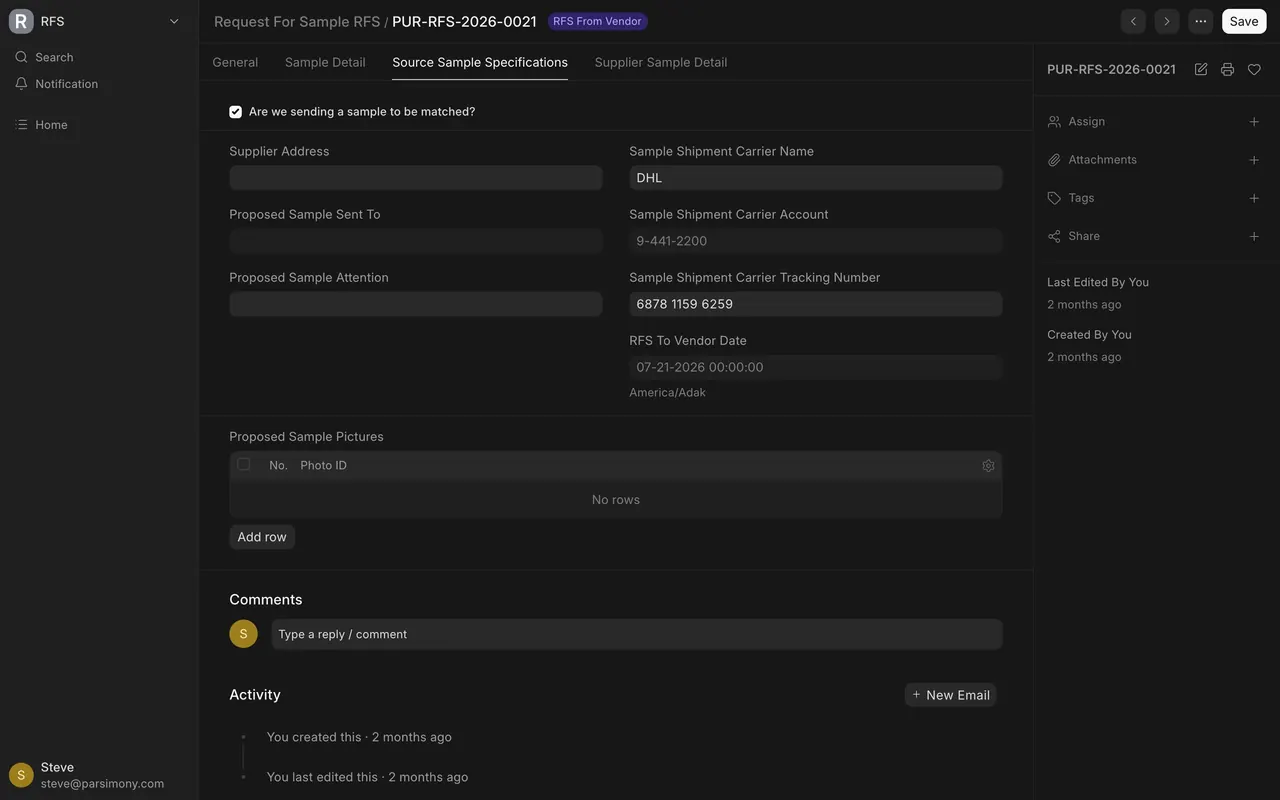
2. Mark the request as emailed
No field sets this status for you.
- Email the request to the supplier, outside the system for now.
- On the General tab, pick RFS Emailed in RFS Status.
- Save.
RFS Emailed Date sits on the same tab. It is read-only, so you do not type it.
3. The factory sample coming back
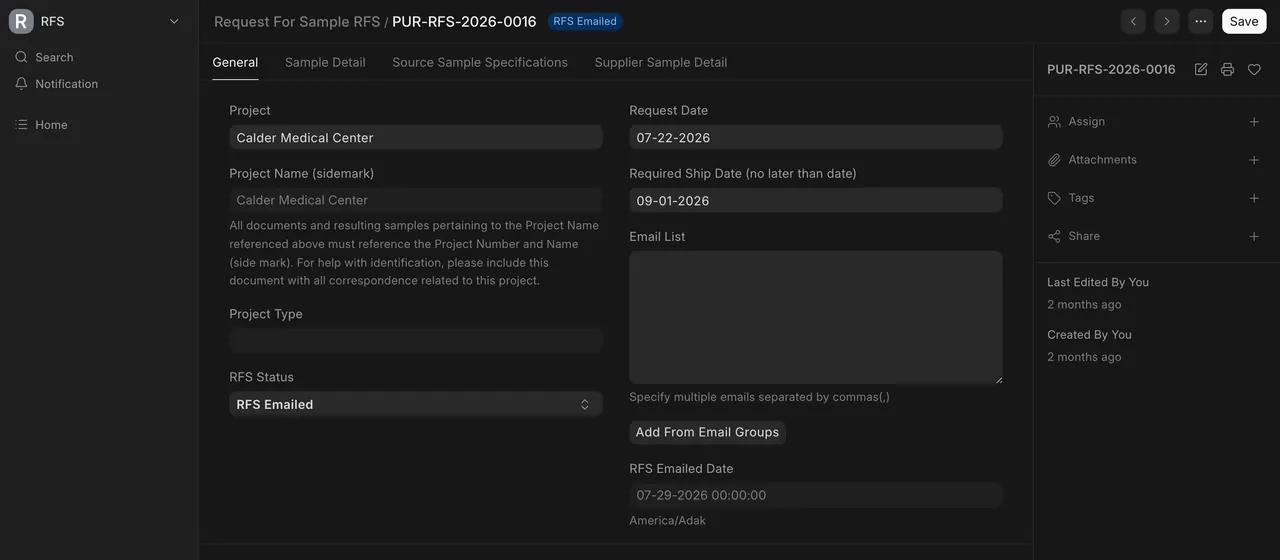
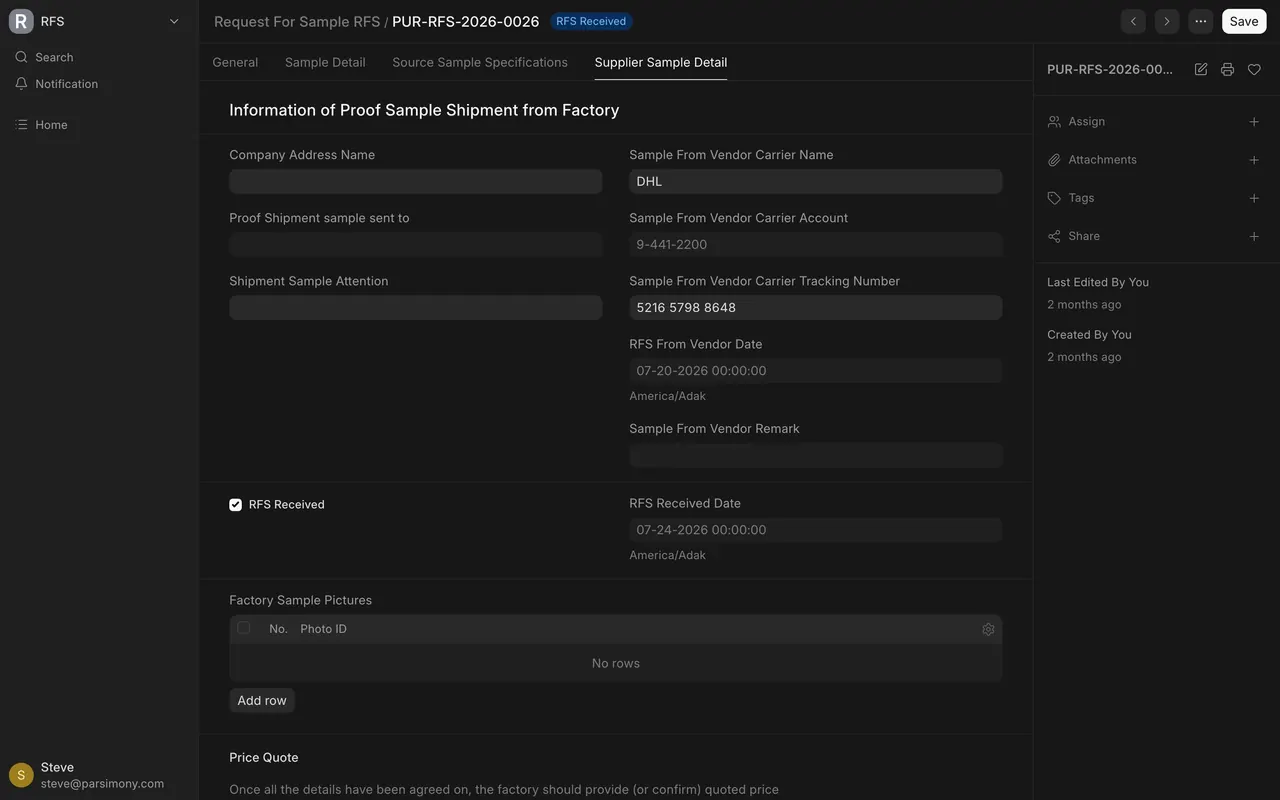
Open the Supplier Sample Detail tab. Its heading reads "Information of Proof Sample Shipment from Factory".
- Pick the Company Address Name. Proof Shipment sample sent to fills in with your company's address. If it is missing, ask a System Manager to add it.
- Enter Shipment Sample Attention, the person at your company who should receive it.
- Pick the Sample From Vendor Carrier Name. Sample From Vendor Carrier Account fills in. If the vendor's carrier is missing from the list, ask a System Manager to add it.
- Enter the Sample From Vendor Carrier Tracking Number from the supplier's parcel.
- The status changes to RFS From Vendor, and RFS From Vendor Date is stamped.
- Save.
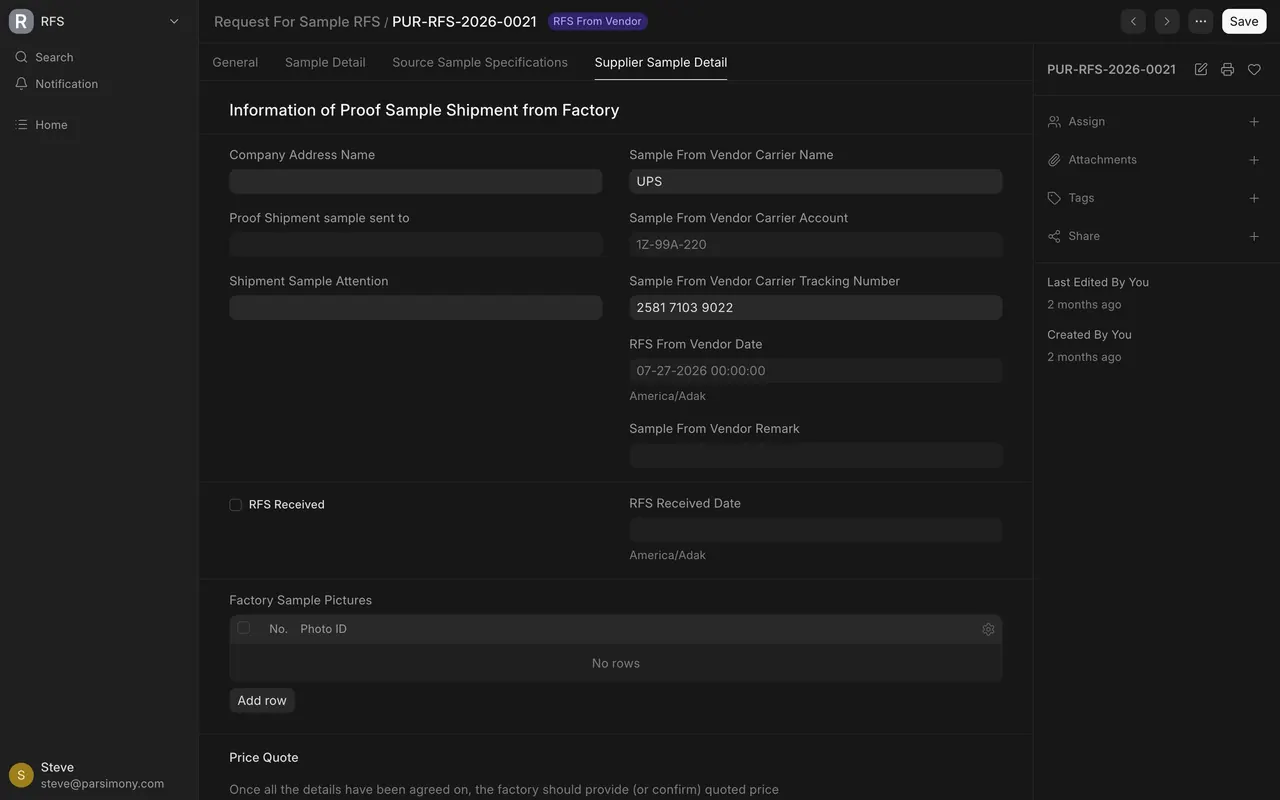
4. When it arrives
- Tick RFS Received. The status changes to RFS Received, and RFS Received Date is stamped.
- Add photos of what arrived under Factory Sample Pictures.
- Save.
5. Read the history
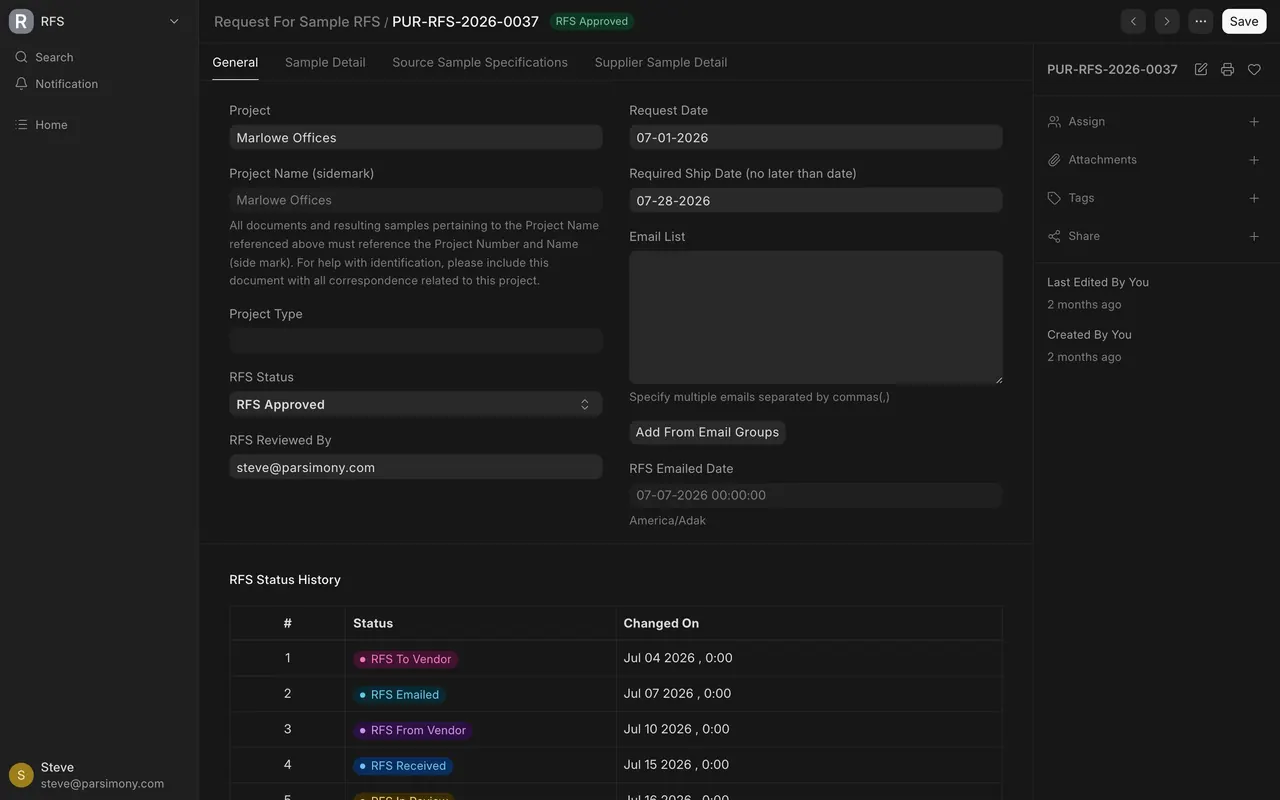
On the General tab, RFS Status History lists each status with the date it changed.
Quick reference
| What you do | Where | Status after | Date |
|---|---|---|---|
| Enter Sample Shipment Carrier Tracking Number | Source Sample Specifications | RFS To Vendor | RFS To Vendor Date, stamped |
| Pick RFS Emailed in RFS Status | General | RFS Emailed | RFS Emailed Date, read-only |
| Enter Sample From Vendor Carrier Tracking Number | Supplier Sample Detail | RFS From Vendor | RFS From Vendor Date, stamped |
| Tick RFS Received | Supplier Sample Detail | RFS Received | RFS Received Date, stamped |
- In this example the carrier list has three entries: DHL, FedEx and UPS. Purchase users can pick from it; only a System Manager can add carriers.
- Sample From Vendor Remark on the Supplier Sample Detail tab is read-only on the form.
- Statuses do not have to follow the list order. In the example data, requests went to RFS To Vendor before RFS Emailed.
- Every supplier needs a shipping address on file, and so does your company (in this example, the Dallas warehouse of the demo company). If a supplier's address is missing, ask a System Manager to add it before you ship.
Common mistakes
- Typing a tracking number before the parcel ships. The status jumps and a date is stamped. Fix: clear the field, set RFS Status back by hand, and tell whoever relies on the date.
- The wrong tab. Source Sample Specifications is what you send out. Supplier Sample Detail is what comes back. A number on the wrong tab gives the wrong status.
- Forgetting RFS Emailed. Nothing sets it for you, so the list shows the wrong stage.
- No photos. Without your pictures and the factory pictures, a reviewer cannot compare what you asked for with what arrived.
- Ticking RFS Received early. Tick it when the sample is in hand, not when tracking says delivered.
- Editing a tracking number later. Changing either tracking number sets the status again and restamps its date, even on a request already in review or approved. If you must correct one, set RFS Status back by hand afterwards.
Check yourself
3 quick questions.
1. You type a number into Sample Shipment Carrier Tracking Number. What happens?
2. Which tab holds the tracking number for the factory sample coming to you?
3. How does a request reach RFS Emailed?