V16 Training · Sourcing and Samples · Lesson 3 of 6
Create a Request For Sample
This lesson shows you how to create a Request For Sample that a supplier, the warehouse and a reviewer can all read without asking you.
Written guide
The idea
A Request For Sample tracks one supplier's sample for one project. It records what you asked for, who you asked, where the sample goes, and what was decided.
The most important thing it produces is the sample label. When a box arrives at the dock, the label is how the warehouse knows which project it belongs to and which request it answers. A clear sidemark, a clear description and real label lines let the warehouse match the box to its request without asking you.
One rule shapes everything: the record has a single Supplier field. Open one Request For Sample per supplier.
Step by step
1. Start a new request
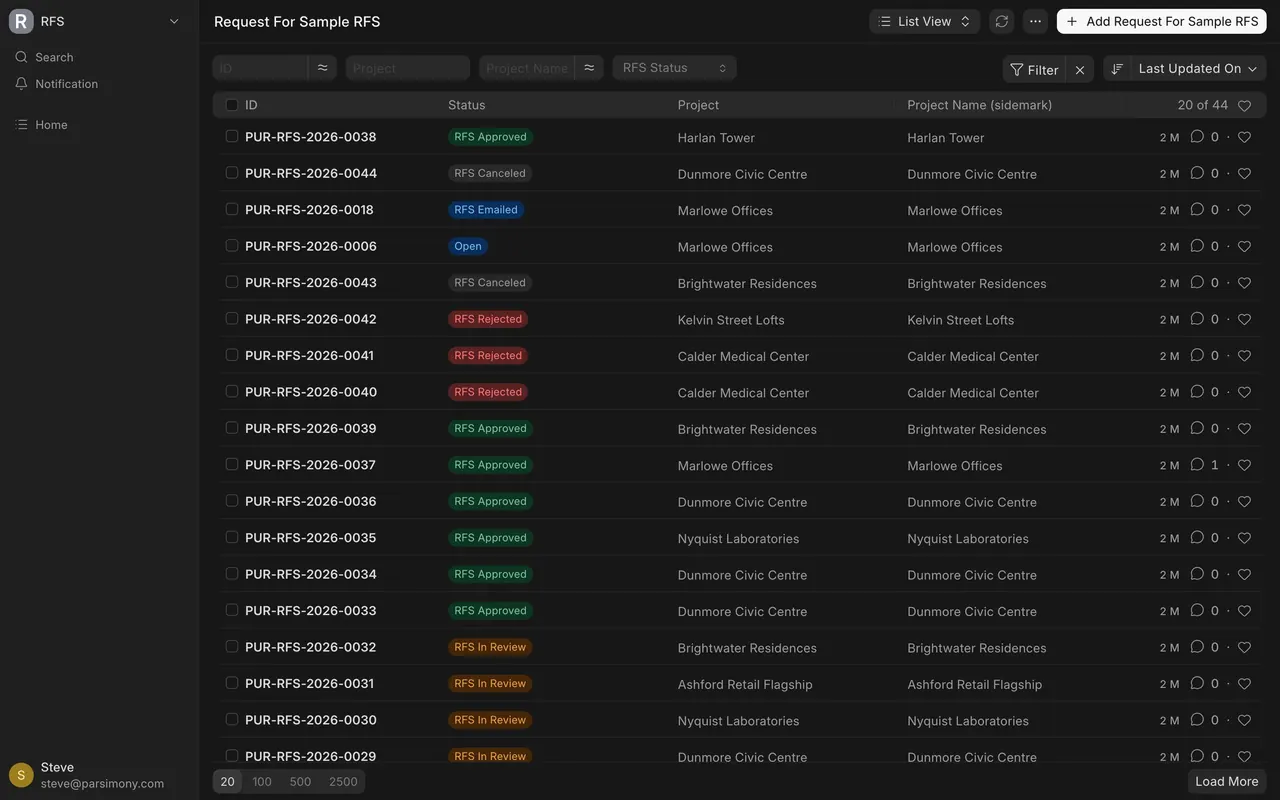
- Open the RFS tile (short for Request For Sample) on the Desktop, then Request For Sample. The list is titled Request For Sample RFS.
- Click Add Request For Sample RFS.
2. The General tab
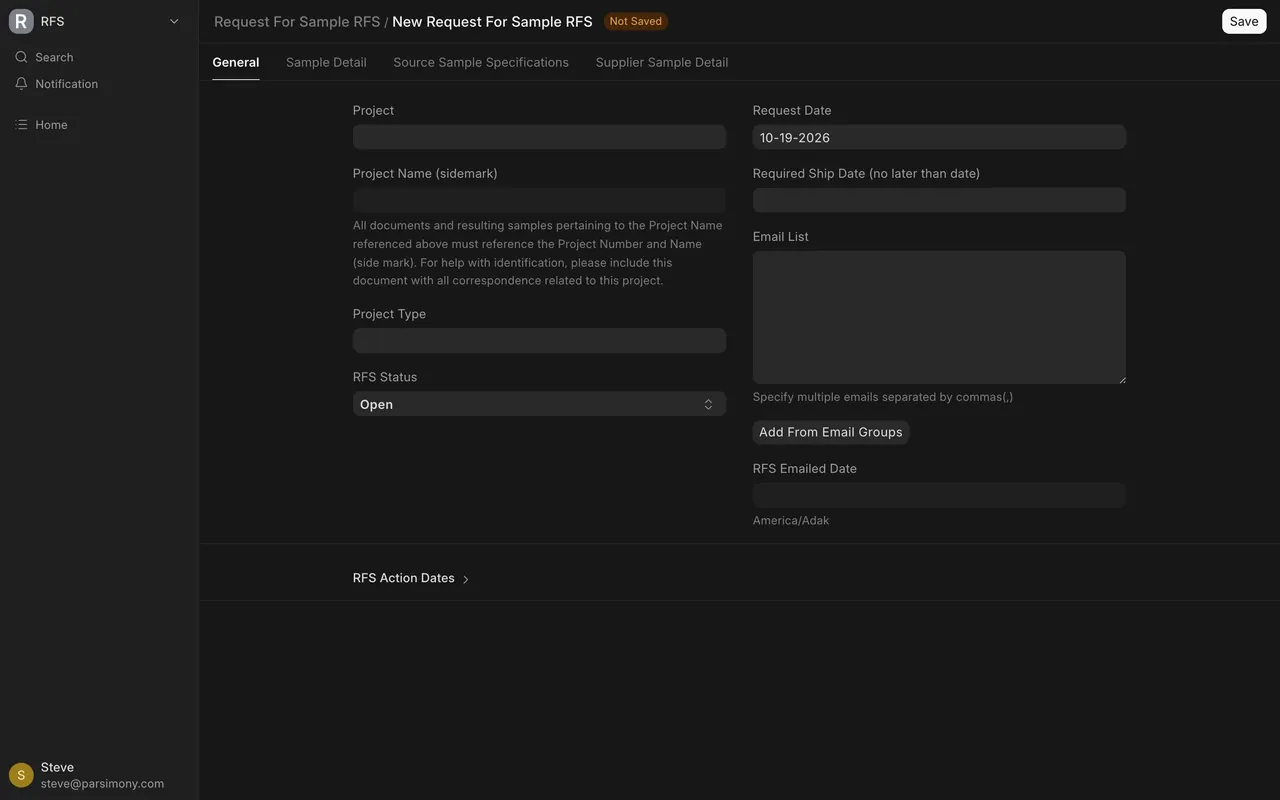
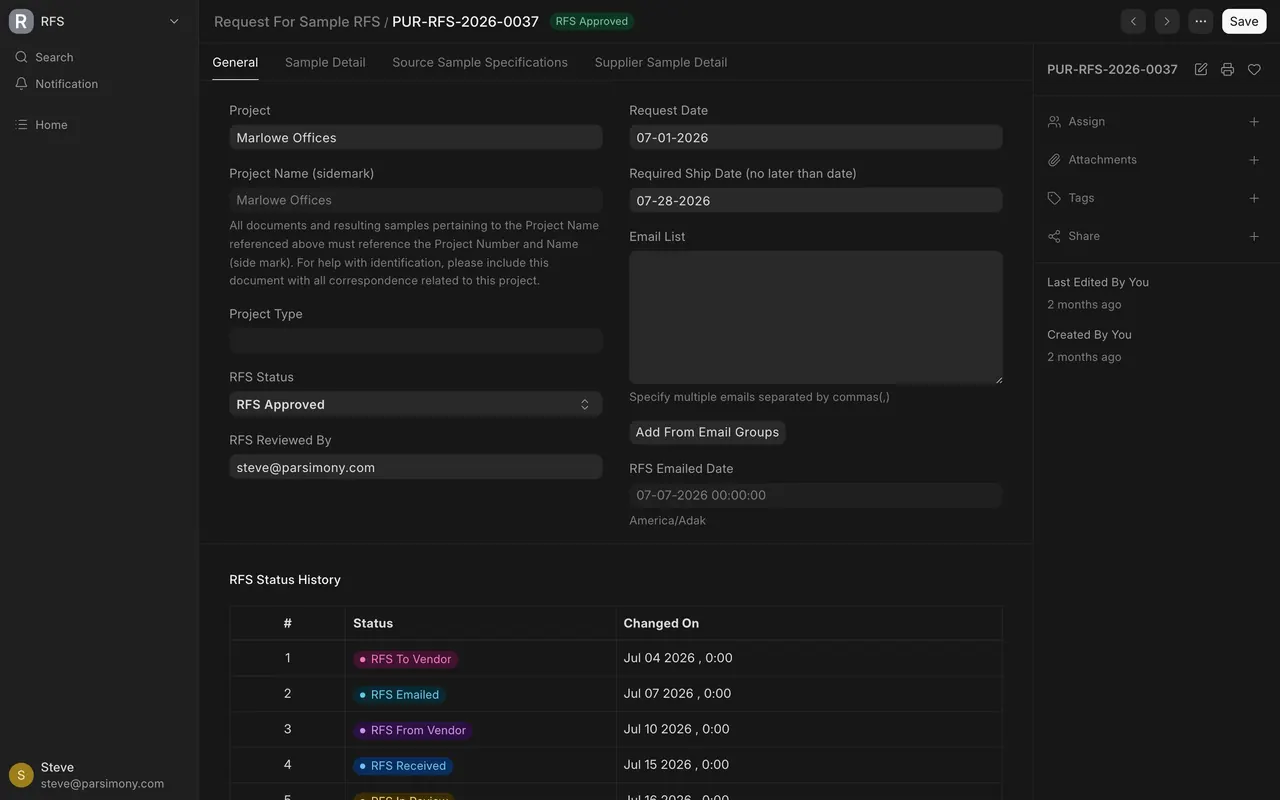
- Pick the Project.
- Request Date is filled with today's date.
- Set Required Ship Date (no later than date).
- RFS Status starts at Open. Leave it.
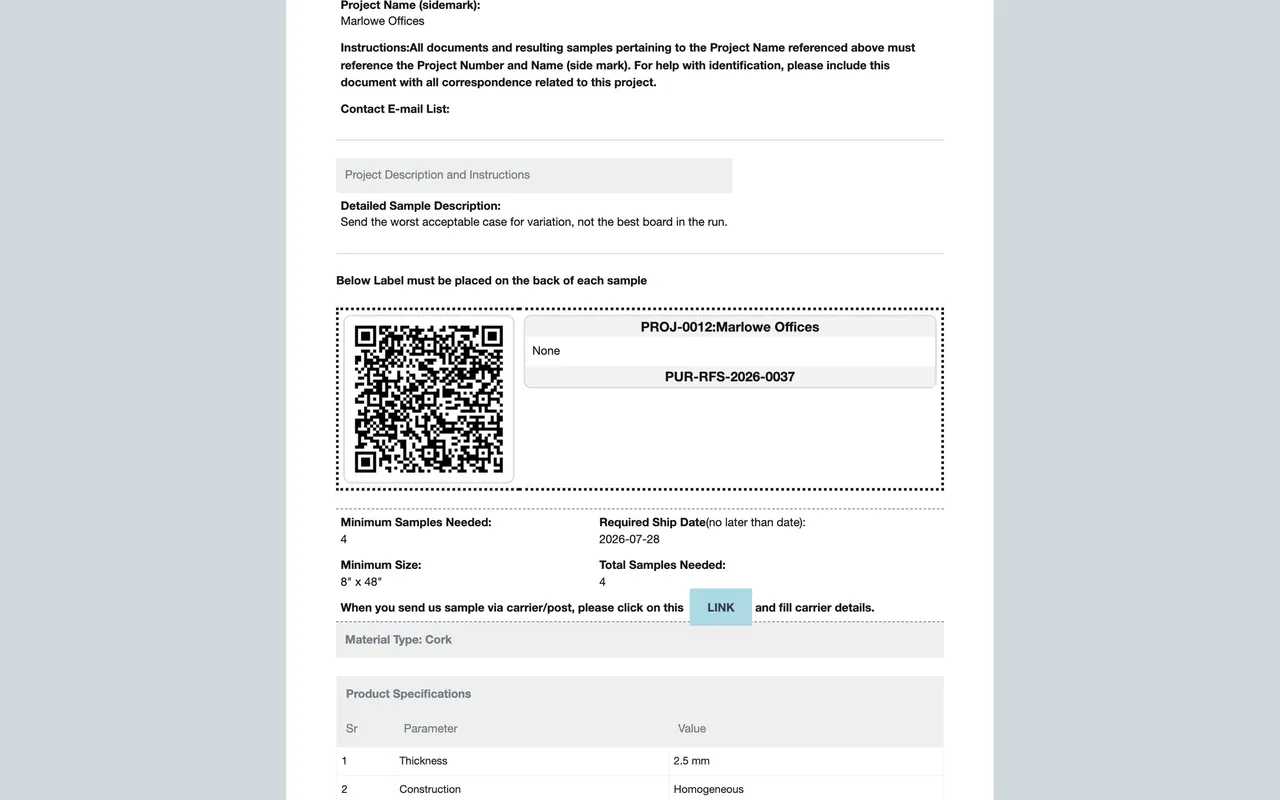
- Read Project Name (sidemark). It fills in from the project and you cannot type in it. The note under it reads: "All documents and resulting samples pertaining to the Project Name referenced above must reference the Project Number and Name (side mark)."
- Project Type also comes from the project.
- Email List holds the people involved, separated by commas. Add From Email Groups adds the members of an Email Group in one step, if your company has set up Email Groups. If not, type the addresses instead.
3. The Sample Detail tab
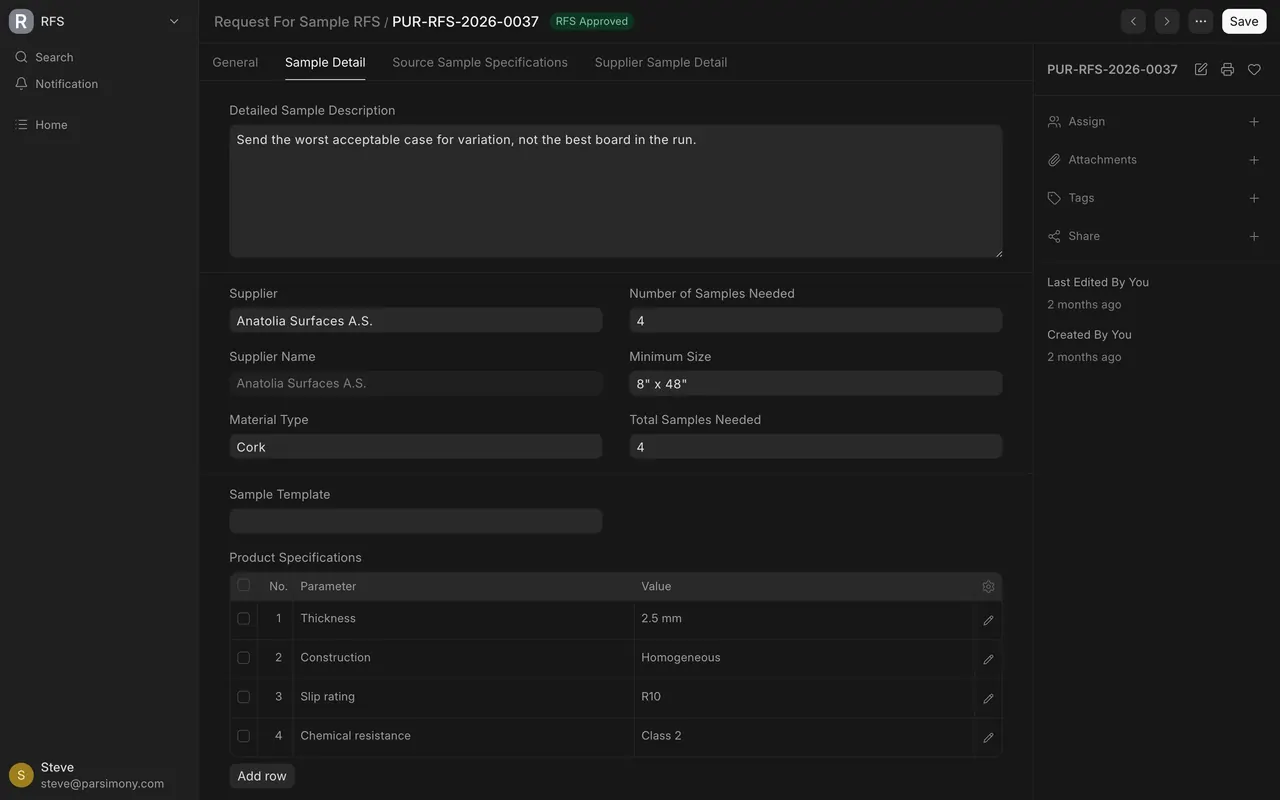
- Write the Detailed Sample Description. Say what you need to see. The example request for Marlowe Offices asks: "Send the worst acceptable case for variation, not the best board in the run."
- Pick the Supplier. Supplier Name fills in.
- Pick the Material Type, for example Cork. This list is kept by a System Manager, the person who administers your site. If the type you need is missing, ask them to add it.
- Enter Number of Samples Needed, Minimum Size (for example 8" x 48") and Total Samples Needed. The form has no help text on the two counts. On the printed request, Number of Samples Needed appears as "Minimum Samples Needed". On the example request both read 4.
- Pick a Sample Template. The Product Specifications table fills with Parameter and Value rows. Edit the rows so they describe this product. Templates are kept by a System Manager too; if the one you need is missing, ask them to add it.
4. The label
- Scroll to Label Requirements.
- Type the lines you want on the sample label into Label Content.
- Save. A label card appears beside it: the project number and sidemark at the top, your lines in the middle, and the request number at the bottom.
- The same label prints on the request, under "Below Label must be placed on the back of each sample".
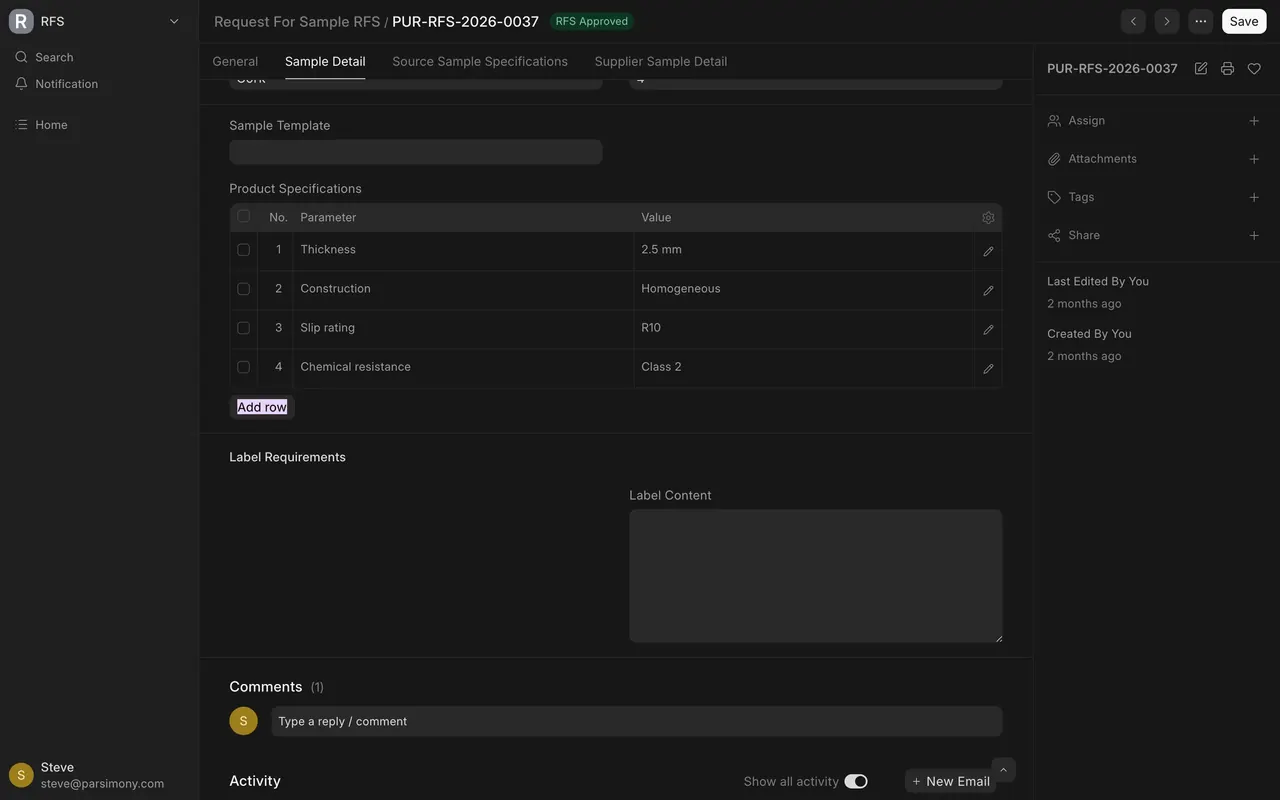
If Label Content is empty, the printed label shows the project and the request number with the word None in the middle. In the example data, no request has label lines yet, so they all print that way.
5. Save
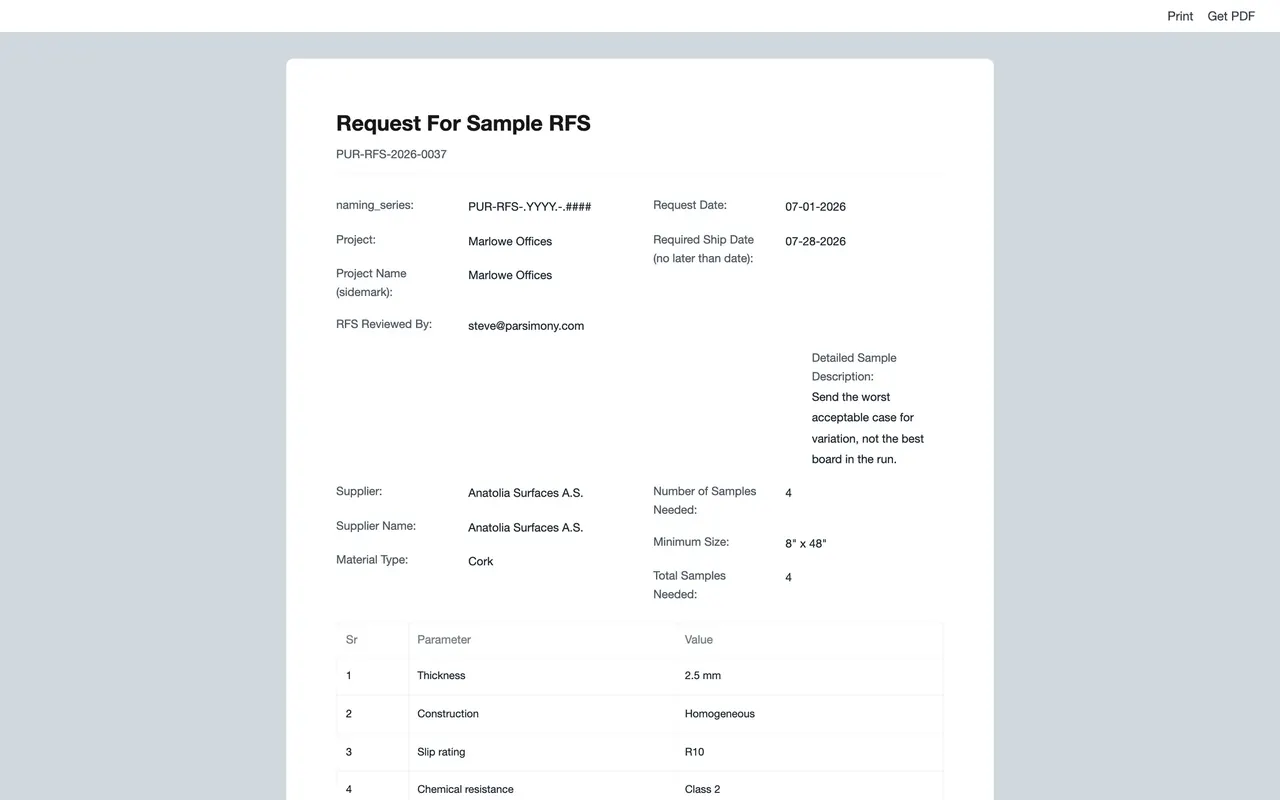
Save. The record gets its own request number. In this example it is built from the year and a running count, such as PUR-RFS-2026-0037.
6. See the print view
Open the print view to see the Request For Sample exactly as your supplier receives it: the project, the description, the supplier, the sizes and the product specifications.
The example setup
The lists below come from the example site used in this training. Yours will have the entries your company chose.
- Request For Sample is a core part of Parsimony. It has no Submit step and no approval workflow.
- Purchase User, Purchase Manager, Purchase Master Manager and System Manager can read, create, edit and delete requests.
- In the example, Material Type has 11 values: Bamboo, Cork, European Oak, Hickory, Luxury Vinyl Plank, Porcelain Tile, Rubber, Sisal, Terrazzo, Walnut and Wool Broadloom.
- In the example, Sample Template has three values: Carpet Tile, Engineered Wood Plank and LVT / Rigid Core (LVT stands for luxury vinyl tile).
- Material types, sample templates and carriers are setup lists. Purchase users can see and pick from them; only a System Manager can add or change entries.
- RFS Status (the status of the request) options, in order: Open, RFS To Vendor, RFS Emailed, RFS From Vendor, RFS Received, RFS In Review, RFS Approved, RFS Rejected, RFS Canceled.
Common mistakes
- One request for several suppliers. There is one Supplier field. Create one request per supplier.
- Not reading the sidemark. The label uses the project and its sidemark. If the project is wrong, every label is wrong.
- A vague description. "Grey cork" gets you any grey cork. Say thickness, finish, backing and which piece of the run you want.
- Leaving template rows as they were. Product Specifications from a template describe a generic product until you edit them.
- Leaving Label Content empty. The printed label then shows the word None where your lines should be.
Check yourself
3 quick questions.
1. You want samples from three suppliers for the same product. How many Requests For Sample do you create?
2. A new request shows the wrong job in Project Name (sidemark). What do you change?
3. You save a request with Label Content left empty. What does the printed label show in the middle?