V16 Training · Sourcing and Samples · Lesson 5 of 6
Review and decide
This lesson shows you how to price a sample, name a reviewer, and record a decision the rest of your team can act on.
Written guide
The idea
A sample on a shelf is not a decision. The Request For Sample, a core part of Parsimony's sourcing, turns it into one: a price with a unit, a named reviewer, and a status that says yes, no or stopped.
The form checks one rule. (RFS in the field names stands for Request For Sample.) If you pick RFS Approved, RFS Rejected or RFS Canceled before the request has been in review, an error appears. A request goes into review when you name a reviewer. The check is there so every decision has a person attached to it.
Step by step
1. Enter the price
Do this when the supplier gives you a price, before or after review.
- Open the Supplier Sample Detail tab and scroll to Price Quote. Its note reads: "Once all the details have been agreed on, the factory should provide (or confirm) quoted price".
- Enter the FOB Point (FOB is short for Free On Board), the port where the goods are handed over, for example Hai Phong, Ningbo or Leixoes.
- Enter the FOB Price USD.
- Pick the FOB Unit Of Measure, the unit that price is per.
- Save.
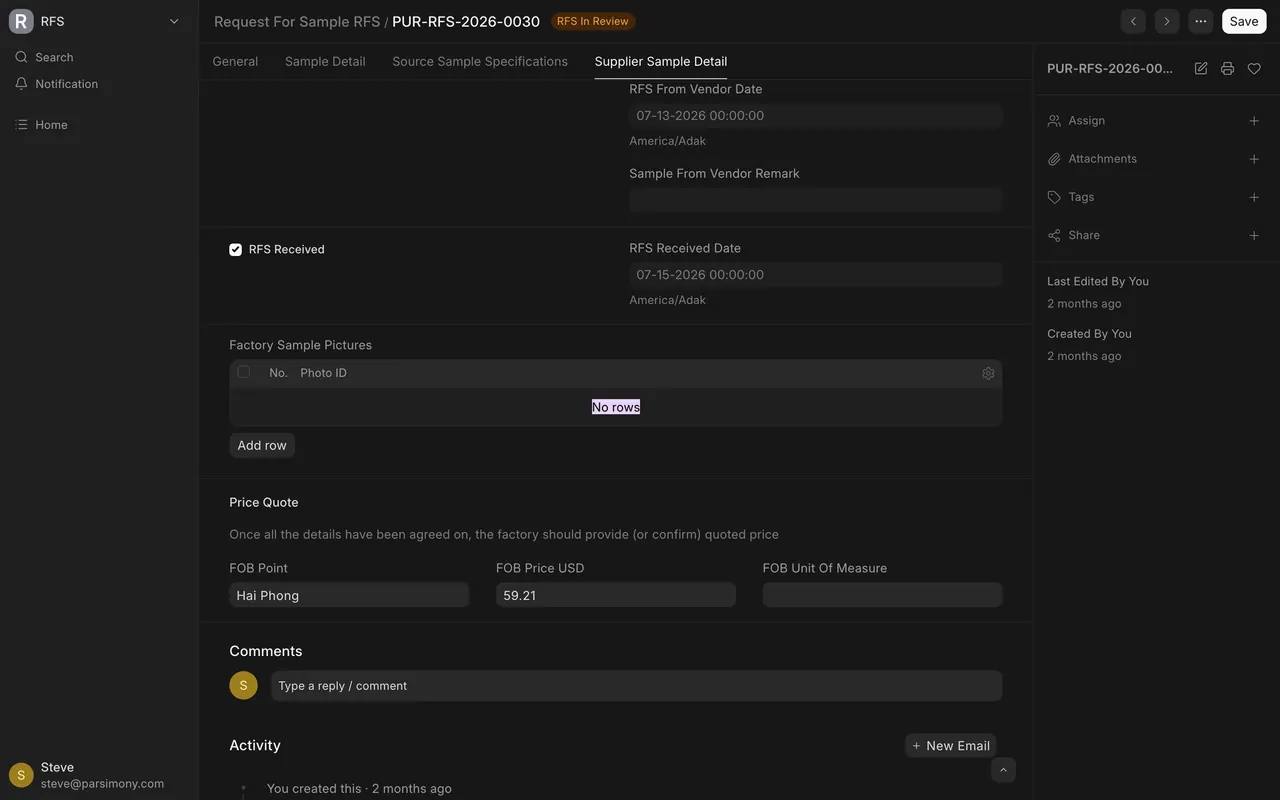
A price with no unit cannot be compared or ordered. In the example data, FOB Unit Of Measure is empty on every request, so check it on your own site.
2. Send it to review
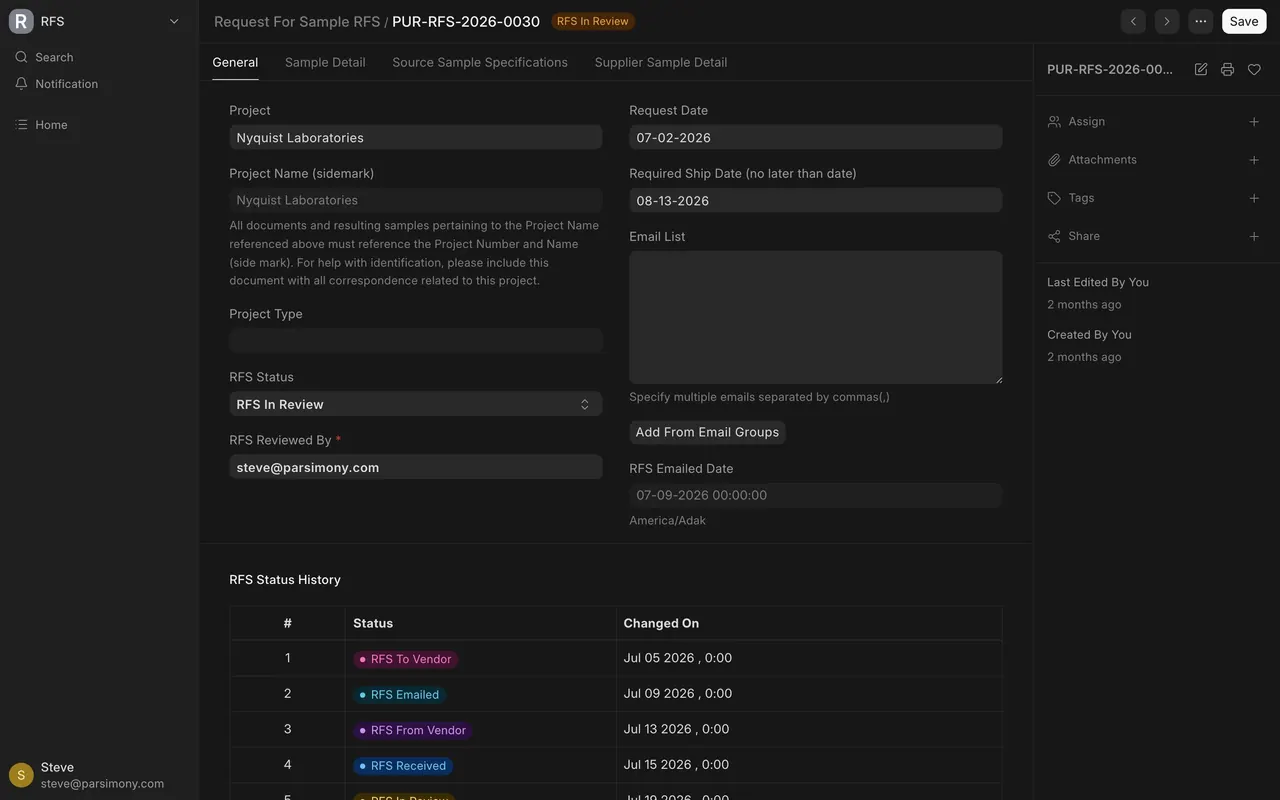
- On the General tab, open RFS Status and pick RFS In Review.
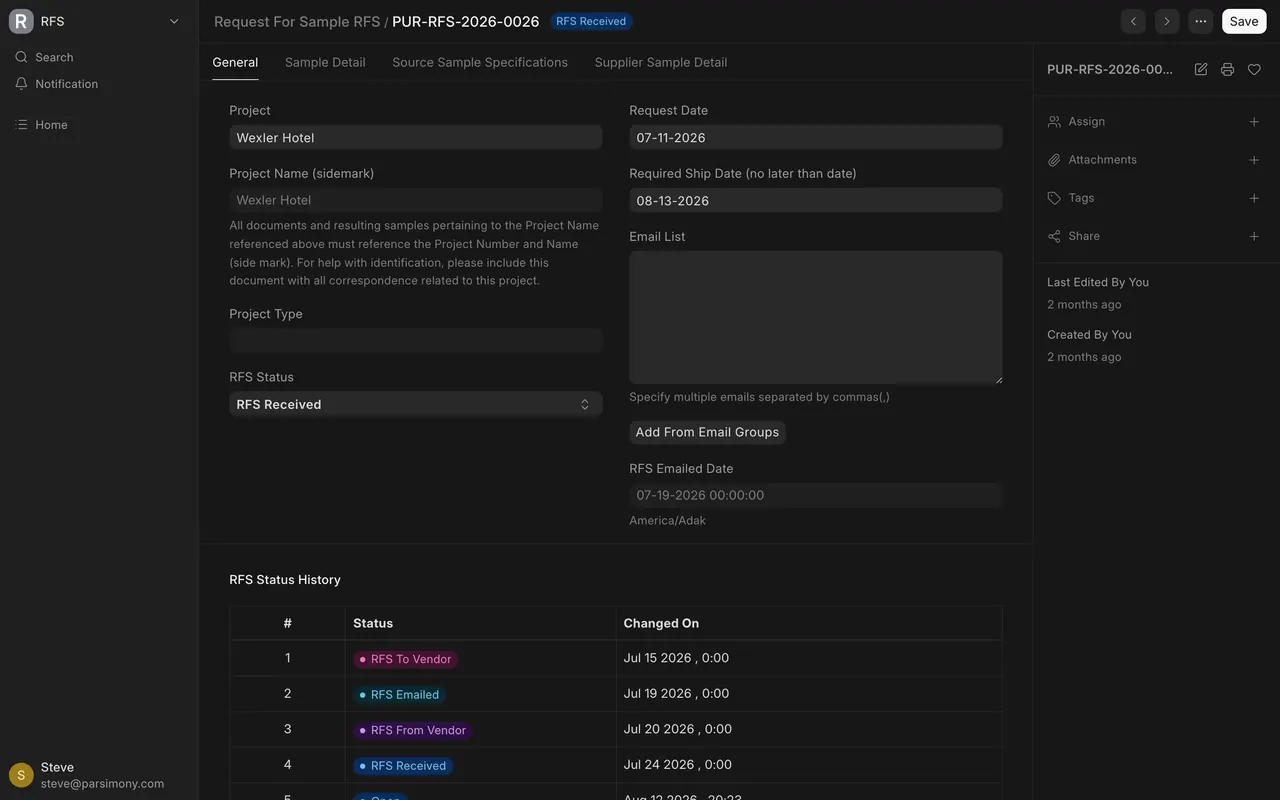
- RFS Reviewed By appears under it, marked as required. You cannot save without it.
- Pick the person who will judge the sample. Naming the reviewer stamps the RFS In Review Date, kept in the folded RFS Action Dates section.
- Save.
3. Review well
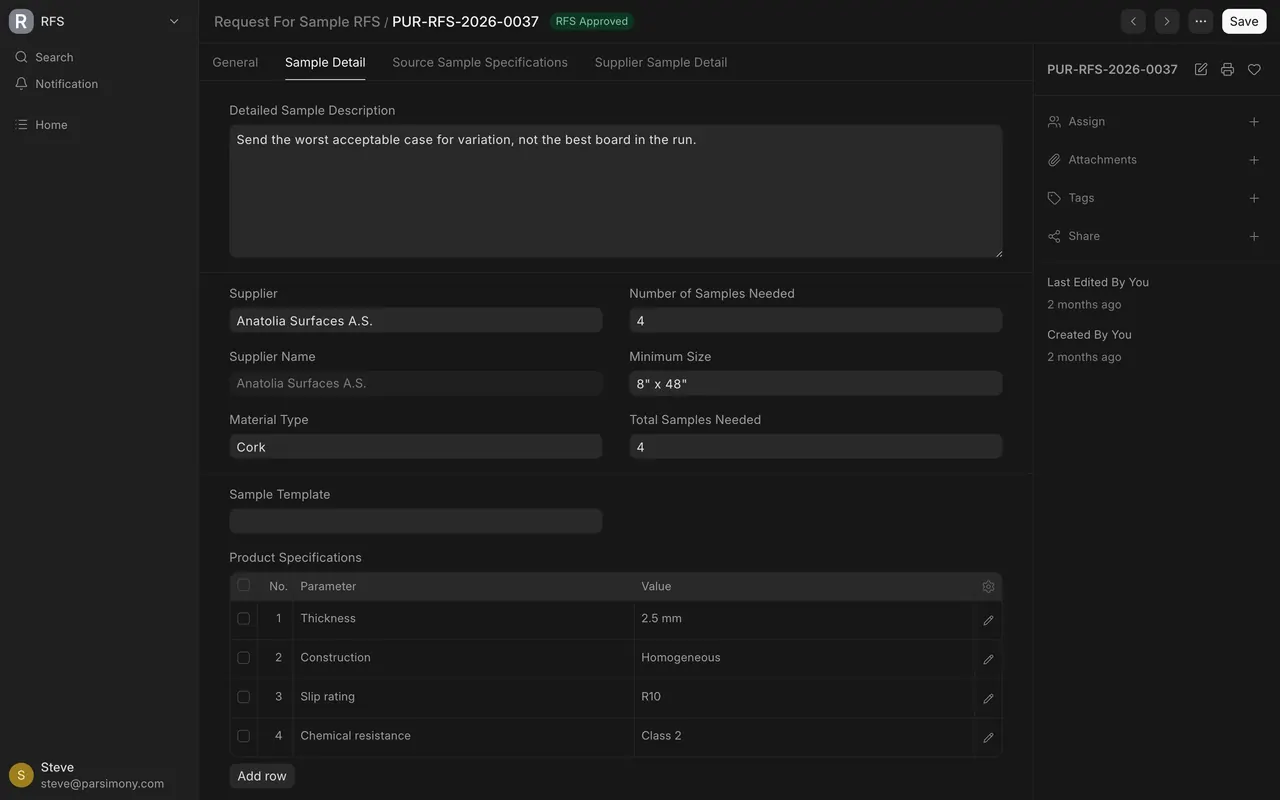
- On the Sample Detail tab, check the sample against the Detailed Sample Description and the Product Specifications rows.
- Compare Factory Sample Pictures with Proposed Sample Pictures, the photos your team added.
- If you can open the Sourcing Request, compare the FOB price with its target cost.
- Write down what you saw, not only the verdict. Use the Comments box under the form. Sample From Vendor Remark is read-only on the form, so it is not the place.
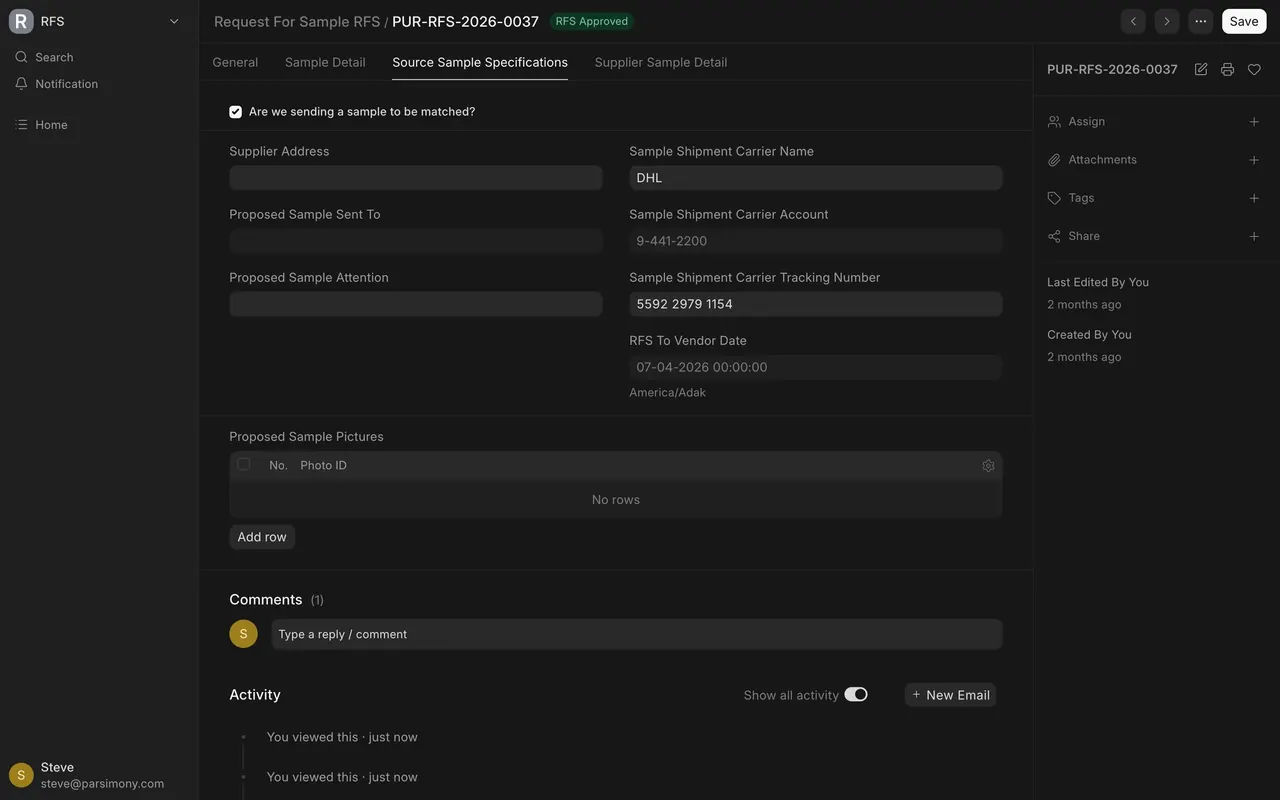
4. Decide
- On the General tab, open RFS Status.
- Pick RFS Approved, RFS Rejected or RFS Canceled.
- Save.
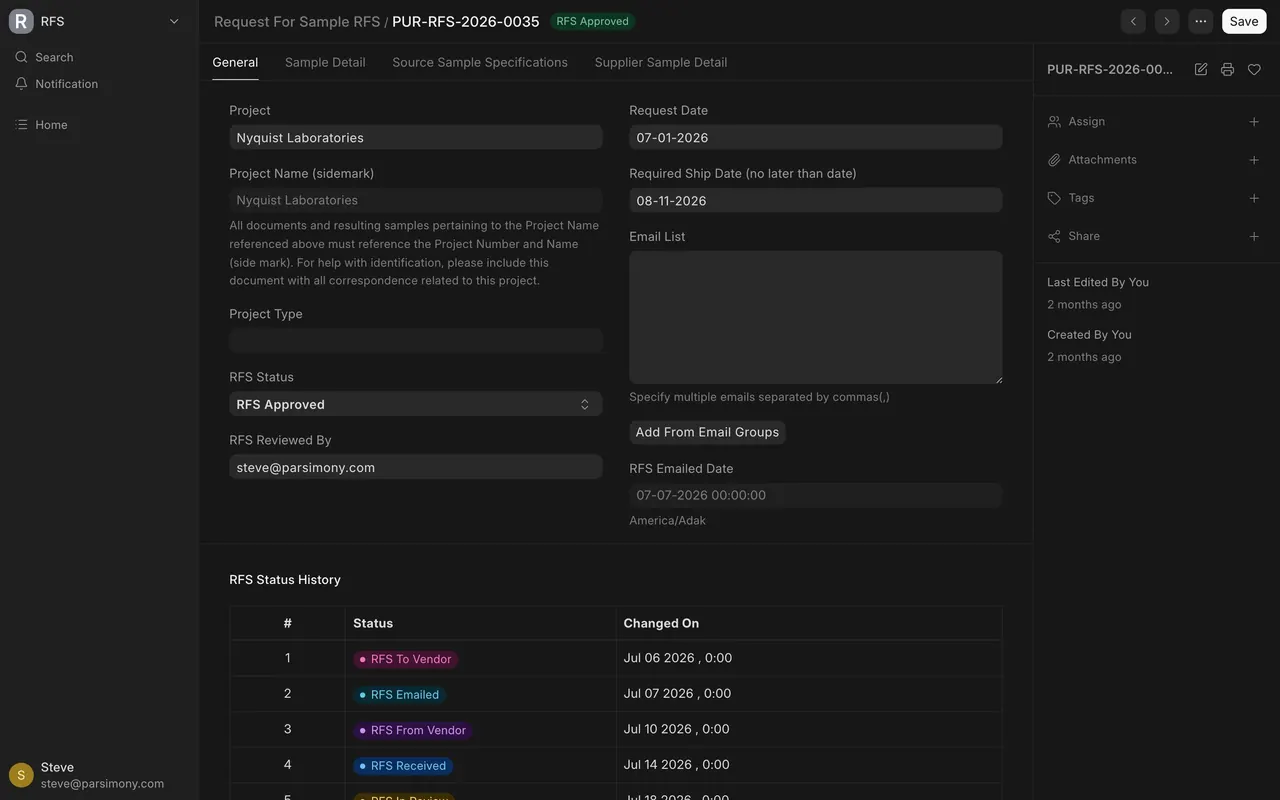
If the request has no review date, the form shows an error: "Status RFS Approved cannot be set. As RFS has not passed through RFS In Review stage." The error does not undo your pick: RFS Status still shows the new value. Do not save. Pick RFS In Review instead, name the reviewer, then decide.
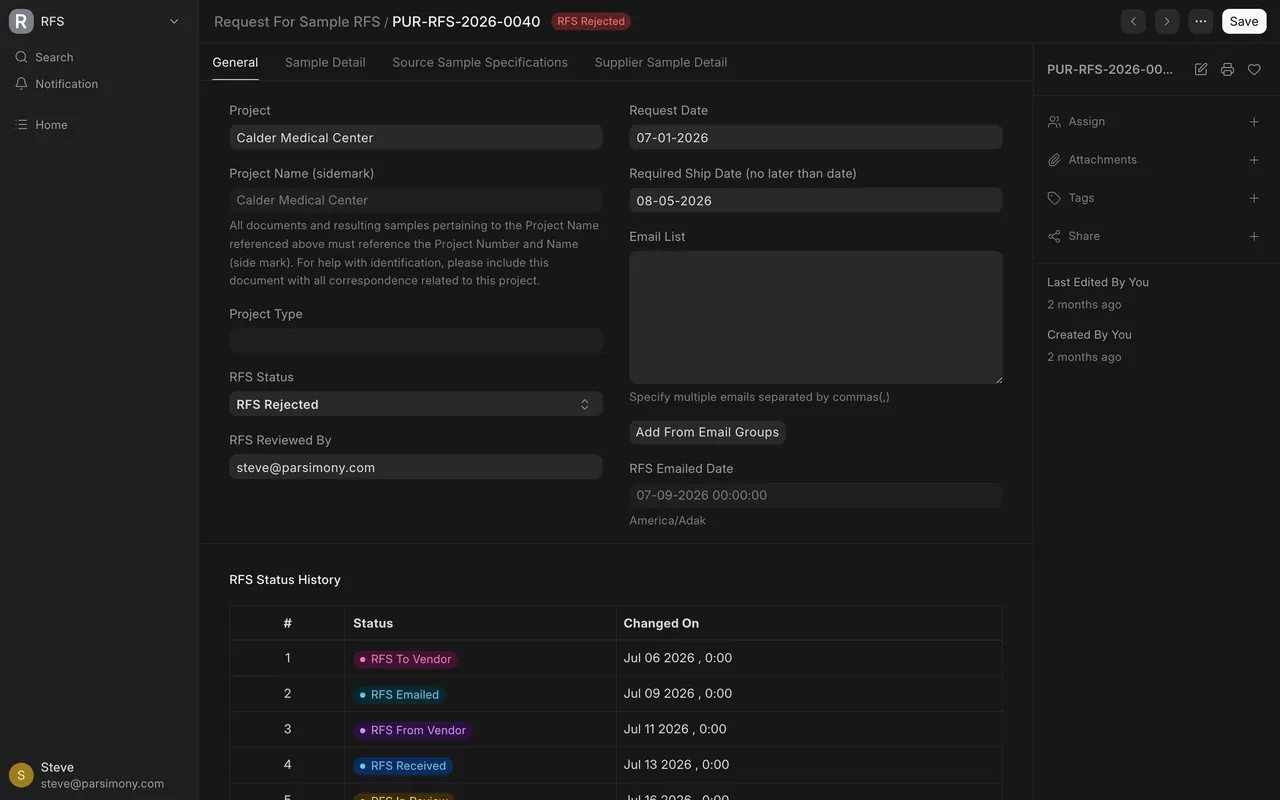
How the decisions work
What each decision means:
- RFS Approved: the sample passed. The product is good enough to buy; continue in Buying.
- RFS Rejected: the sample failed. Ask for a new sample, or choose a different supplier.
- RFS Canceled: your team stopped the request.
More about the rules:
- The only order the form checks is this one: approve, reject and cancel need a review date first. Other statuses can be set in any order.
- Approving, rejecting or cancelling stamps its own date in RFS Action Dates.
- In the example data, five requests are in review, seven approved, three rejected and two cancelled. Every reviewer is the same example user. The two cancelled requests were loaded without a review; the form shows an error but does not stop the save, so do not copy them. Your own site will show your own requests.
Common mistakes
- Trying to approve before review. You get the "has not passed through RFS In Review stage" error. Set the review first.
- Naming a reviewer as a formality. The reviewer's name is on the decision. Pick the person who actually judged the sample.
- A price with no unit. Buying cannot quote or order from it. Fill in FOB Unit Of Measure.
- A verdict with no reason. "Rejected" alone does not tell the supplier what to fix or the next buyer what to avoid. Leave a comment.
- Leaving samples in review for weeks. A list full of RFS In Review is a list of decisions nobody made.
- Changing the reviewer after a decision. Editing RFS Reviewed By sets the request back to RFS In Review and restamps the review date. If you must correct it, set RFS Status back by hand afterwards.
Check yourself
3 quick questions.
1. How does a request get to RFS In Review? (RFS stands for Request For Sample.)
2. You pick RFS Approved on a request that was never in review. What happens?
3. A request shows FOB Point Hai Phong and FOB Price USD 59.21, but FOB Unit Of Measure is empty. What do you do?