V16 Training · Sourcing and Samples · Lesson 6 of 6
Find, print and hand off
This lesson shows you how to find any Request For Sample quickly, print a clean copy, and hand an approved sample to Buying. It closes the course.
Written guide
The idea
The list of Requests For Sample is your pipeline. Each row shows its status and its project, so with the right filter you can answer "what is this job still waiting on?" or "what does this supplier still owe you?" without opening forty records.
When a sample is approved, sourcing is done and buying begins, with a Material Request, as the Buying course shows. The request does not create anything in Buying for you. What carries the story forward is the request number: put it in a comment on each Buying record, and anyone can trace the product back to the sample that proved it.
Step by step
1. Open the list
- Open the RFS tile (short for Request For Sample) on the Desktop, then Request For Sample.
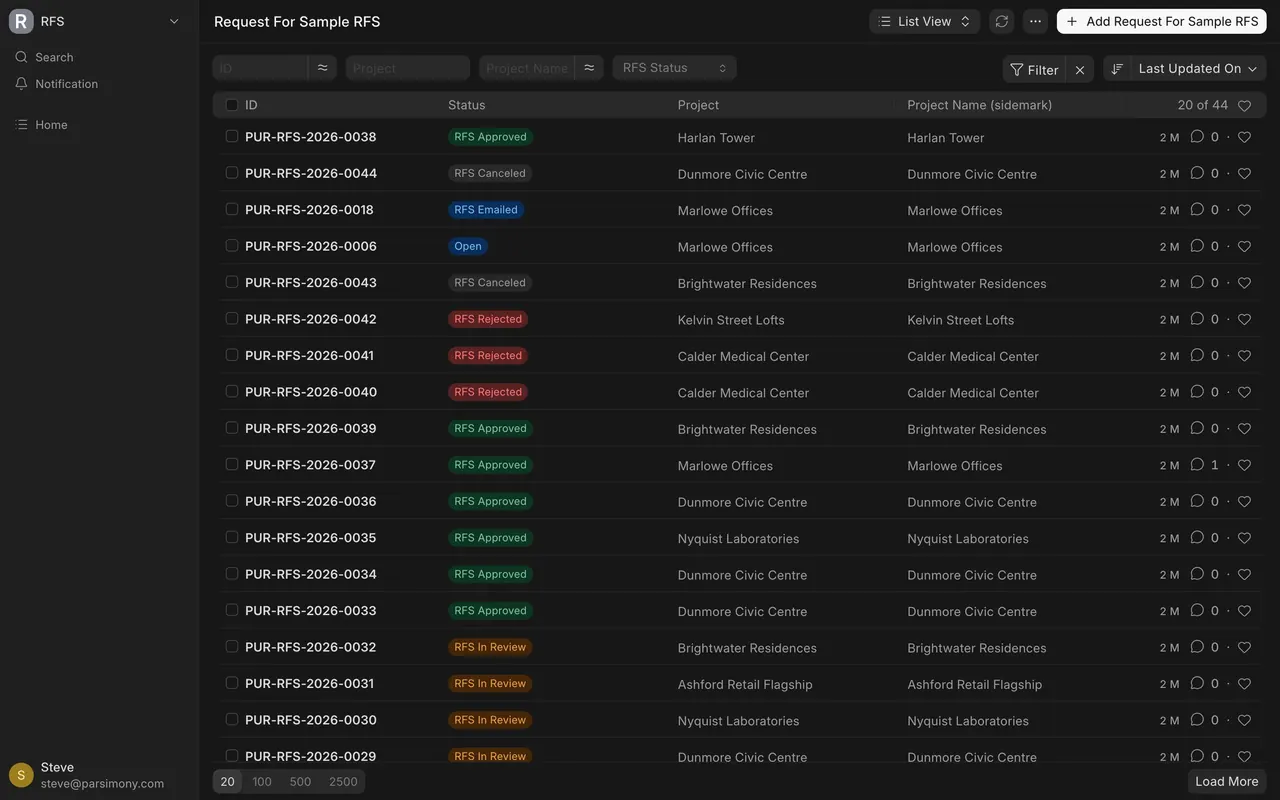
- The list, titled Request For Sample RFS, shows ID, Status, Project and Project Name (sidemark), newest change first (Last Updated On). The demo company holds 44 requests; the list shows 20 at a time, with Load More and page sizes 20, 100, 500 and 2500 at the bottom.
2. Filter
The bar above the list has quick filters for ID, Project, Project Name and RFS Status.
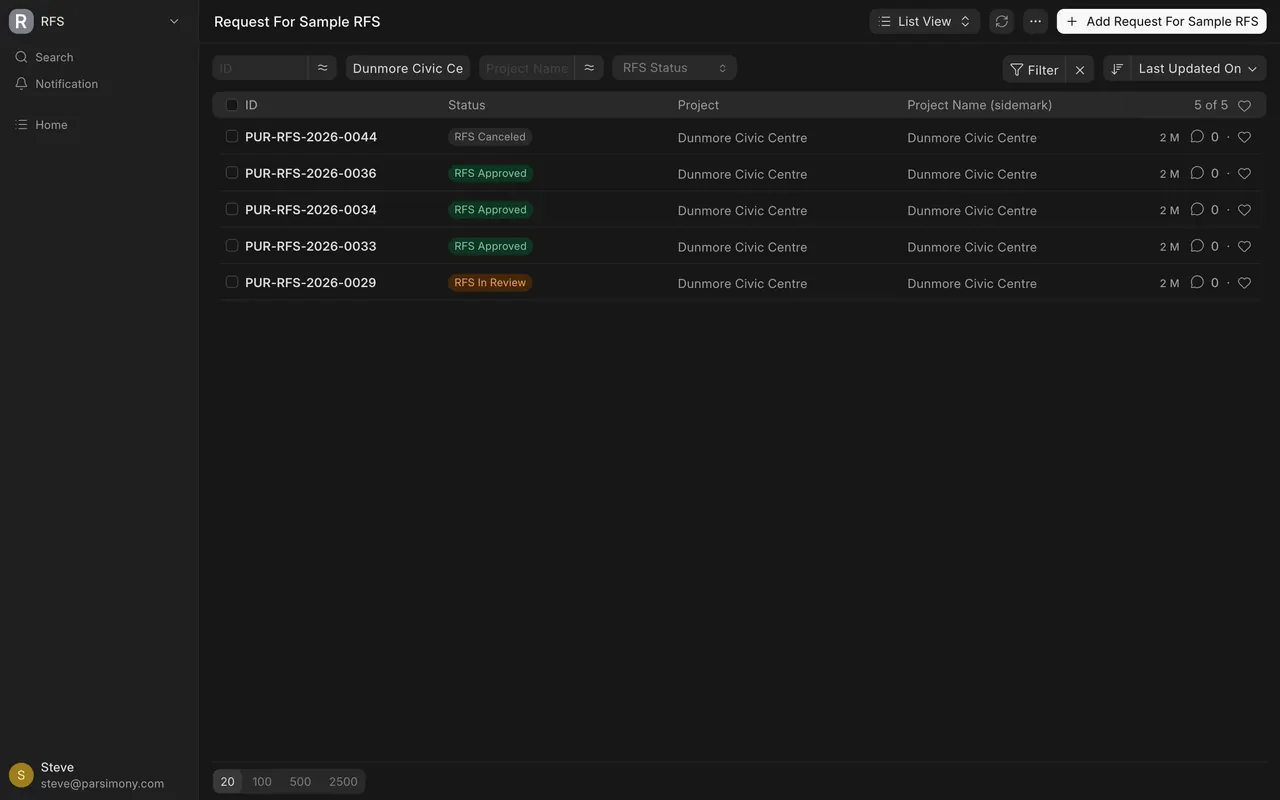
- One project. Pick the project in Project to see everything that job is waiting on.
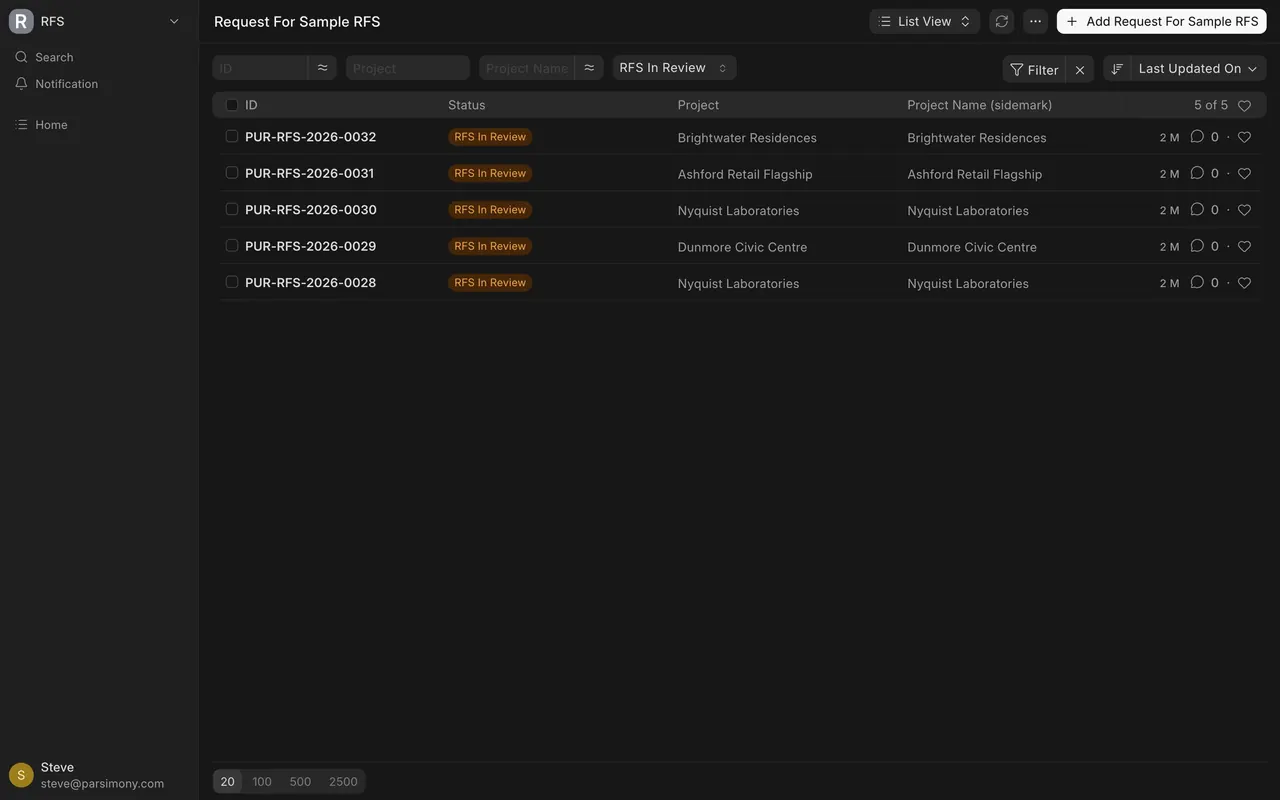
- Waiting for a decision. Pick RFS In Review (a Request For Sample in review) in RFS Status.
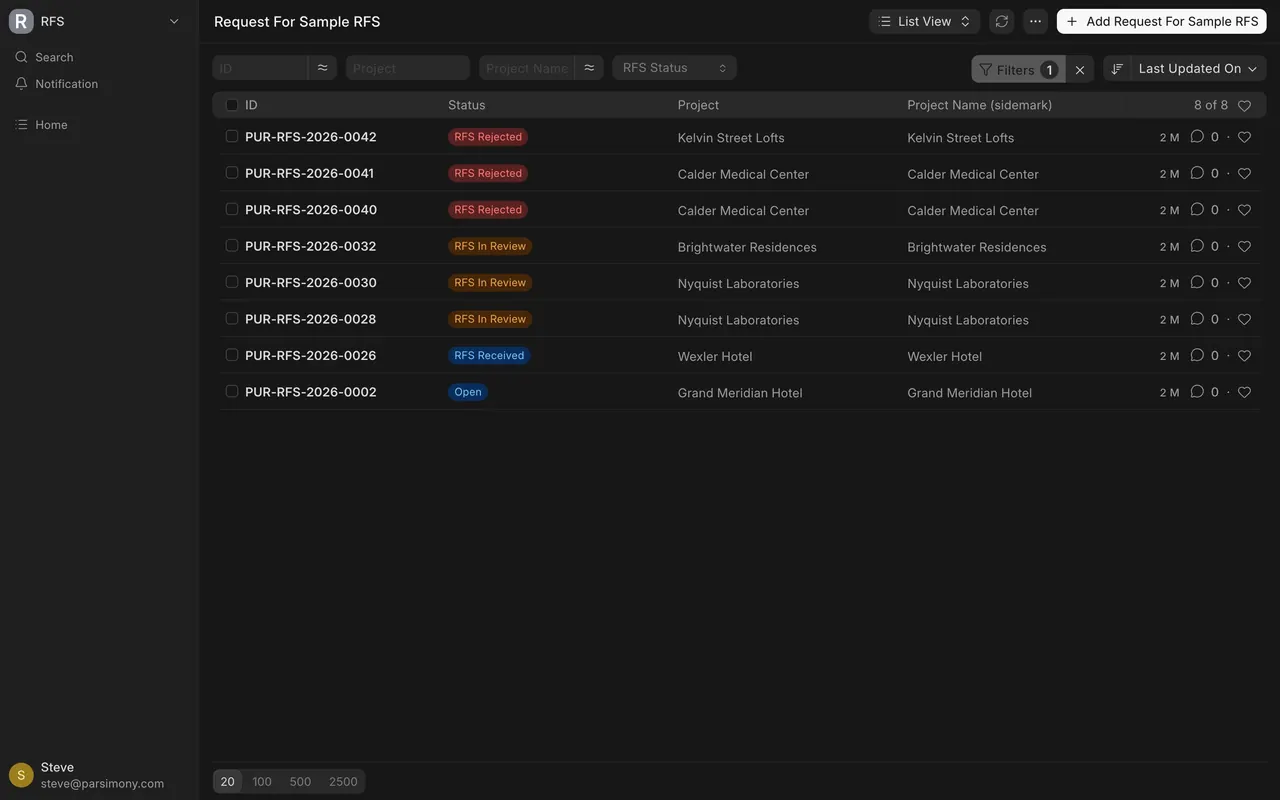
- One supplier. There is no supplier column or quick filter. Click Filter, add a condition on the supplier, and apply it. The button then reads Filters 1.
- To clear filters, use the x next to Filter.
A filtered list keeps its filter in the page address, so you can bookmark the views you use every week.
3. Print
- Open the request.
- Click the printer icon in the right-hand panel, next to the request number.
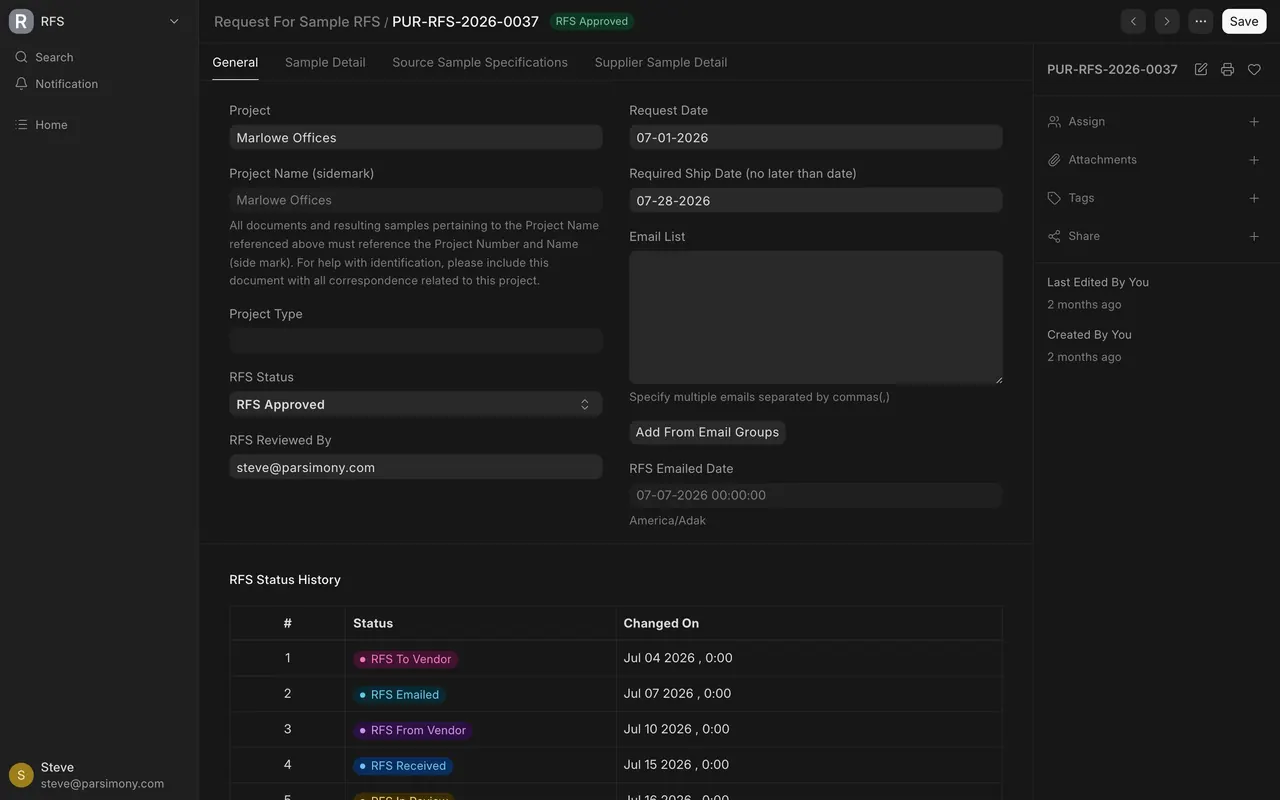
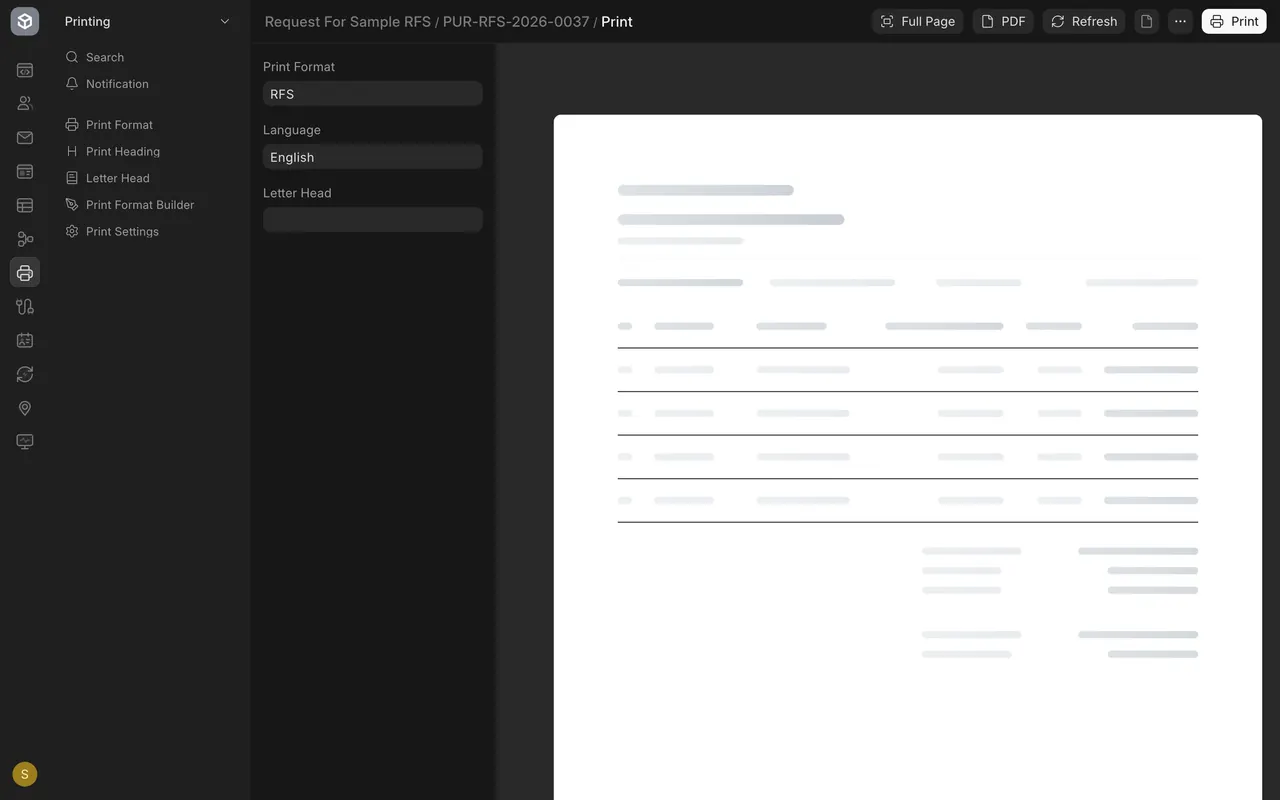
- The print page opens with Print Format already set to RFS. Use PDF to save a file or Print to print. Full Page opens the document on its own page.
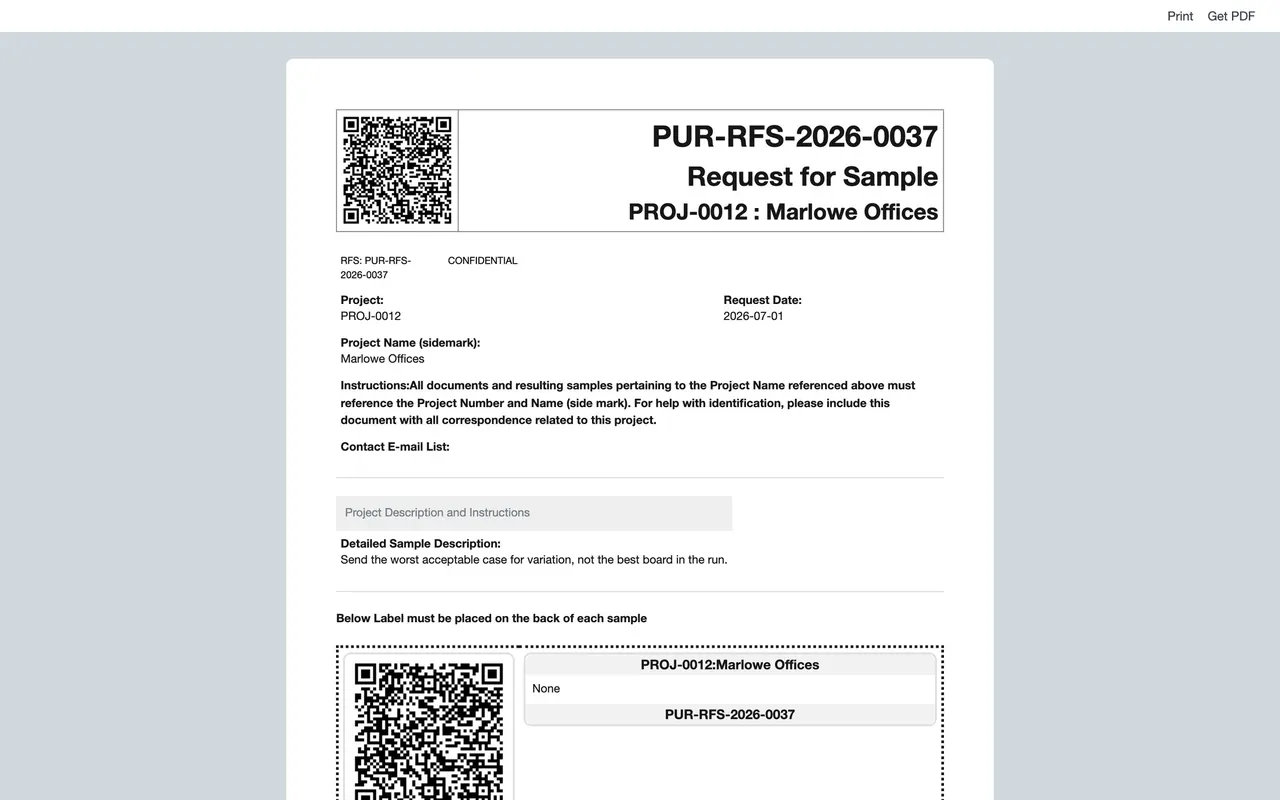
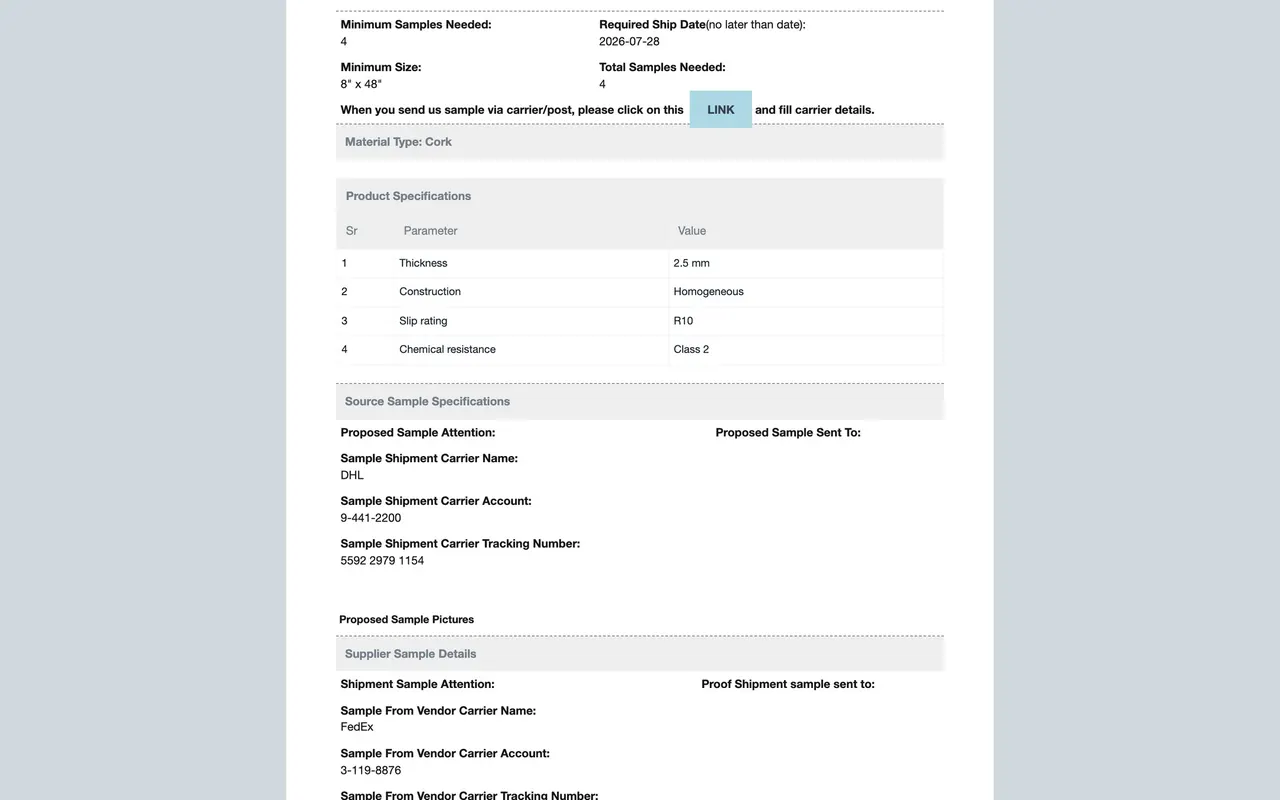
- The Request For Sample print format (named RFS) starts with the request number, "Request for Sample", and the project with its sidemark. It carries the description, the sample label, the sample counts and sizes, the material type, the product specifications and both shipments.
4. Hand off an approved sample
- Check the request is RFS Approved, with a reviewer, a free on board (FOB) price and its unit.
- If the approved product is not an Item yet, ask an Item Manager to create it. Only an Item Manager can create Items.
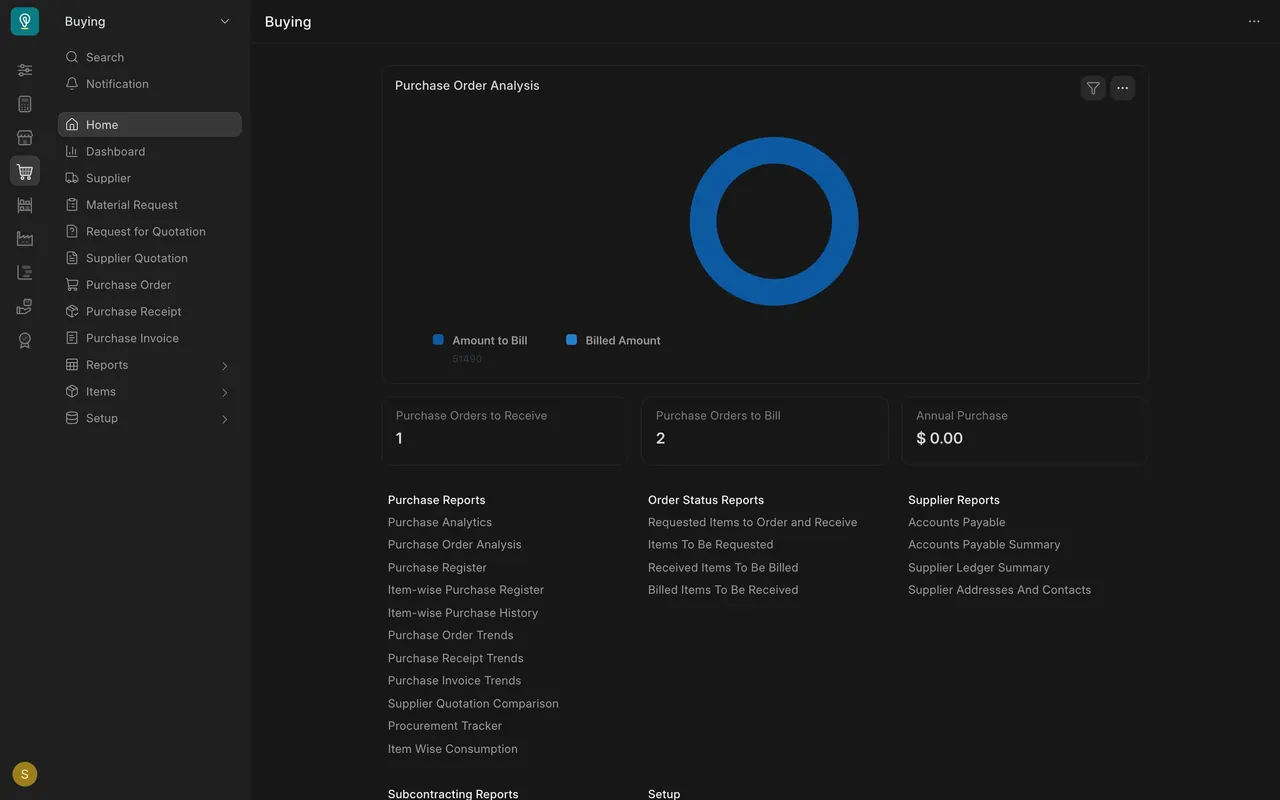
- In the Buying workspace, raise a Material Request for it. The Buying course takes it from there: request for quotation, supplier quotation, purchase order.
- On each of those records, add a comment with the request number, the project and the free on board price.
Setup notes
- In the standard setup, Purchase User, Purchase Manager, Purchase Master Manager and System Manager can all open and filter the Request For Sample list.
- The request does not create anything in Buying. Buying is a separate step, starting with a Material Request, covered in the Buying course.
- The printed request is marked CONFIDENTIAL and carries a QR (quick response) code for the request.
Common mistakes
- Scrolling instead of filtering. With 44 requests, scrolling misses things. Filter by project, status or supplier.
- Rebuilding the same filter every day. Bookmark the filtered list.
- Sending a request with no label lines. The printed label then shows the word None. Fix Label Content first.
- Waiting for the order to appear. Nothing is created for you after approval. Raise the Material Request yourself.
- Dropping the request number. Without it in a comment on each Buying record, nobody can trace the product back to its sample.
Where to go next
That is the whole course. A Sourcing Request holds the question. One Request For Sample per supplier holds each answer. Tracking numbers and the review move the status, and a named reviewer makes the call. Continue with the Buying course to take an approved product from Material Request to Purchase Order.
Check yourself
3 quick questions.
1. A project manager asks what one job is still waiting on. What is the quickest way to answer?
2. A request is RFS Approved. Where do you go next?
3. You want only one supplier's requests. How do you get them?