V16 Training · Sourcing and Samples · Lesson 2 of 6
Reach out to suppliers
This lesson shows you how to fill in the supplier side of a Sourcing Request and keep each supplier's answer where the next person can find it.
Written guide
The idea
A supplier list is only useful if it says what each supplier told you. When the rows are right, anyone on the team can open the Sourcing Request and see where the search stands without asking you.
Two things about how Parsimony works shape how you do this:
- Email depends on how your site is set up. If an email account is connected to your Parsimony site, the system can email suppliers for you. If not, as in the example site used here, it cannot, and you contact suppliers the way you normally do.
- The Sent and Received boxes are read-only. You cannot tick them by hand, so they can stay empty. The Remark, the quoted cost and the Rating on each row are where you record what happened.
Sourcing Requests are System Manager only. If you work in purchasing, as a Purchase User or Purchase Manager, sit with a System Manager for these updates so you know what the record should show.
Step by step
1. Write the specification
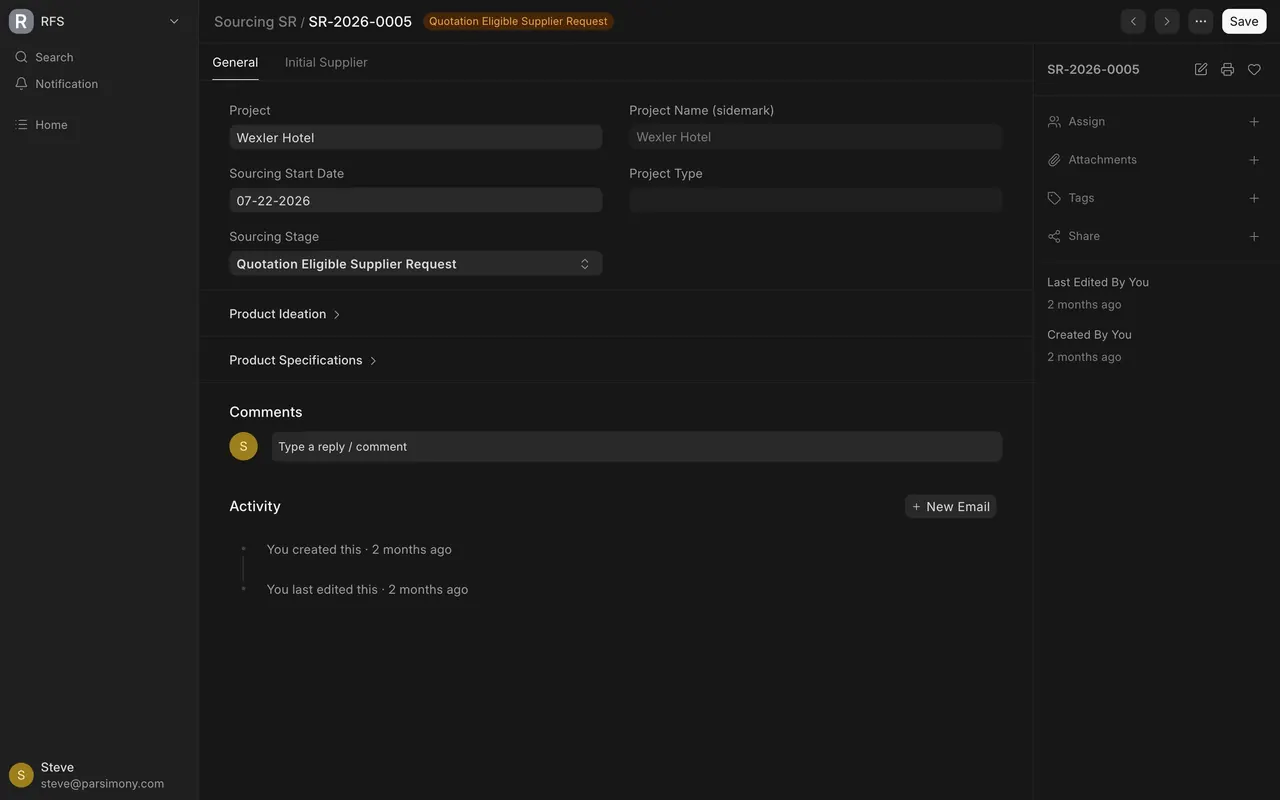
- Open the Sourcing Request on the General tab.
- Click the Product Specifications heading to open the section.
- Pick a Specification Template. The Specification Details table fills with Parameter and Value rows.
- Change the values to match this project, for example a thickness or a finish.
- Save.
A supplier can only quote what you wrote down. If the thickness is wrong here, every answer you get back is for the wrong product.
2. List the suppliers
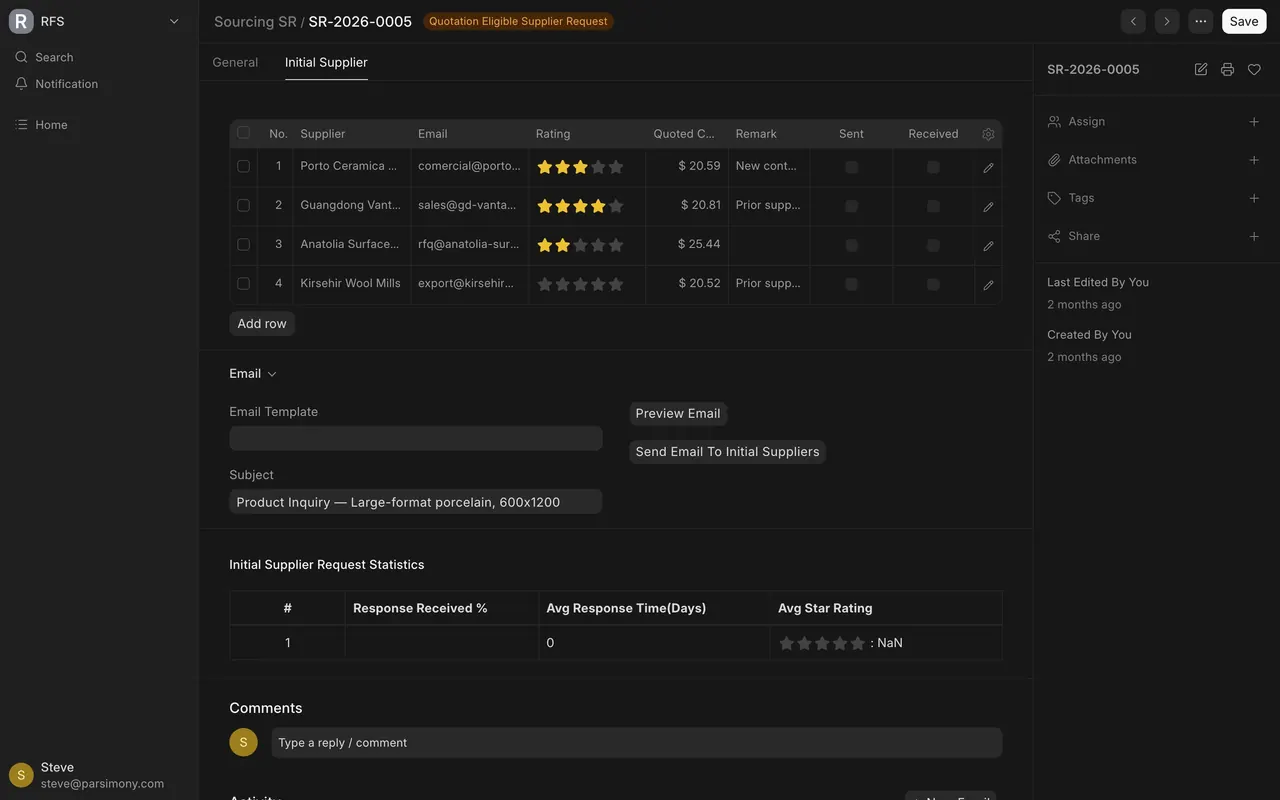
- Open the Initial Supplier tab.
- Click Add row and add one row per supplier you plan to ask.
- Enter the Supplier name and the Email.
- Save.
3. Record each answer
As suppliers reply, update their row:
- Give a star Rating.
- Enter the Quoted Cost they gave you. The column header is shortened to "Quoted C..." on screen, for quoted cost.
- Write a short Remark: what they said, what they can make, what they asked for.
- Save.
4. Prepare the email
- In the Email section below the table, pick an Email Template. The Subject and the message body fill in from the template.
- Save the record. With unsaved changes, both email buttons only show the message "Save changes to document".
- Click Preview Email. In the dialog, pick a Supplier from your rows and read the email that supplier would receive.
The Preview Email and Send Email To Initial Suppliers buttons only appear when there is a message body.
Send Email To Initial Suppliers needs an email account. Sending needs the Default Sourcing Email Account in Sourcing Settings, which a System Manager sets. In the example site that setting is empty, so nothing is delivered and you contact suppliers yourself.
5. Read the statistics with care
The Initial Supplier Request Statistics table shows Response Received %, Avg Response Time(Days) (the average response time in days) and Avg Star Rating. On the example records it shows no responses, even where suppliers have quoted. Do not read a blank table as silence. Read the remarks.
6. Move the stage forward
Sourcing Stage, on the General tab, is chosen by hand. Nothing changes it for you.
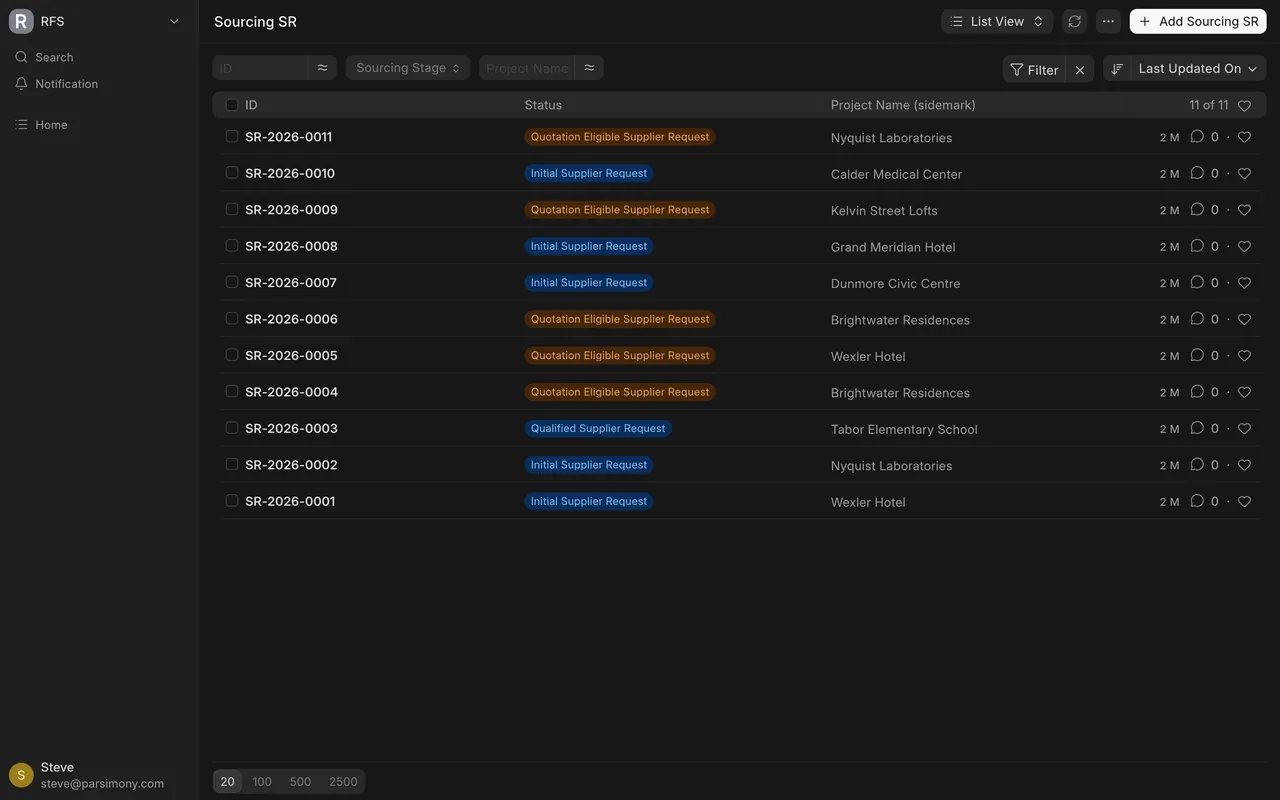
- Initial Supplier Request: you are still asking suppliers.
- Quotation Eligible Supplier Request: at least one supplier is good enough for a formal quotation request.
- Qualified Supplier Request: you have qualified suppliers and the sourcing work is done.
- Cancelled: the project no longer needs this product, or you stopped the search.
In the example site
- No email account is configured, so nothing emails out. Your site may be different.
- Sent, Received, Email Sent On and Email Received On on each supplier row are read-only. In the example data they are empty on every row.
- The three specification templates in the example are Carpet Tile, Engineered Wood Plank and LVT / Rigid Core. The same templates feed the sample details on a Request For Sample.
- Sourcing Settings, System Manager only, holds the Default Sourcing Email Account (required, and empty in the example), the Default Sourcing Email Template, whether to attach a product PDF, and which PDF to attach (none set in the example).
- In the example, remarks read like "Prior supplier", "New contact", "Trade-show lead" and "Referred". That is a start. A useful remark also says what the supplier answered.
Common mistakes
- Previewing an unsaved record. Save first, then preview.
- Expecting Send to deliver mail. Without a connected email account it cannot. Contact the supplier yourself.
- Looking for a box to tick. Sent and Received are read-only. Put the answer in the Remark.
- Leaving answers in your inbox. If the reply is not in the row, nobody else can compare suppliers.
- Never moving the stage. A search that is finished but still says Initial Supplier Request looks like open work.
Check yourself
3 quick questions.
1. What must you do before you click Preview Email?
2. A supplier replied with a price yesterday. How do you record it today?
3. Who moves the Sourcing Stage from Initial Supplier Request to Quotation Eligible Supplier Request?