V16 Training · Sourcing and Samples · Lesson 1 of 6
From project need to Sourcing Request
This lesson gives you the map of sourcing in Parsimony and shows you how a project's need becomes a Sourcing Request.
Written guide
The idea
Sourcing work goes wrong when it lives in inboxes. A project needs a product, three people email three suppliers, and two weeks later nobody can say who was asked, what was asked, or what came back.
Parsimony gives that work a fixed path:
- Project. A job needs a product. In this example, the demo company sells flooring, and jobs such as Wexler Hotel or Harlan Tower need a flooring product.
- Sourcing Request. One record holds the question: the product, the target cost, the expected first order and the suppliers you plan to ask.
- Request For Sample. For each supplier whose sample you want, you open one Request For Sample. It tracks that supplier's sample from request, to shipment, to review, to a decision.
- Buying. An approved sample moves on to Buying, starting with a Material Request. That part belongs to the Buying course.
The short version: the Sourcing Request holds the question, and each Request For Sample holds one supplier's answer.
By the end of this course you will be able to follow that path: work with a System Manager on the Sourcing Request, then request and track samples both ways, record a decision, and hand off to Buying.
Step by step
Find the Request For Sample workspace
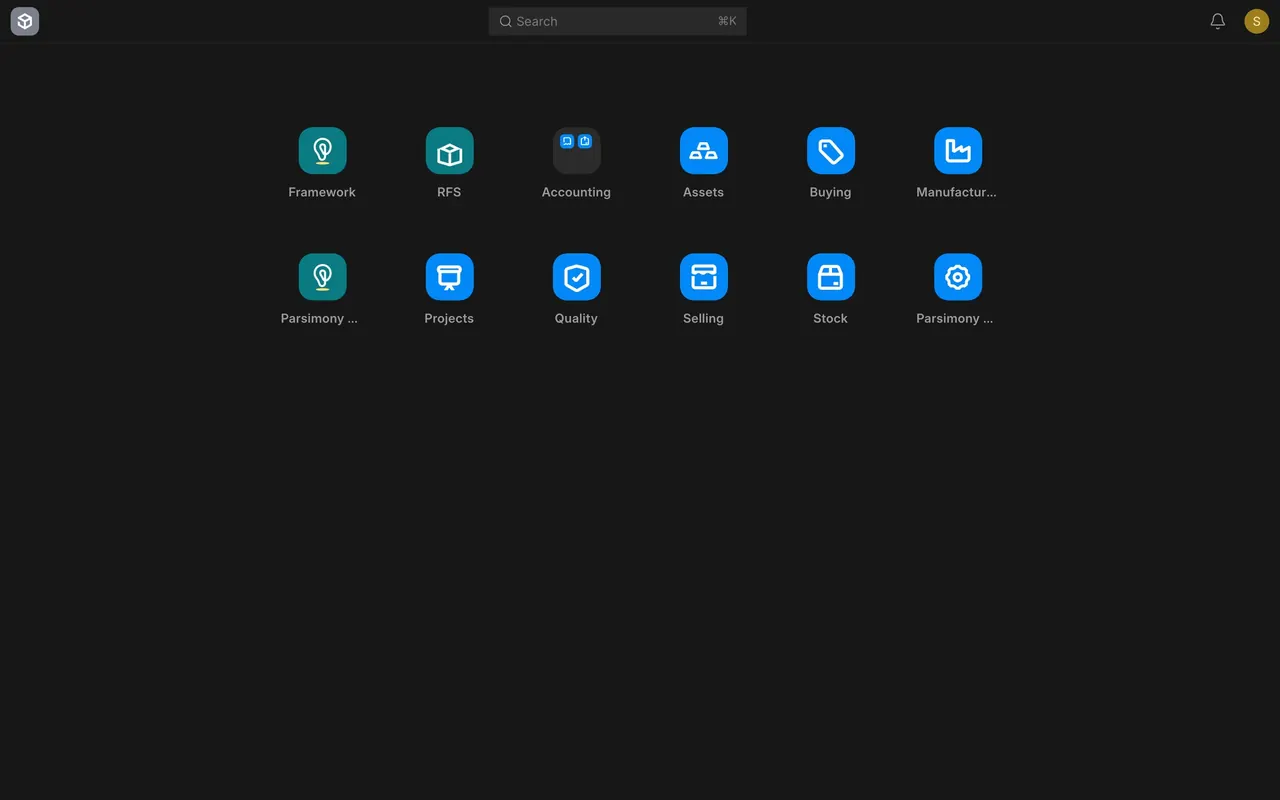
- On the Desktop, open the Request For Sample tile. The tile itself is labelled RFS, short for Request For Sample.
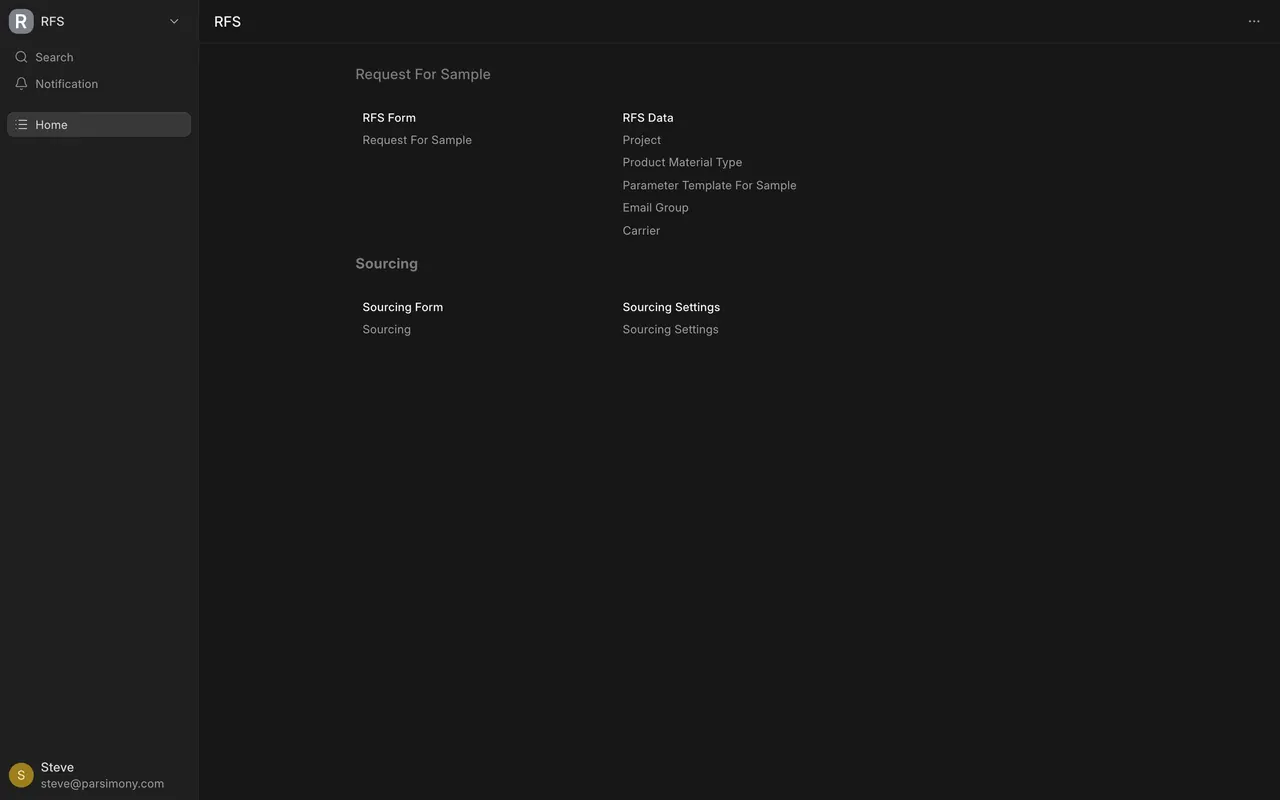
- The workspace has two sections. The card names below are the labels you will see on screen.
- Request For Sample, with the RFS Form card (link: Request For Sample) and the RFS Data card (links: Project, Product Material Type, Parameter Template For Sample, Email Group, Carrier).
- Sourcing, with the Sourcing Form card (link: Sourcing) and the Sourcing Settings card.
Know who can see what
This is the standard setup. If your company changed roles or permissions, your site may differ.
- Sourcing records are open to the System Manager role only. If you are a Purchase User or Purchase Manager, ask a System Manager to create or update one. Never borrow a login.
- Request For Sample records are open to Purchase User, Purchase Manager, Purchase Master Manager and System Manager. All four can read, create, edit and delete them.
- The setup lists behind these dropdowns (Carrier, Product Material Type, the sample templates) are maintained by a System Manager, the only role with permission on them today. If a dropdown stays empty or shows a permission message, ask a System Manager to pick the value.
Create a Sourcing Request (System Manager)
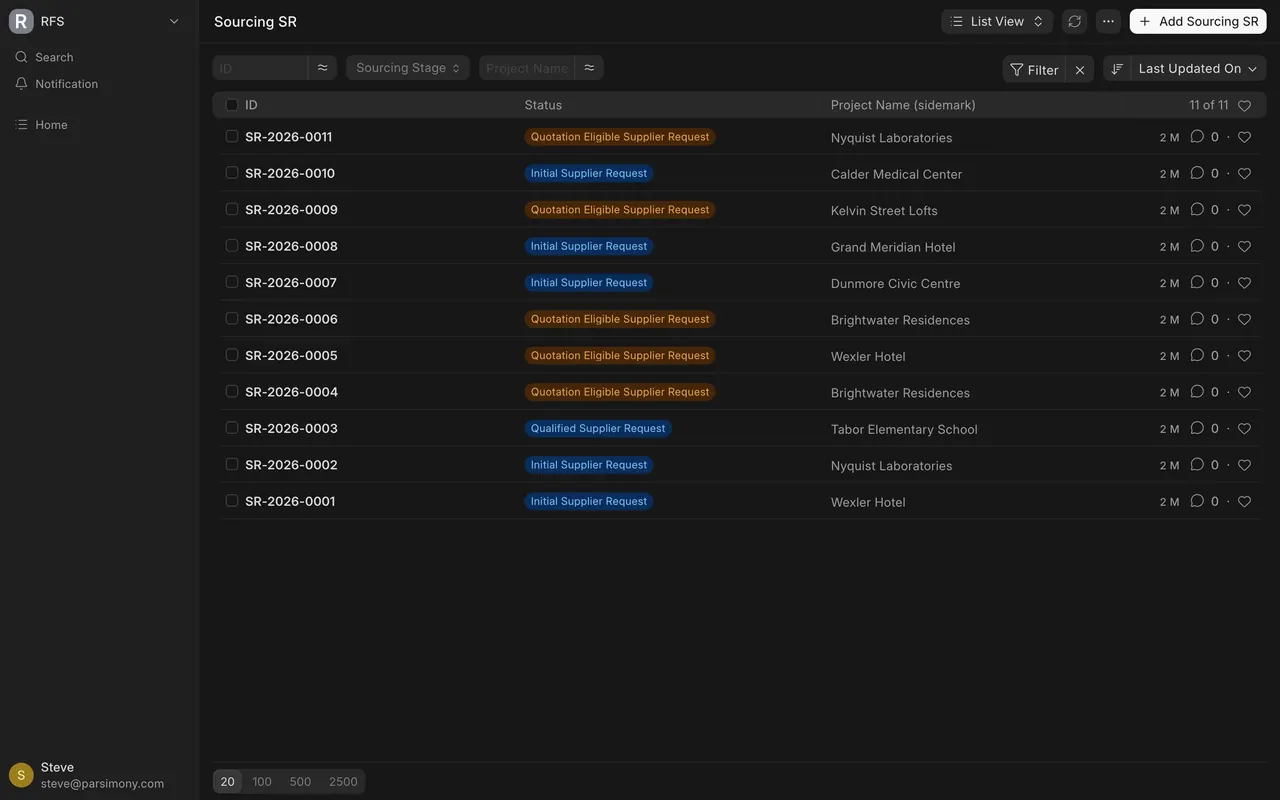
- In the workspace, open Sourcing. The list is titled Sourcing SR (SR is short for Sourcing Request). Each row shows its Status, which is the sourcing stage, and its Project Name (sidemark).
- Click Add Sourcing SR. A new form opens on the General tab, marked Not Saved.
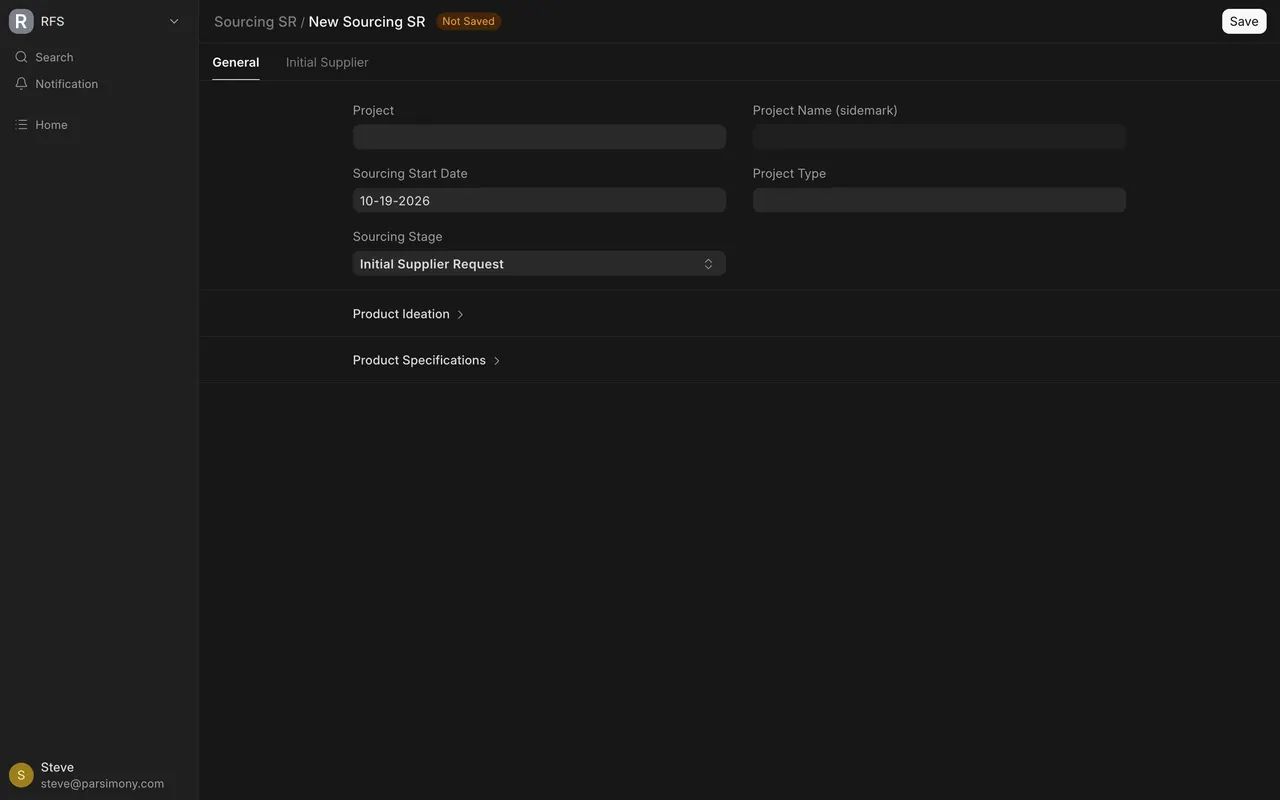
- Pick the Project.
- Sourcing Start Date is filled with today's date. Change it if the work started earlier.
- Leave Sourcing Stage on Initial Supplier Request. It is the default for a new record.
- Check Project Name (sidemark). It fills in from the project and you cannot type in it. If it is wrong, you picked the wrong project; the sidemark itself only changes on the Project. Project Type is copied from the project too.
- Click the Product Ideation heading to open that section. Enter the Product Name, the Target FOB Cost (the price you need to hit, free on board at the supplier's port) and the Estimated Initial Order in Units. Use Enhancement Ideas and Other Initial Data for anything else a supplier should know.
- Leave the Amazon research fields in the same section empty, from Recommended Amazon Category to the three Data Dive fields. You can leave them alone.
- Click Save. The record gets a number in the Sourcing Request series for the year (SR in the number stands for Sourcing Request), such as SR-2026-0005.
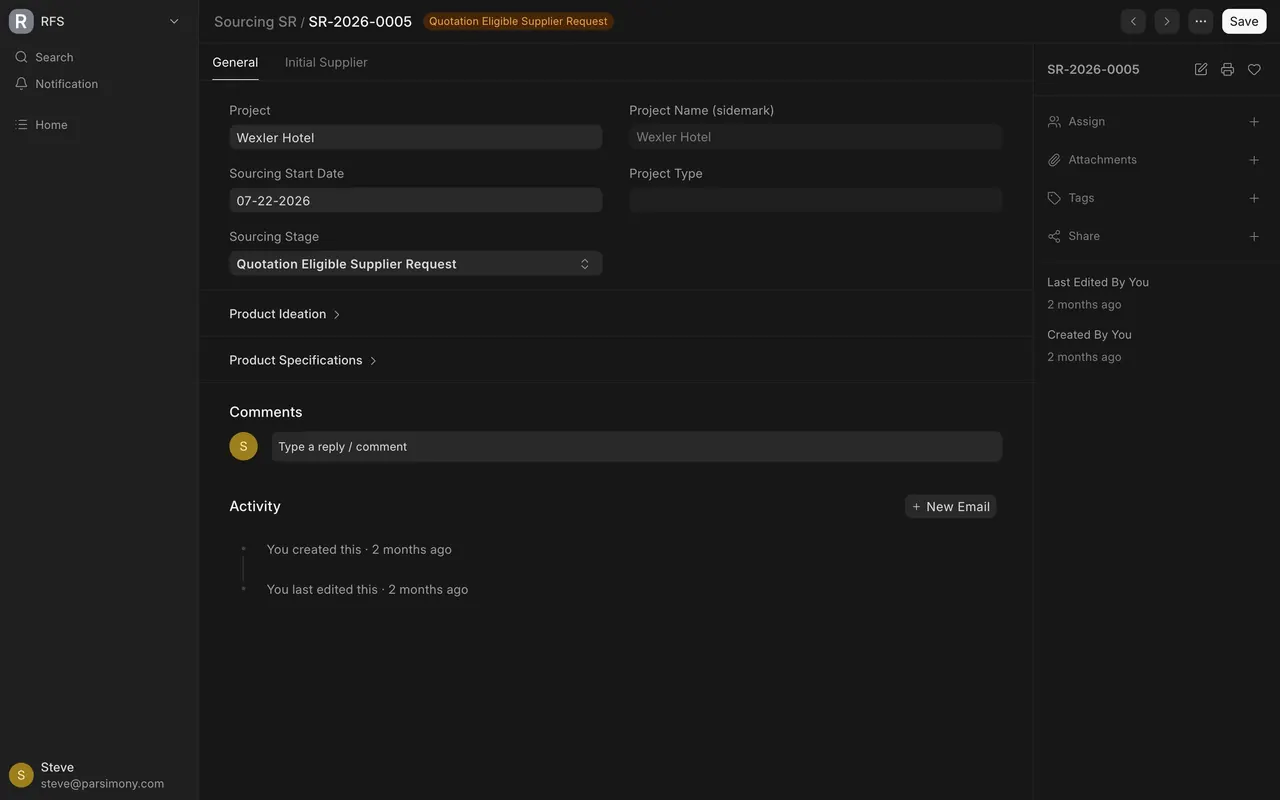
The Product Specifications section and the Initial Supplier tab are covered in the next lesson.
How the module works
- Sourcing and Request For Sample are a core part of Parsimony. This course teaches the fields you need first; the rest are optional.
- Sourcing Stage has four values, chosen by hand: Initial Supplier Request, Quotation Eligible Supplier Request, Qualified Supplier Request and Cancelled.
- A Sourcing Request has no Submit step. You change the stage and save.
- Sourcing Request numbers follow a series for the year, such as SR-2026-0005. Request For Sample numbers follow their own series for the year, such as PUR-RFS-2026-0037 in the screens.
- When you open a saved record, Product Ideation and Product Specifications are folded shut. Click the heading to see what is inside.
- The demo company in the screens holds 11 Sourcing Requests, such as large-format porcelain for Wexler Hotel. All projects, suppliers and amounts are invented example data.
Common mistakes
- Using one record for every supplier. A Request For Sample has one Supplier field. List suppliers on the Sourcing Request, then open one Request For Sample per supplier.
- Picking the wrong project. The sidemark comes from the project. Each Request For Sample picks its project again, and its label prints that project's sidemark.
- Leaving the target cost blank. Product Ideation is folded shut on a saved record, so a blank target is easy to miss. Without a target, nobody can judge a supplier's price later.
- Filling in the Amazon fields. Leave them empty unless your company has told you otherwise.
- Looking for Sourcing without the role. If the list does not open for you, ask a System Manager. Do not borrow a login.
Check yourself
3 quick questions.
1. You want to ask five suppliers about a product for Wexler Hotel. Which record do you start with?
2. You are a Purchase User and the Sourcing list does not open for you. What do you do?
3. Three suppliers quote for the same product. What on the Sourcing Request lets anyone judge those prices?