V16 Training · Selling and Customer Relationships · Lesson 4 of 6
Turn a quote into a sales order
This lesson shows you how to turn an accepted quotation into a sales order, set delivery dates you can keep, and follow the order until it is done.
Written guide
The idea
A "yes" from the customer is not something the warehouse or the accounts team can act on. A sales order is. It fixes what was agreed, for whom, at what price and by when, and it is the document the delivery note and the invoice are made from.
The most important field on it is the delivery date. The warehouse plans picking around it, Purchasing checks incoming stock against it, and the customer plans their installers around it. A date picked to sound good, rather than one the warehouse can meet, becomes an overdue order and an awkward phone call.
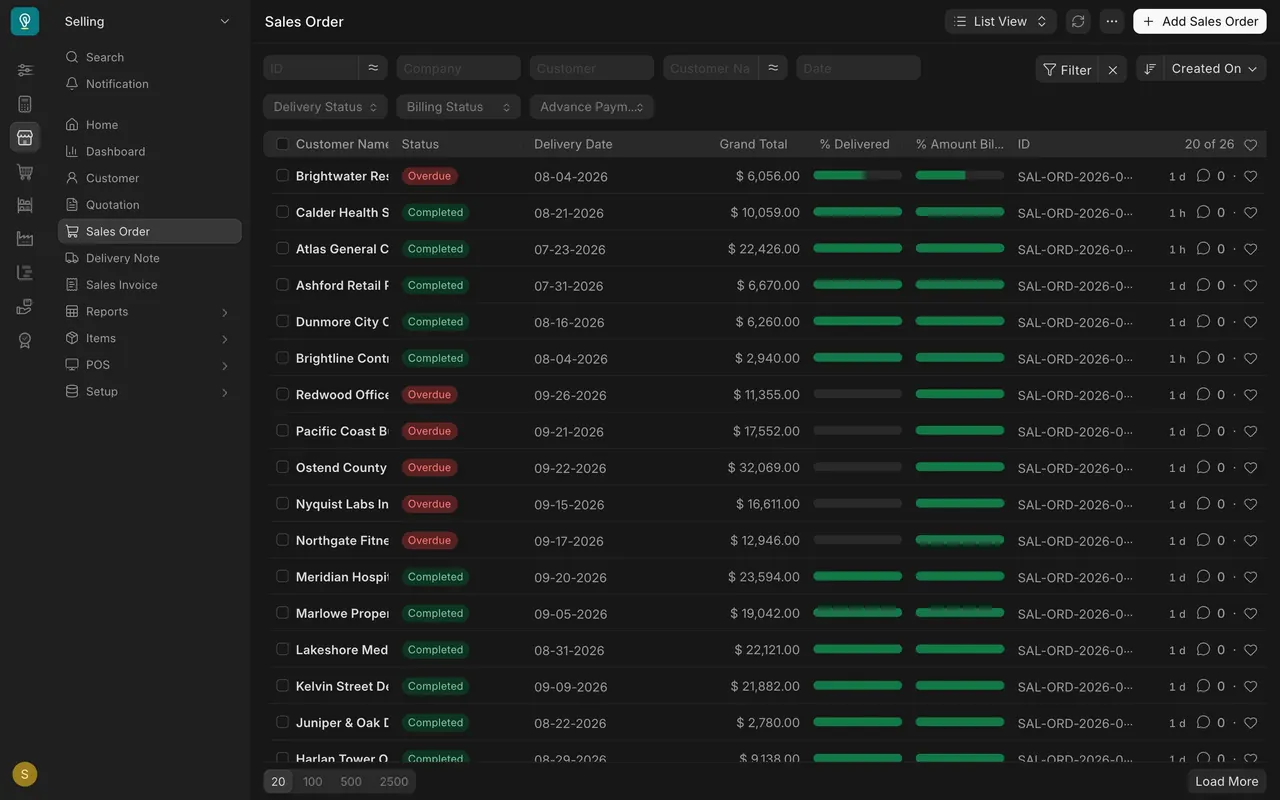
Once the order is submitted, the sales order list tells you where it stands without opening anything: one bar for how much has been delivered, one for how much has been billed, and a status such as "Completed" or "Overdue".
Step by step
Create the order from the quotation
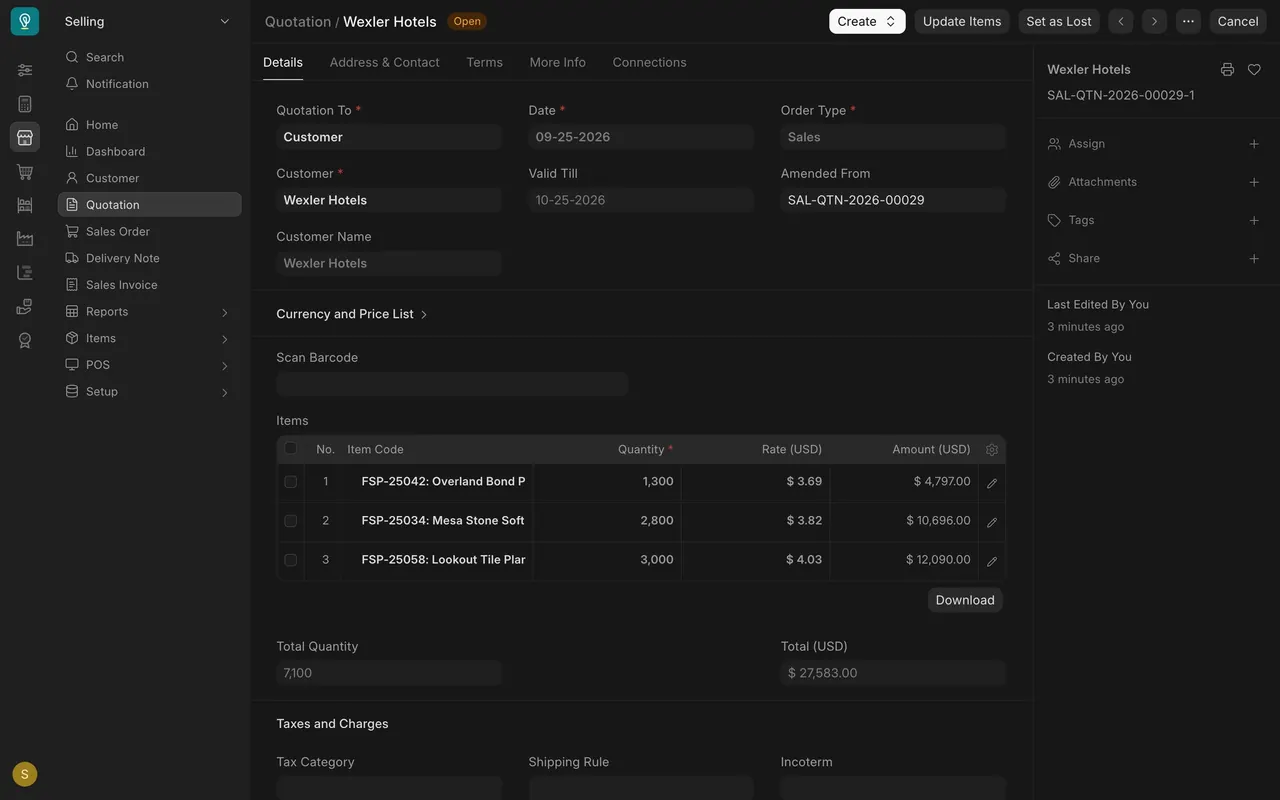
- Open the submitted quotation the customer accepted. Its status is "Open".
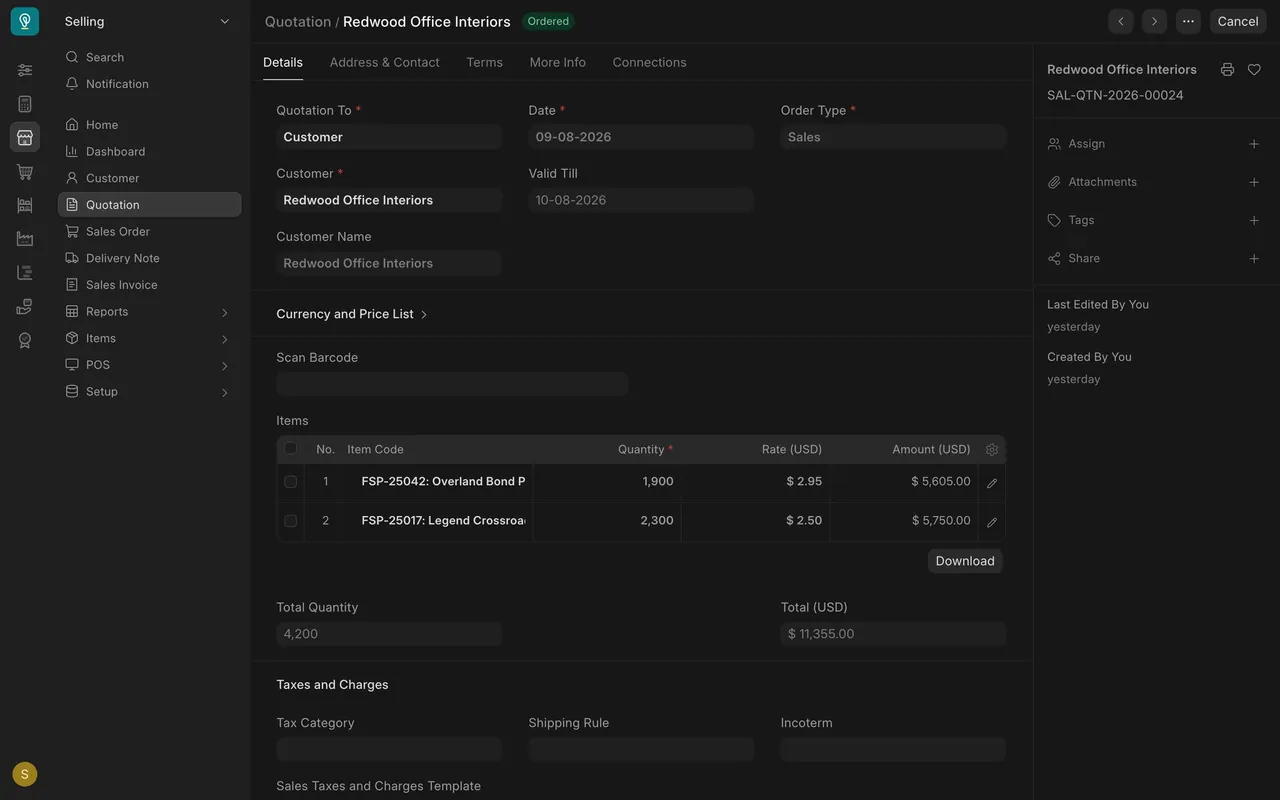
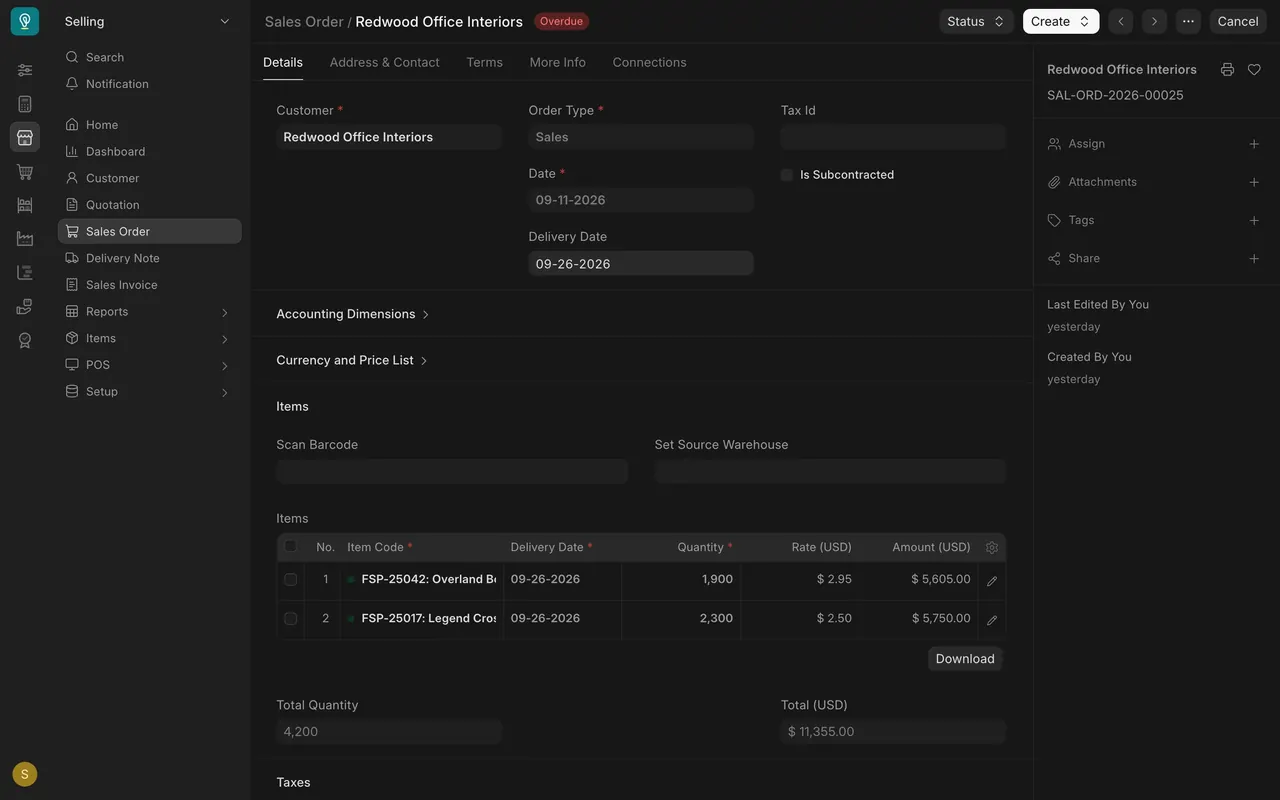
- Use "Create" at the top and make the sales order from it. The customer, items, quantities and rates carry across. On the Redwood Office Interiors order, both lines and both rates match the quote exactly.
- Back on the quotation, the status changes to "Ordered" once the order exists. That tells everyone the job is won and should not be quoted again.
Check the dates
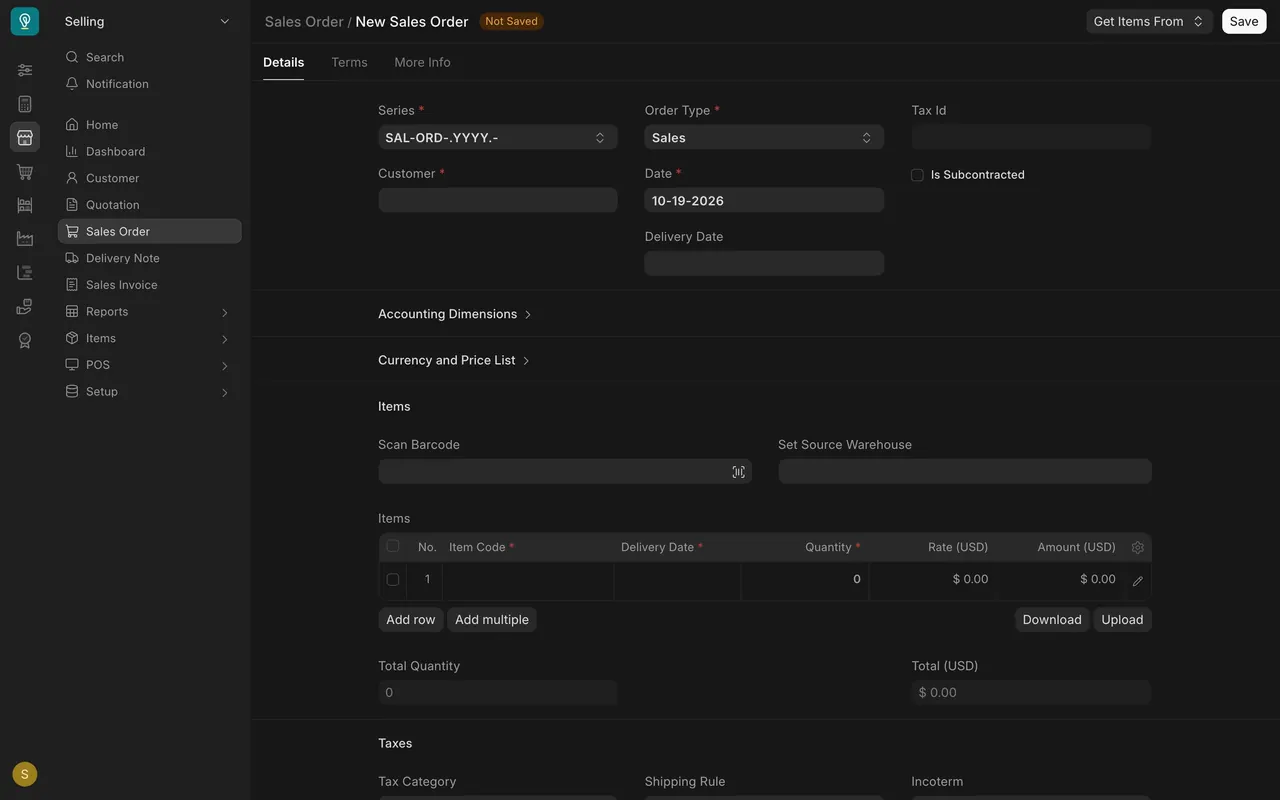
- Check "Customer" and "Date" (the order date).
- "Delivery Date" in the header is optional (it has no red star), but it helps you fill the rows.
- Check the "Delivery Date" column on every item row. It is required on each row: the order will not save if a row is missing one.
- Set a date the warehouse can meet. If the flooring is not in stock, ask Purchasing about incoming supply before you promise anything. Many companies do not allow negative stock, in which case an order cannot be delivered from stock that is not there. Check how your site is set up.
Check the customer details
- Look at "Tax Id", the customer's tax identification number. It comes from the customer record.
- If it is blank and the customer needs it on their invoice, ask for it and update the customer's "Tax" tab. Fix the customer, not just this order.
- If the customer gave you their own order number, put it on the order so the accounts team can quote it back to them.
Submit and follow it
- Save the order, read it through once, then submit it.
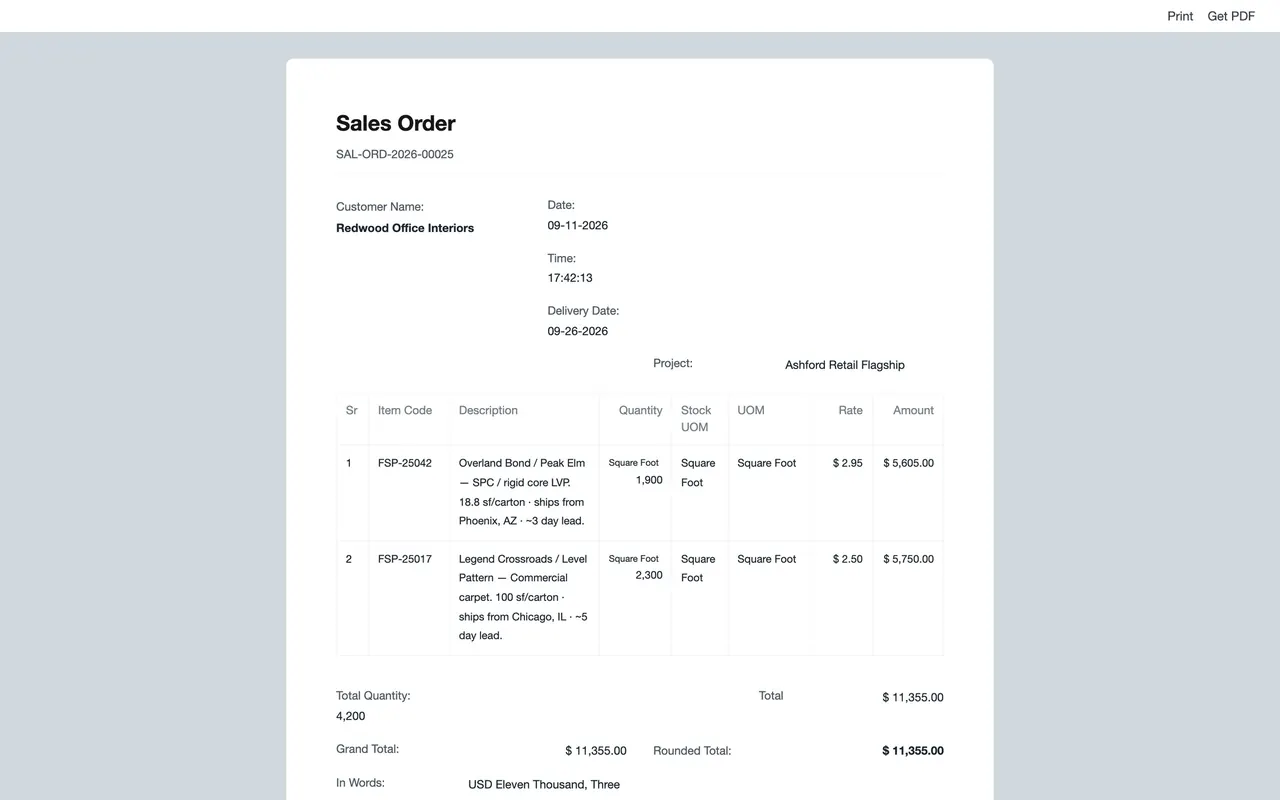
- Open the print view to see the order exactly as your customer will receive it, and check the dates, rates and totals.
- Open the sales order list. The "% Delivered" and "% Amount Billed" bars show progress at a glance.
- Read the status:
- "Completed": delivered and billed in full. Both bars are full.
- "Overdue": the delivery date has passed and not everything has been delivered.
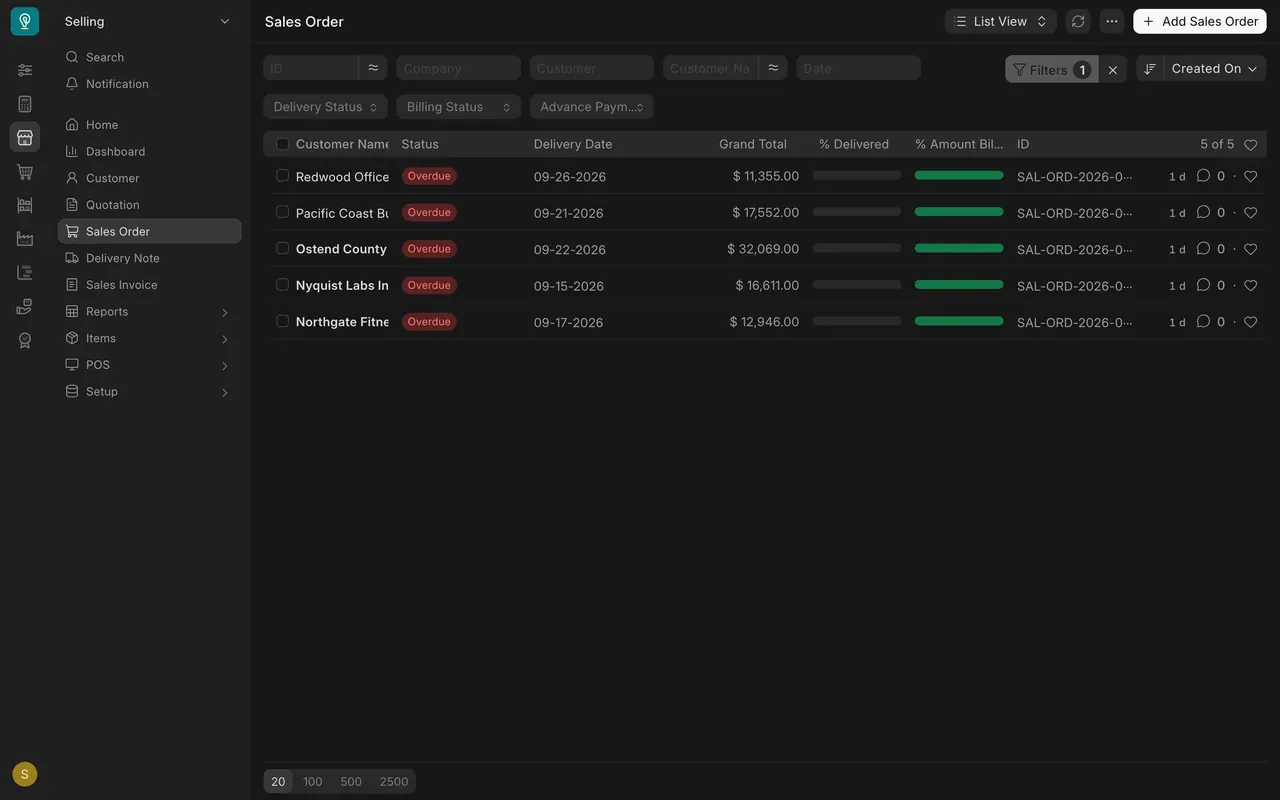
- To see every order still waiting to ship, look for "Overdue" in the "Status" column. In the example data six orders are overdue: five with nothing delivered, and Brightwater Residential, which is partly delivered. A filter on the status "To Deliver" shows only the five, because a part-delivered order has the status "To Deliver and Bill".
When an order is overdue
- Find out why: no stock, no truck, or a customer who is not ready.
- Agree a new date with the warehouse first, then with the customer.
- Record what was agreed in a comment on the order, so the next person sees it.
Setup to check on your site
- Who can do what: in the standard setup, the Sales User and Sales Manager roles can read, write, create, submit and cancel sales orders, and the Accounts User and Stock User roles can read them. Your company may have changed this.
- Required fields: "Customer", "Order Type", "Date", a price list, items, and a "Delivery Date" on every item row.
- Tax Id: shown on sales orders, delivery notes and invoices, taken from the customer.
- Stock: if your site does not allow negative stock, check availability before you promise a date.
- Approval workflow: if your site has no approval workflow, whoever has the submit right can submit. Read before you submit.
- Status words: the list shows "Overdue" for orders past their delivery date that still have something to deliver.
Common mistakes
- Typing the order from scratch. Make it from the quotation with "Create", so prices and quantities match what the customer accepted.
- A delivery date that sounds good. Pick one the warehouse can meet. Ask first if you are unsure.
- One row without a delivery date. The order will not save. Check every row.
- Ignoring "Overdue". Every overdue order is a customer waiting on you. Agree a new date and tell them.
- Editing a submitted order. It is locked. If it must change, cancel and amend it, and check with the warehouse first if anything has already been delivered.
Check yourself
3 quick questions.
1. The customer wants delivery on the 15th, but the flooring is not in stock. What delivery date goes on the order?
2. A sales order shows "Overdue" with an empty delivered bar. What does that tell you?
3. After you make a sales order from a quotation, what happens to the quotation?