V16 Training · Selling and Customer Relationships · Lesson 3 of 6
Build and submit a quotation
This lesson shows you how to build a quotation, check it the way the customer will read it, submit it, and fix it if it is wrong.
Written guide
The idea
A quotation is a promise in writing. Once the customer has it, its prices, quantities and dates are what they will hold you to.
That is why a quotation is submitted. While it is a draft you can change anything. Once you submit it, the form locks and the status changes to "Open". If something is wrong once the customer has it, you cancel it and amend it. Parsimony keeps the cancelled original and makes a corrected copy numbered with "-1", so there is a record of what the customer was first sent.
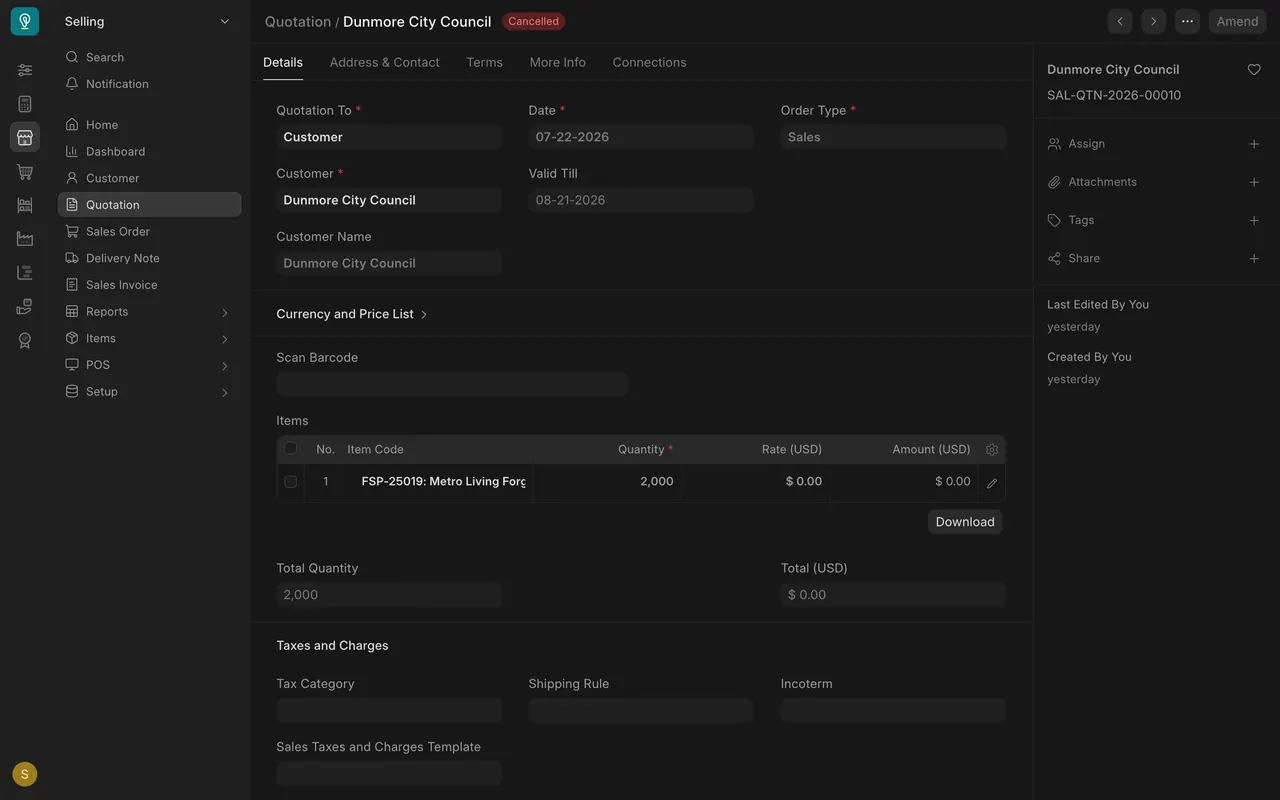
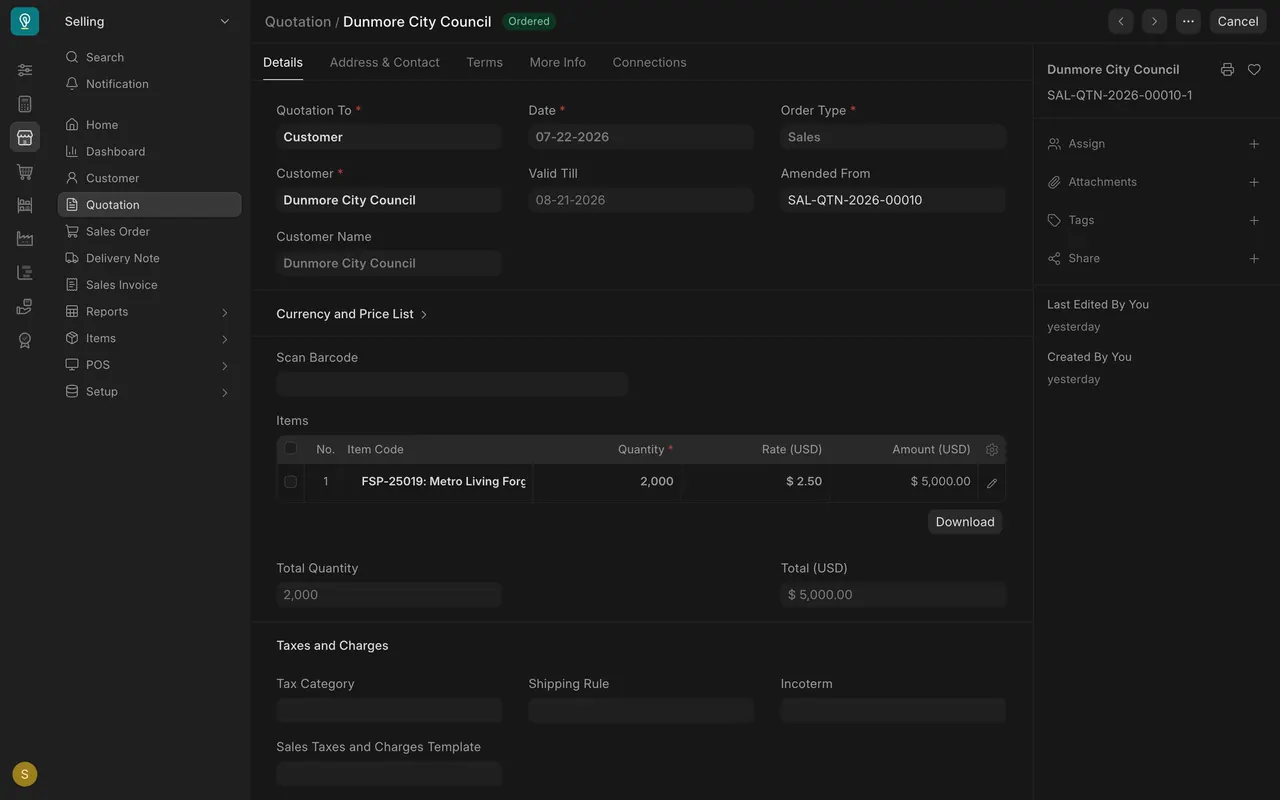
In the demo data used for the screens, the Dunmore City Council quote went out at $0.00 on 2,000 square feet. It was cancelled, and the amended copy carries the right rate of $2.50. Reading the quote once before submitting would have caught it.
Step by step
Start the quotation
- From the opportunity, use "Create" to start the quotation, so the items carry across. Or open the Quotation list and click "Add Quotation".
- "Quotation To" is "Customer". Pick the customer in "Customer".
- "Date" is today. "Valid Till" fills in one month ahead. Shorten it if your prices cannot hold that long.
- "Order Type" stays "Sales".
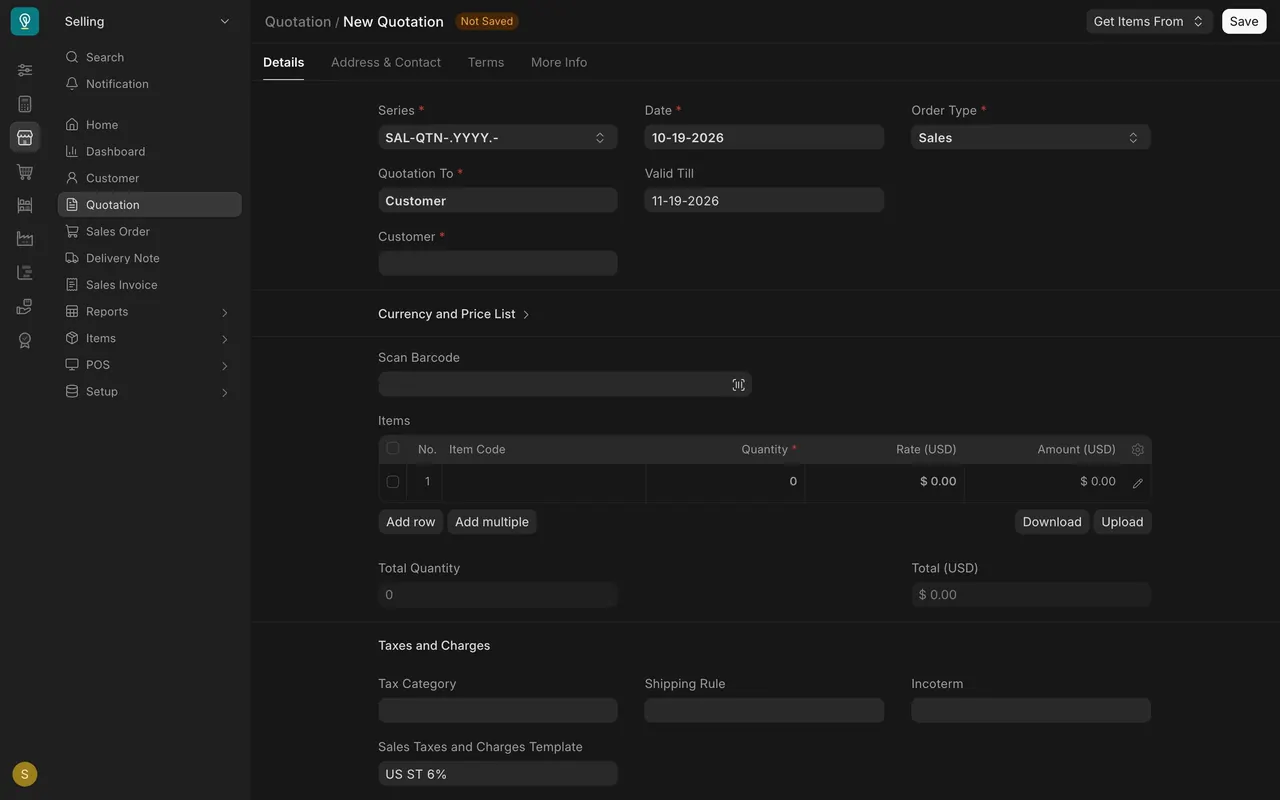
Check the price list
- Open the "Currency and Price List" section.
- Check the price list matches the customer: "Standard Selling" for most customers, "Trade" for trade accounts.
- Set it before you add items. Rates are pulled from the price list as you add each line.
Add the items
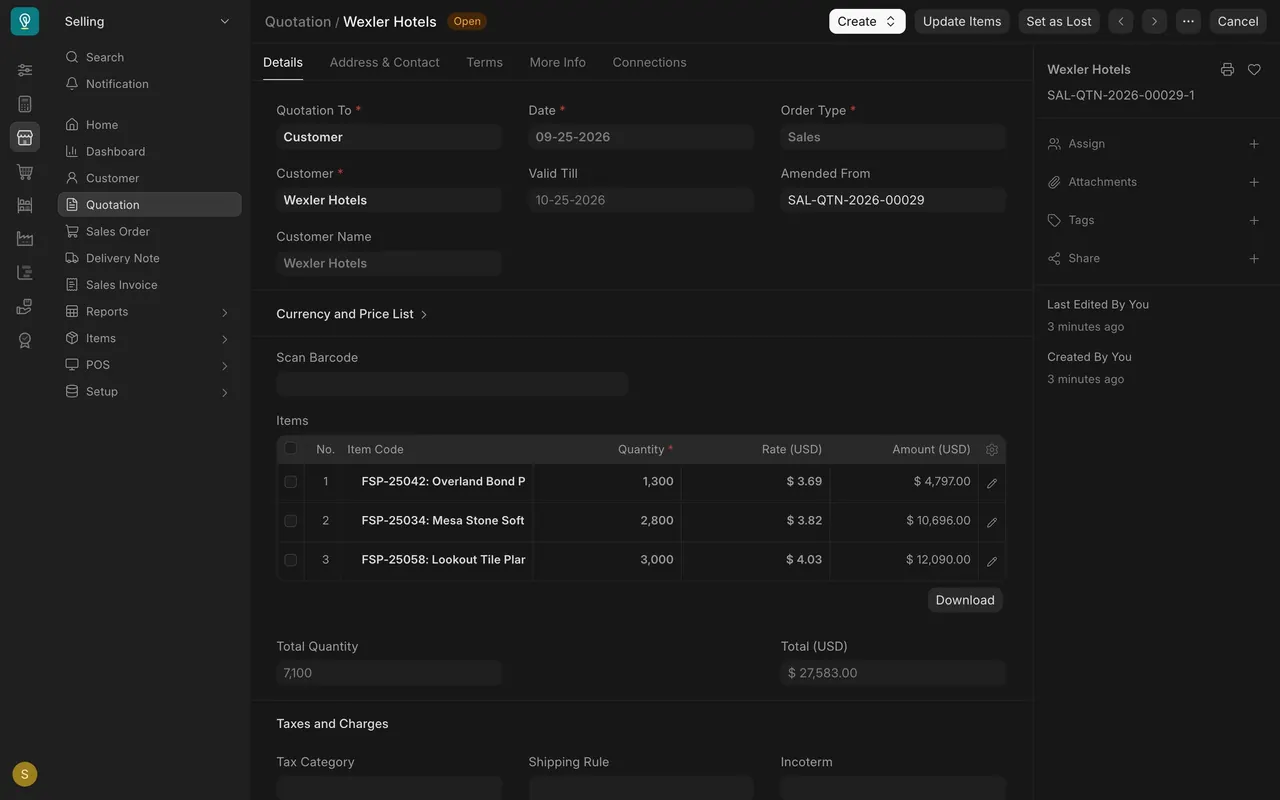
- In "Items", add each flooring line by its "Item Code" (in this example the codes start with FSP, the demo company's prefix; yours will follow your own numbering).
- Enter "Quantity" in the item's stock unit of measure, never in boxes. In this example the unit is the square foot, and the printed quote shows "Square Foot" on every line. If the customer orders in boxes, check the item's description for the square feet per carton (for example "18.8 square feet per carton"), or ask Purchasing, and multiply.
- Read every "Rate (USD)". A blank or zero rate is the most common and most costly mistake.
- Check "Total Quantity" and "Total (USD)" under the table.
Check the taxes
- Scroll to "Taxes and Charges".
- A new quotation starts with your default sales tax template in "Sales Taxes and Charges Template".
- If the customer is exempt from sales tax, check that "Is customer exempted from sales tax?" is ticked and that the taxes table shows no sales tax line. If tax still shows, ask Accounts before you submit.
- In this example the demo quotes were entered without tax, and the default template is "US ST 6%", a six percent sales tax. A real quote to a customer who is not exempt should carry your default sales tax.
Read it as the customer will
- Click "Save".
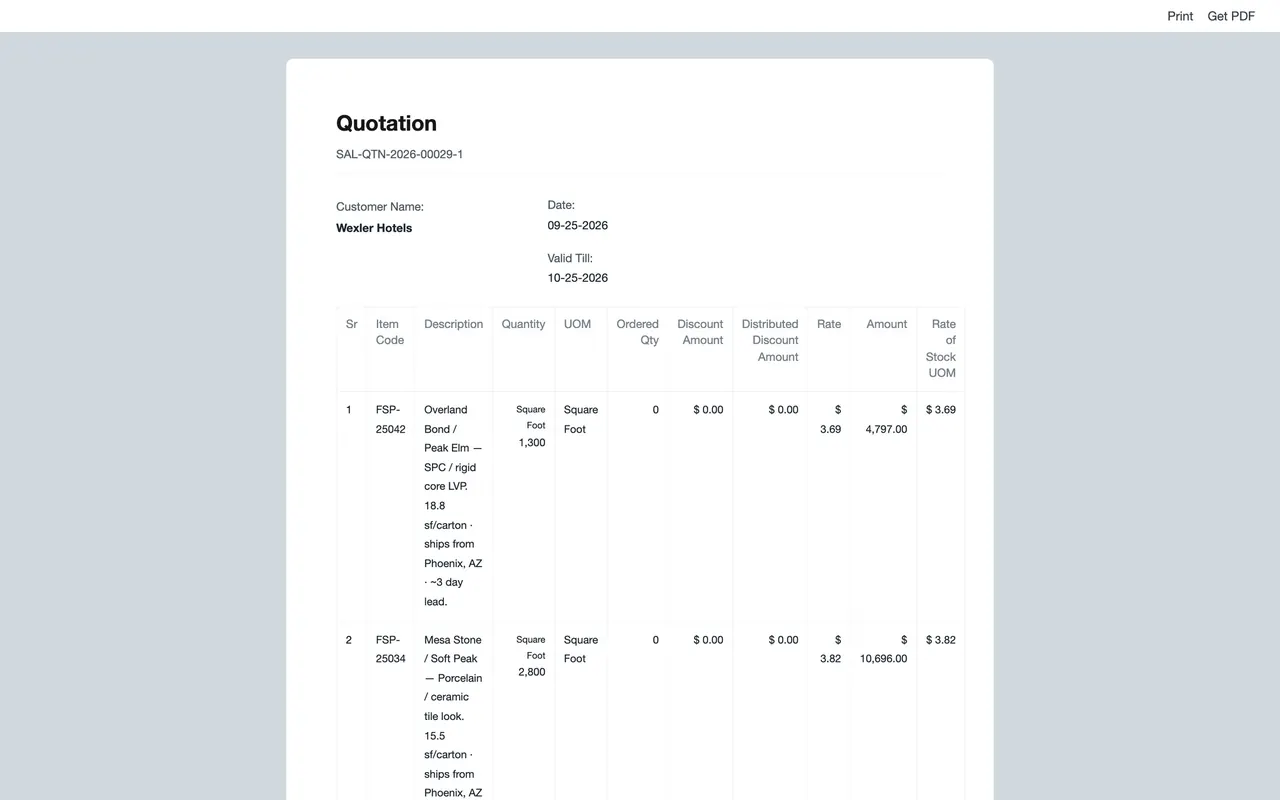
- Click the printer icon at the top of the side panel, then "Full Page". This is the page the customer sees.
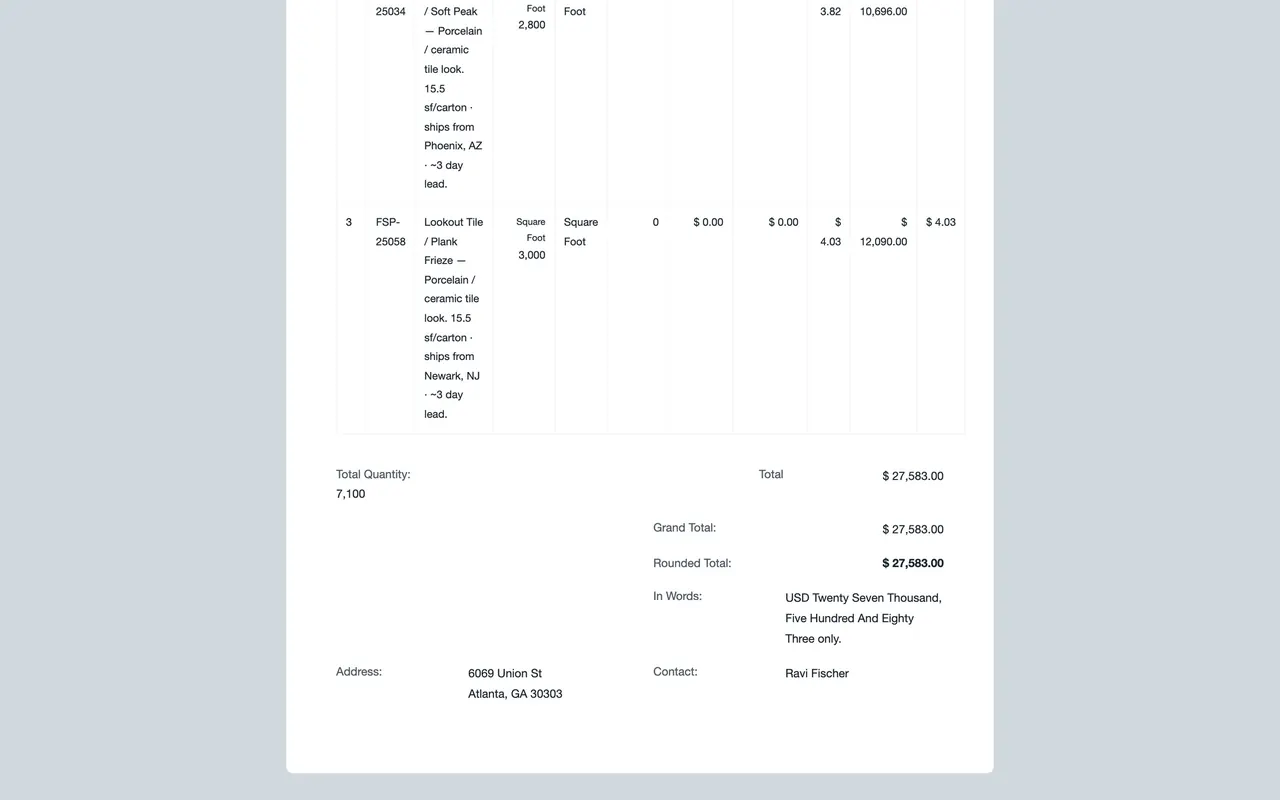
- Check the "UOM" column, the unit of measure, says "Square Foot" in this example, then check "Grand Total", "Rounded Total" and "In Words".
- The print view shows the quotation exactly as your customer will receive it, so it is the alternative to reading the form. If your site is set up to send email, send the quotation from the form. If not, download it with "Get PDF" (on the dark print page the button is "PDF", short for portable document format) and send it from your own email.
Submit it
- When everything is right, submit the quotation and confirm.
- The status changes to "Open", and "Create", "Update Items", "Set as Lost" and "Cancel" appear at the top. "Update Items" can still change the lines, but on a quote the customer already has, cancel and amend instead.
Fix a submitted quotation
- Click "Cancel" and confirm. The status turns "Cancelled".
- Click "Amend". You get a new draft with the same number plus "-1".
- Correct it, save it, read it again and submit it. "Amended From" points back to the original, which stays in the list as "Cancelled".
Your setup
- Who can do what: In this example, the Sales User and Sales Manager roles can read, write, create, submit and cancel quotations, and there is no approval workflow: whoever has the submit right can submit, so read before you click. Your company may set permissions differently.
- Required fields: "Quotation To", the customer, "Date", "Order Type", a price list and at least one item.
- Totals: "Rounded Total" and "In Words" are shown on the forms and print in this example. The rounded total is the quote's final figure, tax included when the quote carries tax.
- Scan Barcode: scanning an item's barcode here adds that item as a line, if the item has a barcode set up.
Common mistakes
- A zero or blank rate. Read every rate before you submit.
- Boxes instead of square feet. Convert first, using the square feet per carton in the item's description, or ask Purchasing.
- Changing the price list after adding items. Set it first, then add lines, then check each rate.
- Charging tax to an exempt customer. Check the taxes section against the customer's exemption.
- Changing a quote the customer already has in place. Cancel, amend, correct, submit.
- Leaving "Valid Till" longer than your prices can hold. Shorten it when costs are moving.
Check yourself
3 quick questions.
1. You submitted a quote, sent it, and then spot a wrong rate. What do you do?
2. A customer asks for 40 boxes of an item. What goes in "Quantity"?
3. The quotation form looks right. Why open the print view before you submit?