V16 Training · Selling and Customer Relationships · Lesson 2 of 6
Set up a customer
This lesson shows you how to set up a customer once and correctly, so every quote, order and invoice after it comes out right.
Written guide
The idea
A quotation can go to a lead, but an order needs a customer. The customer record is the master copy of who they are: the name that prints on every document, the group they belong to, the prices they get, where invoices go and whether they pay sales tax.
If the enquiry started as a lead, such as Harborview Condos, it needs a customer record before it can have an order. Search first, as below, then add it.
Two things go wrong with customers, and both are expensive. The first is a duplicate: the same company saved twice under slightly different names. Its orders and invoices split across two records, its statement is wrong, and nobody sees the full picture. The second is a wrong setting: the wrong price list, a missing billing contact or a tax exemption ticked without paperwork. Every document copies those settings, so one mistake here repeats on every invoice.
Step by step
Search before you add
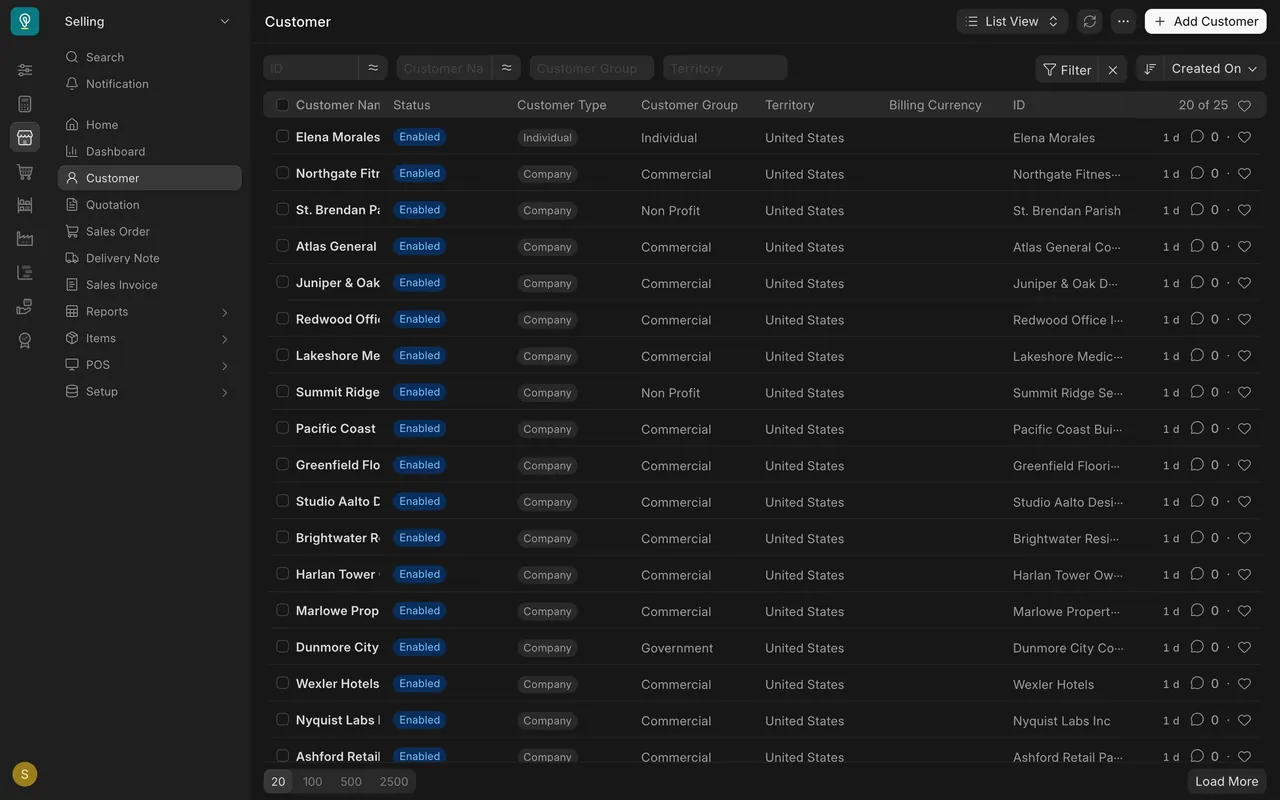
- Open "Customer" in the Selling sidebar.
- Type the name into the "Customer Name" filter at the top of the list. Try short forms too, with and without "Inc", "Group" or a trailing s.
- Only if the customer really is not there, click "Add Customer".
Fill in the details
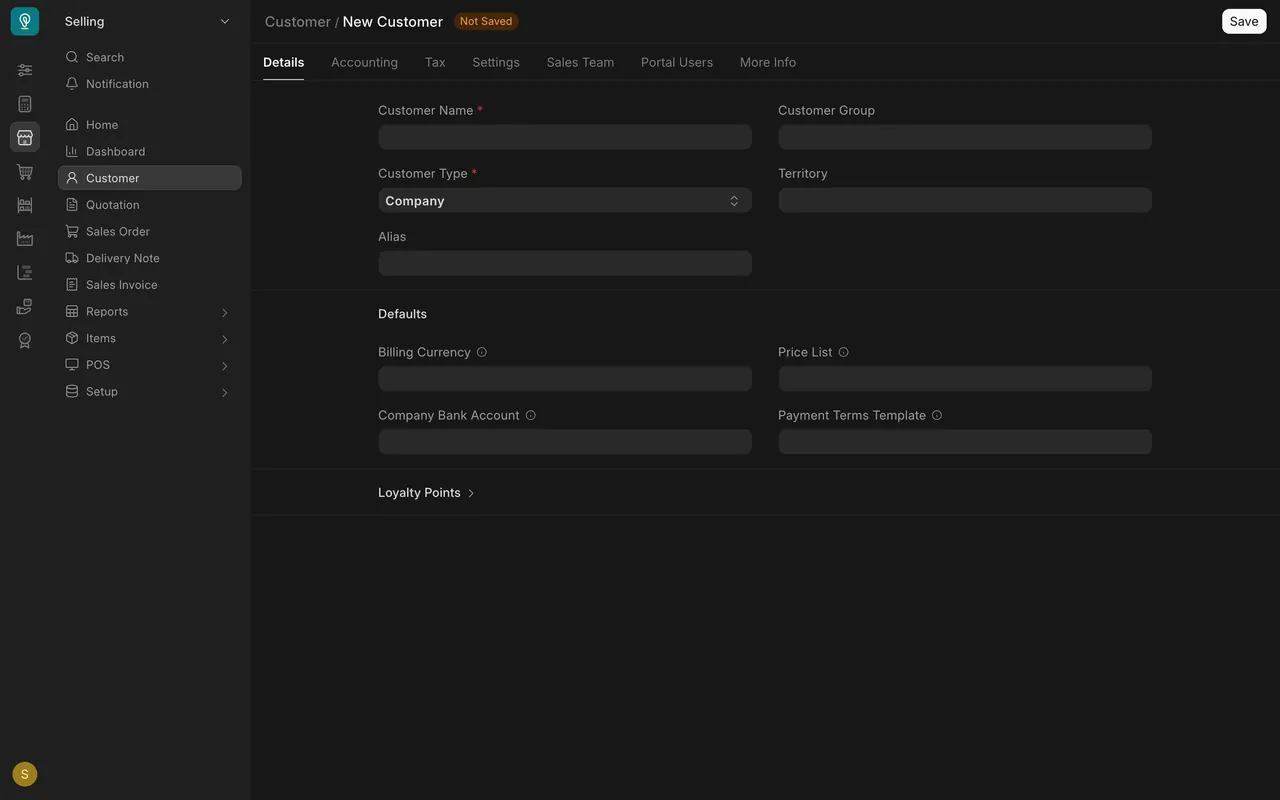
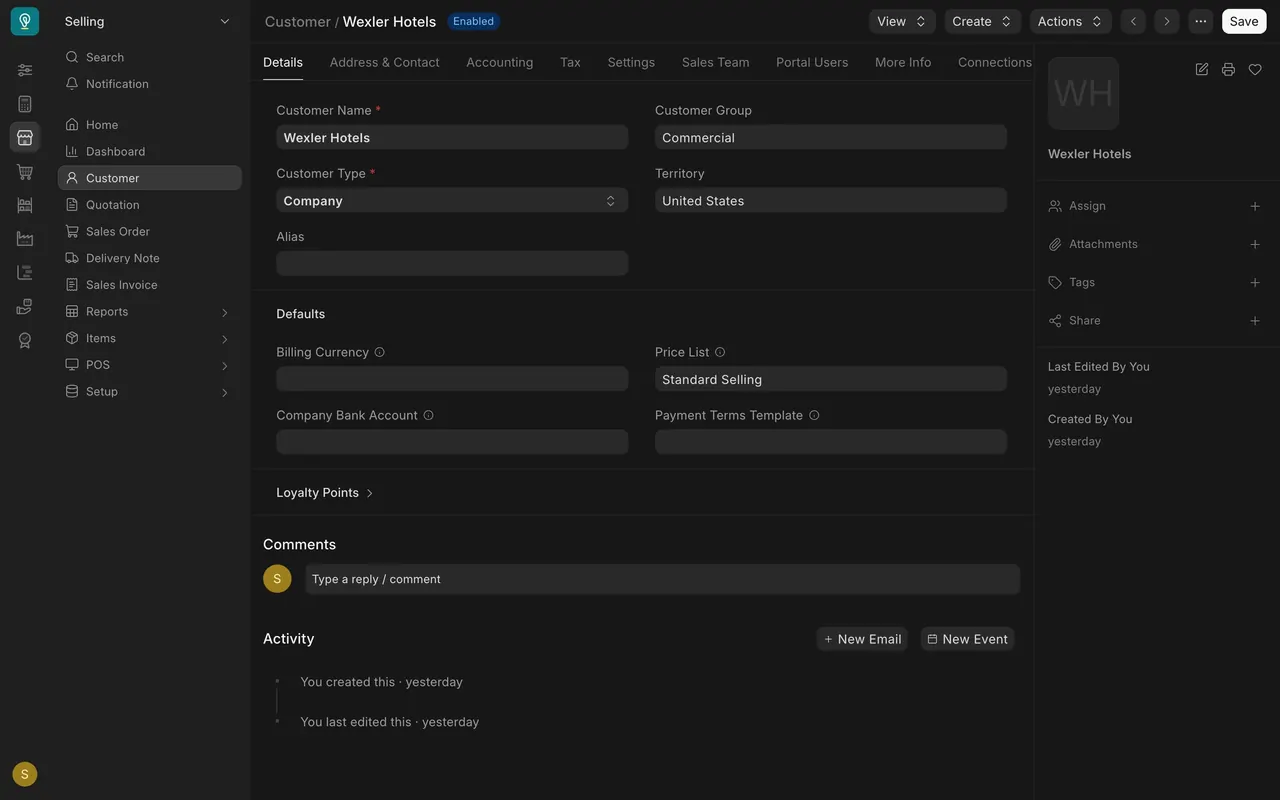
- "Customer Name" (required): the legal or trading name exactly as it should print on an invoice. The customer's identifier is the same as the name, so get it right the first time.
- "Customer Type" (required): "Company" for a business. It is the default.
- "Customer Group": pick the closest match. In this example, hotel groups and contractors are "Commercial", a city council is "Government", Saint Brendan Parish is "Non Profit" and private buyers are "Individual".
- "Territory": where the customer is, for example "United States".
- Under "Defaults", set "Price List". In this example, Wexler Hotels is on "Standard Selling". Only trade accounts belong on the Trade list.
- Click "Save".
Add the billing address and contact
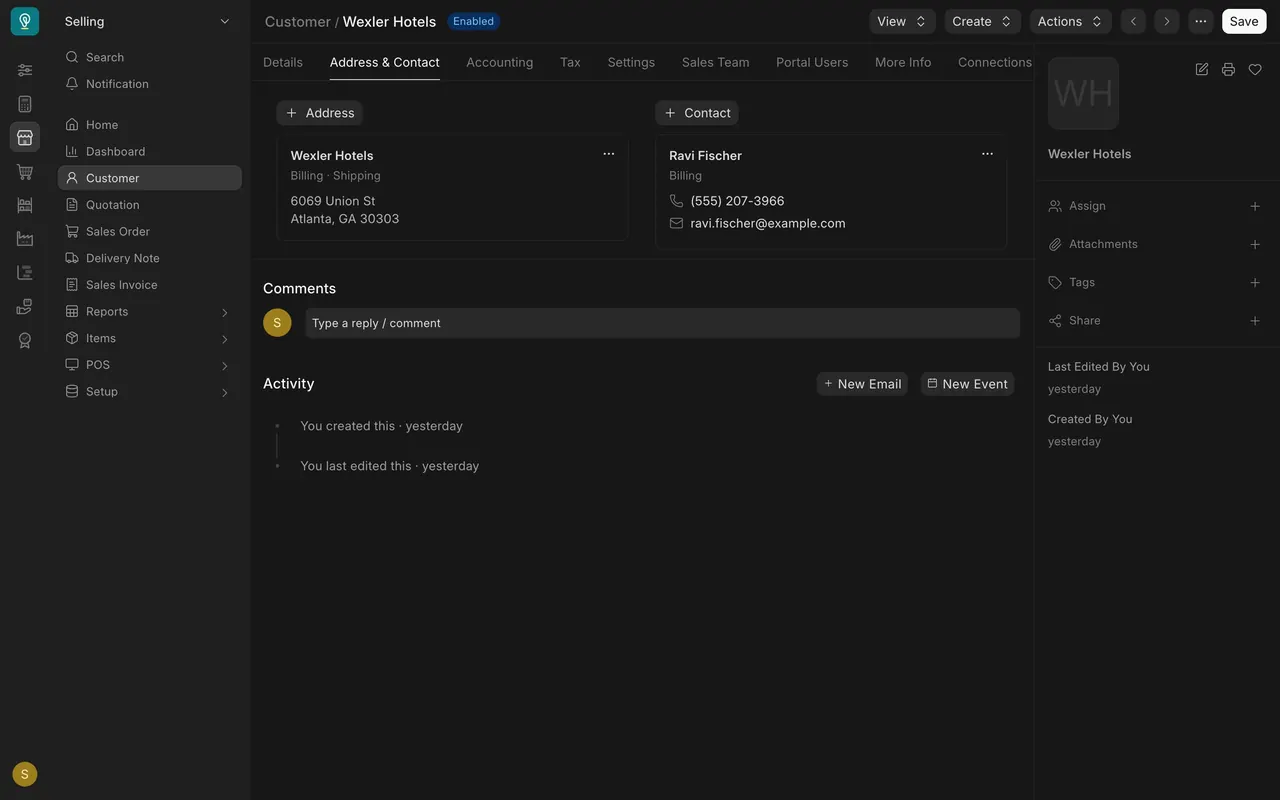
- Open the "Address & Contact" tab.
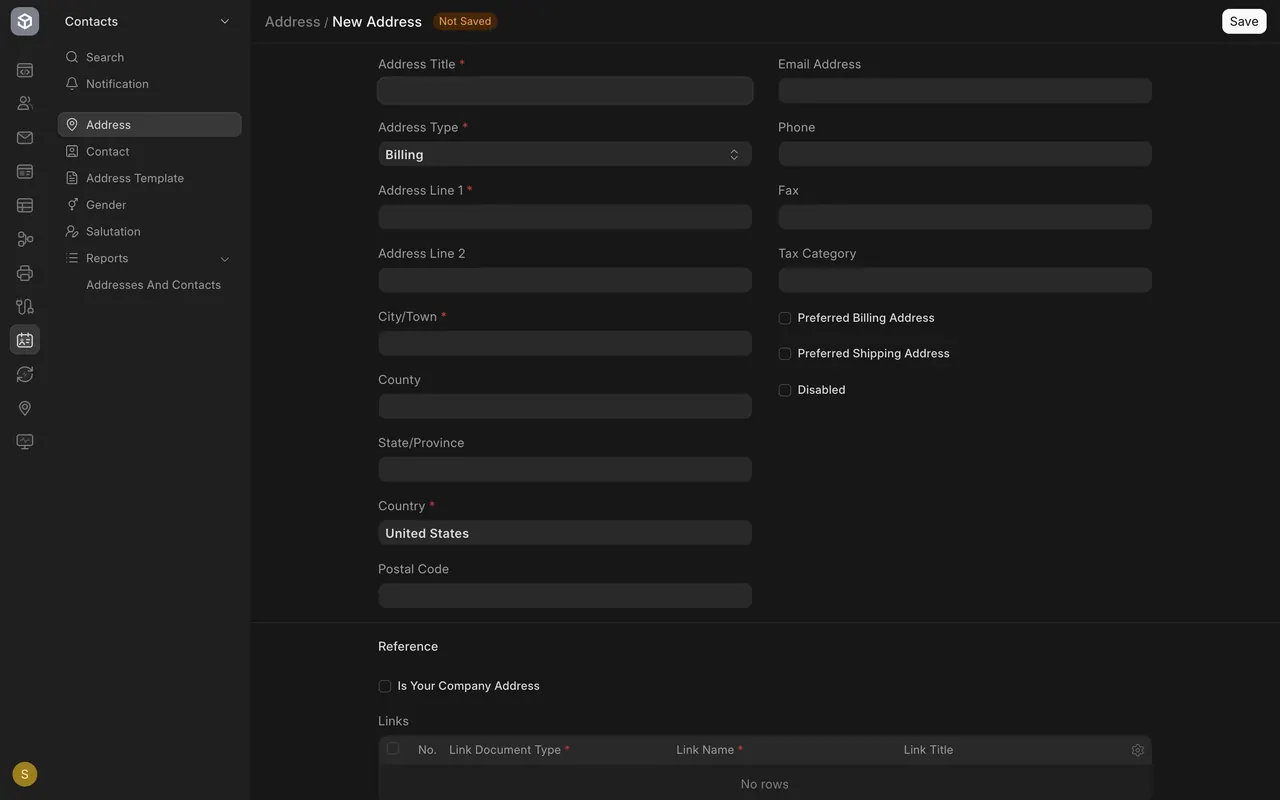
- Click "+ Address". Fill in "Address Title", "Address Type" (it defaults to "Billing"), "Address Line 1", "City/Town", "Country" and "Postal Code".
- Set "Tax Category" on the address if Accounts has told you which one applies.
- Leave "Is Your Company Address" unticked. That box is for your own company's addresses only.
- Save, then go back to the customer and click "+ Contact". Add the person who pays the bills, with their email and phone, and tick "Is Billing Contact" on their contact form.
On Wexler Hotels, the address card reads "Billing · Shipping" and the contact, Ravi Fischer, is marked "Billing".
Check the tax settings
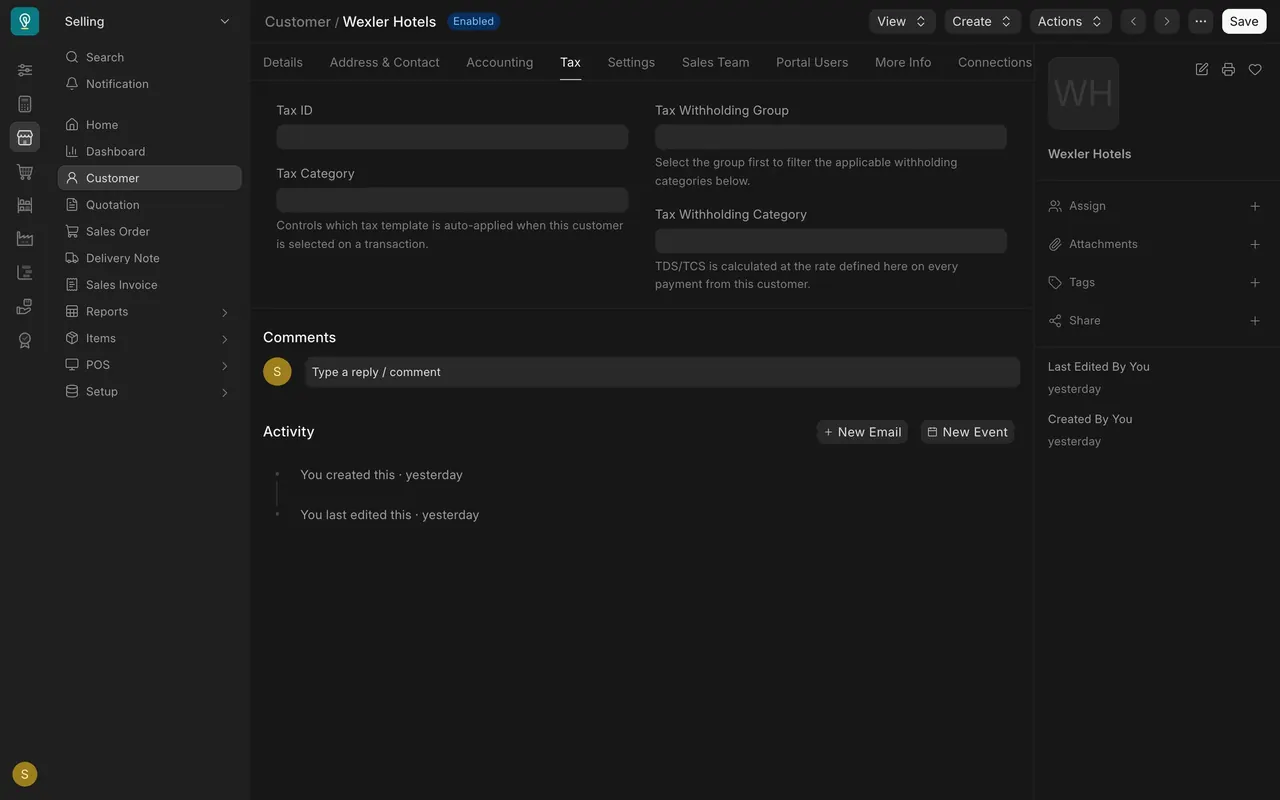
- Open the "Tax" tab. "Tax Category" controls which tax template is applied when this customer is picked on a transaction. Fill in "Tax ID" (the tax identification number) if the customer needs it on their paperwork. Sales orders, delivery notes and invoices show it in a "Tax Id" field.
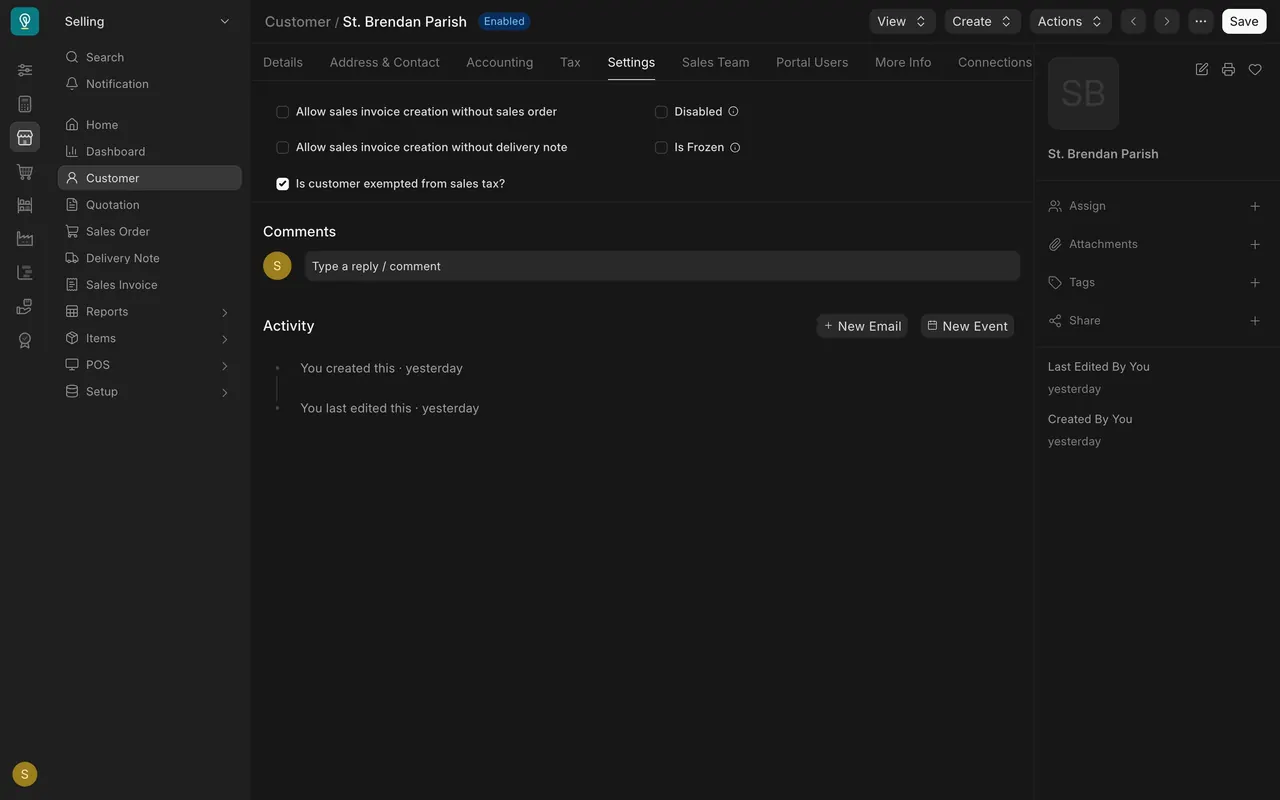
- Open the "Settings" tab. The box "Is customer exempted from sales tax?" marks a tax-exempt customer. Saint Brendan Parish has it ticked; Wexler Hotels does not.
- Tick it only when a valid exemption certificate is on file. Keep the certificate with the customer's records.
How this example is set up
- Who can do what: In this example, the Sales User role can read, write and create customers; the Sales Master Manager role can too, and the Sales Manager, Stock and Accounts roles can read them. Your company may set roles up differently.
- Customer groups in this example: Individual, Commercial, Non Profit and Government.
- Territories in this example: United States and Rest Of The World.
- Price lists for selling in this example: Standard Selling (the normal list) and Trade (trade accounts only).
- Extra fields added in this example: "Is customer exempted from sales tax?" on the customer, the quotation, the sales order and the sales invoice; "Tax Category" and "Is Your Company Address" on addresses; "Is Billing Contact" on contacts.
- Naming: the customer's identifier is the customer name. There is no number to type.
Common mistakes
- Adding before searching. Search the name and its short forms first. If you find a duplicate, tell your manager rather than fixing it yourself.
- A nickname as the customer name. The name prints on every invoice. Use the legal or trading name.
- Trade prices for a non-trade customer. Check "Price List" under "Defaults" before the first quote.
- No billing contact. Accounts then has nobody to send invoices or reminders to.
- Ticking the sales tax exemption without a certificate. Every invoice after it will be wrong. Untick it until the certificate is on file.
- Ticking "Is Your Company Address" on a customer's address. It is for your own company's addresses only.
Check yourself
3 quick questions.
1. A new hotel group asks for a quote. What do you do first?
2. A parish says it is exempt from sales tax, but the certificate has not arrived. What do you do with "Is customer exempted from sales tax?"
3. Your search finds both "Granite Peak Hotel" and "Granite Peak Hotels". What do you do?