V16 Training · Reports and Dashboards · Lesson 3 of 6
Export to Excel and print
This lesson shows you how to hand a report or a list to a spreadsheet, how to print a report, and when to export instead of sharing a saved report.
Written guide
The idea
A report or a list lives inside Parsimony. Sometimes the numbers have to leave it: a spreadsheet for your manager, a file for an outside accountant, a page on paper. Parsimony exports what you are looking at, so set your filters first. The screens use example data from a demo company, in the Accounts Receivable Summary report and the Sales Order list. Your own site shows your own company's data.
Step by step
Export a report
- Open the report and set the filters you want.
- Step 1. Choose the three-dot button at the top right. The menu holds Print, PDF and Export.
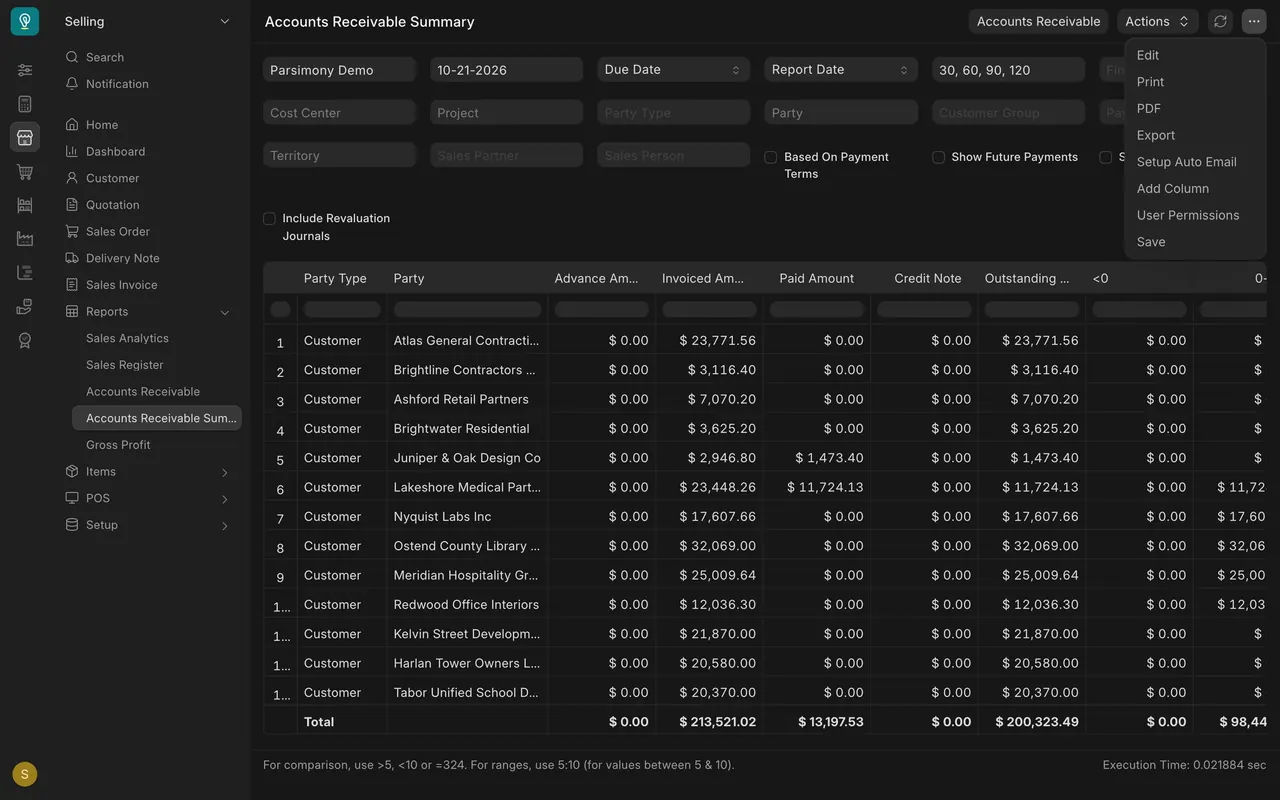
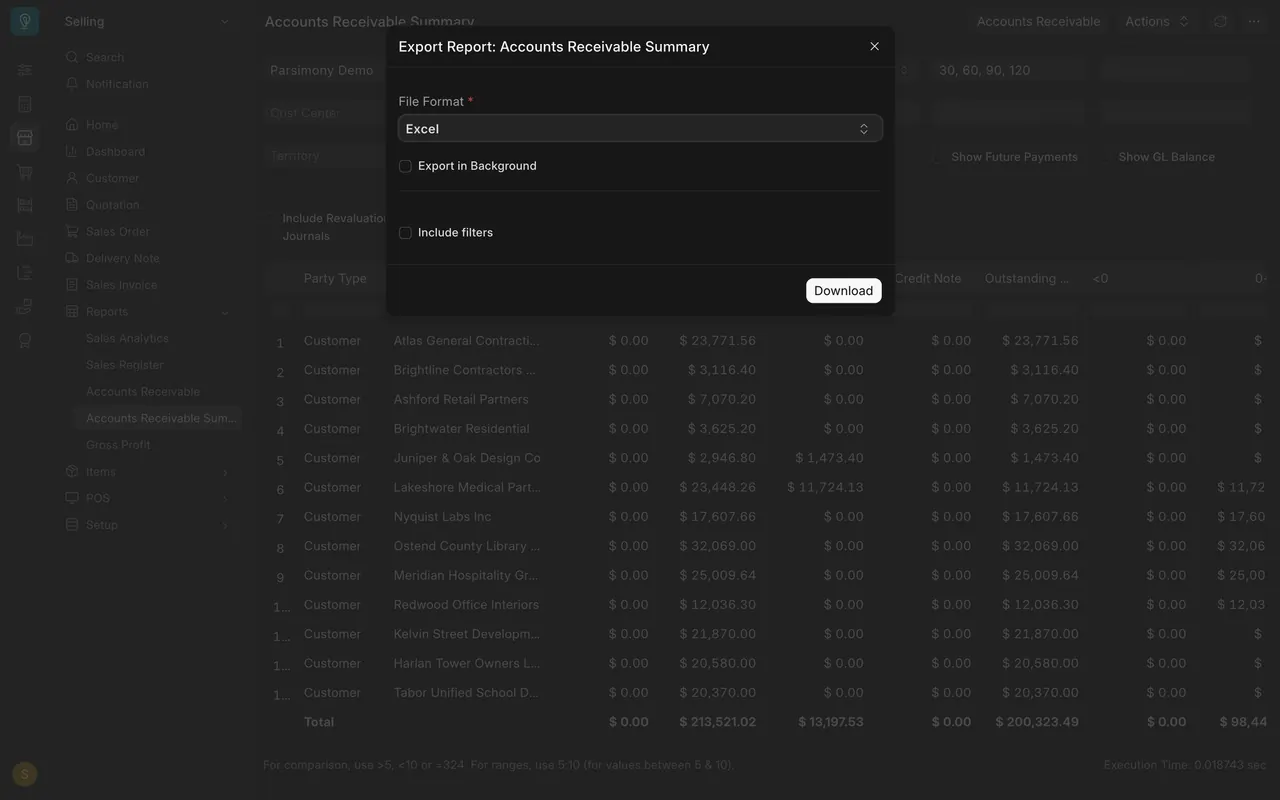
- Step 2. Choose Export. The Export Report box opens. Pick the File Format: Excel opens in your spreadsheet program; CSV is plain text that other programs can import.
- Tick Include filters to put the filters at the top of the file, so a reader knows what the numbers cover. Export in Background is for very large reports.
- Step 3. Download saves the file to your computer.
Export a list, with more control
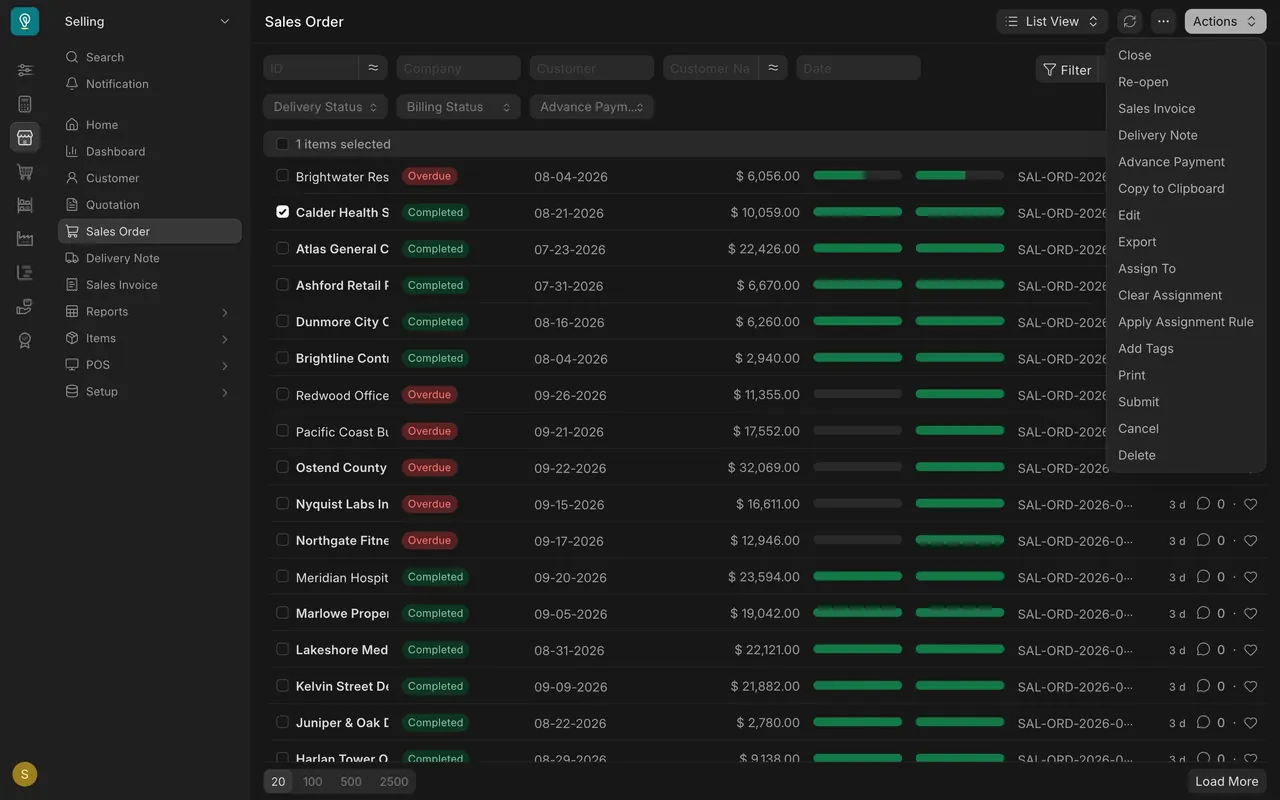
- In a list, tick the rows you want, then open Actions and choose Export.
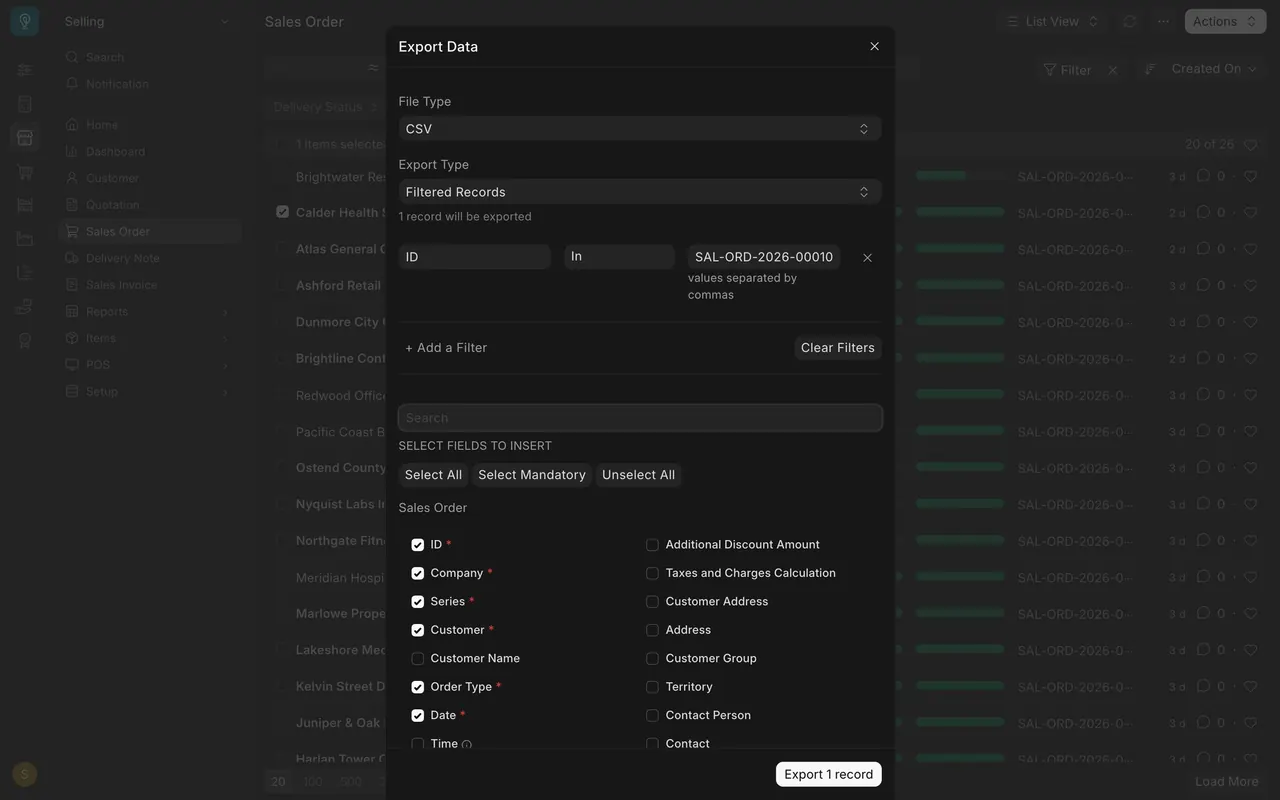
- In the Export Data box, choose the File Type, Excel or CSV.
- Export Type decides which rows come out. Filtered Records sends only the rows your filters and ticks allow. The box tells you how many records will be exported.
- Tick the columns you want. Select All, Select Mandatory and Unselect All save clicking one by one. The button at the bottom shows the record count.
Print a report
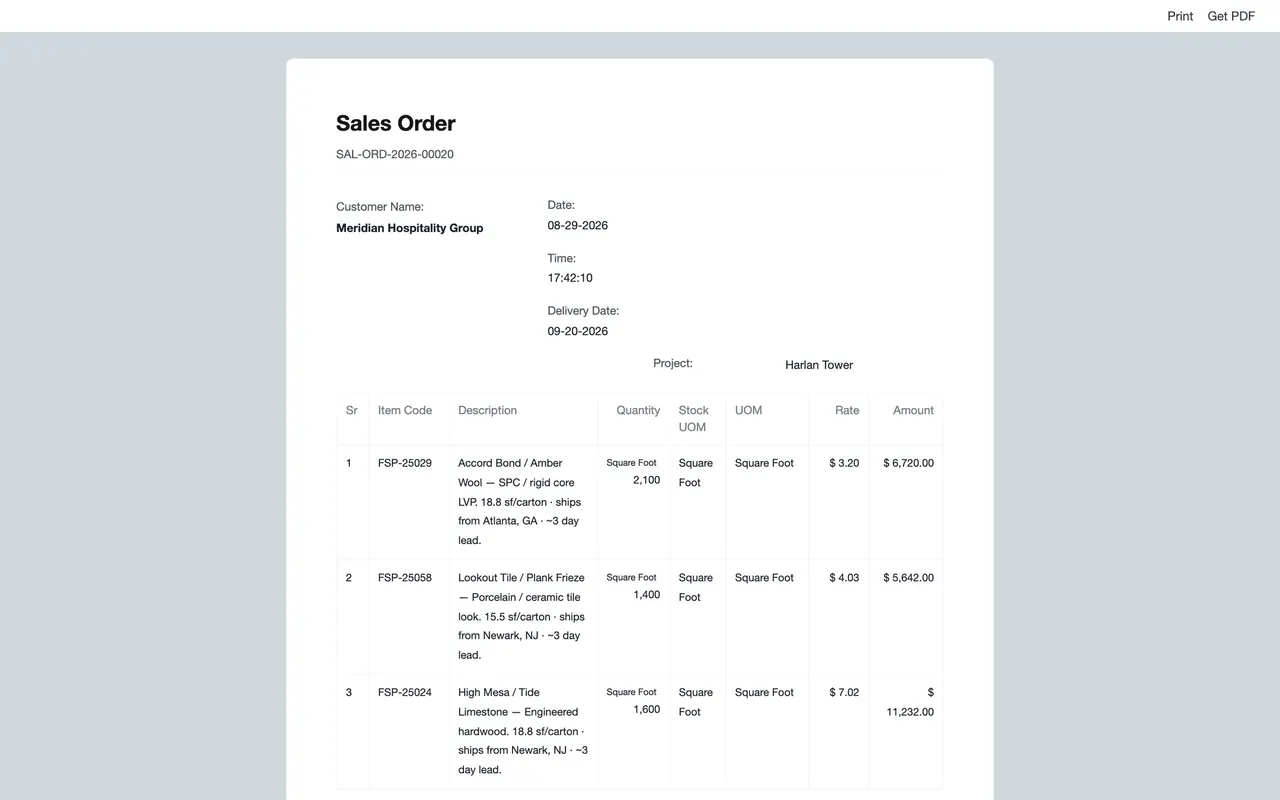
Choose Print in the three-dot menu to print the report as a table, or PDF to make a file of the page. Printing one document, such as a sales order, is covered in Getting Started, lesson five.
Export or share?
- Export when someone outside Parsimony needs the numbers, or you want to work them in a spreadsheet. A file is a snapshot: it is out of date as soon as the next payment is entered.
- Share a saved report (lesson one) when your own team needs current numbers. Everyone who opens it sees the same live figures.
What you may see on your own site
- Whether you can export or save reports depends on your role and your administrator's permissions.
- Your file format choices and the first selected columns may differ.
- Report Print and PDF open in a new window or download, depending on your browser.
Common mistakes
- Exporting with the wrong filters on. The file follows what you see. Tick Include filters.
- Treating a file as live. It is a snapshot.
- Emailing a file with more columns than the reader needs. Pick the fields in the list export.
- Exporting everything when you meant the filtered rows. Check Export Type.
Check yourself
3 quick questions.
1. You want only the rows your filters allow in a spreadsheet. What do you choose in the Export Data box?
2. Your own team needs the receivable numbers to stay current all week. What fits best?
3. What does Include filters do on the Export Report box?