V16 Training · Reports and Dashboards · Lesson 4 of 6
Build your own report
This lesson shows you how to build your own report on a list, save it with a name, and share it with the people who need it.
Written guide
The idea
When your team keeps asking for the same list of rows, build it once. A Report Builder report is a list you have filtered, given the columns you want, sorted, and added up, then saved under a name. Anyone who is allowed to open it gets the same table.
The screens use example data from a demo company that sells flooring. The saved report in the example is Open Sales Orders by Customer, built on the Sales Order list. Your own Parsimony site shows your own orders, and you can build the same kind of report on any list.
Step by step
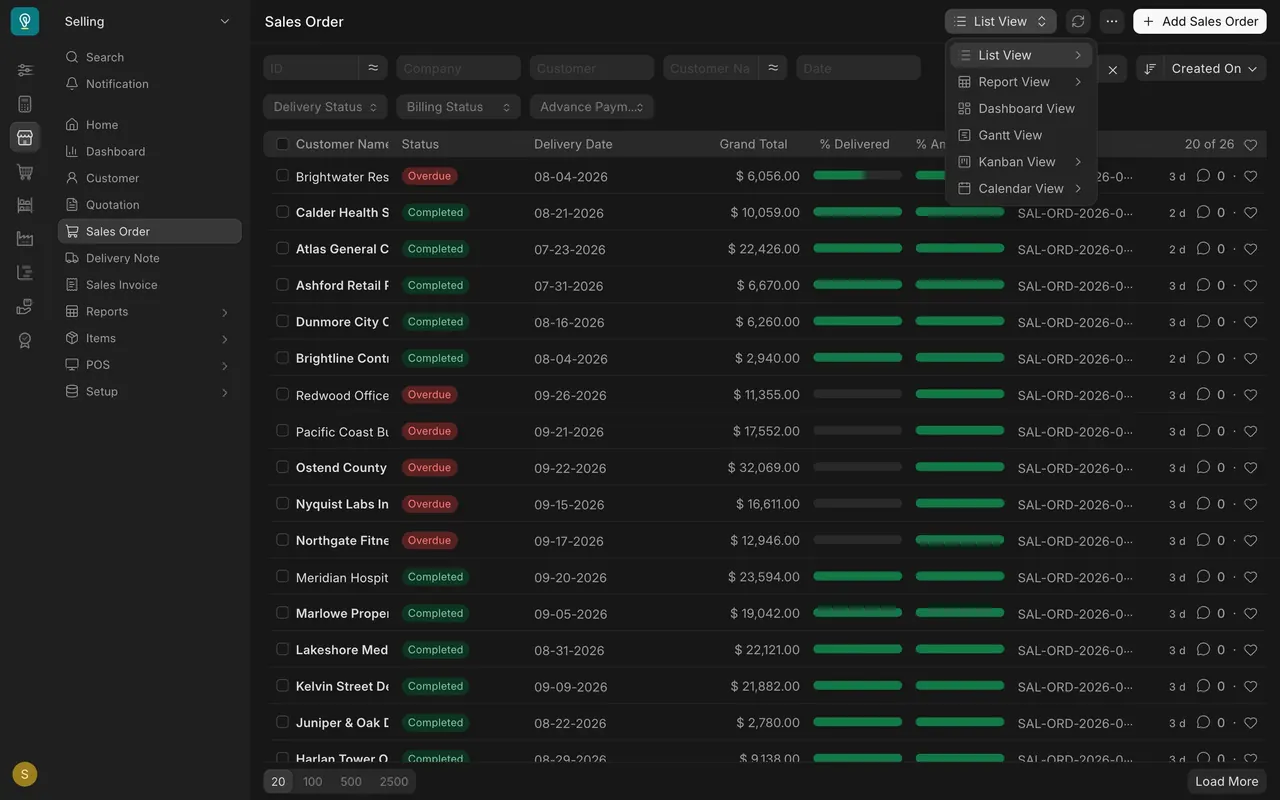
Step 1. Open a list in Report View
- Open a list, for example Sales Order in Selling.
- Open the view menu at the top right. It reads List View.
- Choose Report View. The list becomes a table, one row per document.
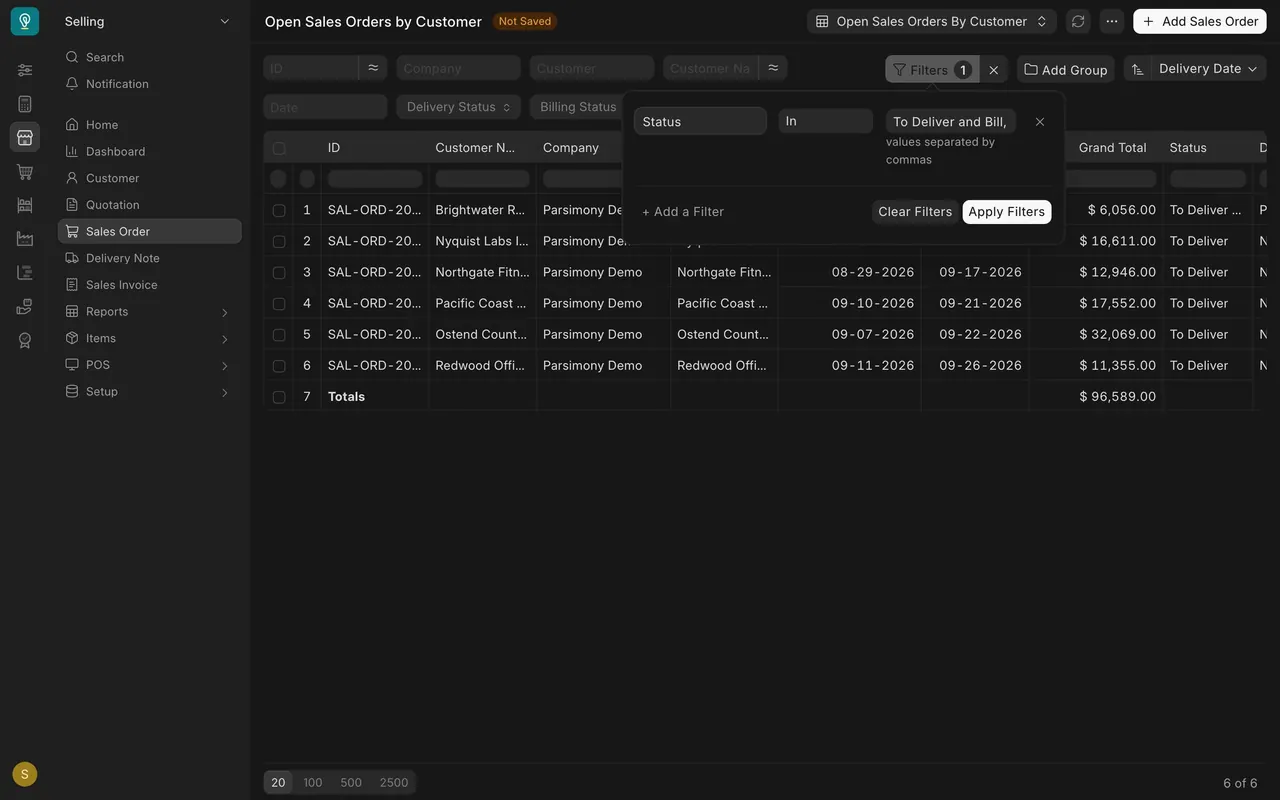
Step 2. Filter
- Open Filters and say which rows you want.
- In the example report, Status is In a short list of open statuses, so completed orders stay out.
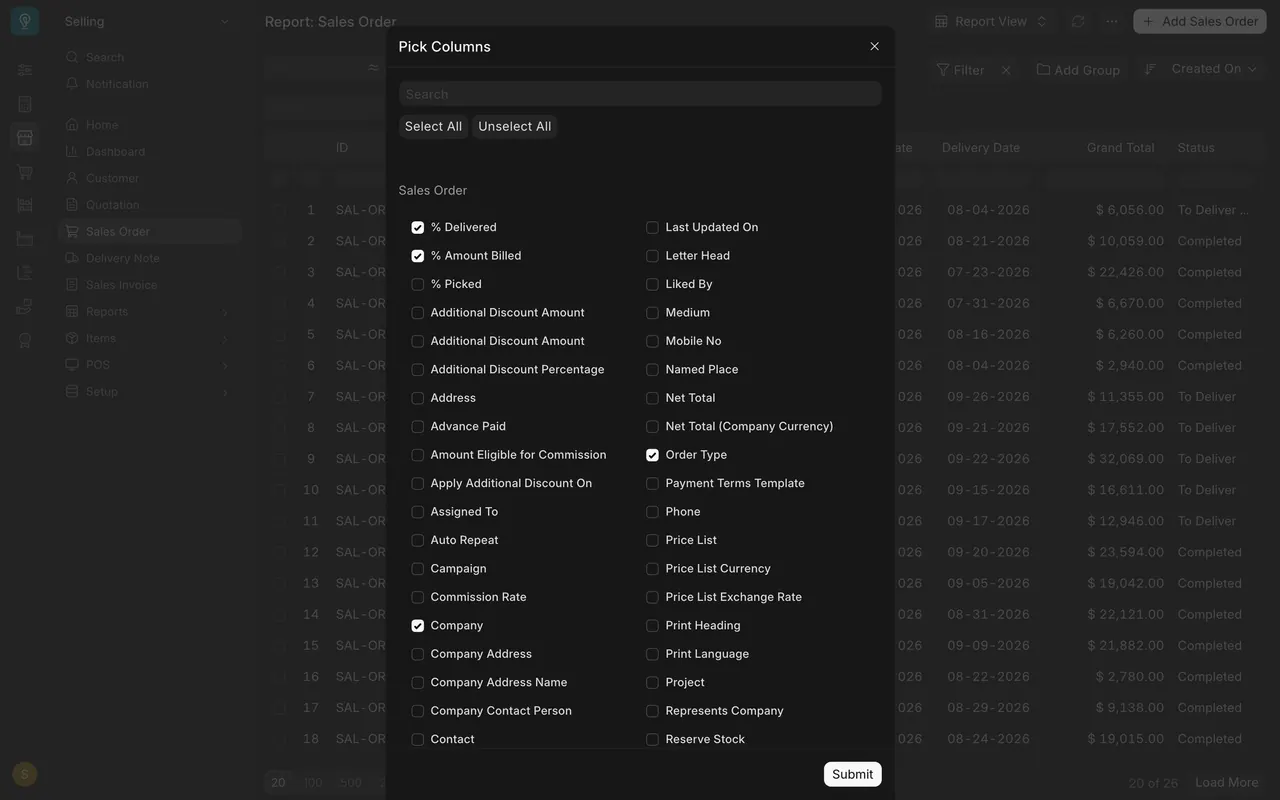
Step 3. Pick your columns
- Open the three-dot menu at the top right and choose Pick Columns.
- Tick the fields you want and untick the rest. Search finds a field by name, and Select All and Unselect All change them all at once.
- Press Submit.
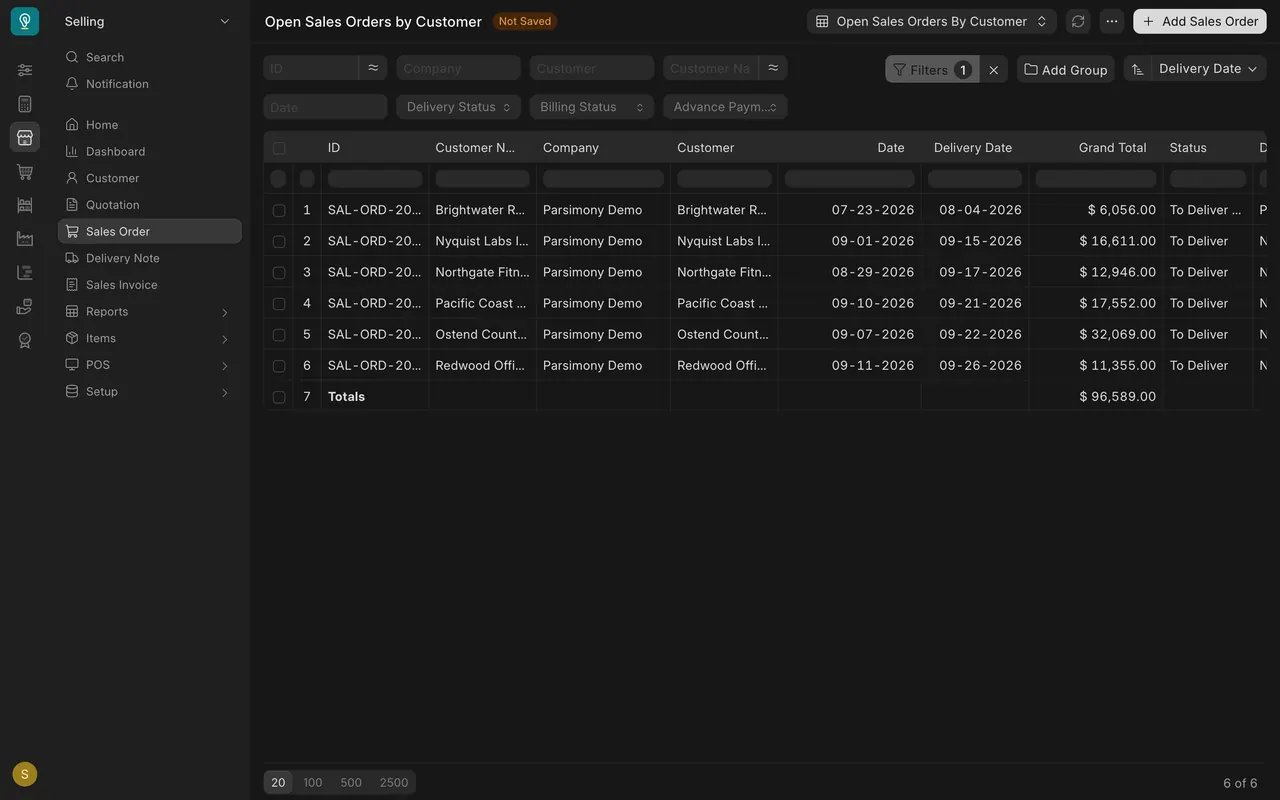
Step 4. Add totals and sort
- In the same menu, choose Show Totals. A Totals row appears at the bottom and adds up the number columns. In the example, Grand Total adds up to $96,589.00.
- Use the sort control at the top right to put the rows in the order you want. In the example, the order due soonest comes first, by Delivery Date.
Step 5. Save it with a name
- In the three-dot menu, choose Save As.
- A box asks for a New Report name. Type a name your team will recognise.
- Press Submit.
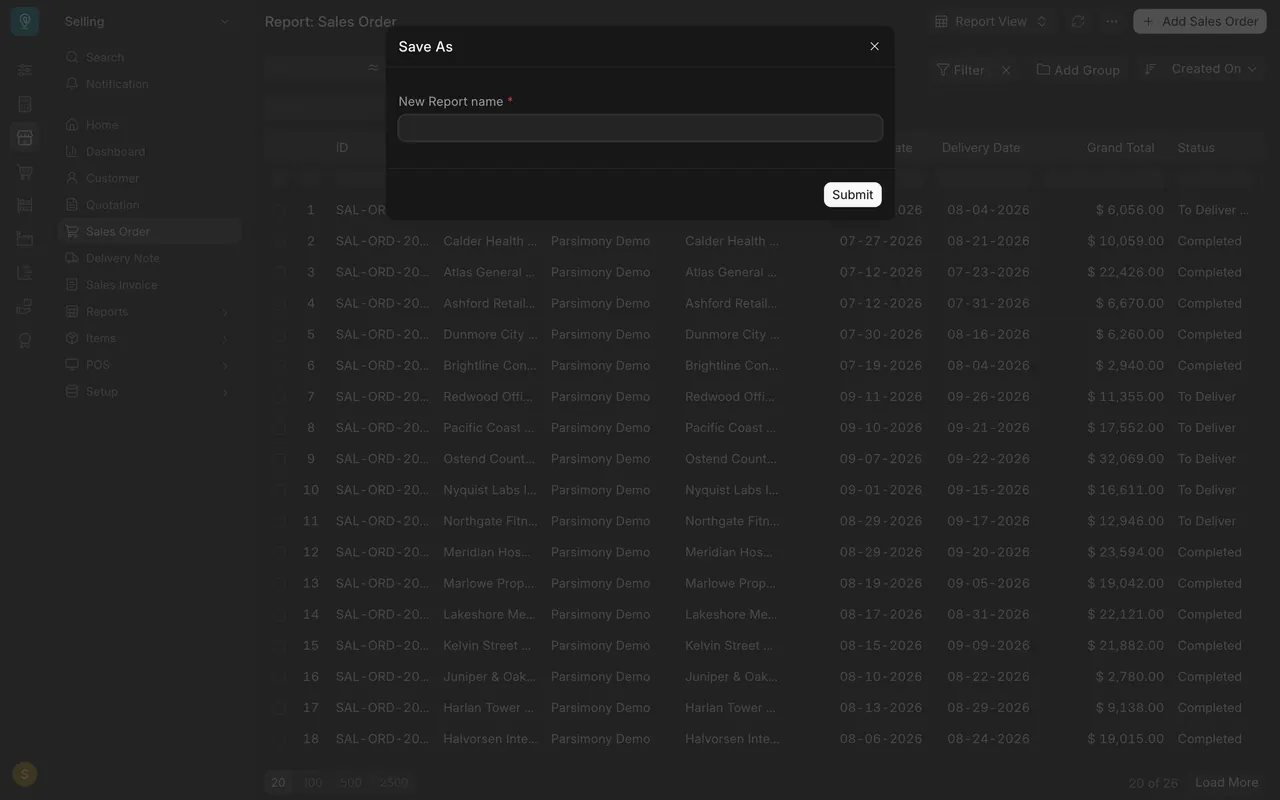
When you open the saved report later, it comes back with its filter, its columns, its sort and its totals row. In its three-dot menu, Save keeps later changes, Save As makes a copy, and Delete removes it.
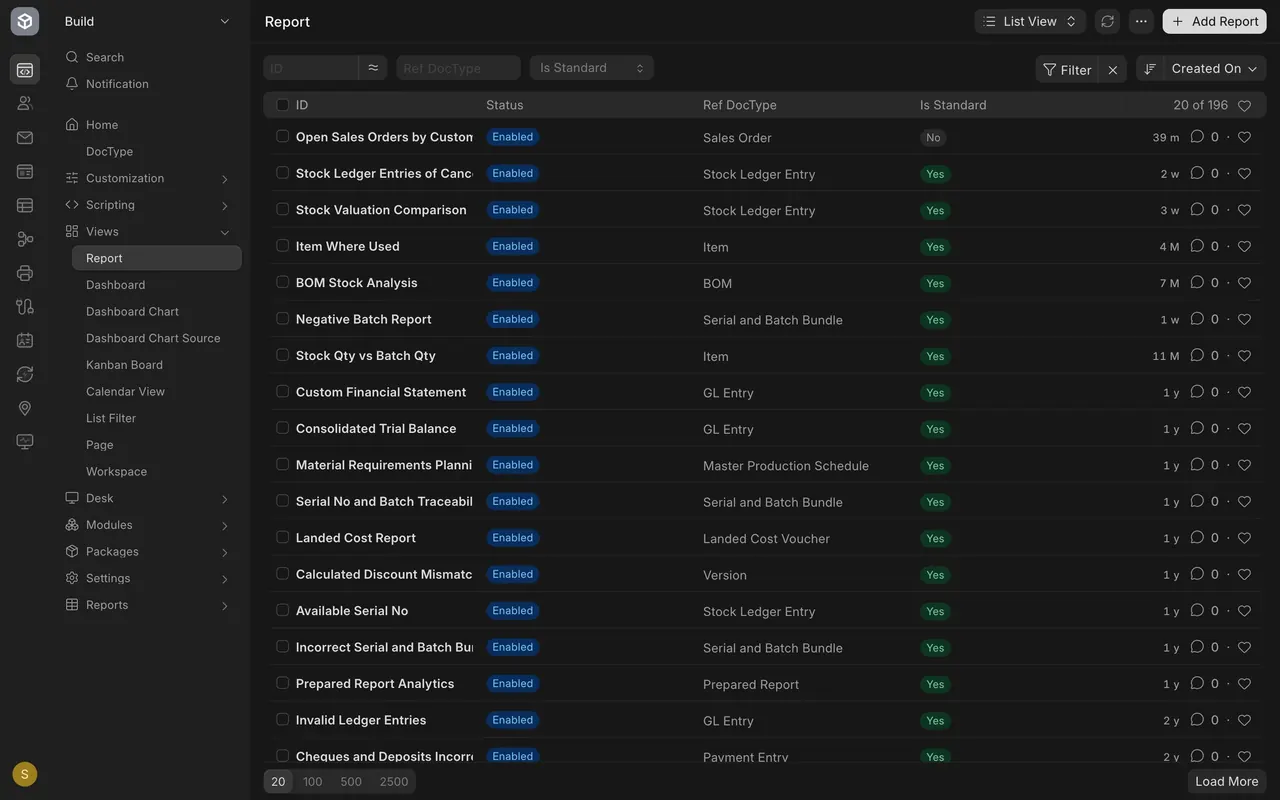
Step 6. Open it and share it from the Report list
- Open the Report list. In the example it is in the Build area, under Views, and your report is near the top. Its Ref DocType is Sales Order and Is Standard is No, because you built it.
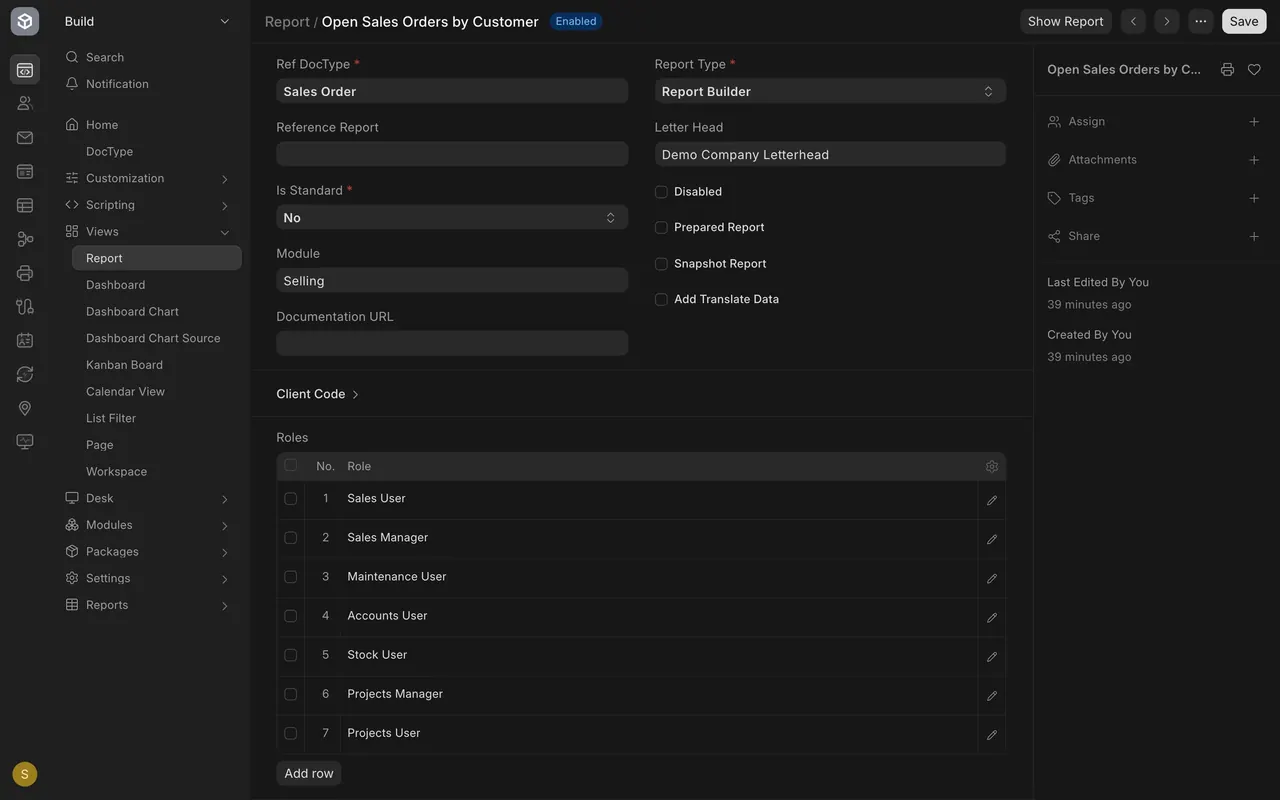
- Open the report. Report Type says Report Builder.
- The Roles table lists who can open the report. Add a row to let another role in.
- To share with one person instead, choose Share in the right sidebar.
- Press Show Report to open the table itself.
What you may see on your own site
- You may not see the Report list or Save As if your administrator has not given your role permission. Ask your administrator.
- The area that holds the Report list and its name in the sidebar can differ on your site.
- The roles in the Roles table are the ones your company has set up.
Common mistakes
- Saving with a filter you forgot was on. The saved report keeps the filter.
- Sharing amounts with the wrong roles. Everyone in a listed role can open the report.
- Forgetting to choose Show Totals. Without it, the Totals row is not there.
- Building on the wrong list. The report belongs to one document type, such as Sales Order.
Check yourself
3 quick questions.
1. Where do you start building a report on the Sales Order list?
2. Which menu item gives a report a name of its own?
3. How do you let a whole team open the report?