V16 Training · Reports and Dashboards · Lesson 5 of 6
Dashboards, charts and number cards
This lesson shows you how to read the dashboards on your Parsimony site, and how to add your own number card or chart from a report.
Written guide
The idea
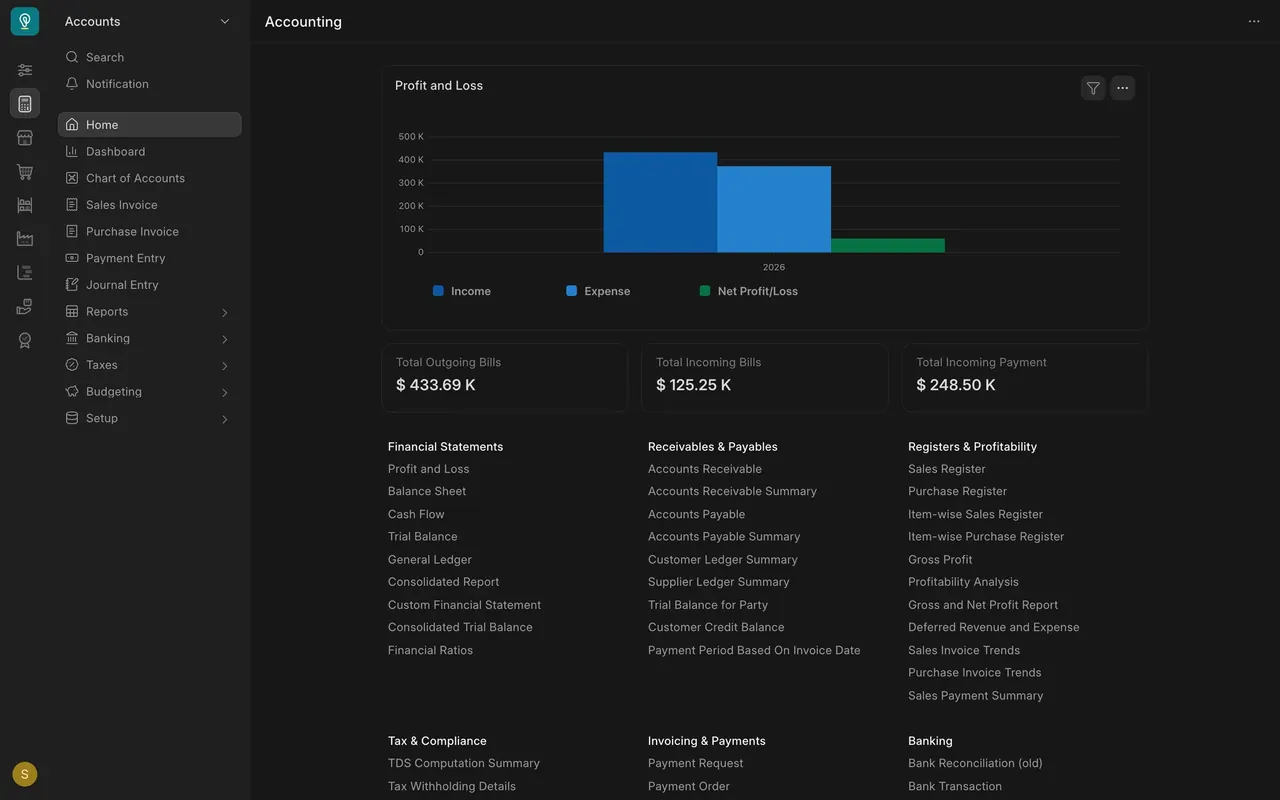
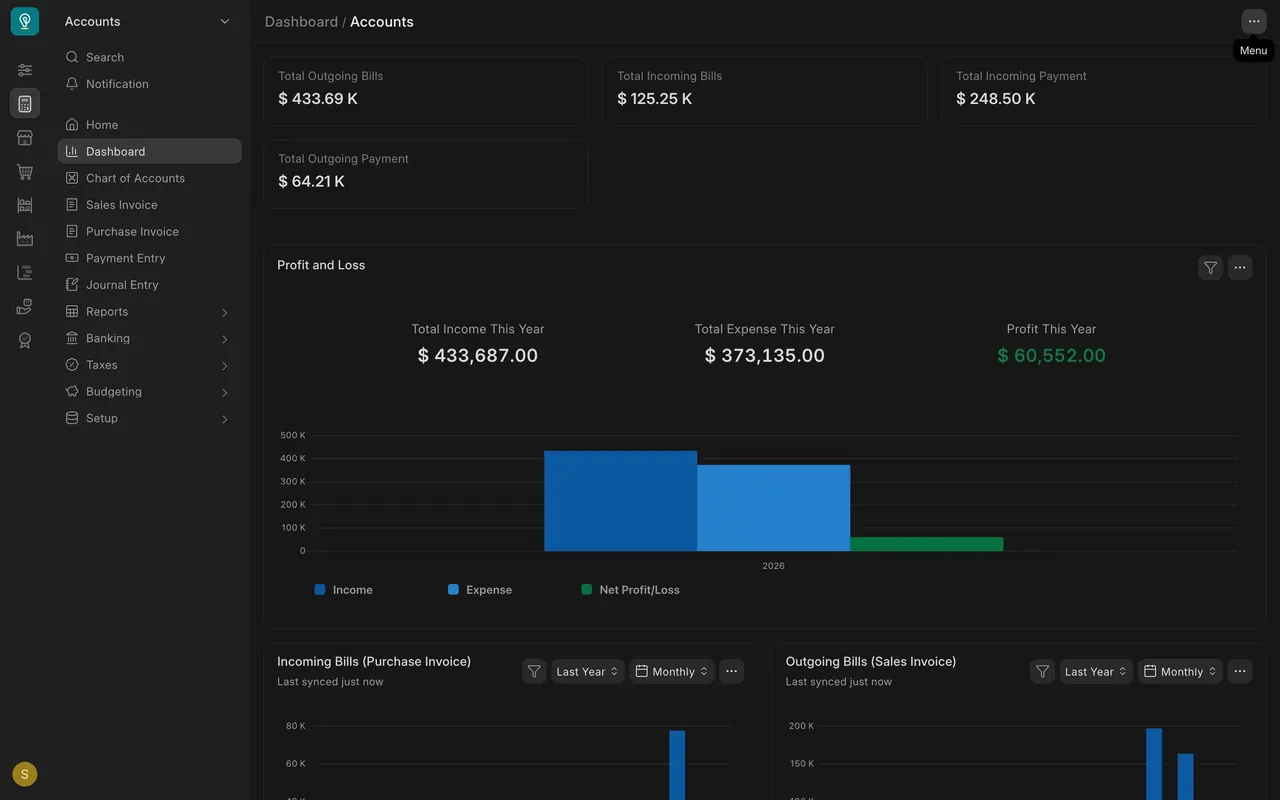
A report answers one question in detail. A dashboard answers many questions in a glance. It is a page of number cards (one figure each) and charts (many figures drawn as bars or lines). Your area's home page shows one chart and a few cards, and the Dashboard item in the sidebar opens the full page.
The screens use example data from a demo company that sells flooring. Your own site shows your company's figures.
Step by step
Read a dashboard
- Open your area's home page. In this example, the Accounting page opens on a chart called Profit and Loss, with income, expense and net profit, and a few number cards under it.
- Open Dashboard in the sidebar for the full page: number cards at the top and charts below them. In this example the profit card reads $60,552.00.
- Each area has its own dashboard. The example has nine, from Accounts to Manufacturing.
Narrow a chart
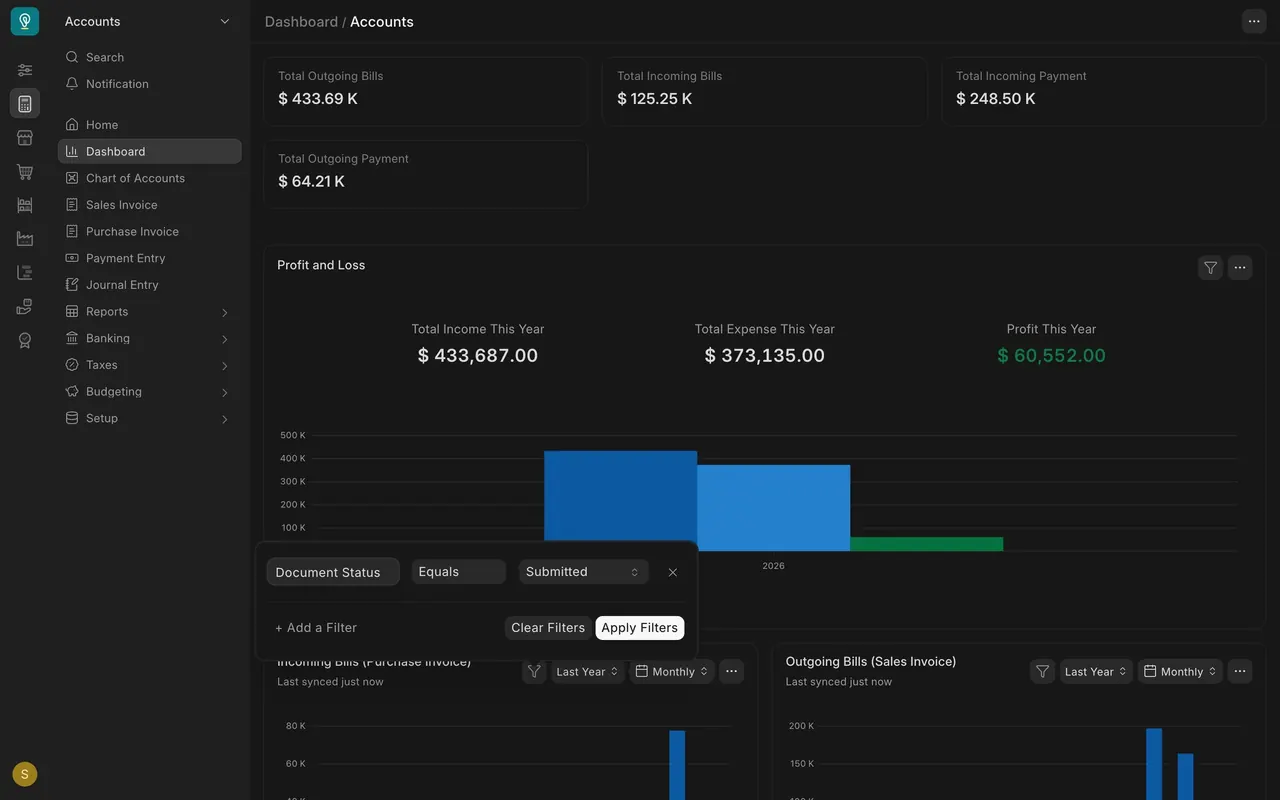
- Step 1. Filter. The funnel button opens the chart's filters, for example Document Status. Choose Apply Filters and the chart redraws. Clear Filters takes them off.
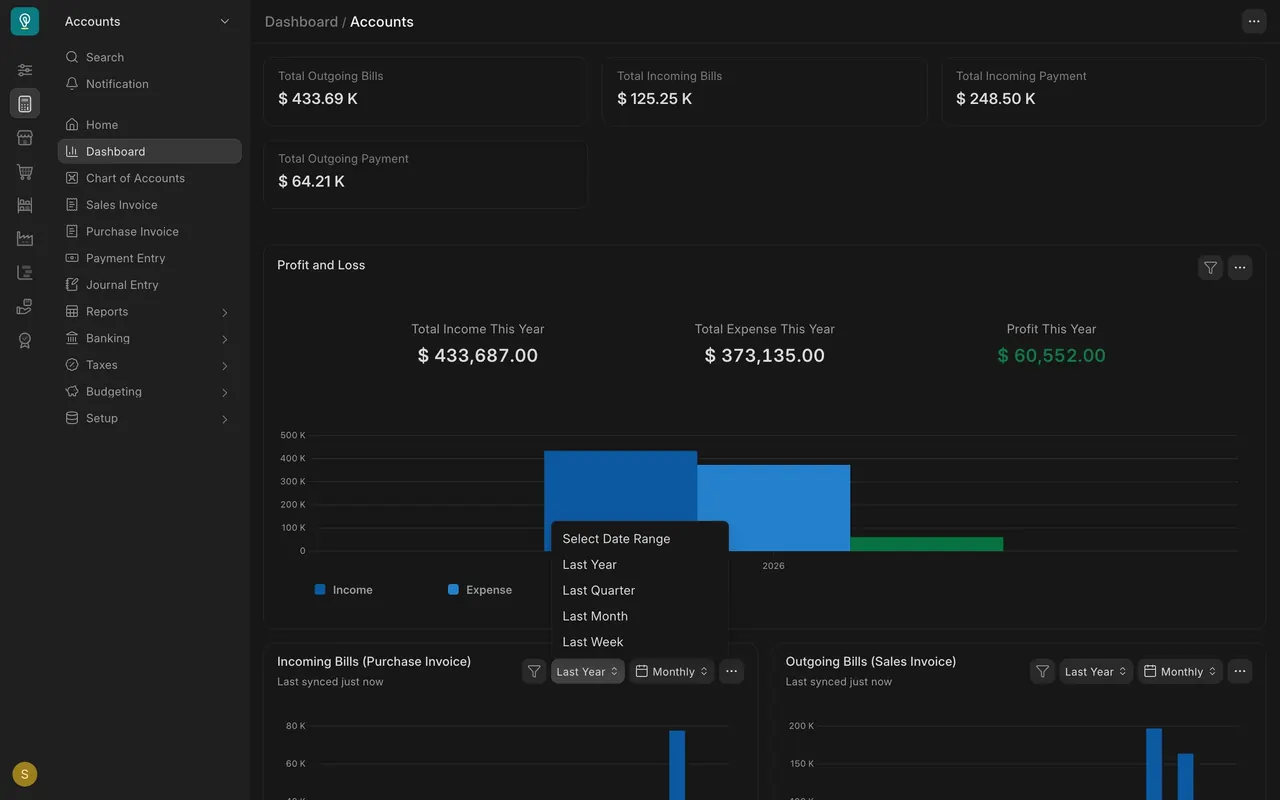
- Step 2. Time range. The first box on a chart picks the range: Last Year, Last Quarter, Last Month or Last Week.
- Step 3. Grouping. The second box groups the bars: Yearly, Quarterly, Monthly, Weekly or Daily.
- The three-dot menu has Refresh, Export and Reset Chart, which undoes your changes.
Add a card or a chart from a report
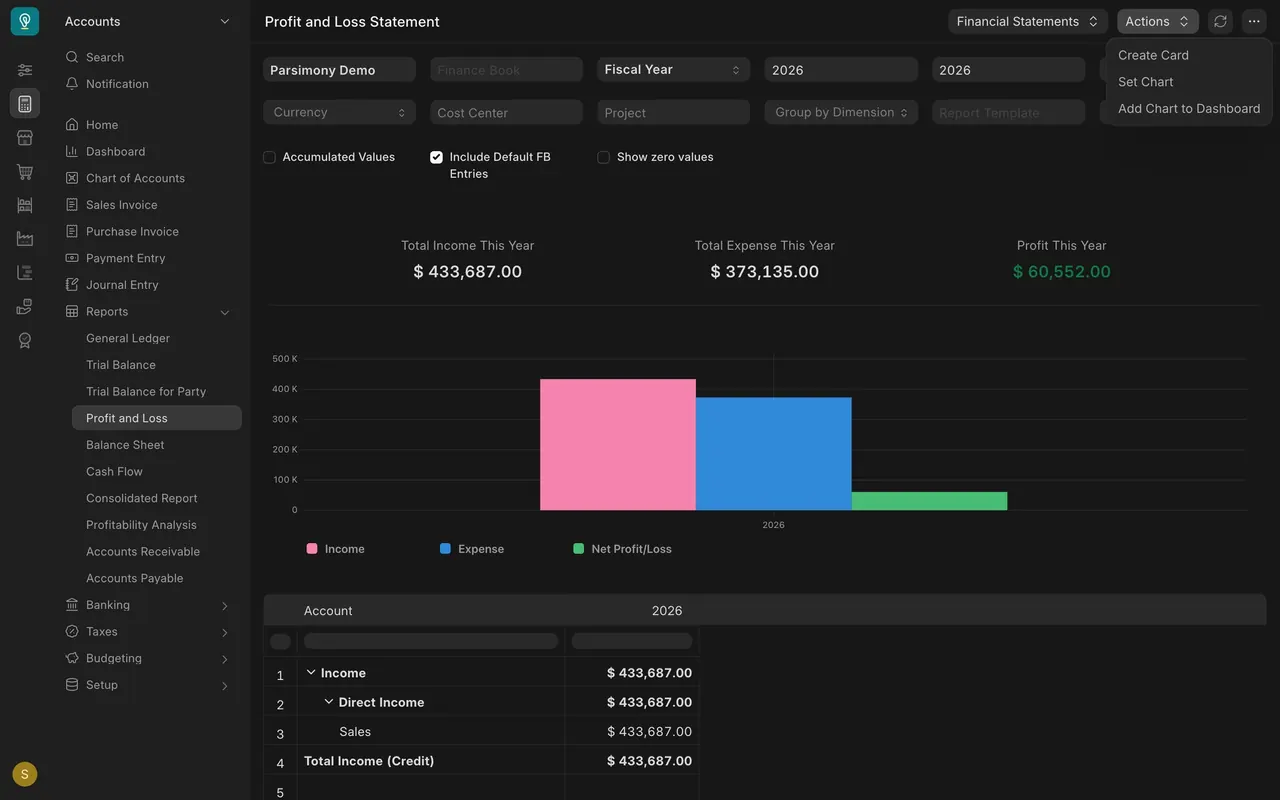
- Step 1. Open a report, for example Profit and Loss Statement.
- Step 2. Open the Actions menu. It lists Create Card and Set Chart.
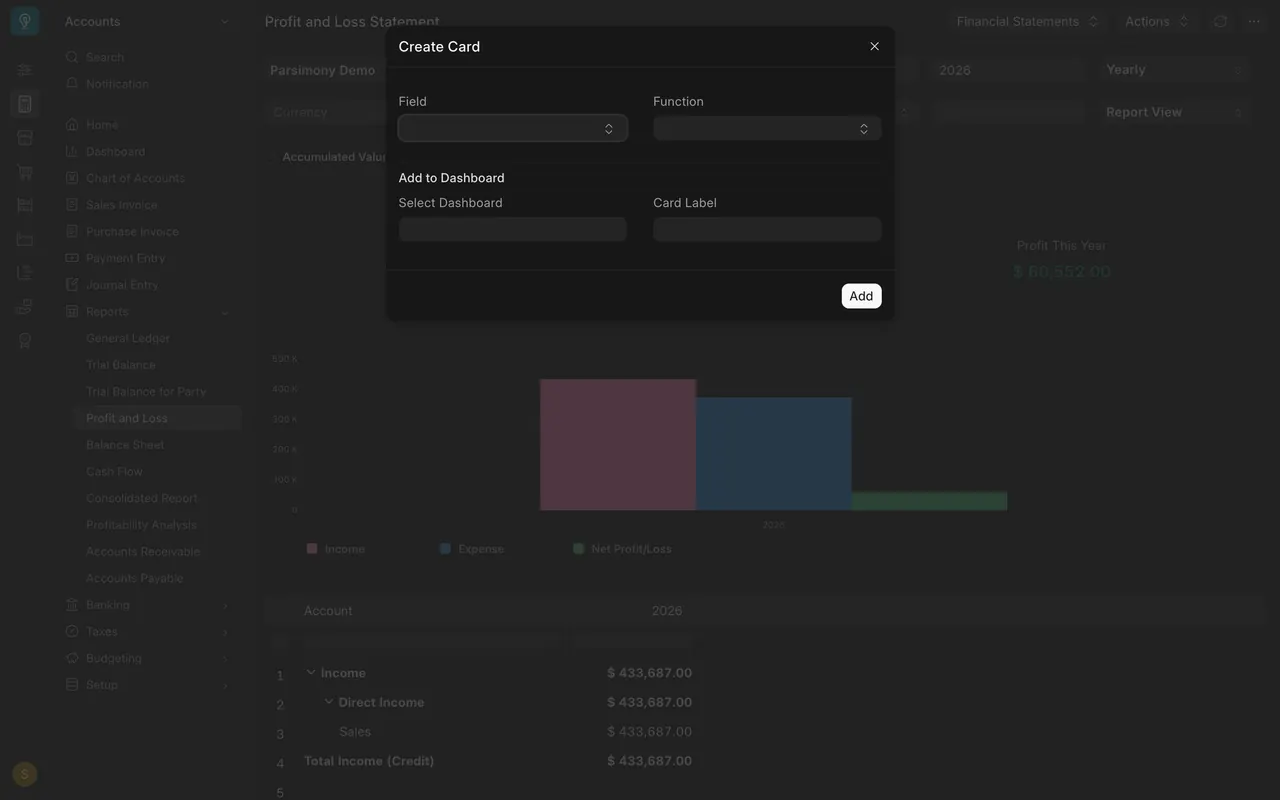
- Step 3. Choose Create Card. Pick a Field and a Function, a dashboard and a Card Label, then choose Add.
- Set Chart works the same way: pick the X Field and the Y Axis, preview the chart, then choose Create.
What you may see on your own site
- Your dashboards and cards depend on the areas your company uses and on what your administrator set up.
- Not everyone sees Create Card and Set Chart. Ask your administrator if they are missing.
- A chart can be empty if there is no data in its range.
Common mistakes
- Reading a chart without checking its time range. Look at the boxes before you quote a figure.
- Forgetting a filter you set. Use Clear Filters or Reset Chart.
- Expecting a card to move with a report. A card keeps the field and function you gave it.
Check yourself
3 quick questions.
1. You want the chart to show only last quarter. What do you do?
2. What does Reset Chart do?
3. Where do you start to add a number card from a report?