V16 Training · Reports and Dashboards · Lesson 6 of 6
Get reports by email
This lesson shows you how to have Parsimony email a report on a schedule, using an Auto Email Report.
Written guide
The idea
An Auto Email Report is a record that says: take this report, with these filters, and email it to these people, on this schedule, in this format. Once it is turned on, nobody has to remember to send it.
The screens use example data from a demo company. In this example there is one Auto Email Report, for Accounts Receivable. It is Disabled, so it sends nothing.
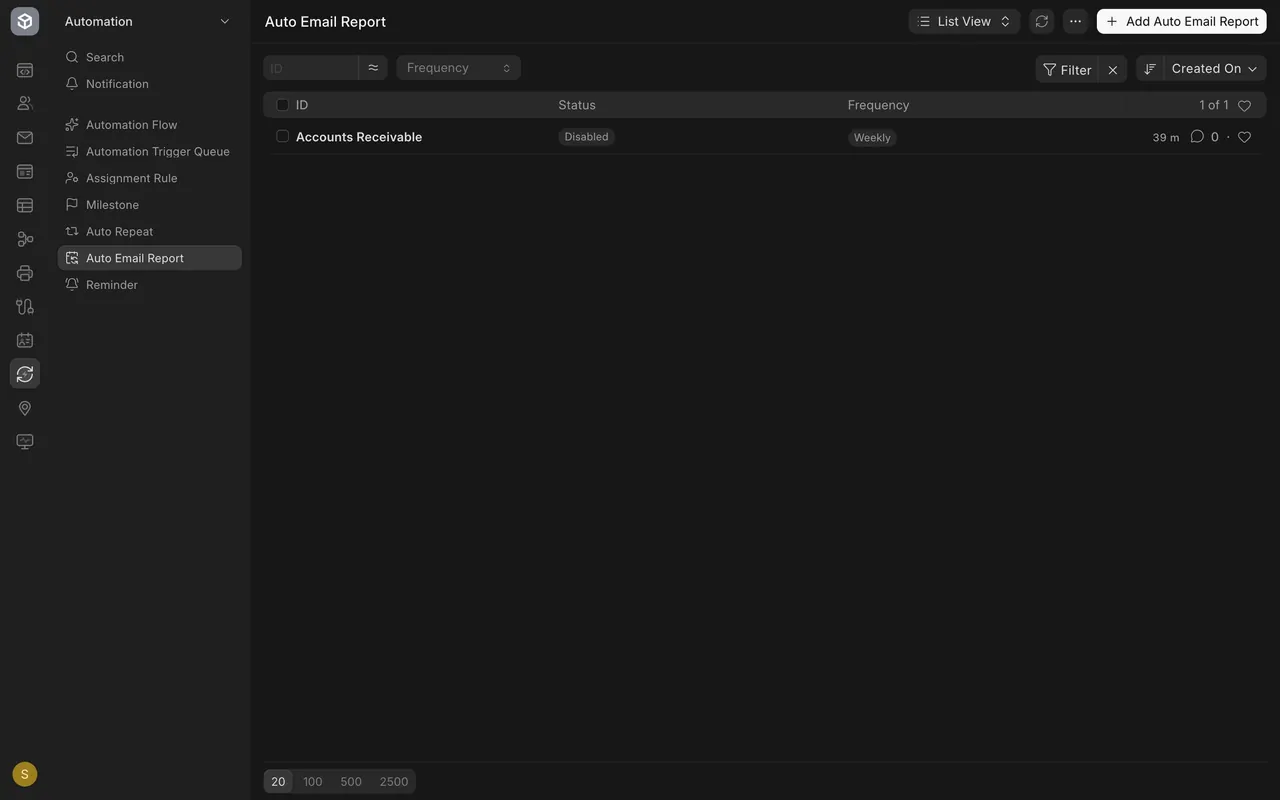
Where to find it
- Open the Automation area and pick Auto Email Report.
- You can also start from a report. Its three-dot menu, next to Print and Export, has Setup Auto Email.
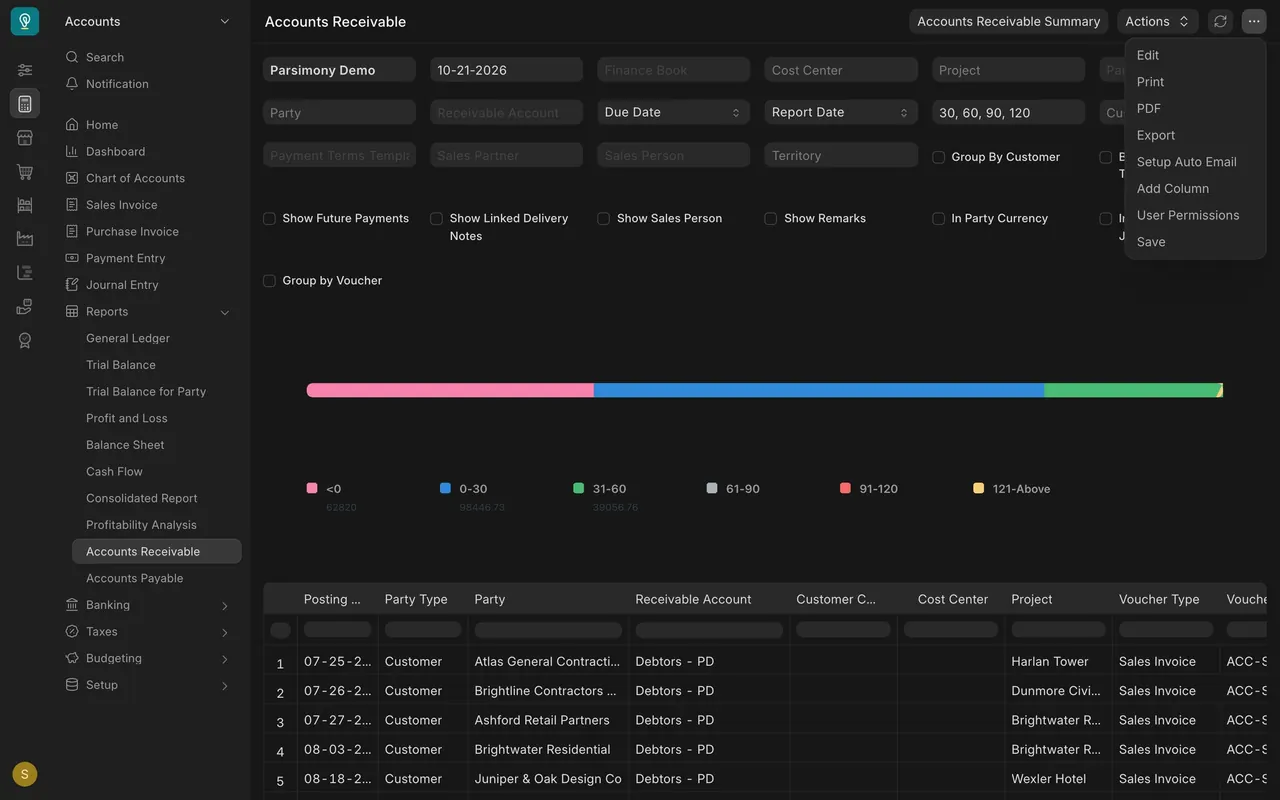
Step by step: the five choices
Step 1. Pick the report
- Report names the report to send. Report Type fills itself in.
- Based on Permissions For User is the person whose access the report uses, so the email holds only what that person may see.

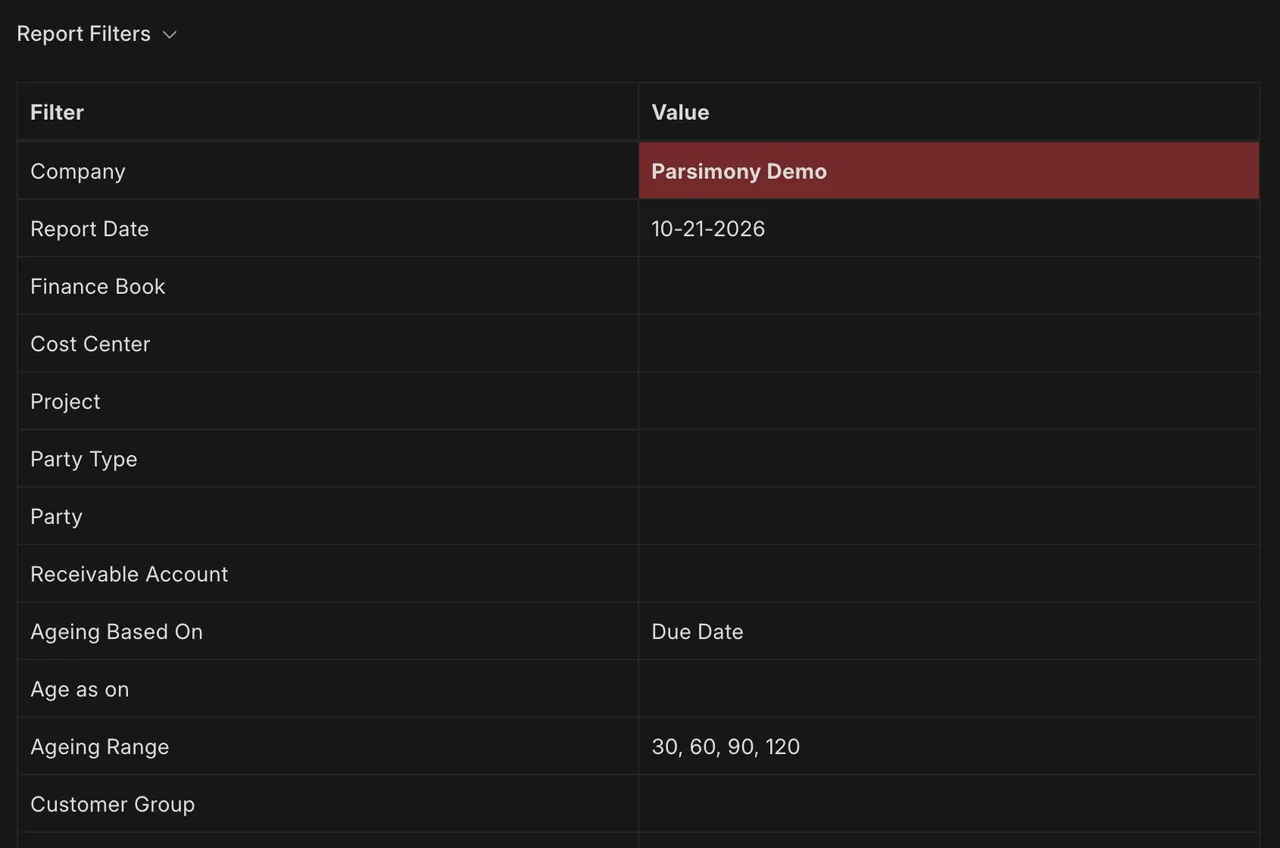
Step 2. Set the filters
- Report Filters holds the same filters you use on screen. In this example: Company, Report Date, Ageing Based On and Ageing Range.
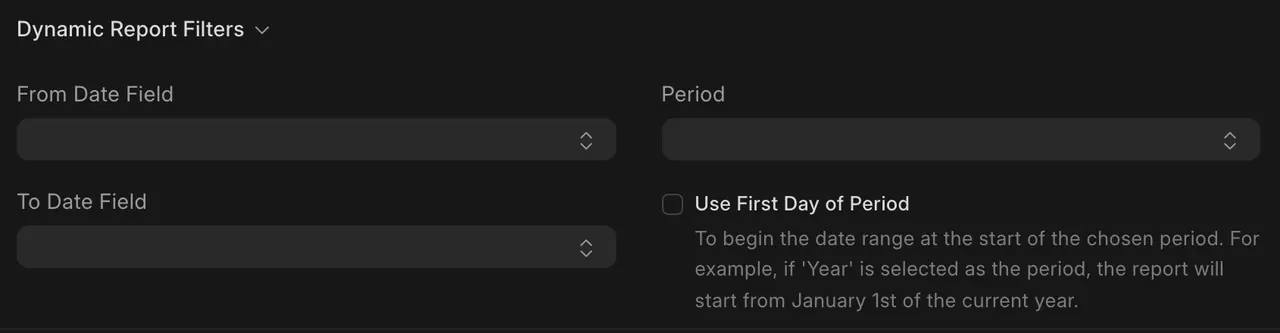
- Dynamic Report Filters (From Date Field, To Date Field, Period, Use First Day of Period) move a date range forward each time the report goes out.
Step 3. Choose who gets it
- Type each address into Email To, one per line.
- In this example there is one address, which is not shown here.

Step 4. Choose when and how
- Frequency says how often. Here it is Weekly, and Day of Week says Monday.
- Format is XLSX, an Excel spreadsheet. A new record starts as Daily and HTML, which puts the report in the body of the email.



Step 5. Turn it on
- The Enabled box is the switch. Empty means nothing is sent.
- Send only if there is any data keeps empty reports out of inboxes.
- Send Now at the top emails the report straight away, and Download gives you the file. Use them only when you mean to.



Does it send on your site?
Auto Email Report only sends if your site is set up to send email. If it is not, ask your administrator.
What you may see on your own site
- Your report list, names and addresses are your own.
- The first time you set one up, the form opens with Daily and HTML.
- The menu item Setup Auto Email is on reports; not every report has it.
Common mistakes
- Ticking Enabled before reading Email To. Check every address first.
- Sending to someone who may not see the data. The report holds what the chosen user may see.
- Forgetting the Day of Week. A weekly report goes out on that day.
- Expecting email on a site that is not set up to send. Ask your administrator.
Check yourself
3 quick questions.
1. What does the Enabled box do on an Auto Email Report?
2. Where do you type who gets the report?
3. You set up a weekly report on a site that is not set up to send email. What happens?