V16 Training · Projects · Lesson 3 of 6
Tasks
This lesson shows how to create a task, assign it to a person, link it to other work, and read its status, including Overdue.
Written guide
The idea
A task is one job inside a project: measure the site, confirm the lead times with the mill, schedule the install crew. Each task has a subject, a project, a status, a priority, an optional person, and dates. The screens use example data from a demo company that sells flooring. Your own Parsimony site shows your company's tasks.
Step by step
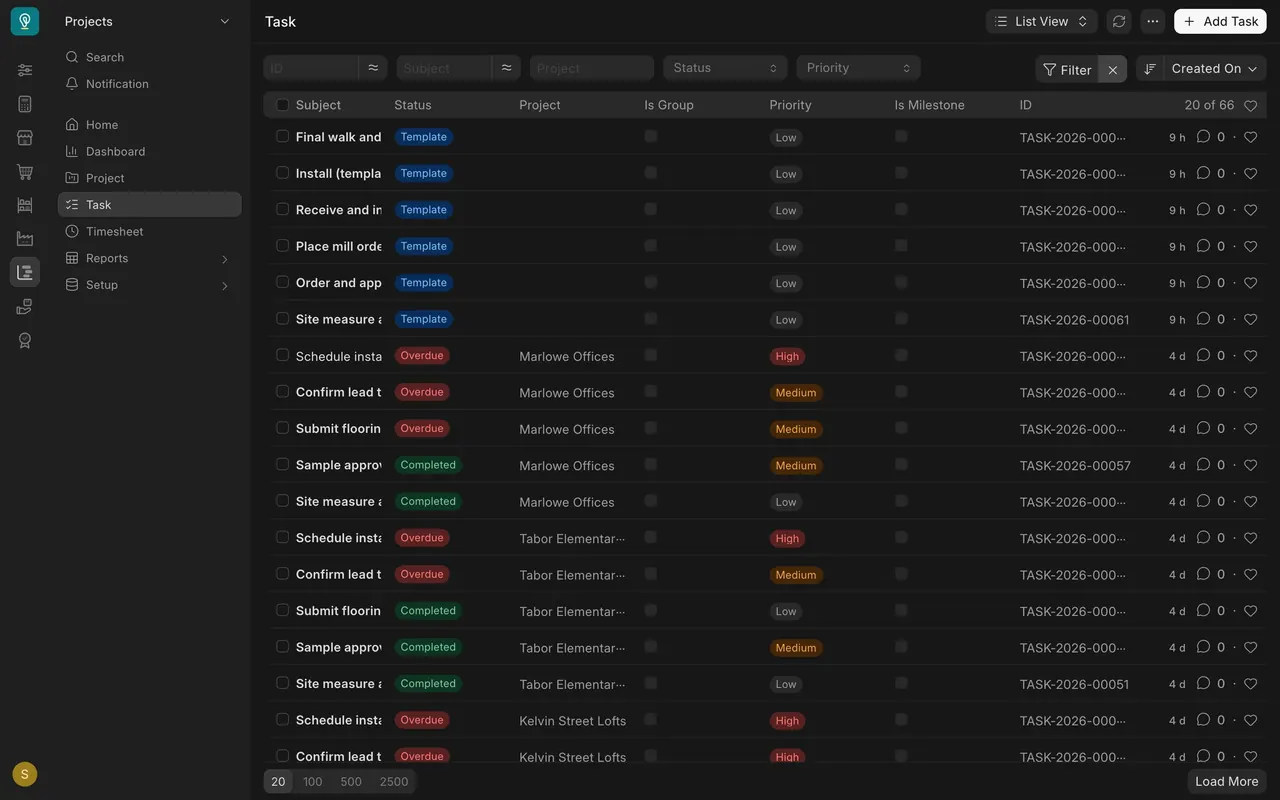
Read the Task list
- Open Task in the Projects module.
- Each row shows the Subject, Status, Project and Priority. In this example there are sixty-six tasks, and six of them have the status Template: they are patterns for starting a new job.
Open one task
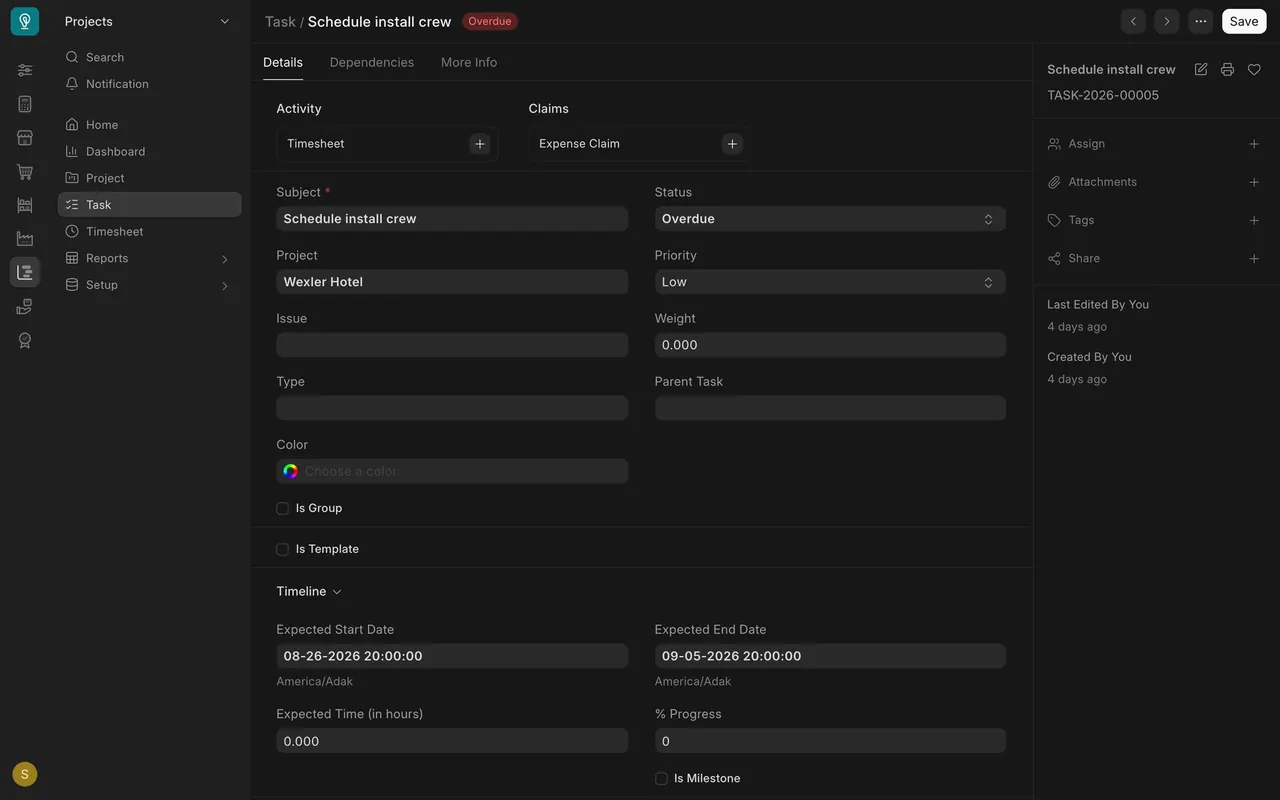
- Open a task. The form holds the Subject, the Project, the Priority and the Status.
- The Timeline section holds the Expected Start Date and the Expected End Date.
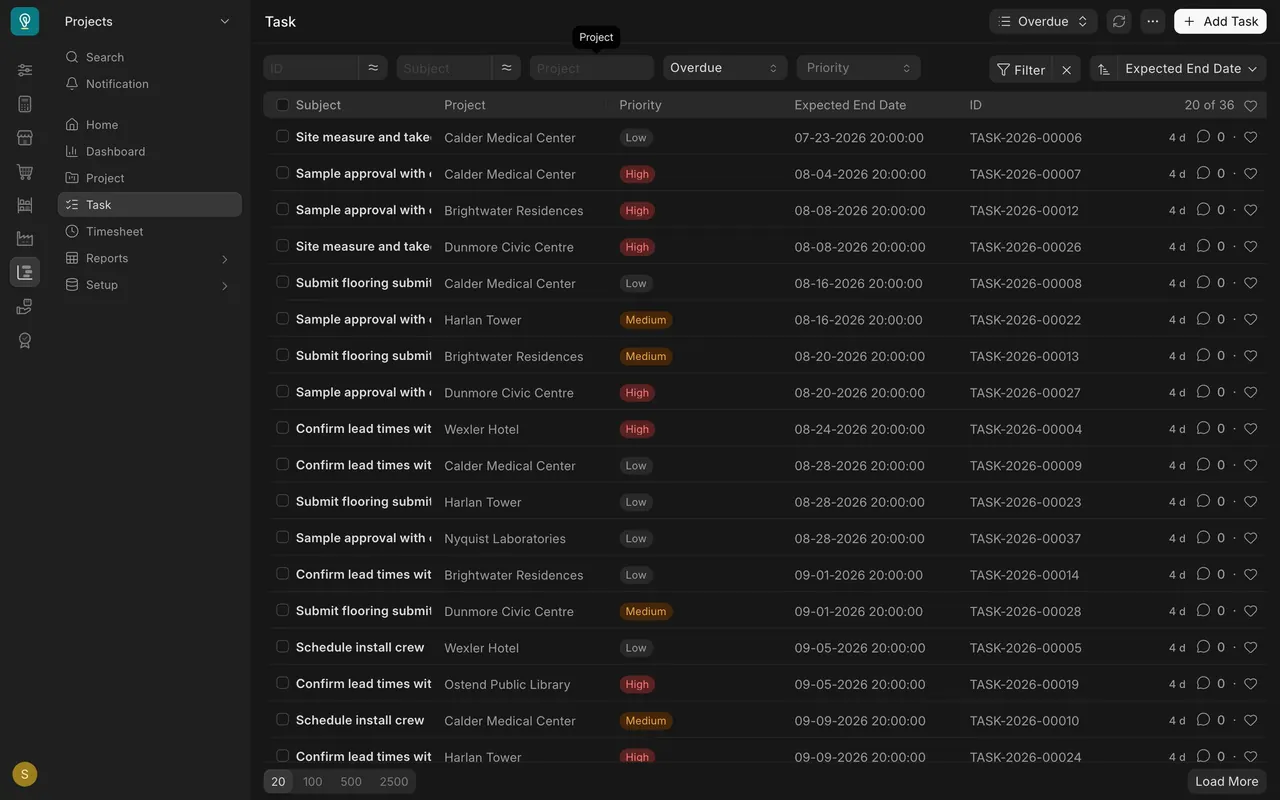
- Overdue is a status. In this example the expected end date has passed and the work is not finished. Filter the list by Status to see only those tasks. Here there are thirty-six, which is a normal part of a busy job.
Step 1: start the task
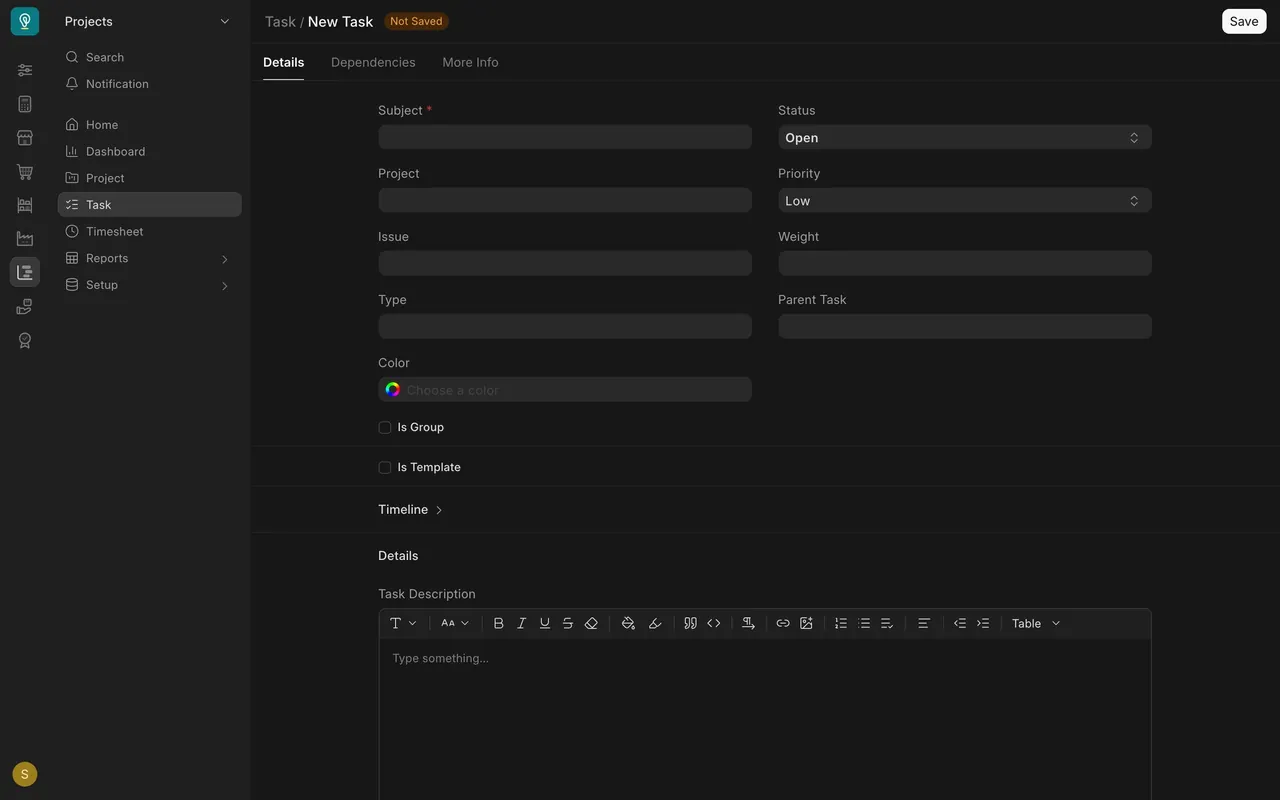
- Choose Add Task on the list. A blank form opens.
- Fill in the Subject and the Project, and set the Priority. The Status starts as Open.
Step 2: assign it
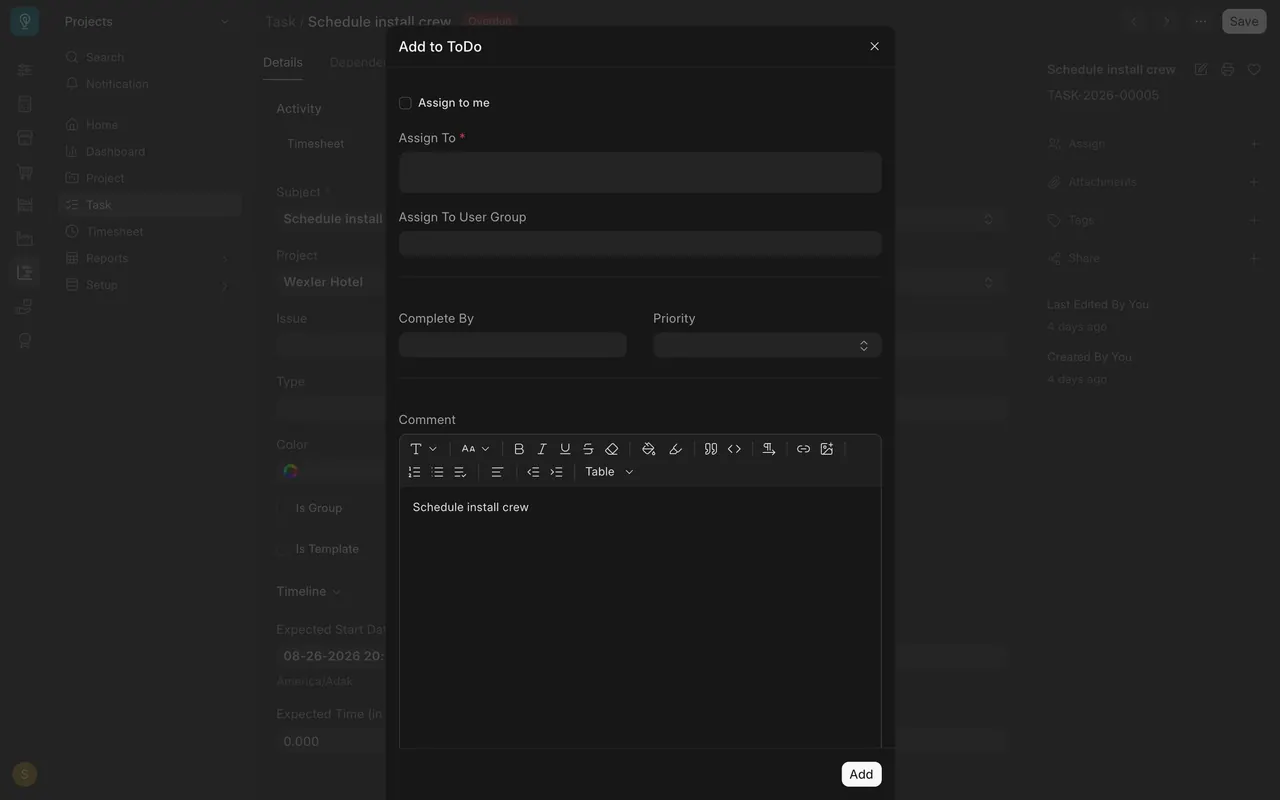
- In the sidebar of the task, choose Assign.
- In the Add to ToDo box, pick the person in Assign To. You can also set Complete By and a Priority.
- Choose Add.
Step 3: link it to other work
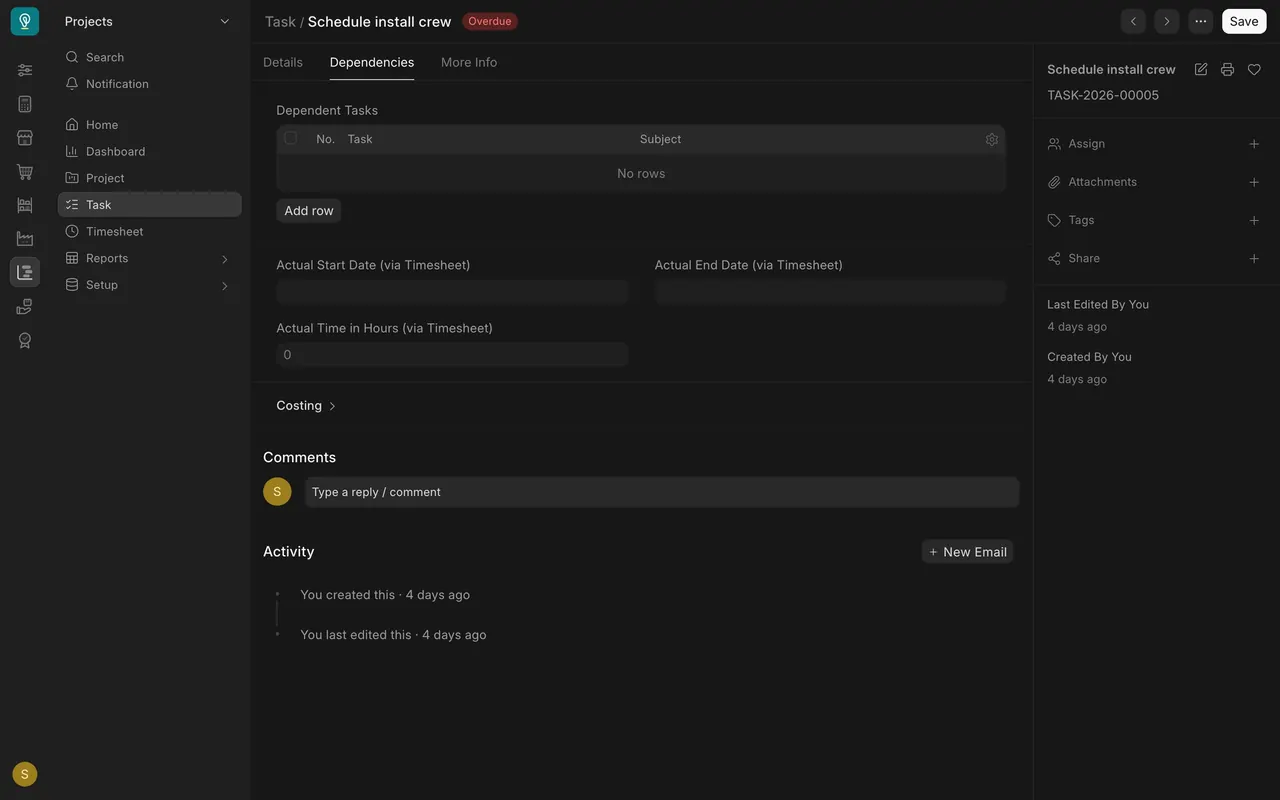
- In Parent Task, pick a larger task. The larger task is the one marked Is Group.
- On the Dependencies tab, the Dependent Tasks table lists other tasks. It is empty here because this task waits for nothing. To make a task wait for another one, choose Add row and pick the other task.
See tasks on a calendar
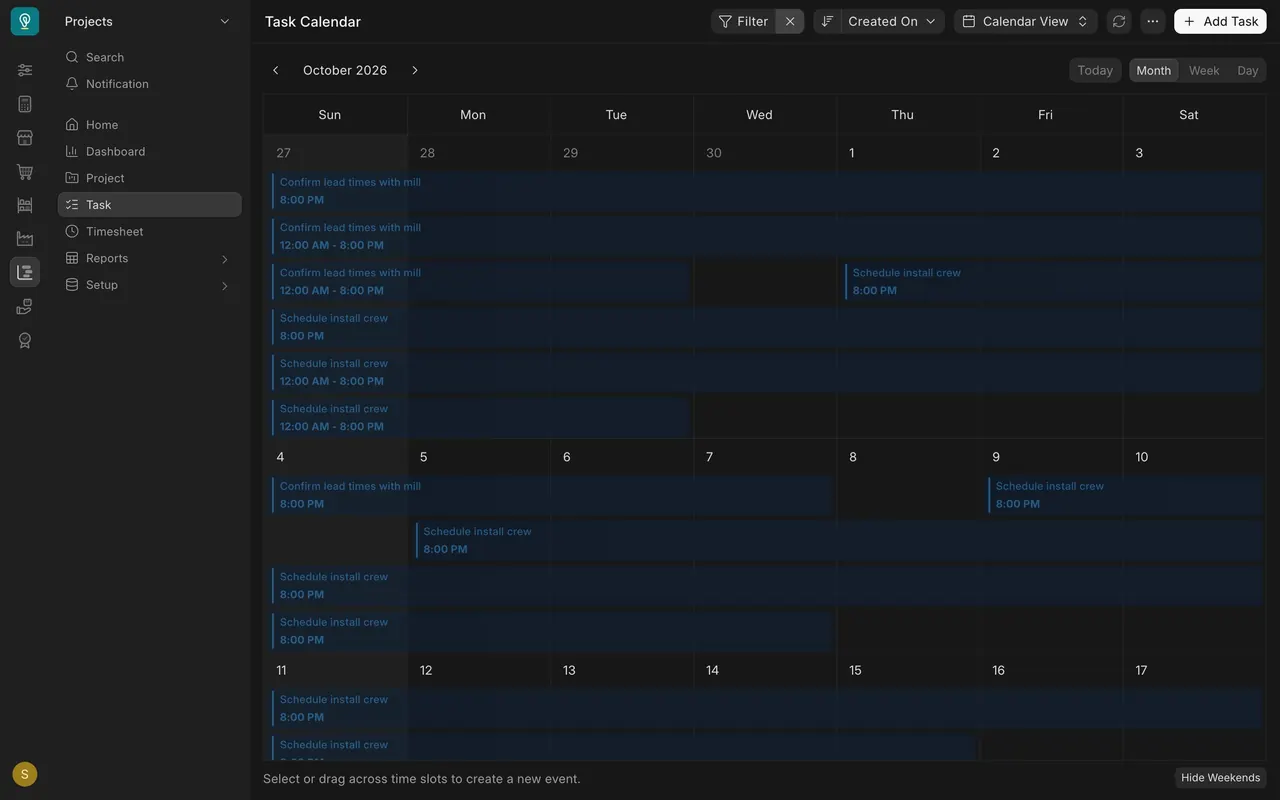
The calendar view lays each task across the days between its start and its end, so you can see what is on this week and what comes next.
What you may see on your own site
- Your tasks, projects and people are your own. A new site may have no tasks yet.
- The list may open with a saved filter, such as Status Open. Clear it with the small X beside Filter to see every task.
- Other views, such as Kanban and Gantt, appear in the view menu only when your site has them set up. This lesson does not cover them.
Common mistakes
- Reading Overdue as a failure. It only says the expected end date has passed and the status is not Completed.
- Forgetting to set Completed. When the work is done, change the status so the task stops counting as overdue.
- Assigning with no Complete By date. The task still shows up for the person, but nothing tells them when it is due.
- Leaving a filter on. A saved Status filter can make the list look empty.
Check yourself
3 quick questions.
1. A task has an expected end date last month and its status is not Completed. What status do you see?
2. How do you put a task under a larger task?
3. Where do you choose who does the task and by when?