V16 Training · Projects · Lesson 2 of 6
Link a project to a sales order
This lesson shows how a project is tied to the sales order, delivery and invoice for one job, and how a project template fills in the tasks.
Written guide
The idea
A project is the folder for one job. It only knows about your orders, deliveries and invoices when each document carries the Project link. Three small links do the work: the project on the document, the customer and sales order on the project, and a template for the tasks. The screens use example data from a demo company that sells flooring; the project names are invented.
Step by step
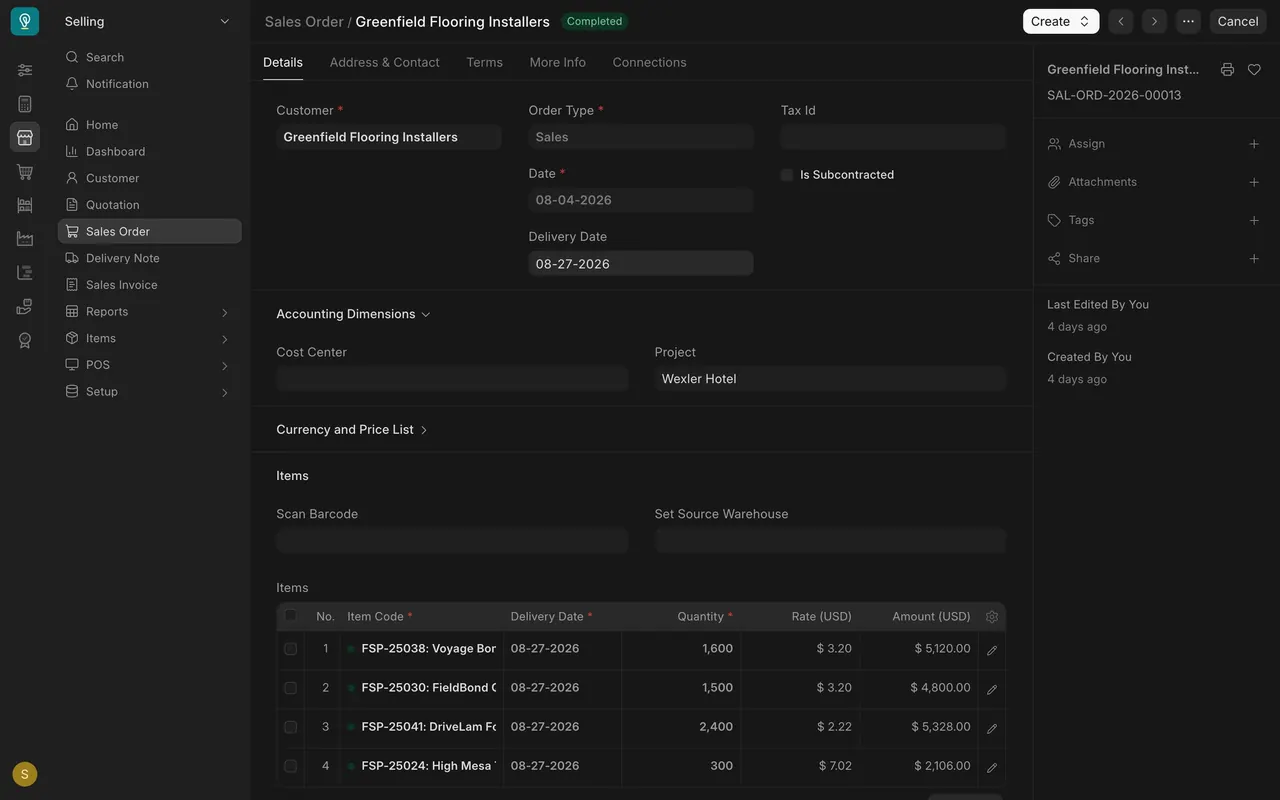
Step 1. Find the Project box on a sales order
- Open a sales order and open the Accounting Dimensions section.
- The Project box holds the project, here Wexler Hotel. Delivery notes and sales invoices can carry the same link.
Step 2. See it in Connections
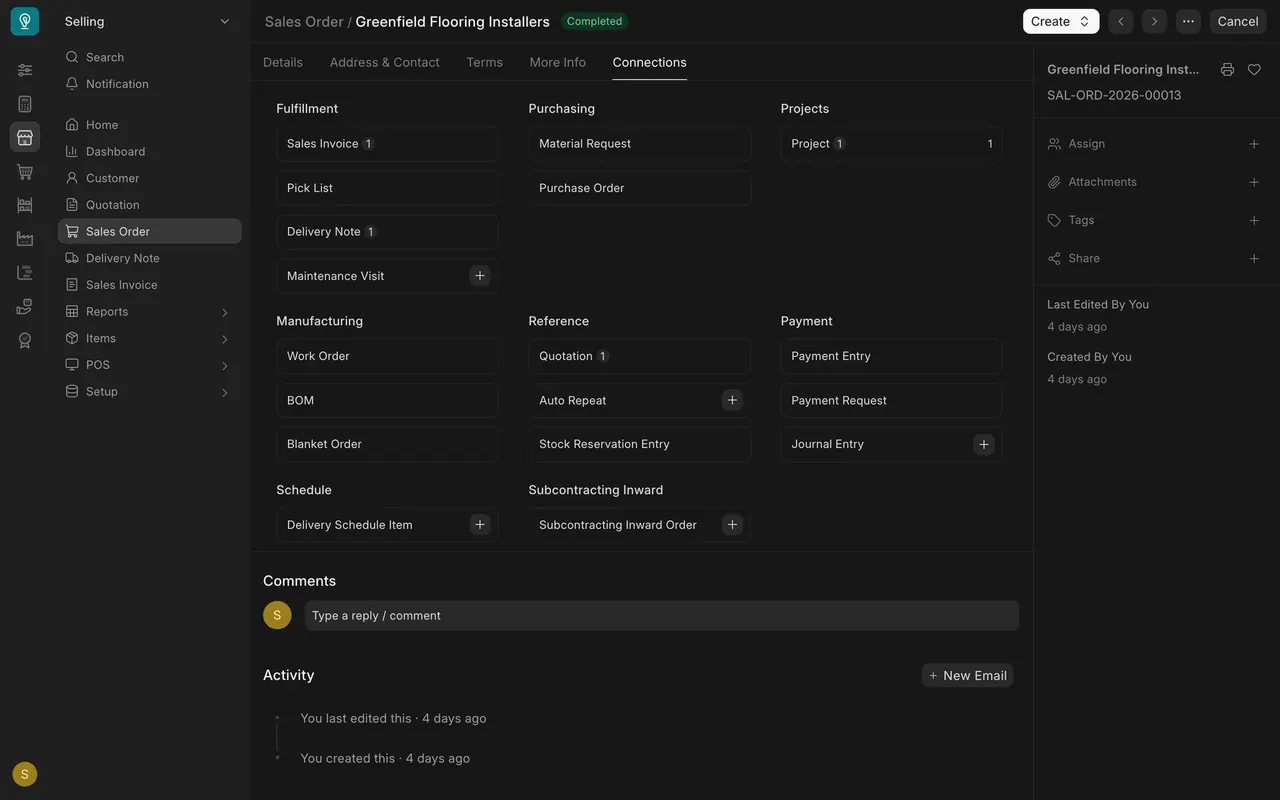
- Open the Connections tab of the sales order.
- Under Projects it counts one project.
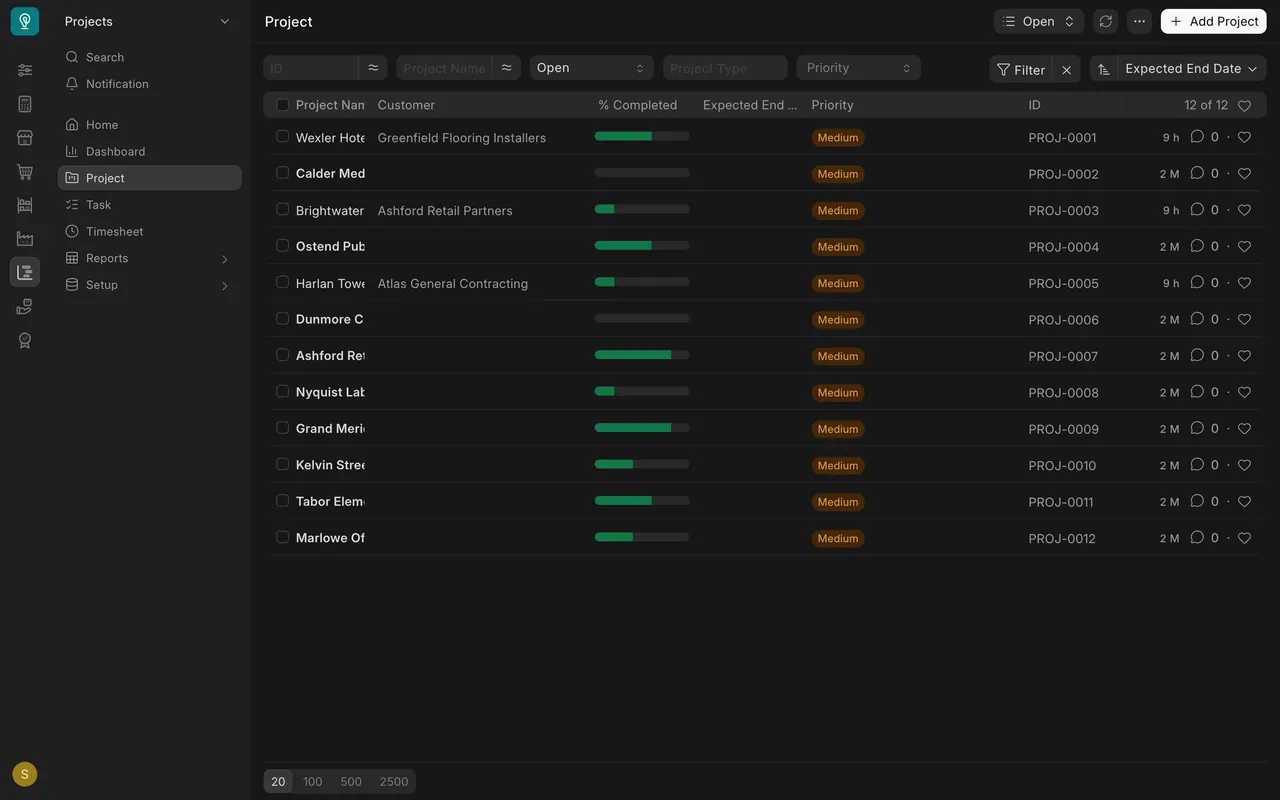
The project list also shows the Customer on projects that have one.
Step 3. Read the customer and order on the project
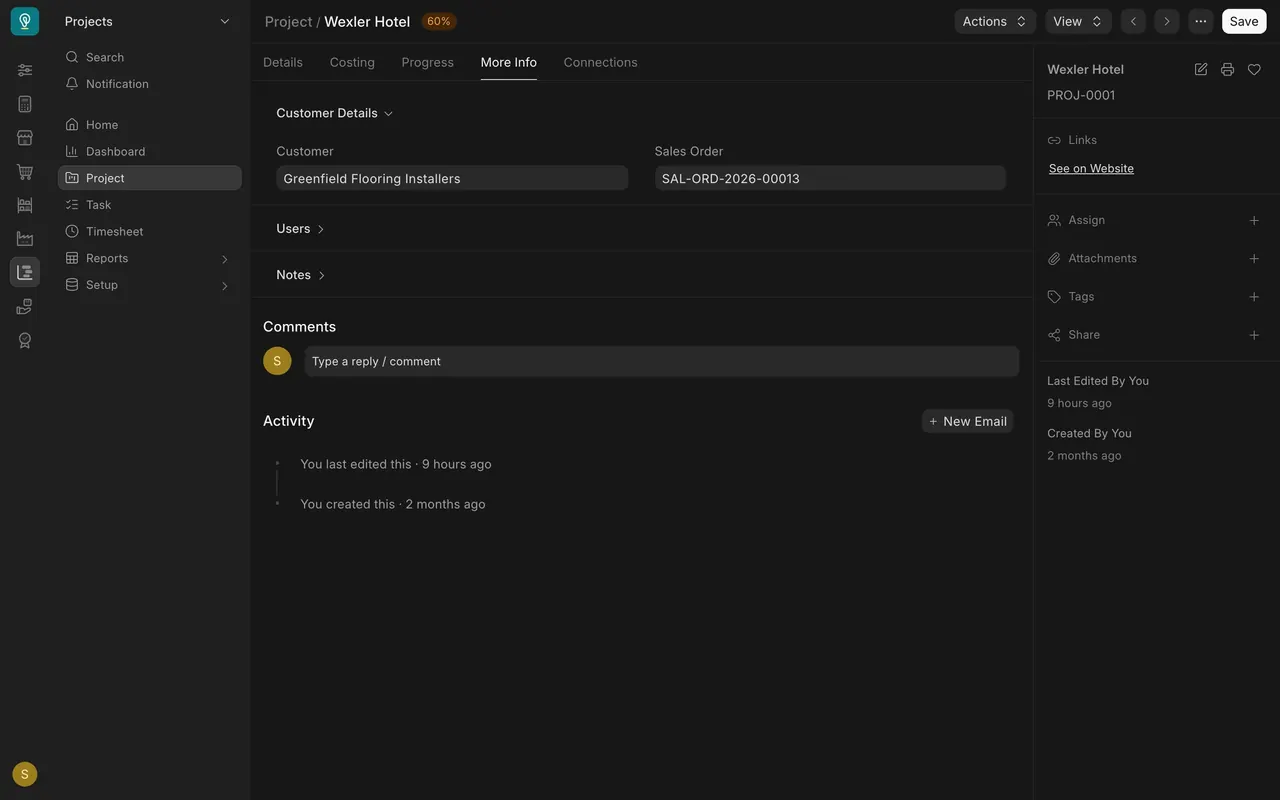
- Open the project, choose the More Info tab and open Customer Details.
- The Customer and Sales Order boxes tie the project back to the sale.
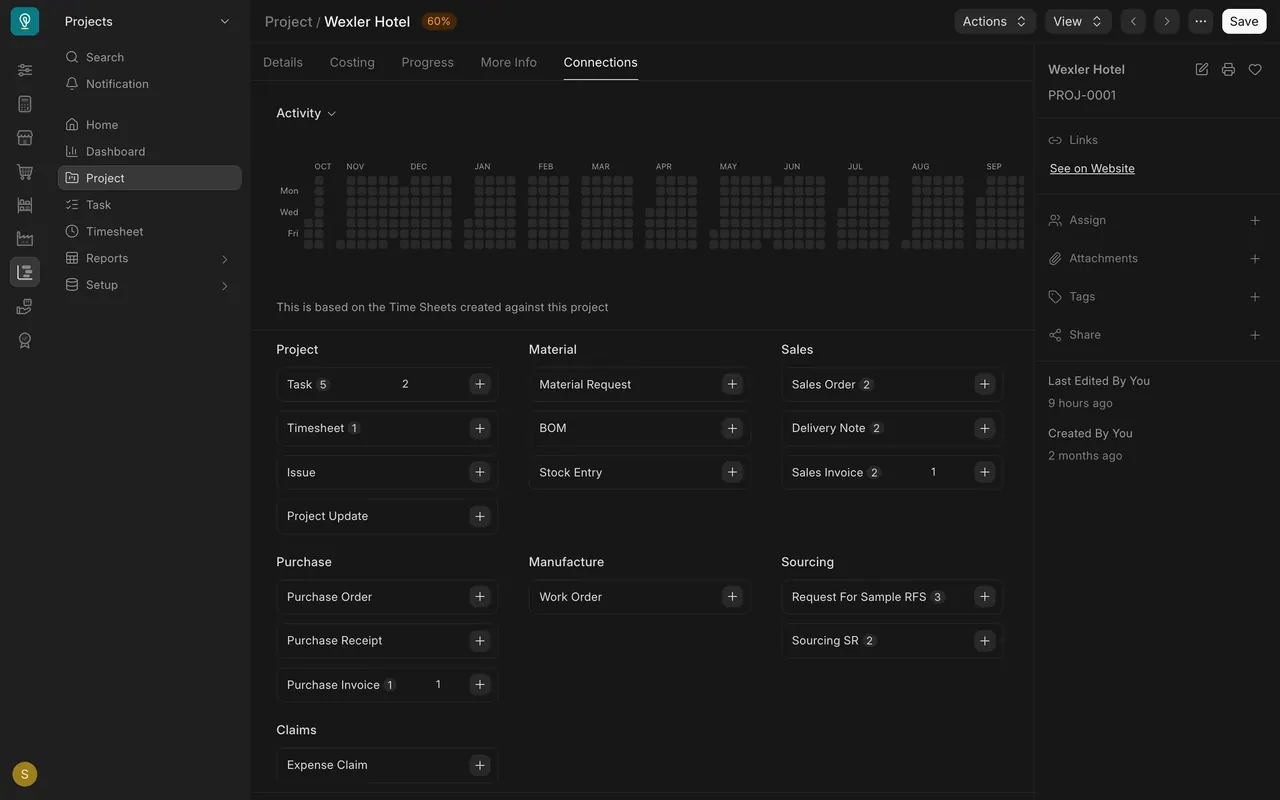
Step 4. Open the project's Connections
- Choose the Connections tab of the project.
- Under Sales you see its sales orders, delivery notes and sales invoices, gathered by the one project link. Tasks, timesheets and purchase invoices appear as well.
Step 5. Start from a template
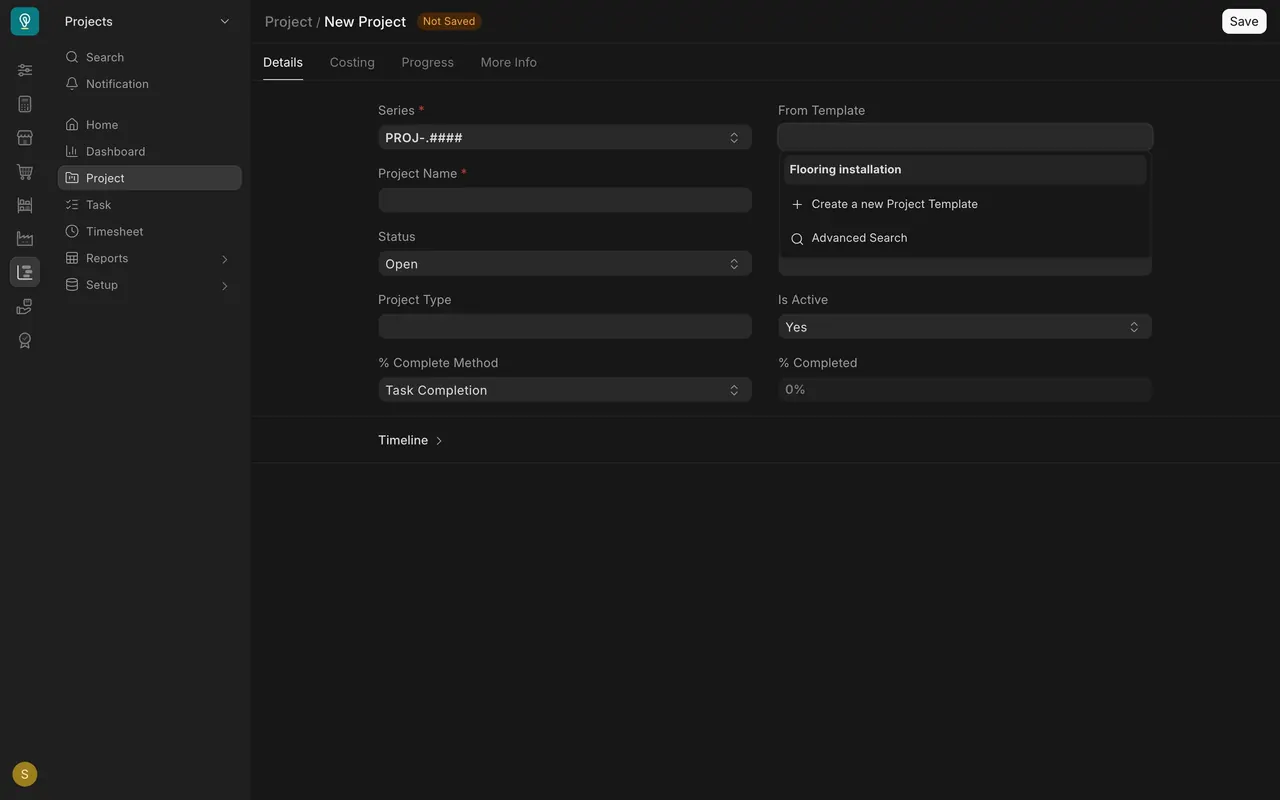
- On a new project, open the From Template box. This example offers one template, Flooring installation.
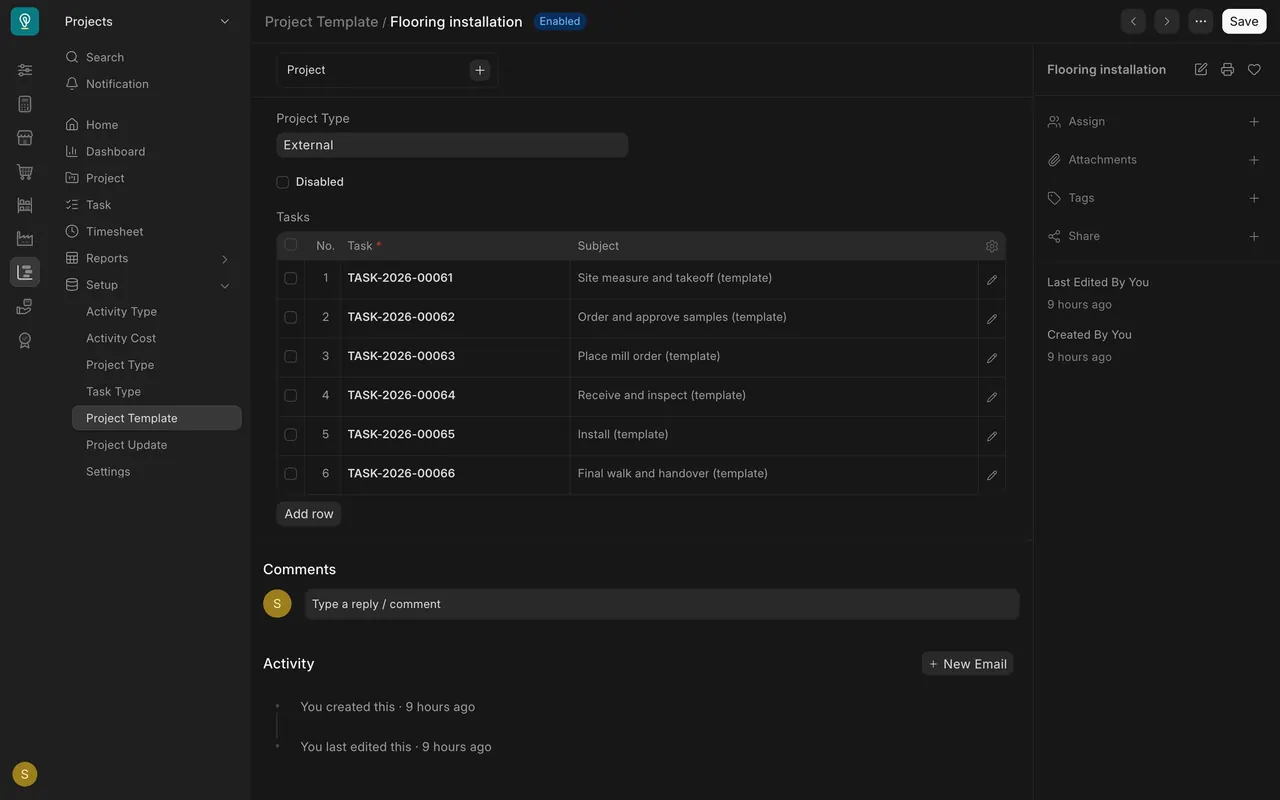
- That template holds six tasks: site measure and takeoff, order and approve samples, place mill order, receive and inspect, install, final walk and handover.
What you may see on your own site
- Your projects, customers and templates are your own; you may have no template yet.
- The Project box may sit in a different place on a document that has no Accounting Dimensions section open by default.
Common mistakes
- Leaving the Project box empty. The order then never shows on the project.
- Typing the project name instead of choosing it. Choose it from the list so the link works.
- Retyping the same tasks on every project. Pick the template instead.
Check yourself
3 quick questions.
1. Where do you set the project for a sales order?
2. What does the Sales block on a project's Connections tab show?
3. What is the From Template box on a new project for?