V16 Training · Projects · Lesson 4 of 6
Project-wise delivery and billing
This lesson shows how to see, for one project, what was ordered, what was delivered and what was billed. The screens use example data from a demo company that sells flooring.
Written guide
The idea
When sales orders, delivery notes and sales invoices carry the same Project, each list can be filtered to one job. Comparing the three tells you where the job stands.
Step by step
Step 1. Open the project's connections
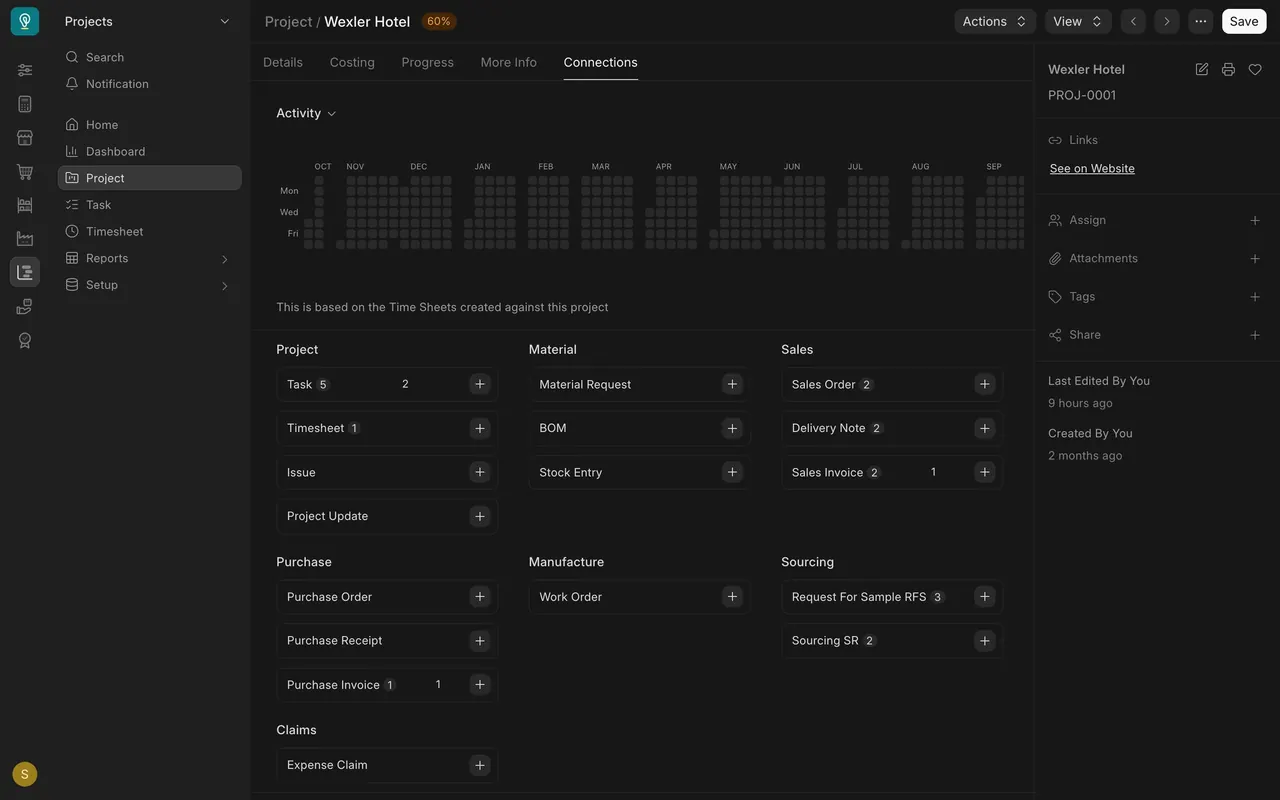
- Open the project and choose the Connections tab.
- Under Sales, the tiles count the sales orders, delivery notes and sales invoices for this project. Here the Wexler Hotel project has two of each.
Step 2. Filter the sales orders
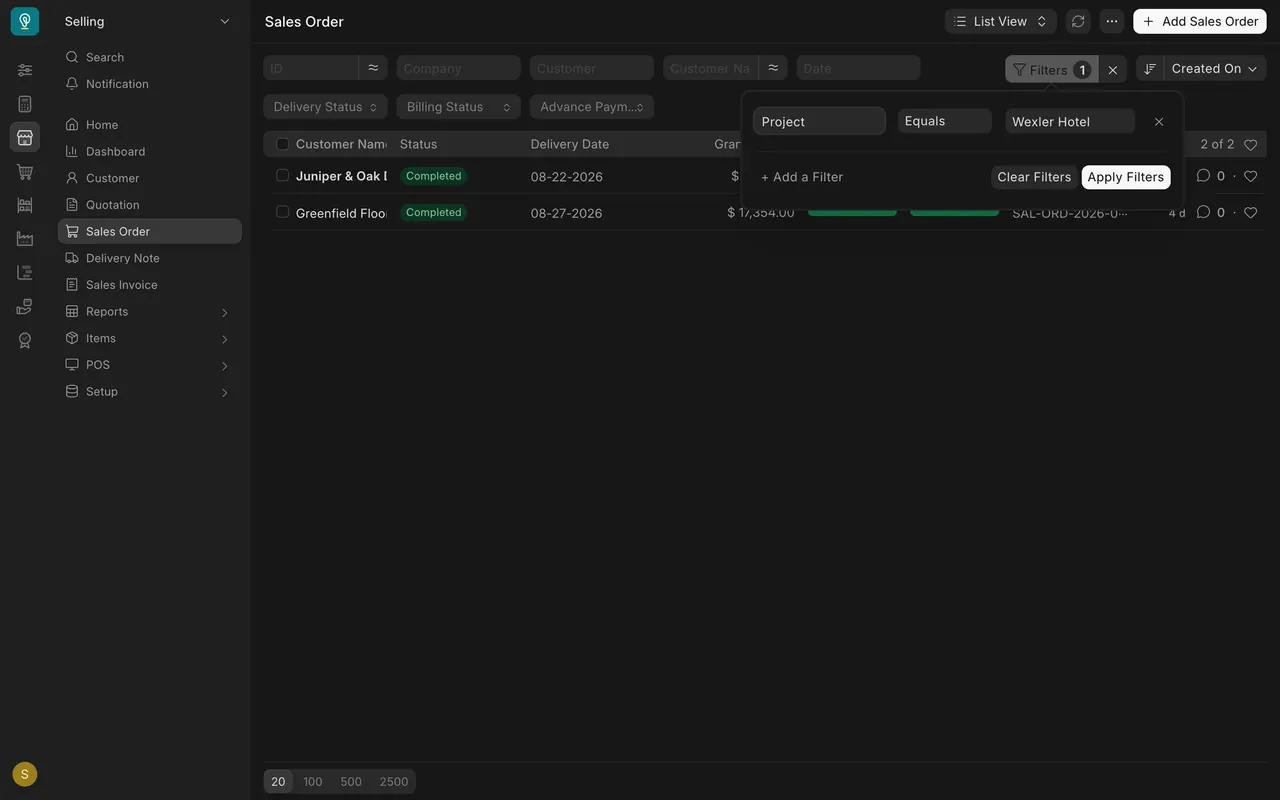
- Open the Sales Order list. It holds every order, 26 in this example.
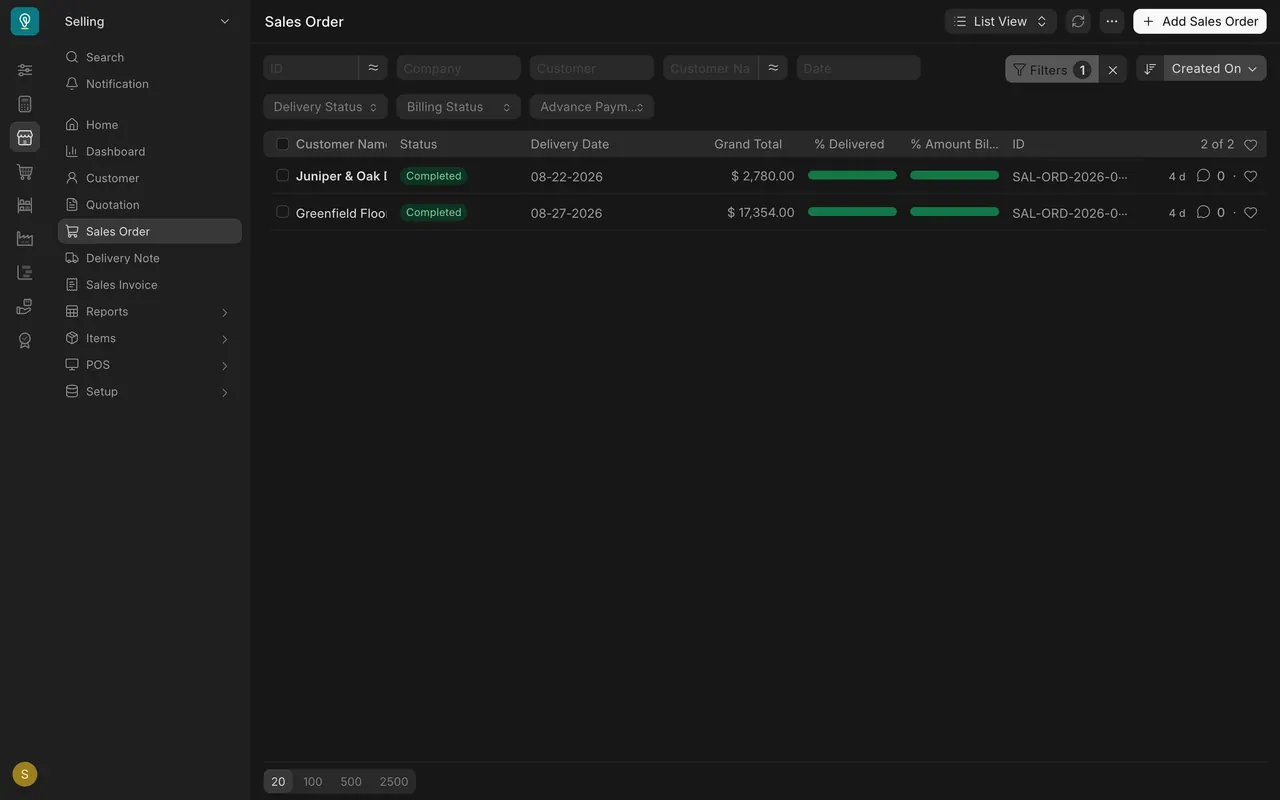
- Click Filters, add a filter, and choose Project, Equals, and the project name.
- Read the % Delivered and % Amount Billed bars. Full bars mean fully delivered and fully billed.
Step 3. Check deliveries and invoices
- Filter the Delivery Note list the same way and read the billed bar.
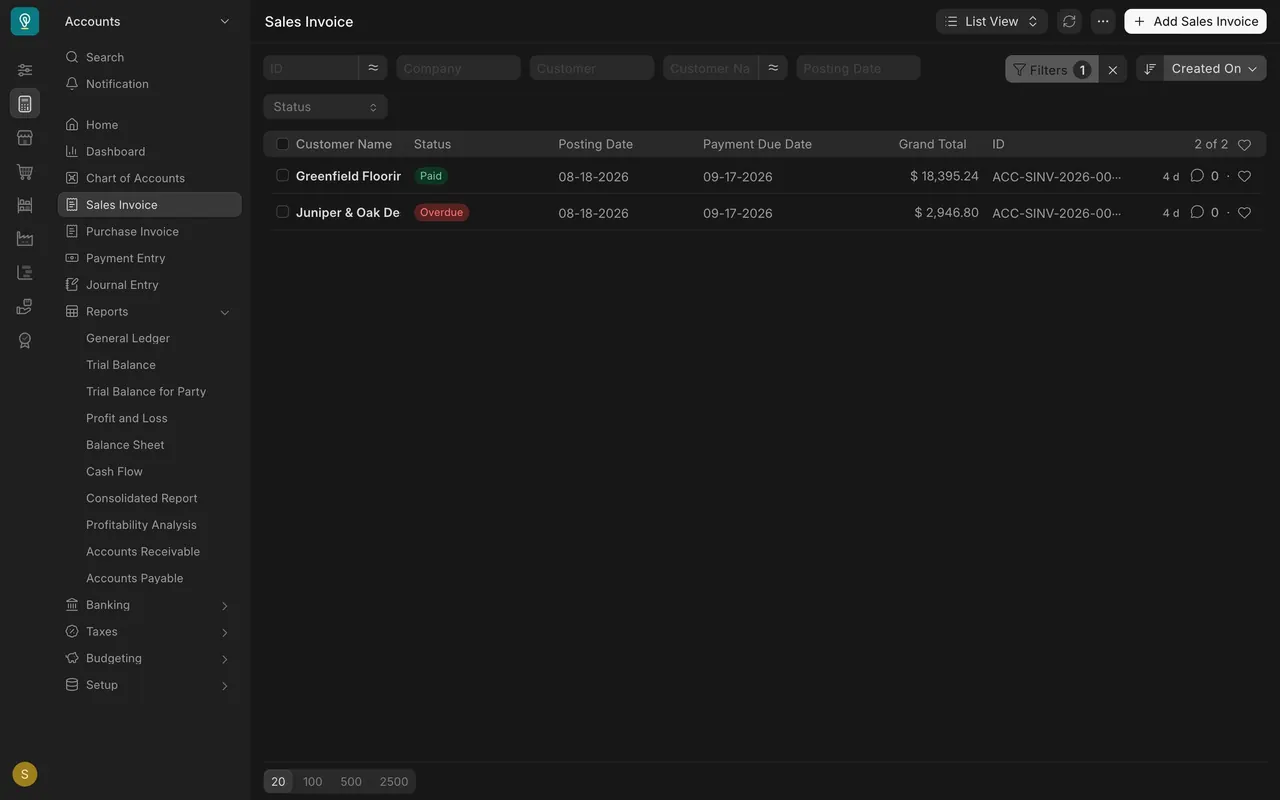
- Filter the Sales Invoice list and read the Status column (Paid, Overdue).
Step 4. Compare every project
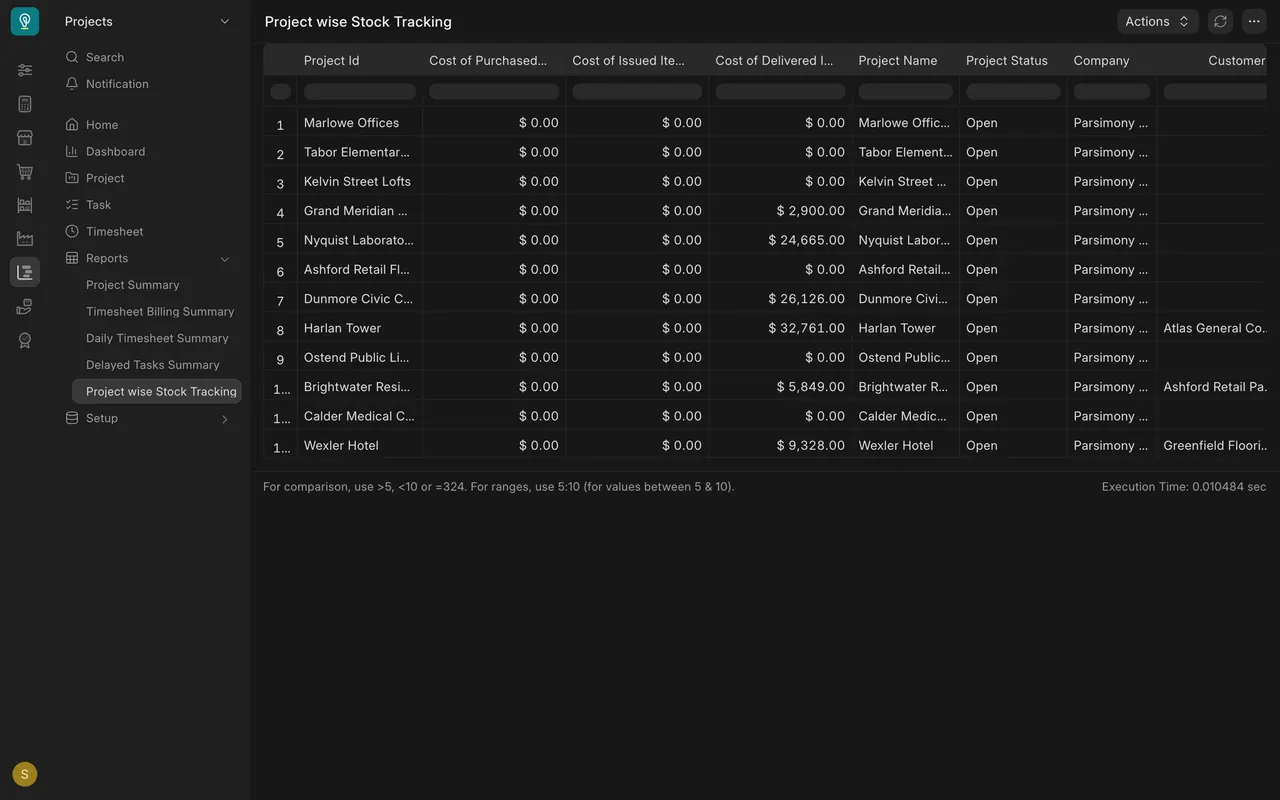
- Open Project wise Stock Tracking under Reports in the Projects sidebar.
- One row per project. The delivered cost column shows what the delivered goods cost you (here $9,328.00 for the Wexler Hotel), not the amount you charged.
Step 5. Look for deliveries not yet billed
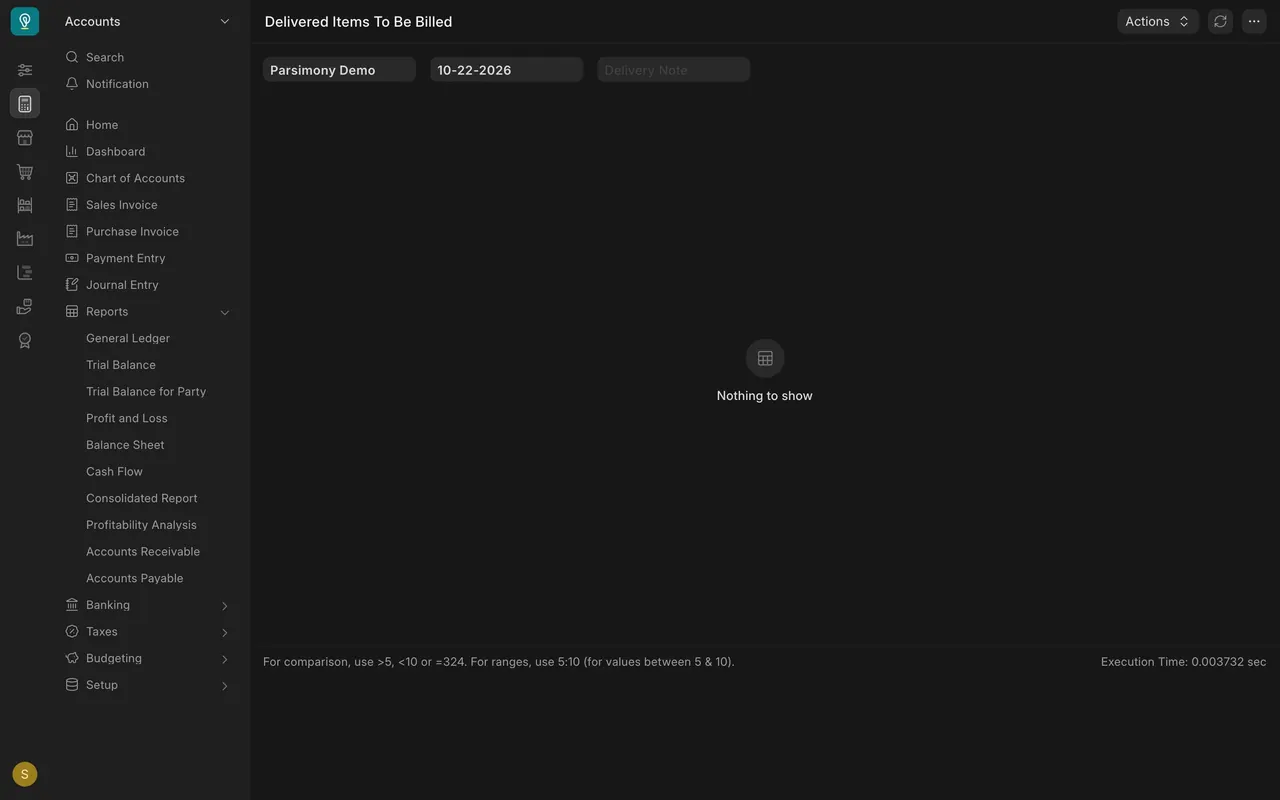
- Open Delivered Items To Be Billed in the Accounts sidebar.
- It filters by company, date and delivery note. Rows are goods delivered but not yet invoiced. Here it says "Nothing to show".
What you may see on your own site
- Your own projects, orders and amounts.
- Neither report has a project filter in this version, so use the lists for one project.
- If your orders and invoices do not carry a Project, the filters will find nothing for that job.
Common mistakes
- Leaving the Project field empty on a document. It will not appear in that project's lists.
- Reading delivered cost as the amount billed. The stock report shows cost, not price.
- Clearing the filter by accident. Check the Filters count before you read the list.
Check yourself
3 quick questions.
1. Where can you count a project's sales orders, delivery notes and invoices at a glance?
2. A filtered sales order shows a full delivered bar and a half-full billed bar. What does that mean?
3. Delivered Items To Be Billed says "Nothing to show". What does that mean?