V16 Training · Projects · Lesson 1 of 6
Your projects at a glance
This lesson shows three places that tell you how your projects are doing: the project list, a project record, and the Projects workspace. The screens use example data from a demo company that sells flooring.
Written guide
Step by step
Step 1. Read the project list
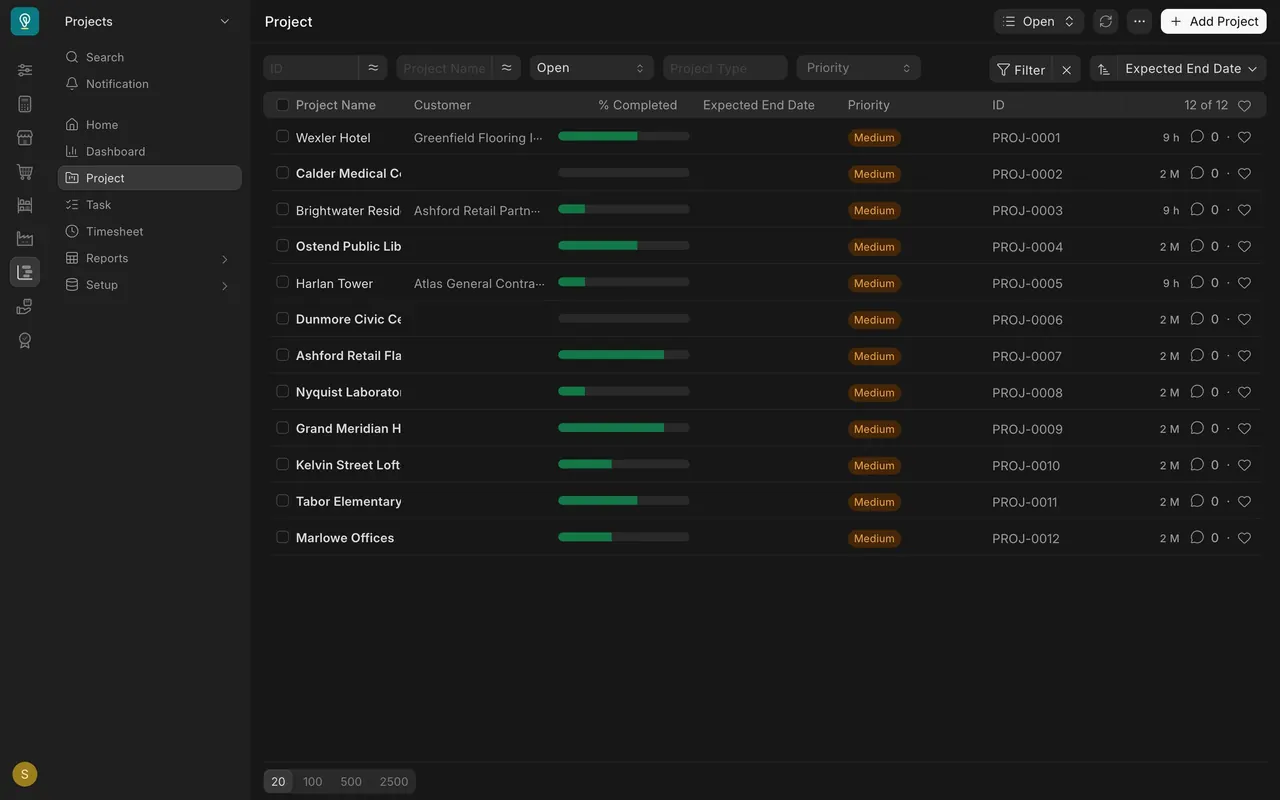
- Open Project from the Projects sidebar. Each row is one project, with its name, customer and a bar for % Completed.
- The box that says Open is a filter. The list shows only projects whose status is Open.
Step 2. Open a project record
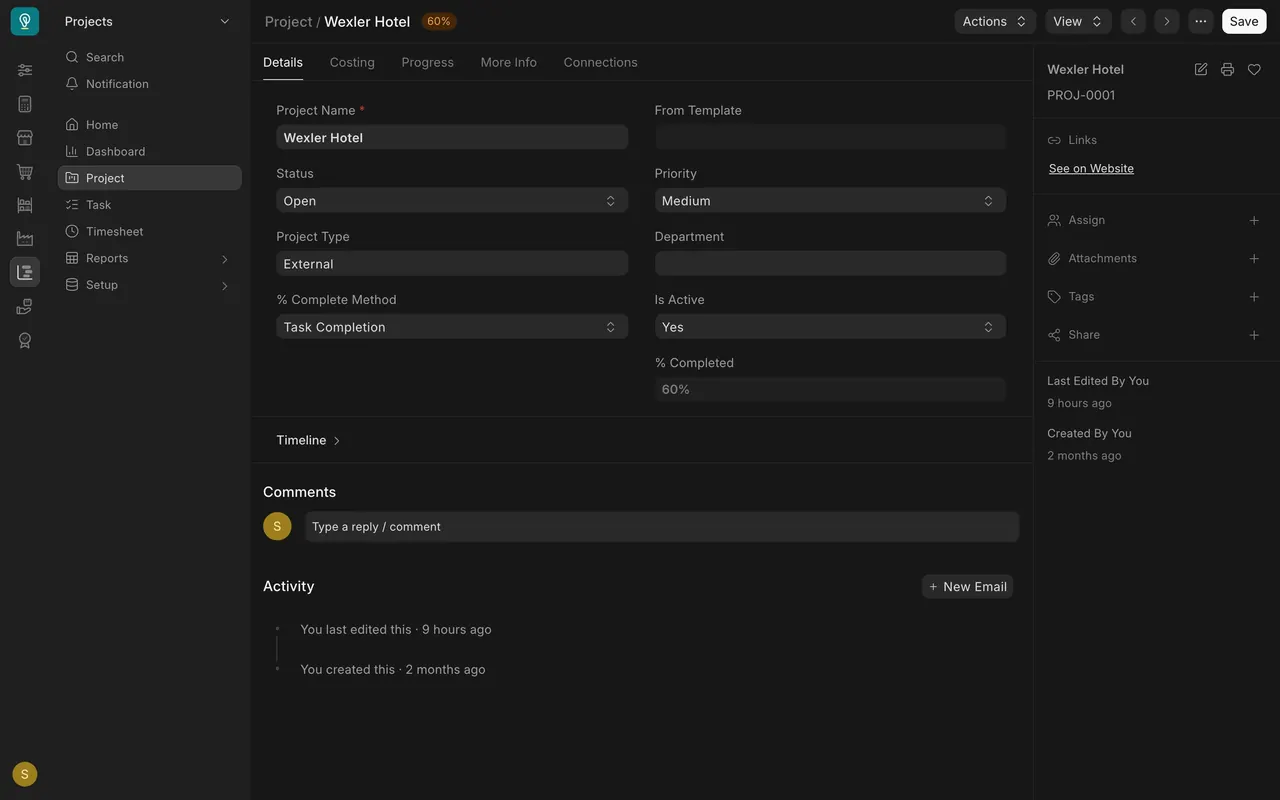
- Click a row. The badge at the top repeats the percent completed.
- Status says Open and Project Type says External. % Complete Method says Task Completion, so the percentage is worked out from the tasks and is greyed out.
Step 3. See what is tied to the project
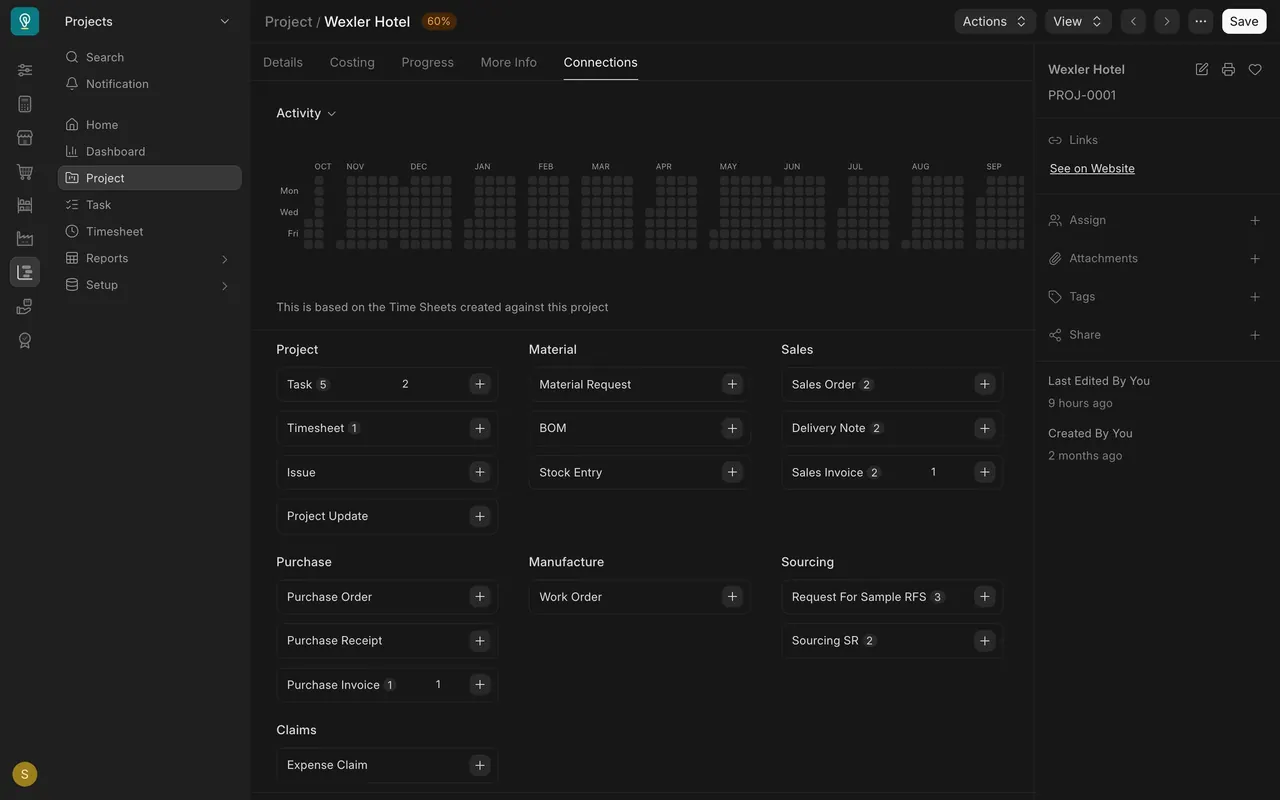
- Open the Connections tab. It counts tasks, timesheets, sales orders, delivery notes, invoices and more. Each tile opens those documents.
Step 4. Read the workspace
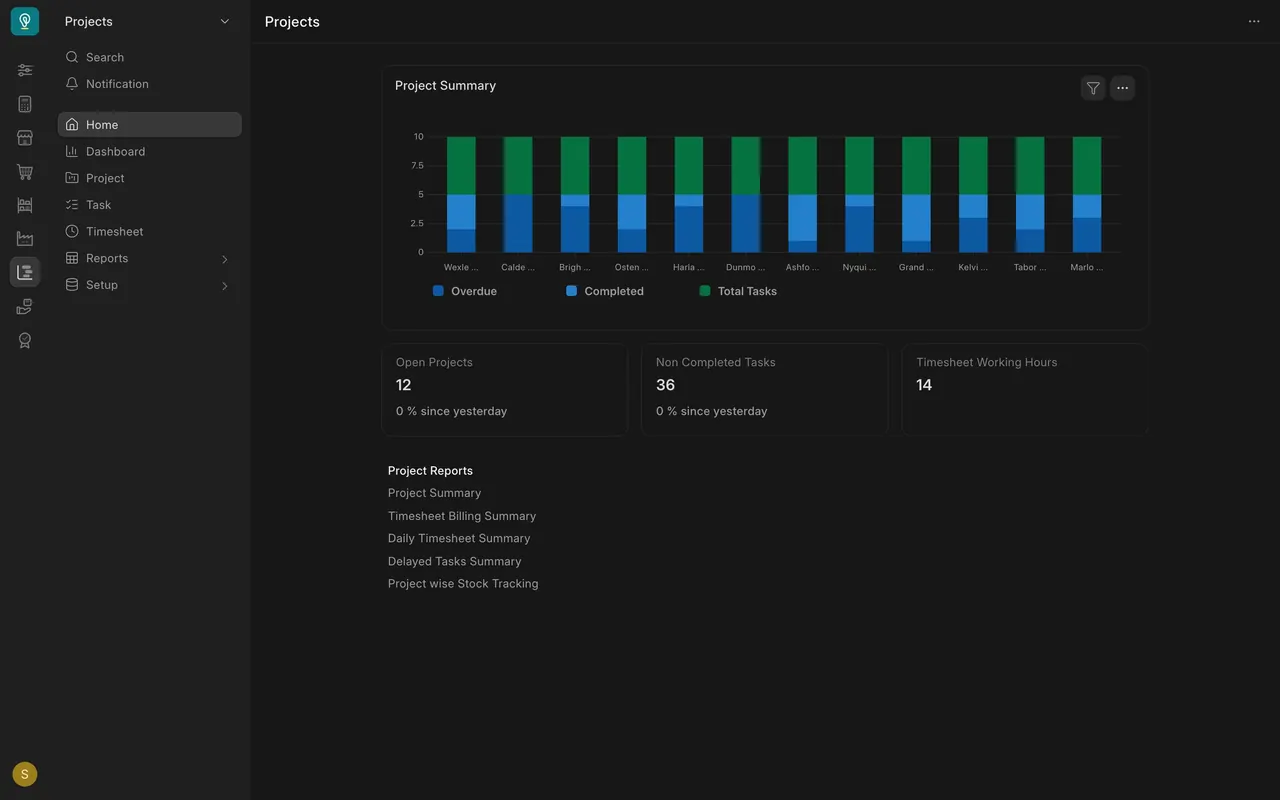
- Click Home to open the Projects workspace. Project Summary has one bar per project: Total Tasks (green), Completed (light blue), Overdue (dark blue).
- The cards show Open Projects and Non Completed Tasks.
What you may see on your own site
- Your own projects, customers and numbers. Some projects may not have a customer filled in yet.
Common mistakes
- Typing the percentage. With Task Completion it comes from the tasks.
- Thinking the list shows every project. The Open filter hides the rest.
- Reading a tall dark blue bar as the project total. Green is the total; dark blue is overdue tasks.
Check yourself
3 quick questions.
1. Where does the percent completed come from when the method is Task Completion?
2. On the Project Summary chart, what does the dark blue part of a bar show?
3. What does the Connections tab give you?