V16 Training · Month-End Close · Lesson 4 of 6
Sales tax
This lesson shows how Parsimony works out sales tax: a template for each rate, item tax templates for items taxed differently, and a tax category with a tax rule for a buyer who is exempt. It ends with where the tax lands on an invoice and in the Sales Register.
Written guide
The idea
You set the tax rules once. After that, the invoice picks the right template, and the registers add the tax up for month end. The screens use example data from a demo company that sells flooring. Your own site has your own rates, accounts and customers.
Step by step
Step 1: a template for each rate
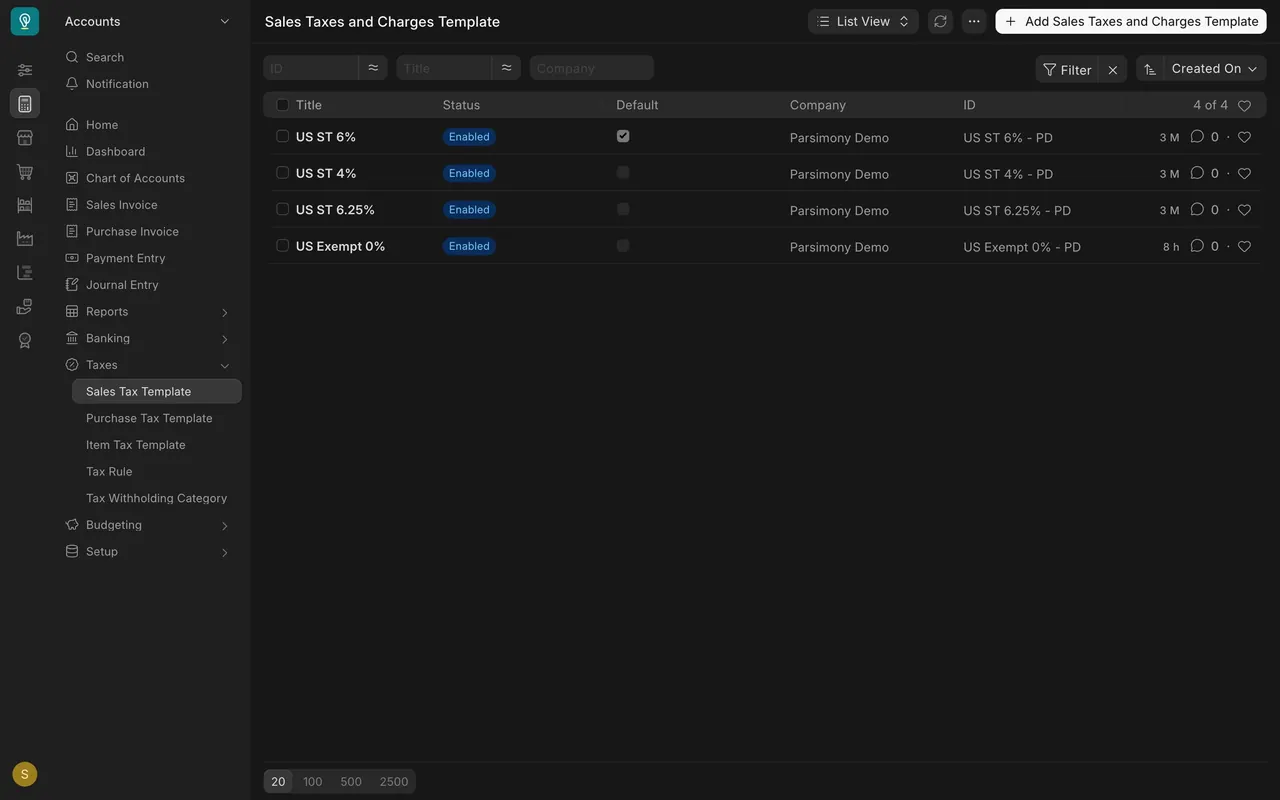
- In the Accounts area, open Taxes, then Sales Tax Template.
- Each template is a ready-made tax setup you pick on a quotation, a sales order or an invoice. In this example there are four: 6%, 4%, 6.25% and an exempt 0% one. The one ticked Default is filled in for you.
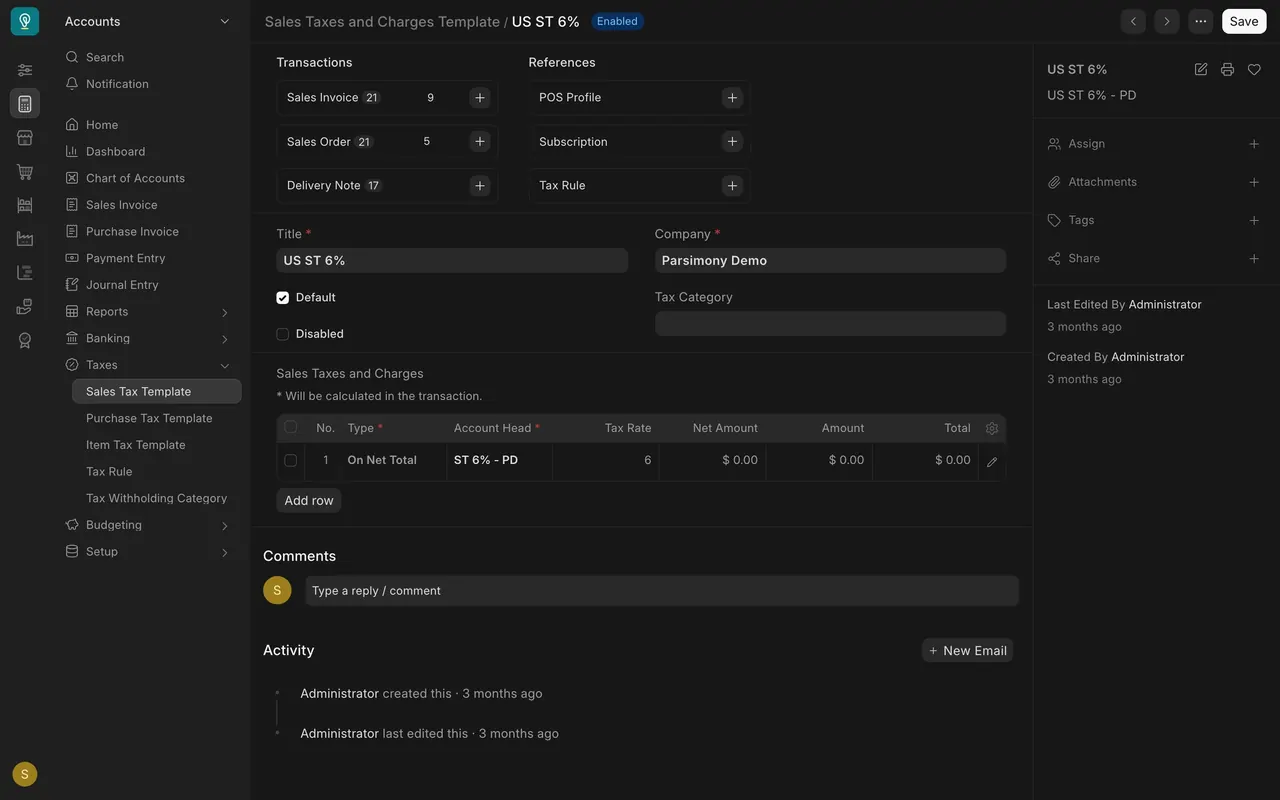
- Open the six percent template. The table lists each tax line: the tax account under Account Head, and the Tax Rate.
Step 2: items taxed differently
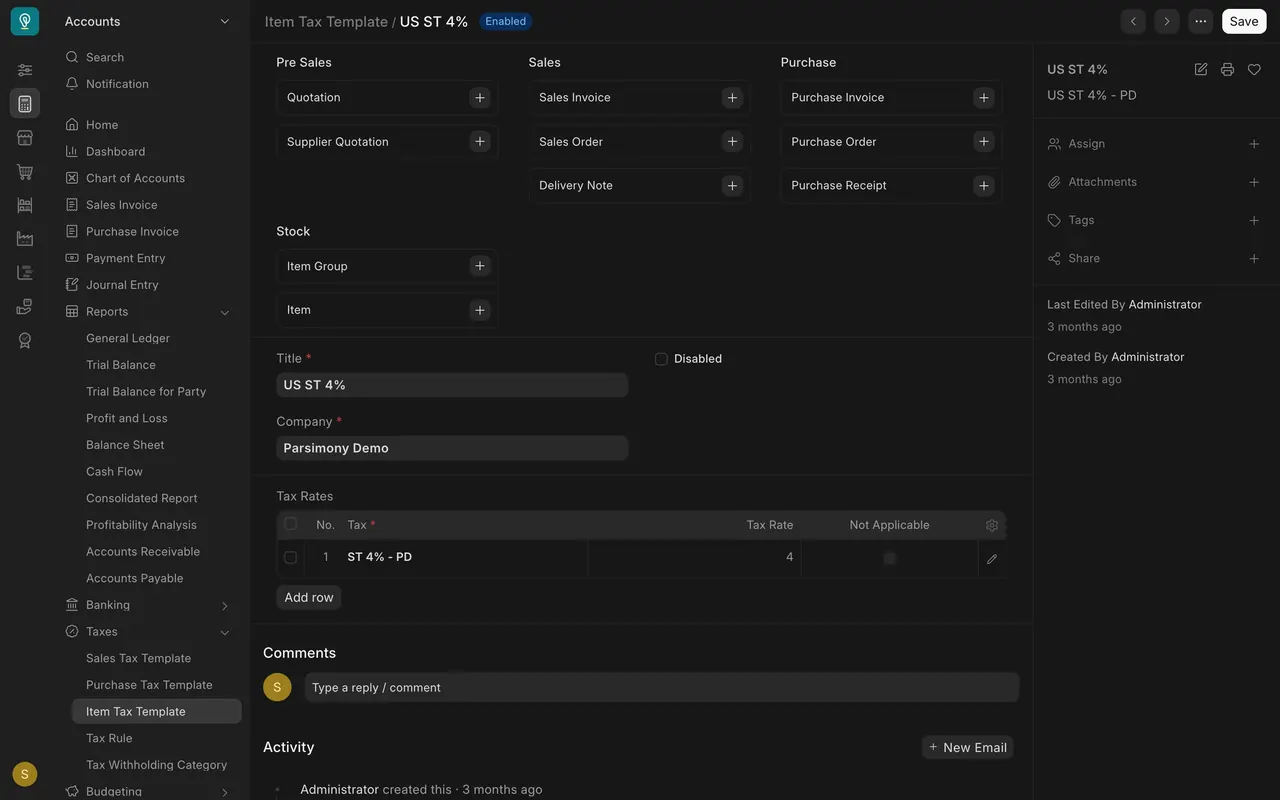
- Open Item Tax Template. Each one names a tax account and a rate, here 4, with a Not Applicable box beside it.
Step 3: the exempt buyer
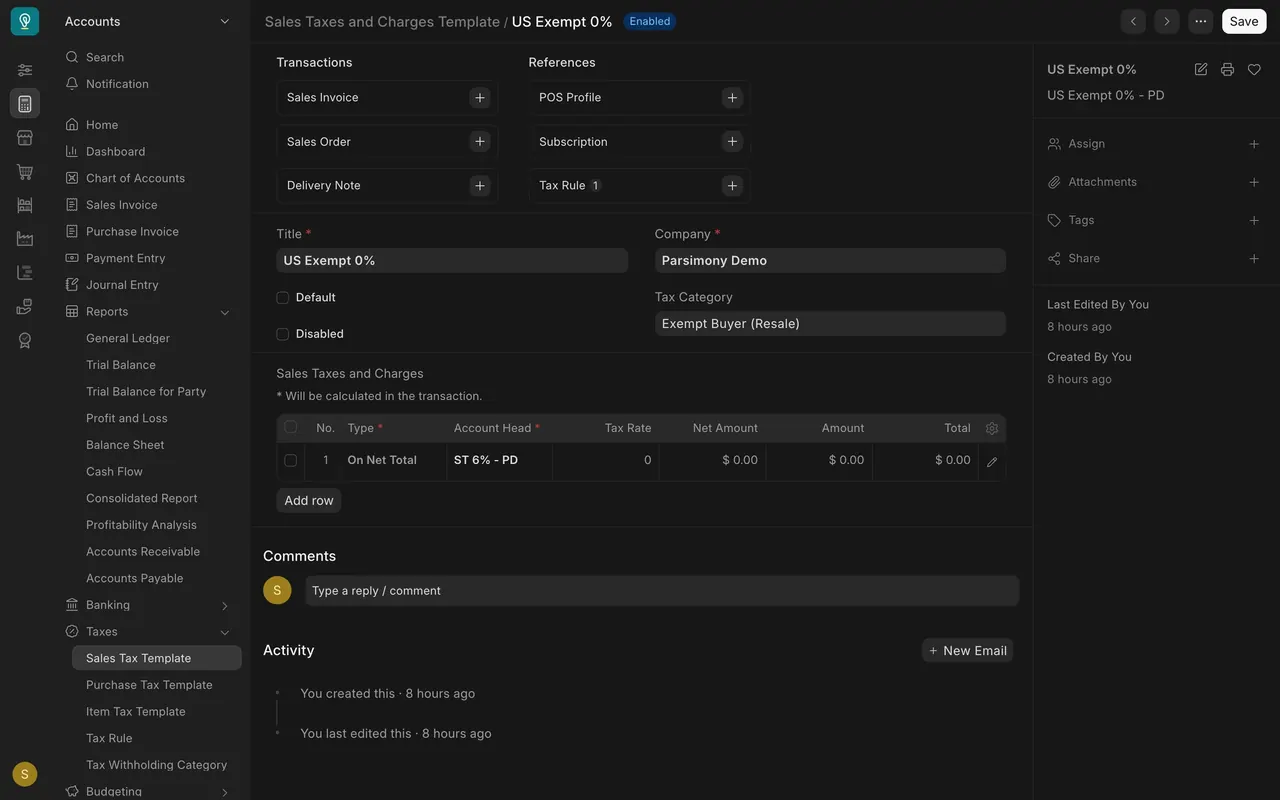
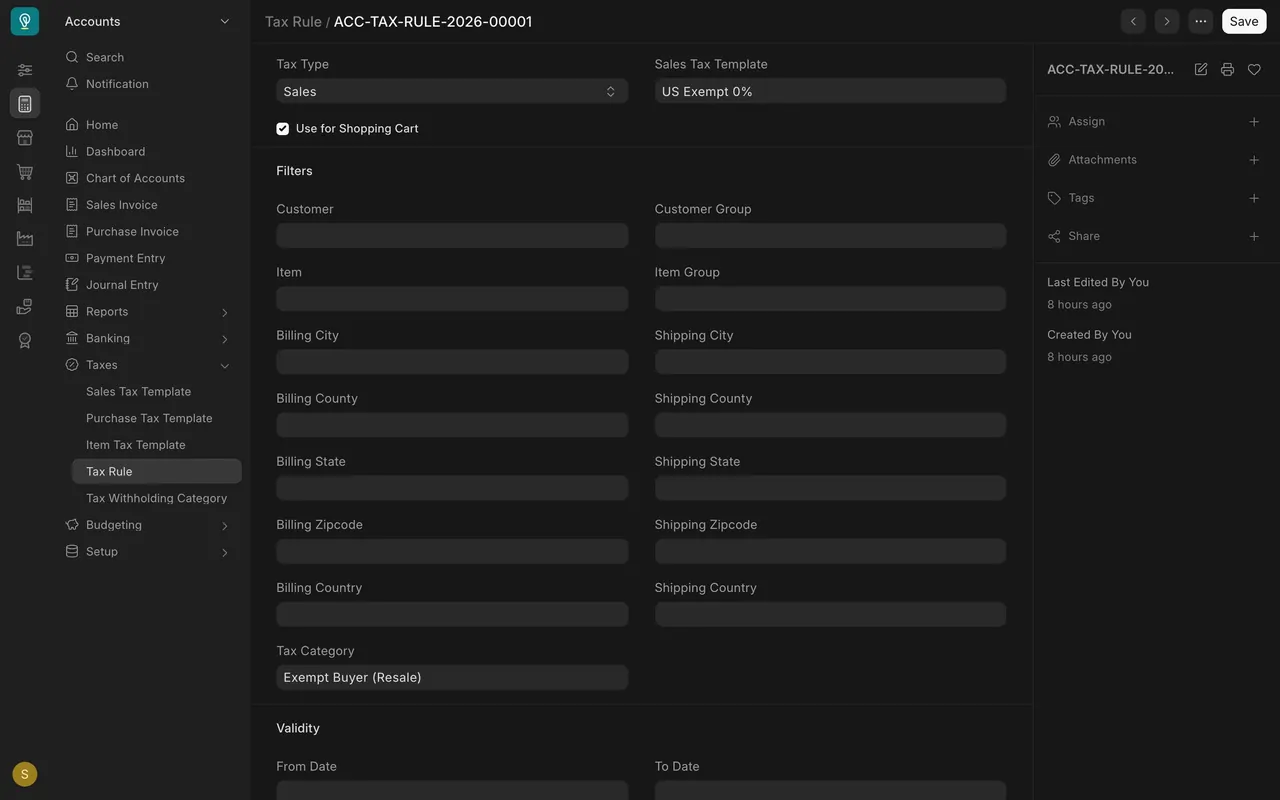
- A tax category groups buyers who are taxed alike. In this example it is Exempt Buyer (Resale).
- The template US Exempt 0% has a rate of zero and carries that tax category.
- A Tax Rule ties them together: for a sale, when the tax category is Exempt Buyer (Resale), use the US Exempt 0% template. In this example no customer has that category yet.
Step 4: check where the tax lands
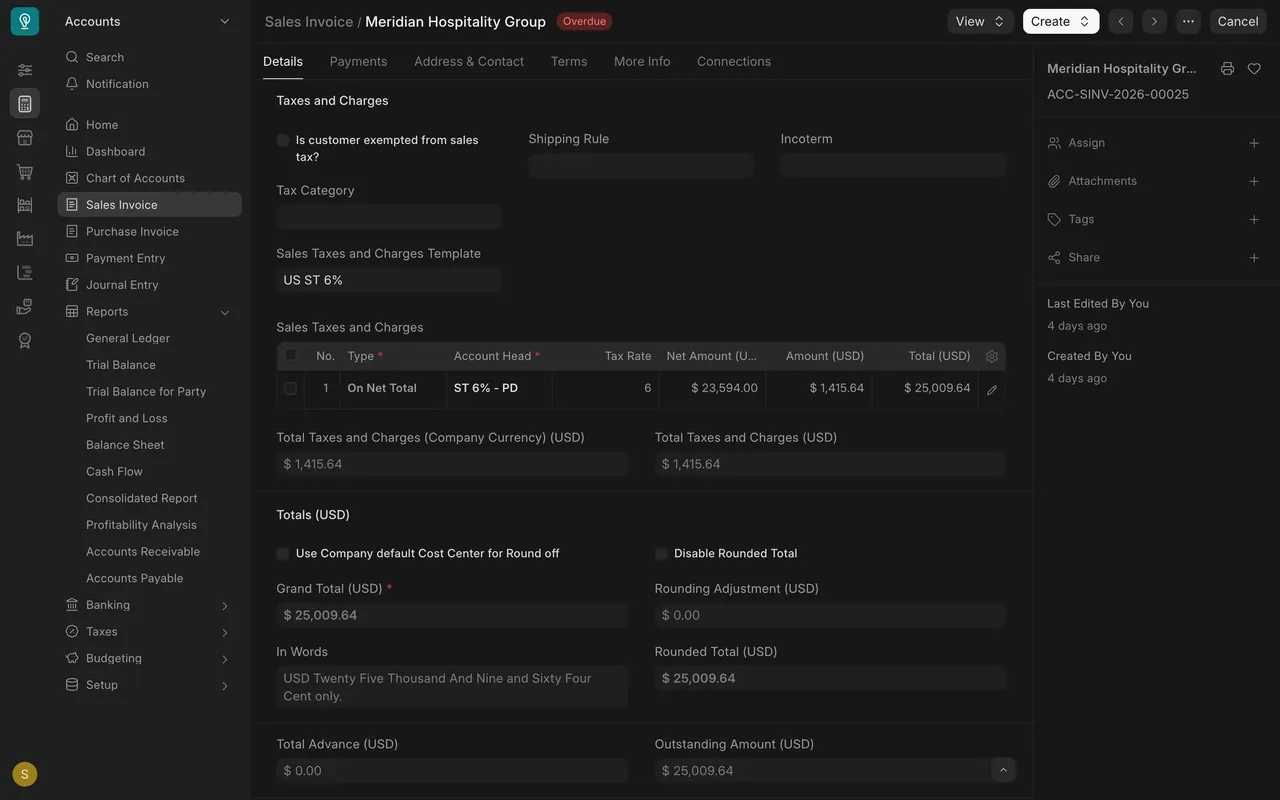
- Open a sales invoice and scroll to Taxes and Charges. In this example the template is US ST 6%. On a net amount of $23,594.00 the tax line is $1,415.64, and the grand total is $25,009.64.
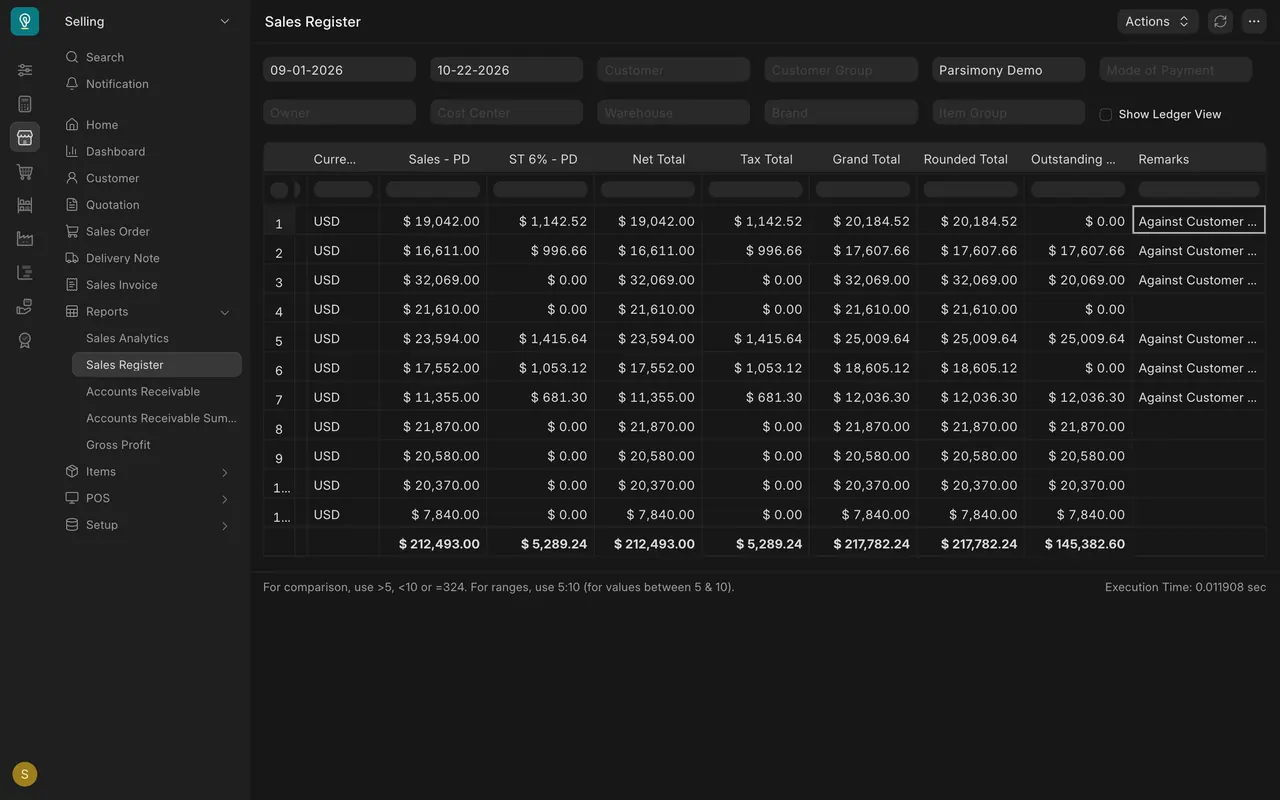
- Open the Sales Register. It lists each invoice with its tax. Some carry tax and some show zero. The Tax Total column adds up to $5,289.24 from September 1 to October 22 in this example.
What you may see on your own site
- Your rates, tax accounts and default template are your own. Your administrator decides who can open the tax setup.
- The Sales Register shows many columns. Scroll sideways to reach the tax columns.
Common mistakes
- Assuming the default template fits every sale. Check invoices for exempt buyers and for items taxed differently.
- Setting up a tax rule and forgetting to give a customer the category. The rule only fires for customers that carry it.
- Reading the Sales Register for a different date range than the month. Check the two dates at the top.
Check yourself
3 quick questions.
1. What does the Default tick on a sales tax template do?
2. Which record says "for a sale, when the tax category is Exempt Buyer, use the zero percent template"?
3. Where do you see the tax added up across invoices?