V16 Training · Month-End Close · Lesson 3 of 6
Chase overdue customers
This lesson shows how to chase late customers with a Dunning: find who is late in the Accounts Receivable report, set up Dunning Types, create a Dunning, review it, and follow up in the Dunning list. The screens are example data from a demo company.
Written guide
The idea
A Dunning is a reminder letter for an overdue invoice. A Dunning Type sets how firm it is: the fee, the yearly interest, and the words of the letter. You decide when each one goes out.
Step by step
Step 1: find who is late
- Open Accounts Receivable from the Reports list in the Accounts area.
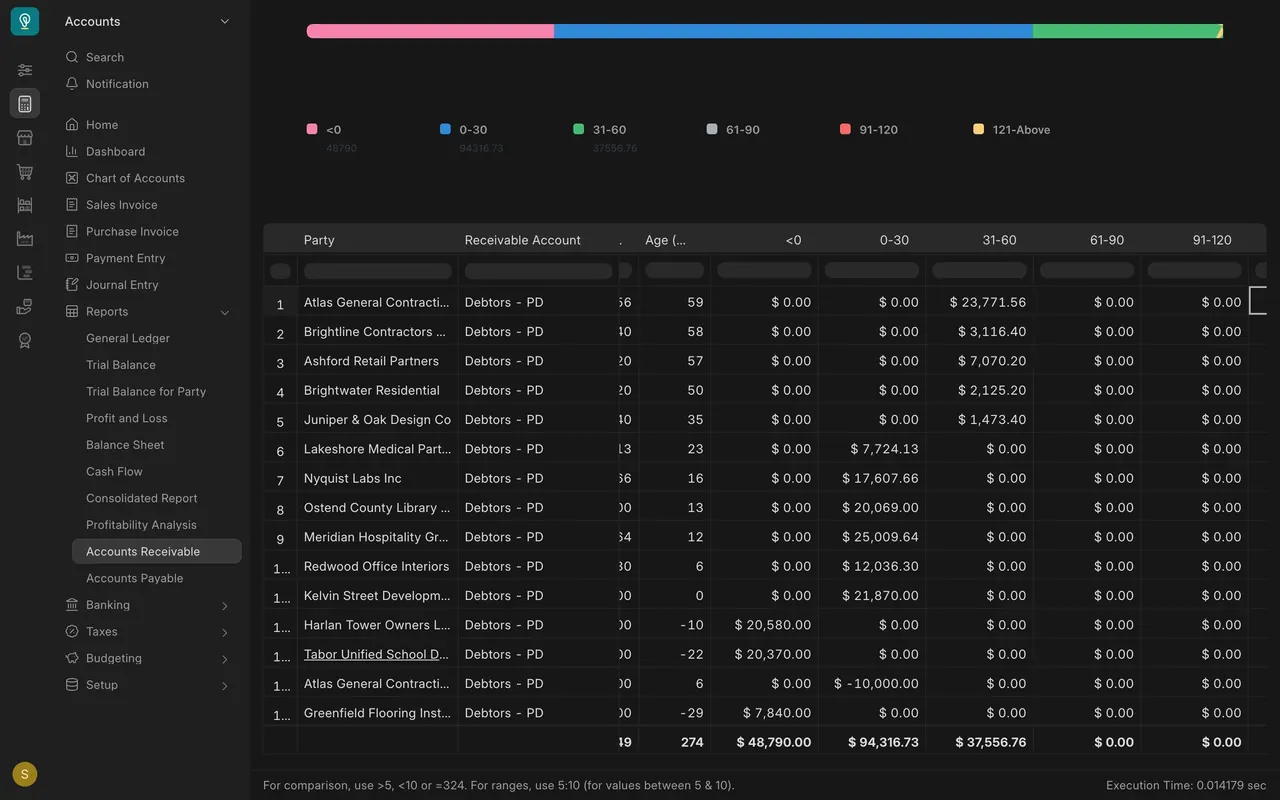
- The chart groups the unpaid money by age, from <0 (not yet due) through 121-Above.
- In the table, the Age column counts the days. In this example Atlas General Contracting is 59 days late, with $23,771.56 outstanding. Ten invoices are overdue.
Step 2: set up Dunning Types
- Open Dunning Type. Each type is one level of reminder. In this example: First reminder - PD and Final notice - PD.
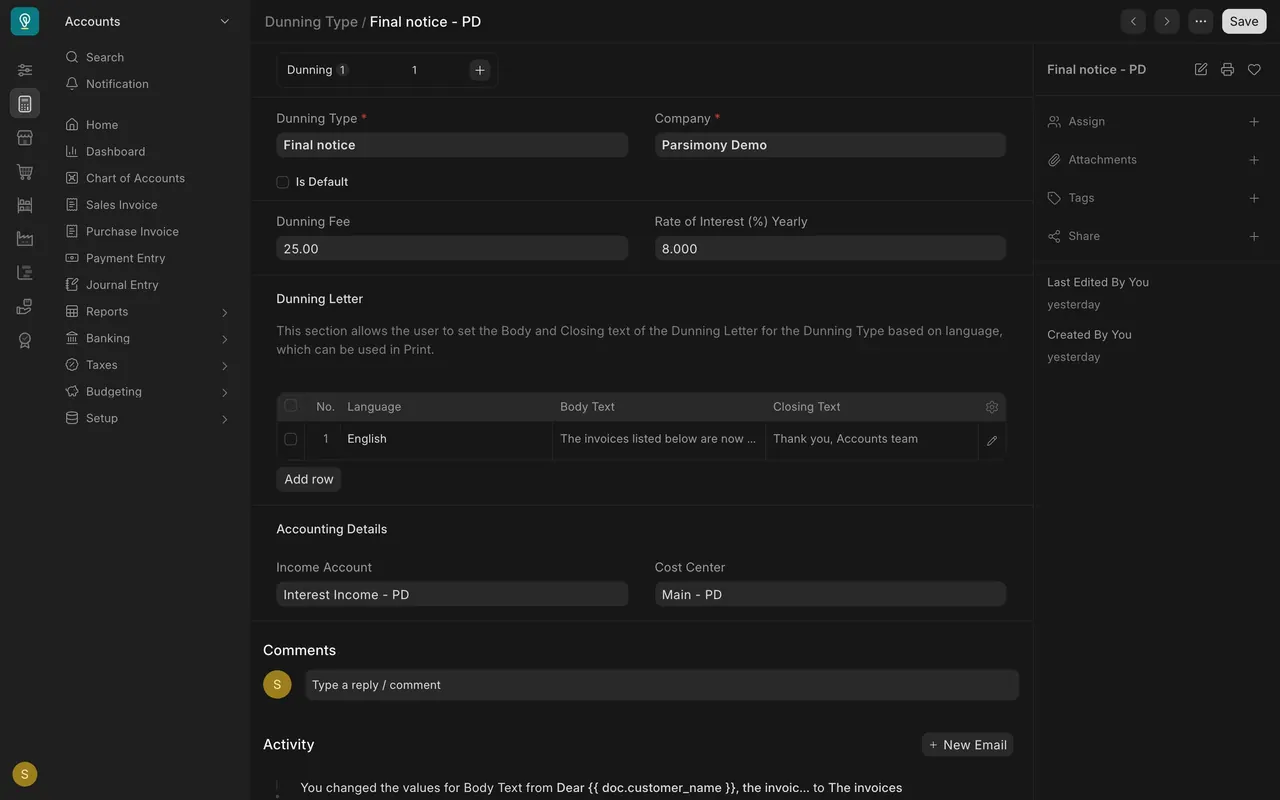
- Open Final notice. It has a Dunning Fee of $25.00 and a Rate of Interest (%) Yearly of 8. The first reminder has neither.
- The Dunning Letter table holds the body and closing text of the letter. The fee and interest go to the Income Account.
Step 3: create a Dunning
- Open Dunning, press Add Dunning, pick the customer and a Dunning Type.
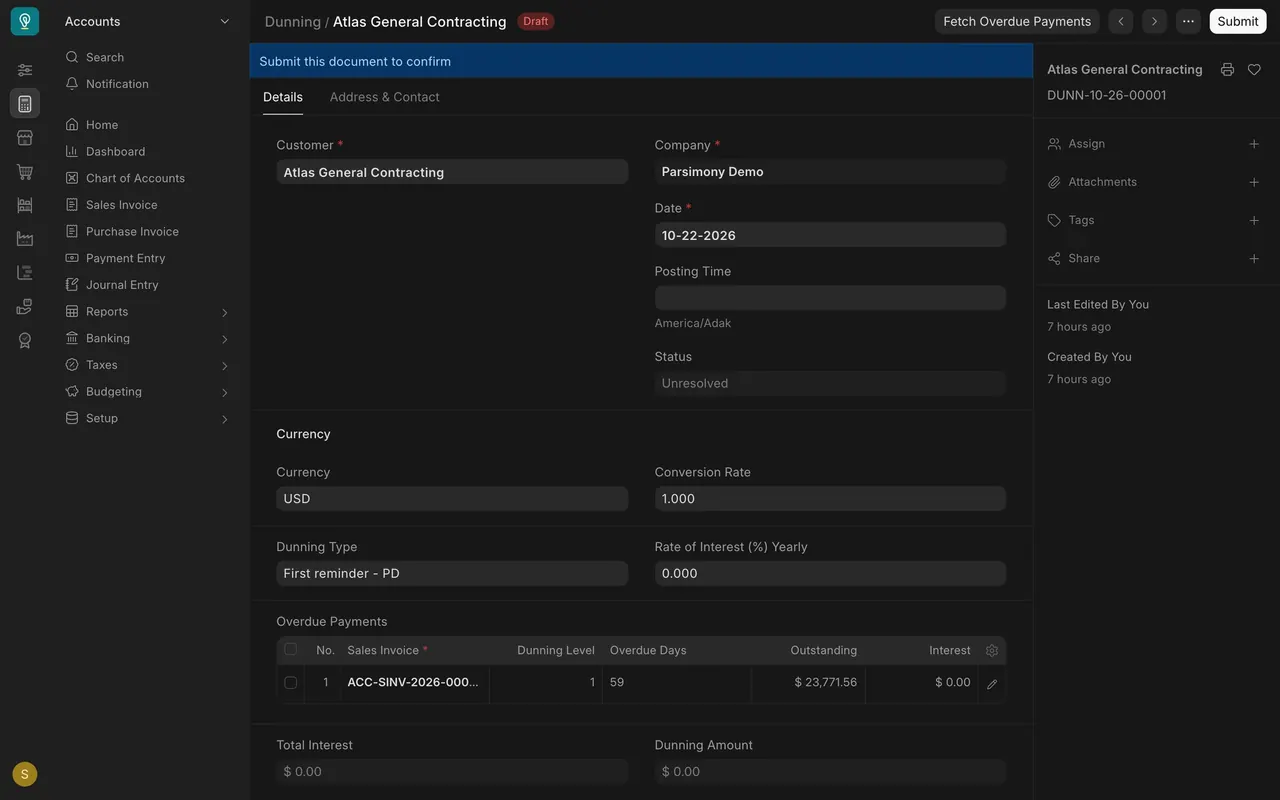
- Press Fetch Overdue Payments. Parsimony lists the customer's overdue invoices, and you choose which to chase.
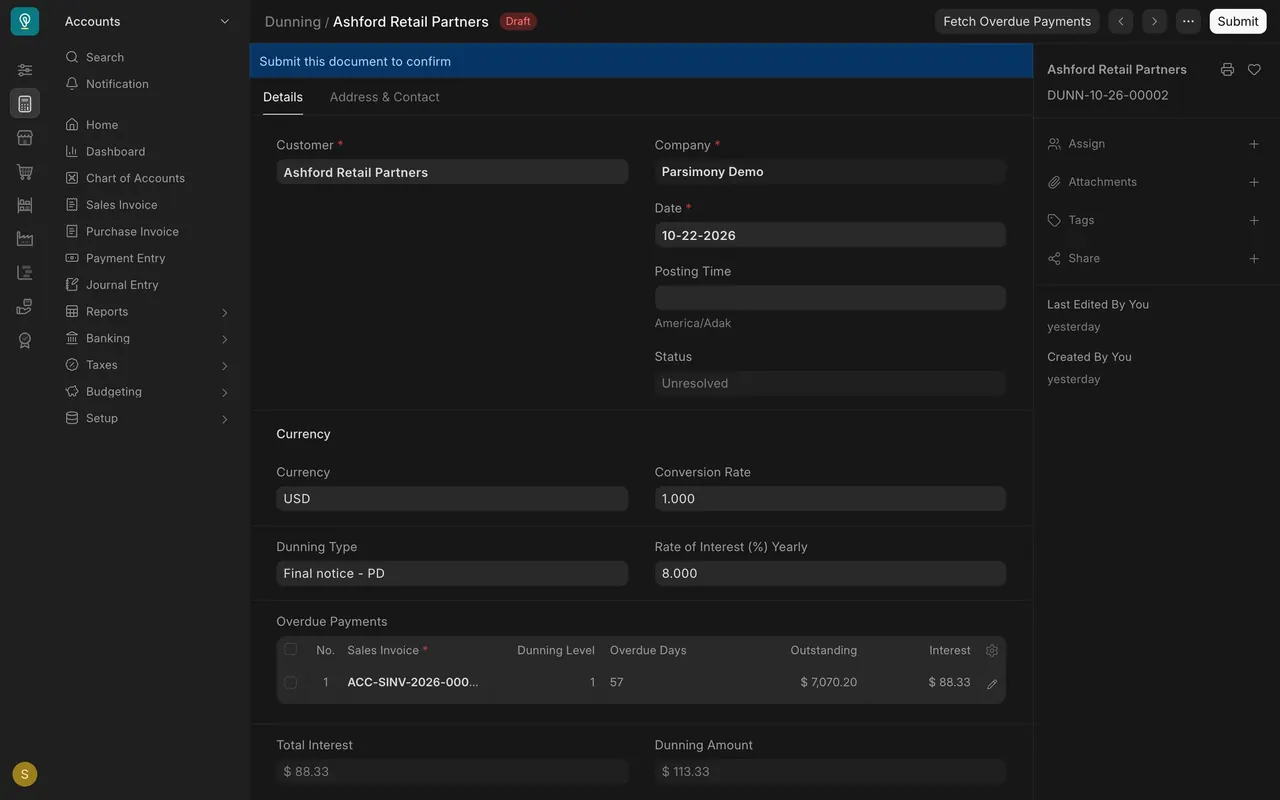
- The Overdue Payments table shows the days late, the amount outstanding and the interest. In this example Atlas has 59 days and $23,771.56 on a first reminder. Ashford Retail Partners has a final notice: $88.33 of interest plus the fee gives a Dunning Amount of $113.33.
- The Address & Contact tab says where the letter goes. Check the address and the contact.
Step 4: review and submit
- Check that it is the right invoice and the amount you expect.
- Submit confirms the Dunning. Until then it stays a draft. This lesson does not press it.
- A submitted Dunning is your record of the reminder. You print the letter or send it, as you choose. If your site is set up to send email, you can send it from there.
Step 5: follow up
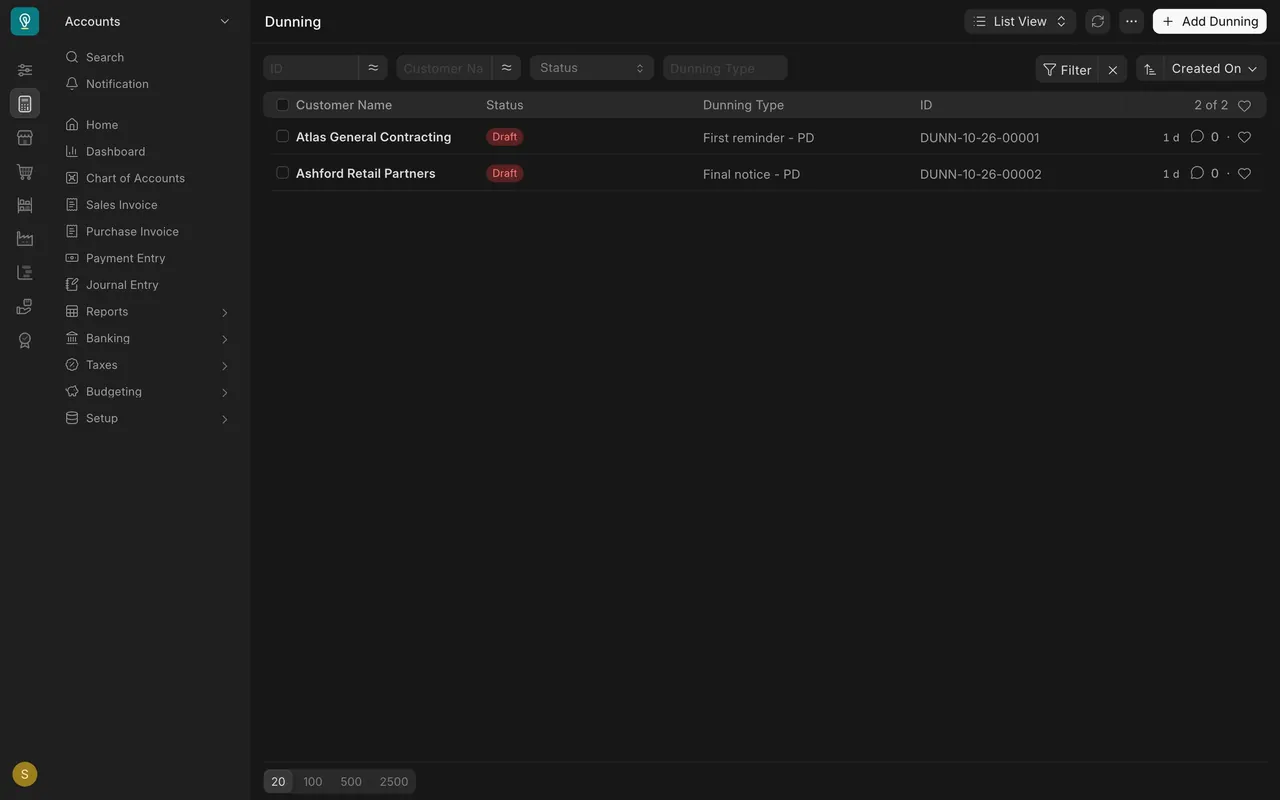
- The Dunning list shows the customer, the type and the status of each one.
- Open one: Status reads Unresolved while the invoice is still open.
What you may see on your own site
- Your own customers, fee, interest rate and letter wording. Your administrator decides who can create Dunning Types.
- Whether email is switched on depends on how your site is set up.
Common mistakes
- Choosing a Dunning Type that is too firm too soon. Start with the first reminder.
- Sending a letter to a customer whose contact has no email or address. Check the Address and Contact tab first.
- Forgetting to look at the interest. The final notice adds interest to the amount.
Check yourself
3 quick questions.
1. Which report tells you how many days late each customer is?
2. Where do the fee and the yearly interest of a reminder come from?
3. What does a Dunning's Submit button do?