V16 Training · Month-End Close · Lesson 5 of 6
Close the period
This lesson shows you how to lock a finished month so nobody can post into it, and how the year-end close works.
Written guide
The idea
Two jobs, in order. First you lock the month so that a finished period stays finished. Then, at the end of the fiscal year, you close the year with a Period Closing Voucher. The screens use example data from a demo company; your own Parsimony site shows your company's periods.
Lock the month: Accounting Period
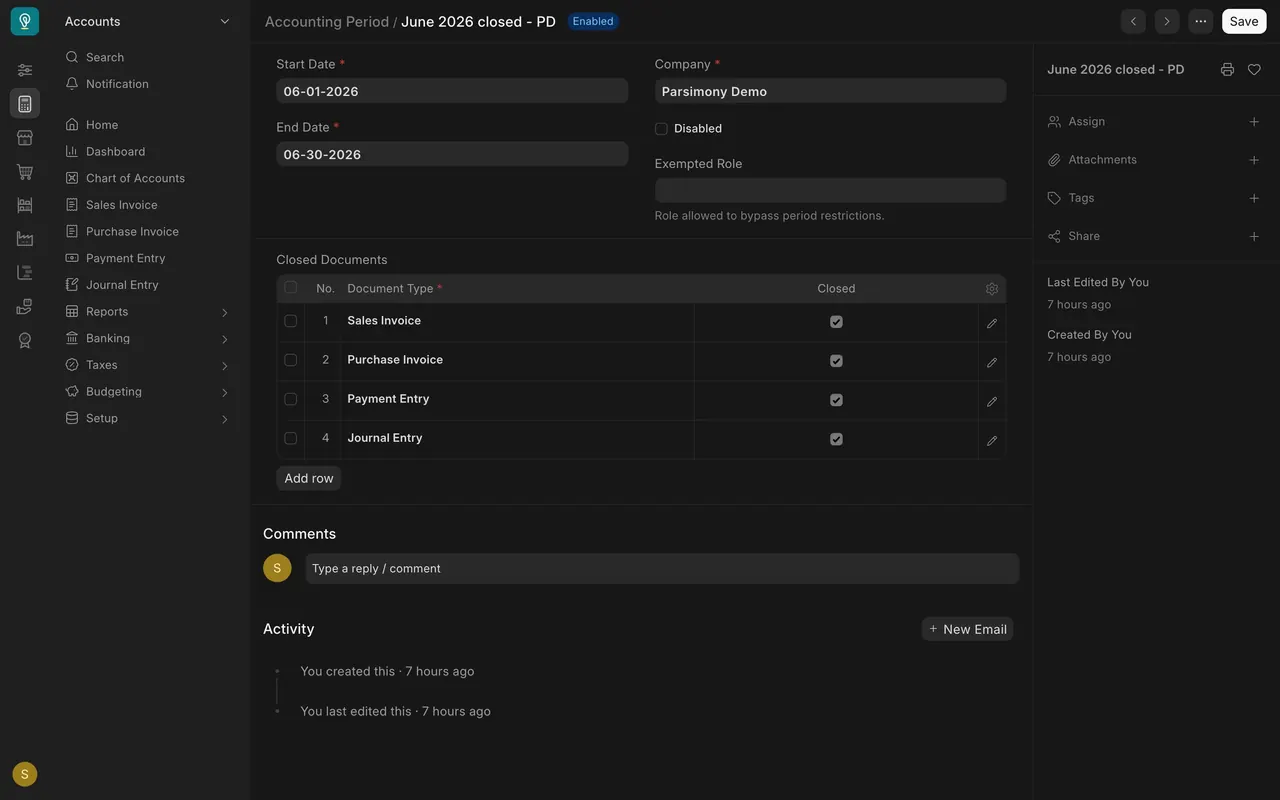
- Open Accounting Period in your Accounts section. In this example one period is saved, June 2026 closed, from 06-01-2026 to 06-30-2026.
- The Closed Documents table lists what the lock covers: Sales Invoice, Purchase Invoice, Payment Entry and Journal Entry, each with Closed ticked.
Step by step
- Add an Accounting Period and enter its start date and end date.
- Add a row for each kind of document to lock, and tick Closed.
- Save it. From then on, nobody can post those documents with a date inside the period.
The Exempted Role box lets one trusted role bypass the lock. Leave it empty and nobody can.
A second, blunter lock: Accounts Frozen Till Date
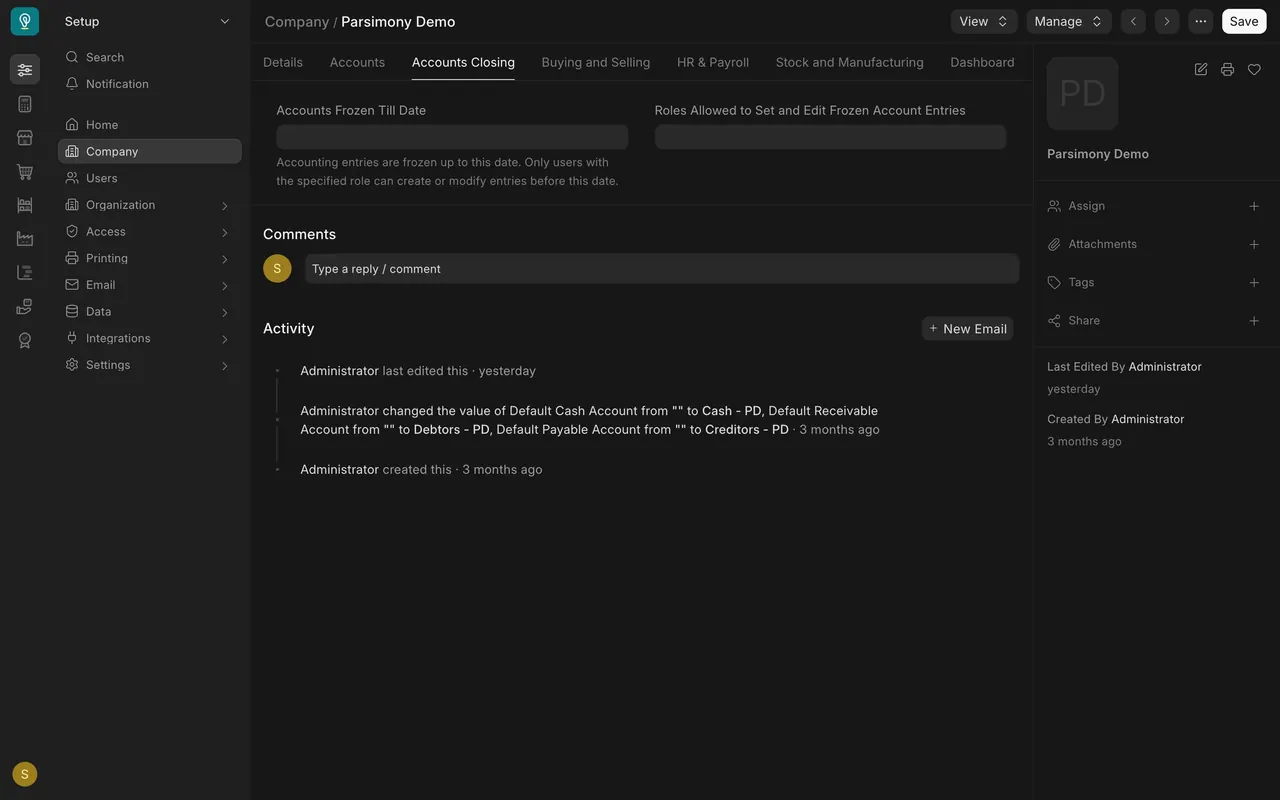
On your company record, the Accounts Closing tab has Accounts Frozen Till Date. Entries up to that date can be changed only by the role named in Roles Allowed to Set and Edit Frozen Account Entries. In this example both are empty, so nothing is frozen that way.
Close the year
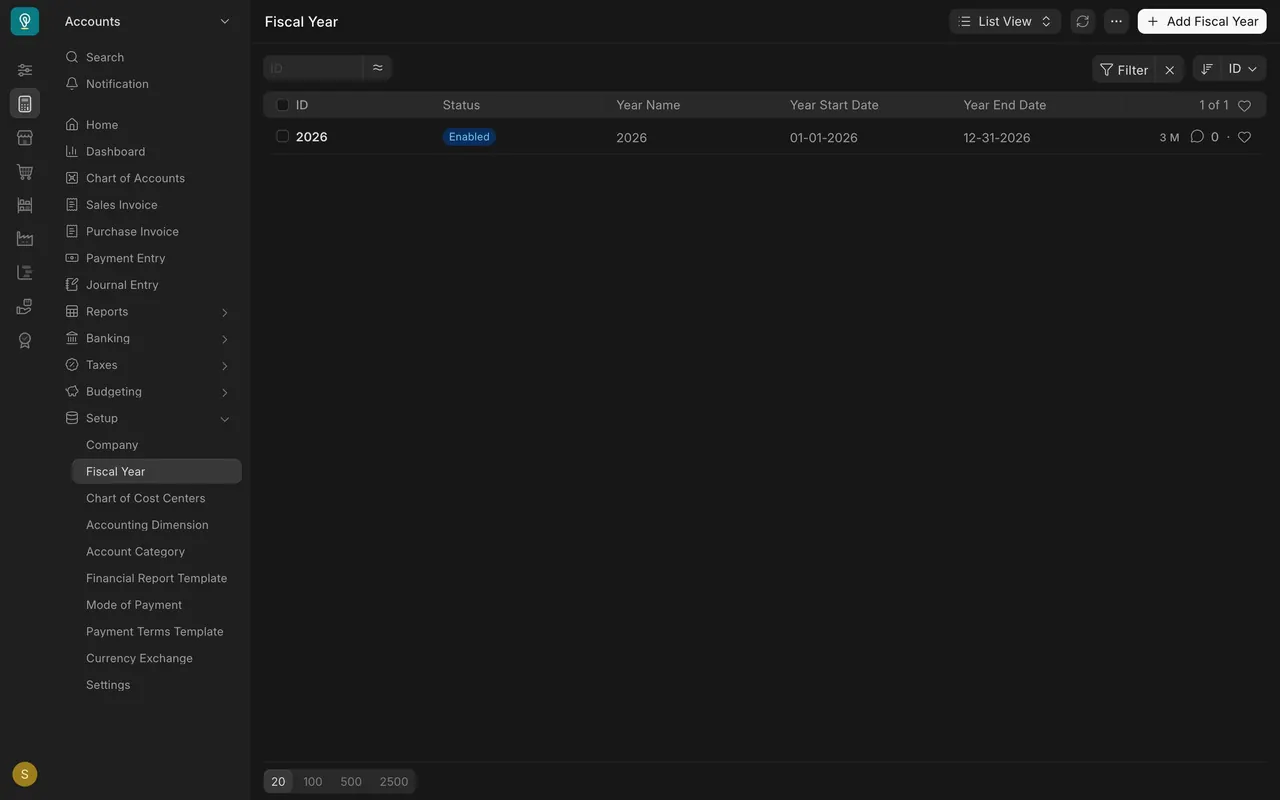
Parsimony reports by fiscal year. In this example the year 2026 runs 01-01-2026 to 12-31-2026. Each year has its own Fiscal Year record: before the new year begins, add it with its Year Start Date and Year End Date.
The Period Closing Voucher is the year-end close. It is shown here as a new, unsaved form. Never submit one to practise.
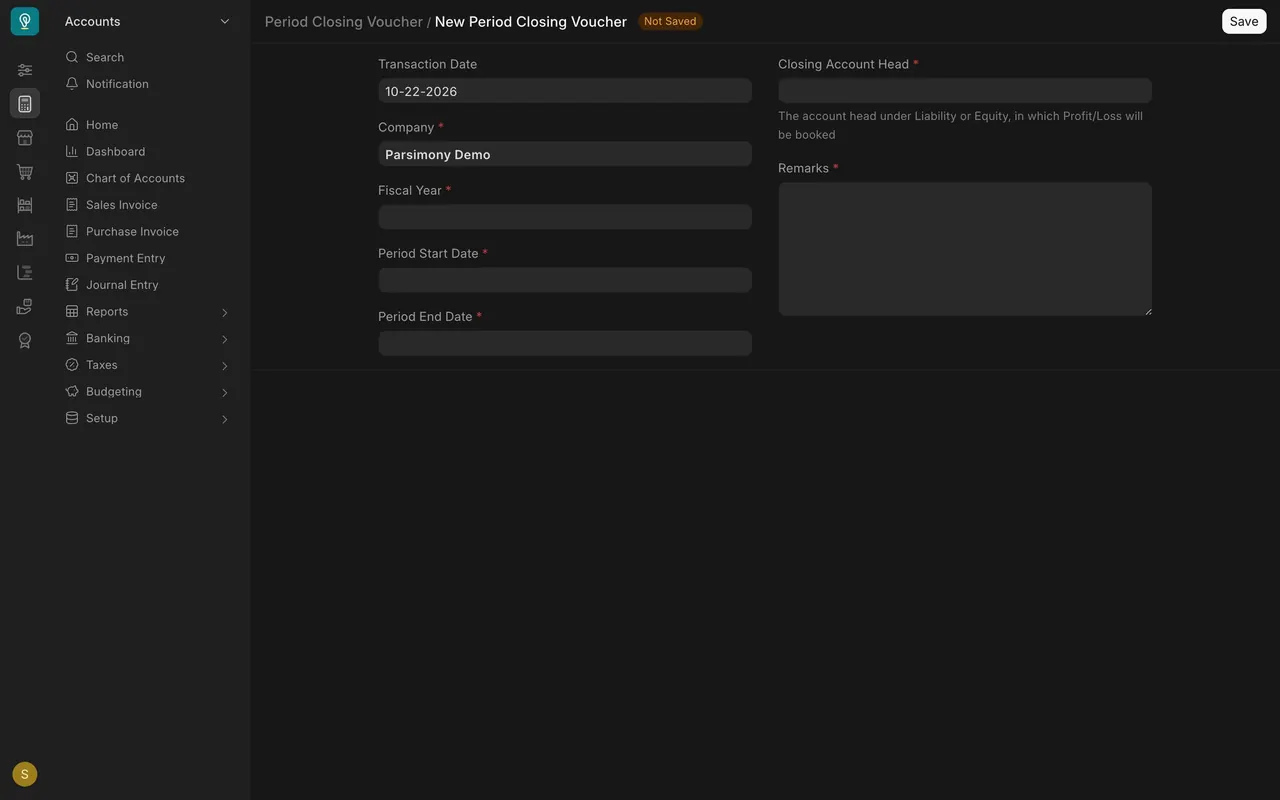
- Pick the Fiscal Year and check the period dates.
- Pick the Closing Account Head: an account under liability or equity, such as retained earnings.
- Write the Remarks, then save and submit. The voucher books the year's profit into that account.
Your accountant decides when to submit it, so ask first.
What you may see on your own site
- Your administrator may hide some of these screens from your role.
- The documents your periods lock, and the dates, are your company's own choice.
Common mistakes
- Closing the year before the month-end work is done. Lock first, then close.
- Locking only some document types. A period only protects the documents listed in its table.
- Looking for the frozen date in the wrong place. On this version it is on the company record, not in Accounts Settings.
Check yourself
3 quick questions.
1. What does a closed Accounting Period do?
2. Where do you find Accounts Frozen Till Date?
3. What does the Period Closing Voucher do?