V16 Training · Items and Pricing · Lesson 3 of 6
Item variants
This lesson shows you what an item template is, how its variants are named, and where to find them.
Written guide
The idea
Some products come in several versions, such as the same plank in different widths and finishes. Instead of keeping nine unrelated items, you keep one template and one variant for each combination. The template holds what the versions share. Each variant is the item you actually sell, buy and stock.
The screens use example data from a demo company that sells flooring. The template is Harbor Engineered Oak Plank, with Plank Width and Finish as its attributes. Your own Parsimony site shows your company's items and attributes.
Step by step
What a template is
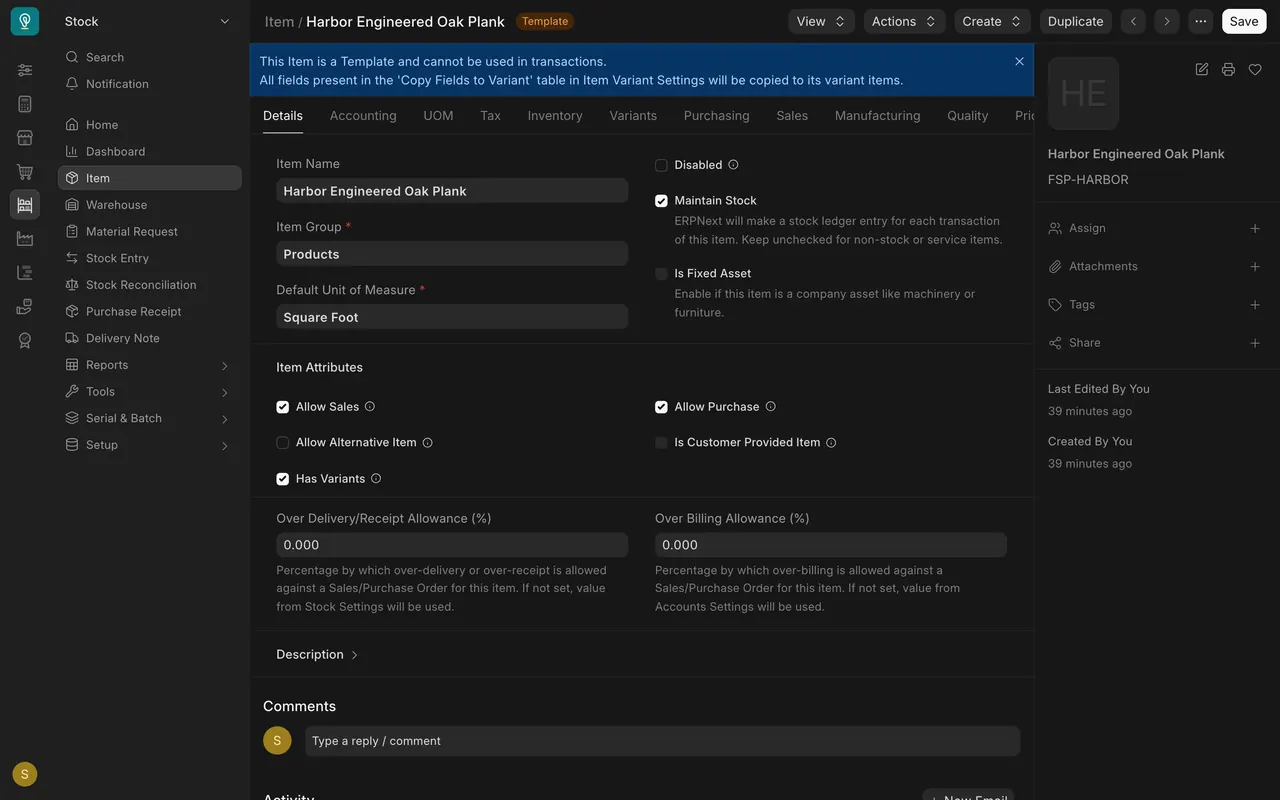
- Open the template item. A Template tag sits beside the name, and a banner says the item is a template and cannot be used in transactions. You can't sell it, buy it or count stock for it.
- The Has Variants box is ticked. That is what makes an item a template.
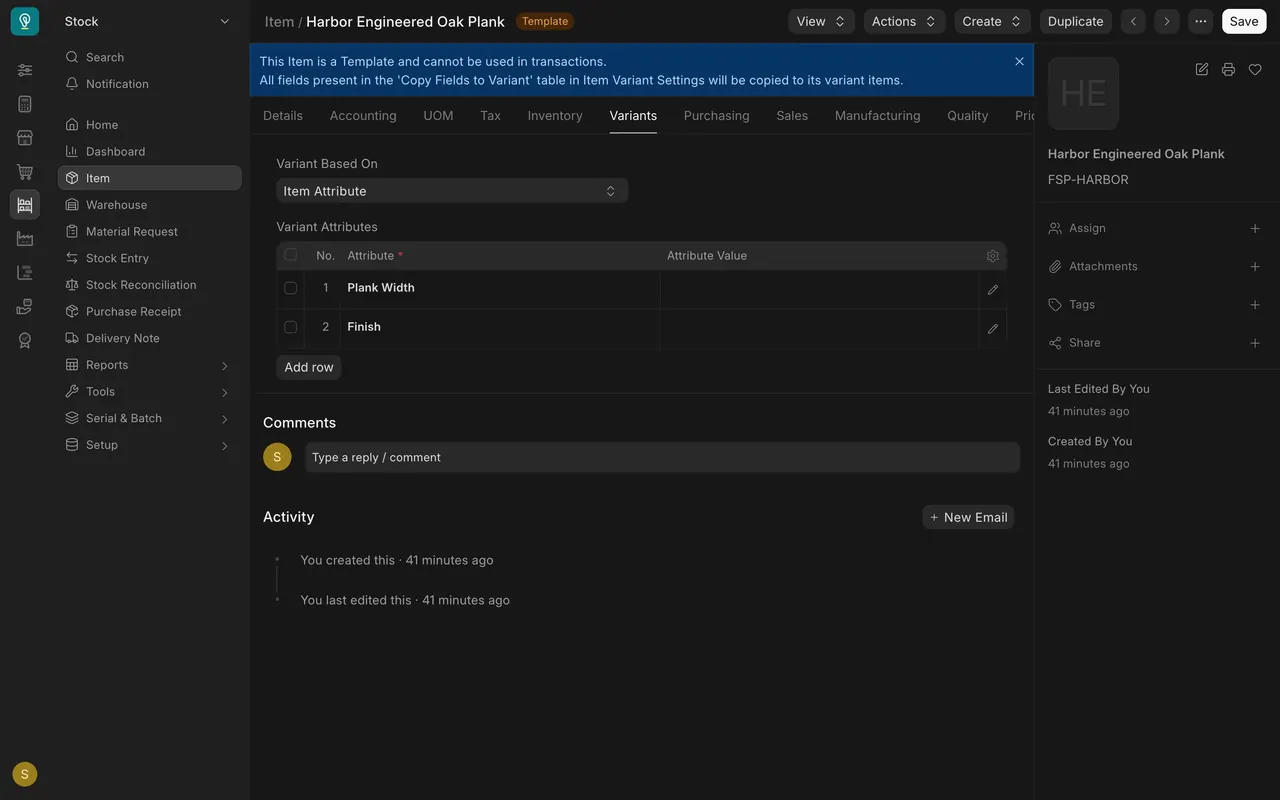
- Open the Variants tab. Variant Attributes lists the choices that tell the variants apart, here Plank Width and Finish.
The attributes and the variant names
- Each attribute is its own record. Open Setup and then Item Attribute.
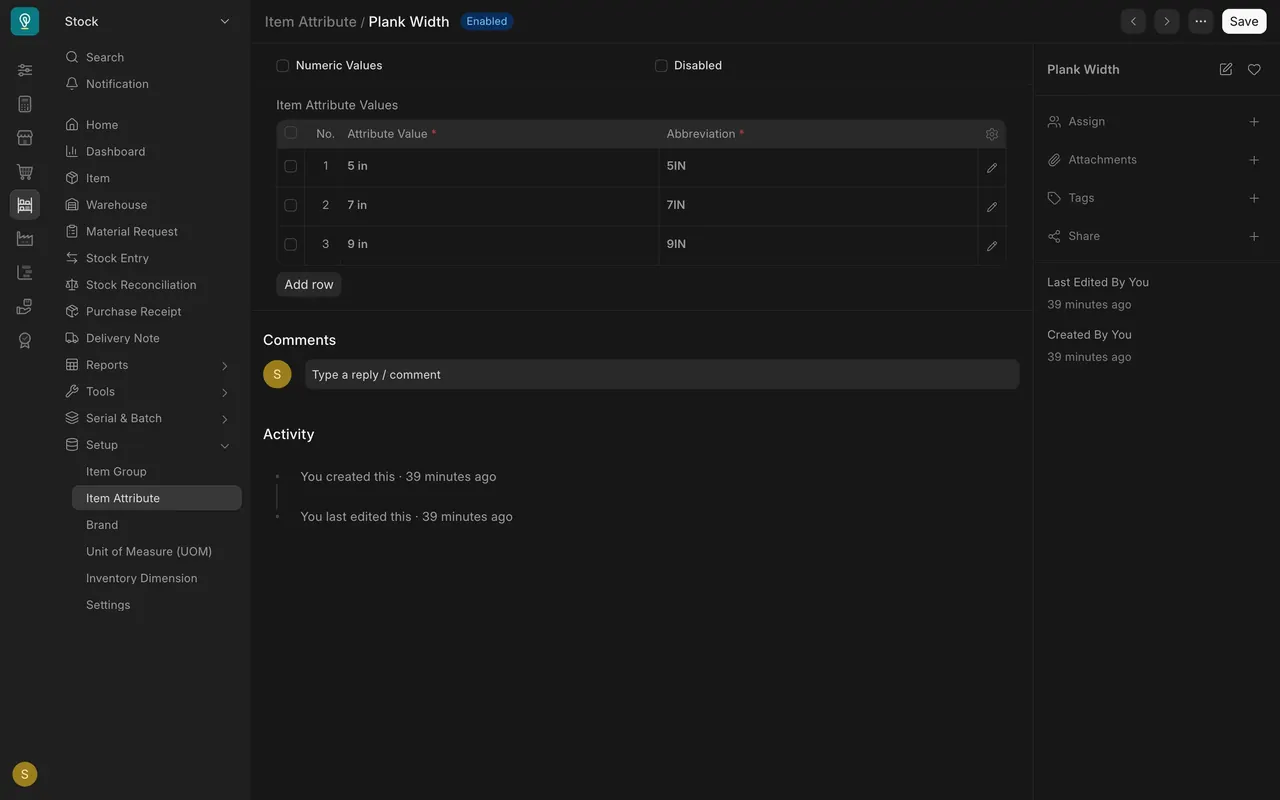
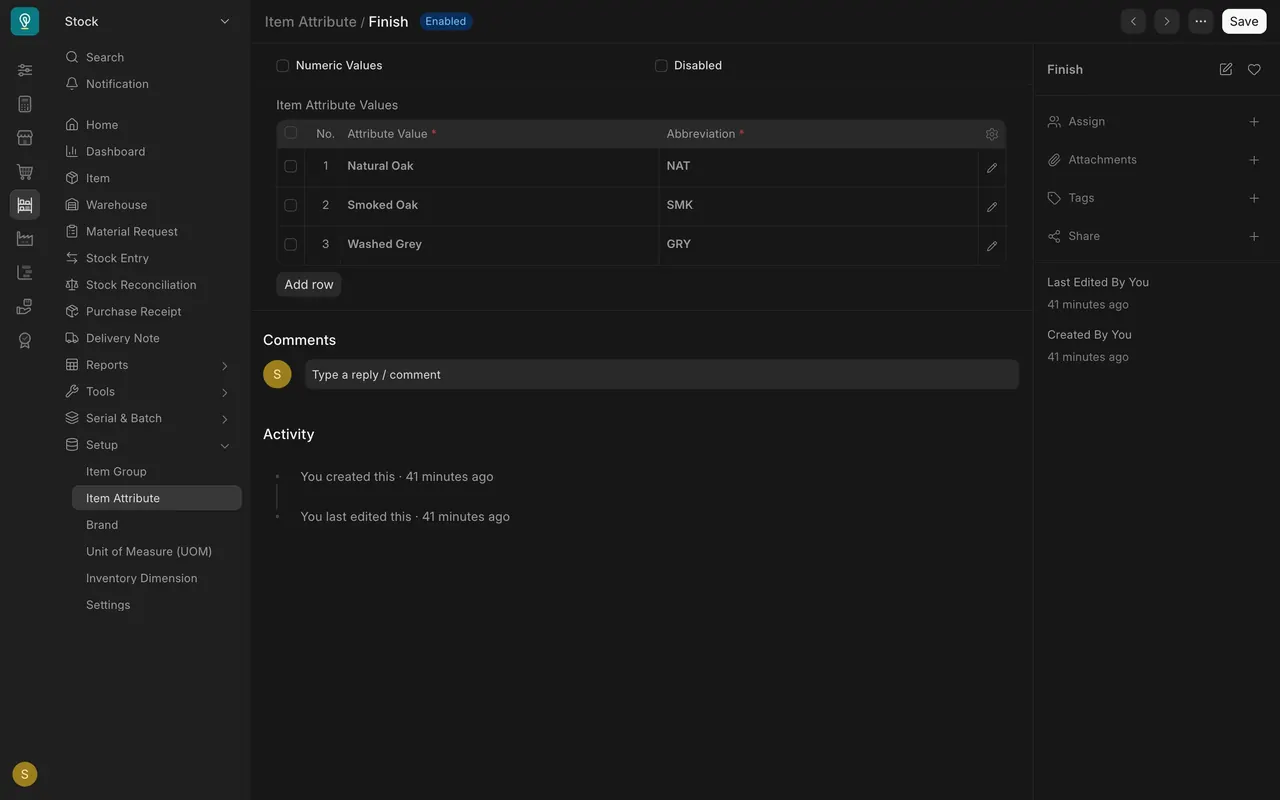
- Plank Width has the values 5 in, 7 in and 9 in. Finish has Natural Oak, Smoked Oak and Washed Grey. Every value has an Abbreviation.
- A variant's code is the template's code, then the width abbreviation, then the finish abbreviation. The 7 in, Smoked Oak variant ends with 7IN-SMK.
What a variant is
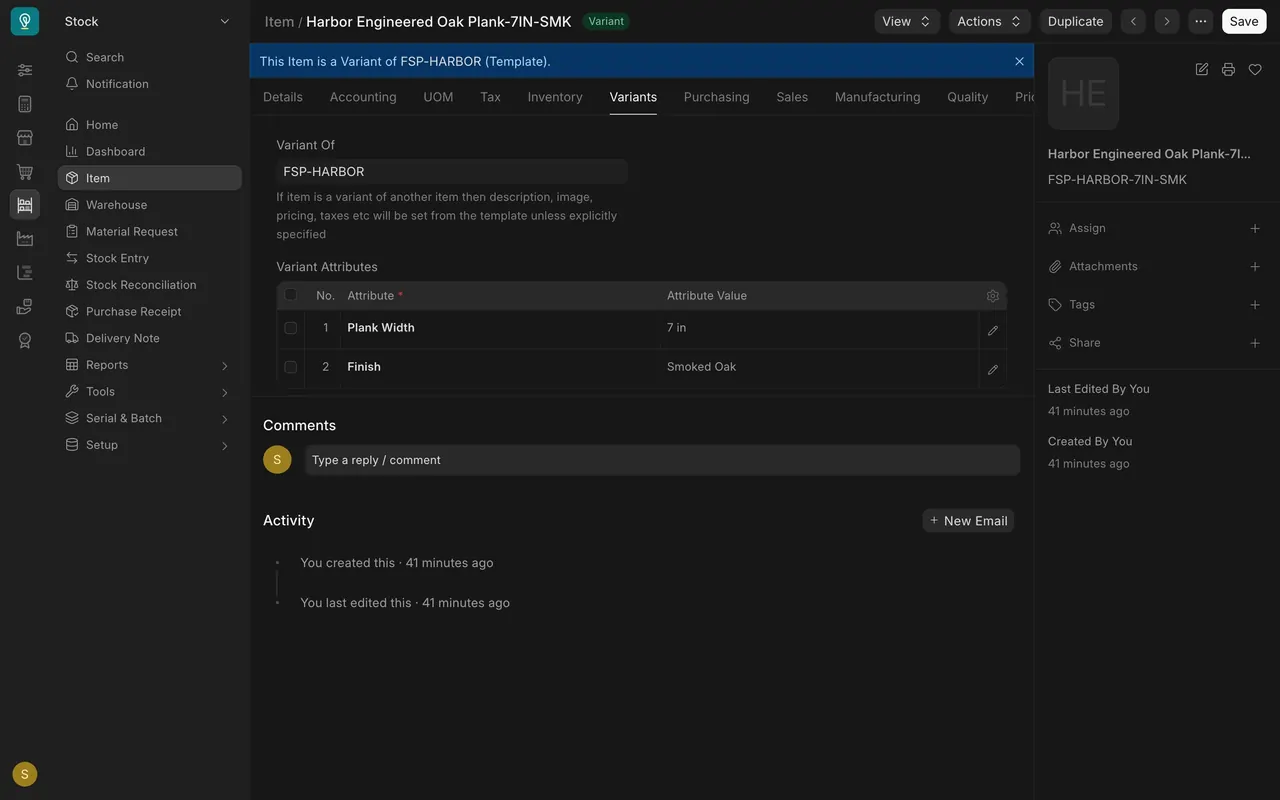
- Open a variant. The banner says it is a variant of the template.
- Its Variants tab shows its own width and finish. Variant Of names the template.
- Description, image, pricing and taxes come from the template unless you set them on the variant.
Add variants (the dialog only)
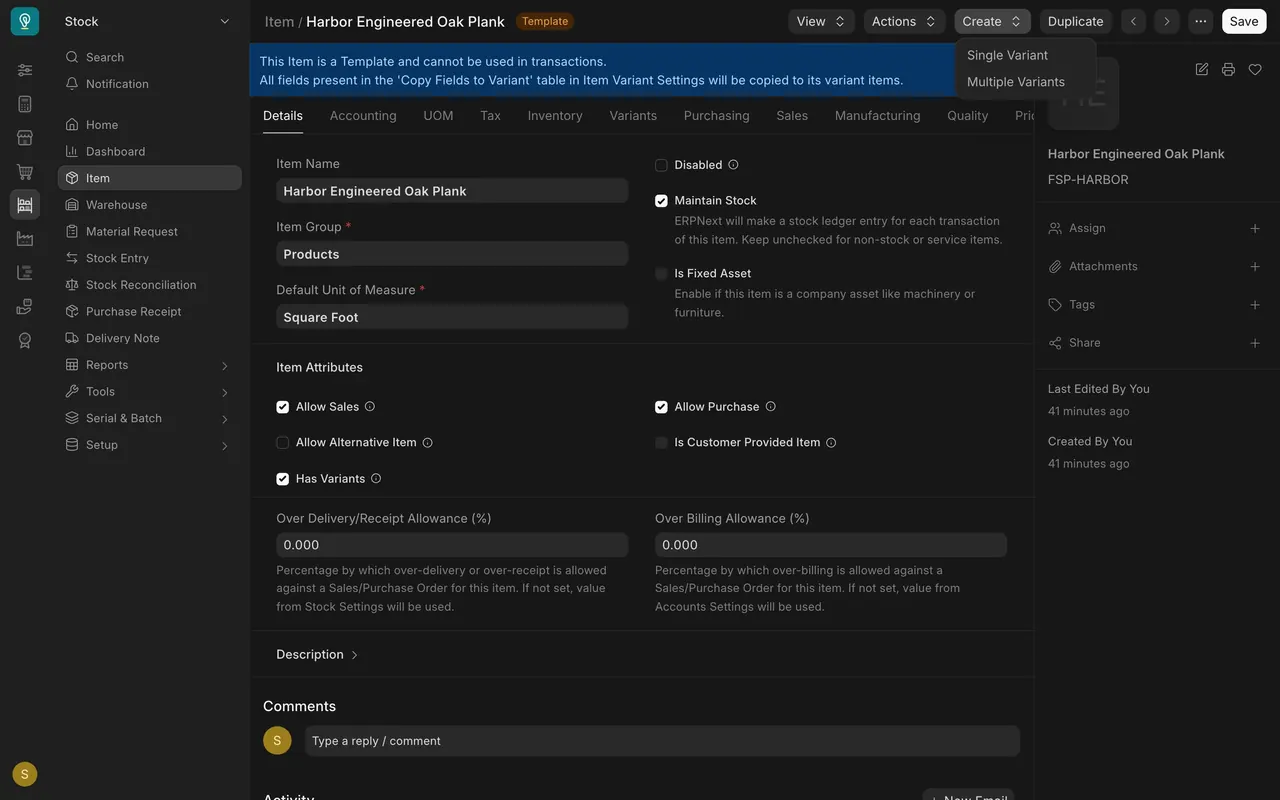
- Open the template.
- Choose Create.
- Pick Multiple Variants. Single Variant adds one at a time.
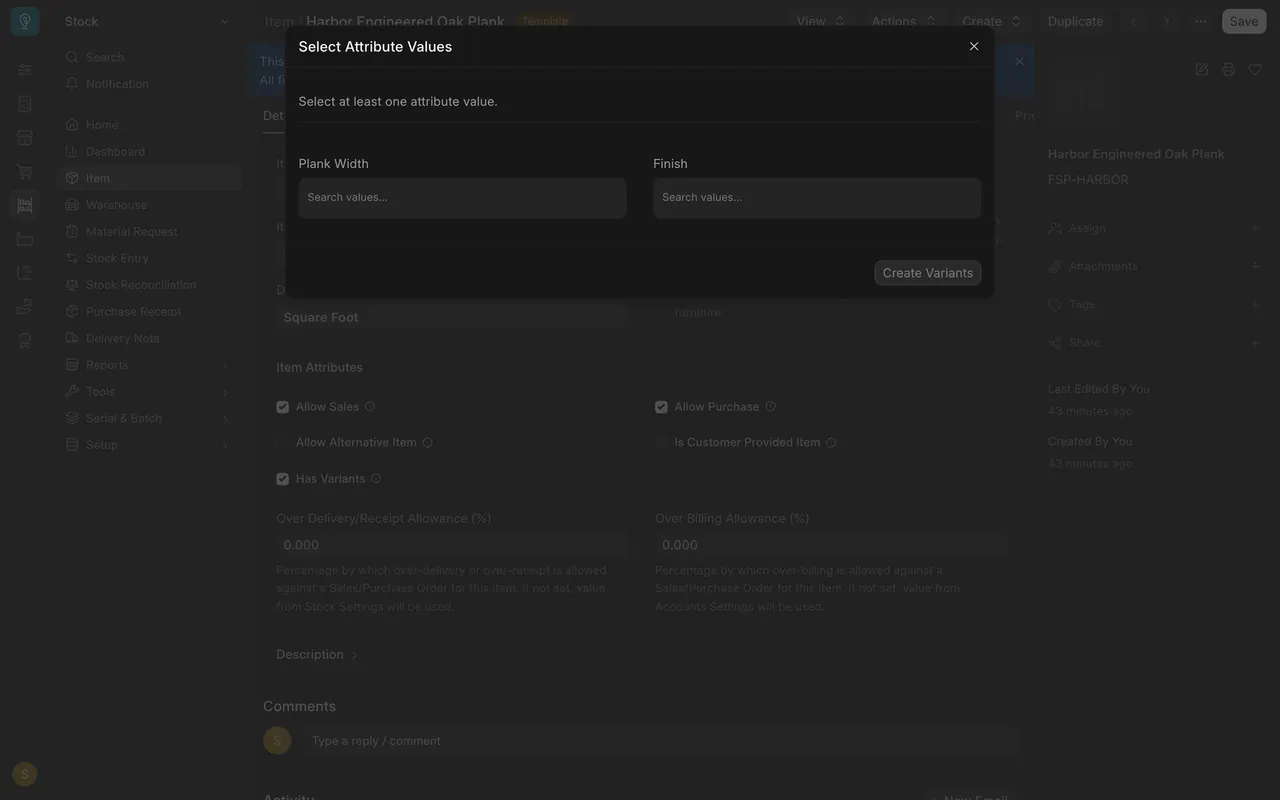
- The Select Attribute Values box has a field for each attribute. Pick the values you want and press Create Variants to make one item for every combination. Only do this when you mean to add real items.
Find a template's variants
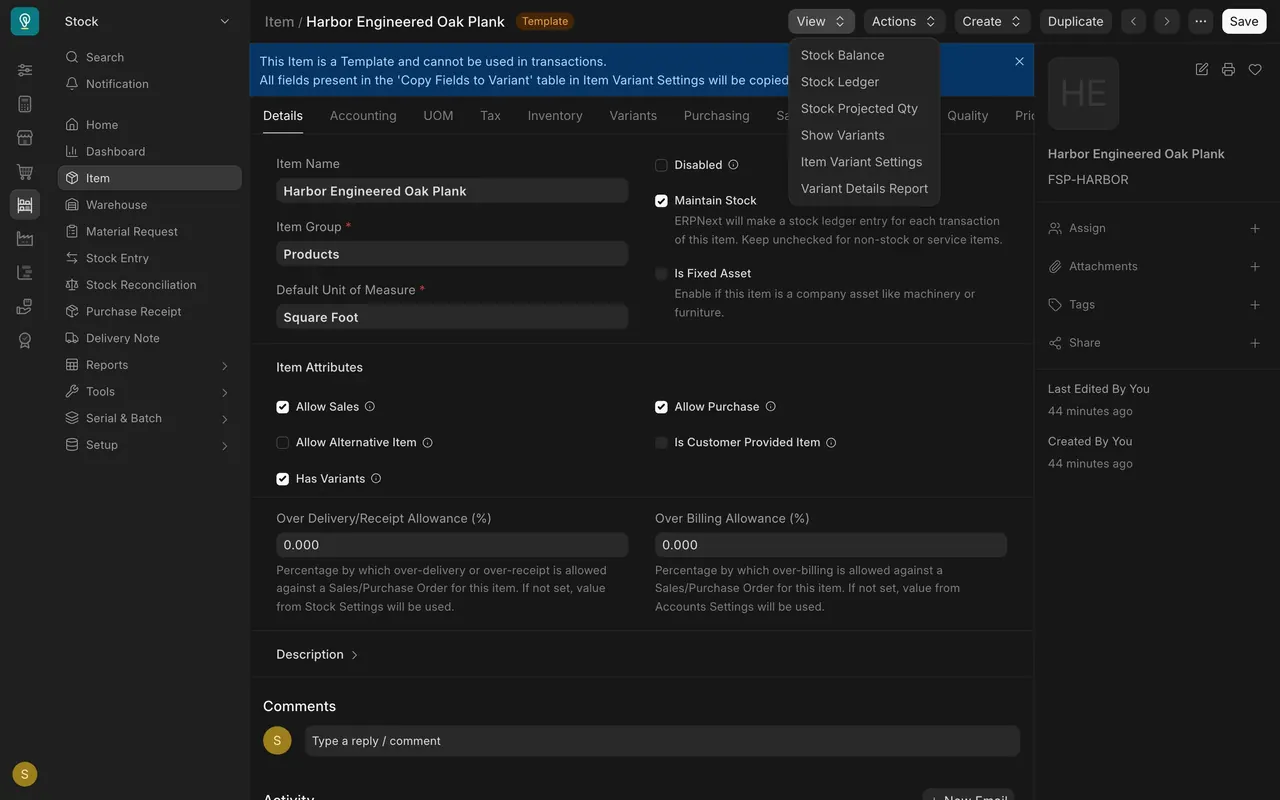
- Open the template.
- Open the View menu.
- Choose Variant Details Report. It lists each variant with its width, finish and stock. Show Variants opens the item list instead.
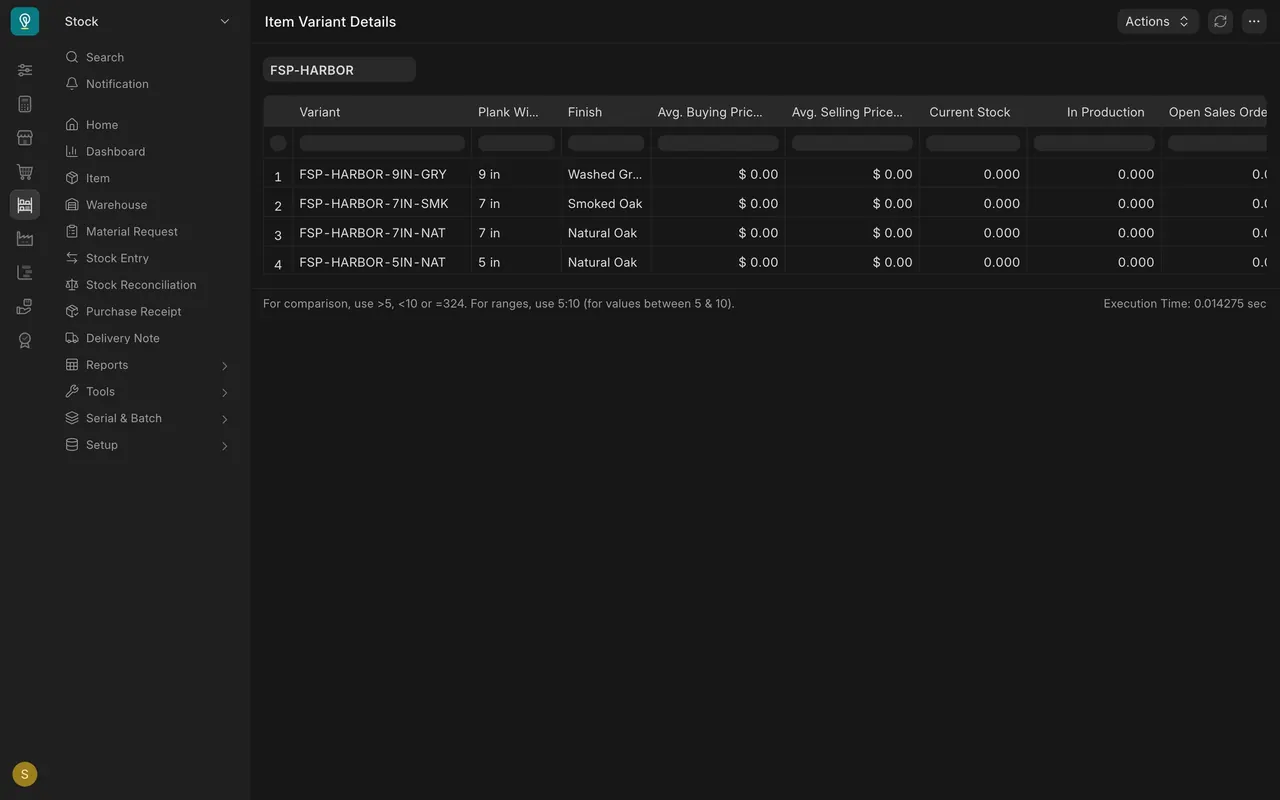
What you may see on your own site
- Your attributes, values and abbreviations are your own, so your variant codes follow your abbreviations.
- Your administrator may not let you create items, so Create may be missing.
- The View menu on your version may list other entries beside these.
Common mistakes
- Trying to sell the template. Put the variant on the order.
- Adding a variant by copying an item. Use the Create menu on the template, so the attributes stay linked.
- Choosing too many values. Every combination becomes an item, so three widths and three finishes make nine.
- Looking for the variants in a long item list. Use Show Variants or the Variant Details Report on the template.
Check yourself
3 quick questions.
1. Why can't you put the template on a sales order?
2. How is a variant's name built?
3. Where do you start to add several variants at once?