V16 Training · Getting Your Data In · Lesson 4 of 6
Opening stock
This lesson shows you how to count your starting stock into Parsimony with a Stock Reconciliation whose purpose is Opening Stock.
Written guide
The idea
When a company starts on Parsimony, the shelves are full but the system shows zero. A Stock Reconciliation with the purpose Opening Stock tells Parsimony what you already own, where it is, and what each unit cost you. Only stock managers can create one.
The screens use example data from a demo company that sells flooring. Your own site shows your items and warehouses.
Step by step
See a real one
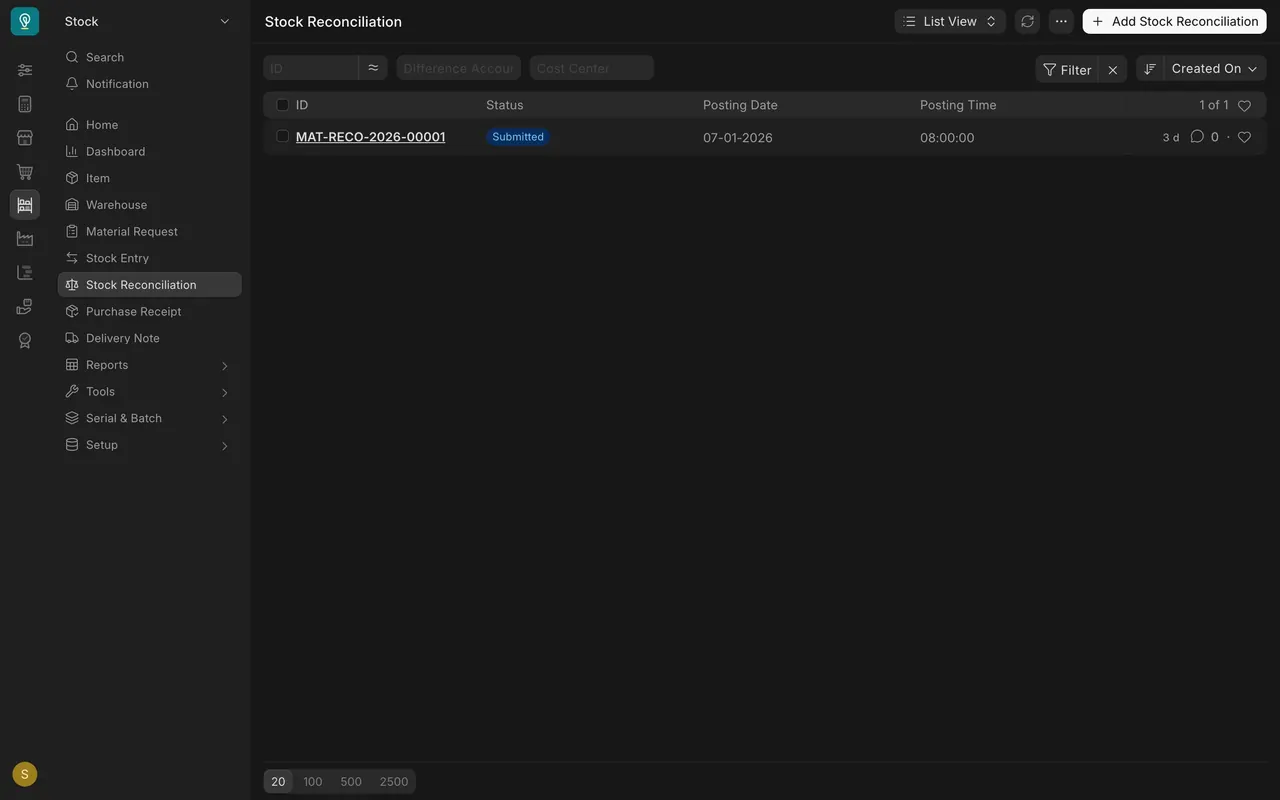
- Open Stock Reconciliation in the Stock sidebar. In this example there is one, already submitted.
- Open it. Purpose says Opening Stock, with a Posting Date and Posting Time.
- Each row is one item in one warehouse, with a Quantity and a Valuation Rate.
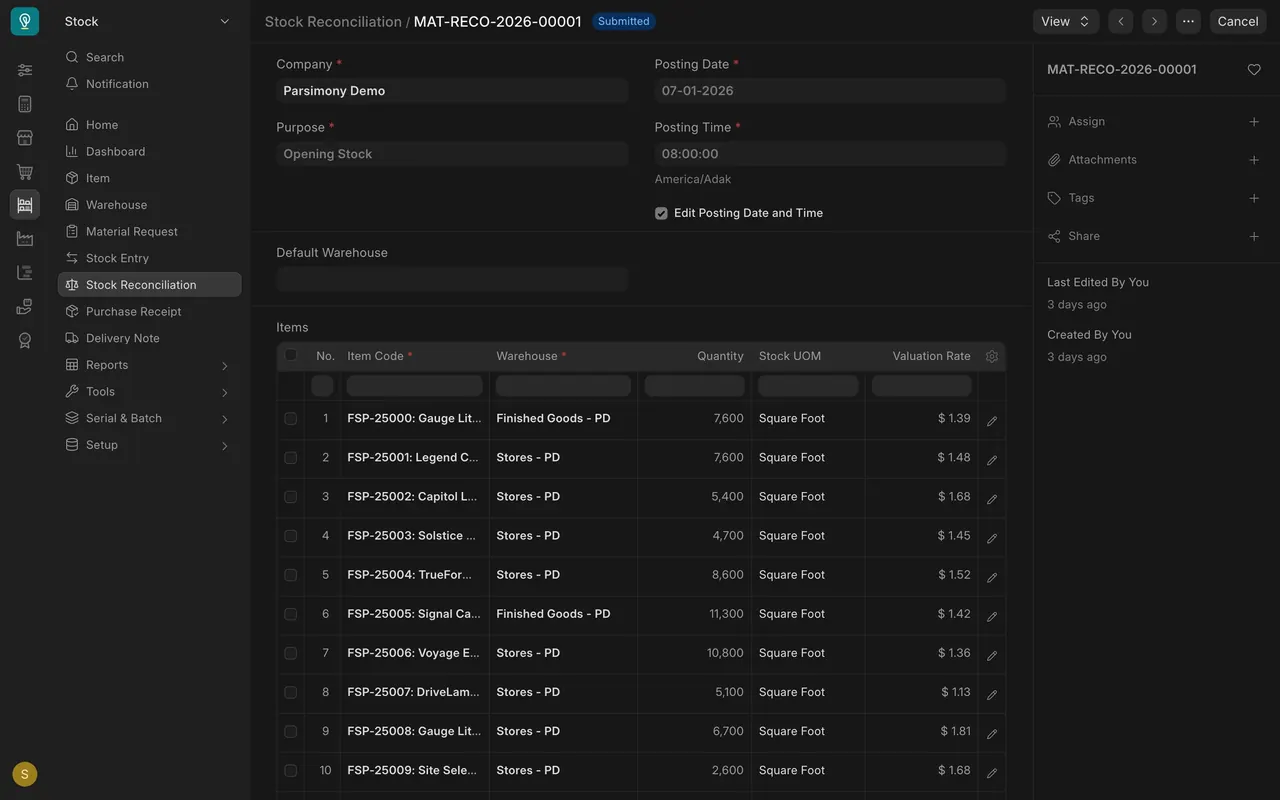
- Make one for each warehouse, so each count is easy to check. This example holds two, Finished Goods and Stores, which also works.
Make your own
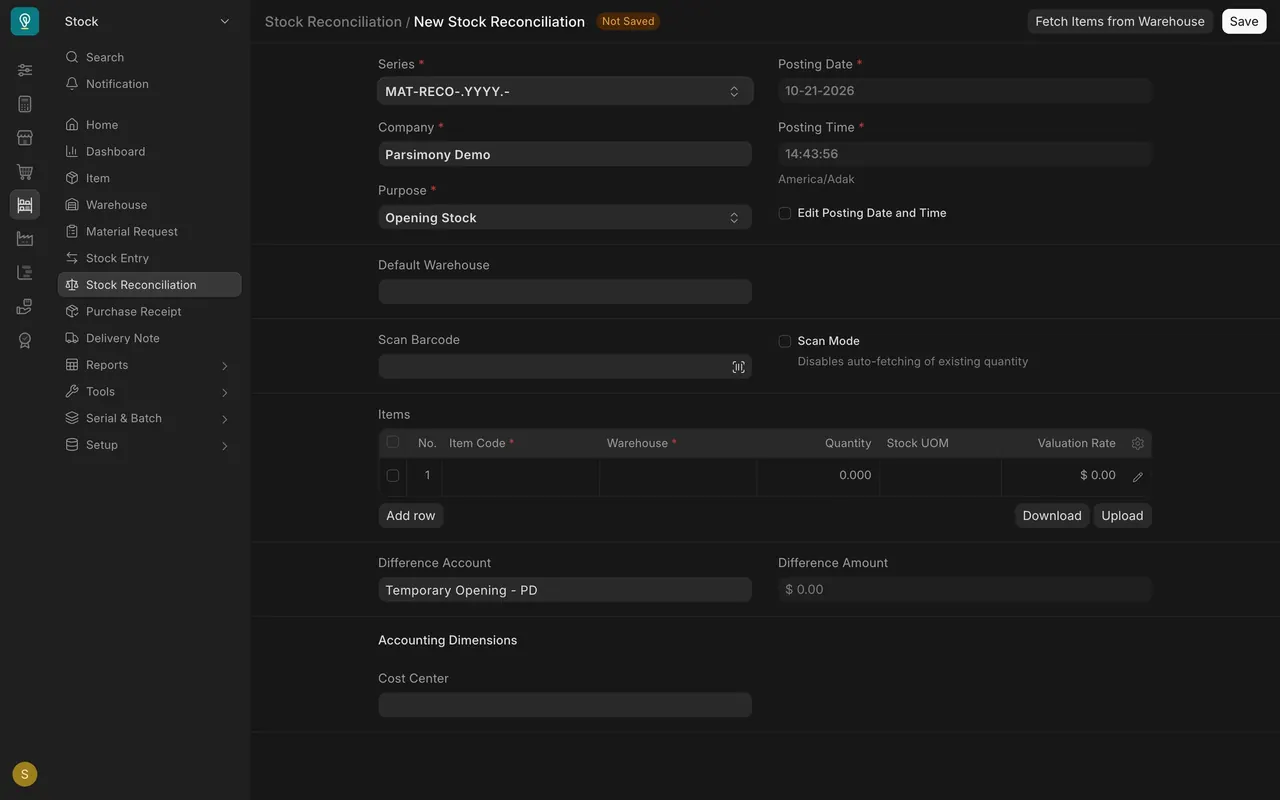
- Step 1. Choose Add Stock Reconciliation. A new form opens, and it is not saved.
- Step 2. Set Purpose to Opening Stock.
- Step 3. Check Posting Date and Posting Time. Set them to the moment your counts are true, before your first sale.
- Step 4. Fill the Items table: Item Code, Warehouse, Quantity and Valuation Rate for each row. Choose Add row, or use Download and Upload to fill a spreadsheet.
- Step 5. Save, check every row, and only then submit. Submitting posts the stock.
Why valuation matters
The valuation rate is what one unit cost you. Parsimony multiplies it by the quantity to get your stock value. It also sets your cost of goods when you sell. A rate left at zero makes stock look free, and profit look too big.
Difference Account is where the other side of the entry goes. In this example it is Temporary Opening. Ask your accountant whether that suits your books.
Check it
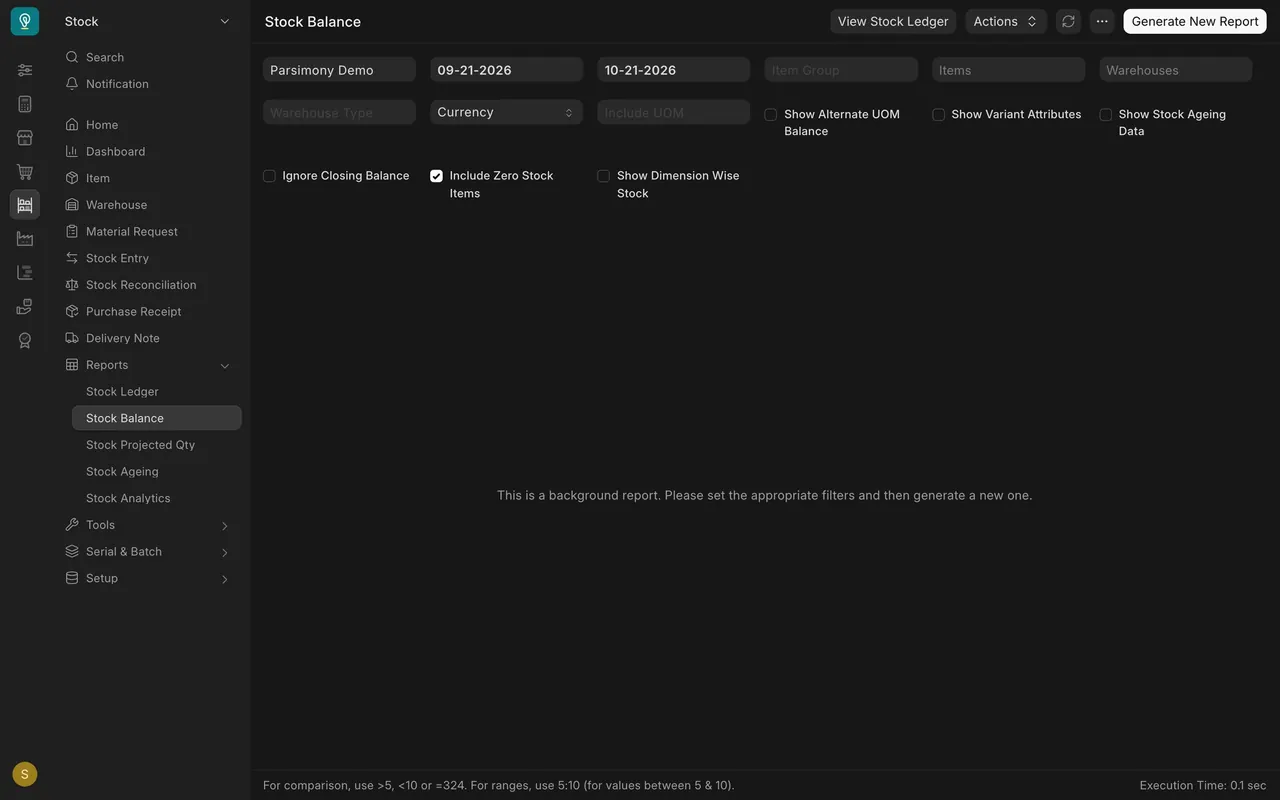
- Step 6. Open Stock Balance under Reports in Stock. Pick a warehouse and choose Generate New Report.
- Stock Ledger shows the same stock row by row. Each balance should match the quantity you entered.
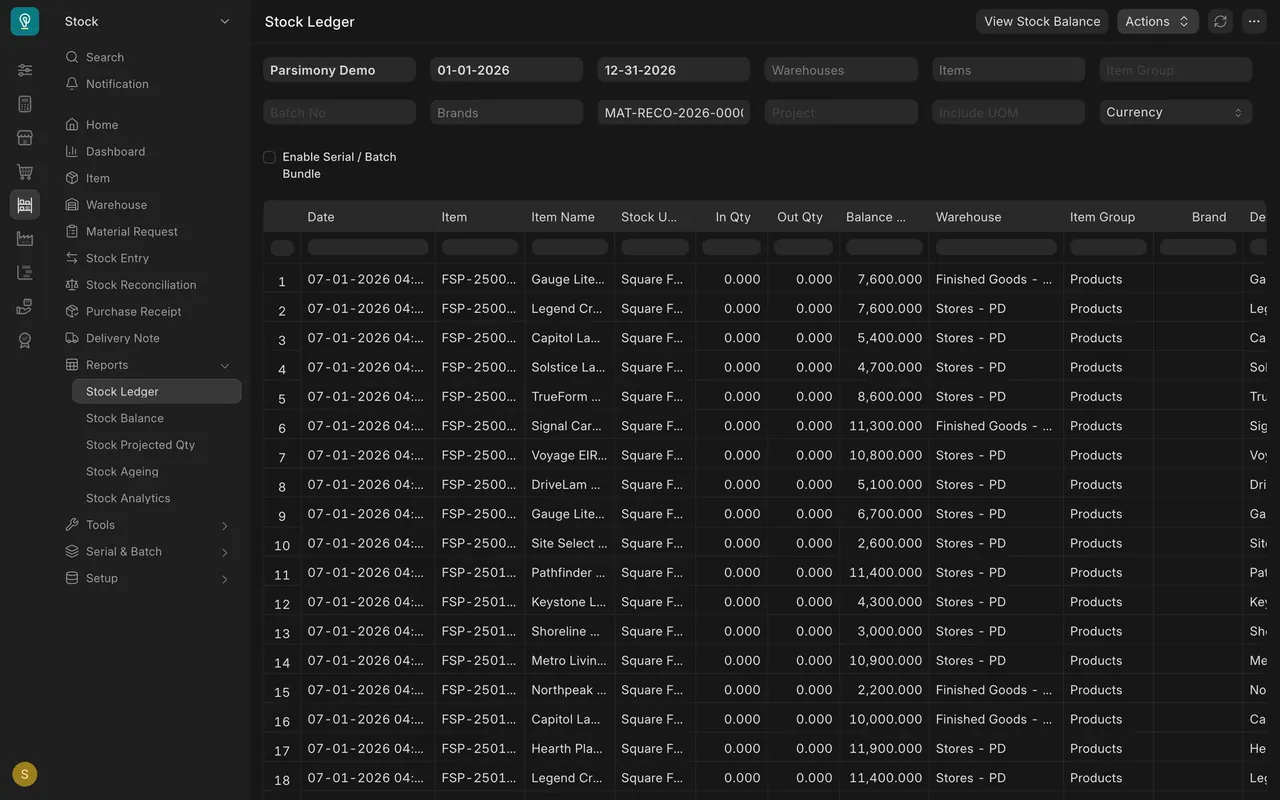
What you may see on your own site
- Your warehouses, items and units will differ. The example counts in square feet.
- Stock Balance is a background report on this version, so it asks you to generate it before it shows rows.
- If you cannot see Stock Reconciliation, ask your administrator for the stock manager role.
Common mistakes
- Leaving Valuation Rate at zero. Stock looks free and profit looks too big.
- Posting after your first sale. Set the date to when your counts are true.
- Mixing everything on one sheet. One for each warehouse is easier to check.
- Submitting before checking. Review every row first.
Check yourself
3 quick questions.
1. What does Purpose "Opening Stock" tell Parsimony?
2. Why does the Valuation Rate matter?
3. Where can you check the opening quantities afterwards?