V16 Training · Getting Your Data In · Lesson 3 of 6
Import items
This lesson shows you how to load items from a spreadsheet with Data Import: the columns that matter, prices as a separate load, and how to change items that already exist. It builds on lesson 2, which covers every stage of a load.
Written guide
The idea
Items are loaded the same way as customers: pick the document type, download the template, fill it in, preview, then start. What is special about items is which columns you must get right, that prices are a separate load, and that you can update existing items instead of adding new ones. The screens use example data from a demo company; nothing on them was saved, exported or started.
Step by step
Start an item import (unsaved)
- Open Data Import and start a new one.
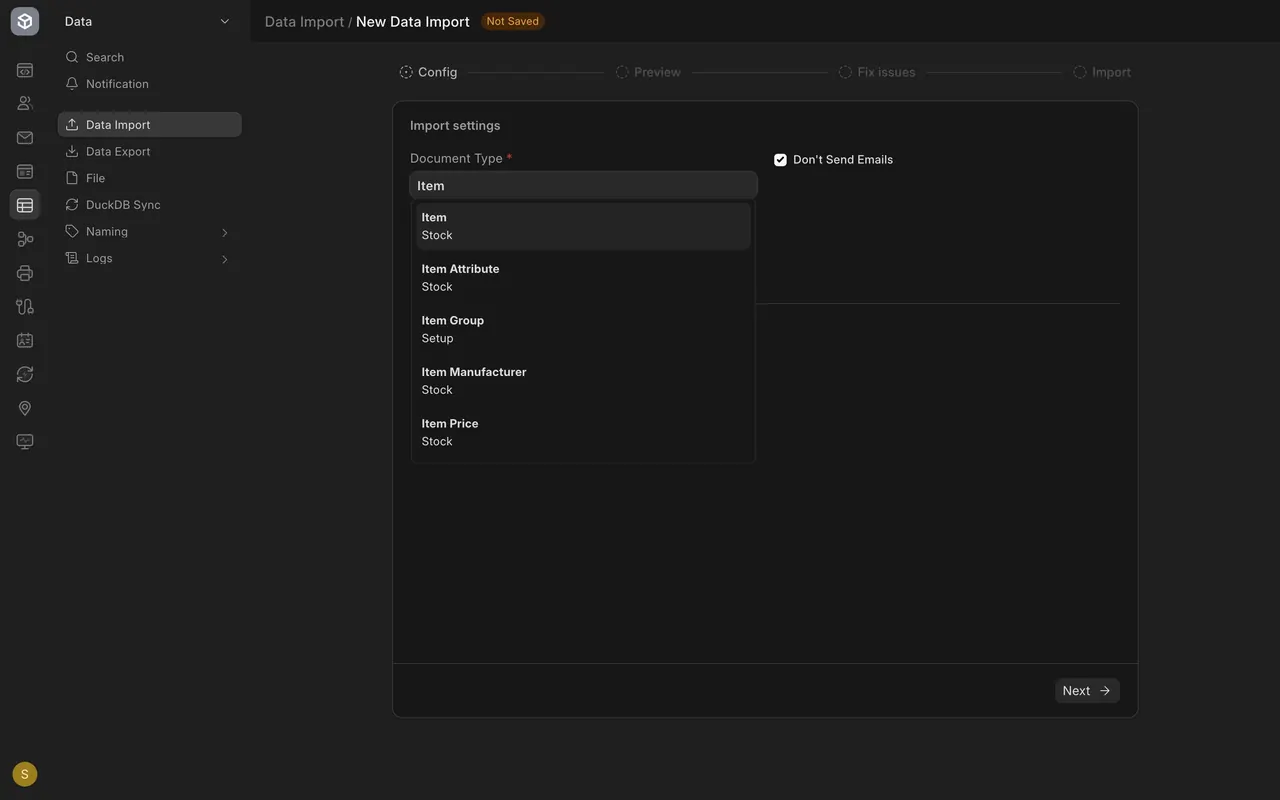
- In Document Type, type Item and pick it. The form stays unsaved while you look around.
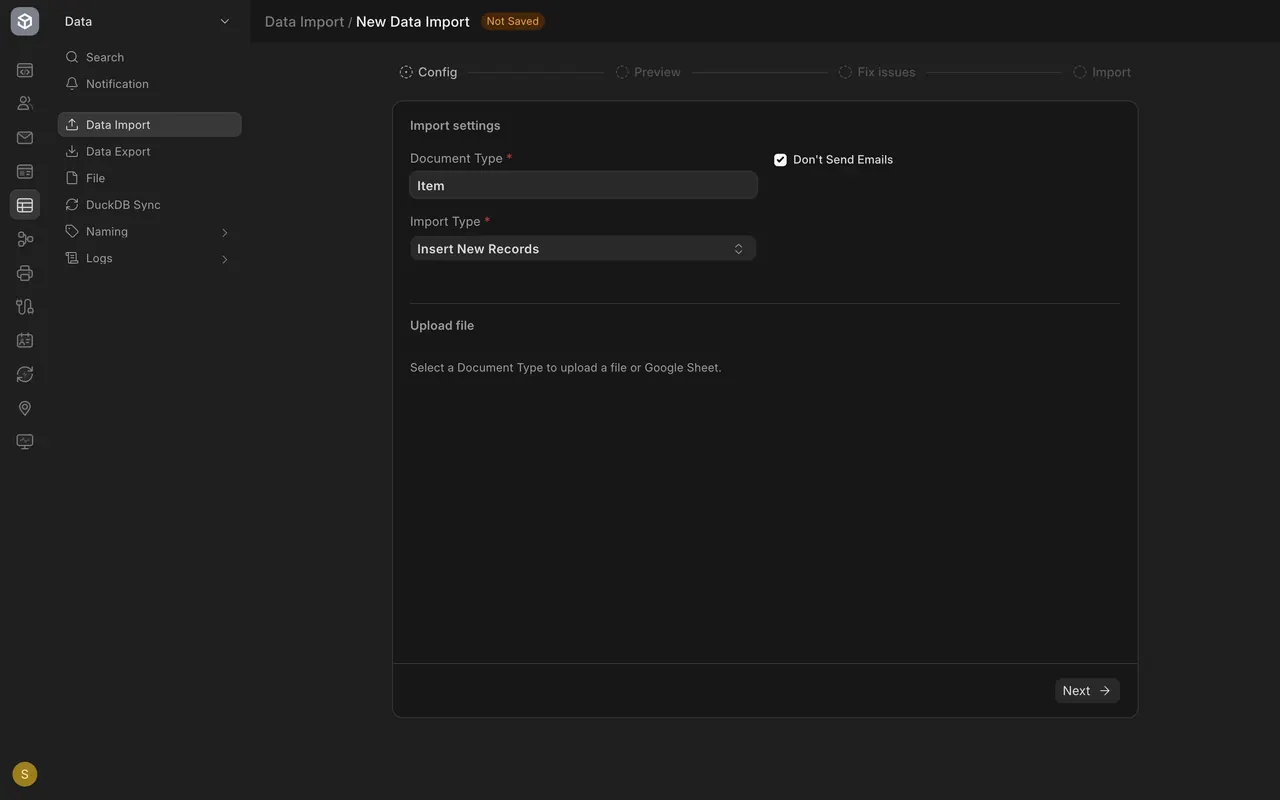
- Leave Import Type on Insert New Records to add items that are not in Parsimony yet.
The four columns that matter most
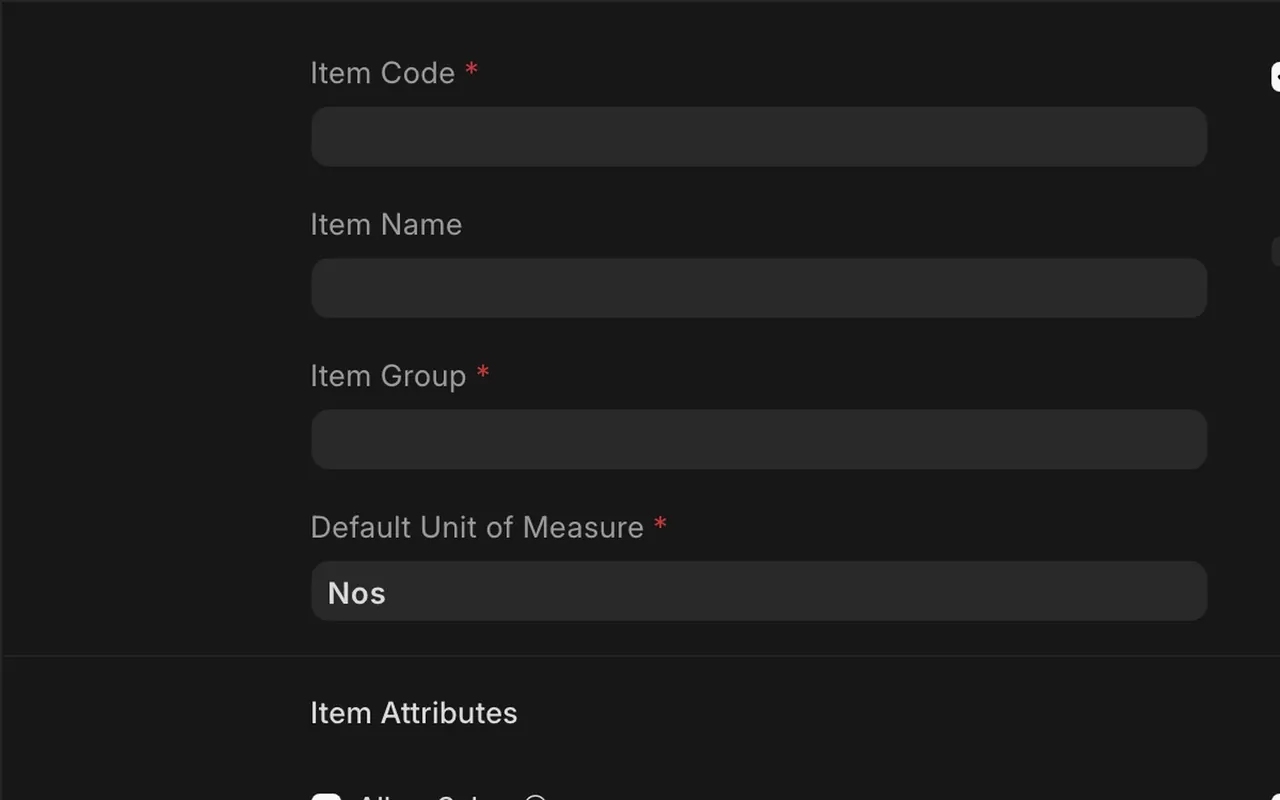
- Item Code: the unique ID of the product. Prices, stock and orders all point to it, so no two items may share one.
- Item Name: the words people read on a quotation.
- Item Group: must already exist, such as Products. A group Parsimony does not know causes a warning.
- Default Unit of Measure: the stock unit of measure, the unit you count stock in, such as Square Foot. It must exist too.
- Maintain Stock (a tick box): keep it for goods you count in a warehouse; leave it off for services. In a sheet, write 1 for yes and 0 for no.
Prices are a separate load
- Import the items first. A price needs an item to belong to.
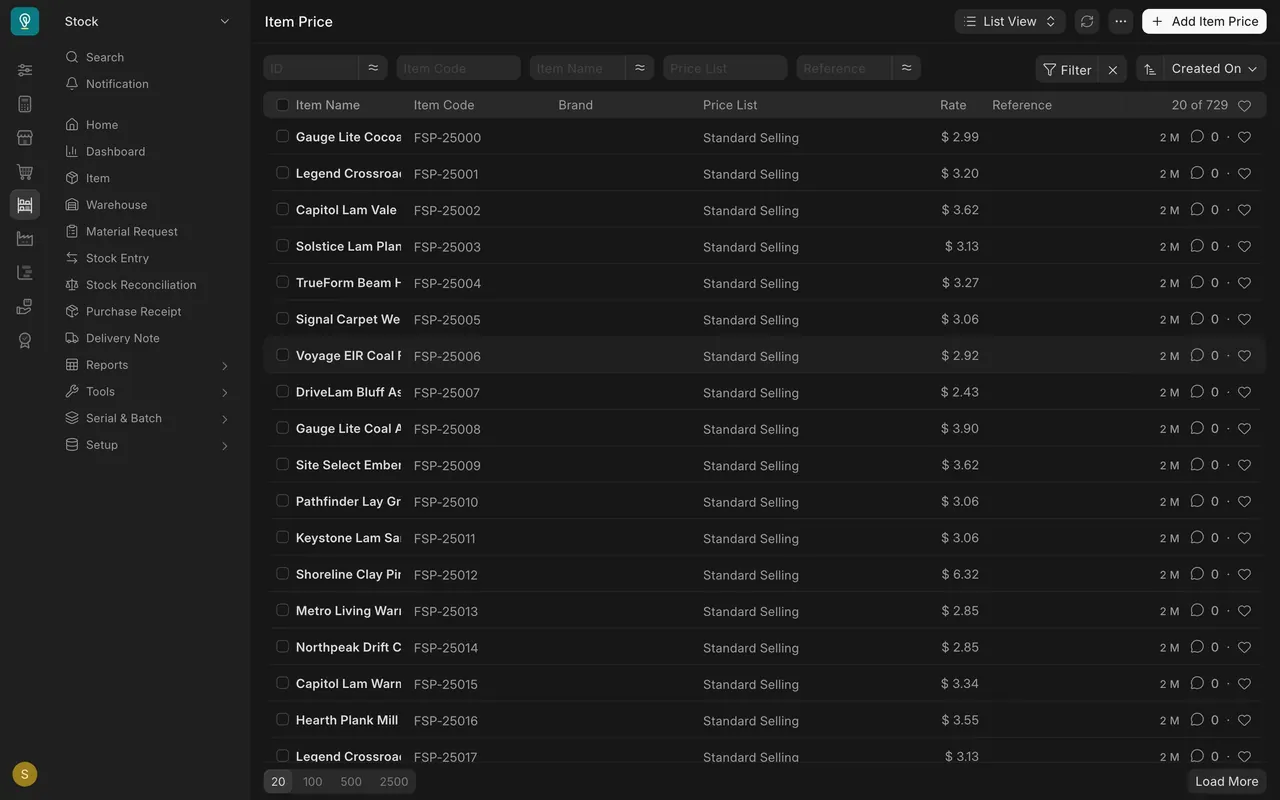
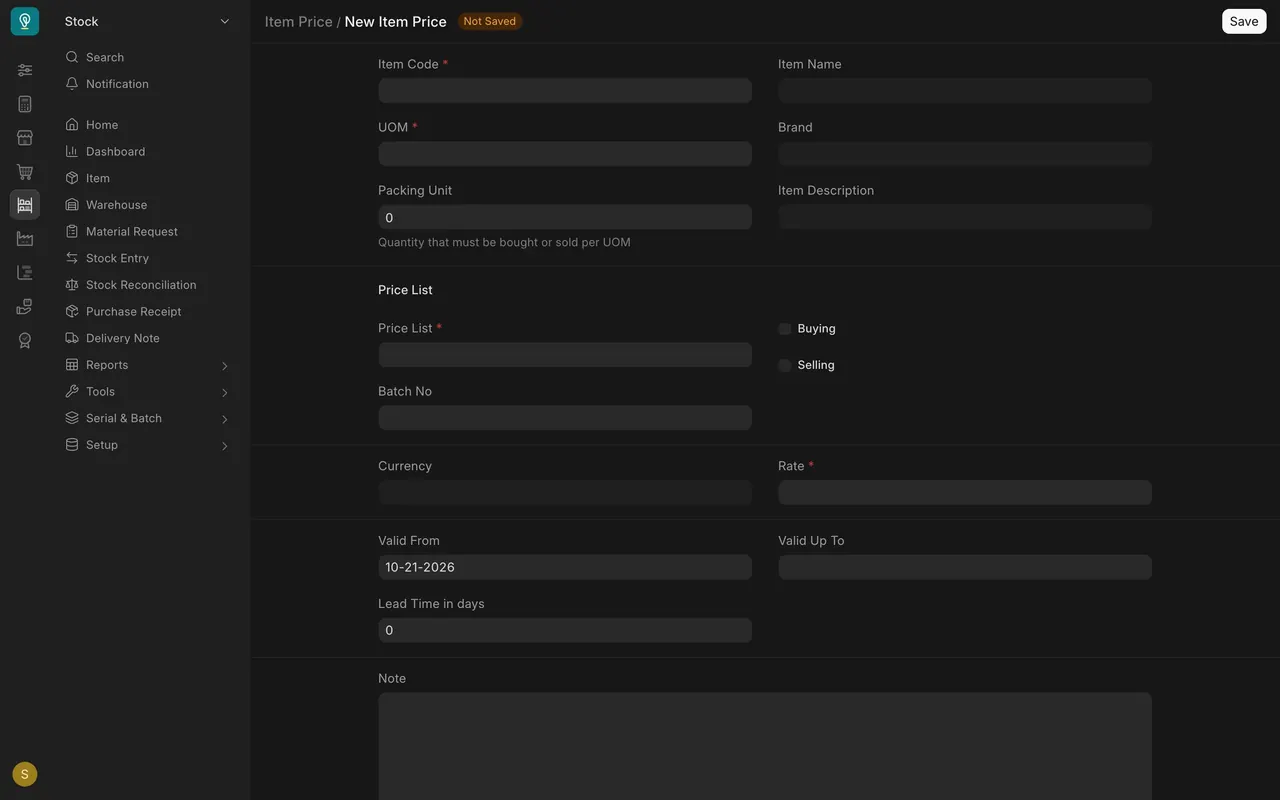
- Start another Data Import and type Item Price as the document type.
Each price row needs an Item Code, a UOM (unit of measure), a Price List and a Rate. Those are the required fields on the Item Price form.
Update items that already exist
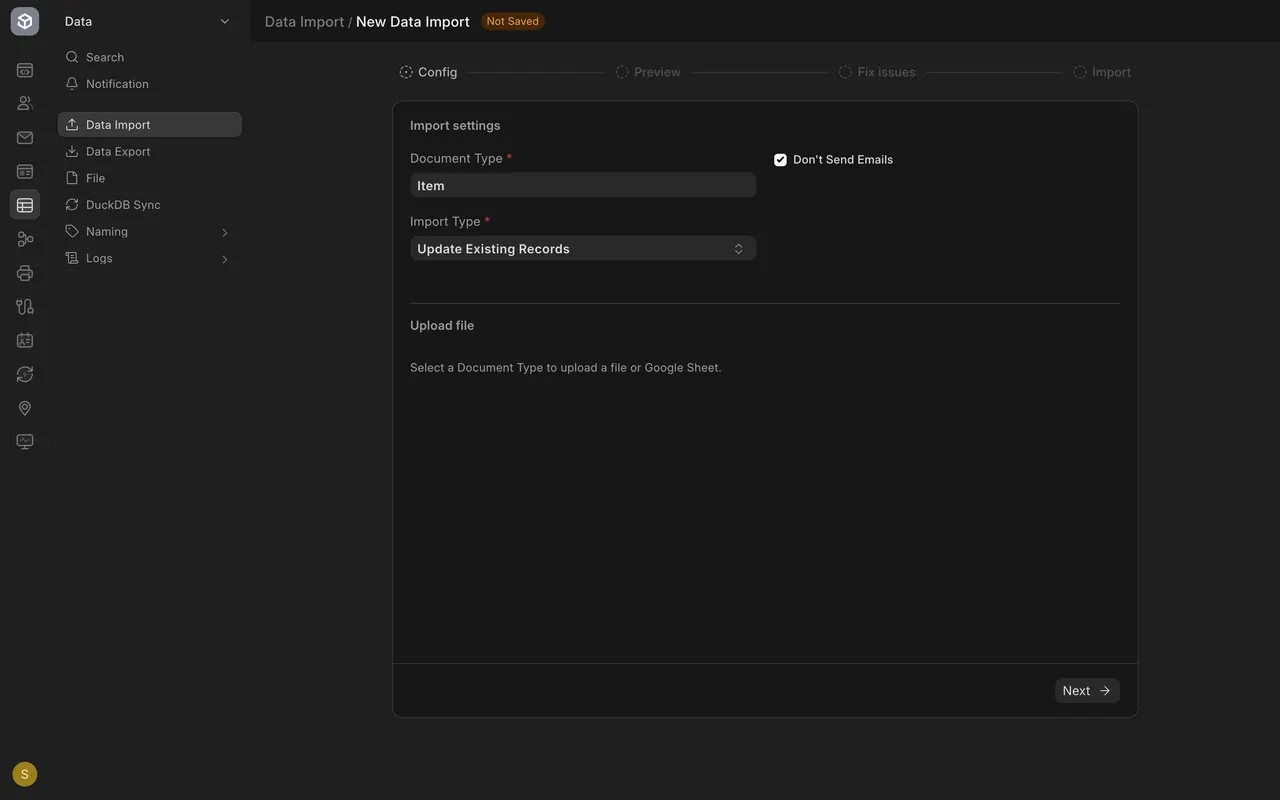
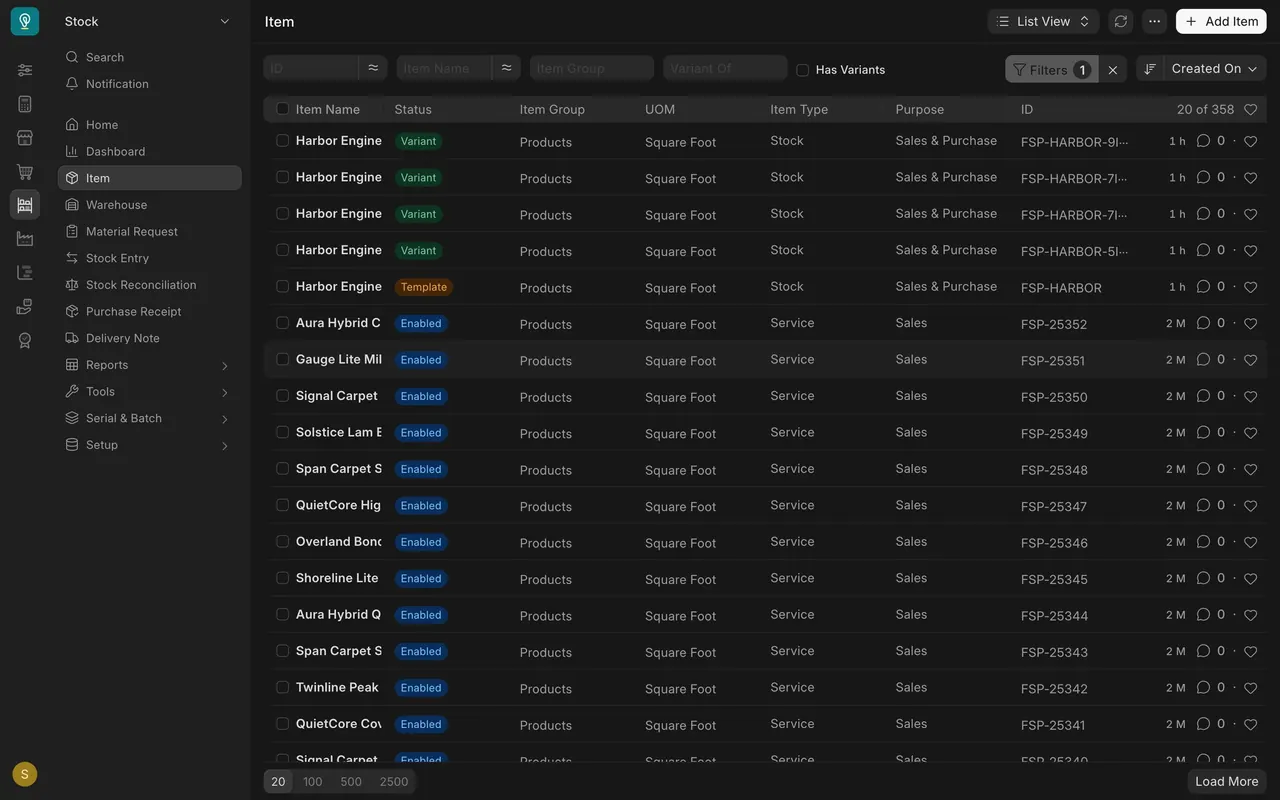
Choose Update Existing Records as the import type. Keep each item's ID (the item code you see in the Item list) in the first column so Parsimony knows which item to change, and fill only the columns you want to change.
What you may see on your own site
- Your site may have extra custom item fields, which then appear as extra template columns.
- Item groups, units and price lists must already exist before a sheet can use them.
- The Download Template box is on a saved Data Import; lesson 2 shows it.
Common mistakes
- Reusing an item code, or typing the same product twice with different codes.
- Using an item group or unit that your site does not have yet. It shows as a warning in the preview.
- Loading prices before the items. The price has no item to belong to.
- Starting with the whole file. Try five rows first.
Check yourself
3 quick questions.
1. Which column is the unique ID of an item?
2. How do you load prices for your items?
3. You want to change the item group on items that already exist. What do you choose as the import type?