V16 Training · Getting Started · Lesson 3 of 6
Work with lists
This lesson shows you how to make any list answer a question, using four controls and one habit that stops you telling people a record doesn't exist when it does.
Written guide
The idea
Every area of Parsimony opens on lists. A list is not something to read top to bottom. It's something you ask questions of: which orders are late, what's still to bill, what came in from one supplier last week.
Four controls do almost all the work: the status on each row, the quick filter boxes across the top, the Filter button, and sort. The habit is reading the count, and the rows, before you trust what you see. A filter answers exactly the question you asked, which is not always the question you meant.
Step by step
Read a row
- Open the Sales Order list from the Selling sidebar or from search. The screens here use example data from a demo company that sells flooring; your own Parsimony site shows your company's orders.
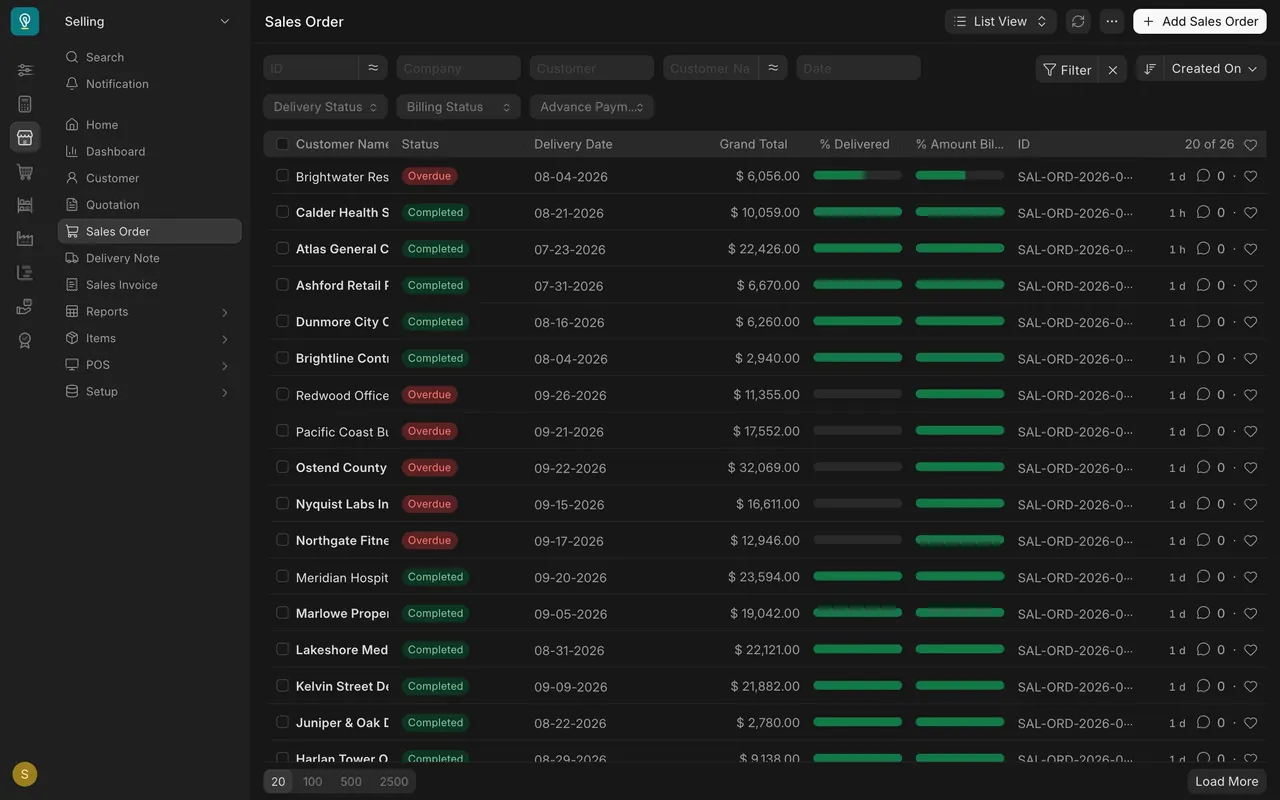
- Each row is one document. The columns show Customer Name, Status, Delivery Date, Grand Total, % Delivered (the percentage delivered), % Amount Billed (the percentage billed) and ID, the document number.
- Read the status first. A red Overdue order has a delivery date in the past and isn't fully delivered. Its delivered bar may be empty or only part full.
- A green Completed order has both bars full: delivered and billed.
Narrow it with the quick filter boxes
- The boxes across the top of the list are quick filters. On Sales Order they are ID, Company, Customer, Customer Name, Date, Delivery Status, Billing Status and Advance Payment Status.
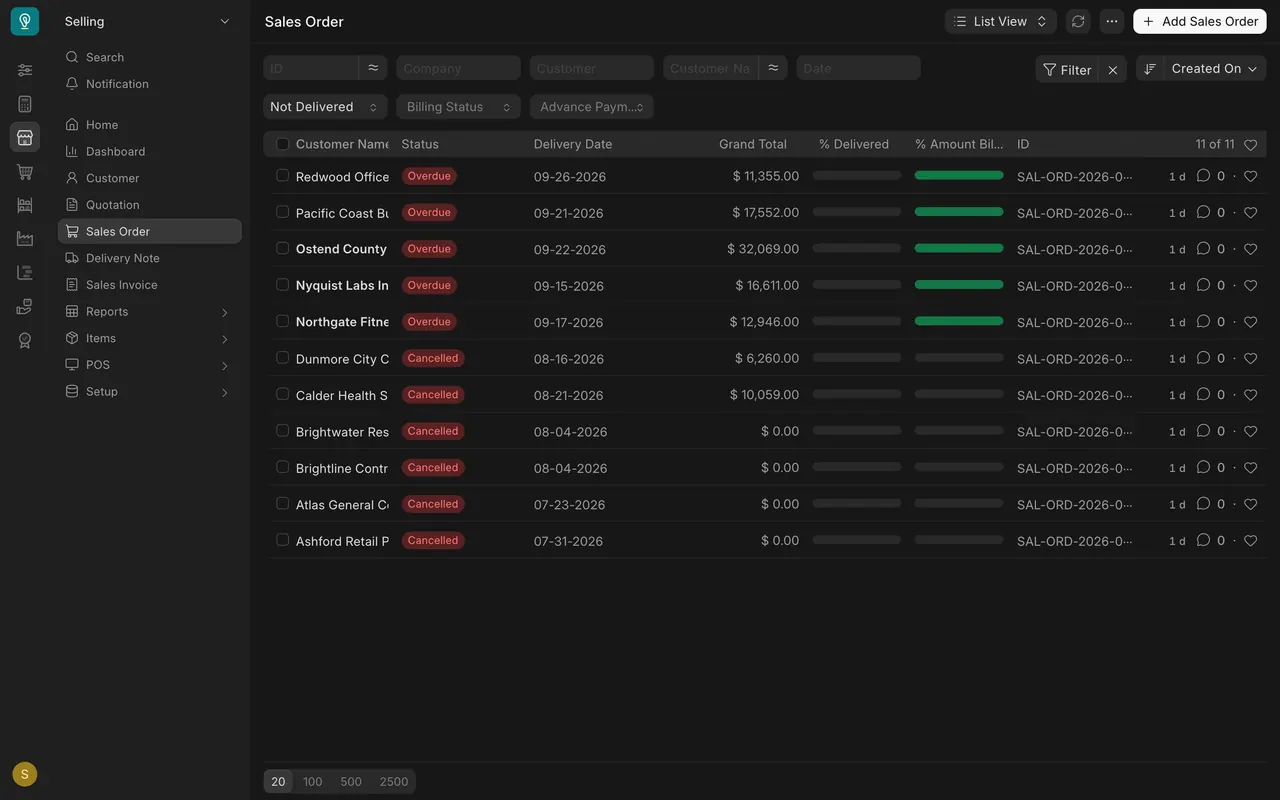
- Type into a box, or pick from a dropdown box, and the list narrows. Delivery Status offers Not Delivered, Fully Delivered, Partly Delivered, Closed and Not Applicable.
- A filled box doesn't change the button, which still reads Filter, so look at the boxes too. The cross beside Filter clears the boxes along with every other filter.
In this example, picking Not Delivered takes the count from 20 of 26 to 11 of 11. Read the rows: five are Overdue, and six are Cancelled orders that were replaced by corrected copies. A cancelled order was never delivered either, so the filter is right, but "not delivered" and "running late" are different questions. Not Delivered also leaves out part-delivered orders: a customer called Brightwater Residential is Overdue but Partly Delivered, so it isn't in the eleven. Six orders are running late. To answer "what's late", read the Overdue labels across the whole list.
Build any condition with Filter
- Click Filter. A panel opens with + Add a Filter.
- Each condition is a field you choose, a rule such as Equals, Not Equals, Like, Greater Than or Between, and a value.
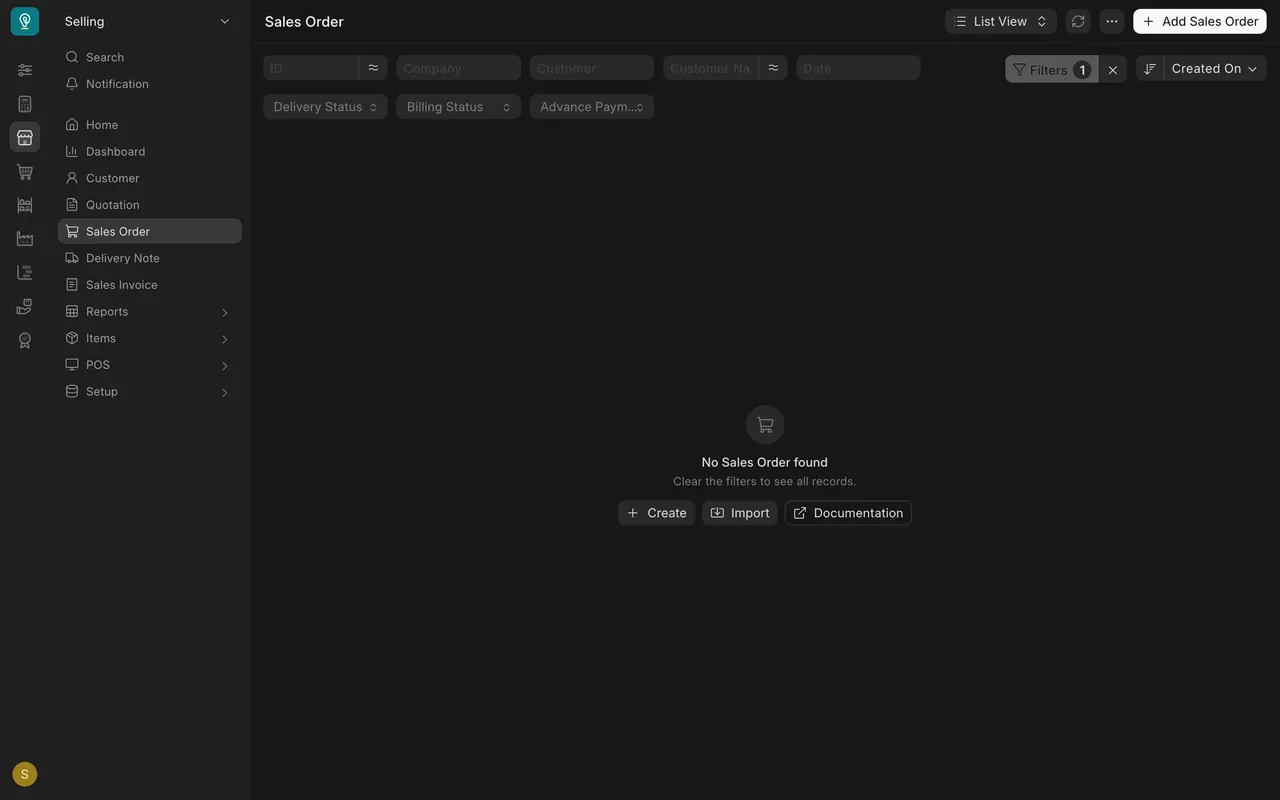
- Press Apply Filters. The button then shows how many filters are on, for example Filters 1.
- The cross beside it clears every filter at once.
Sort
- The sort button shows the current order. Lists start on Created On.
- Click it to choose a different field, such as Last Updated On, Customer Name or Date.
- Use the arrow button beside it to flip between descending and ascending.
Check the count, and show more rows
- The count sits at the top right of the table, for example 20 of 26: twenty rows shown out of twenty-six.
- When the two numbers differ, the rest are below. At the bottom of the list, choose 20, 100, 500 or 2500 rows per page, or press Load More.
- When a filter is on, the second number is how many records match it.
When the list says nothing matches
A filter that matches nothing shows No Sales Order found and "Clear the filters to see all records", while the button still reads Filters 1. Before you say a record doesn't exist, check the boxes across the top, the Filter button and the count, and clear the filters.
Same controls on every list
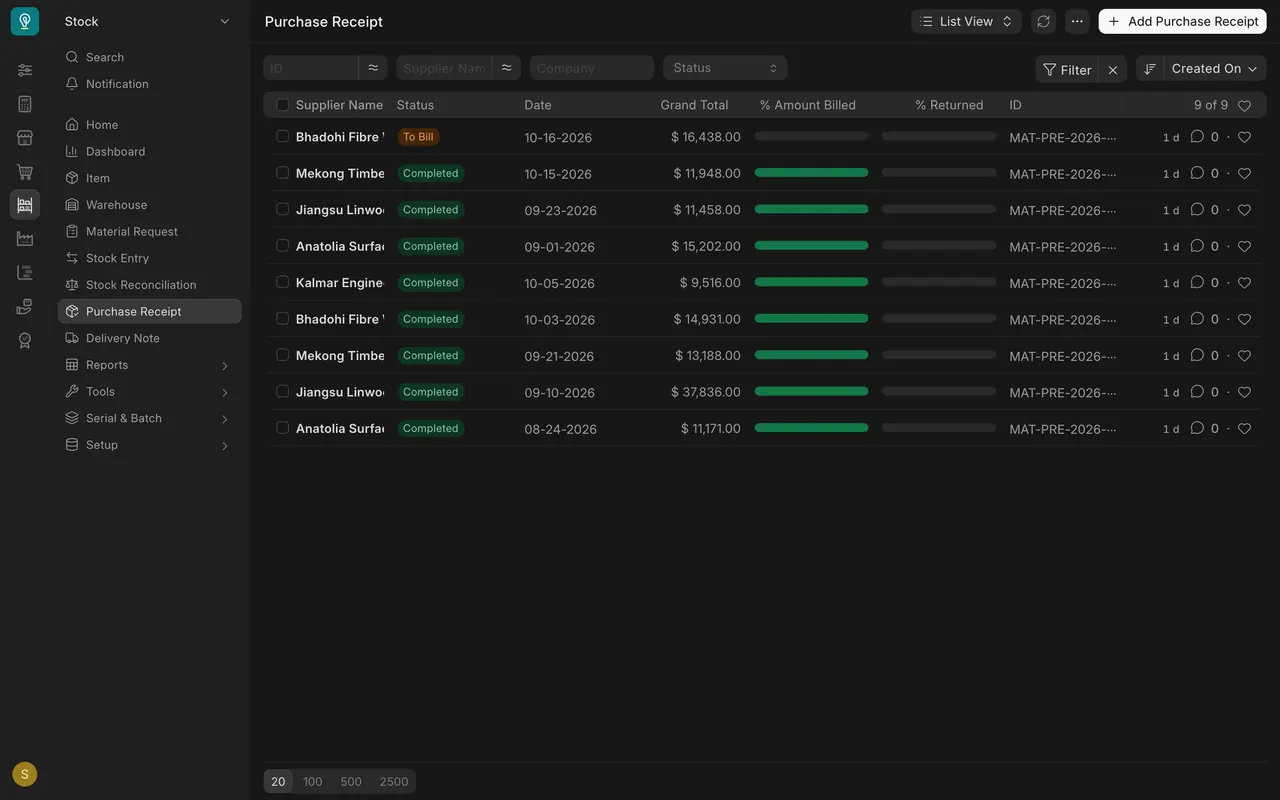
The Purchase Receipt list in the Stock area has the same layout: quick filter boxes, Filter, Created On sort and a count, here 9 of 9 in the example data.
What you may see on your own site
- In this example, lists open in List View. The switcher at the top also offers Report View, with more columns.
- Status colours: red for Overdue and Cancelled, orange for work in progress, such as To Bill on a Purchase Receipt, and green for Completed.
- Overdue is worked out from the delivery date. Report View shows the same orders with their stored status, such as To Deliver, so a filter on Status for "Overdue" finds nothing. Use the Overdue label and Delivery Status instead.
Common mistakes
- Leaving a filter on, then saying a record doesn't exist. Your warehouse and accounts teams act on what you tell them. Check the boxes, the Filter button and the count, and clear filters first.
- Reporting the count without reading the rows. Not Delivered includes cancelled orders and leaves out part-delivered ones. Read what came back.
- Reading the whole list instead of filtering. It's slow, and you'll miss rows.
- Trusting the first page. "20 of 26" means six more are below. Load more or raise the page size.
Check yourself
3 quick questions.
1. A colleague says an order "isn't in the system". What do you check first?
2. You pick Delivery Status "Not Delivered" and get eleven orders, six of them Cancelled. How many of these eleven are running late?
3. The count reads "20 of 26" and no filter is on. What does it mean?