V16 Training · Getting Started · Lesson 4 of 6
Forms: save, submit, cancel
This lesson explains the difference between saving, submitting, cancelling and amending a document, and why it matters to the people who work from your documents next.
Written guide
The idea
Most business documents in Parsimony, such as quotations, orders, delivery notes, receipts, invoices and payments, move through the same states:
- Not Saved. A new form you haven't saved yet. Nothing exists.
- Draft. Saved, but still your working copy. You can change anything, and nobody downstream acts on it.
- Submitted. Official and locked. The next people in the chain work from it. The status then shows the document's progress, such as Overdue or Completed on a Sales Order.
- Cancelled. A submitted document that has been withdrawn. It isn't deleted: it stays on record, marked Cancelled.
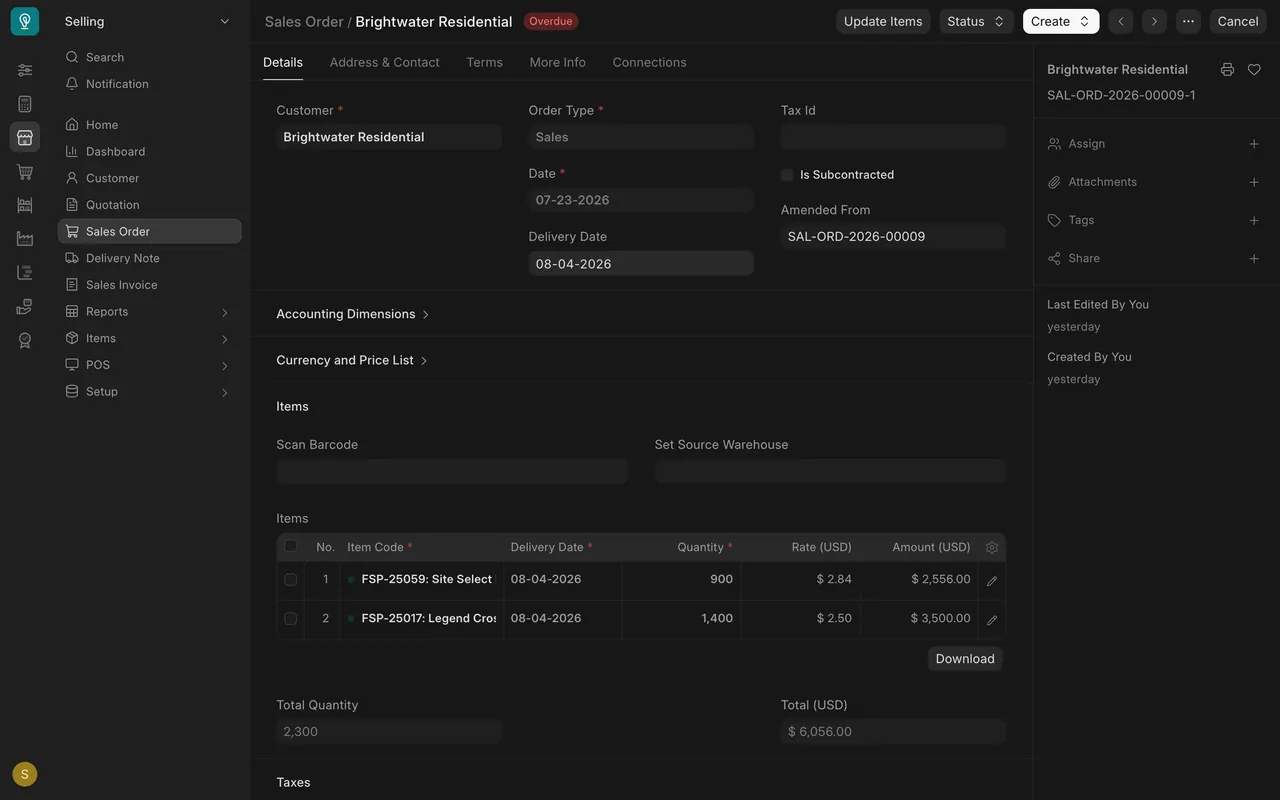
- Amended. A corrected copy of a cancelled document. It keeps the original number with a suffix such as -1, points back to the original in Amended From, and is submitted again once it's right.
The everyday failure is simple: someone saves a document and assumes the job is done. The next person can't work from a draft.
Step by step
Open a form
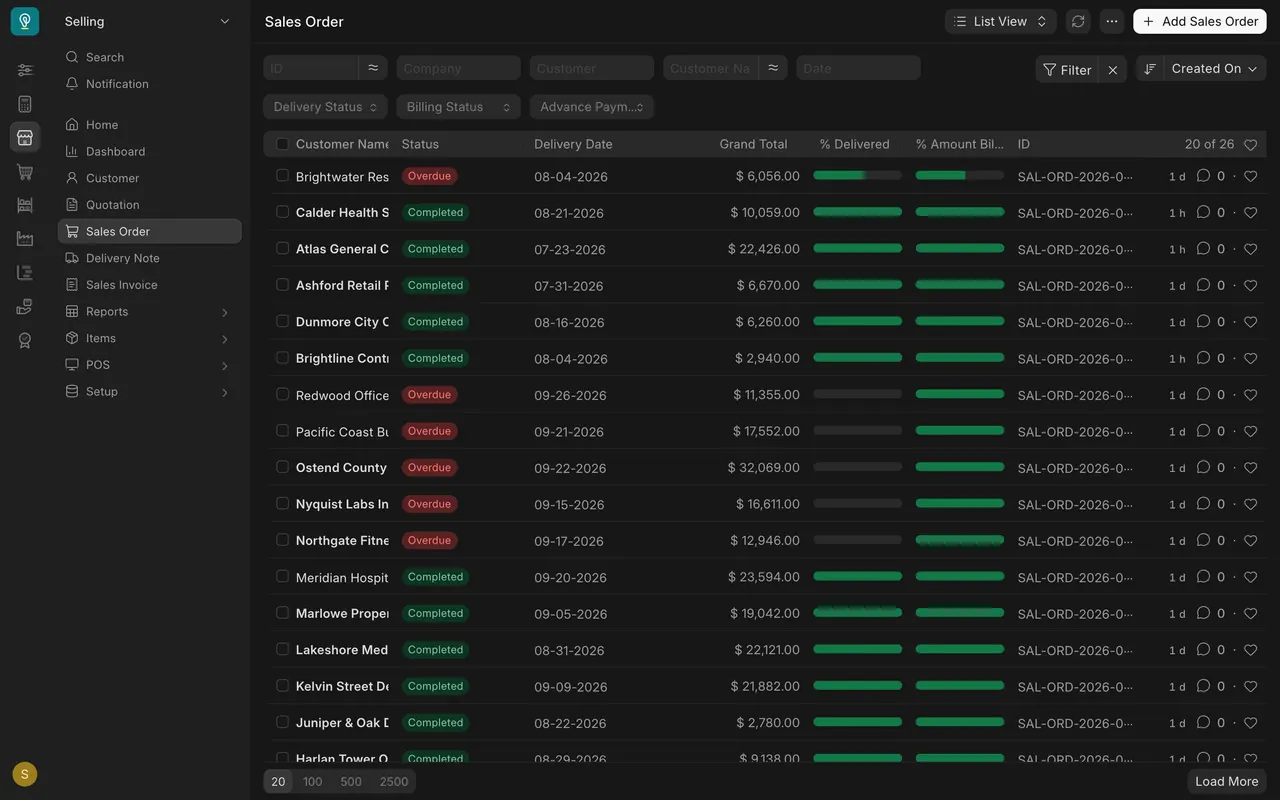
- From any list, click a row to open that document.
- Or press the Add button at the top right of the list, for example Add Sales Order, to start a new one.
Fill the required fields and save
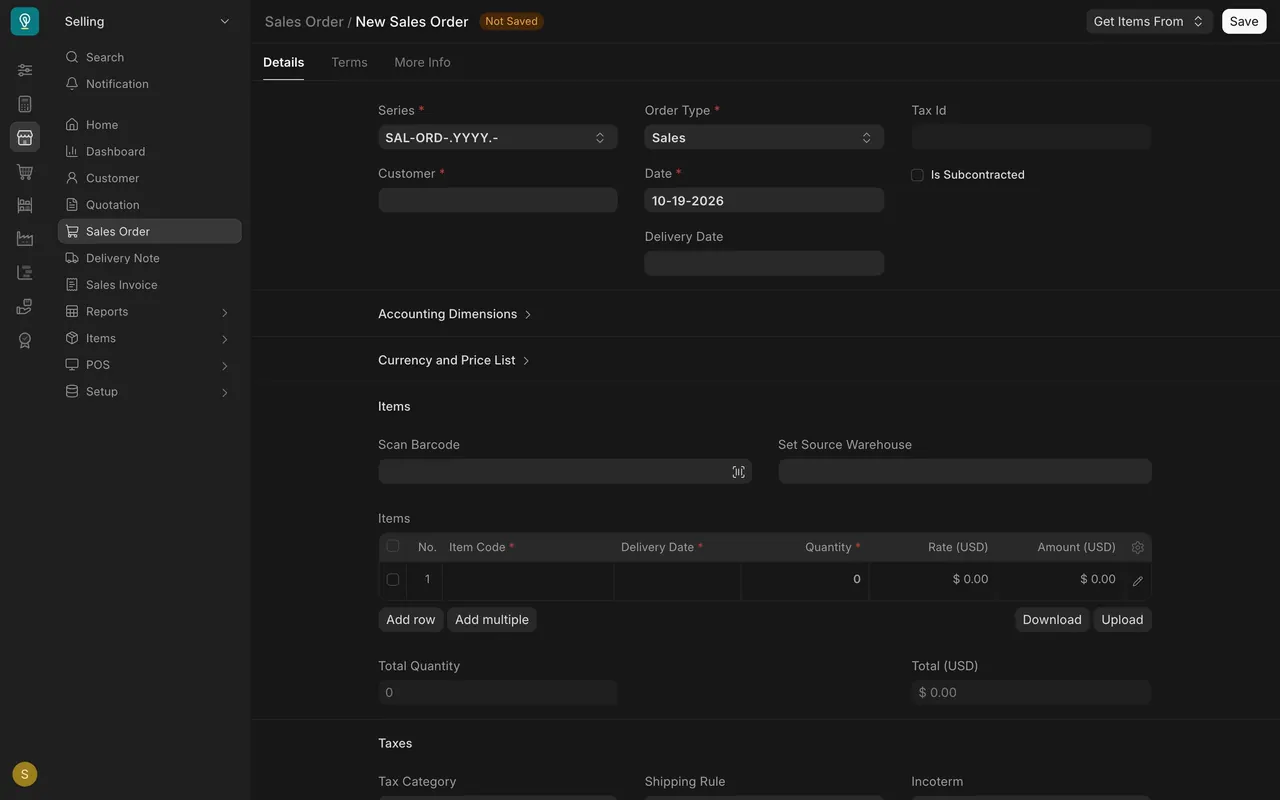
- A red star marks a required field. On a new Sales Order these are Series (already filled in), Order Type, Customer and Date, and Item Code, Delivery Date and Quantity on each item row.
- Until you save, the title reads New Sales Order with Not Saved beside it.
- Press Save. The document gets its number from the series and becomes a draft.
Submit
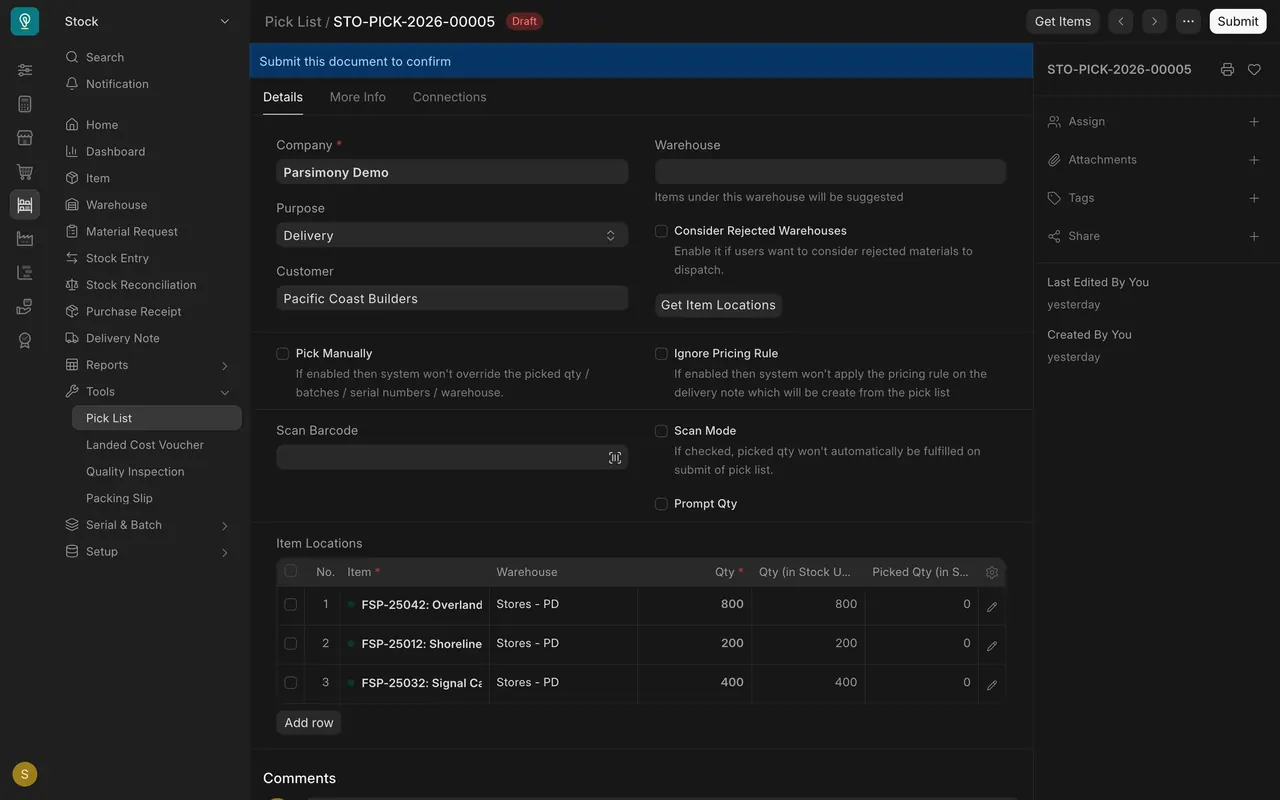
- A saved draft shows a red Draft status, a Submit button at the top right where Save was, and the banner "Submit this document to confirm". In this example the draft is a Pick List, the document the warehouse picks from.
- Read the form once more as the next person will (see Common mistakes).
- Press Submit.
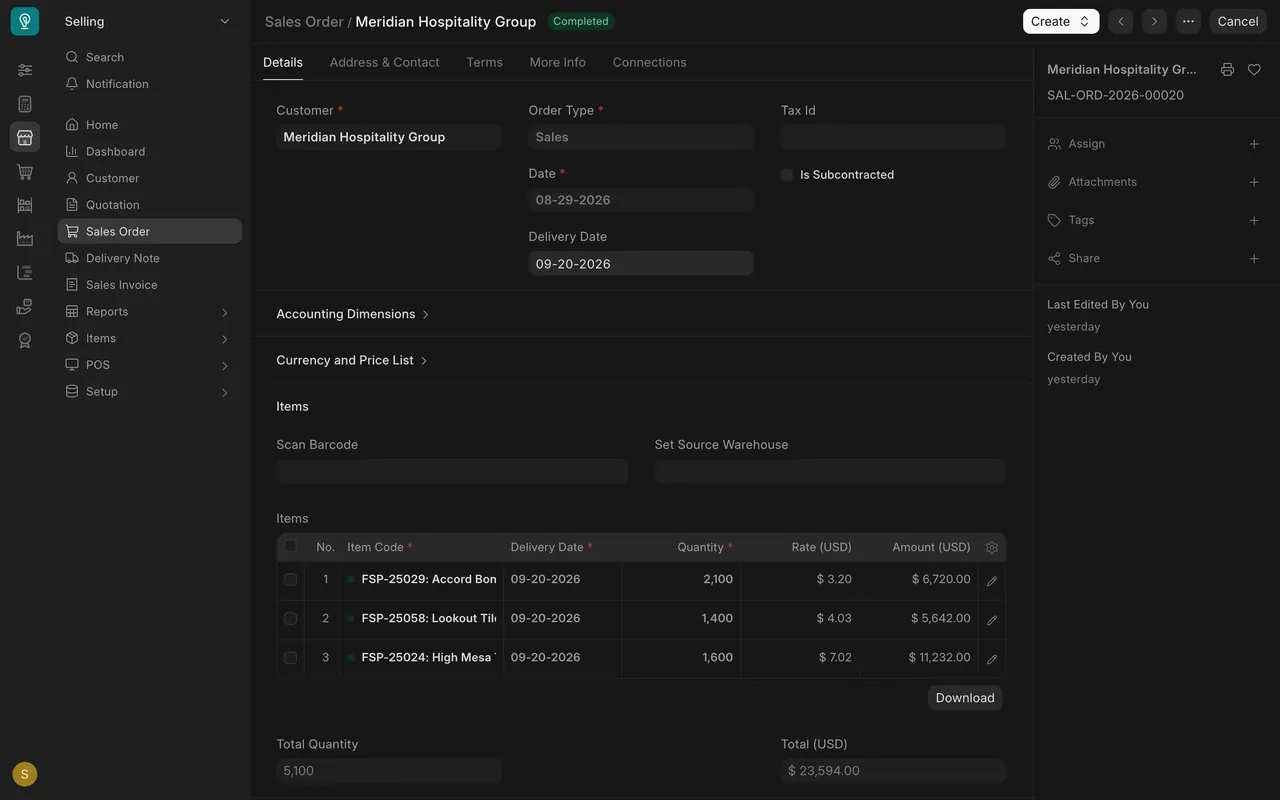
- The form locks. On a submitted Sales Order, Submit is gone, and the top right shows Create and Cancel.
Cancel and amend
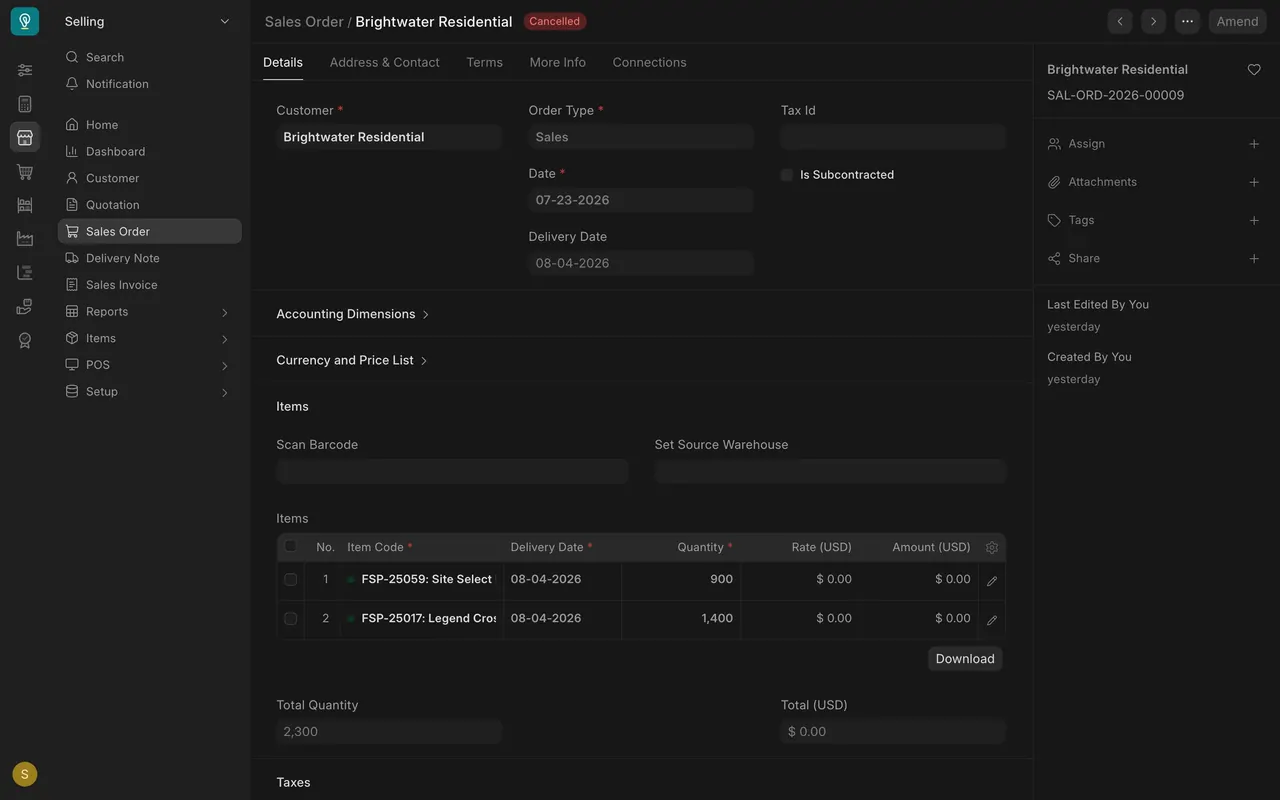
- If a submitted document is wrong, and your role allows it, press Cancel.
- The document stays on record with a red Cancelled status, and the button at the top right becomes Amend.
- Press Amend. A new draft opens with the same number plus a suffix, for example -1. Its Amended From field shows the number of the cancelled original.
- Correct it, save, and submit again.
Read states from a list
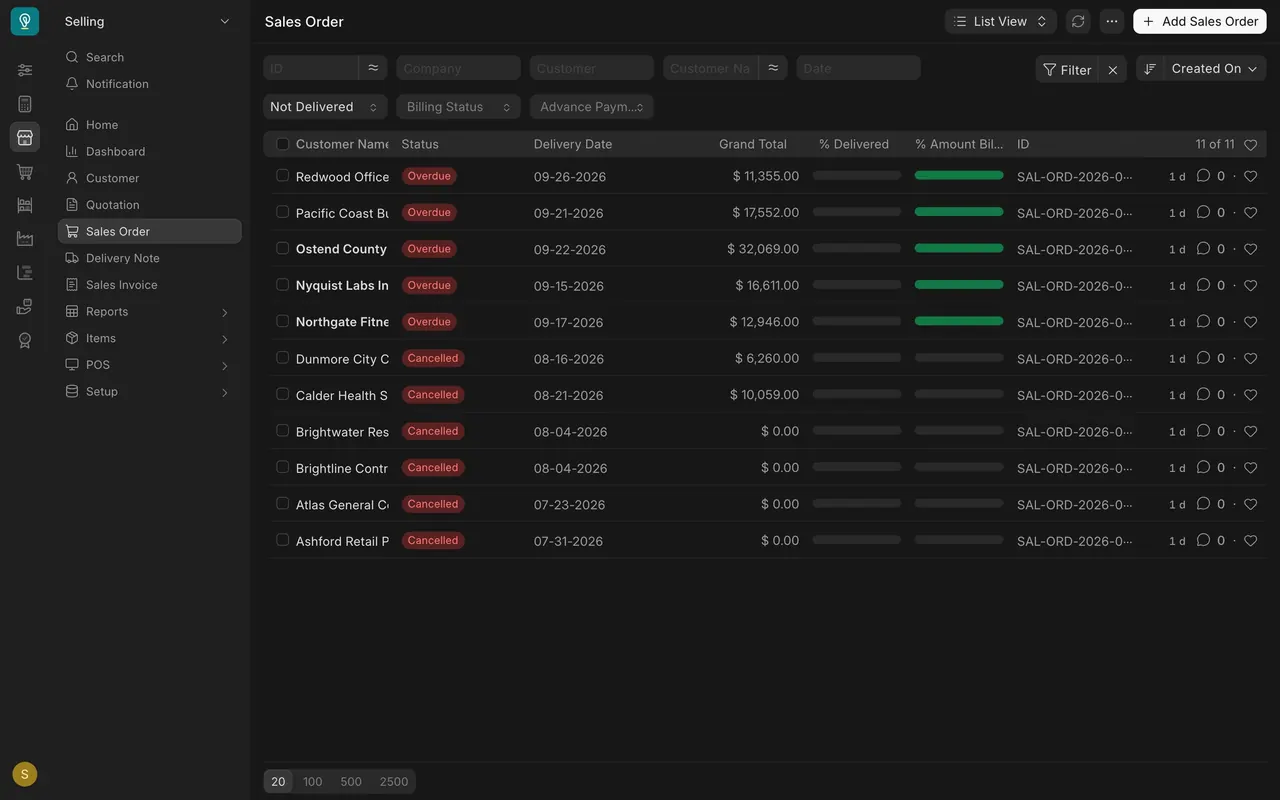
In the Sales Order list, every order in this example shows Overdue, Completed or Cancelled. Overdue and Completed only appear once an order is submitted. A draft shows Draft.
Documents you only save
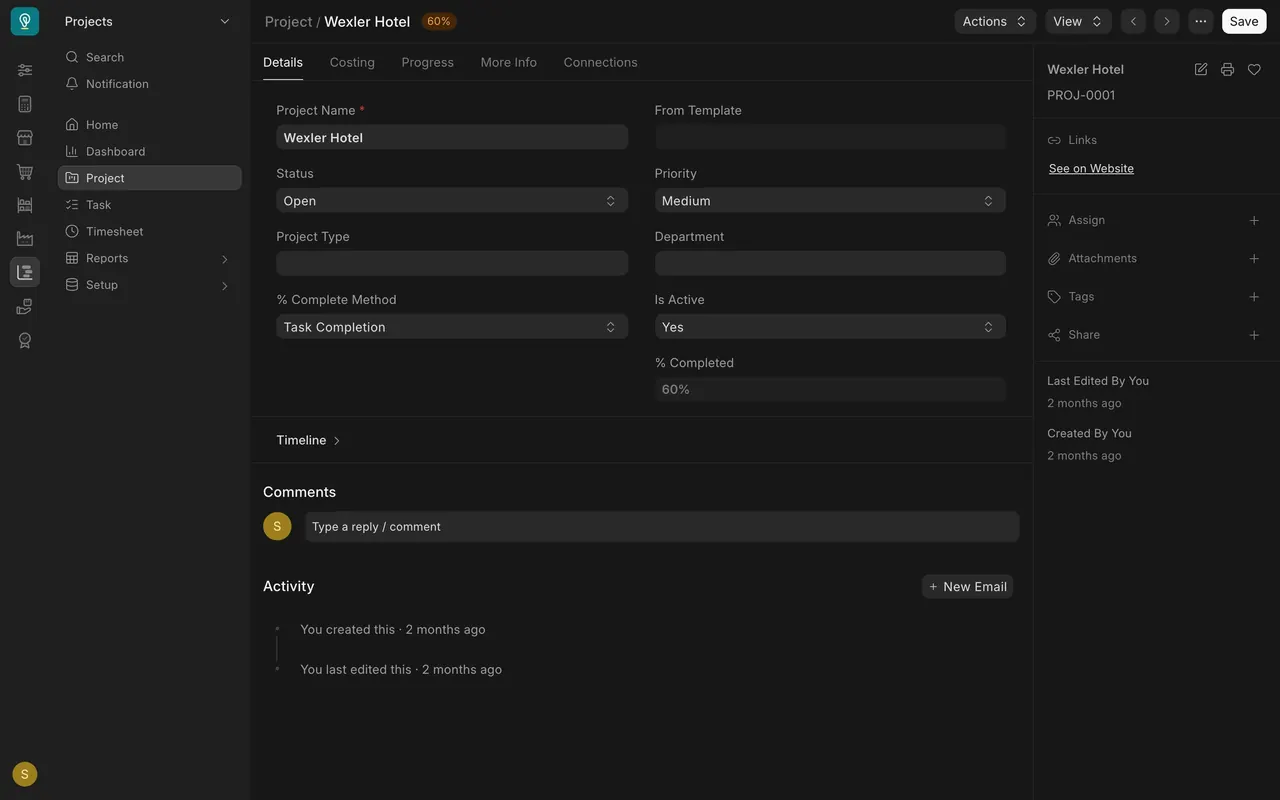
Customers, items, suppliers, leads, opportunities, projects and tasks are records, not transactions. They have Save and no Submit.
Roles and settings
- Approval is by role. Unless your company has added an approval workflow, approval means who has permission to submit a document type. If your role can't submit it, hand it to a colleague who can.
- Who can submit and cancel. These are the roles in the example site's permission settings. Your company may have set different ones:
| Document | Can submit | Can cancel |
|---|---|---|
| Quotation, Sales Order | Sales User, Sales Manager | Sales User, Sales Manager |
| Delivery Note | Stock User and Manager, Sales User, Delivery User and Manager | same roles |
| Sales Invoice | Accounts Manager, Accounts User | Accounts Manager only |
| Purchase Order | Purchase User, Purchase Manager | same roles |
| Request For Quotation | Purchase Manager only | Purchase Manager |
| Purchase Receipt | Stock User and Manager, Purchase User | same roles |
| Stock Reconciliation | Stock Manager only | Stock Manager |
- Negative stock. In the example site it isn't allowed, and your company can choose its own setting. Where it isn't allowed, a delivery or stock issue that would take a warehouse below zero can't be submitted.
Common mistakes
- Saving and calling it done. A draft order is invisible work for the warehouse. Submit when it's right, or tell the next person it's still a draft.
- Submitting without a final read. The warehouse reads items, quantities and dates. Accounts reads the customer, prices and taxes. Check those before you submit.
- Trying to edit a submitted document. It's locked. Cancel and amend it, and tell anyone who has already acted on it.
- Expecting an approval button. There isn't one. If you can't submit, ask someone whose role can.
Check yourself
3 quick questions.
1. You saved a Sales Order an hour ago. What can the warehouse do with it?
2. A submitted Sales Order has the wrong price. What's the correct fix?
3. Which of these is only ever saved, never submitted?