V16 Training · Getting Started · Lesson 2 of 6
Search your way around
This lesson shows you how to use the search bar to reach a list, a new document or a report in a few keystrokes, and how the boxes at the top of a list find the exact record.
Written guide
The idea
Clicking from the Desktop to a tile to a sidebar link works, but it's slow when someone is waiting on the phone. The search bar at the top of the page is faster, and it reaches pages that have no tile at all.
Search and lists split the job. Search gets you to the right page: a list, a blank new document, or a report. The boxes at the top of the list then find the exact record. The skill is knowing which box fits what you've been given: a document number goes in the ID box, a company name goes in the Customer box.
Step by step
Open the search box
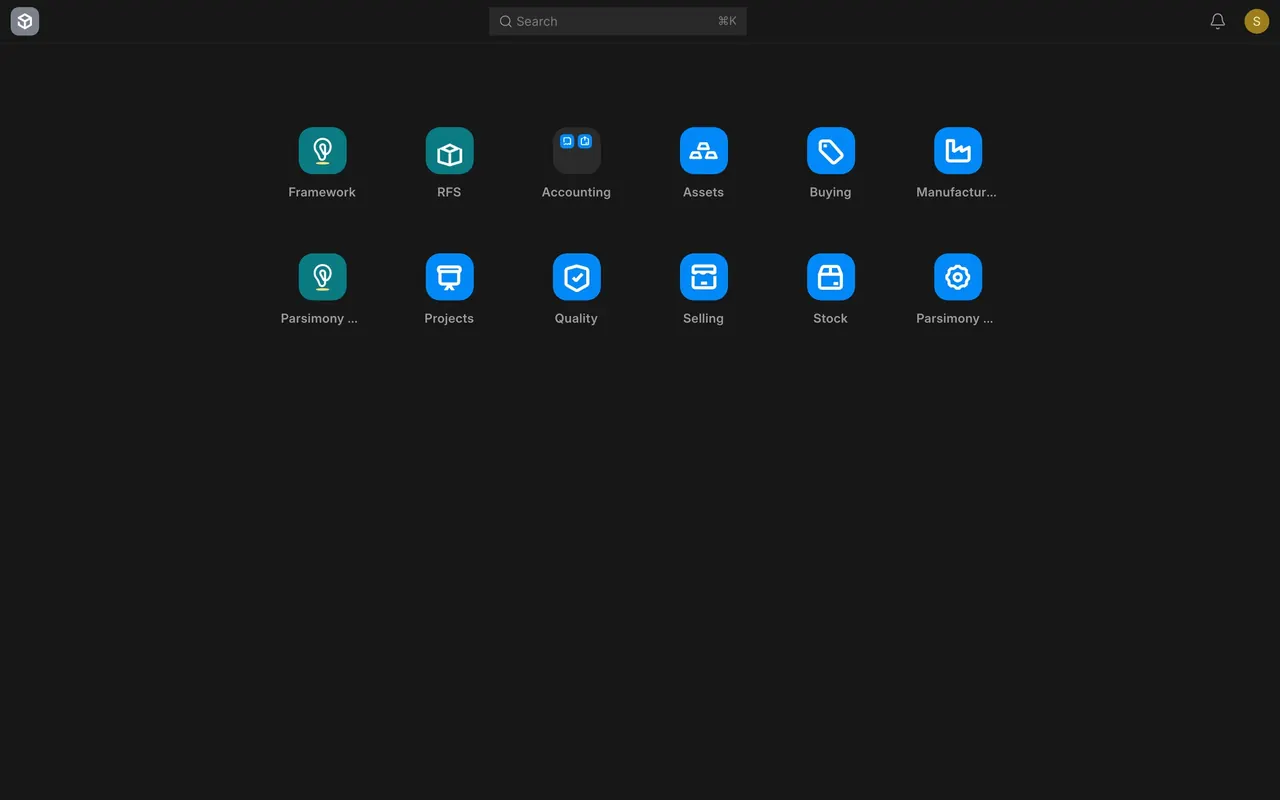
- Look at the top of the page for the bar that says Search. Its keyboard shortcut is shown on the right of the bar.
- Press Cmd+K on a Mac or Ctrl+K on Windows. A search box opens with the prompt "Search or type a command". Use the arrow keys to move through the results and Enter to pick one.
1. Open a list
- Type the name of a document, for example
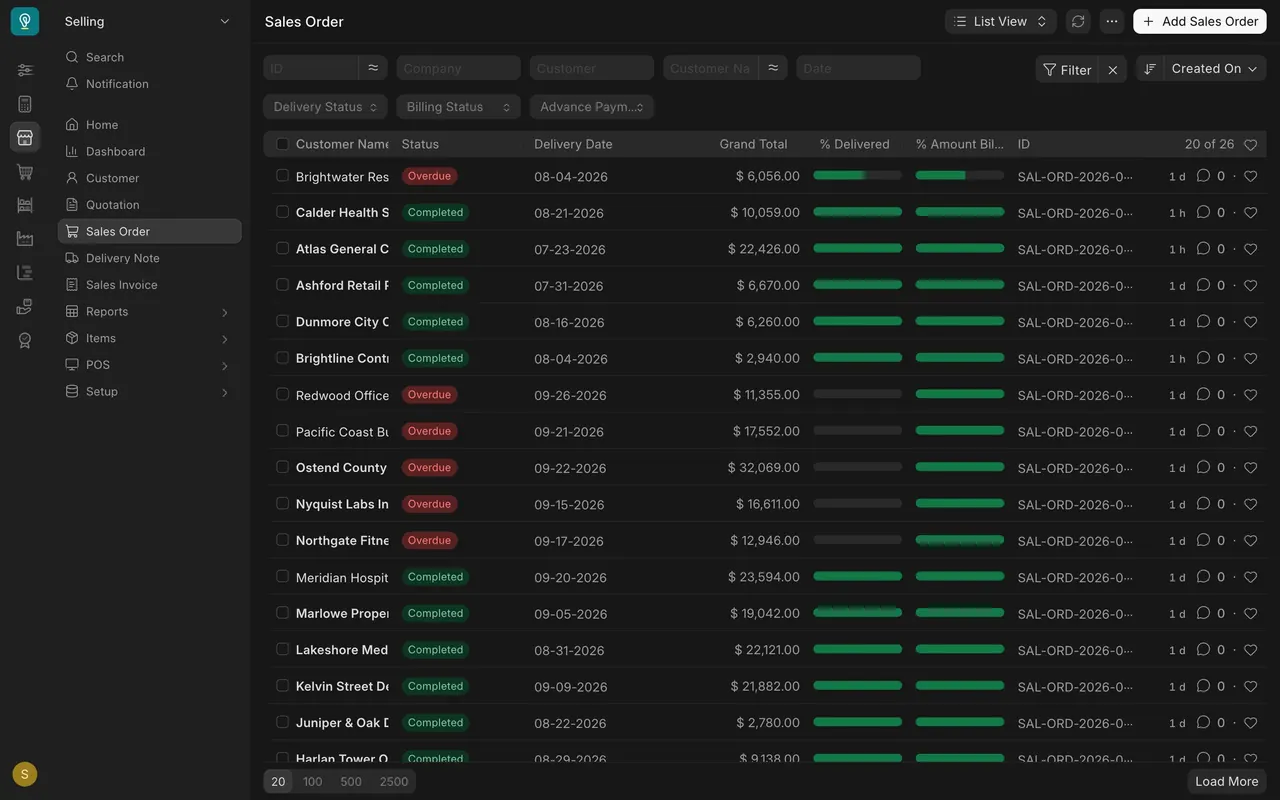
sales order. - The results include Sales Order List, Sales Order Report and New Sales Order. Pick Sales Order List.
- You land on the list: one row per document, with the customer, the status, the grand total and the document number.
The same move reaches pages with no tile. Type lead, as in a sales lead, and pick Lead List.
2. Start a new document
- Type the document name, or
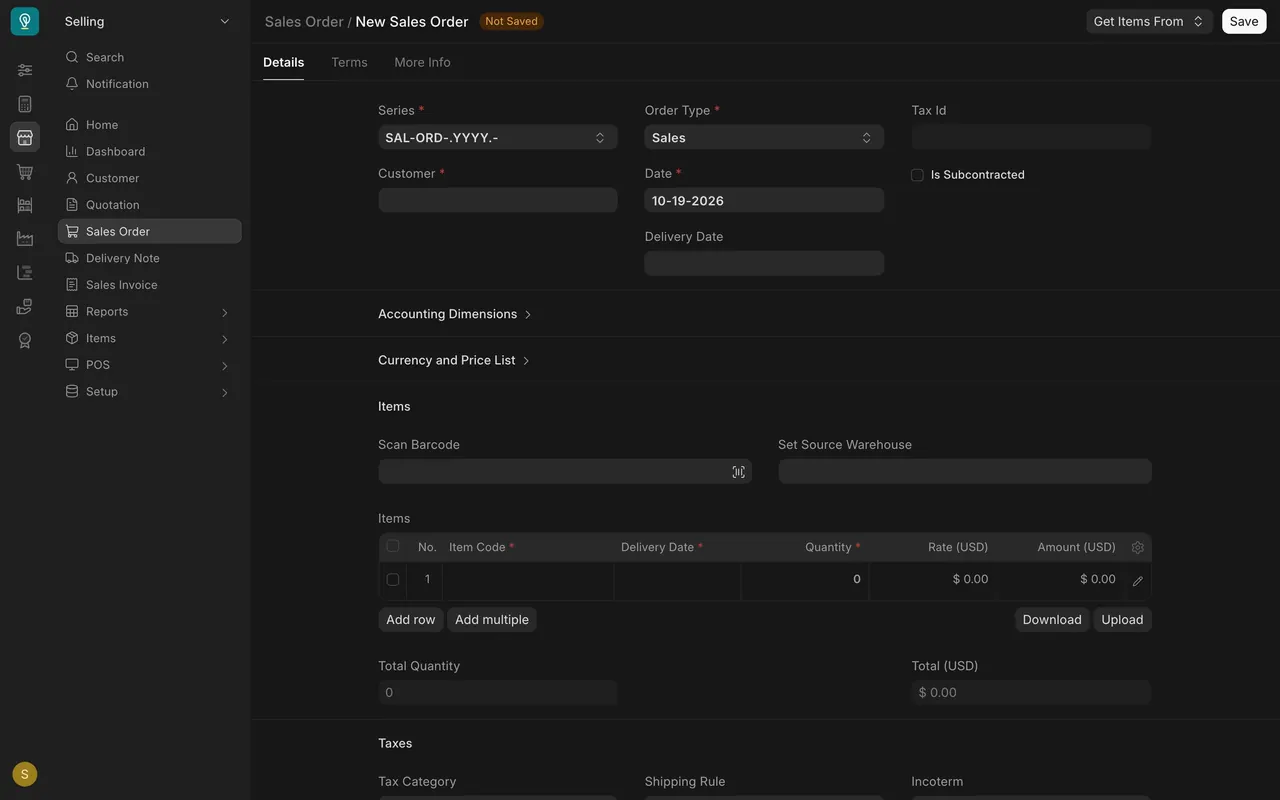
newand the name, for examplenew sales order. - Pick New Sales Order. A blank form opens, titled New Sales Order and marked Not Saved.
- Nothing exists until you save it. If you were only looking, leave the page without saving.
3. Run a report
- Type the report's name, for example
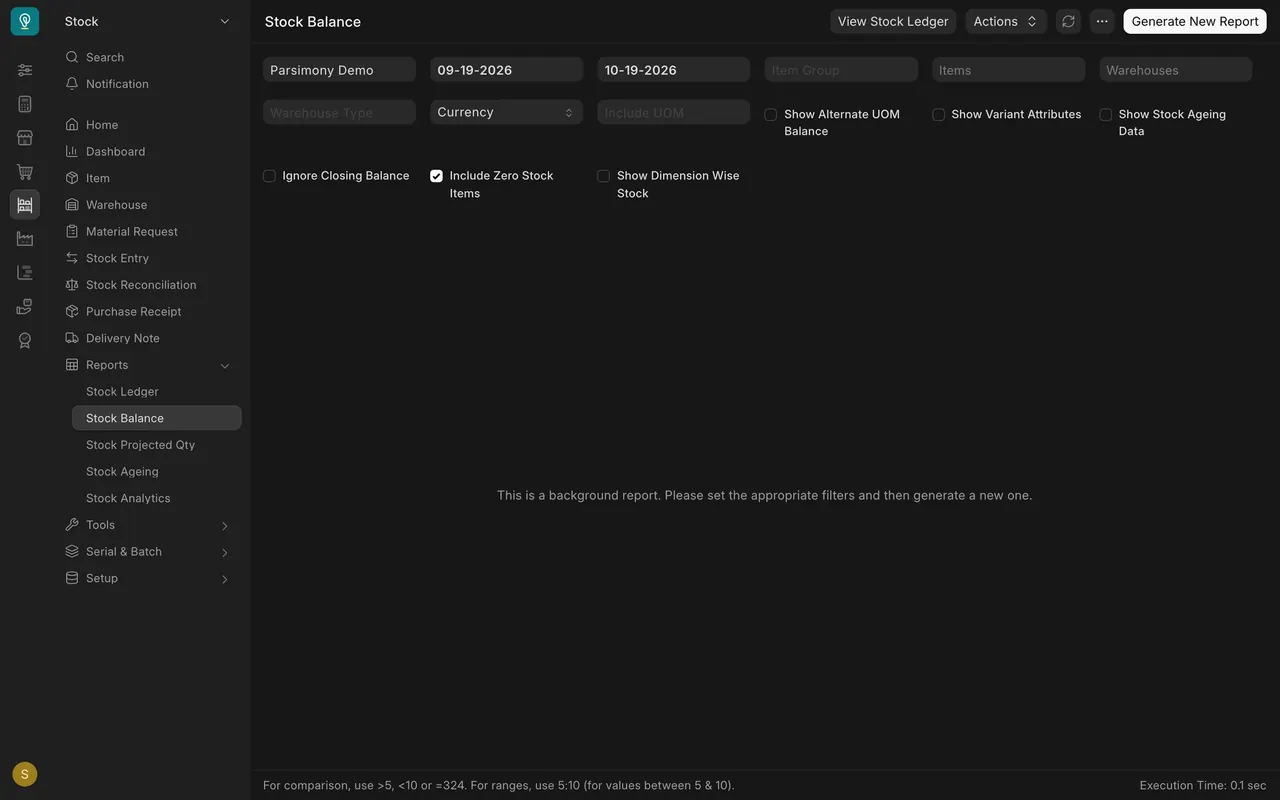
stock balance. - Pick Report Stock Balance. The report opens with its own filters across the top.
4. Find one record by its number
- Typing a document number into search only offers a general "Search for" option. For one record, go to its list instead.
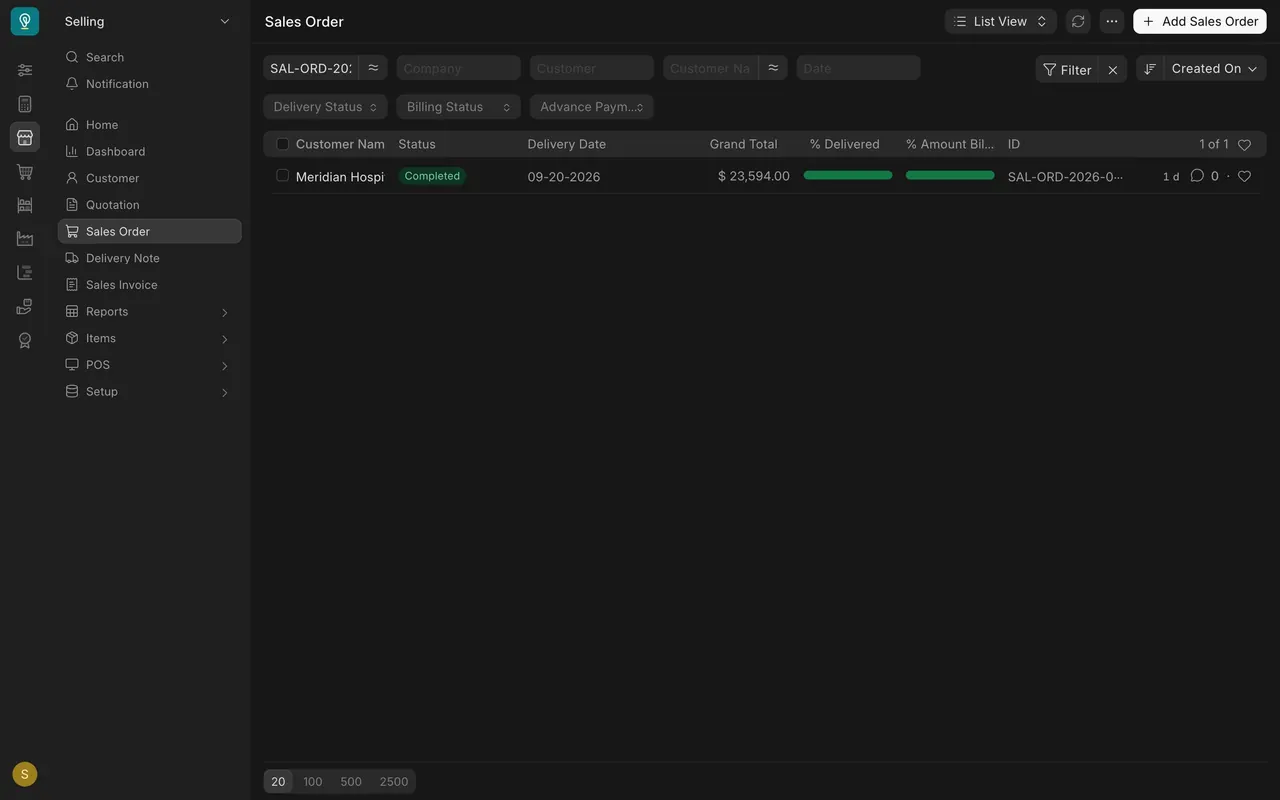
- Every document has a number. In a list it appears in the ID column.
- Type the number into the ID box at the top of the list. The list drops to the matching record, and the count reads 1 of 1.
When you only have a name
- Open the list for the document, for example Sales Order.
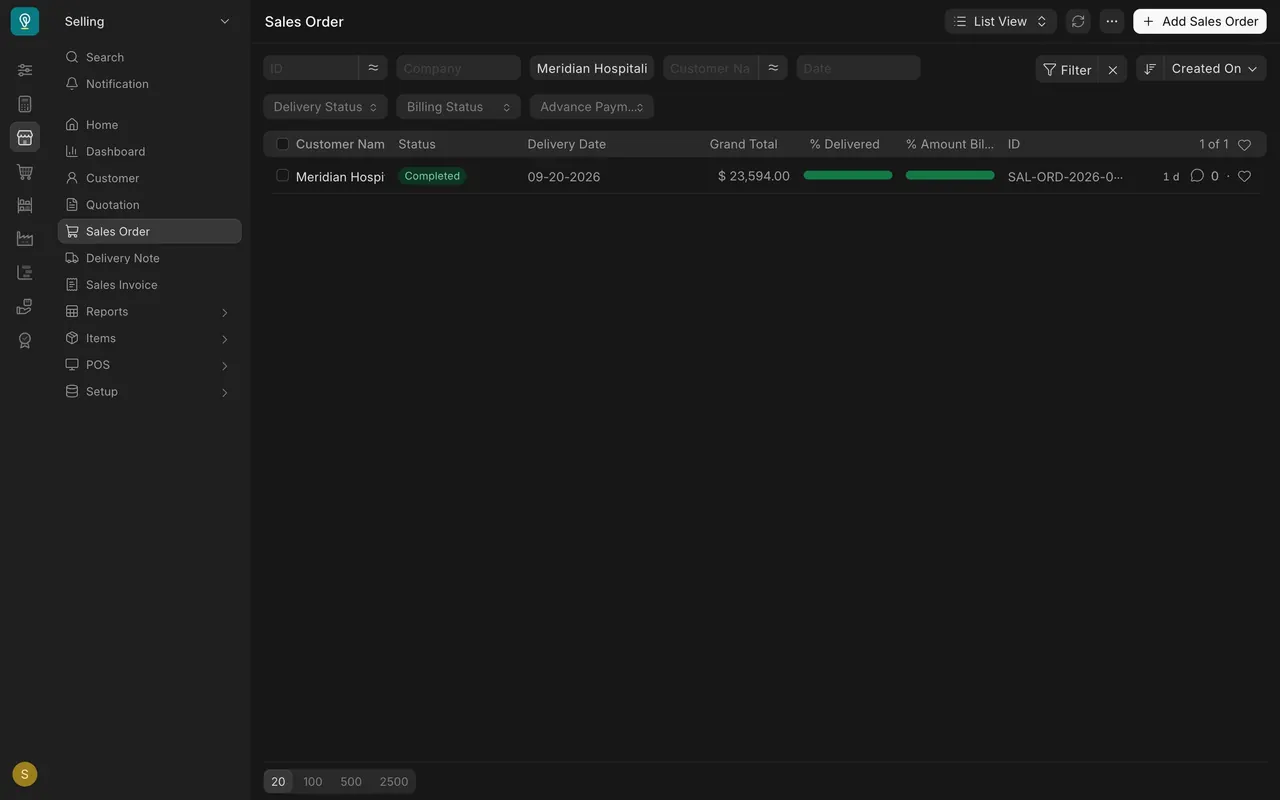
- Start typing the company name into the Customer box at the top of the list. A short list of matching customers drops down. Pick the right one: the list only narrows once you pick a customer, not while you type. The drop-down also offers Create a new Customer; leave it alone, you're looking, not adding.
- The list narrows to that customer's documents. Pick the one they mean by date and total, and confirm it with them before you act on it.
Same moves everywhere
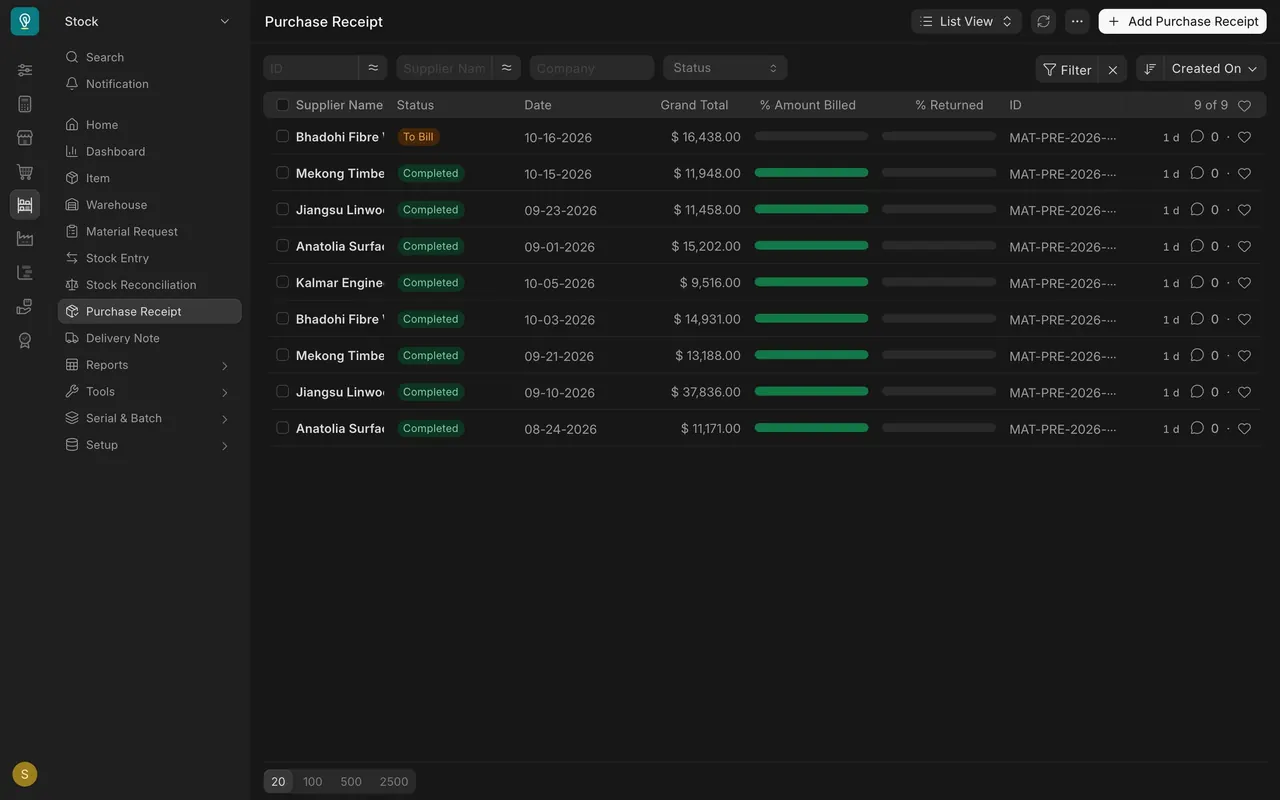
Every list in Parsimony works the same way. A warehouse person looking for a Purchase Receipt uses the same search box and the same boxes at the top of the list as a rep looking for a Sales Order.
About the example screens
- No separate tile for leads. Leads and Opportunities are reached by search.
- Number patterns you'll see, with the year in the middle: Quotations start SAL-QTN, Sales Orders SAL-ORD, Delivery Notes MAT-DN, Sales Invoices ACC-SINV, Purchase Orders PUR-ORD, Purchase Receipts MAT-PRE, Requests For Sample PUR-RFS. A corrected copy of a cancelled document adds a suffix, such as -1.
- Customers, Suppliers and Items are named by their own name or item code, not a number. In the example data, item codes start FSP-; your company's codes will differ.
- Background reports. Some large reports, Stock Balance among them, run in the background: set the filters, then press Generate New Report.
Common mistakes
- Picking from a long list by eye. It's how the wrong order gets quoted back to a customer. Use the ID box for a number, the Customer box for a name.
- Typing a number into search and giving up. The search box doesn't list the record itself. Open the list and use the ID box.
- Leaving the Customer box filled in. Next time you look at the list, you only see one customer. Empty the box when you're done.
- Opening a new form just to look, then saving by habit. A blank form is harmless until you save it. If you were only exploring, leave without saving.
- Thinking Leads don't exist because there's no tile. Search for them.
Check yourself
3 quick questions.
1. A customer reads you their Sales Order number. What's the fastest way to open it?
2. The caller only knows their company name. What do you do?
3. You type "sales order" into search. Which result opens a blank form?