V16 Training · Getting Started · Lesson 1 of 6
Sign in and find the Desktop
This lesson gets you signed in to Parsimony and shows you the three landmarks you'll use to find everything else.
Written guide
The idea
Parsimony is where your company's work lives: quotes and orders, purchase orders to suppliers, samples, stock in the warehouse, invoices and payments. Every one of those is a document, and every document lives in a workspace.
By the end of this course you'll be able to:
- find a document by searching or by opening its list,
- narrow a list to exactly the records you need,
- read a form and know the difference between saving and submitting,
- follow a document to the ones linked to it, comment on it and print it,
- understand why your screens look the way they do for your role.
This first lesson covers the first step: getting in, and learning the layout. You only need three landmarks: the Desktop, the sidebar inside each workspace, and the Search bar at the top of the page.
Step by step
Sign in
- Open your company's Parsimony site in your browser. It's usually yourcompany.parsimony.com; your manager will give you the exact address.
- The page is titled Sign In and says "Welcome! Please sign in to continue."
- Type your address in Email and your password in Password.
- Press Continue.
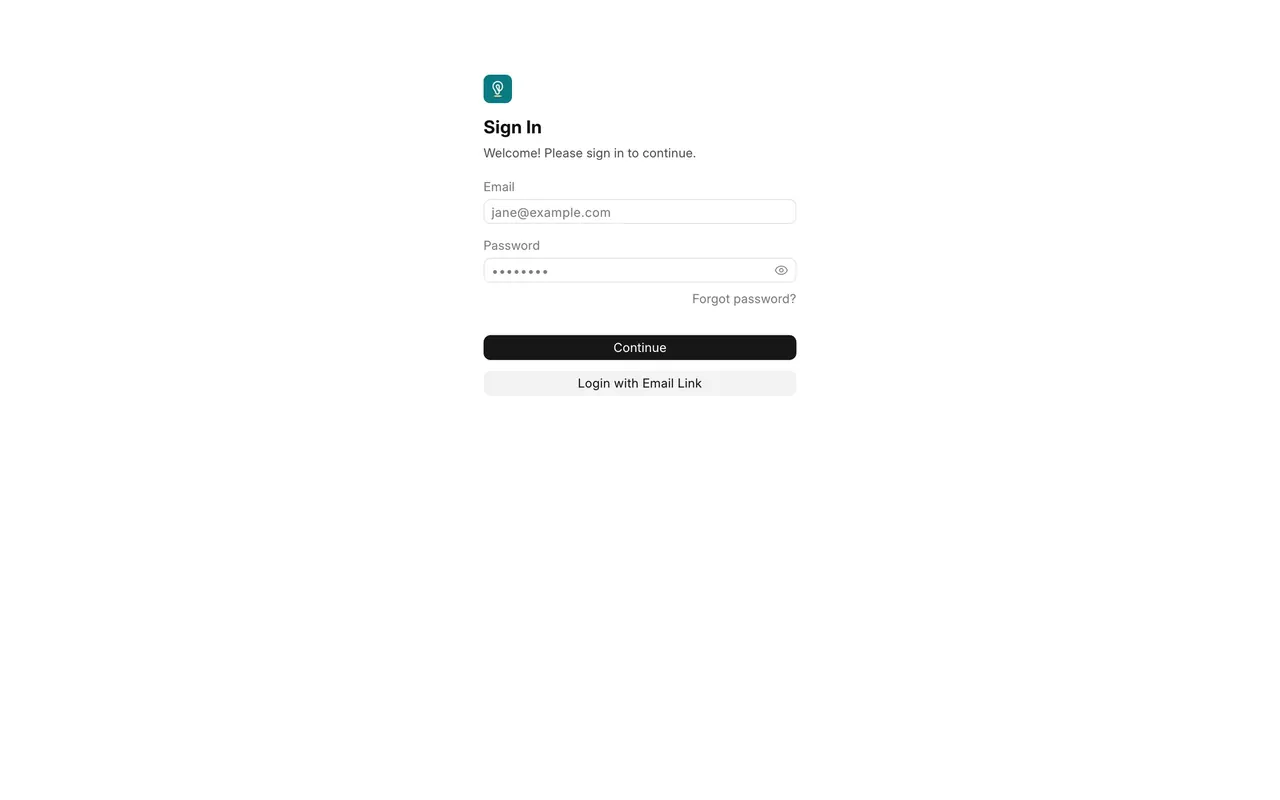
The page also offers Forgot password? and Login with Email Link. Both work by sending you an email, so they only help if your site is set up to send email. If you're locked out, ask a System Manager to reset your password instead of waiting for an email.
Your login is yours alone. Don't share it, don't type it into a chat or a spreadsheet, and never sign in as a colleague. Every document records who created it and who last changed it. That history only helps the team if the name on it belongs to the person who did the work.
Read the Desktop
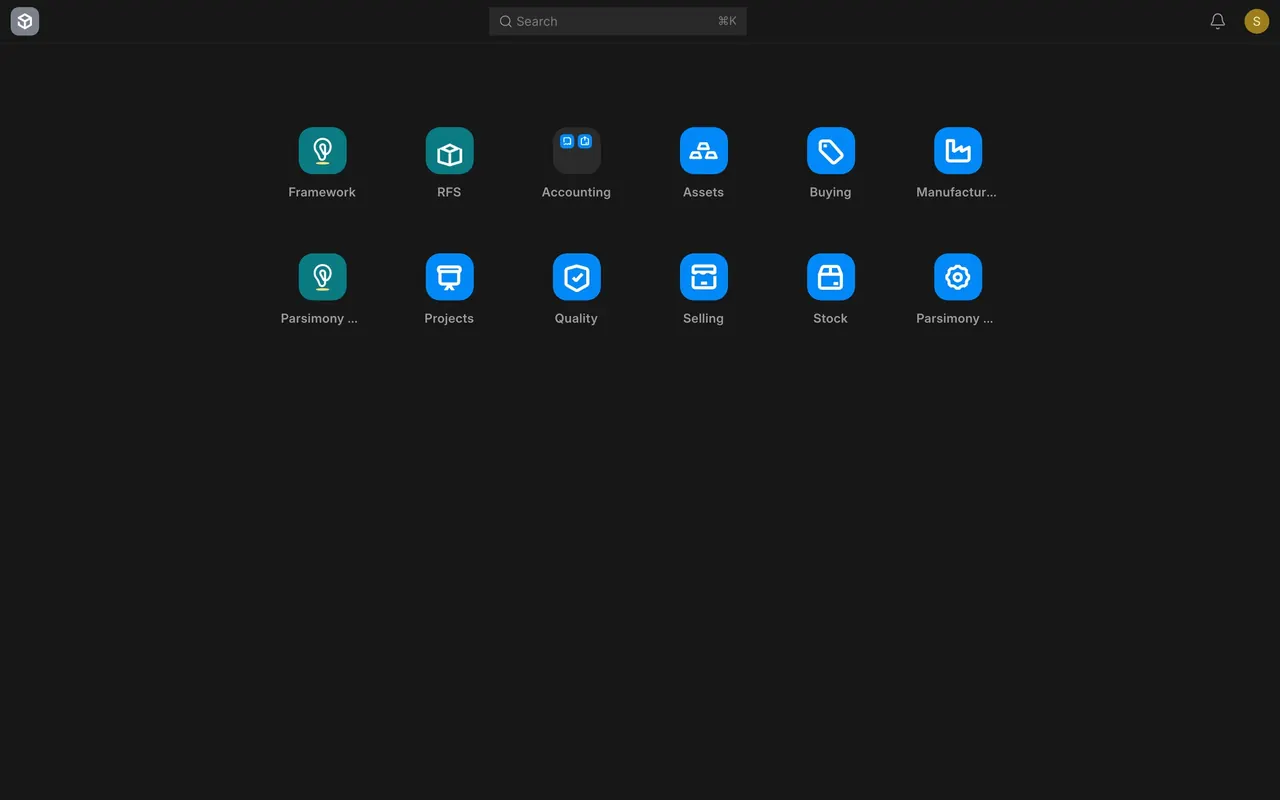
- After you sign in, you land on the Desktop: a grid of tiles, one per area of the business.
- The tiles you'll use most are Selling, Buying, Stock and Accounting. RFS (Request For Sample) holds your sourcing and sample work with suppliers, and Projects holds the customer jobs your company supplies.
- The bar at the top that says Search is covered in Lesson 2. It shows its keyboard shortcut on the right.
Open a workspace and use the sidebar
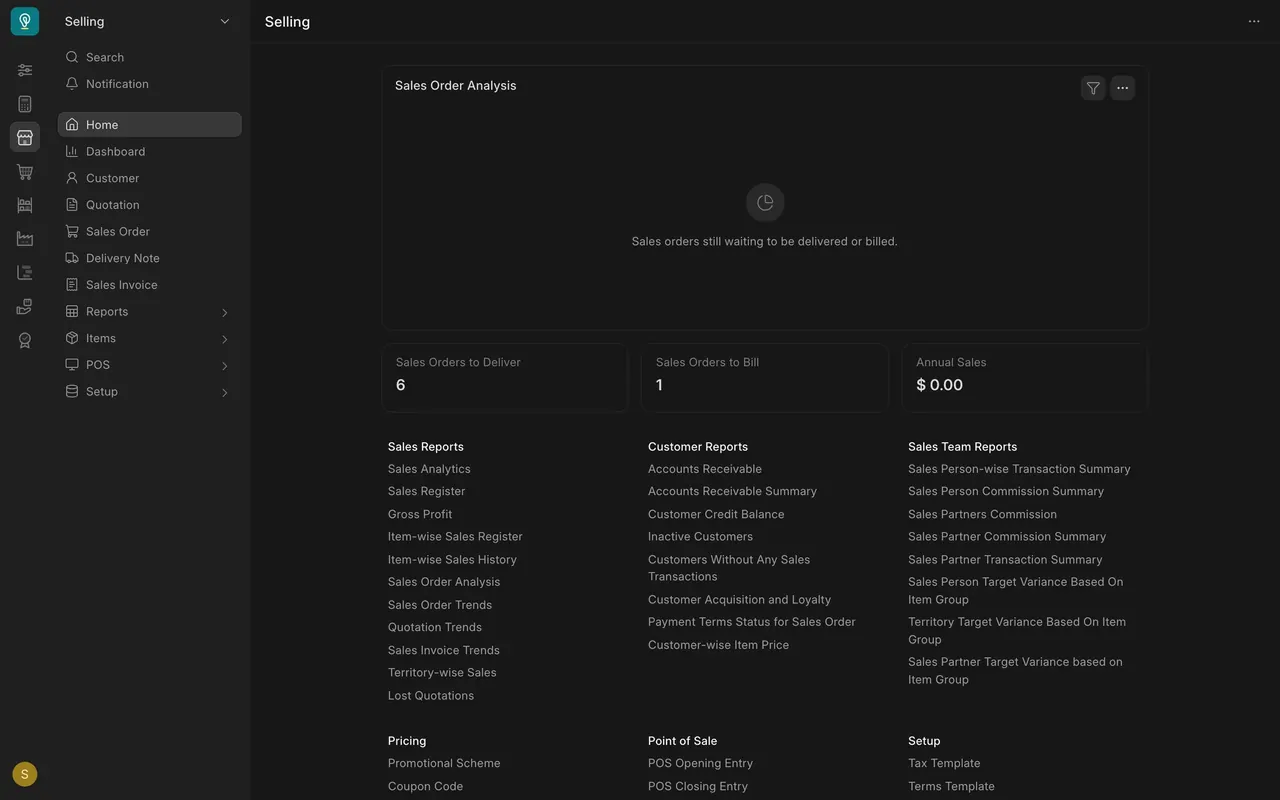
- Click a tile, for example Selling. Its workspace opens on its front page, with a chart, a few counts and links to reports.
- The sidebar on the left lists the documents for that area. In Selling it shows Customer, Quotation, Sales Order, Delivery Note and Sales Invoice, in the order the work usually flows, followed by Reports, Items, POS and Setup. Those last four each open into a short group of links, such as POS Profile and POS Invoice under POS.
- The name at the top of the sidebar, here Selling, tells you which workspace you're in.
- The narrow strip of icons on the far left is a shortcut to the other workspaces: Accounts, Selling, Buying, Stock and the rest.
- Home, near the top of the sidebar, opens the workspace's front page.
- The icon in the top left corner takes you back to the Desktop.
Opening a page never changes your business data. You can click through every sidebar link to learn your way around.
About the example screens
- Company: the screens come from a demo company that distributes flooring, stored as "Parsimony Demo". All customers, suppliers, projects and amounts you see in training are invented. Your own site shows your company's data.
- No outgoing email: the site has no email account set up, so it can't send password resets or sign-in links.
- Navigation layout: if a banner offers you a new navigation layout, keep the Desktop tiles unless your manager says otherwise. This course uses the tiles.
- No separate tile for leads: Leads and Opportunities have no tile of their own on the Desktop. You reach them through search, covered in Lesson 2.
- Roles: what you can open and change follows the roles on your account, so your screen may differ a little from the training screens. Lesson 6 explains how.
Common mistakes
- Sharing a login to save time. Every person needs their own account, so the history shows who did what. Ask your manager for an account.
- Waiting for a password reset email that never comes. If your site isn't set up to send email, it won't arrive. Ask a System Manager to reset your password.
- Hunting for a tile that isn't there. Some areas, like leads and opportunities, have no tile. Use search instead of scrolling the Desktop.
- Getting lost three pages deep. The icon in the top left corner always takes you back to the Desktop.
- Being afraid to click around. Viewing a page is safe. Business data only changes when you save or submit something.
Check yourself
3 quick questions.
1. You've forgotten your password, and your site isn't set up to send email. What's the quickest way back in?
2. You're in the Selling workspace and need the list of Delivery Notes. Where do you click?
3. You're deep inside the Stock workspace and want the Desktop again. What do you click?