V16 Training · Getting Started · Lesson 5 of 6
Comments, connections and printing
This lesson shows you how to keep a document's whole story on the record: comments, assignments, attachments, the activity history, linked documents, and the printout the customer sees.
Written guide
The idea
Work goes wrong in the gaps between people. A delivery date changes on a phone call, a supplier sends a revised quote to one inbox, and a week later nobody can say who agreed to what.
Every document in Parsimony carries the tools to close those gaps:
- Comments for the conversation about it,
- Assign for who has to act next,
- Attachments for the files that belong to it,
- Activity for an automatic history of who created and changed it,
- Connections for every document linked to it,
- the print page for the version the customer or supplier will see.
Step by step
Spot comments from the list
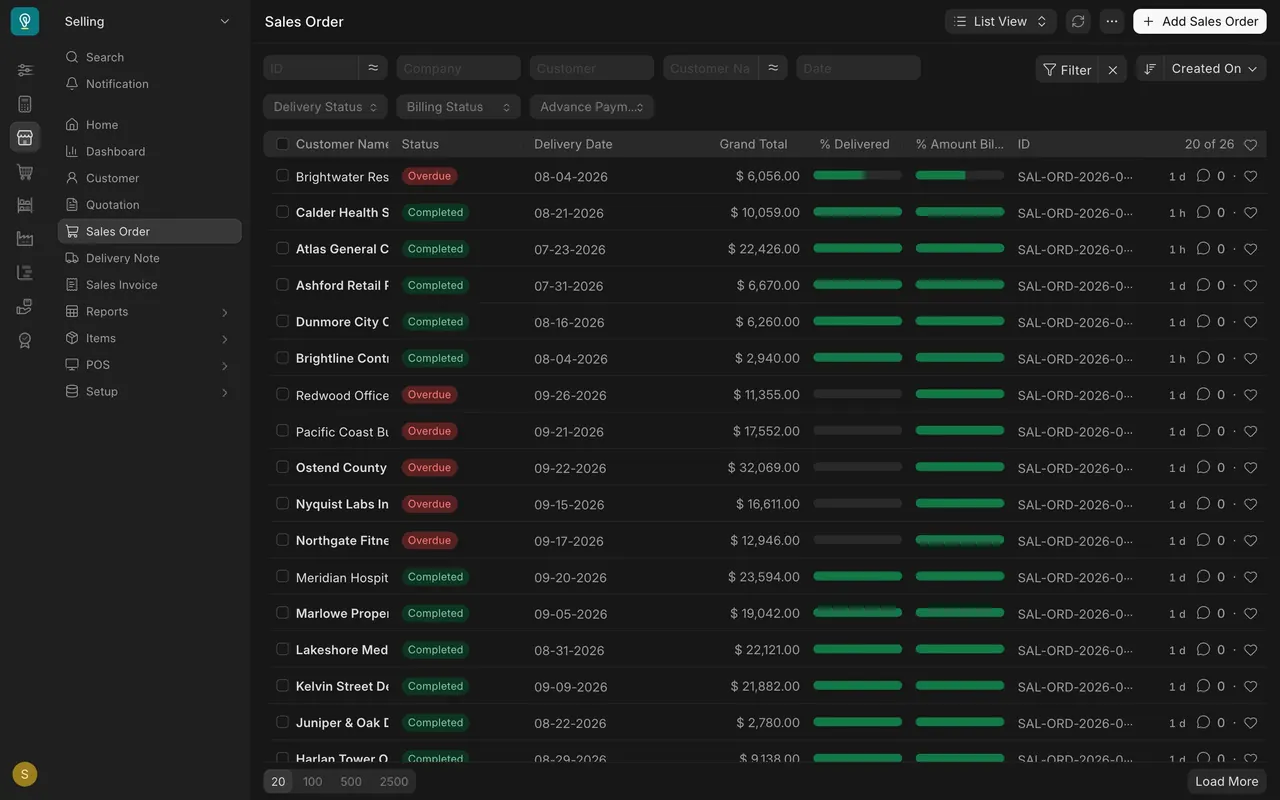
In any list, the speech bubble on each row counts the comments on that document. In this example every Sales Order shows 0: nobody has commented yet.
Comment, and read the activity
- Open a document and scroll to the bottom of the form.
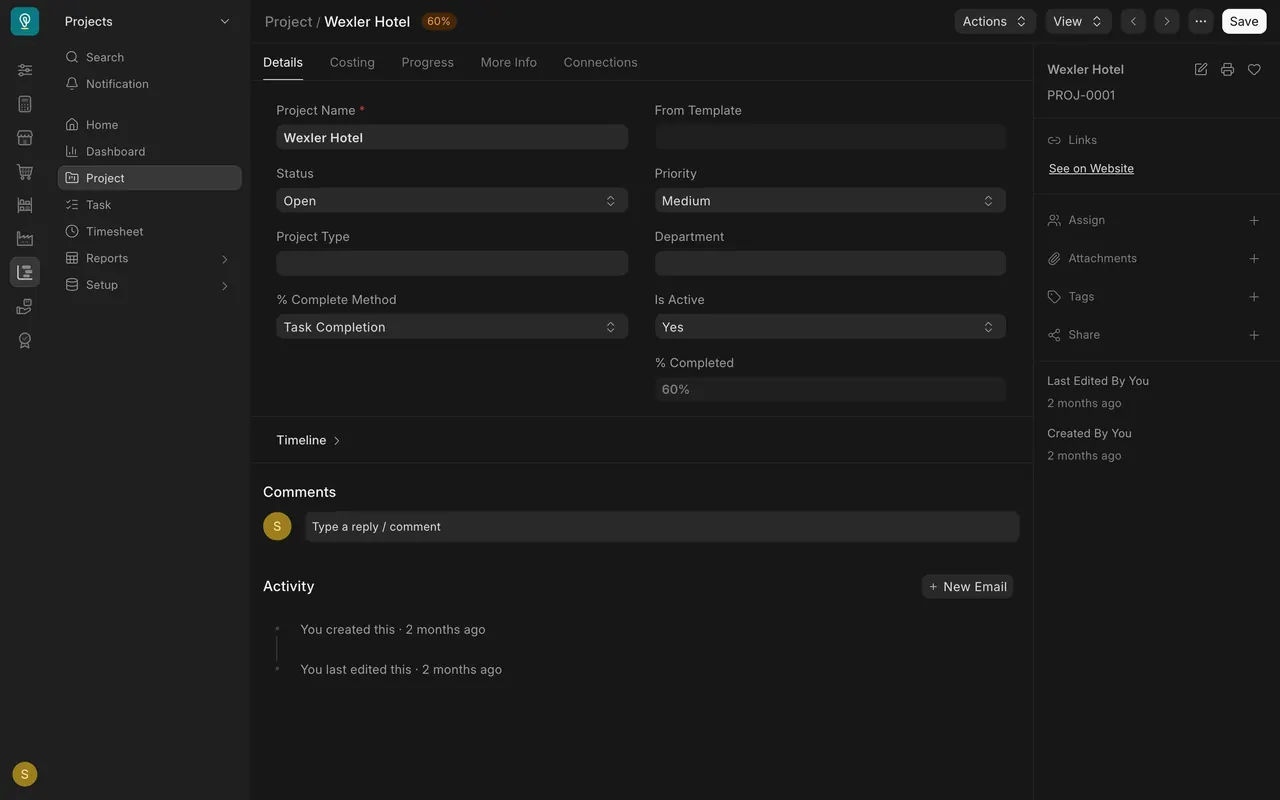
- Under Comments, type your note in the box that says "Type a reply / comment".
- Press Comment to post it. The button appears once you start typing. Until you press it, nobody else sees your note.
- Below it, Activity lists who created the document and who last edited it, and when, for example "You created this" and "You last edited this". You don't need to record edits yourself.
A good comment answers three things: what changed, why, and who asked. For example: "Delivery moved one week later because the site isn't ready. The customer's buyer asked by email on 14 October."
Assign and attach
- The side panel on the right of every saved form shows Assign, Attachments, Tags and Share, each with a plus.
- The plus beside Assign opens Add to ToDo. Choose the person under Assign To, or tick Assign to me, set Complete By and Priority if you need to, and press Add. The document goes on their to-do list.
- The plus beside Attachments adds a file, such as a supplier's quote, a spec sheet or a photo of a sample. Attach files to the document they belong to, so the next person finds them without asking.
- Below the panel, Created By and Last Edited By show who touched the document last.
Follow Connections
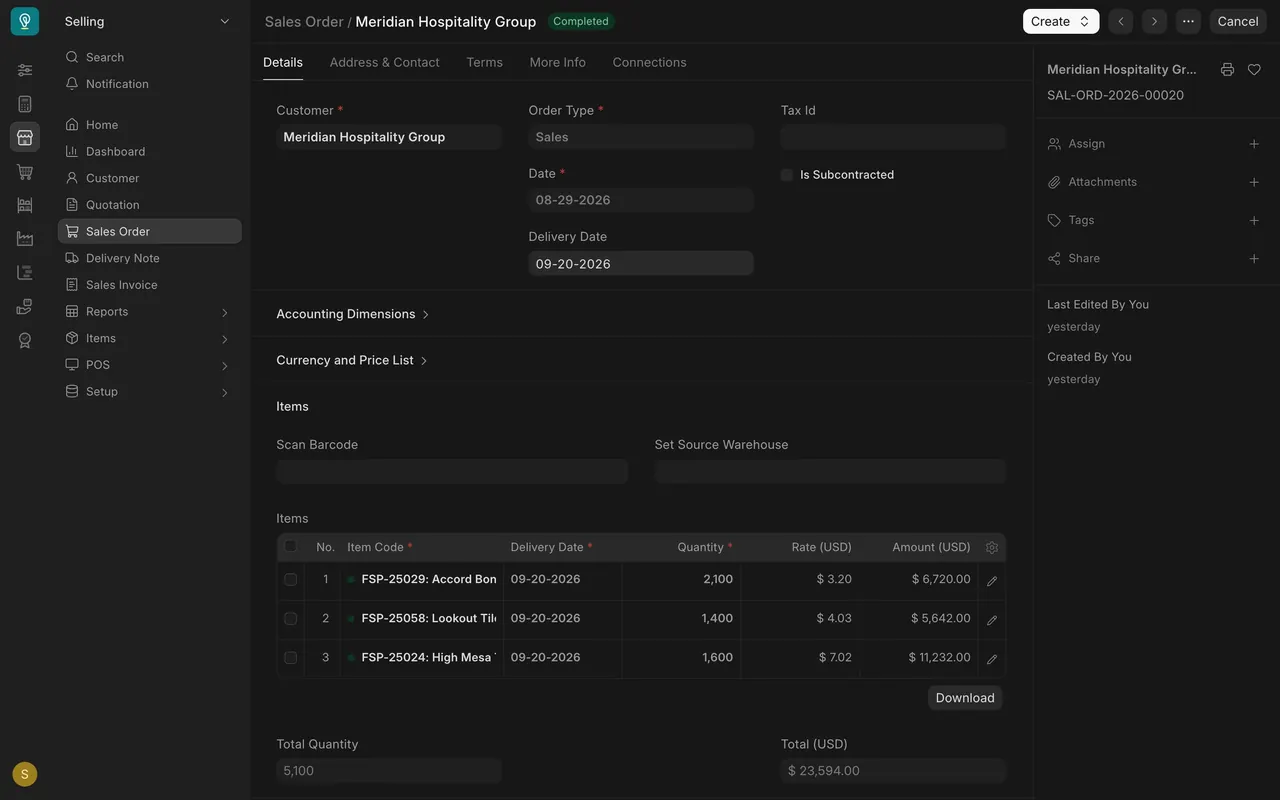
- Open the Connections tab at the top of the form.
- It lists the linked documents by group, with a count beside each one that exists. For the Sales Order in this example: Quotation 1 under Reference, Delivery Note 1 and Sales Invoice 1 under Fulfillment, and the Payment group for payments.
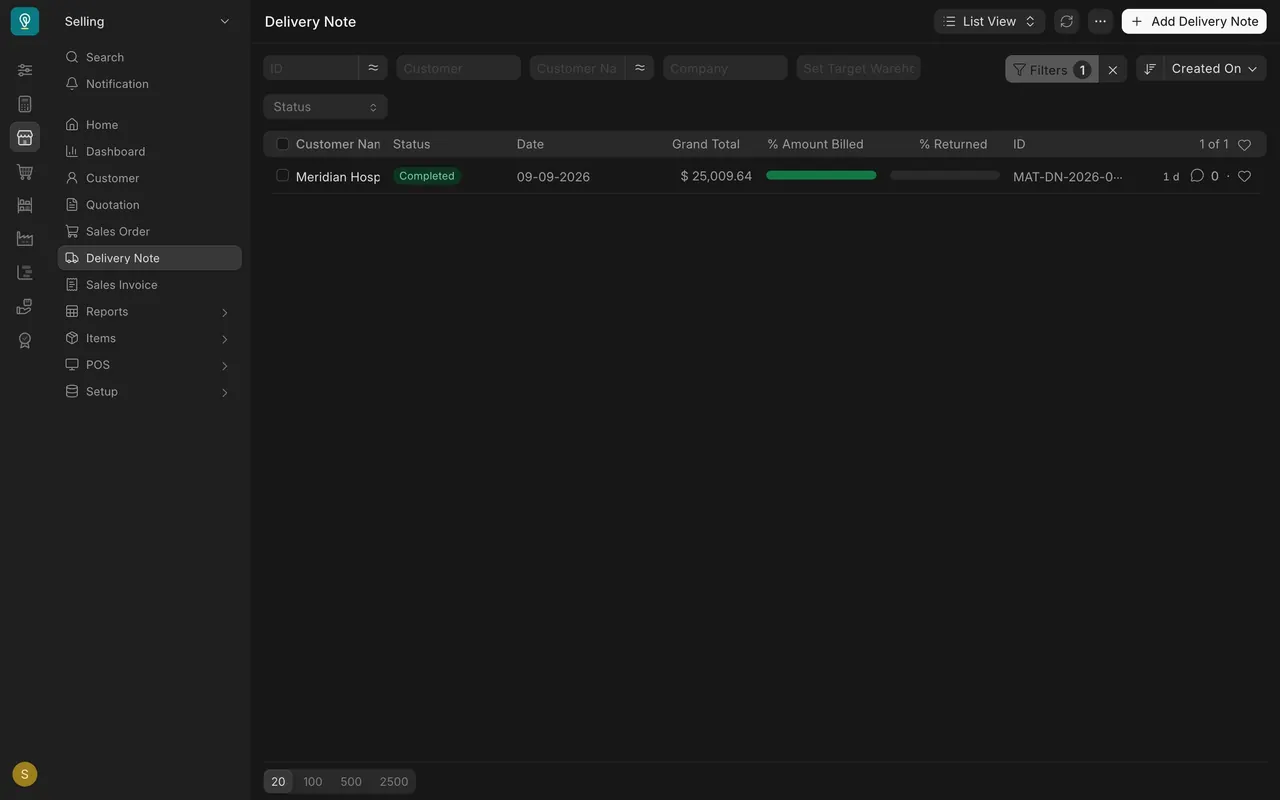
- Click a document type to open its list, already filtered to this order. Here, Delivery Note opens a list showing Filters 1 and 1 of 1: one delivery note, status Completed.
- Use it to answer "has this shipped?" and "has it been billed?" without asking anyone.
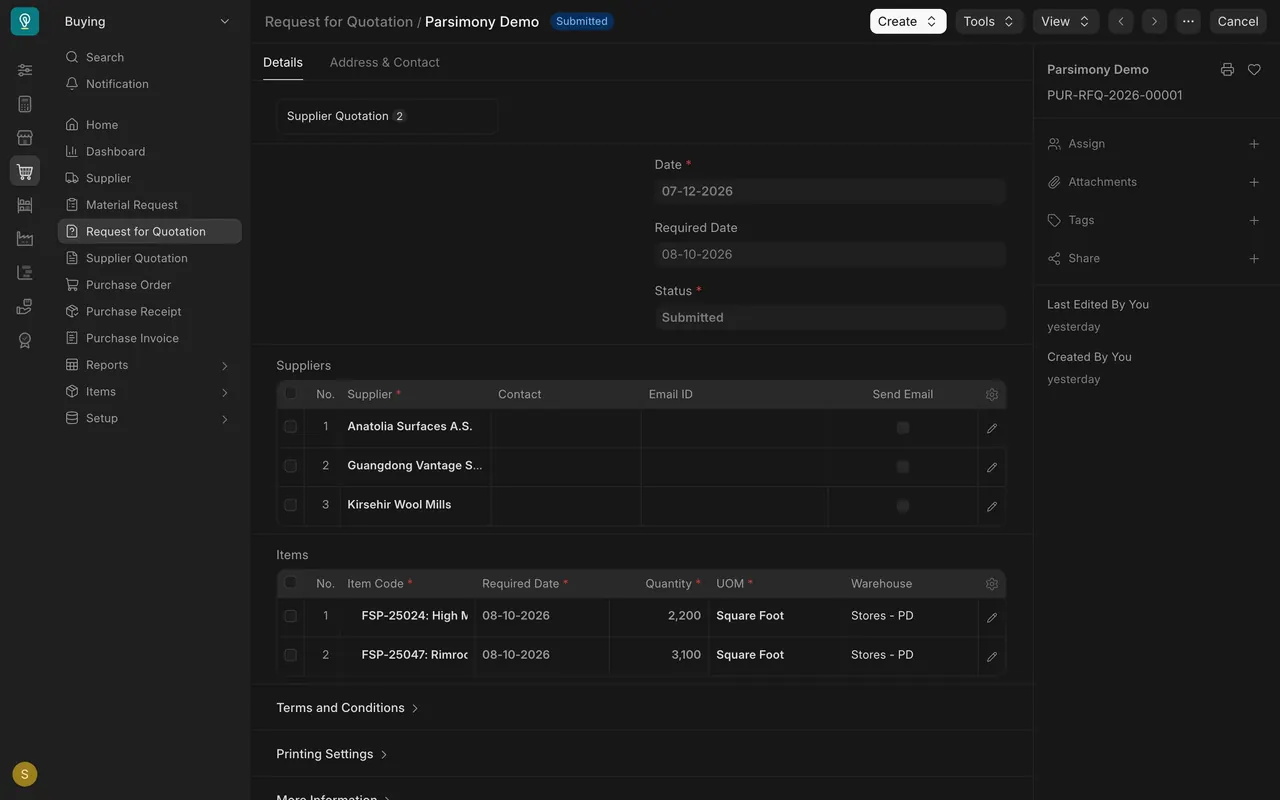
Some forms show the linked documents at the top of the form instead of in a tab. A Request for Quotation, for example, shows Supplier Quotation 2: two supplier quotes came back against it.
Print or save a PDF
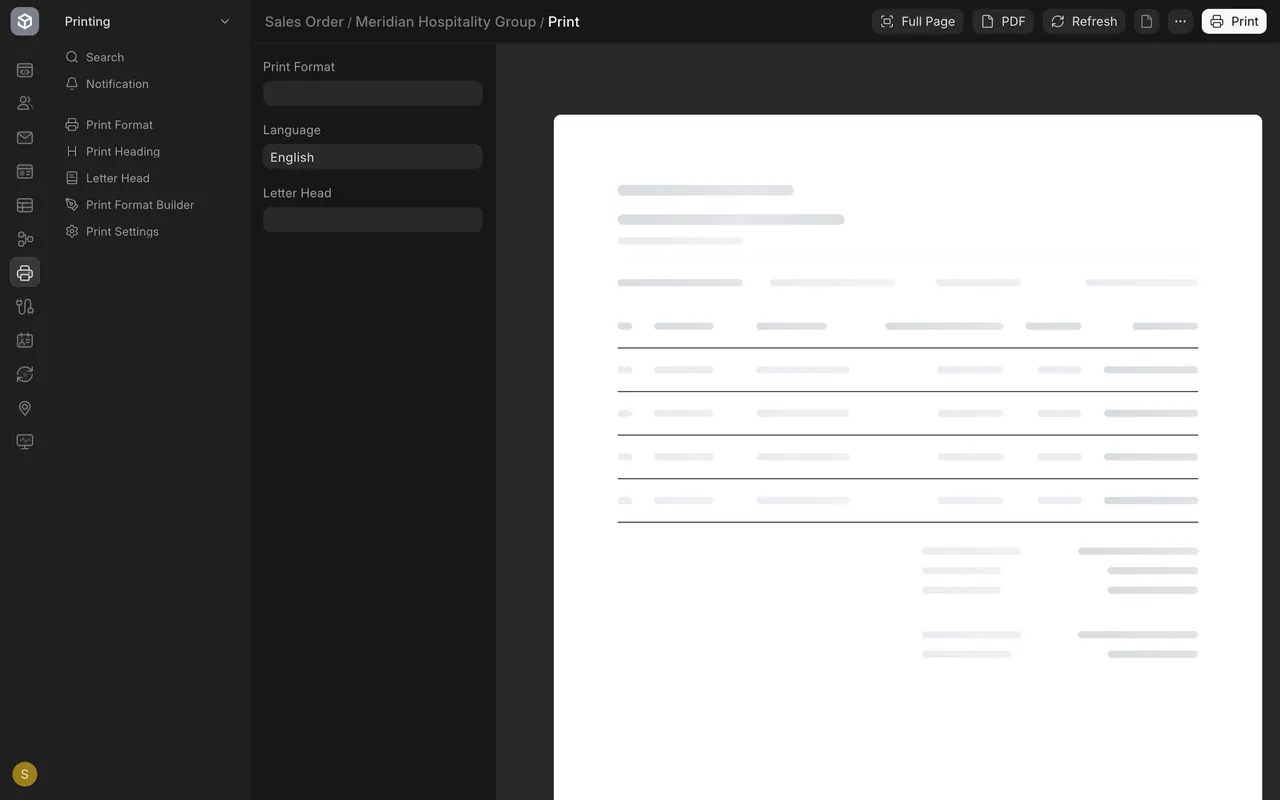
- On the saved document, click the printer icon at the top of the side panel.
- The print page opens. Choose a Print Format if there's more than one; left empty, the standard one is used.
- Press Print to print, or PDF to save a file.
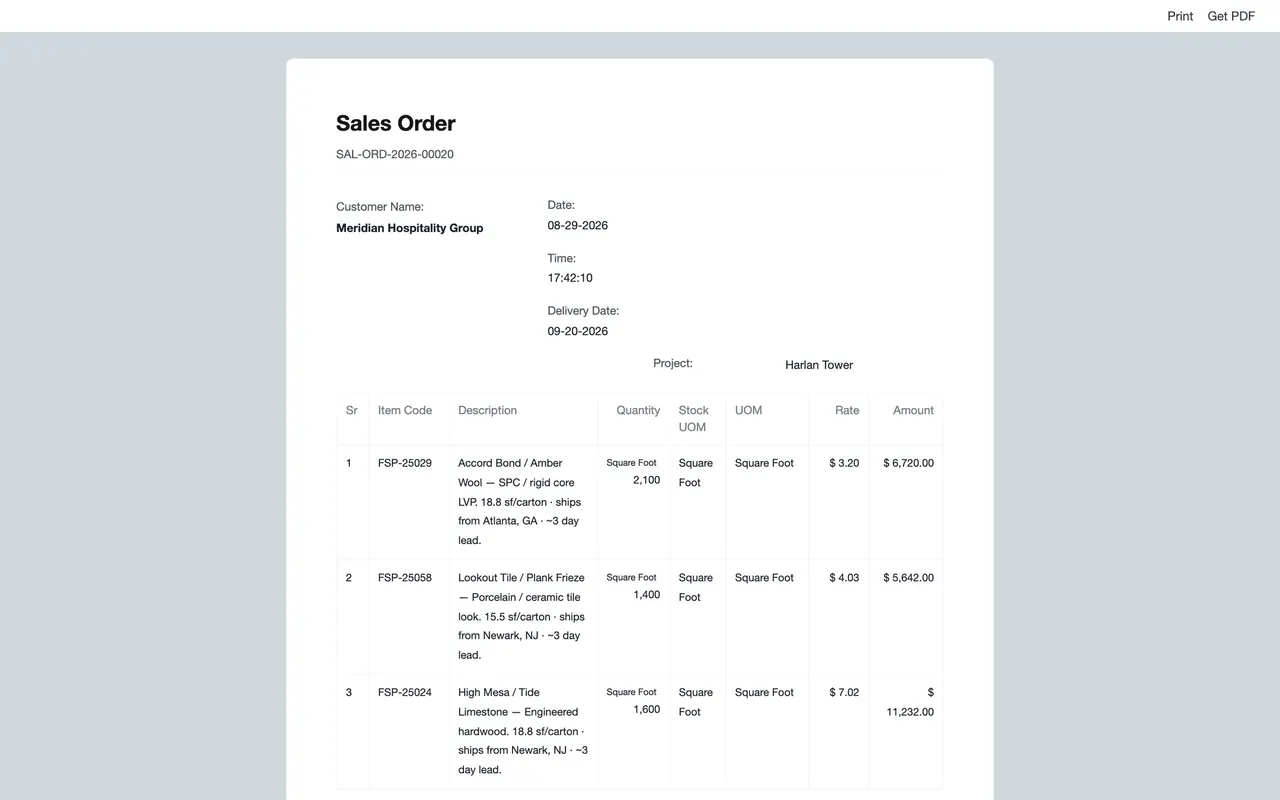
- Read the printout before it leaves. The customer only sees the paper.
Check how your site is set up
- Outgoing email. Whether a document can be sent from the form depends on whether your company has set up an email account in Parsimony. If it has, the New Email button sends the document. If it hasn't, save the PDF and attach it to your own email. The demo site used for these screens has no email account, so the video takes that route.
- Print formats: most documents use the standard format. Some, such as Request For Sample, can have their own format. Your administrator can add more.
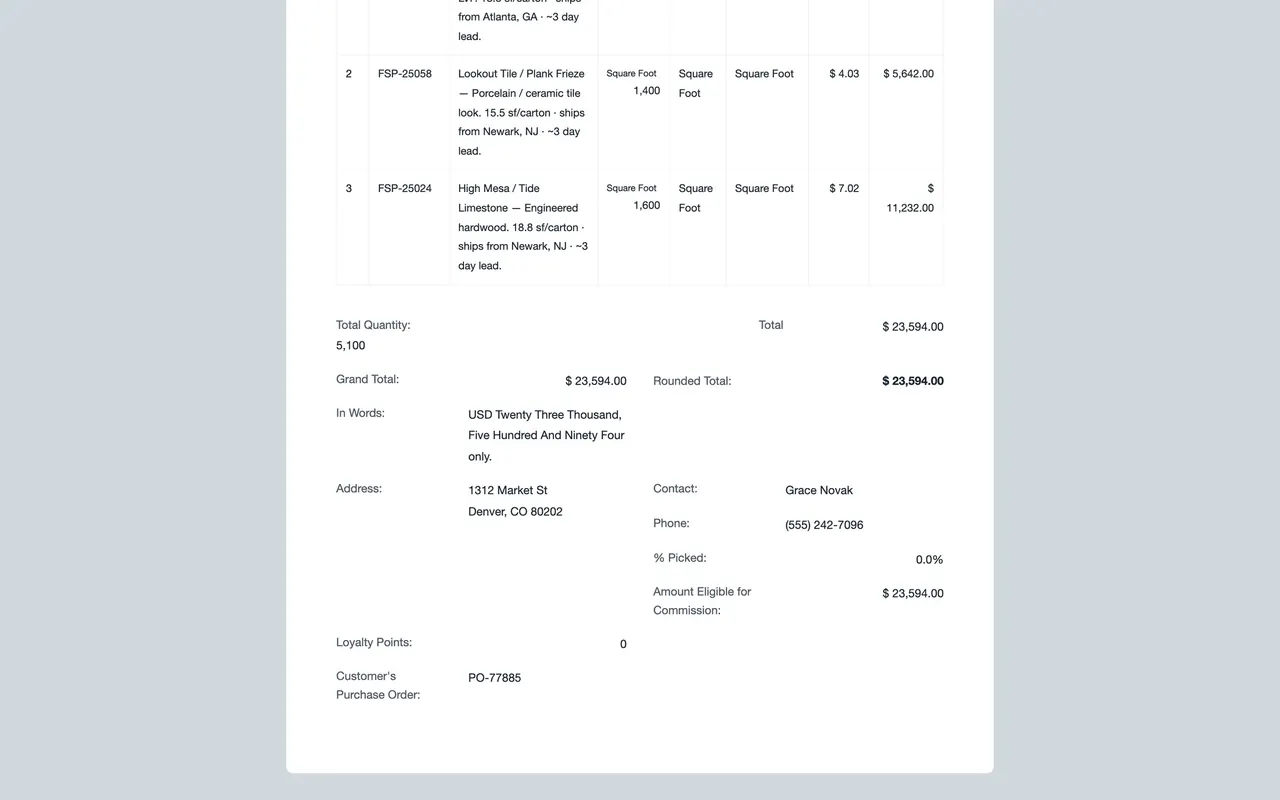
- On printouts: in this example, Grand Total, Rounded Total and In Words appear under the items.
- Notifications: your administrator can switch on automatic notifications. Like documents, they are only emailed if your site is set up to send email.
Common mistakes
- Keeping the conversation in the corridor or your inbox. Nobody else can see it. Put the key facts in a comment on the document.
- Vague comments. "Changed per customer" doesn't help. Say what changed, why and who asked.
- Saving files to your own computer. Attach them to the document so the team can find them.
- Asking around to find out if an order shipped. Check its Connections first.
- Sending a printout without reading it. Check the customer, the items, the totals and the dates on the paper itself.
Check yourself
3 quick questions.
1. A customer phones to move a delivery date. Where should that change be recorded?
2. Your manager asks whether an order has shipped. Where do you look first?
3. You need to send a quotation to a customer, and your site isn't set up to send email. What's the right way?