V16 Training · Getting Started · Lesson 6 of 6
How your role changes what you see
This lesson explains how your role decides what you can open and do in Parsimony, what to do when you hit a limit, and where to go after this course.
Written guide
The idea
Everyone signs in to the same system, but nobody gets exactly the same access. Your account carries one or more roles, such as Sales User, Purchase Manager, Stock User or Accounts User. Permissions are set per role and per document type, and they decide:
- which documents you can open and read,
- which you can change and create,
- which you can submit, and which you can cancel.
Read, write, create, submit and cancel are separate permissions. A role can have some of them for a document and not others. That's deliberate. It splits the work so that, for example, the person who orders goods from a supplier isn't the same person who pays the supplier.
Step by step
See your areas
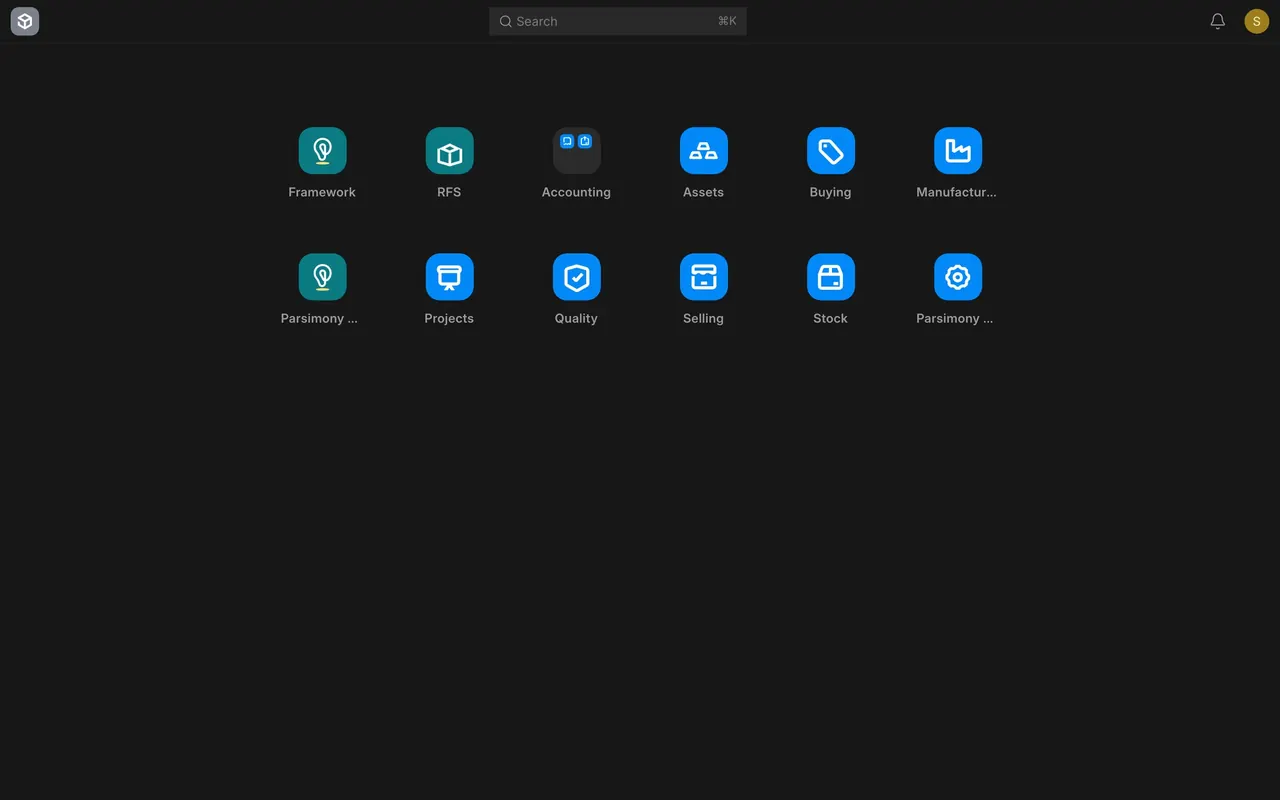
- Start from the Desktop. Every role starts here; what you can open from it follows your roles.
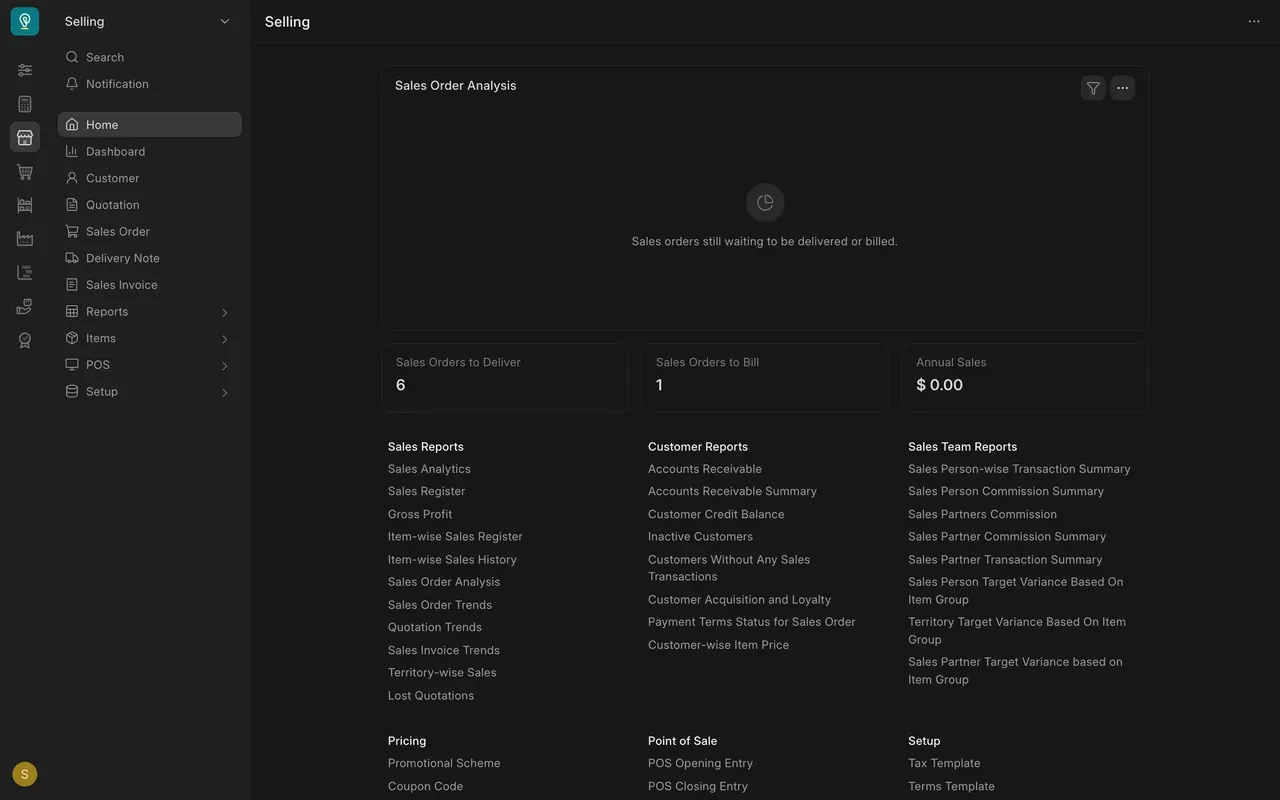
- In this example, Sales works in Selling: Customer, Quotation, Sales Order, Delivery Note. Sales Invoice sits in the same sidebar but belongs to Accounts.
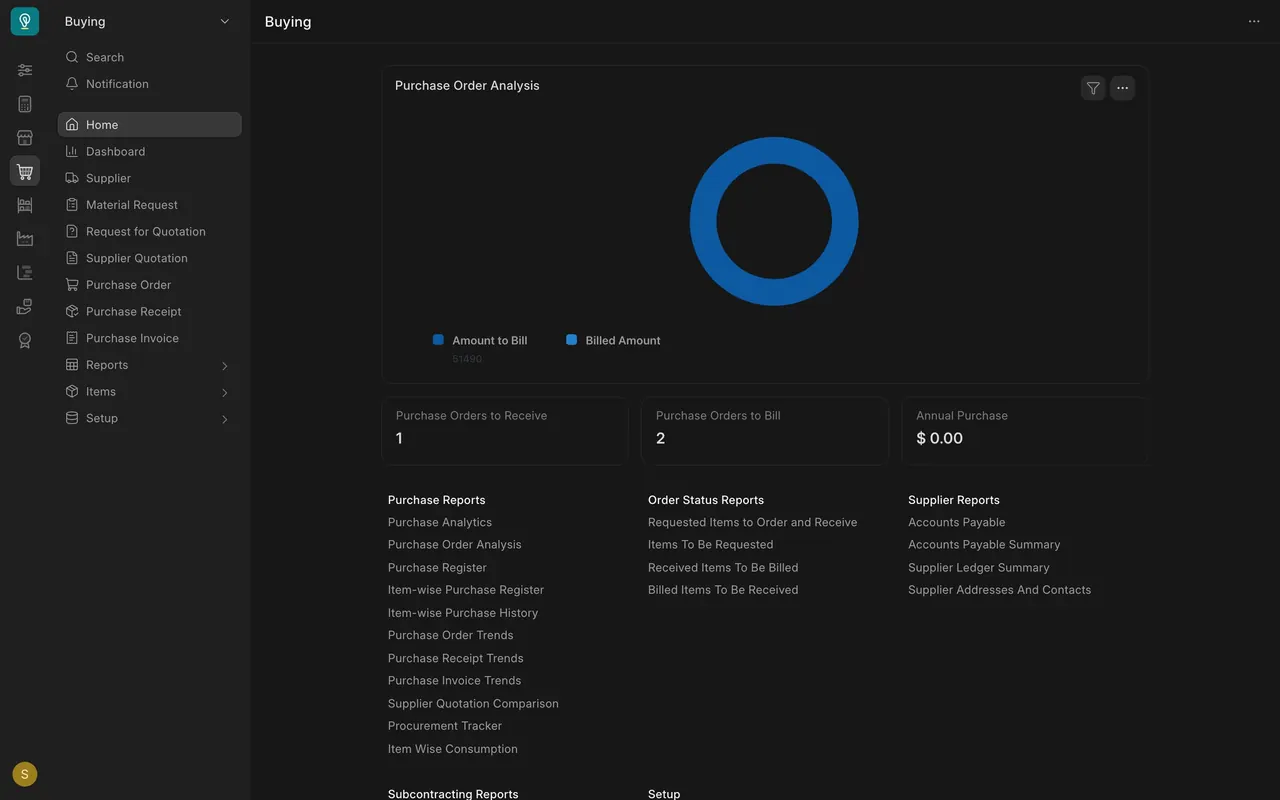
- Purchasing works in Buying: Supplier, Material Request, Request for Quotation, Supplier Quotation, Purchase Order, Purchase Receipt, Purchase Invoice.
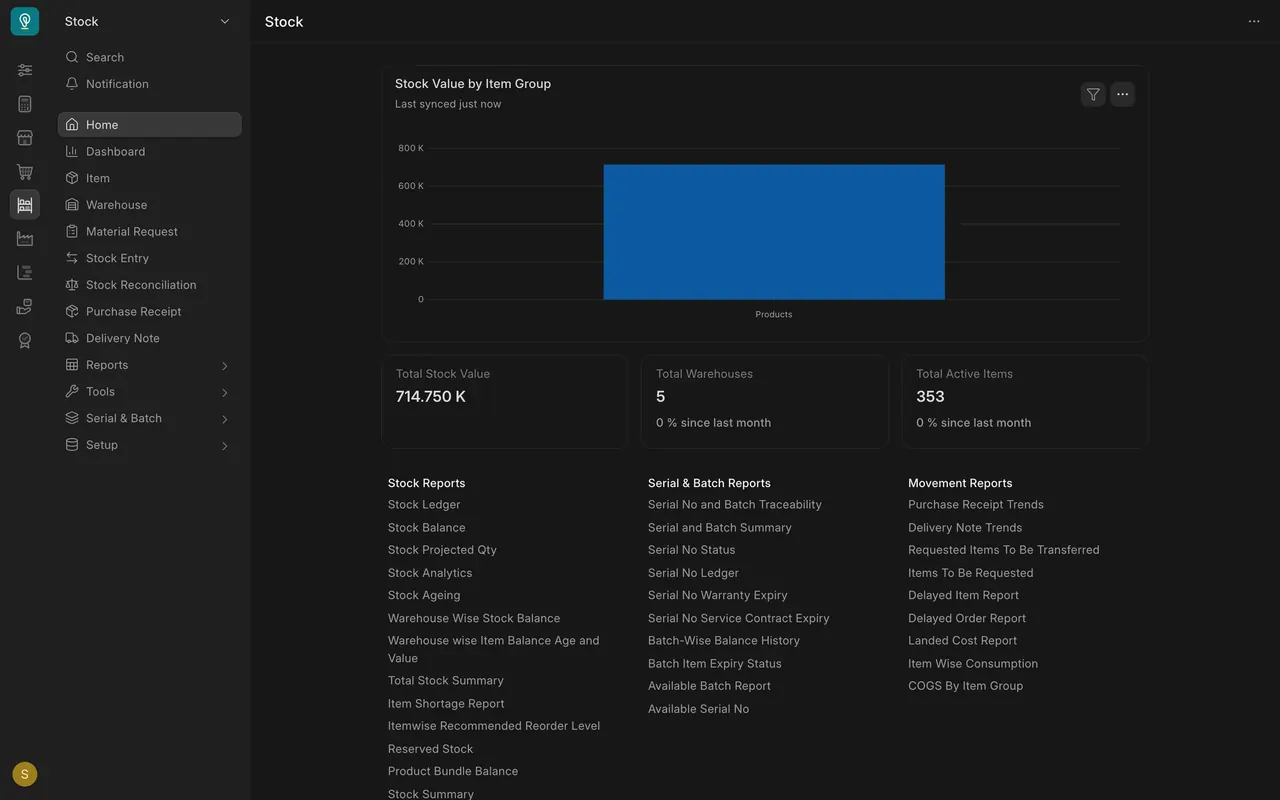
- Warehouse works in Stock: Item, Warehouse, Material Request, Stock Entry, Stock Reconciliation, Purchase Receipt, Delivery Note.
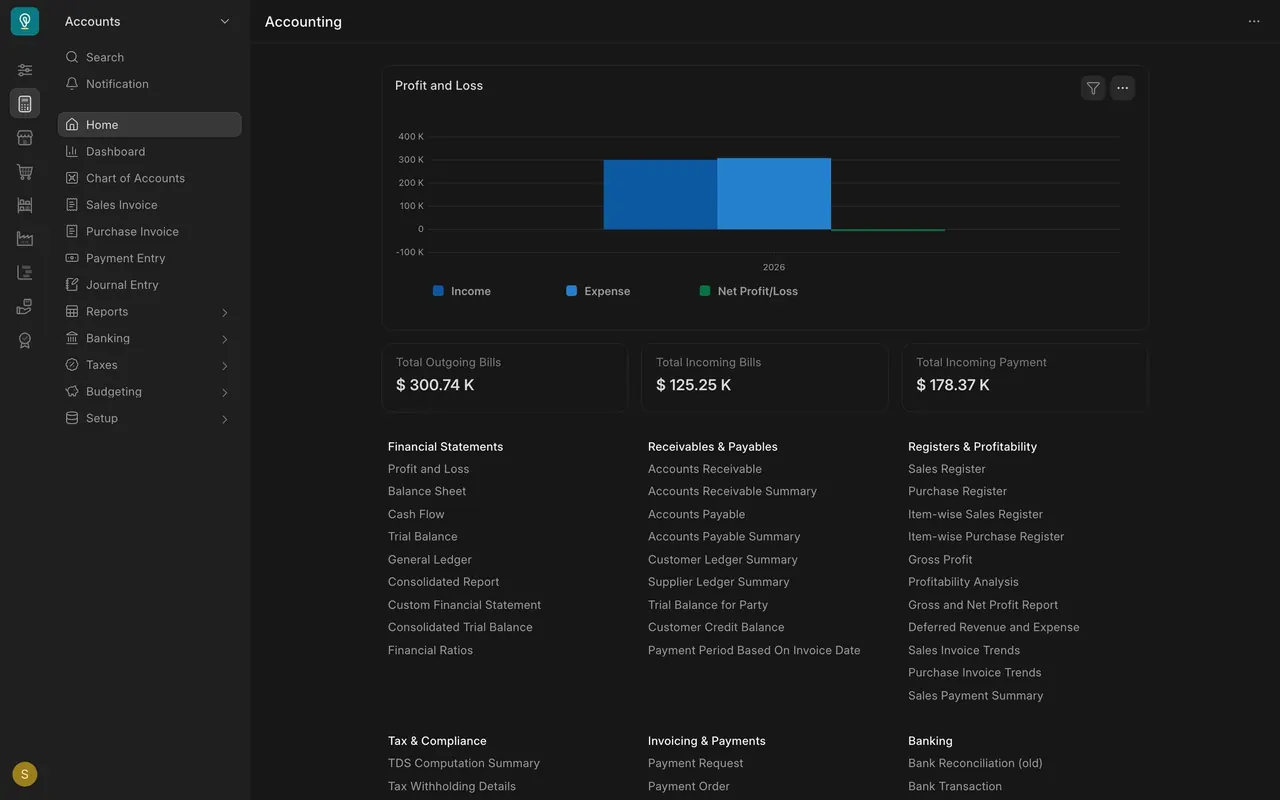
- Accounts works in Accounting (the page is titled Accounting, the sidebar is headed Accounts): Chart of Accounts, Sales Invoice, Purchase Invoice, Payment Entry, Journal Entry, plus Reports, Banking, Taxes, Budgeting and Setup.
Know what your role can do
- Permissions are set by a System Manager (the administrator role) on roles and document types, with rights such as Read, Write, Create, Delete, Submit, Cancel and Amend. You don't change them yourself.
- Each permission shows up as a button you've already met: Add on a list to create, Submit on a saved draft, Cancel on a submitted document, Amend on a cancelled one.
- If your role doesn't have a permission, expect the button to be missing or the action to be refused. That's your role, not a fault.
When you hit a limit
- Don't look for a workaround, and never borrow someone else's login.
- Hand the document to someone whose role covers it. Use Assign in the side panel so the request is on the record.
- If your job really needs the permission, ask your manager to review your roles.
An example setup
Here is what each team's usual roles can do in the example demo company's permission settings ("read" means open but not change). Your company's settings may differ, so check with your manager or administrator:
| Team | Create and submit | Create only | Read only |
|---|---|---|---|
| Sales | Quotation, Sales Order, Delivery Note | Lead, Opportunity, Customer | Items |
| Purchasing and sourcing | Material Request, Supplier Quotation, Purchase Order, Purchase Receipt | Request for Quotation (Purchase User; Purchase Manager can submit) | Supplier (Purchase User), Purchase Invoice, Items |
| Warehouse | Delivery Note, Purchase Receipt, Stock Entry, Pick List, Material Request | none | Sales Order, Purchase Order, Request for Quotation, Customer, Items |
| Accounts | Sales Invoice, Payment Entry, Journal Entry, Purchase Invoice | none | Sales Order, Delivery Note, Purchase Receipt, Customer, Items |
Worth knowing:
- An Accounts User can submit a Sales Invoice but can't cancel one. Only an Accounts Manager can.
- Stock Reconciliation is for the Stock Manager only.
- New customers are created by Sales User or Sales Master Manager. New suppliers by Purchase Master Manager. New items by Item Manager only.
- Request For Sample is a standard part of Parsimony, open here to Purchase User, Purchase Manager and Purchase Master Manager. Sourcing Request is System Manager only.
- In this example there are no custom roles and no approval workflows, so "approval" means having the submit permission. If your company has set up approval workflows, approval follows those instead.
Common mistakes
- Borrowing a login to get past a limit. It breaks the record of who did what, and the limit exists for a reason. Ask someone whose role covers it.
- Assuming a missing button is a bug. It's usually your role. Check with your manager before reporting it.
- Comparing your screen with a colleague's. Different roles get different access. Training screens may show more than you see.
- Asking for every permission "just in case". Ask for what your job needs. Fewer permissions mean fewer accidents.
What's next
You've finished Getting Started. Next, take the course for your own job: Selling and Customer Relationships, Buying, Stock and Warehouse, Accounting, or Sourcing and Samples.
Check yourself
3 quick questions.
1. A Purchase User has created a Request for Quotation and can't submit it. What's going on?
2. Someone in the warehouse needs to see what a Sales Order asks for. What can they do?
3. A colleague offers you their login so you can cancel an invoice. What do you do?