V16 Training · Buying · Lesson 2 of 6
Request quotes from suppliers
This lesson shows you how to ask several suppliers for a price on the same items and record every answer so it can be compared.
Written guide
The idea
One price tells you what one supplier wants. It does not tell you whether that is fair. A Request for Quotation asks more than one supplier to price the same items, and a Supplier Quotation records each answer exactly as it was given. Together they give you, your manager and your accounting team a clear trail of why a supplier was chosen.
In this example, the demo company buys from overseas suppliers such as Jiangsu Linwood Flooring, Kirsehir Wool Mills and Anatolia Surfaces A.S. If your Parsimony site has no email account set up, plan on sending the request yourself and entering each answer yourself. If it is set up to send email, you can send the request from Parsimony.
Step by step
Send a Request for Quotation
- In the Buying sidebar, choose Request for Quotation, then click Add Request for Quotation.
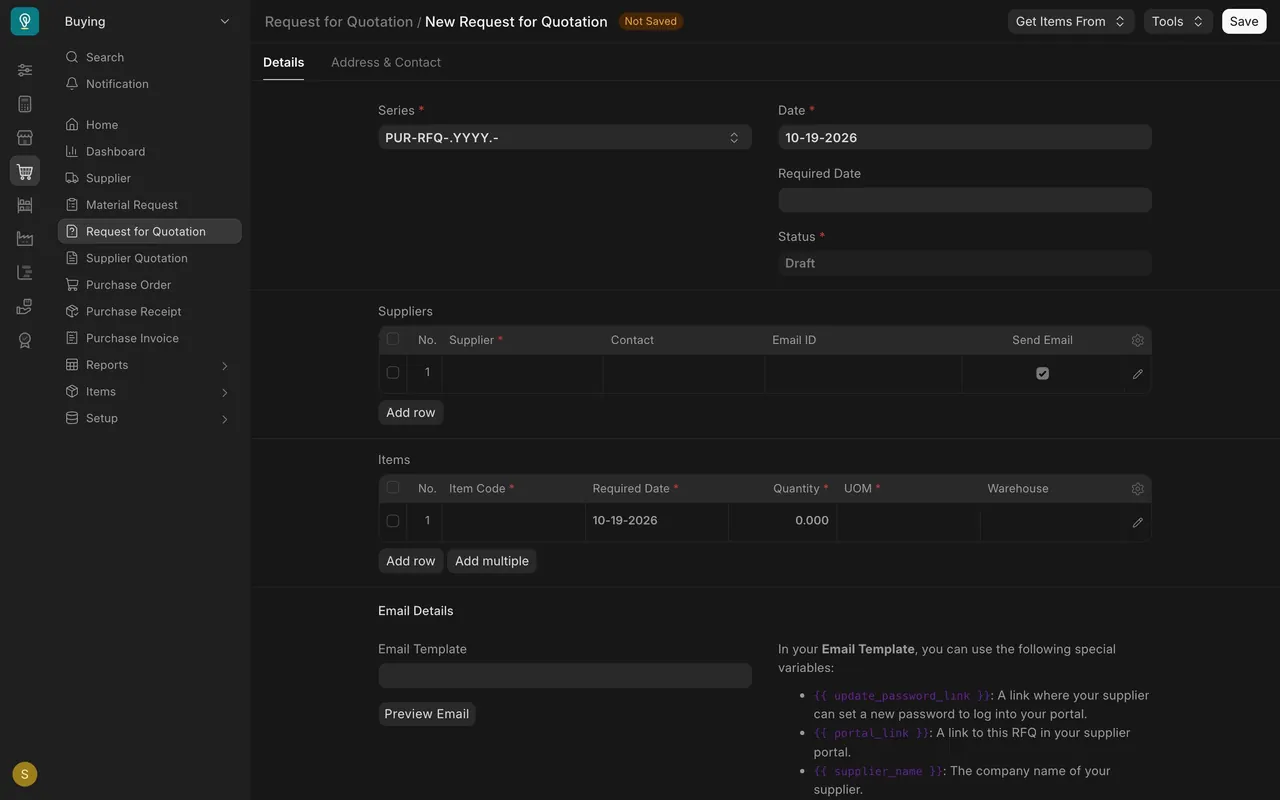
- Use Get Items From to bring in the items from the submitted Material Request, so you check them instead of retyping them. Date fills in with today.
- In the Suppliers table, add a row for each supplier with Add row. Two is the minimum for a comparison. Three is better.
- Each supplier row has a Send Email tick box, ticked by default on a new row. If your site has no email account set up, untick it: nothing is delivered to a supplier, whatever the box says. If your site is set up to send email, you can leave it ticked.
- Further down the form, under Email Details, the request has a subject line. Give it a clear subject: the project and the product.
- Click Save. You now have a draft.
- With the standard roles, if you are a Purchase User, ask a Purchase Manager to review and submit it. Purchase Users can create and save a Request for Quotation but cannot submit one.
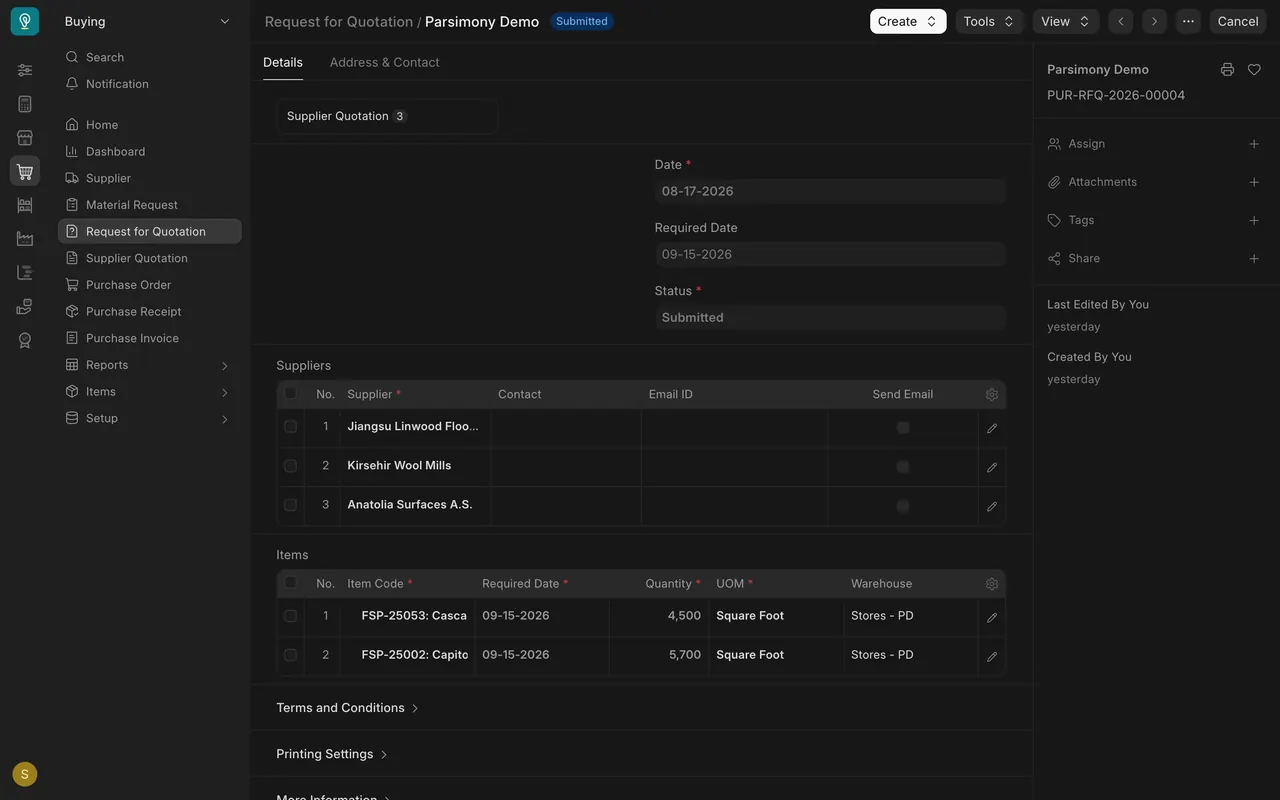
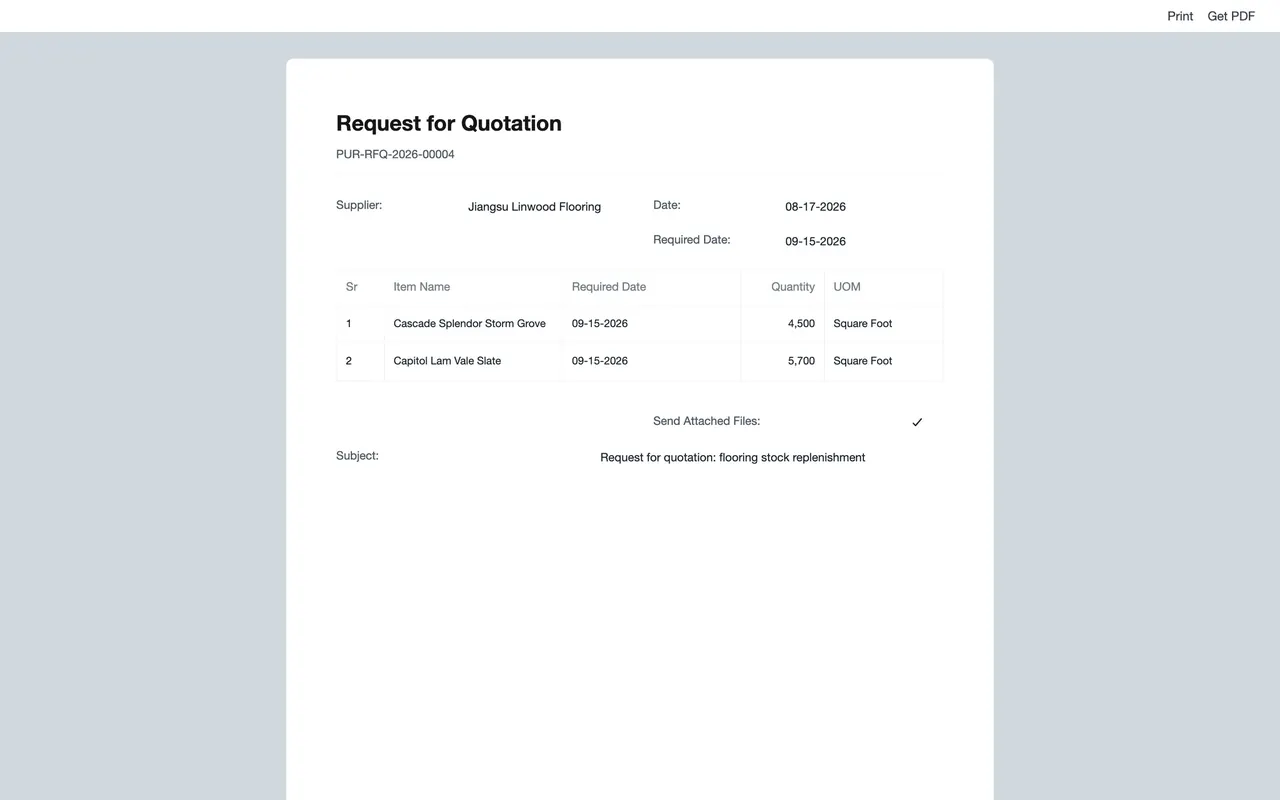
- Once it is submitted, click Tools, then Download PDF, and pick the supplier in the dialog. Each copy is addressed to one supplier, so make one copy per supplier and check the name on each. Send each copy with your normal work email and write down the date.
The print view shows the document exactly as the supplier receives it.
Record each answer as a Supplier Quotation
- In the Buying sidebar, choose Supplier Quotation, then click Add Supplier Quotation.
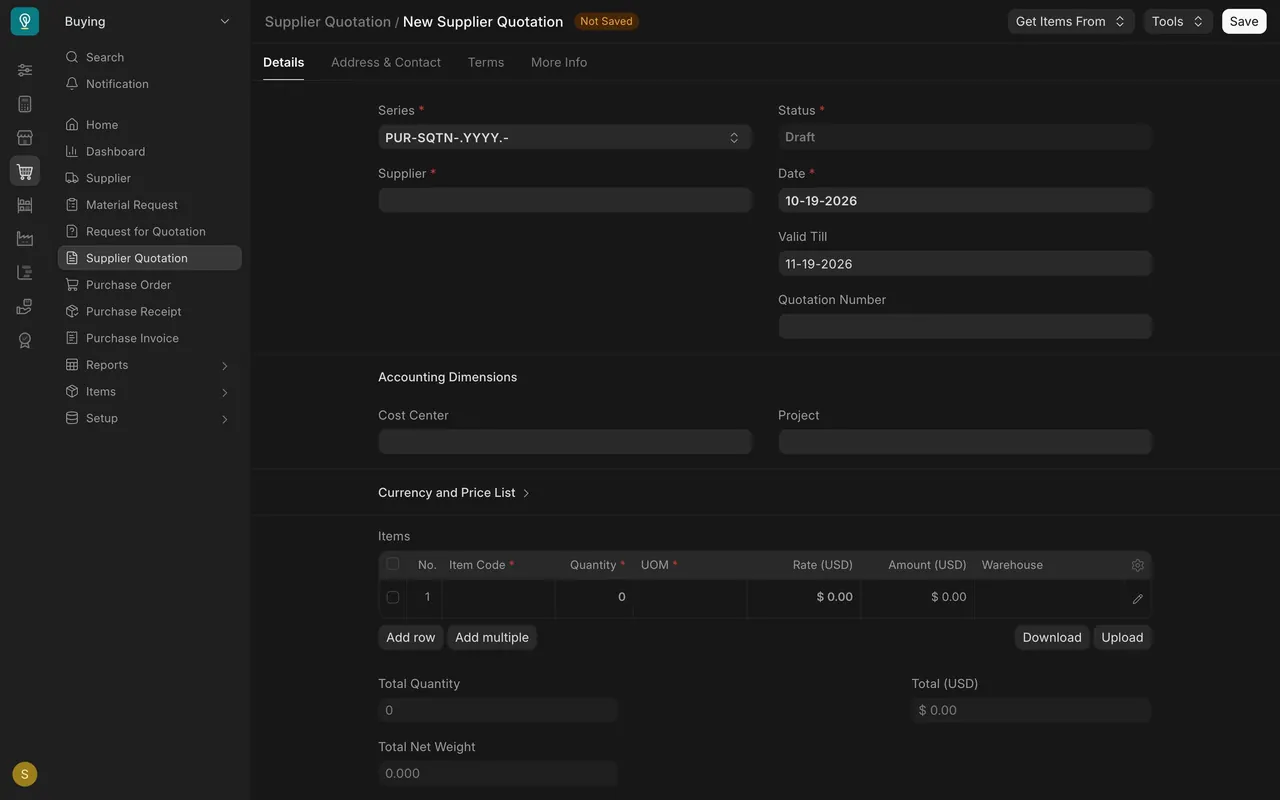
- Pick the Supplier who replied.
- Use Get Items From and choose Request for Quotation, so the quote is linked to the request you sent. The comparison report in the next lesson finds quotes by that link.
- Enter each rate exactly as quoted. In this example the rate column is headed Rate (USD): rates are in U.S. dollars. If a supplier quotes in another currency, ask a manager before you enter it.
- Put the supplier's own quote reference in Quotation Number.
- Check Valid Till. A new quotation fills it in one month ahead. Change it to the date on the supplier's quote.
- Save, then submit. Purchase Users can submit Supplier Quotations.
- Repeat for every supplier that answered, including the expensive ones. A losing quote is still evidence.
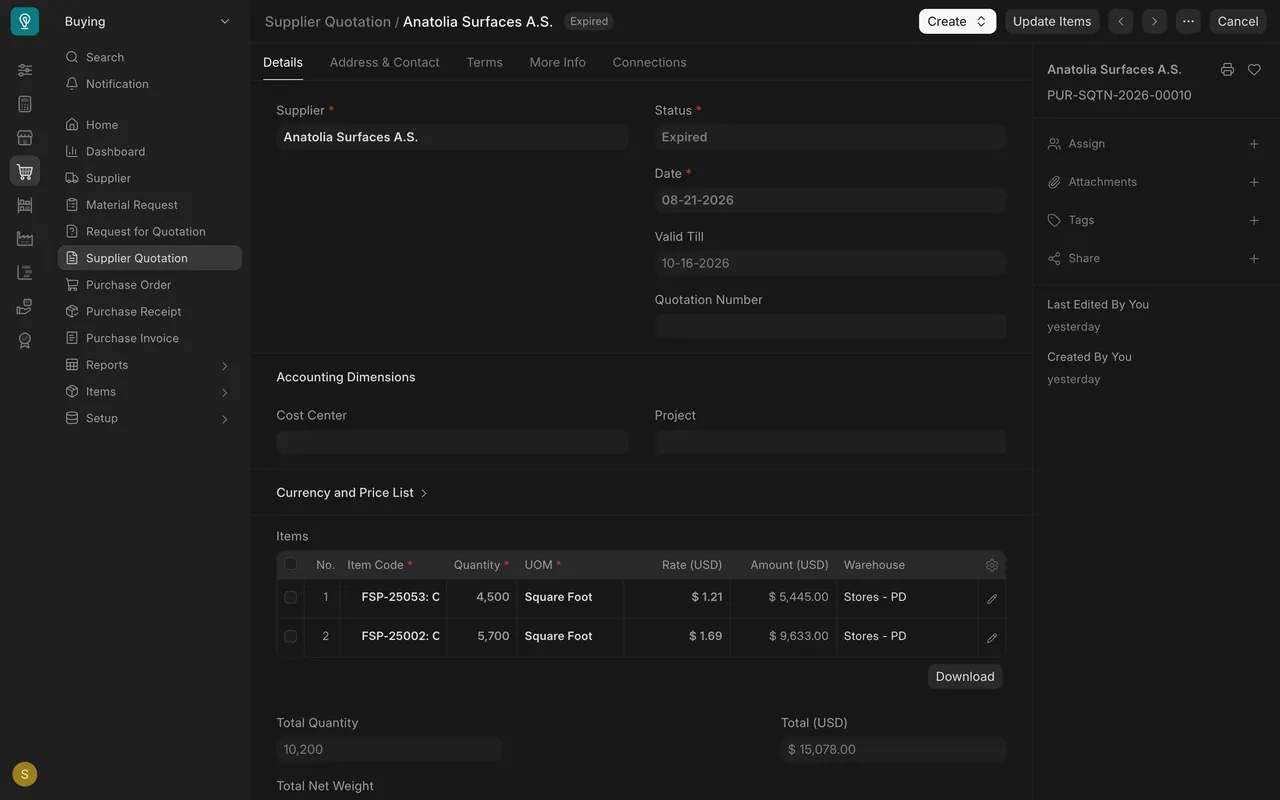
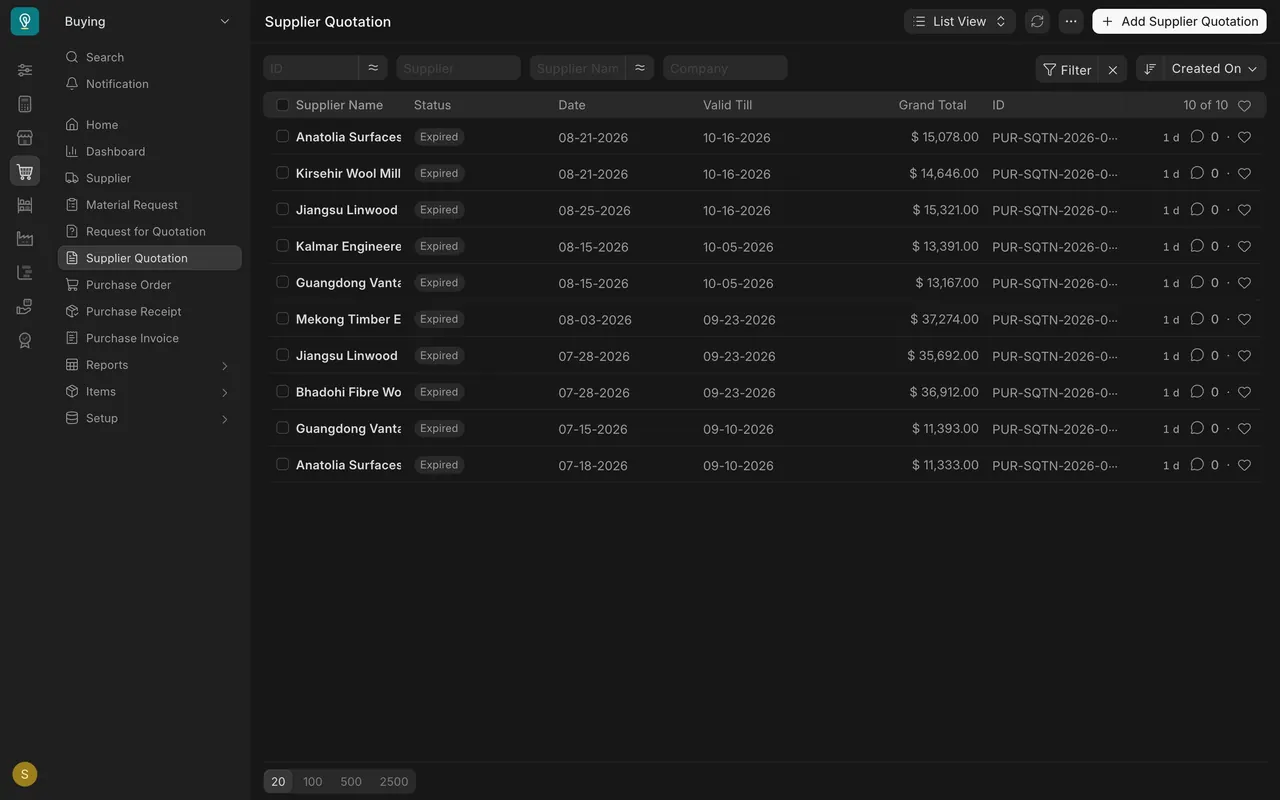
Once Valid Till has passed, the quote's status shows Expired. Every quote in the demo list is expired, which matters when you compare them in the next lesson. Before you order on an expired price, ask the supplier to confirm it.
How your site may differ
- Email account. The demo site has no email account set up, so nothing is emailed from Parsimony, including Requests for Quotation. If your site has none either, untick the Send Email boxes, use Tools, then Download PDF, pick the supplier, and send each copy yourself. If your site is set up to send email, you can use the boxes.
- Who can submit a Request for Quotation: with the standard roles, Purchase Manager only. Purchase User can create, read and write, but not submit. Stock User can read. Your company may have changed this.
- Who can submit a Supplier Quotation: with the standard roles, Purchase User and Purchase Manager.
- Currency: in this example, quotes and rates are in U.S. dollars. Yours may use another currency.
- Free on board quotes: overseas suppliers often quote free on board (FOB), a price at the port of loading. The FOB Point and FOB Price are tracked on the Request For Sample form during sampling. On the Supplier Quotation, enter the rate the supplier gave you and note freight and duty separately.
Common mistakes
- Trying to submit the request as a Purchase User. You will not be able to. Save the draft and ask a Purchase Manager.
- Trusting the Send Email box. If your site has no email account, nothing goes out. Download a PDF for each supplier, send it yourself and note the date.
- Asking only one supplier. One answer is a price, not a comparison.
- Leaving Valid Till at the default. It is one month from today, not the supplier's date. A wrong date makes a quote look live or expired when it is not.
- Rounding or converting a rate. Enter what the supplier wrote. If it is in another currency or includes freight, ask before you enter it.
- Ordering on an expired price. Once Valid Till has passed, ask the supplier to confirm the price. If it changed, record a new Supplier Quotation.
Check yourself
3 quick questions.
1. You saved a Request for Quotation, but you cannot submit it. Why?
2. If your site has no email account, how do you get a Request for Quotation to a supplier such as Kirsehir Wool Mills?
3. A supplier's quote is good until the end of next month. What do you do with Valid Till?