V16 Training · Buying · Lesson 1 of 6
Raise a material request
This lesson shows you how to turn a need for flooring into a submitted Material Request that purchasing and the warehouse can act on.
Written guide
The idea
Every purchase starts with a need: a project team, a salesperson or the warehouse knows that goods, such as flooring in this example, have to be bought. If that need lives only in a conversation or a chat message, nobody can price it, order it or chase it. A Material Request turns the need into a record with an item, a quantity, a date and a warehouse, and its status shows everyone how far along it is.
By the end of this course you will be able to:
- Raise a Material Request for the Purchase purpose.
- Ask several suppliers for a price with a Request for Quotation, and record each answer as a Supplier Quotation.
- Compare quotes and place a Purchase Order.
- Follow the order through receiving and billing, and know who does each step.
- Read a Supplier record, including the checkbox for United States tax reporting on payments to the supplier (the Internal Revenue Service form 1099).
- Use the Buying reports to see what is late, what is unbilled and what your company owes.
The buying flow is: Material Request, then Request for Quotation, then Supplier Quotation, then Purchase Order, then Purchase Receipt, then Purchase Invoice. Every one of these documents is saved as a draft first and only counts once it is submitted.
Samples come first. Before you order a new product, the sample is sourced in the Request For Sample workspace, a core part of Parsimony, which is taught in the Sourcing and Samples course. This course starts once you know what you want to buy.
Step by step
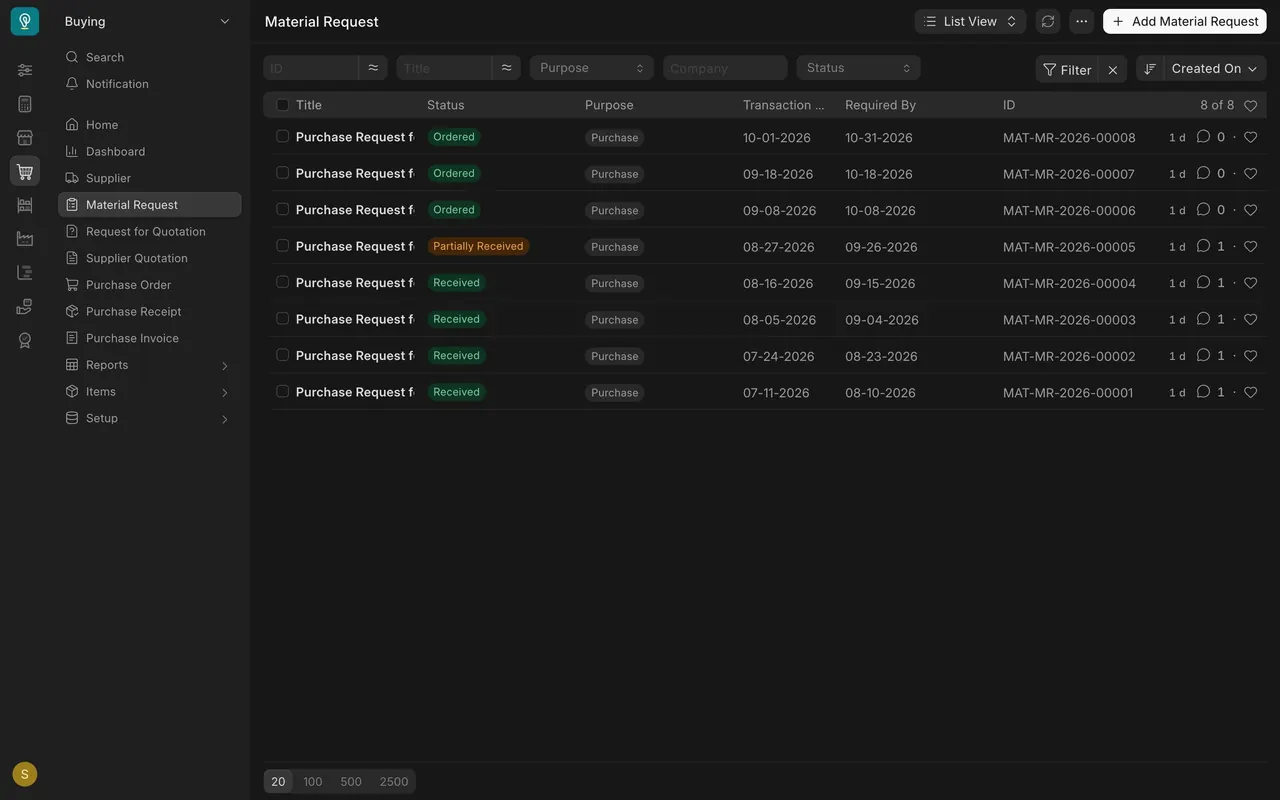
- In the Buying sidebar, choose Material Request. The list shows each request with its Status, Purpose, Transaction Date and Required By date.
- Click Add Material Request at the top right. A new form opens, marked Not Saved.
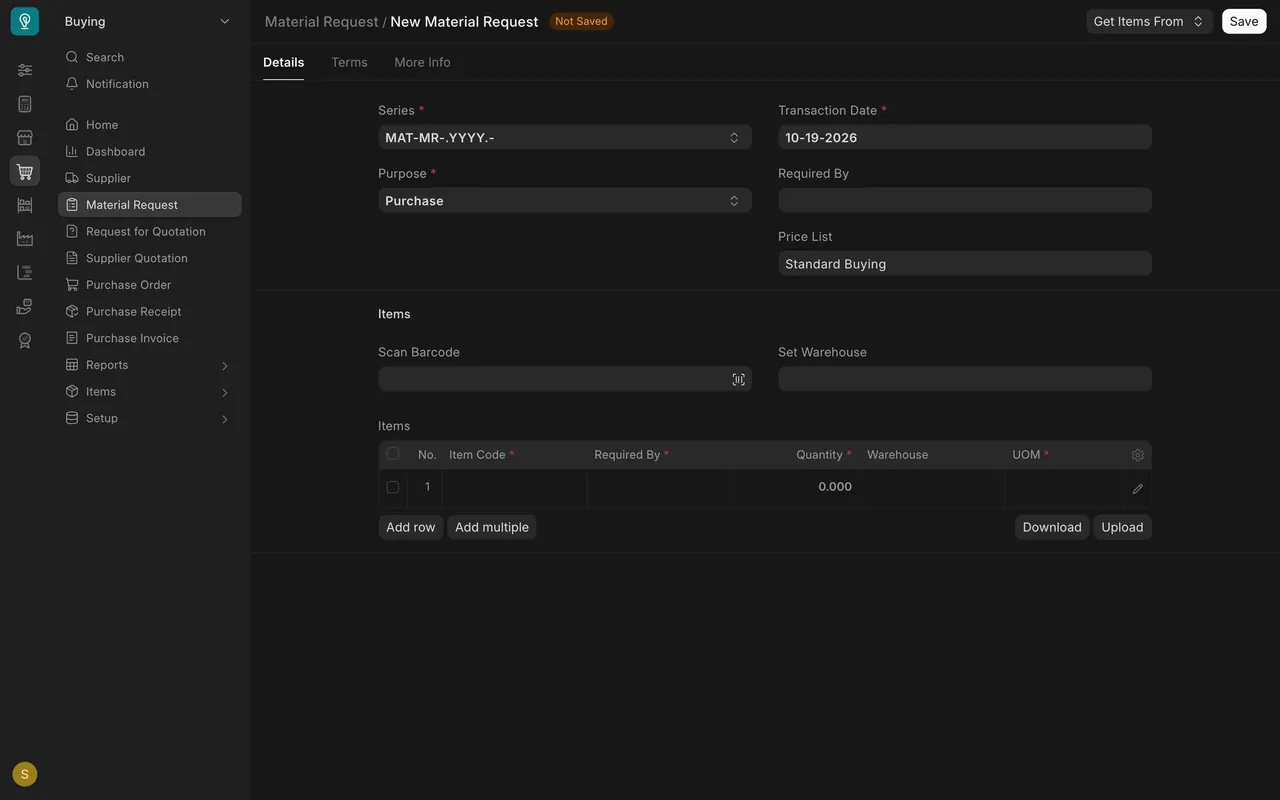
- Check that Purpose says Purchase. It is the default on a new request. Purchase means the need will be bought, not moved from another warehouse.
- Transaction Date fills in with today. Leave it.
- Price List shows Standard Buying. Leave it.
- In the Items table, pick the Item Code. Item codes are set by your company; in this example they look like FSP-25052. Click Add row for each further item.
- Enter the Quantity. The UOM column, the unit of measure, shows Square Foot, so a quantity is square feet, not boxes or pallets.
- Set Required By. There is one at the top of the form and one on every row. It is the date the goods must be in the warehouse.
- In Set Warehouse, choose the warehouse where the goods will arrive (in this example, Stores - PD, where PD stands for Parsimony Demo) unless the warehouse team tells you otherwise. The rows take the same warehouse.
- Click Save, read the request once more, then submit it.
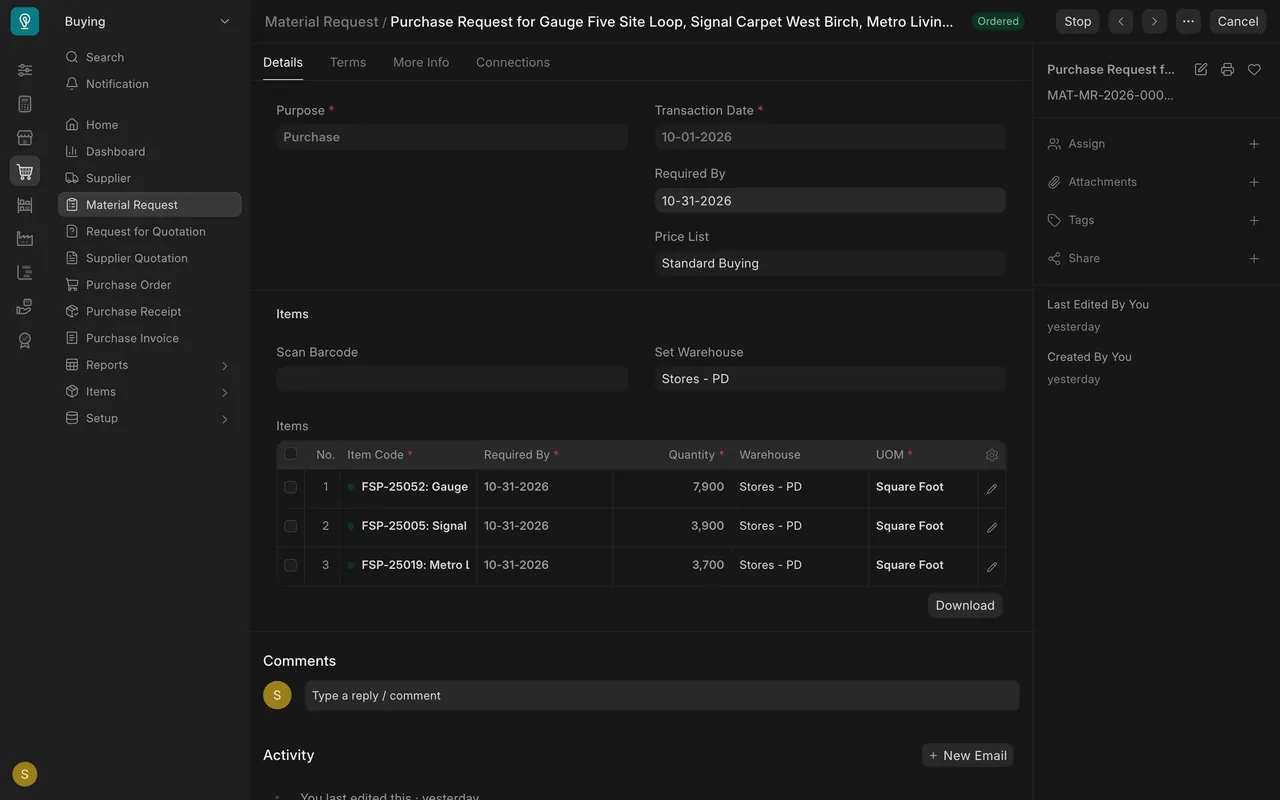
- If the need belongs to a project, say which one in the Comments box at the bottom of the request, so anyone who opens it sees the job. Each item row also has a Project field, in its Accounting Dimensions section: open the row with its edit icon and set it, because reports that filter by project, such as Procurement Tracker, read that field and not your comment.
Once a request is submitted, its status moves on as the rest of the chain happens. In the demo data you will see Ordered, Partially Received and Received.
How this example is set up
- Company: the demo company, Parsimony Demo. Buying is in US dollars. Your company will have its own name and currency.
- Default warehouse: Stores - PD, the main warehouse for incoming goods. The others (Finished Goods, Work In Progress and Goods In Transit) are not for incoming goods unless the warehouse team says so. Your site will have its own warehouses.
- Stock unit: Square Foot on every item in this example.
- Who can submit: Purchase Users, Purchase Managers, Stock Users and Stock Managers can all create and submit a Material Request.
- Approval: in this example there is no approval workflow. Submit permission by role is the control, so if you can submit, submitting is your approval. Your company may add a workflow.
- Email: a "Material Request Receipt Notification" exists. If your site is set up to send email, it is delivered; if not, nothing is sent, even though the request's Activity may say "Notification sent to ...". When in doubt, tell people in person or in your usual chat.
- Projects: the example projects include Wexler Hotel and Calder Medical Center. The top of the Material Request form has no project field. Name the project in a comment so people can see it, and set Project on each item row so project reports can find it.
Common mistakes
- Setting Required By to today. Required By is when you need the goods on site. Count back from the project date and allow for ocean freight and customs.
- Leaving it as a draft. A saved draft does nothing for the rest of the chain. Submit it once it is right.
- Entering boxes instead of square feet. The unit is Square Foot. A quantity of 40 means 40 square feet.
- Wrong or missing warehouse. Use your main receiving warehouse unless told otherwise, so the goods land where the warehouse expects them.
- Raising a second request for the same need. Check the list first. A request that already says Ordered is already with purchasing.
Check yourself
3 quick questions.
1. A new Material Request opens. What should you check in Purpose before you go on?
2. What does Required By mean on a Material Request row?
3. A colleague saved a Material Request but nobody in purchasing has acted on it. What is the most likely reason?