V16 Training · Buying · Lesson 4 of 6
Follow the order and receive it
This lesson shows you how to read where a Purchase Order stands and how a Purchase Receipt records the goods that actually arrived.
Written guide
The idea
After you submit a Purchase Order, the question changes from "what did I order?" to "where is it?". The project manager, the warehouse and the accounting team all read the order's status and its received and billed bars to answer that. The status only stays true if each arrival is recorded with a Purchase Receipt, in the quantity that was really counted and in the right warehouse.
Step by step
Read the Purchase Order status
- In the Buying sidebar, choose Purchase Order. Each row shows the Status, the Required By date, the Grand Total and two bars, % Billed and % Received.
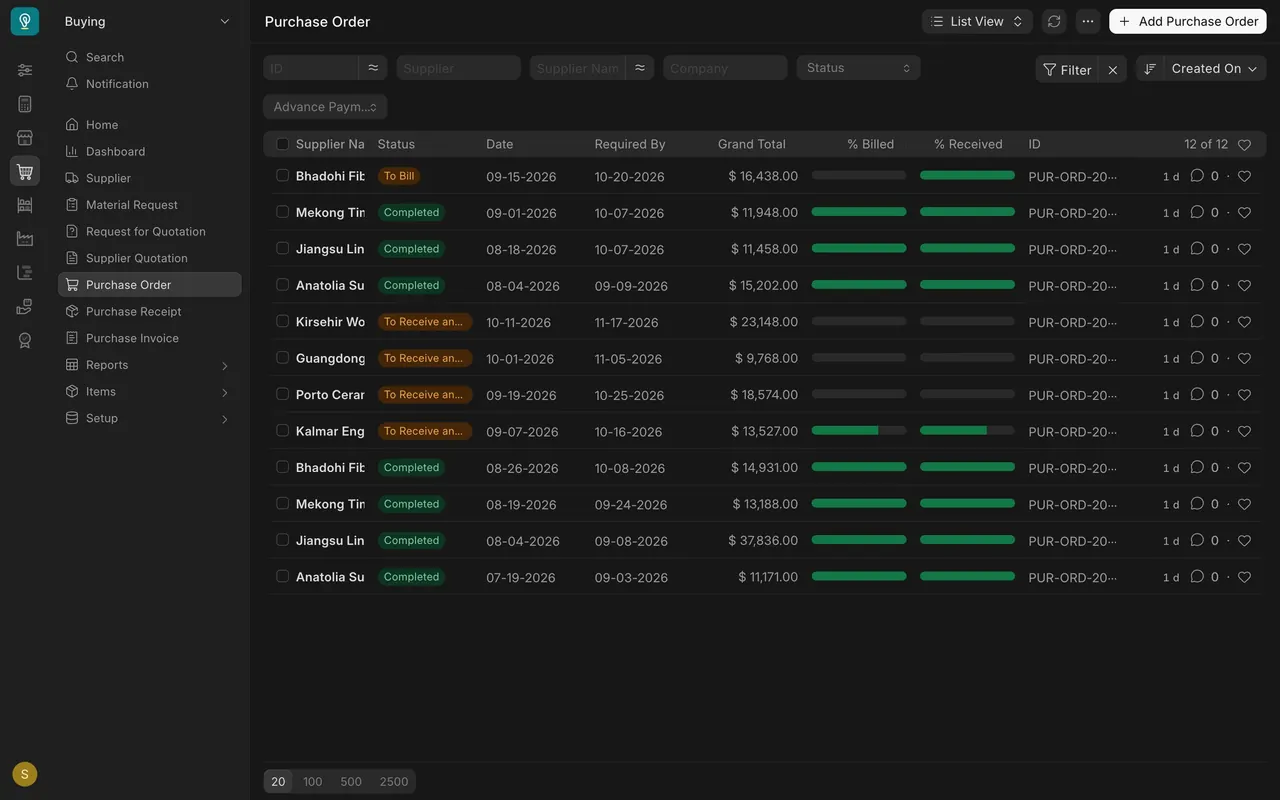
- Read the status. These are the ones you will see in the example data:
| Status | Meaning |
|---|---|
| To Receive and Bill | Submitted, and not yet fully received or fully billed. Part may already have arrived. |
| To Bill | Fully received. The supplier's invoice is not yet entered. |
| Completed | Received and billed. |
A saved order that has not been submitted is still a draft, and it is not yet a commitment.
- Make this list your weekly starting point. Every order marked To Receive and Bill is one you are still waiting on. Read its bars: an empty received bar means nothing has arrived yet, a part-filled one means part of the order is in. In this example four orders are still open, and the one from Kalmar Engineered Woods AB, a sample supplier, is partly received and partly billed.
Record goods arriving with a Purchase Receipt
In many companies the warehouse team records receipts. Users with the Purchase User role can also create and submit one, which is useful when you cover for the warehouse. Before you do, check the Purchase Receipt list for that order, so the same delivery is not received twice.
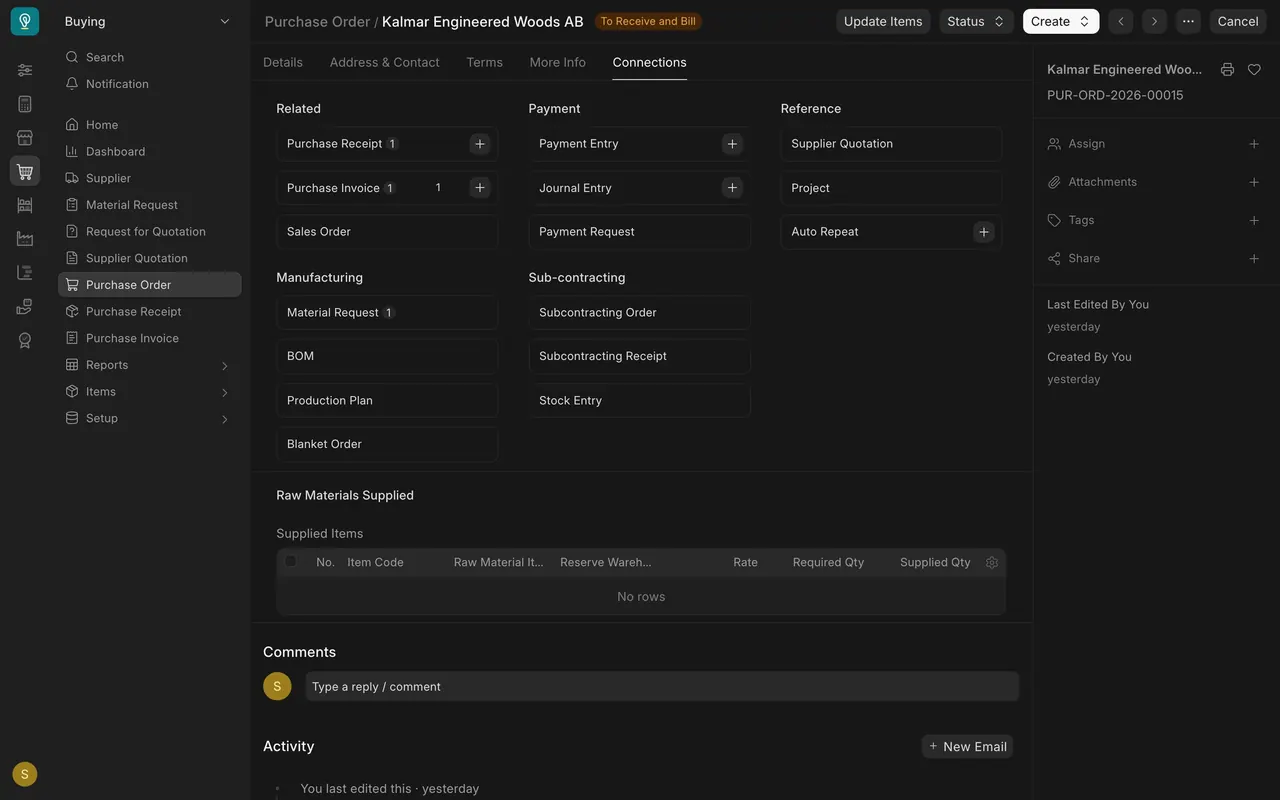
- Open the submitted Purchase Order and go to its Connections tab. Under Related, the plus beside Purchase Receipt starts a receipt from the order. The same tab counts the receipts and invoices already linked, and the Material Request the order came from.
- Check the Supplier, the Date and the Posting Time. If the supplier sent a delivery note, put its number in Supplier Delivery Note.
- Check Accepted Quantity on each row against what was actually counted. Change it if the supplier sent less or more. Anything damaged goes in Rejected Quantity, not in the accepted figure.
- Check that Accepted Warehouse is the warehouse where your company receives goods. In this example it is Stores - PD, the main stores warehouse.
- Save, then submit.
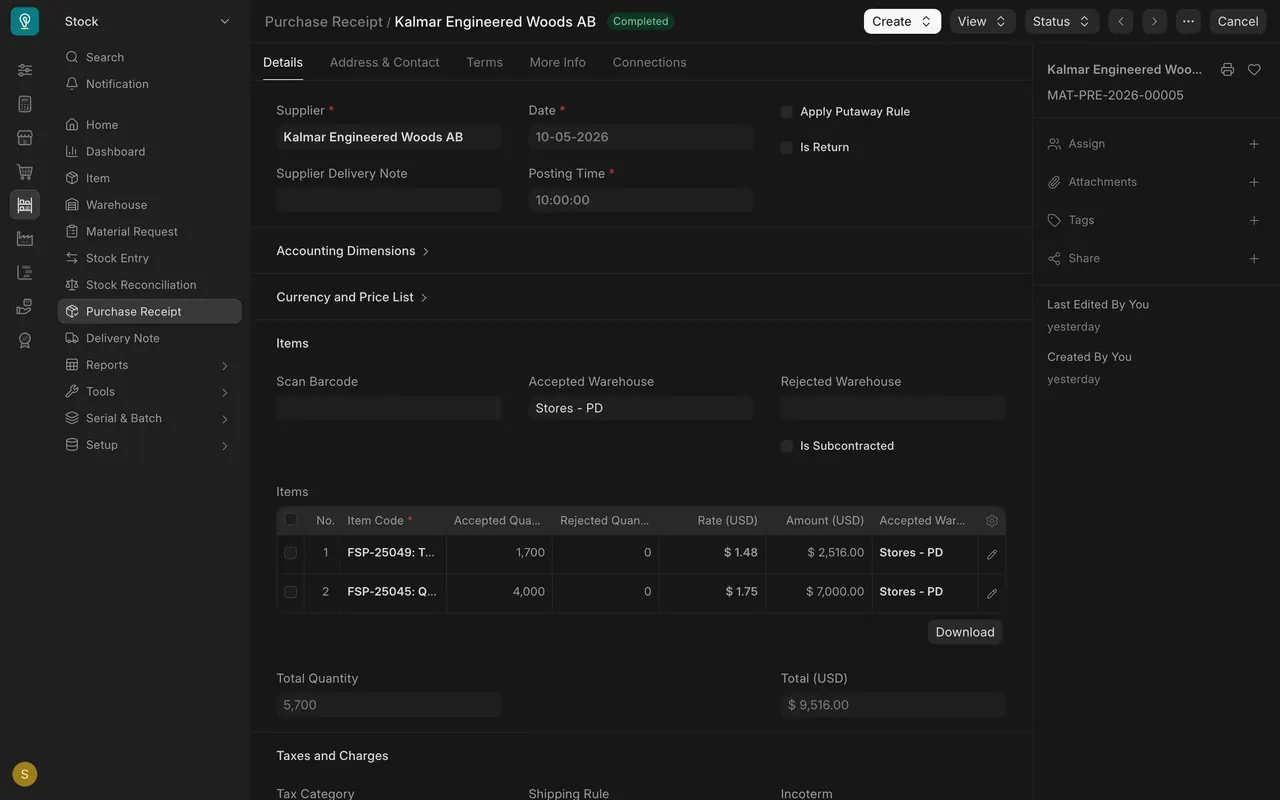
Submitting puts the stock into the warehouse and moves the order's received bar. In the example above, the order asked for 2,400 and 5,700 square feet and the receipt accepted 1,700 and 4,000, so the order still says To Receive and Bill.
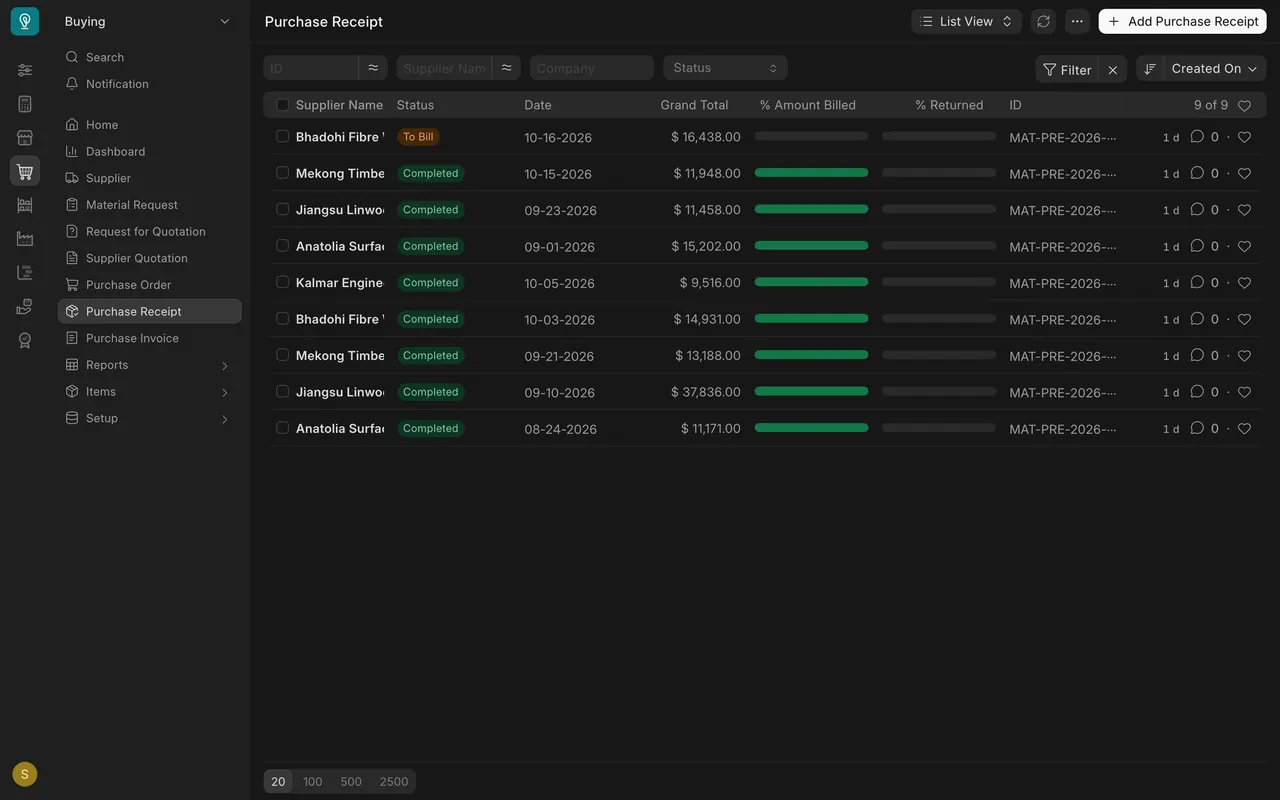
The Purchase Receipt list shows each receipt's status and % Amount Billed, so you can see at a glance which receipts are still To Bill.
Part shipments, closing and changes
- If a supplier ships in parts, the order stays open until the full quantity is received.
- If the rest will never come, ask someone with the Purchase Manager role to close the order, so the reports stop asking for it. Close is under the order's Status button.
- To change the quantity, rate or required by date on a submitted order, use Update Items at the top of the order. Its dialog lists the rows with their quantity, rate and required-by date.
- For any other change, cancel the order and amend it, but only if no receipt or invoice depends on it. Never cancel an order that already has a receipt. Ask a manager first.
How your site may be set up
The details below are the example site's settings. Your Parsimony site may be set up differently, so check with your administrator.
- Default receiving warehouse: in this example, Stores - PD. Do not receive incoming goods into a transit or finished goods warehouse unless the warehouse team tells you.
- Who can receive: in this example, the Stock User, Stock Manager and Purchase User roles can create and submit a Purchase Receipt. The Accounts User role can read it.
- Negative stock is not allowed, and stock is valued first in, first out.
- A submitted receipt cannot be edited. Cancel and amend if it is wrong.
- Stock corrections are not receipts. Counting errors are fixed by the warehouse with stock entries or, for managers, stock reconciliation. That is covered in the Stock and Warehouse course.
Common mistakes
- Receiving the ordered quantity instead of the counted quantity. The receipt must match what is on the floor, or stock and billing go wrong downstream.
- Reading To Receive and Bill as "nothing has arrived". Check the received bar. Part of the order may already be in the warehouse.
- Receiving into the wrong warehouse. Use your company's receiving warehouse unless told otherwise.
- Cancelling an order that already has a receipt. Ask a manager. Later documents must be dealt with first.
- Leaving a part-shipped order open forever. If the rest is not coming, ask someone with the Purchase Manager role to close it so reports stay honest.
- Receiving a delivery the warehouse already received. Check the Purchase Receipt list for that order first. A second receipt overstates stock.
Check yourself
3 quick questions.
1. Goods have arrived and been received in full, but no bill has been entered. What is the Purchase Order status?
2. The supplier shipped 1,700 square feet of a 2,400 square foot row. What goes in Accepted Quantity on the receipt?
3. An order shows To Receive and Bill, and its received bar is about two thirds full. What does that tell you?